
EQC: Q-Design Creating Linked Variables
Tip: Linked Variables can be used to populate multiple variables with a single dropdown selection.
1. Create a new linked variable.
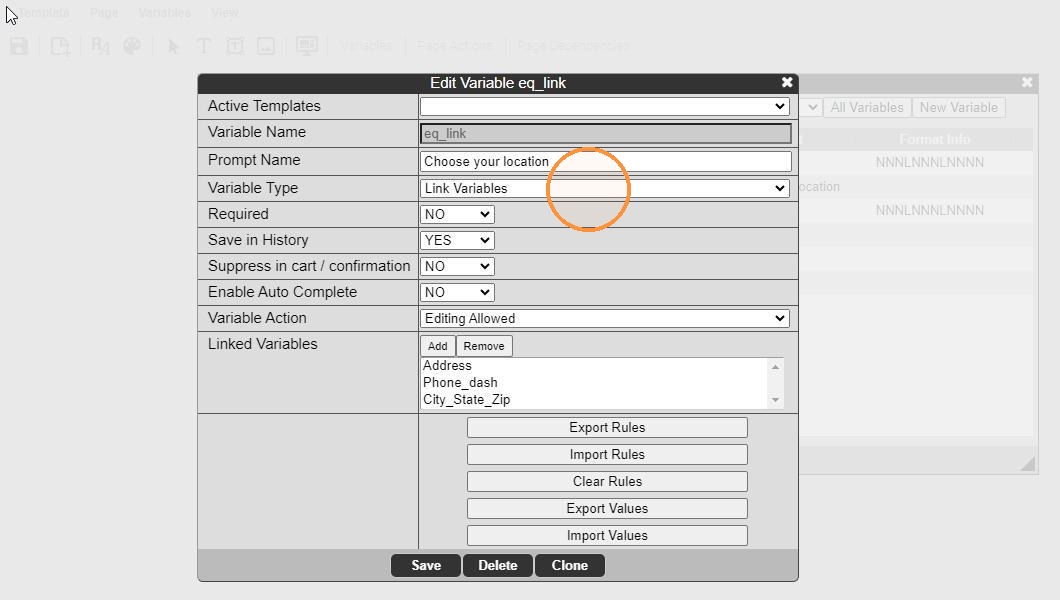
Variable Name is arbitrary and should describe the variable in a relevant name. No spaces or special characters allowed.
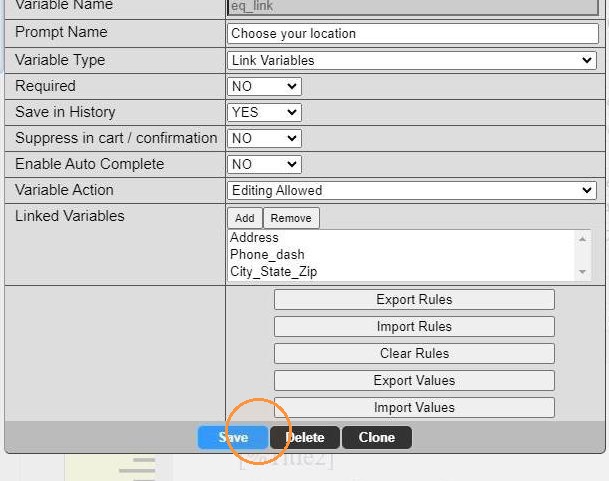
Variable Type should be Link Variables.
Required allows you to determine whether this dropdown will be a required selection when ordering.
Save in History determines whether this variable is saved as part of each history record.
Suppress in cart determines whether this variable displays during checkout/on the order confirmation.
Enable Auto Complete changes the dropdown into a input type field where the user must start typing to make a selection (not yet available on responsive).
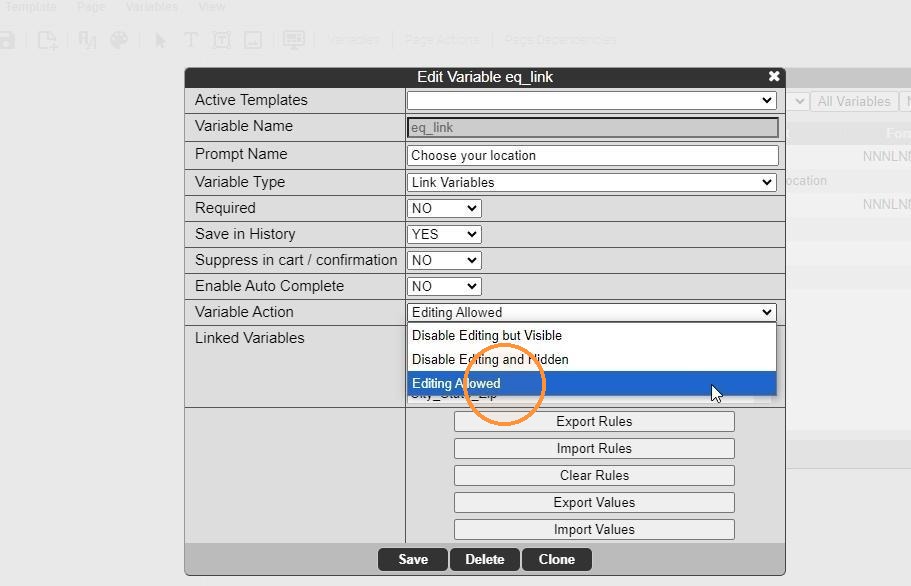
2. Variable Action allows the designer to choose whether the ordering user can edit the fields after they make a selection from the Linked Variable.
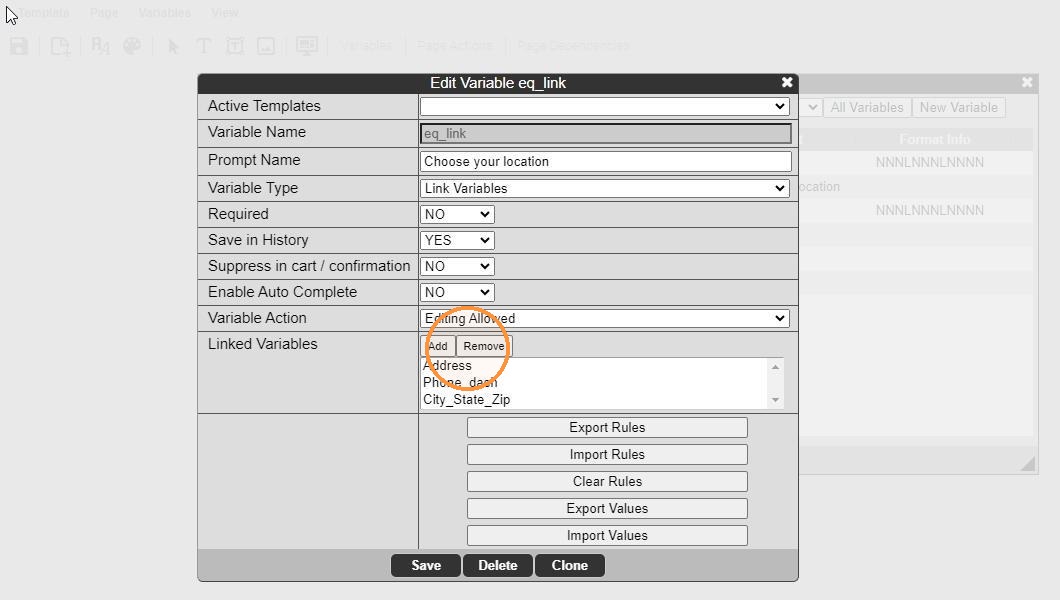
3. Click Add to select which variables should be controlled by the Linked Variable.
Note: these variables should already be added to the template.
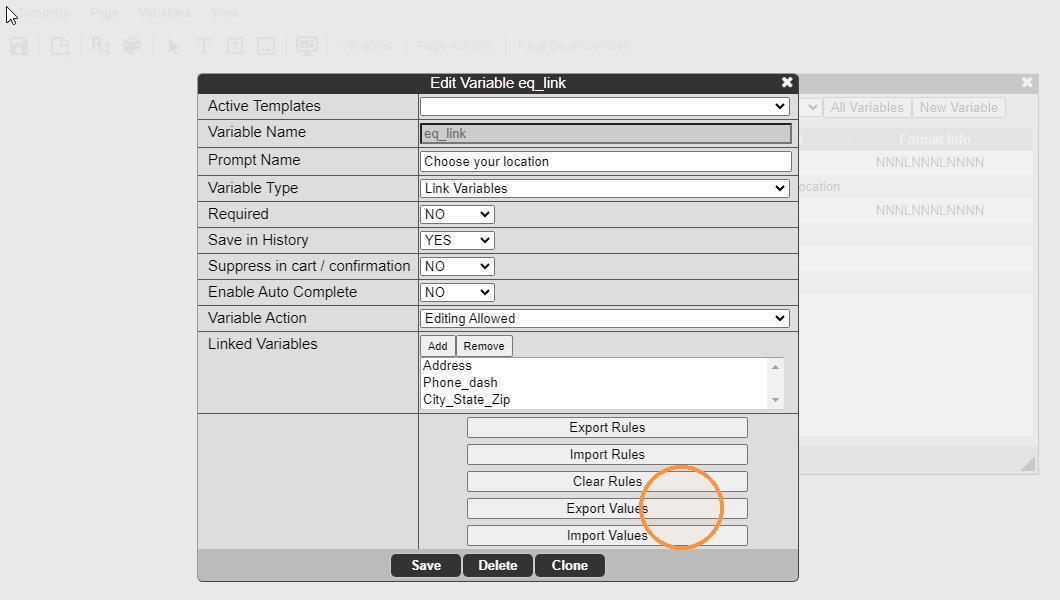
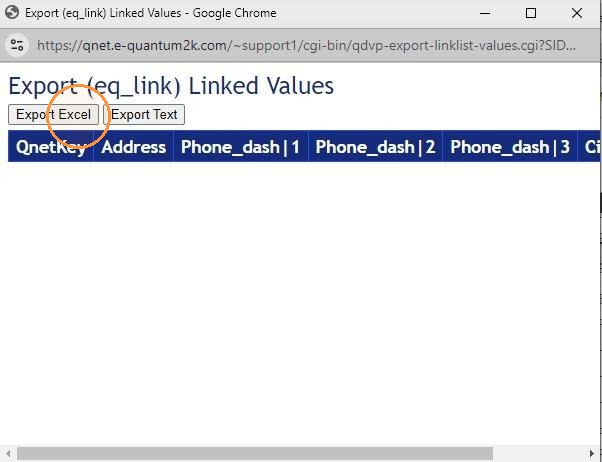
4. Edit the Linked Variable. Click Export Values.
5. Click Export Excel. (Note: You may Export Text and edit a text file directly. Excel just allows for easier editing.)
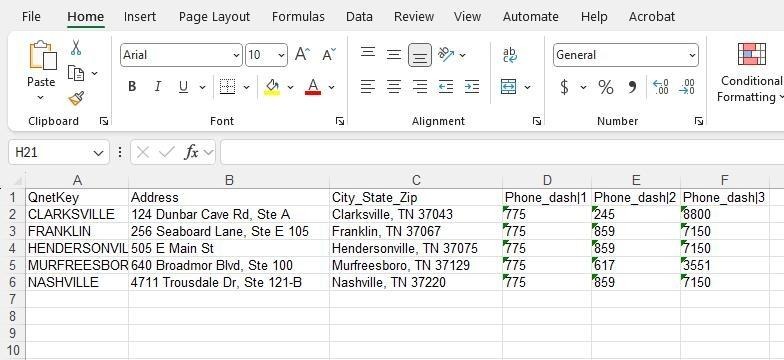
6. Open the saved file in Excel. Leave all column headings unchanged. Populate the data in each column; one record per row.
Note: QnetKey is an arbitrary label that determines what the user selects in the dropdown.
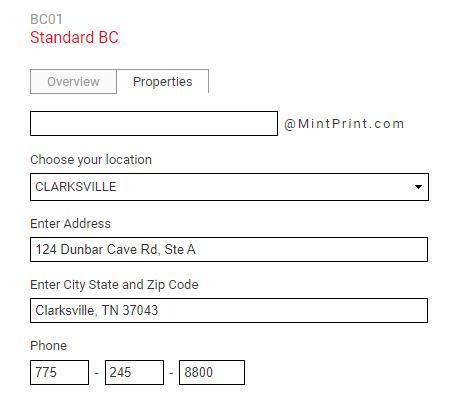
Note: Fields that include formatting are usually separated into multiple columns, such as the Phone in the example below.
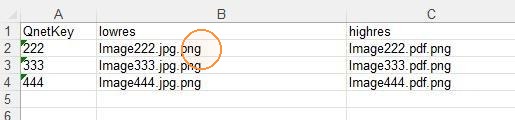
7. If an Image Selection is included in the linked variable, enter the file name plus an extra .png on the end. Please remember to remove all special characters and spaces in the file names before uploading your images.
8. Save the file as type Text (Tab delimited).
or
Highlight all of the data, copy, and paste into a .txt file.
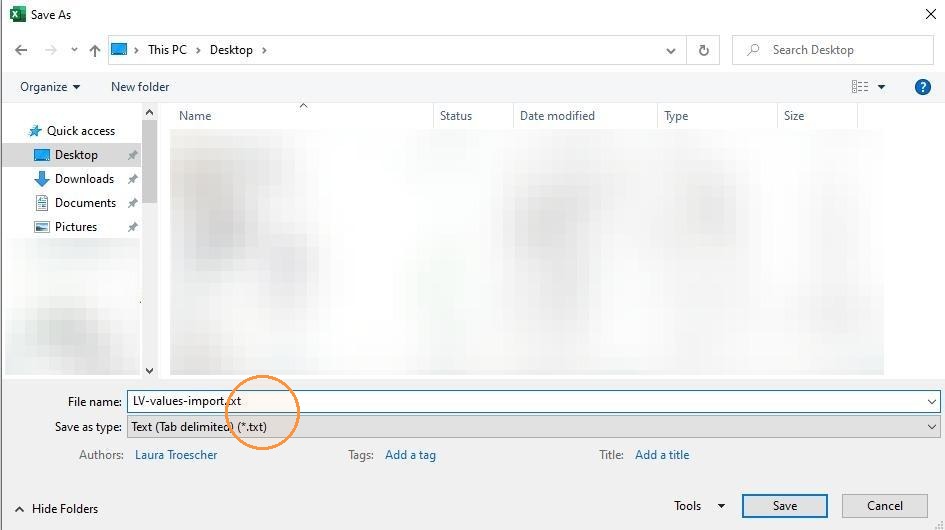
Tip: If you save the txt file from Excel, be sure to open the file in a plain text editor (like Notepad) to remove any double quotes that Excel added during the save process.
9. Edit the Linked Variable. Click Import Values.
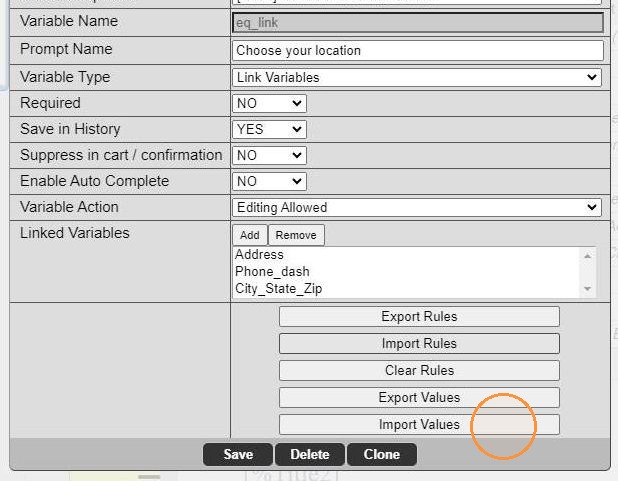
10. Click Choose File
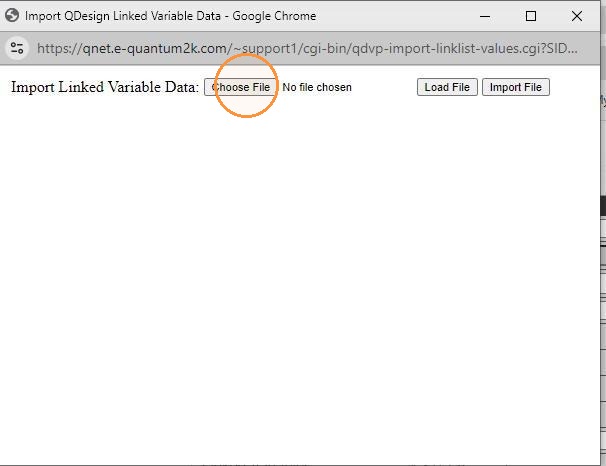
11. Locate the saved .txt file and open it.
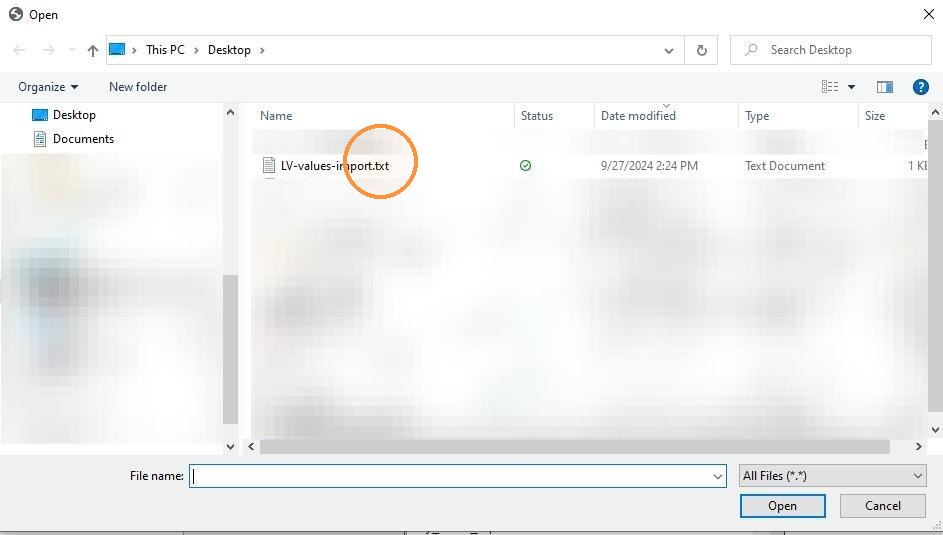
12. Click Load File
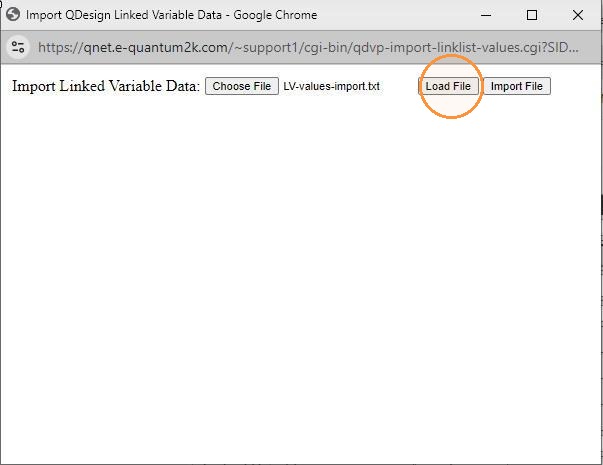
13. Preview the data to ensure everything looks correct. Click Import File.
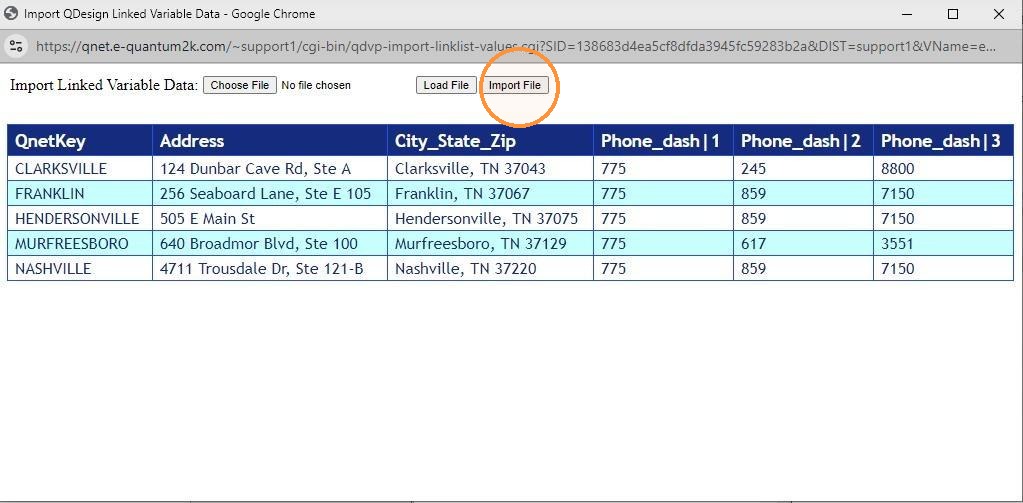
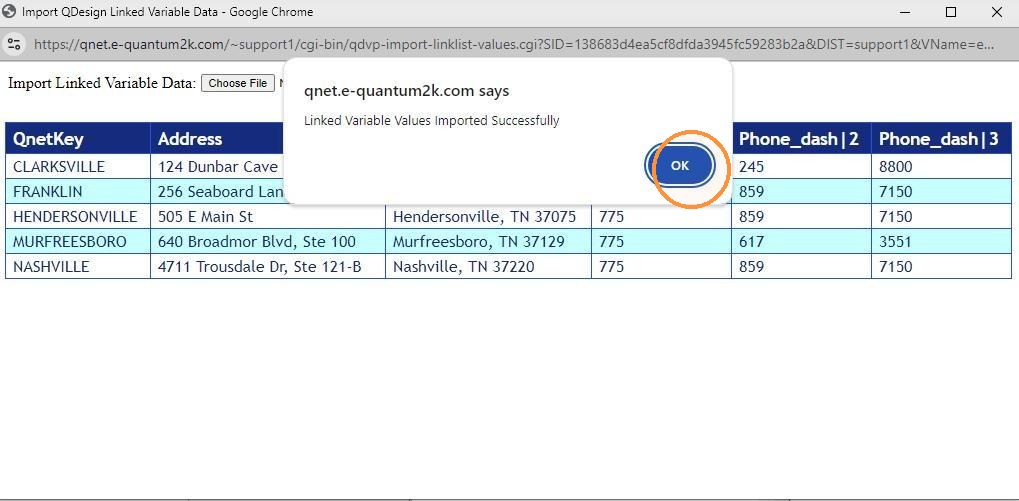
14. Click OK to confirm.
15. Click Save.
16. Below is what a user logged in will see.
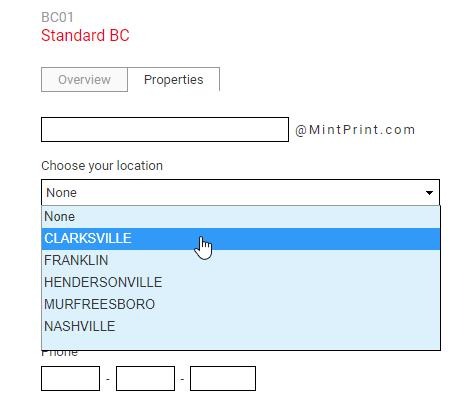
17.
Tip: See the "Q-Design: Linked Variable Rules" scribe for information on how to use rules.