EQC: Q-Design Font Profiles
In this tutorial users will learn how to create, change, and use font profiles in Q-Design templates.
1. In the Template menu, select "Font Profiles"
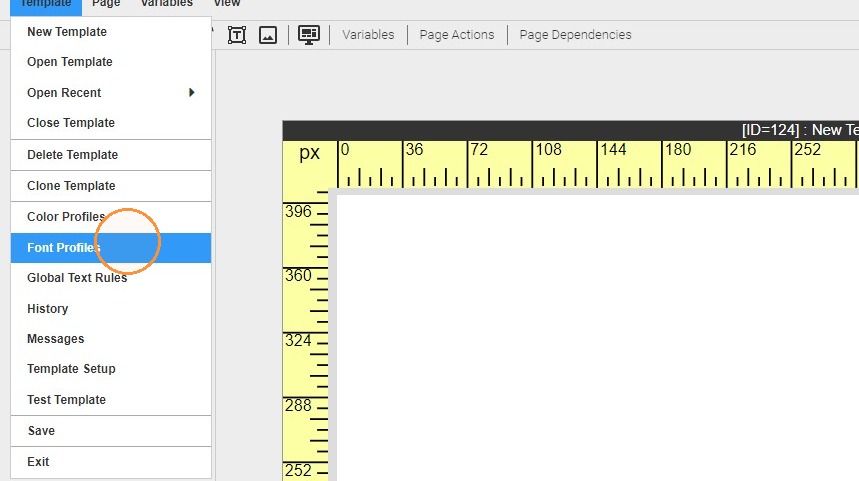
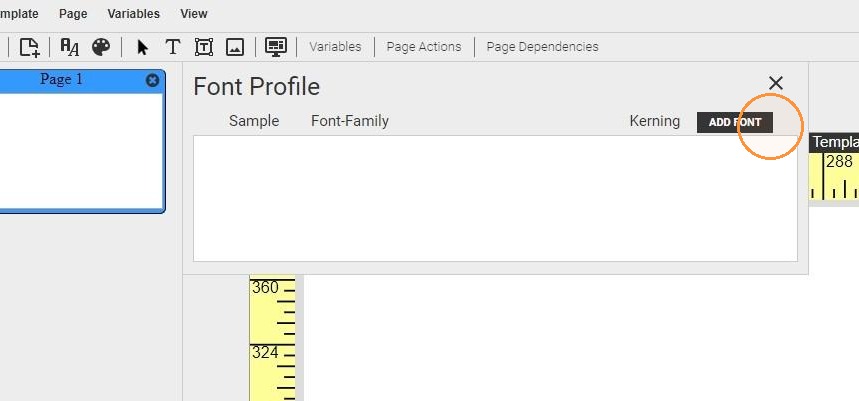
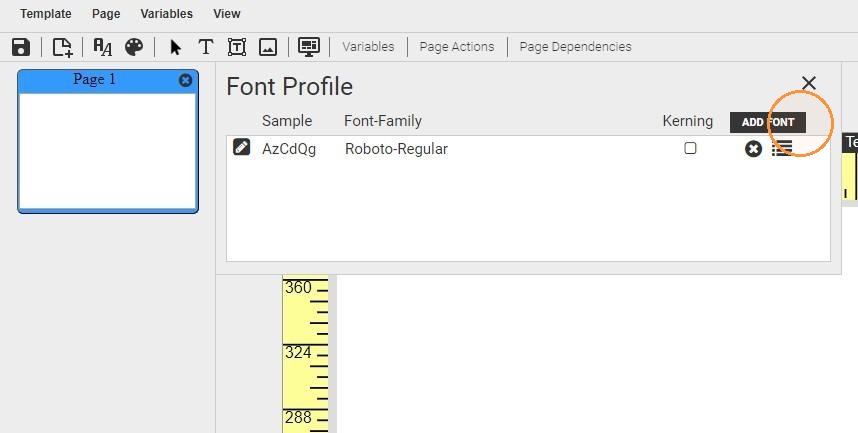
2. This displays the list of font profiles configured on the template. To create a new font profile, click "ADD FONT"
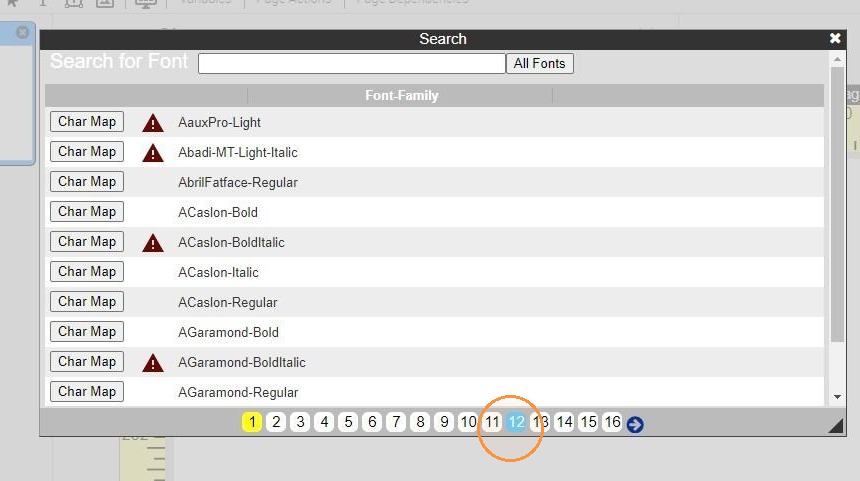
3. Select a font from your library to use for this font profile.
Tip: Additional fonts may be added to your Q-Design library as needed. Some have associated licensing fees. Please create a support ticket to inquire.
4. A red triangle next to a font indicates that font does not contain all web font components. This only affects how the font displays in the editor. The font may still be selected and used on the template, and the Preview and PDF artwork will be correct.
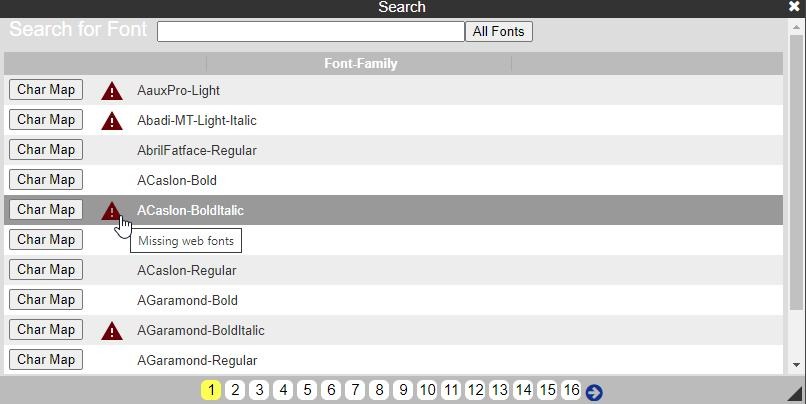
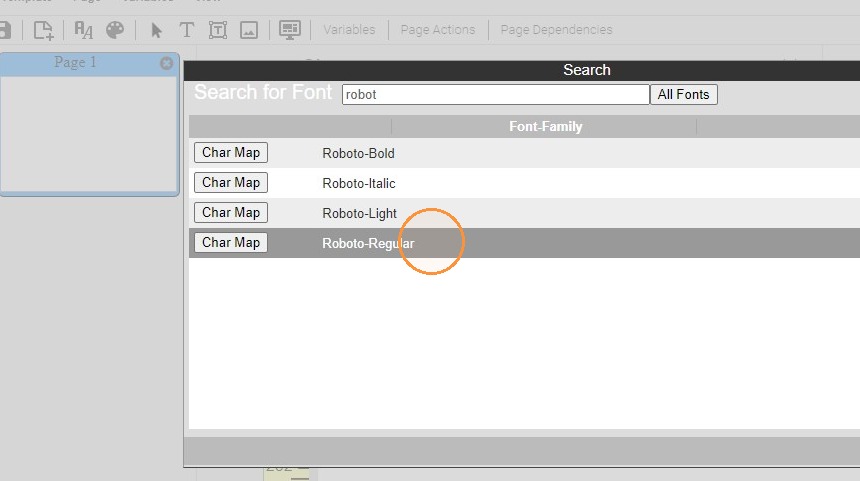
5. Use the Search box to search all fonts in your library, or you may navigate through the pages of fonts with the page navigation at the bottom of the window.
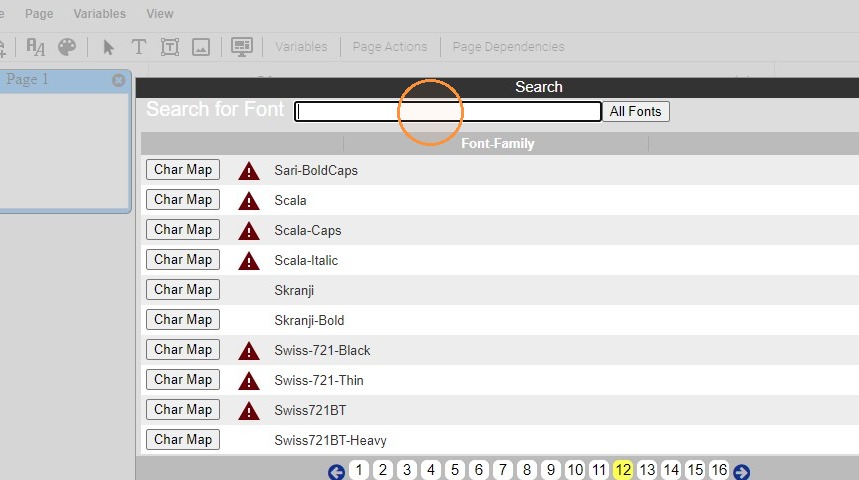
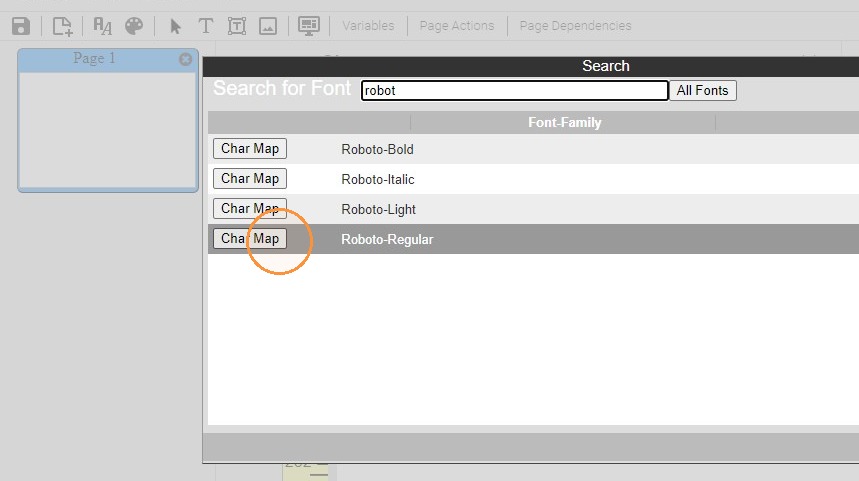
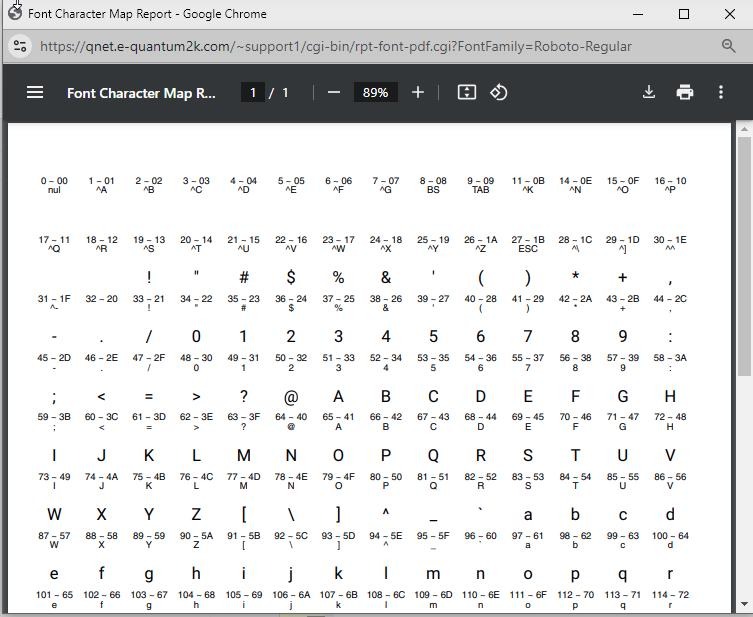
6. Click on the Char Map button to view the character map for any font.
7. Character Map
8. Click on the font name to select it.
9. Continue to add new font profiles by selecting "ADD FONT"
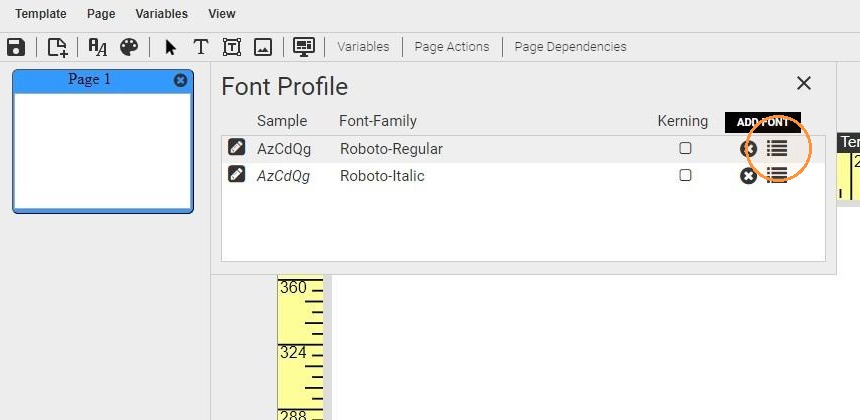
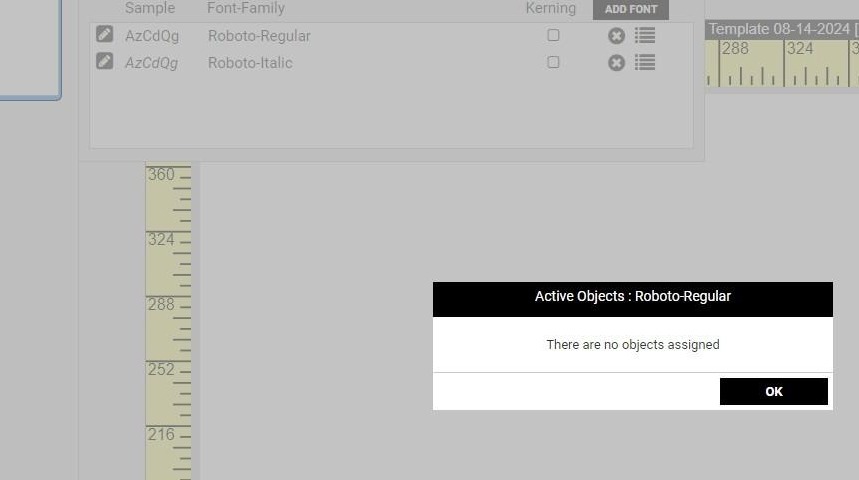
10. Click the menu icon to see where each font profile is being used on the current template.
11.
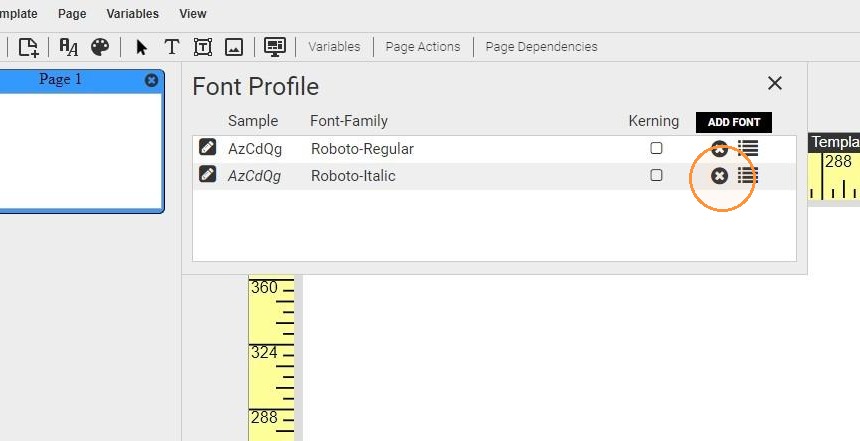
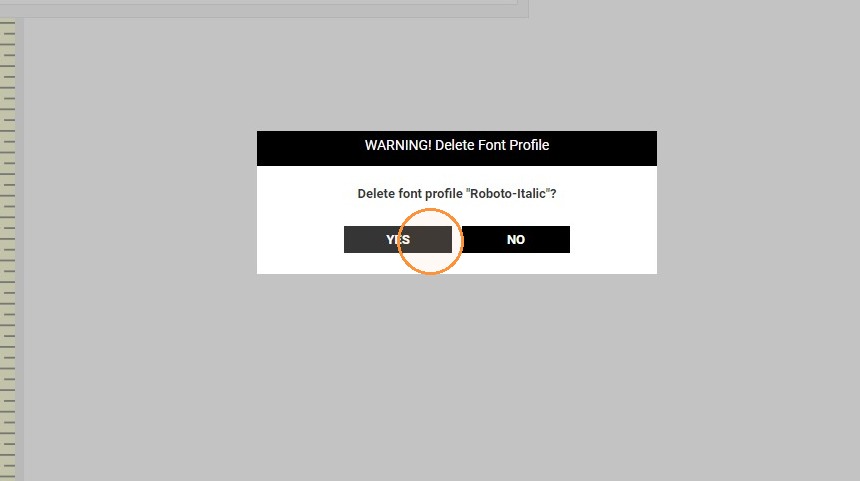
12. Remove a font profile from the template by clicking the X button next to the profile.
13.
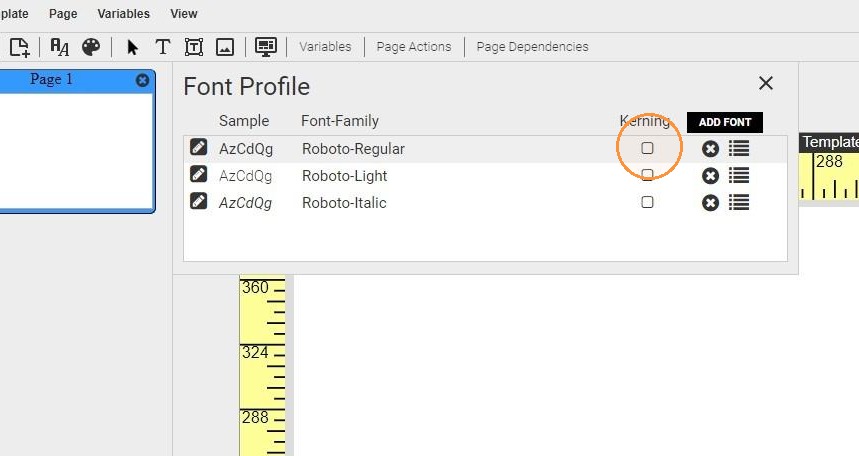
14. Select the Kerning checkbox to enable the kerning pairs for any font. These are built into the font file when installed and can not be adjusted manually.
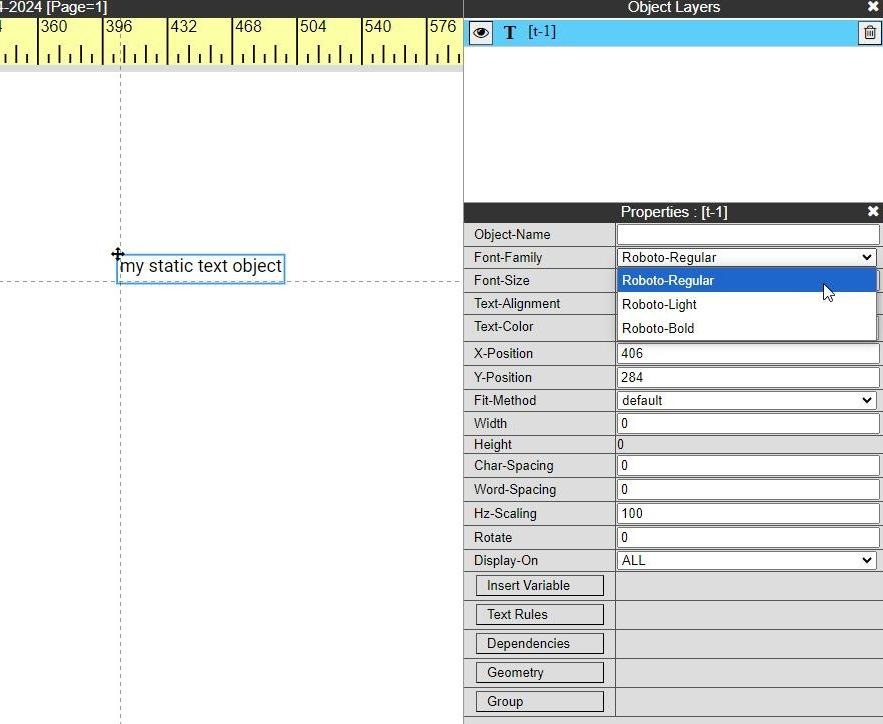
15. To apply a font profile, select a text object.
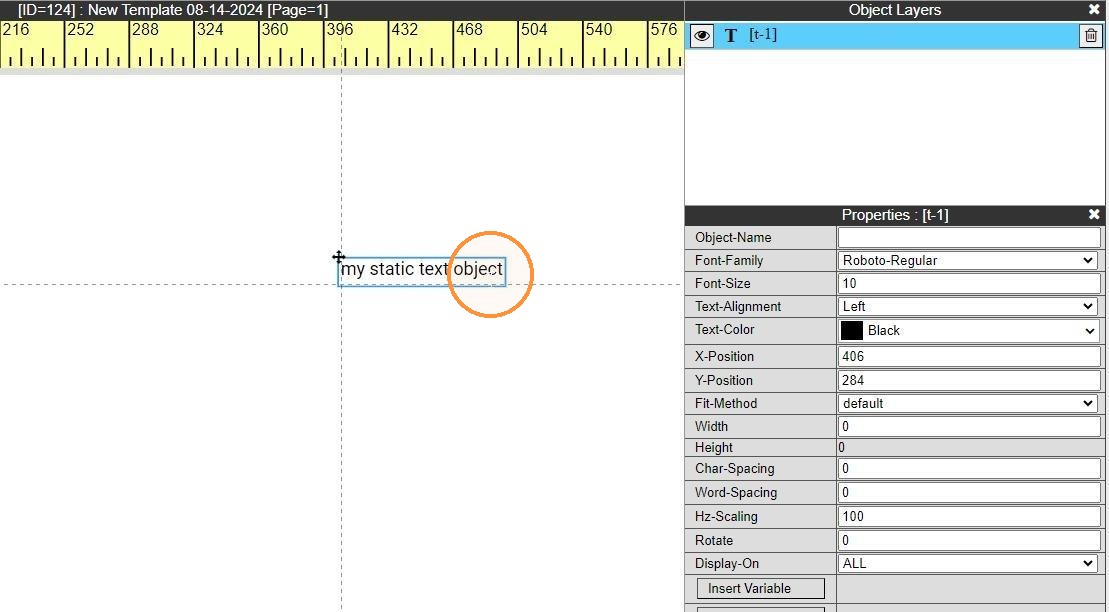
16. In the object's Properties panel, use the Font-Family property to apply the correct font profile to the object.
17.
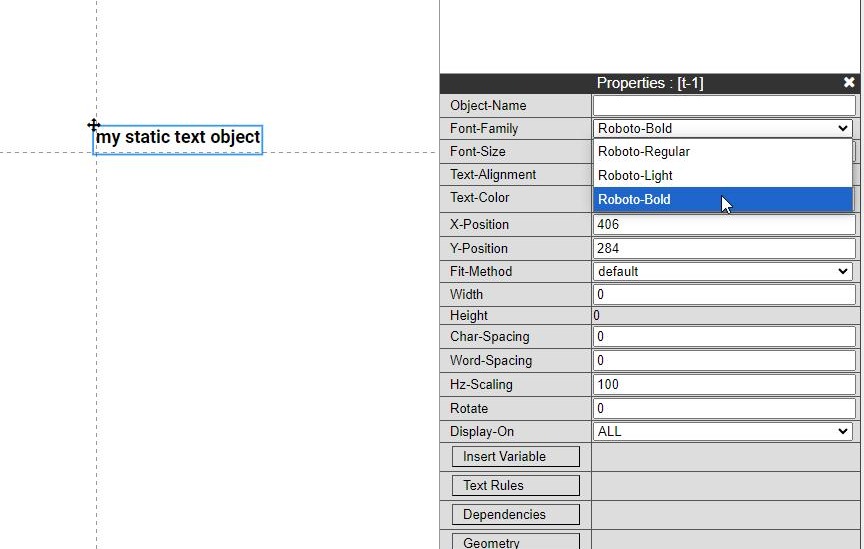
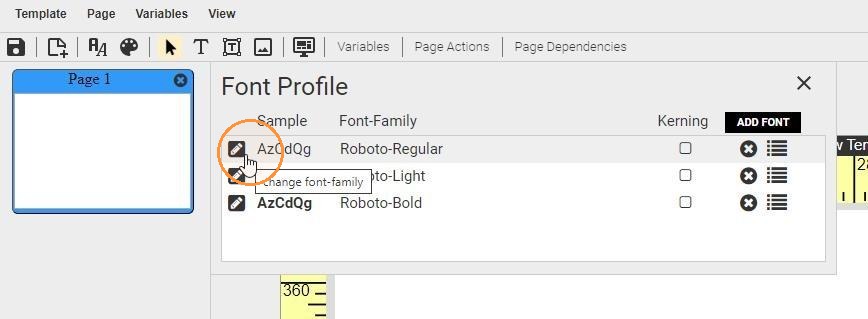
18. A font profile can also be replaced. This is useful if a font profile is already assigned to many objects, and all of them need to updated.
To replace the profile, open Font Profiles and click on the pencil icon next to any profile.
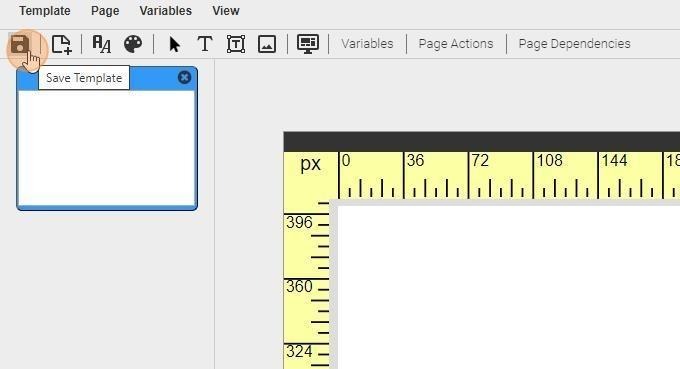
19. Always be sure to Save the template to commit any changes to the database.