EQC: Q-Design Color Profiles
In this tutorial users will learn how to create, change, and use color profiles in Q-Design templates.
1. In The Template menu, select "Color Profiles"
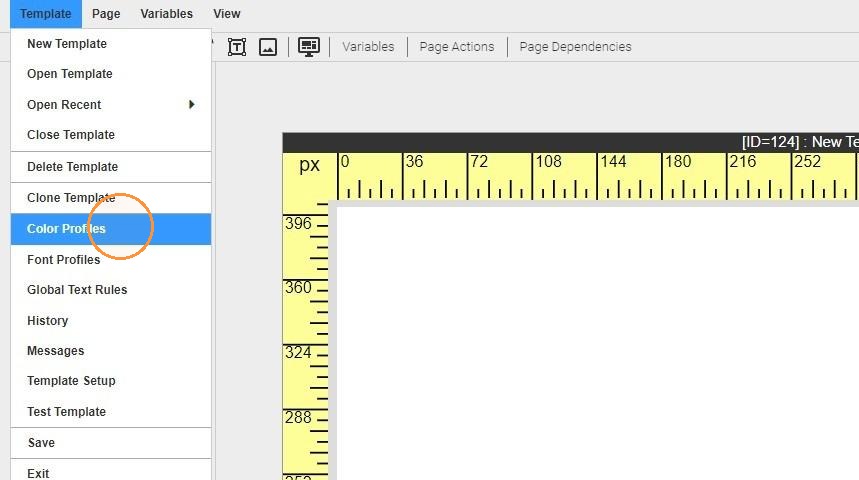
2. This displays the list of color profiles configured on the template. To create a new color profile, click "ADD COLOR"
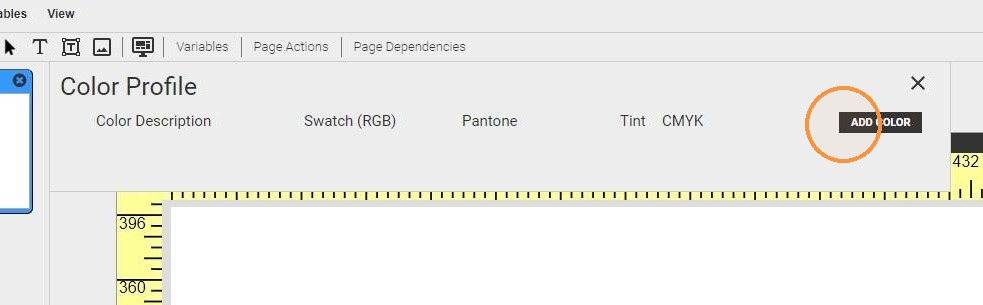
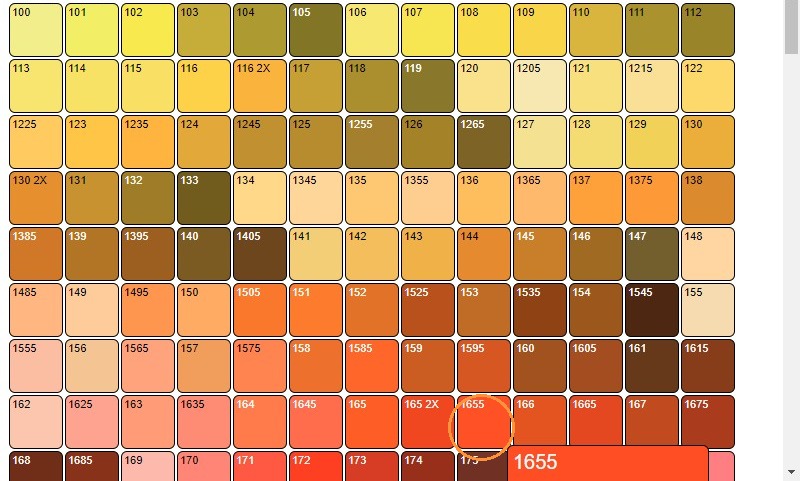
3. Each color profile can be configured by entering all relevant information. If using a Pantone color, you can click on the small square color swatch to load a pre-defined library of Pantone colors.
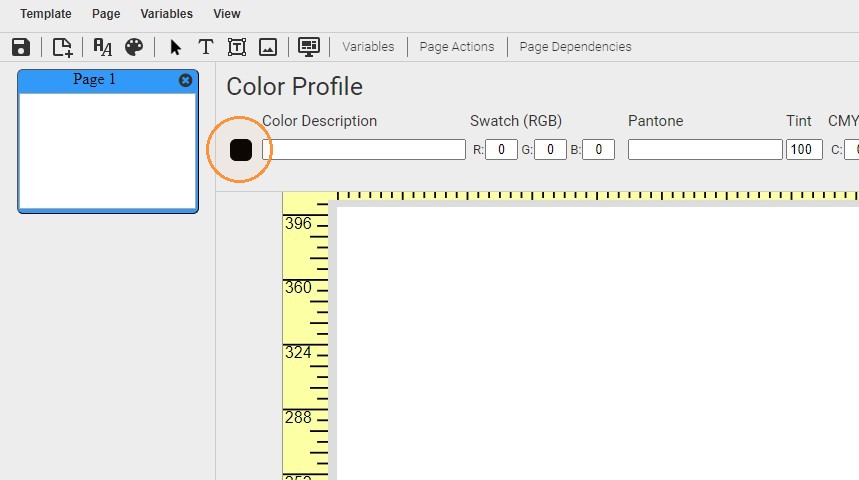
4. Select any color in the popup Pantone color library.
5. Complete the Pantone profile by adding the coating letter.
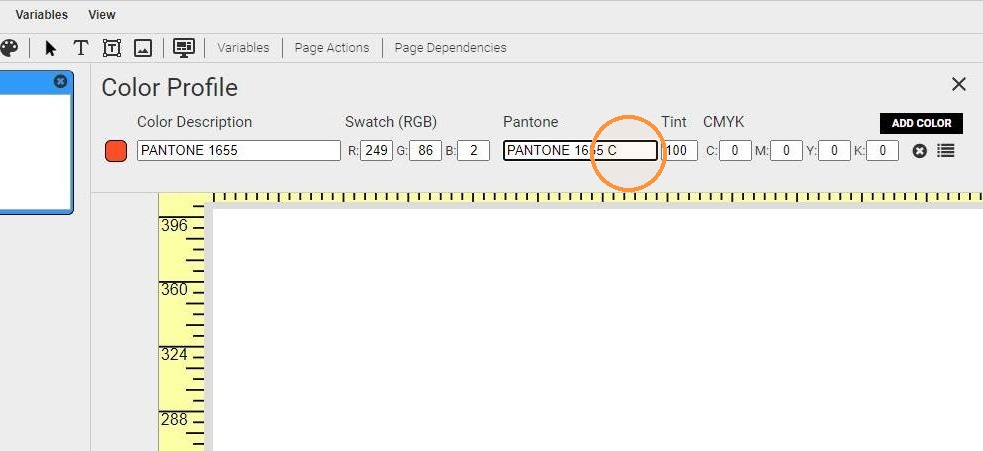
Tip: The Pantone field must be formatted exactly as shown: PANTONE (in all caps) followed by the correct labe/number and coating letter.
Tip: You may add Pantone colors that are not included in the pre-defined swatch library by manually inputting the Color Description, Pantone, Tint, and RGB and CMYK values.
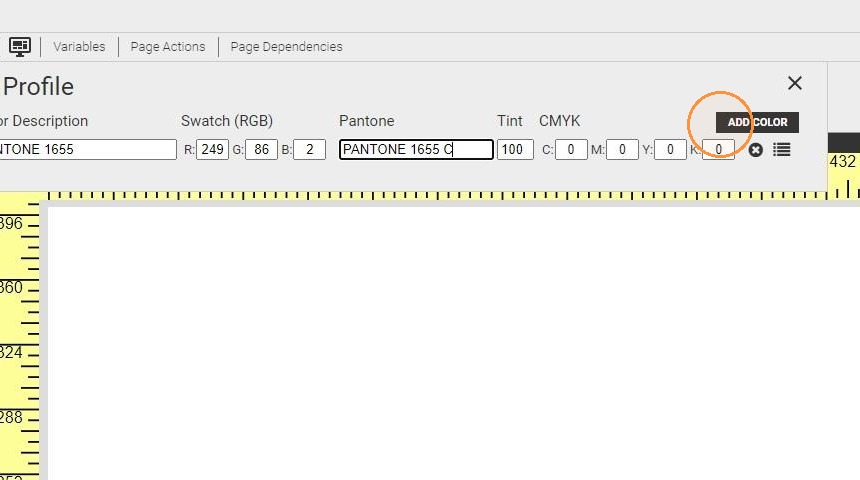
6. Continue to add new color profiles by selecting "ADD COLOR"
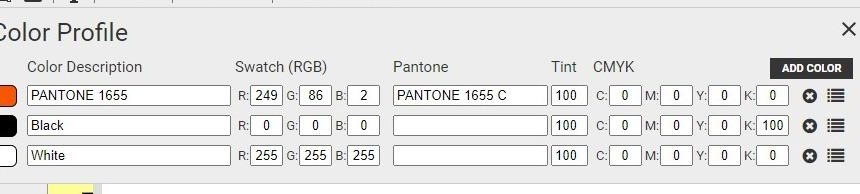
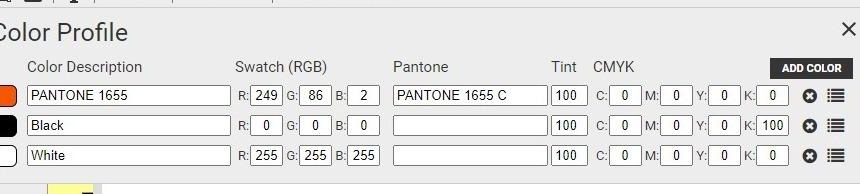
7. To add Black, or any CMYK/process color, enter the Color Description, RGB values, Tint, and CMYK values.

Tip: The Color Description field is an arbitrary name that is referenced in the template designer.
Tip: The RGB values are not strictly necessary for Pantone or CMYK color profiles, but they will determine the color of the small square thumbnail next to each color profile. This is mainly for the designer's convenience.
8. White is often configured with the values as shown below.
9. Click the menu icon to see where each color profile is being used on the current template.
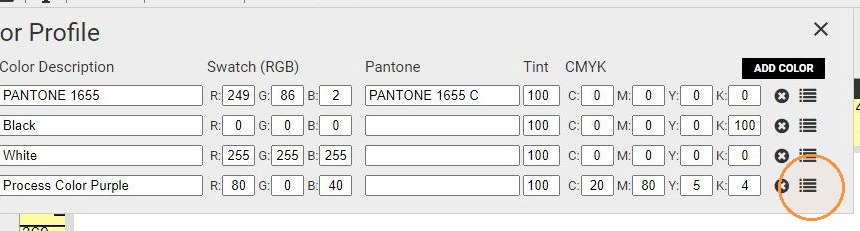
10.
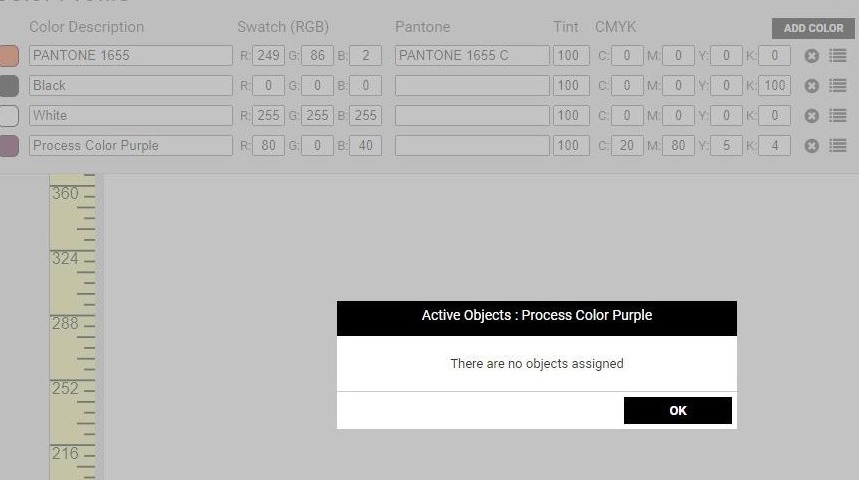
11. Remove a color profile from the template by clicking the X button next to the profile.
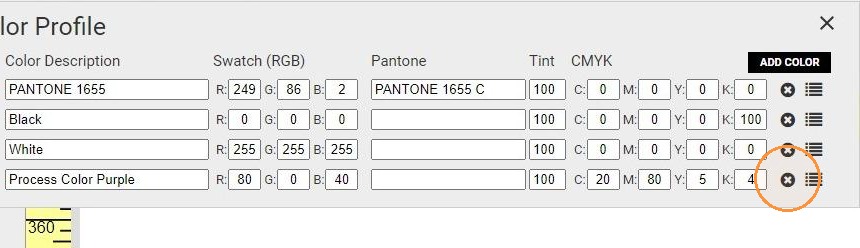
12.
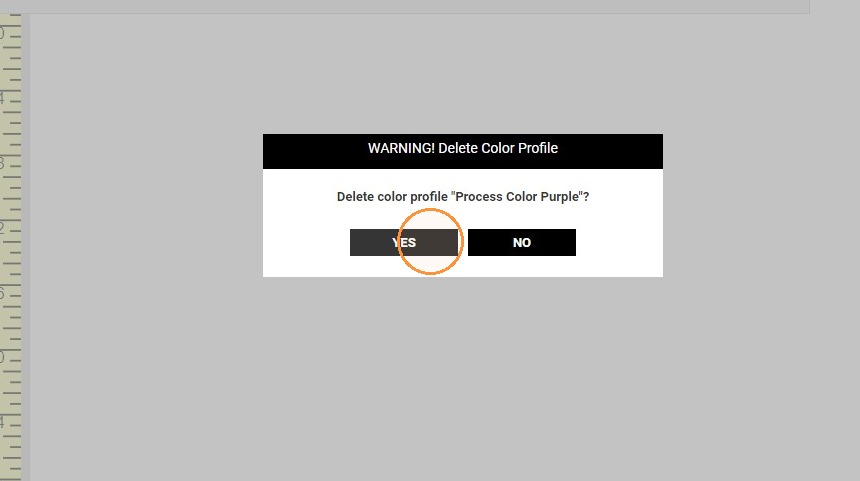
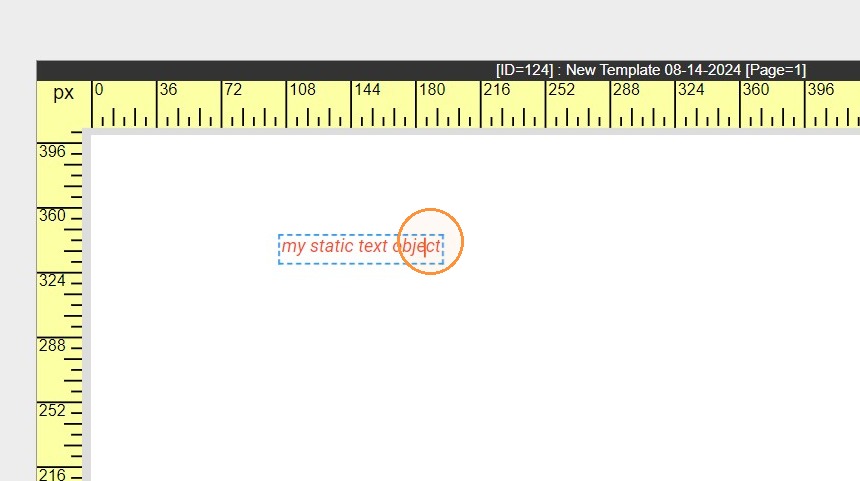
13. To apply a color profile, select a text object.
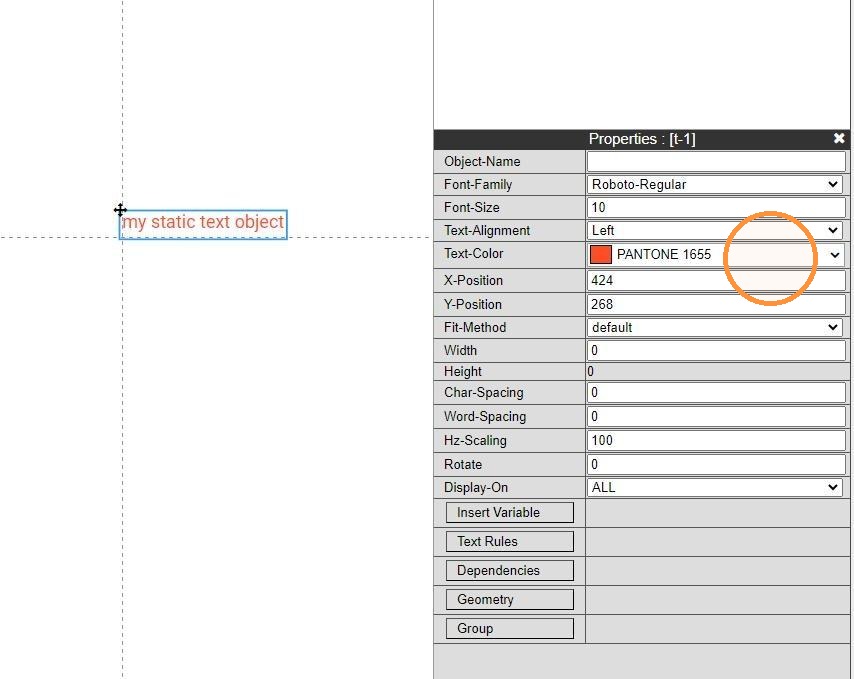
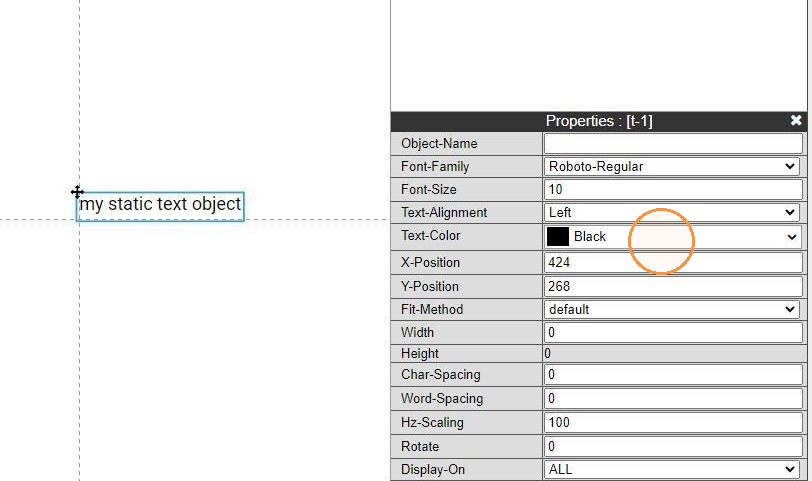
14. In the object's Properties panel, use the Text-Color property to apply the correct color profile to the object.
15.
16. A color profile can also be replaced. This is useful if a color profile is already assigned to many objects, and all of them need to updated.
To replace the profile, simply open Color Profiles and overwrite the fields for any profile.
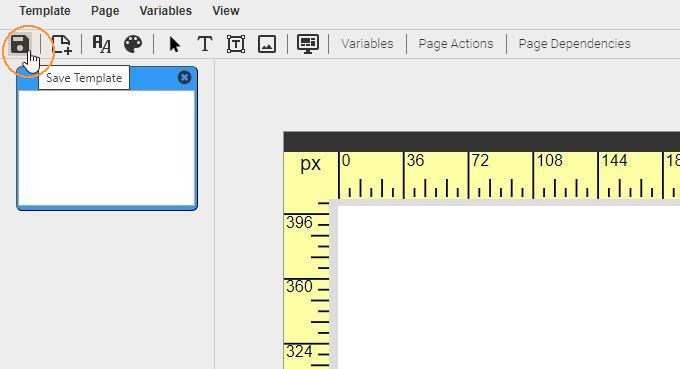
17. Always be sure to Save the template to commit any changes to the database.