
EQD: Smart Size Remote Desktop Window
This is a brief tutorial on how to use smart sizing for the EQD remote desktop.
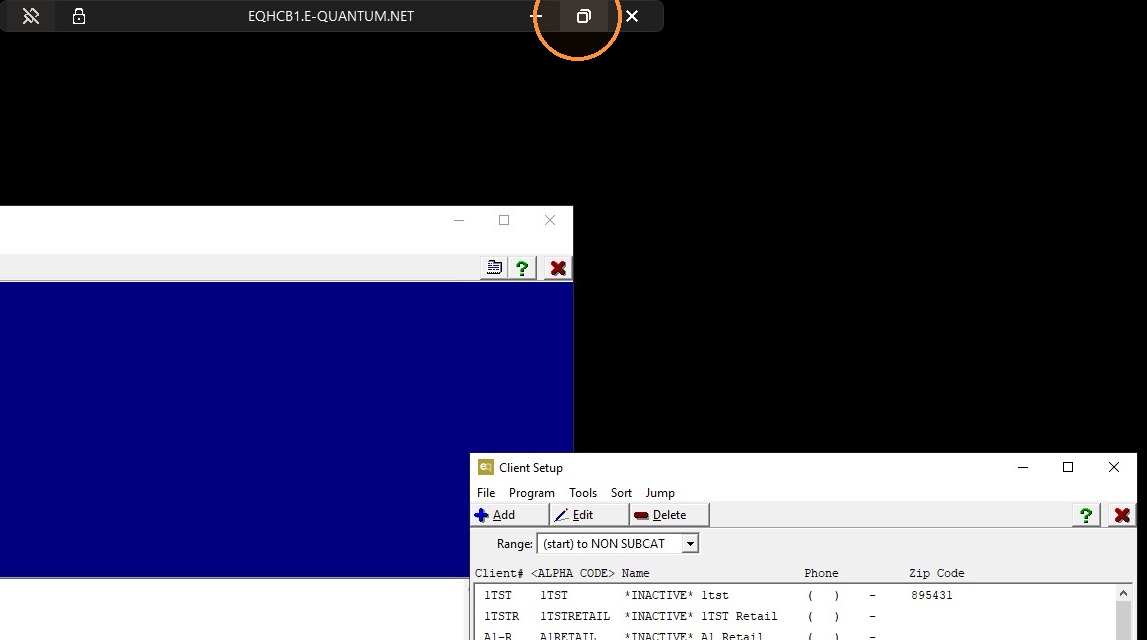
1. If you are in full screen mode click the restore down icon (the one that looks like two boxes) to make the screen smaller.
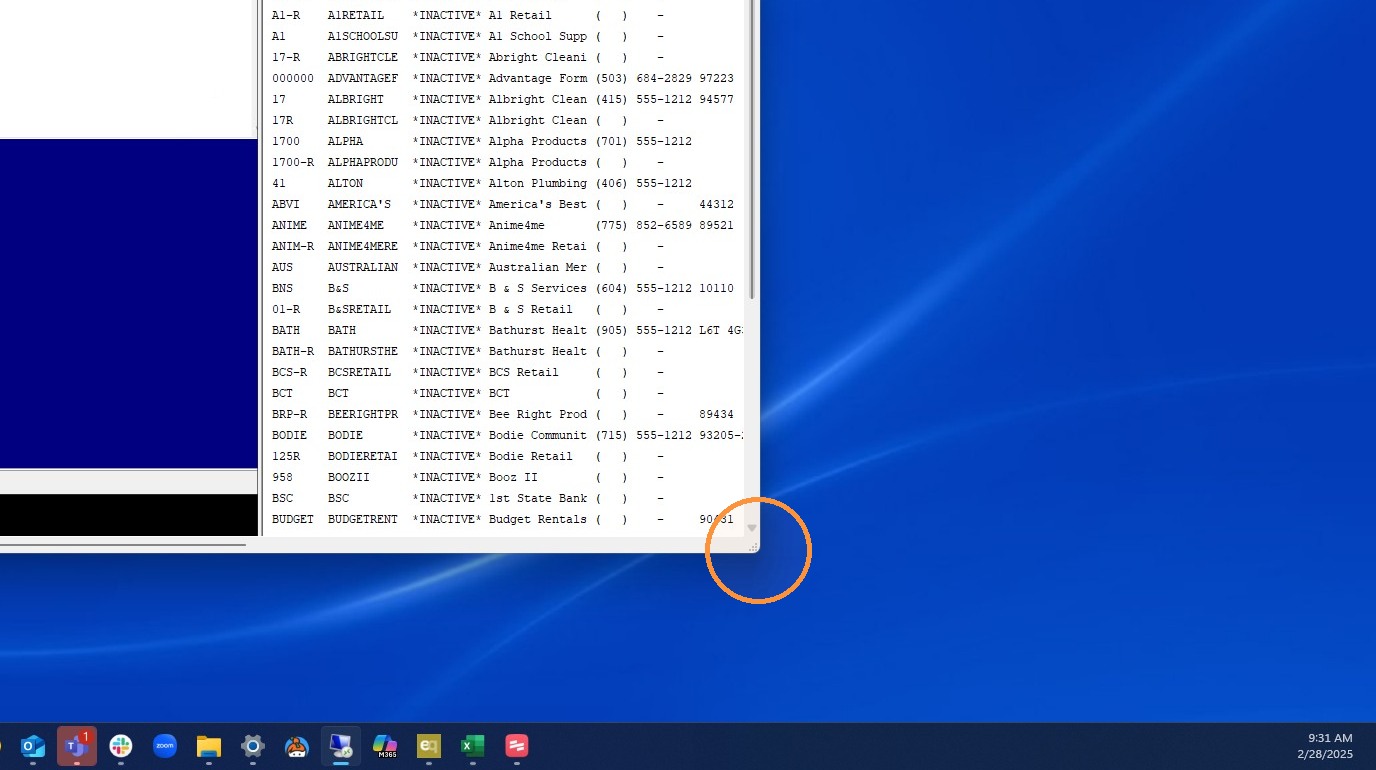
2. Adjust the screen size to your preference by going to the corner of the window, holding the left button on the mouse and dragging outward.
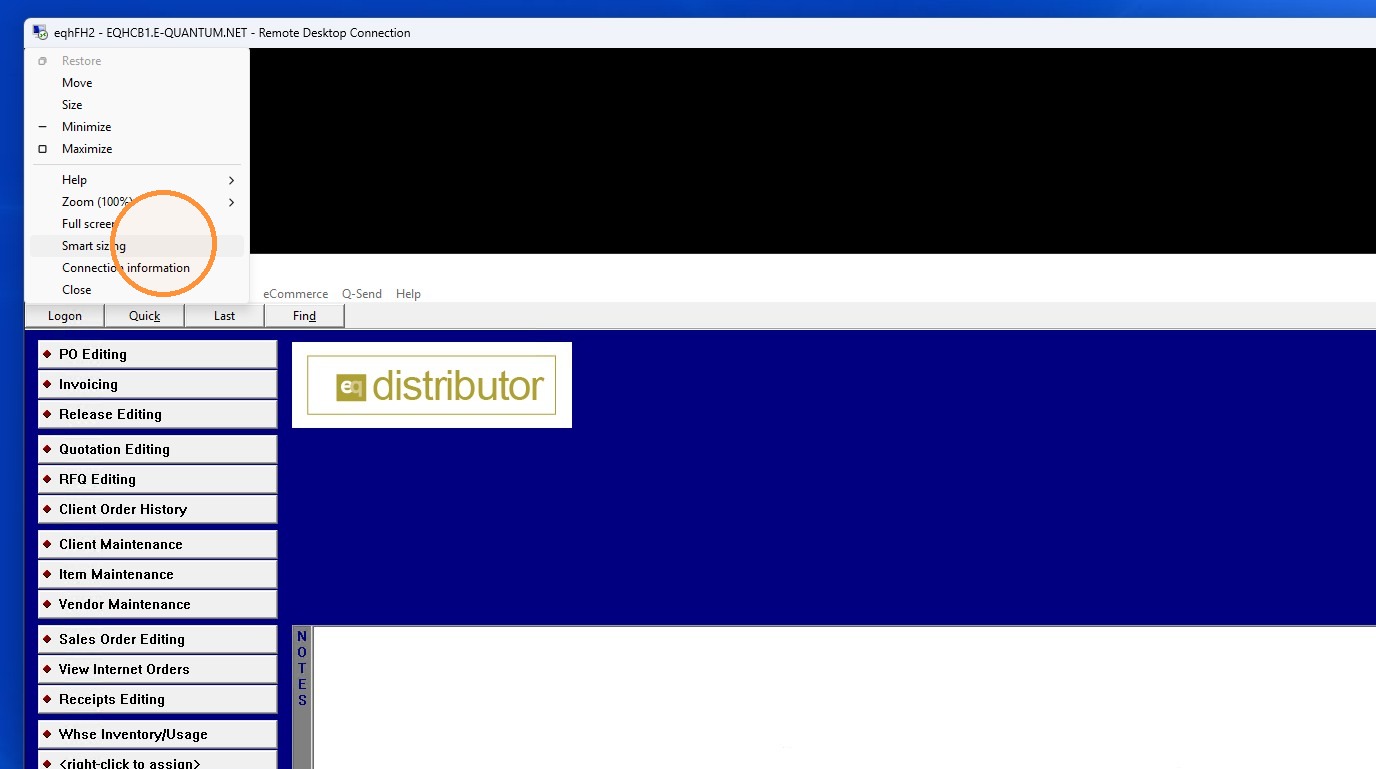
3. Once the screen is adjusted to your liking, left-click the computer icon in the top left corner of the remote desktop screen and choose smart sizing. This will fit the contents of the window to the size that you've chosen.
Tip: If you have any further questions contact DemandBridge support