
EQD: Create a Shortcut to a OneDrive folder in the EQD Remote Desktop.
Here are steps on how to create a shortcut inside the EQD remote desktop to the the OneDrive folder that is located on your local computer.
1. Inside the EQD remote desktop open the file browser (the yellow folder icon).

2. Navigate to \tsclient\C\Users\*user name folder*\OneDrive
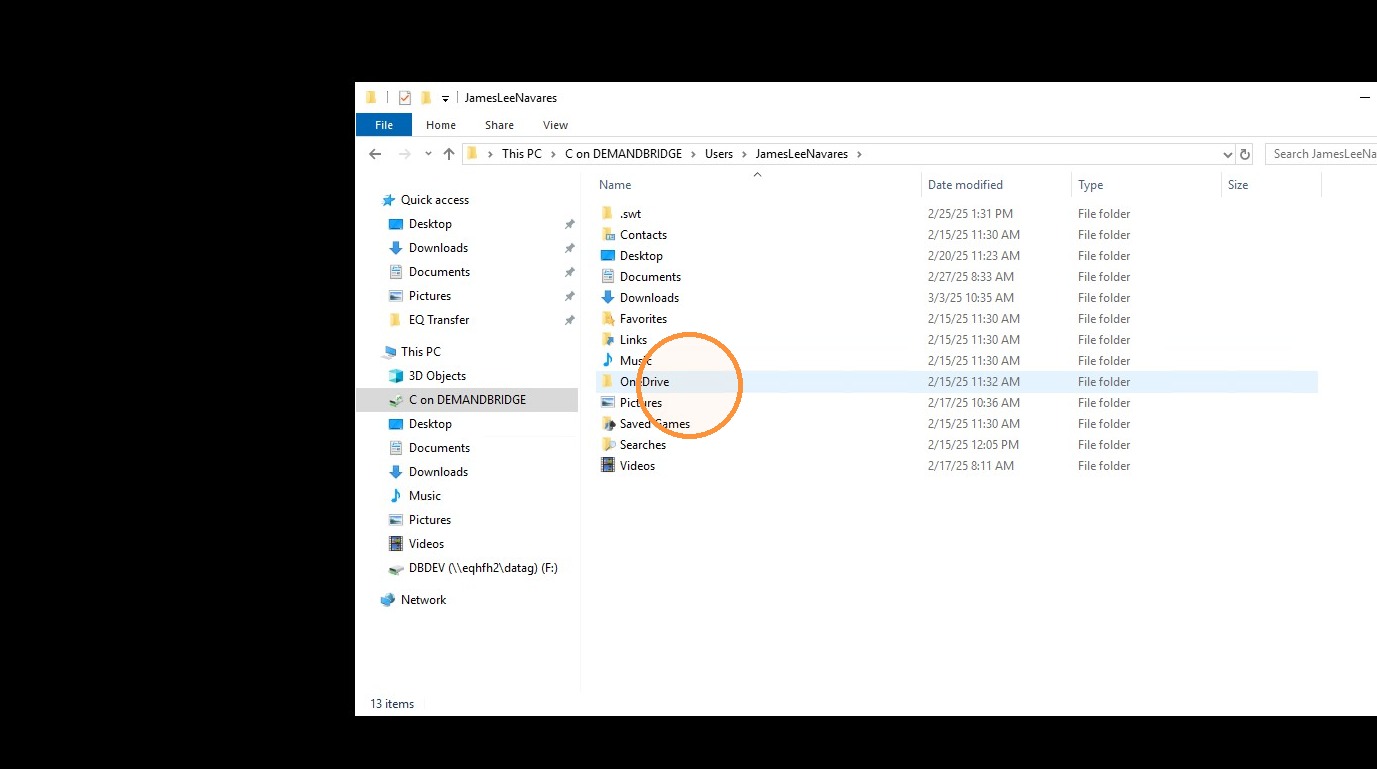
3. Right click on the one drive folder and choose Pin to quick access".
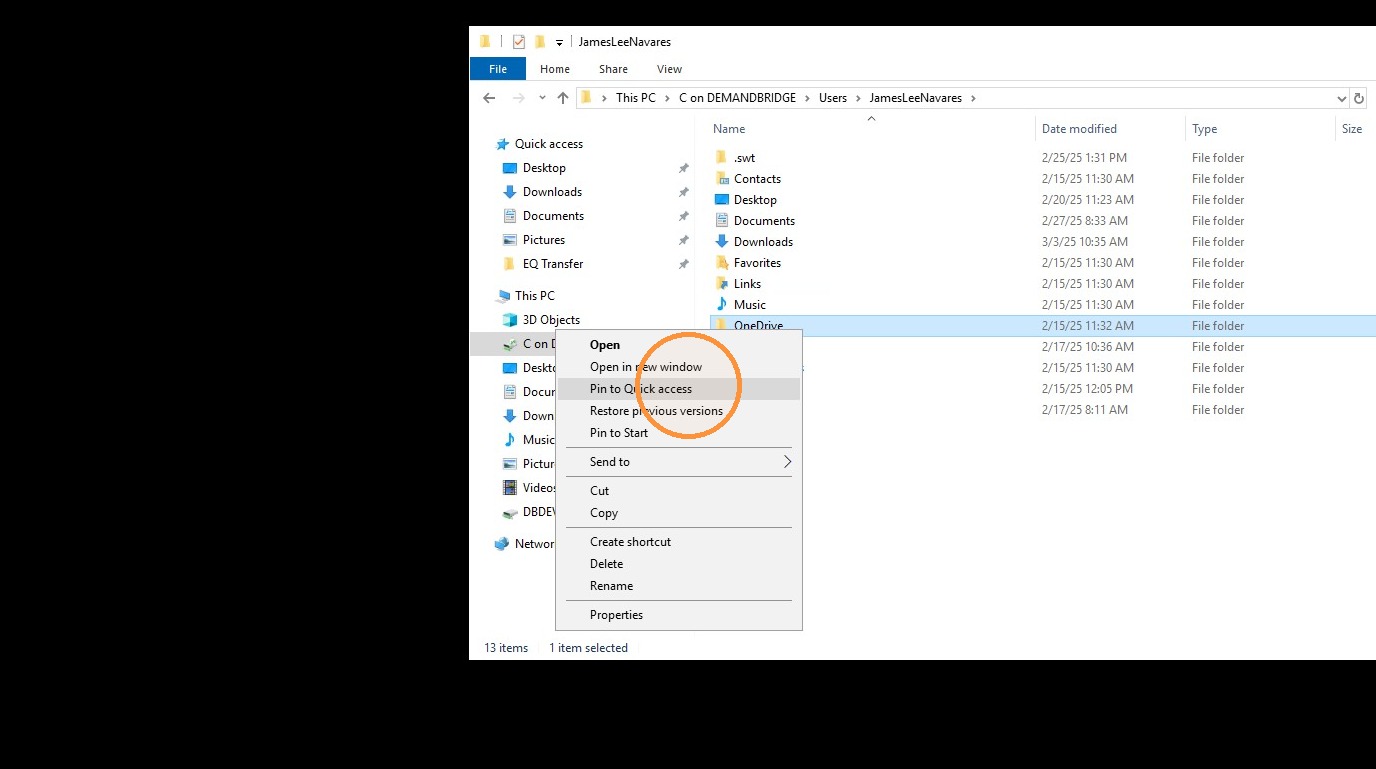
4. This will create a shortcut to the OneDrive folder in the left hand column under Quick access
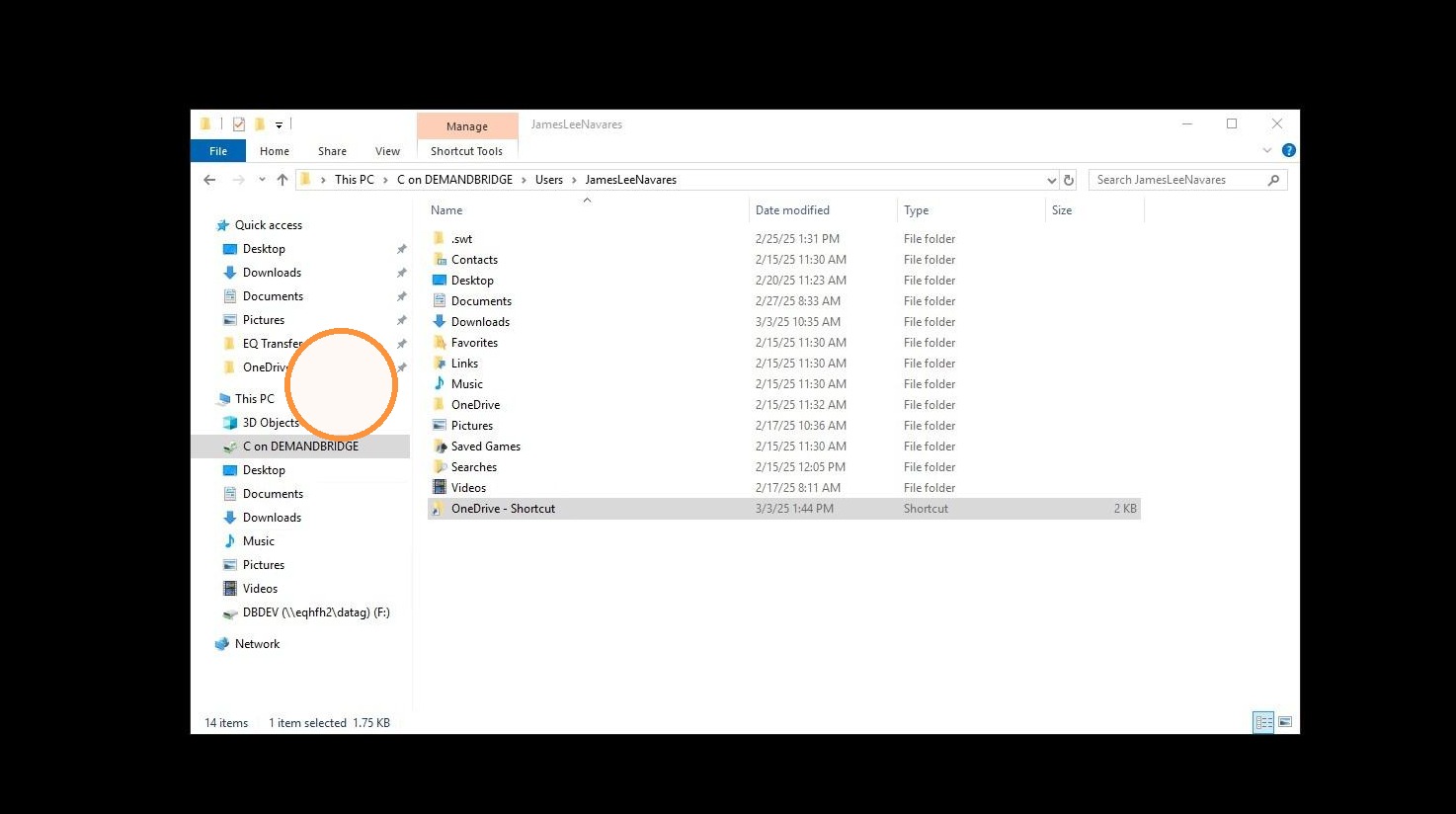
5. You can also right click and create a shortcut.
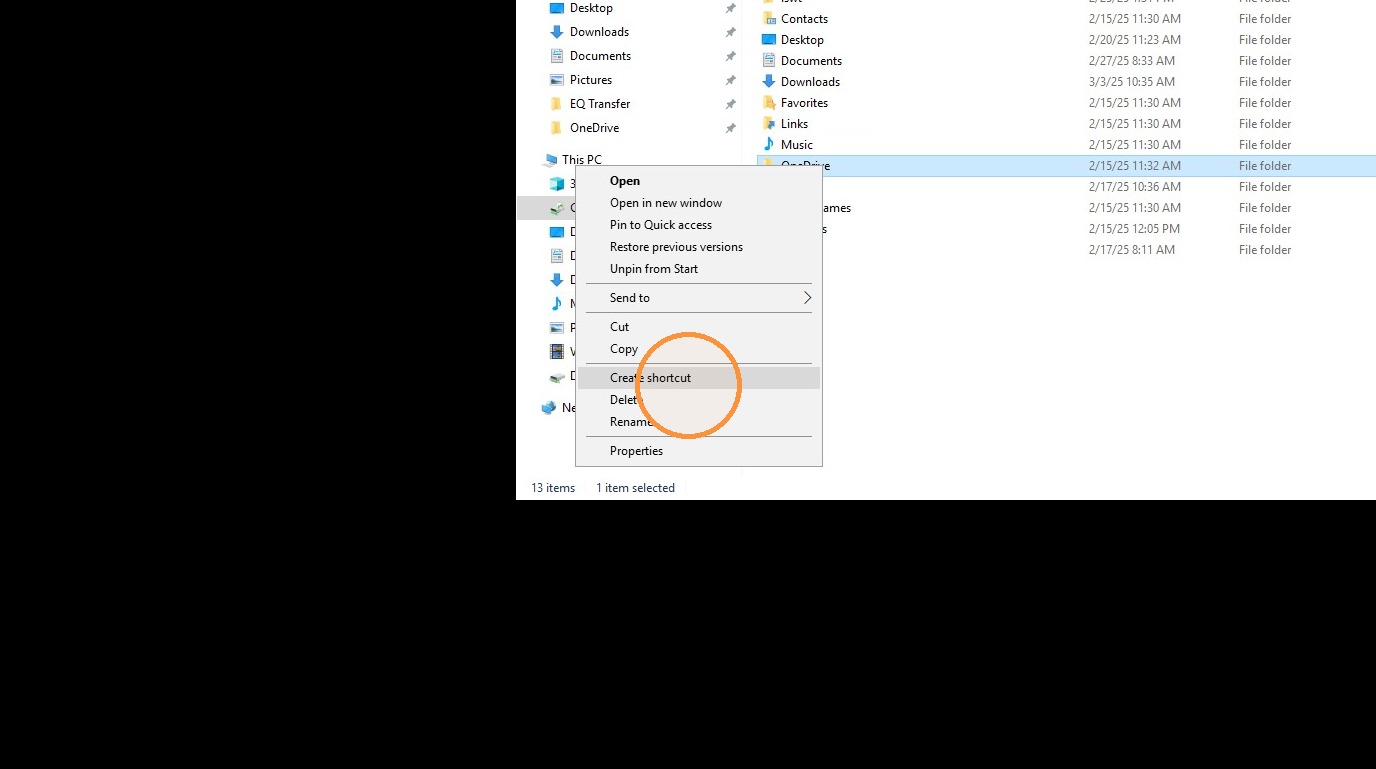
6. Then you can copy\paste that shortcut to the desktop.
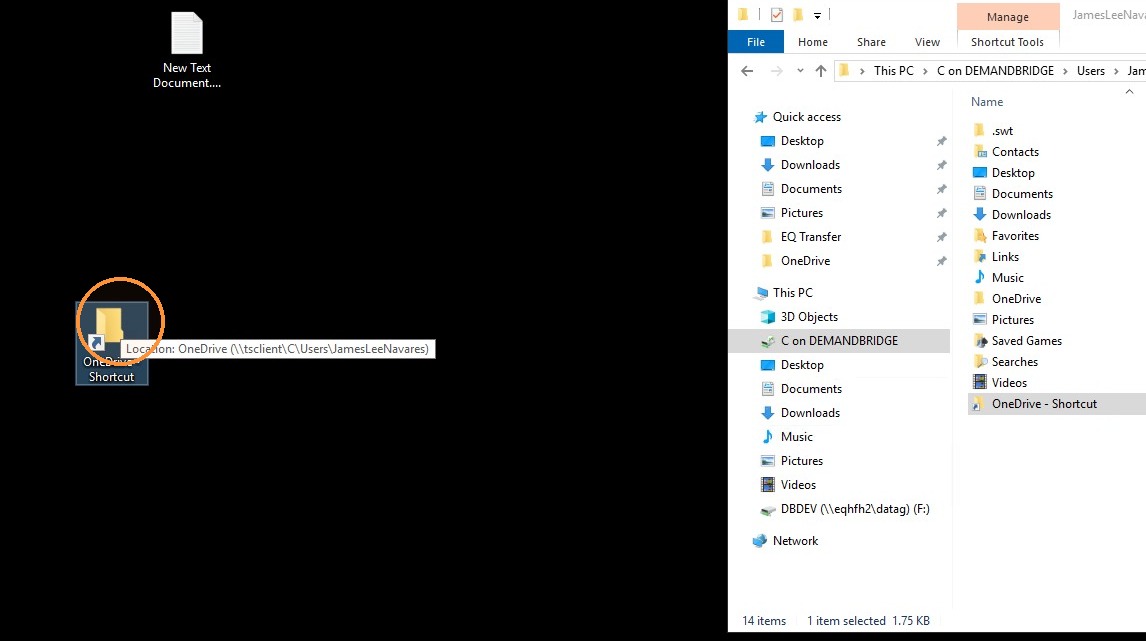
7. Now, anything that is in the OneDrive folder will also be visible in the EQD remote desktop.
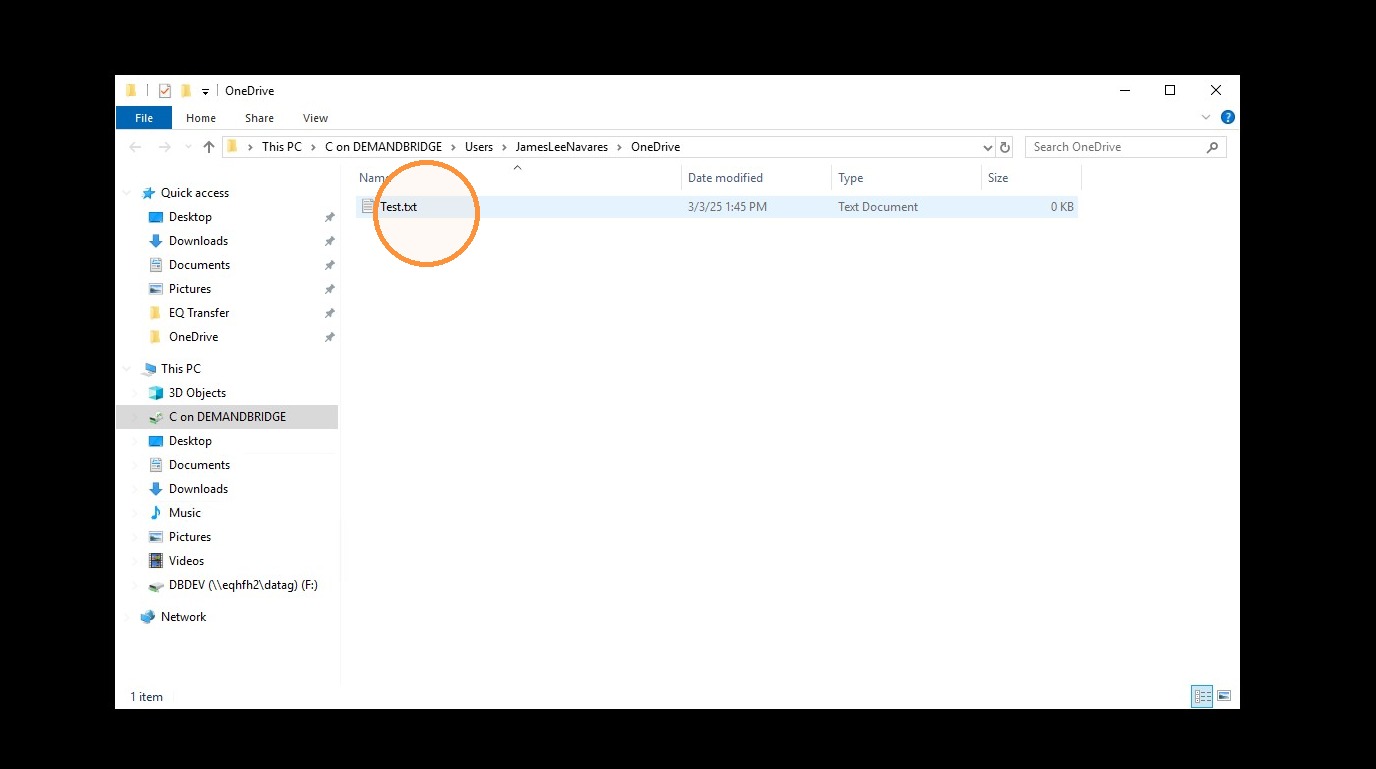
Tip: In this example it shows how to create a shortcut to a OneDrive folder. However, you could also create a shortcut to other locations on your local computer, like your desktop, or your documents folder. You just need to select that folder and create the shortcut to that, instead of the OneDrive folder.
Tip: If you have any further questions, contact DemandBridge support.