
EQD: How to Delete A Client
Here are the steps on how to delete a client permanently in the EQD software.
Note: An EQD user will need to have supervisor rights in order to delete a client.
1. Highlight the client in client maintenance that you would like to delete then click the "Delete" button.
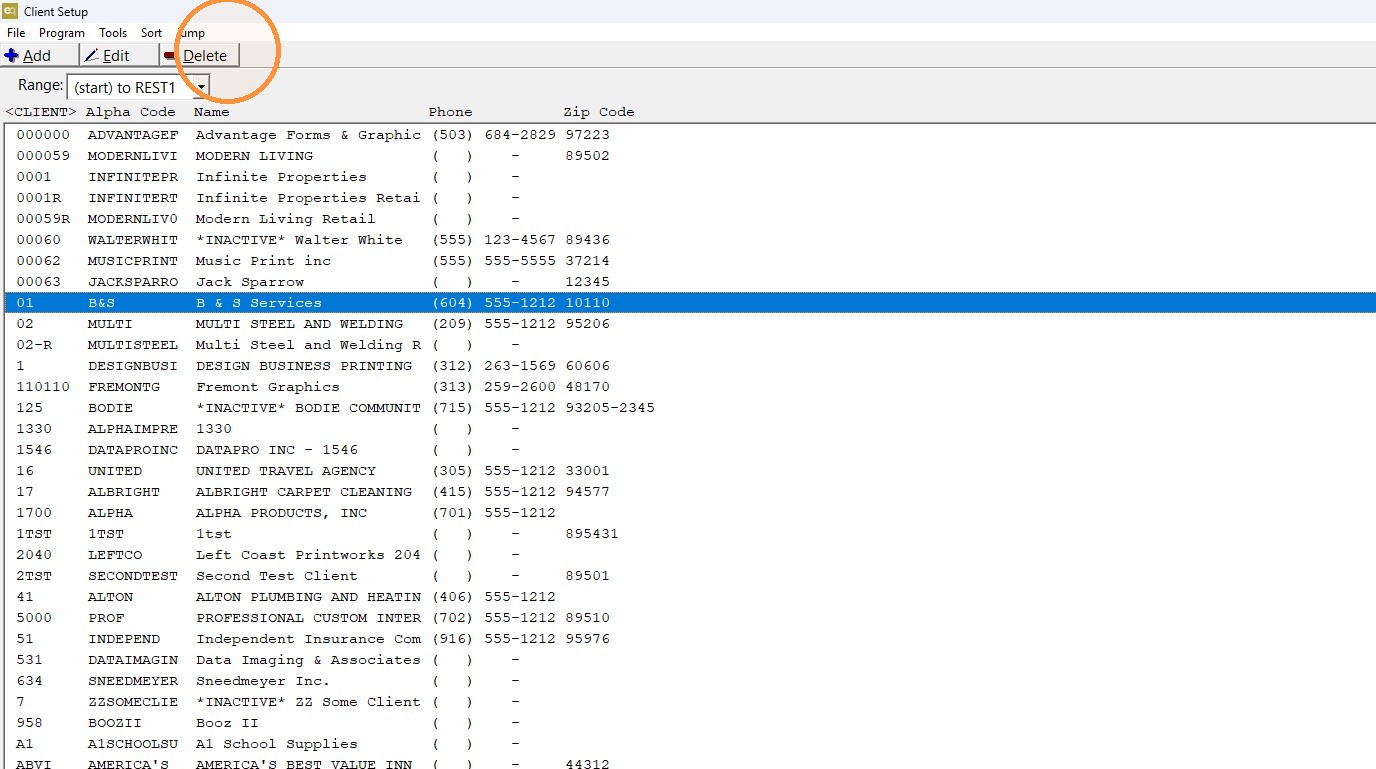
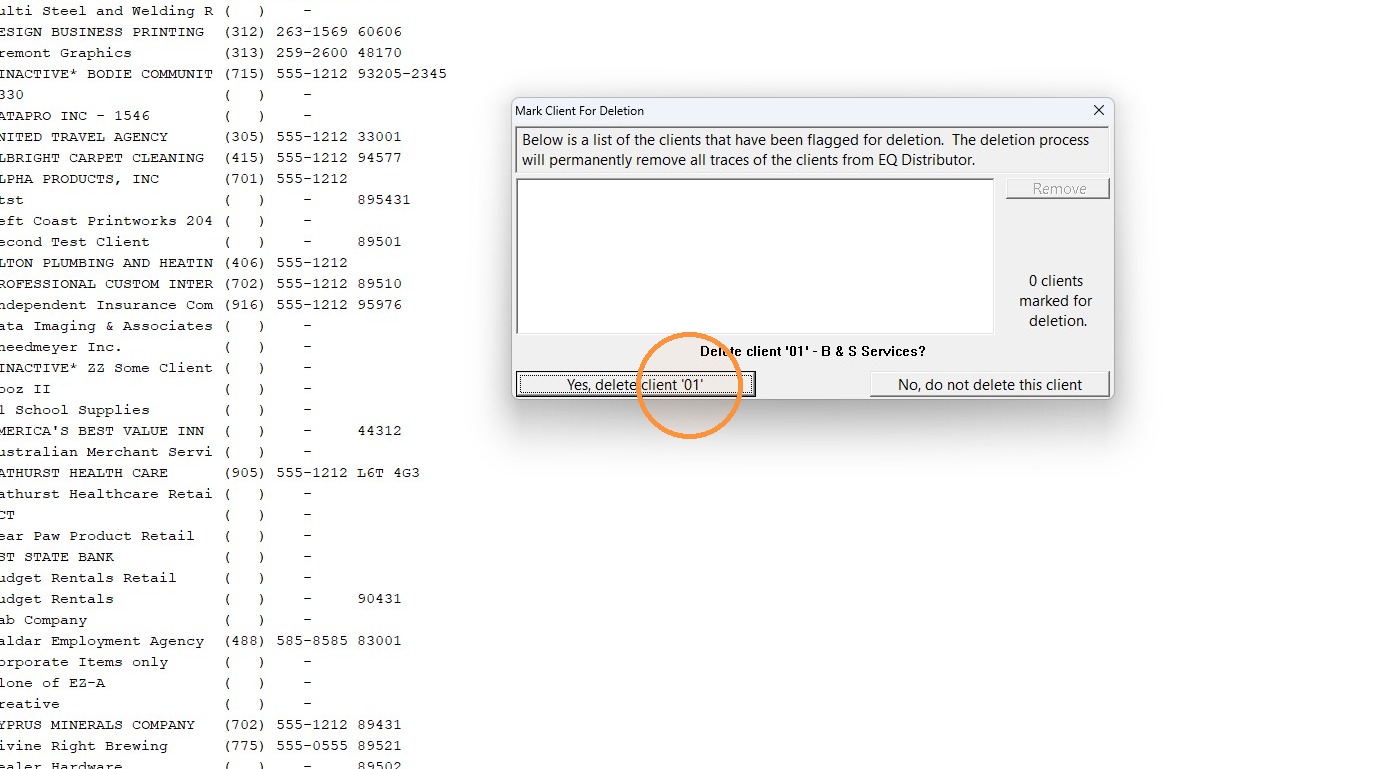
2. In this first step you are not actually deleting the client. You are just marking the client for deletion. If you would like to continue marking the client click "Yes. delete client".
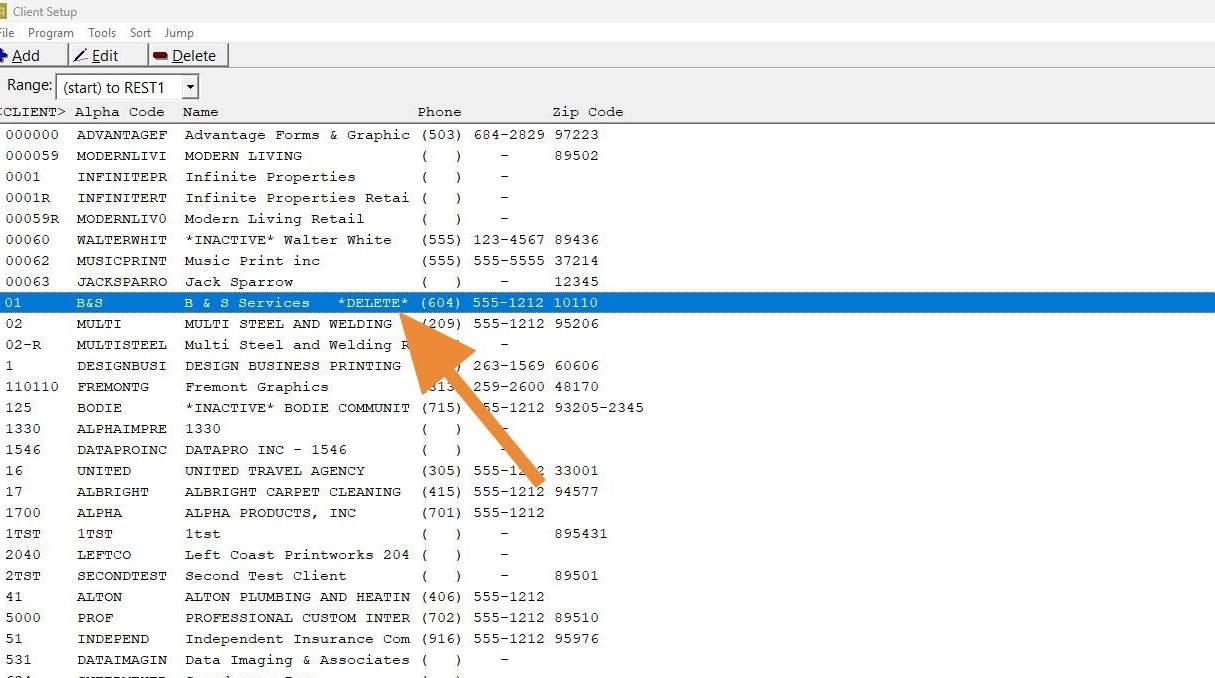
3. Once a client is marked for deletion, you will see *DELETE* next to the client's name. If you are deleting several clients, it is best to mark all of the clients first and then move to the next step where you are going to actually delete them.
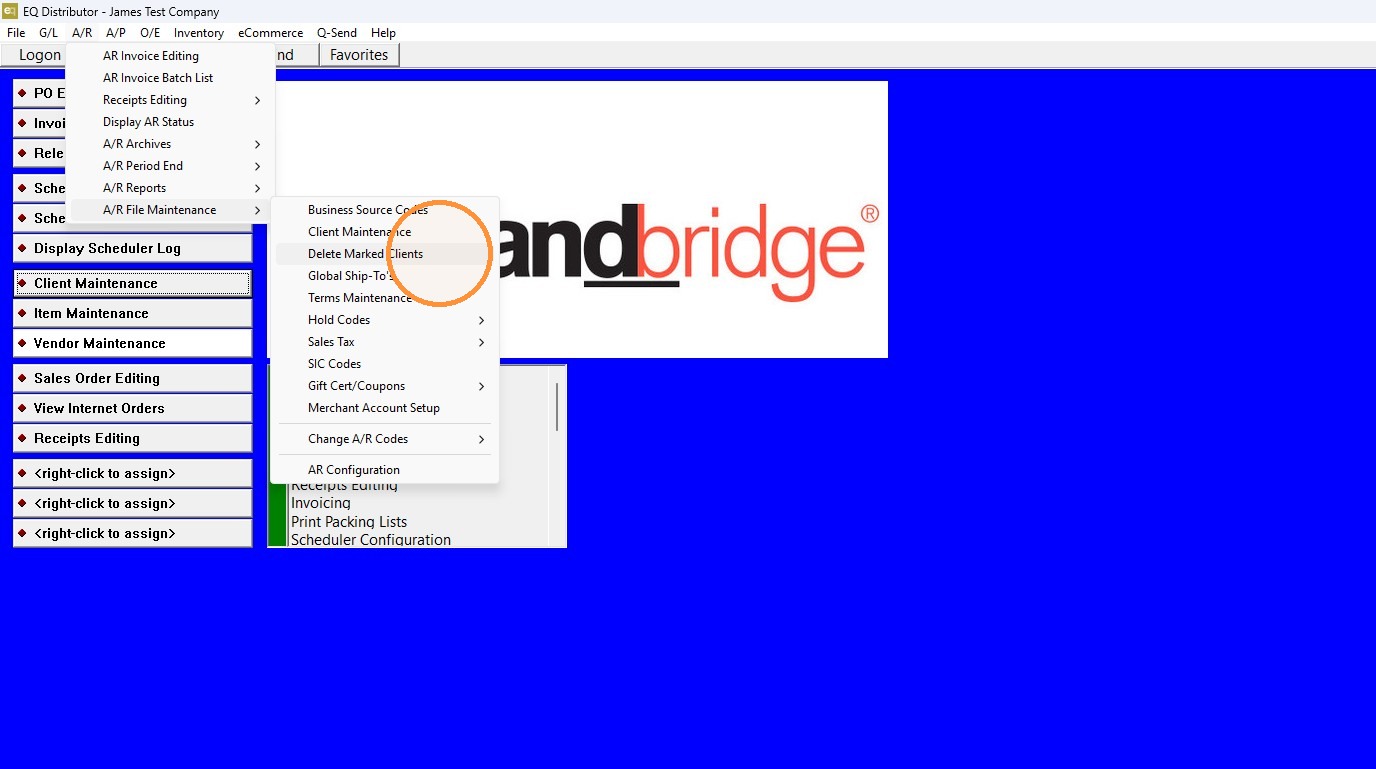
4. When you are ready to delete clients go to: A/R > A/R File Maintenance > Delete Marked Clients.
5. If there are clients in the list that you decide you do not want to delete you can click "Remove" and that will remove the client from the deletion list.
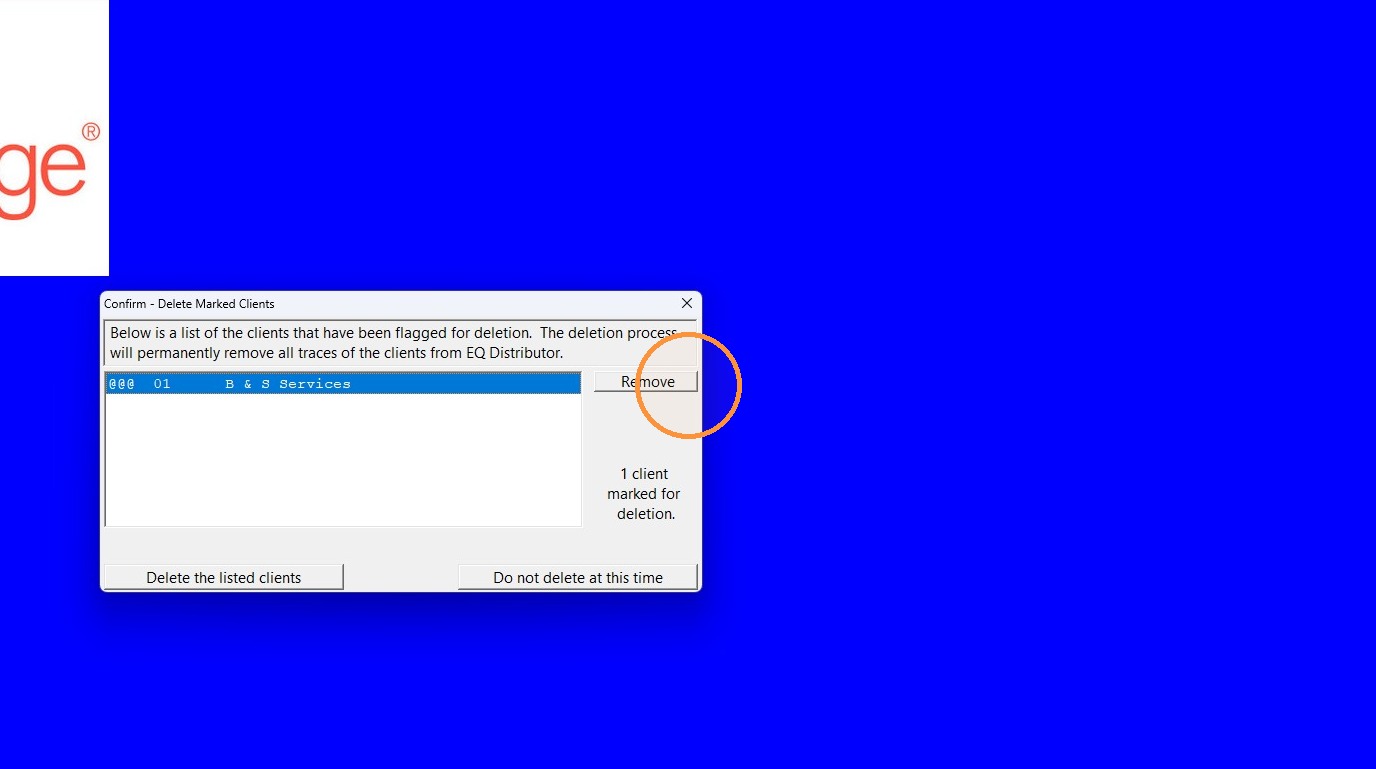
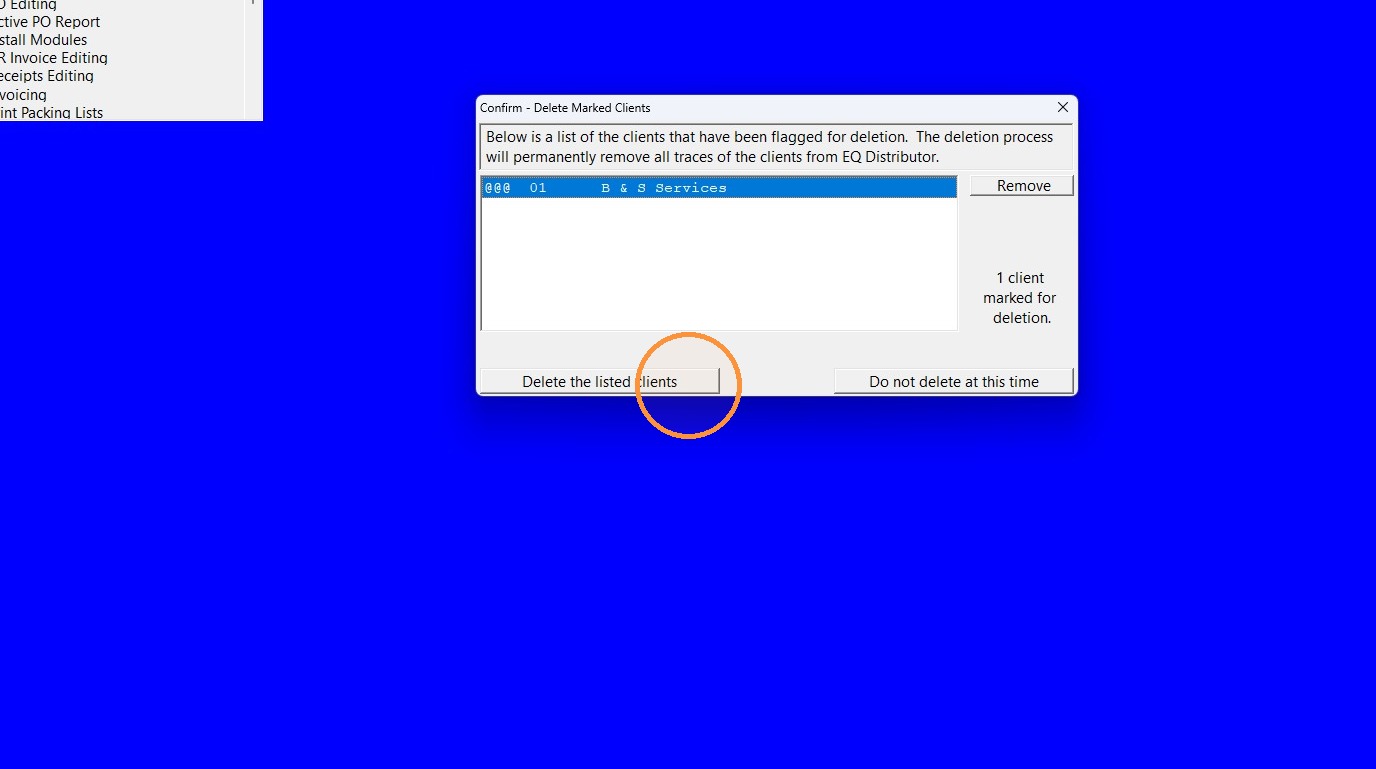
6. When you are ready to permanently delete the listed clients click "Delete the listed clients".
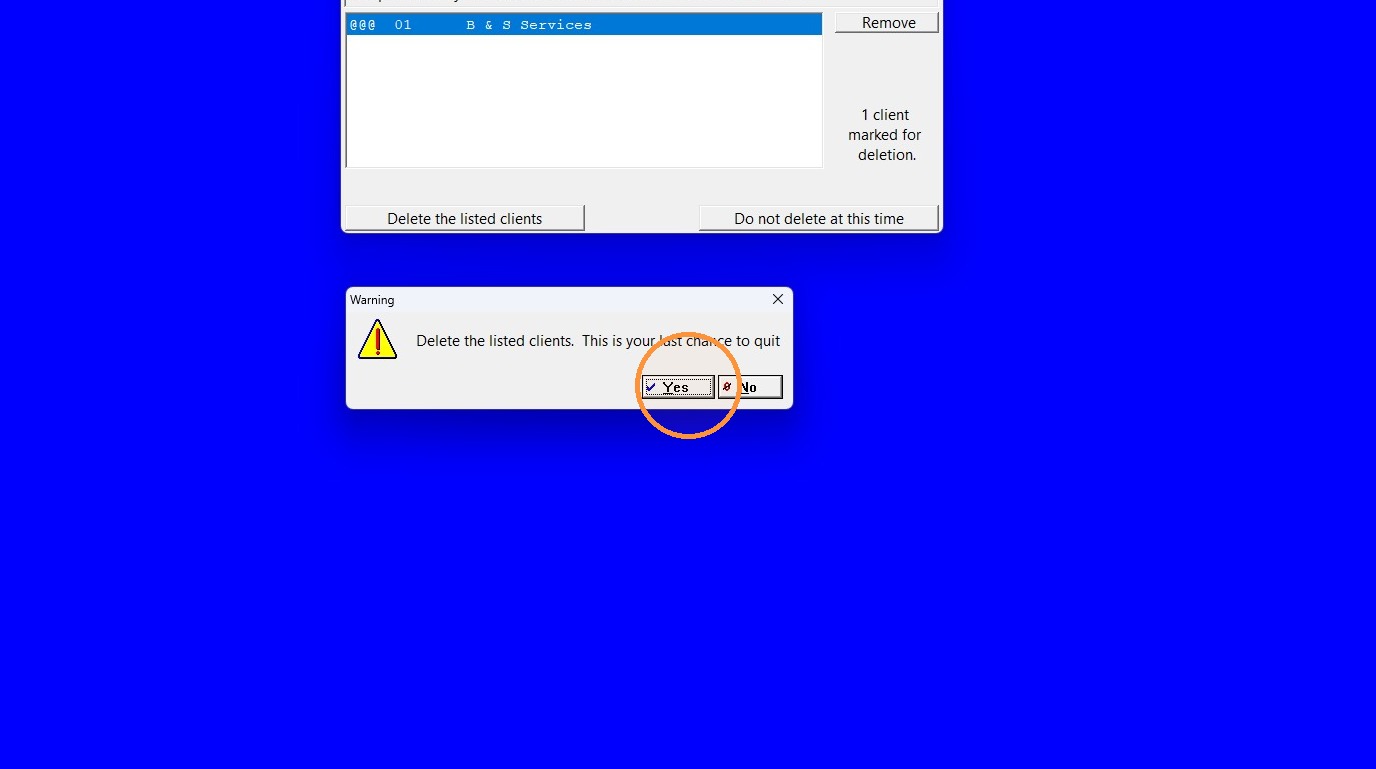
7. If you are sure that you want to delete these clients, click "Yes" and the clients will be deleted.
Be advised: once a client is permanently deleted, there is no recovering that client!
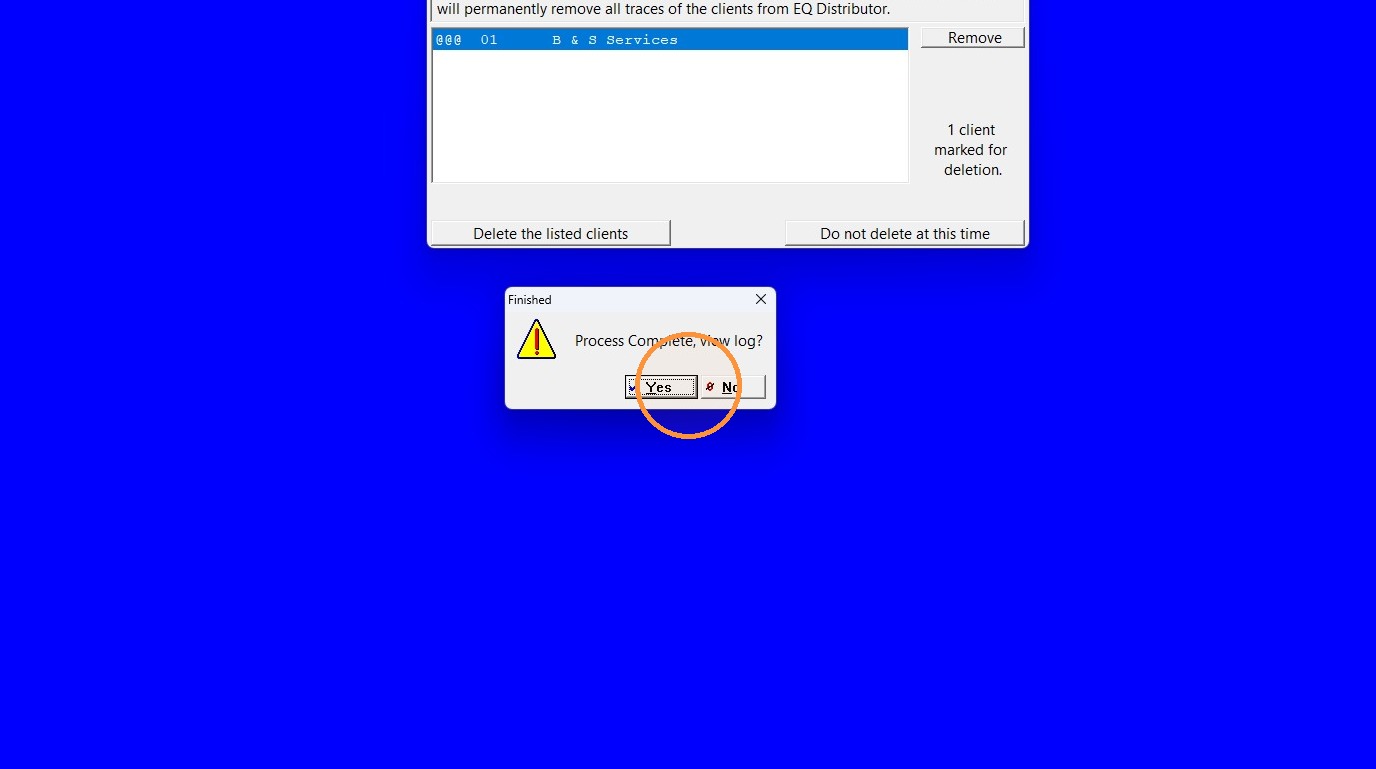
8. Once the deletion is complete, you can choose to view the log if you want. You may need to view the log if you deleted a long list and some of the clients were not deleted. There are different reasons why a client can't be deleted and it will outline that in the log.
Tip: If you have any further questions, please contact DemandBridge support.