
EQD: G/L Reports
e-Quantum's General Ledger Reports are used to report your company's financial position to the owners, stock holders, banks, etc. In addition, you are also provided with multiple reports used to "research" transactions in either detail or summary.
Journal Entries Listing
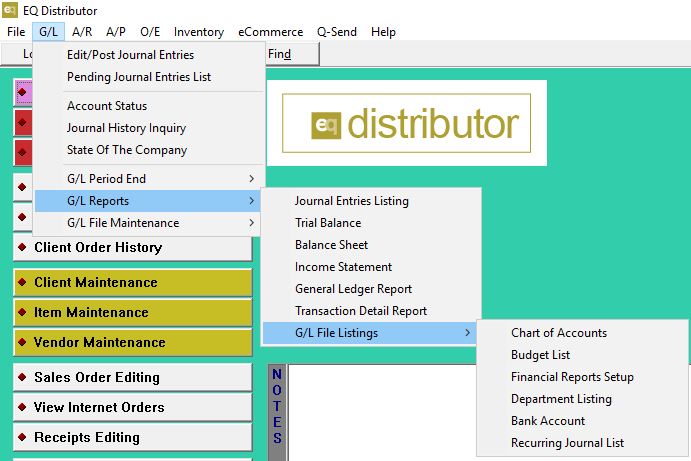
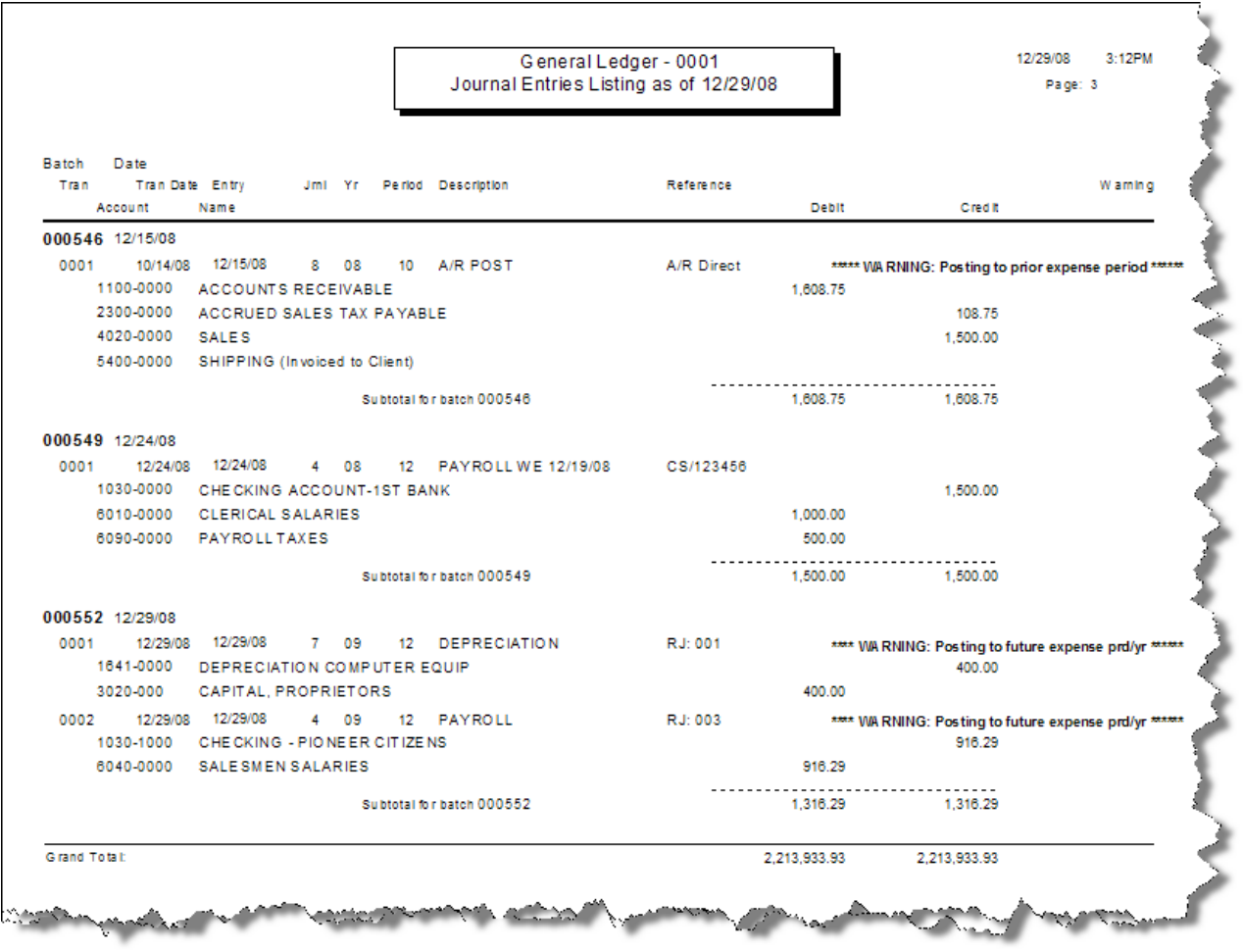
The Journal Entries Listing is a report of Batches/Journal Entries their transaction(s) numbers and disbursements. This report can be printed during the posting process or can be printed "on demand" when the need arises. To print the Journal Entries Listing go to G/L>G/L Reports>Journal Entries Listing.
|
RANGE SELECTIONS |
DESCRIPTION |
| Report Date: | This defaults to the current date but can be changed if you prefer to have the last day of the month printed on the report. |
| G/L Batch ID: | This allows you to specify a batch, print all or a range of batches. |
| Transaction Date: | This allows you to specify a date range. All dates, a range of dates or a relative date. |
| Posted Date: | Specify a date range for posted transactions, or select all dates to include everything. |
| Group Batches By Module: | Choose "Yes" to organize batches by module for easier reference or "No" to display them in a continuous list. |
| Journal Type ID: | Choose to include all records, a range of records, or selected records based on the journal type. This allows for more precise filtering of transactions in the report. |
| Report Colors: | Customize the report's appearance by shading heading lines or using the "Green Text" effect to alternate text colors for better readability. |
This report provides you with e-Quantum's printing features; ie; you can Print, Preview, Export, PDF Batch Email, schedule through Auto-Scheduler or save it electronically through Doc-Q-Manage.
Trial Balance
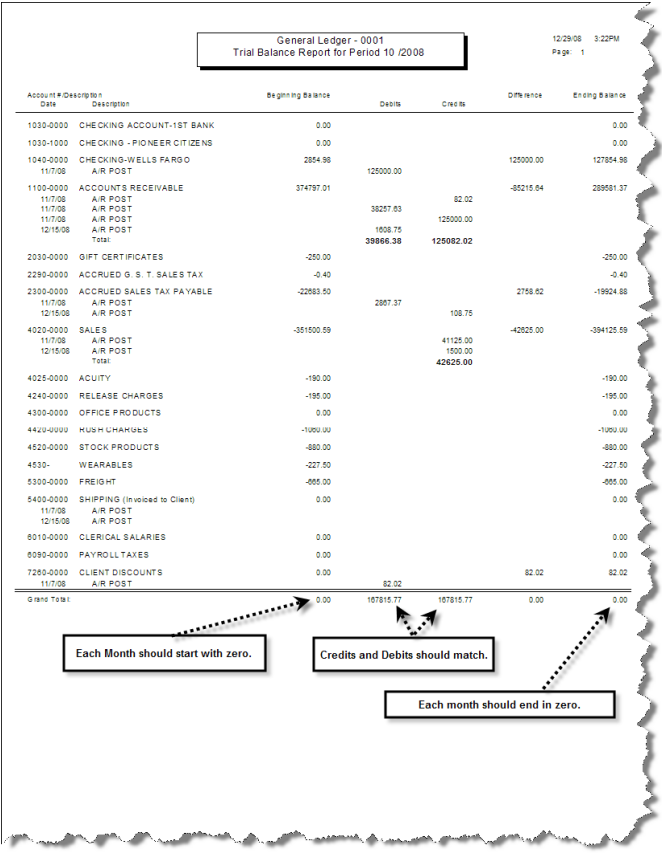
The Trial Balance report provides you with an easy, fast check of the beginning balances, ending balances and activity in each general ledger account. This report provides a quick way to verify that debits equal credits for any selected period or periods. It does not provide any detail about the accounts
NOTE: If you made a "one-sided" journal entry during the month the Trial Balance would appear to be out of balance. The reason for this is the account that is used to "balance" a one-sided entry, the Current Year P/L account, does not print on this report.
To print a Trial Balance report go to G/L>G/L Reports>Trial Balance. This report can be sorted by Account Number or Acct Type/Acct#.
|
RANGE SELECTIONS |
DESCRIPTION |
| Report Format: | Choose between Detail for a comprehensive breakdown of transactions or Summary for a high-level overview of the data. |
| Report Date: | This defaults to the current date but can be changed if you prefer to have the last day of the month printed on the report. |
| G/L Period and Year: | Specify the general ledger period and year to filter transactions within a specific accounting timeframe. |
| Suppress Zero Balance Accounts: | Choose whether to exclude accounts with a zero balance to keep the report focused on relevant data. Yes omits accounts with a zero balance "across the board". |
| Report Colors: | Customize the report's appearance by shading heading lines or using the "Green Text" effect to alternate text colors for better readability. |
Balance Sheet
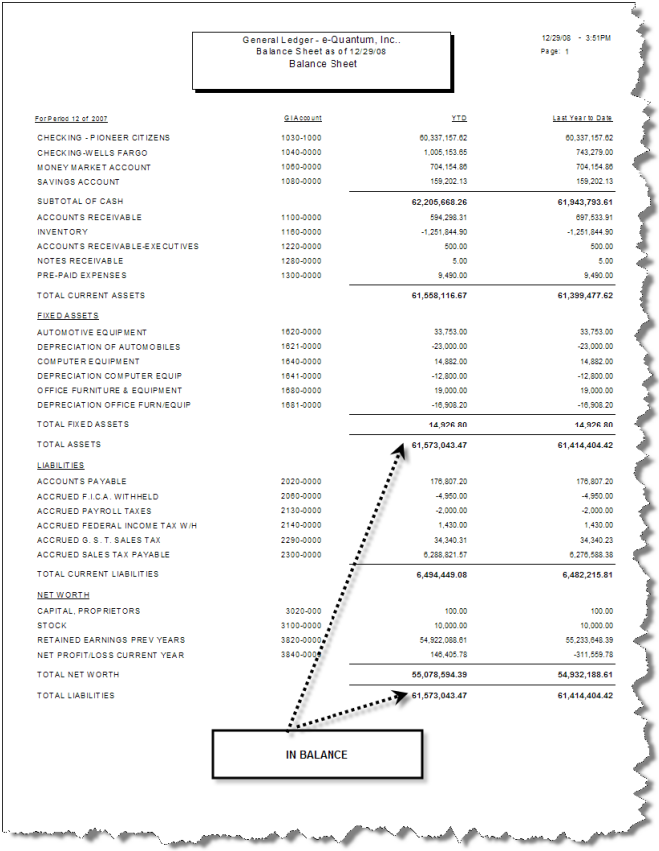
In e-Quantum the Balance Sheet is a summary of a your company's balances. Assets, liabilities and ownership equity are listed as of a specific date, such as the end of its financial year. A balance sheet is often described as a snapshot of a company's financial condition.
The Balance Sheet has three parts: assets, liabilities and ownership equity. The main categories of assets are usually listed first and are followed by the liabilities. The difference between the assets and the liabilities is known as equity or the net assets or the net worth of the company and according to the accounting equation, net worth must equal assets minus liabilities. Another way to look at the same equation is that assets equals liabilities plus owner's equity. Looking at the equation in this way shows how assets were financed: either by borrowing money (liability) or by using the owner's money (owner's equity). Balance sheets are usually presented with assets in one section and liabilities and net worth in the other section with the two sections "balancing".
For instructions on how to format your financial reports please refer to Financial Report Setup. e-Quantum's Balance Sheet has only one format and prints only transactions that have been posted to the General Ledger.
To print the Balance Sheet go to G/L>G/L Reports>Balance Sheet.
|
RANGE SELECTIONS |
DESCRIPTION |
| Report Date: | This defaults to the current date but can be changed if you prefer to have the last day of the month printed on the report. |
| Report ID: | Select the report you want to print. |
| Suppress Zero Accounts: | Choose whether to exclude accounts with a zero balance to keep the report focused on relevant data. Yes omits accounts with a zero balance "across the board". |
| Expense Period: | Select the period/year you want to print for. You can only print for one period at a time. |
| Print Account Numbers: | Yes prints the General Ledger account number for each line. |
| Report Format: | Choose between the Standard format for the default report layout or Standard w/o LYTD to exclude last year's to-date figures. |
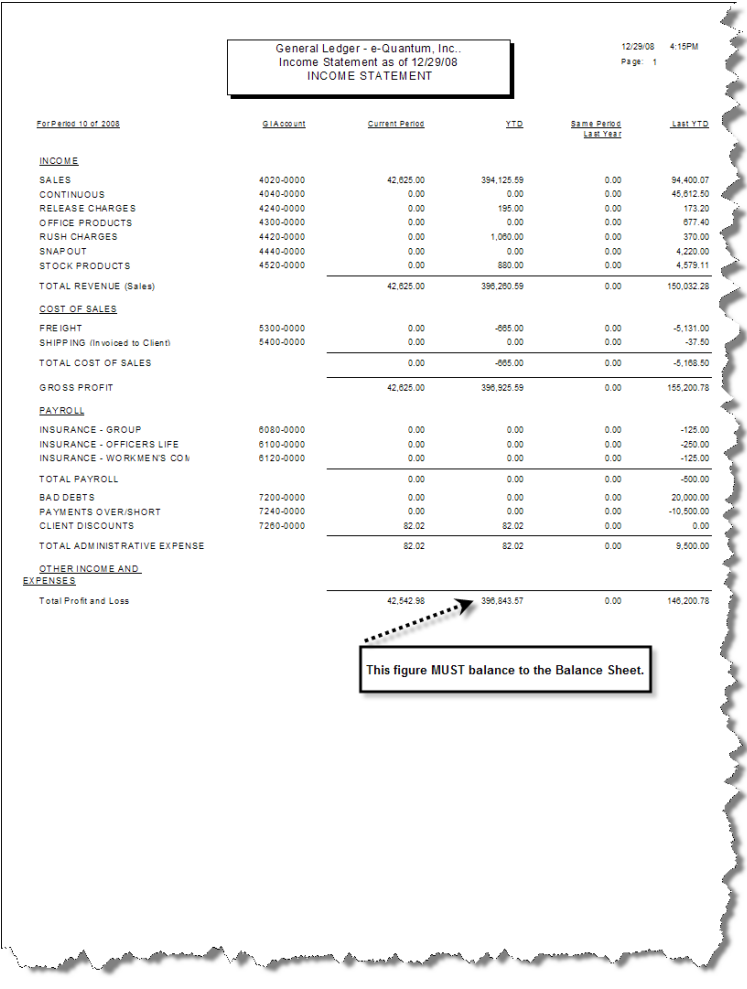
Income Statement
In e-Quantum the Income Statement, also call the Profit and Loss Statement (P&L), is your company's financial statement that indicates how the revenue (money received from the sale of products and services before expenses are taken out, also known as the "top line") is transformed into the net income (the result after all revenues and expenses have been accounted for, also known as the "bottom line"). The purpose of the income statement is to show owners, managers and investors whether the company made or lost money during the period being reported.
The important thing to remember about an income statement is that it represents a period of time. This contrasts to the balance sheet, which represents a single moment in time.
For instructions on how to format your financial reports please refer to Financial Report Setup. e-Quantum's Income Statement provides you with the ability to print in one of eight formats. This report prints only transactions that have been posted to the General Ledger.
To print the Income Statement go to G/L>G/L Reports>Income Statement.
|
RANGE SELECTIONS |
DESCRIPTION |
| Report Date: | This defaults to the current date but can be changed if you prefer to have the last day of the month printed on the report. |
| Report ID: | Specify the general ledger period and year to filter transactions within a specific accounting timeframe. |
| Suppress Zero Accounts: | Choose whether to exclude accounts with a zero balance to keep the report focused on relevant data. Yes omits accounts with a zero balance "across the board". |
| Expense Period: |
Select the period/year you want to print for. You can only print for one period at a time.
|
| Print Account Numbers: | Yes prints the General Ledger account number for each line. |
| Report Format: | There are eight available formats; 12 Month Income Statement, Budget Income Statement, Budget Income Statement w/ LYTD, Income Statement, Income Statement w/ Percentages, Income Statement w/o LYTD, Percentage Income Statement, Variance Income Statement. |
General Ledger Report
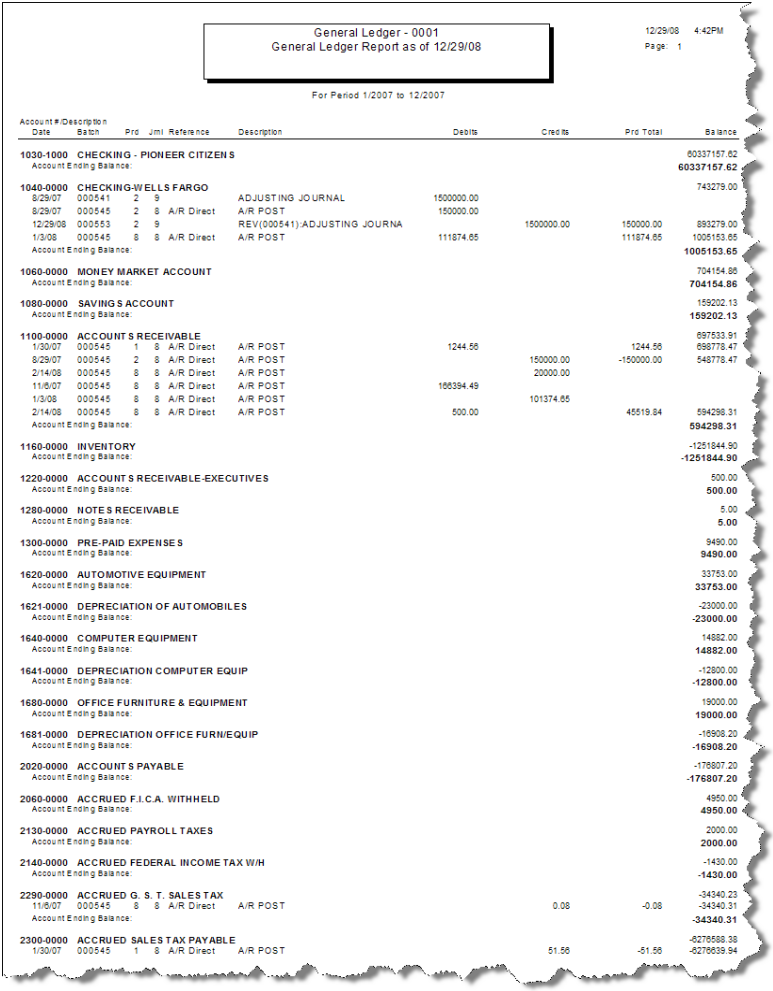
e-Quantum's General Ledger Report is a transaction/audit trail report that prints in Summary only. This report can be printed for multiple accounting periods as well as multiple journal types. Optionally, this report can print a "Running Balance" for each account.
To print the General Ledger Report go to G/L>G/L Reports>General Ledger Report.
|
RANGE SELECTIONS |
DESCRIPTION |
| Year: | Select the year you want to print. |
| Period: | Select the period(s) you want to print. |
| G/L Account: | This allows you to specify the general ledger account number you want to print. All, Range or Specific. |
| Journal Type: |
This allows you to specify the journal type you want to print. All, Range or Specific.
|
| Suppress Running Balance: | Yes will suppress each accounts "running balance". |
| Report Colors: | Customize the report's appearance by shading heading lines or using the "Green Text" effect to alternate text colors for better readability. |
Transaction Detail Report
e-Quantum's Transaction Detail Report is a transaction/audit trail report that prints in Detail only. This report can be printed for multiple accounting periods as well as multiple general ledger accounts.
To print the Transaction Detail Report go to G/L>G/L Reports>Transaction Detail Report.
|
RANGE SELECTIONS |
DESCRIPTION |
| Report Date: | This defaults to the current date but can be changed. |
| Year: | Select the year you want to print. |
| Period: | Select the period(s) you want to print. |
| G/L Account: | This allows you to specify the general ledger account number you want to print. All, Range or Specific. |
| Sources: | Select one or multiple sources to include in the report. Options include A/P Invoice, A/P Payment, Check Reconciliation, A/R Invoice, A/R Discount, A/R Invoice WO, A/R Receipt, A/R Receipt WO, Inventory Transactions, and Manual Entry. These sources help define the types of transactions that will be included in the report. |
| Report Colors: | Customize the report's appearance by shading heading lines or using the "Green Text" effect to alternate text colors for better readability. |
G/L File Listings
G/L File Listings prints or displays (preview) the data entered into the File Maintenance functions. The printouts can be used for reference and/or verification of data entered.
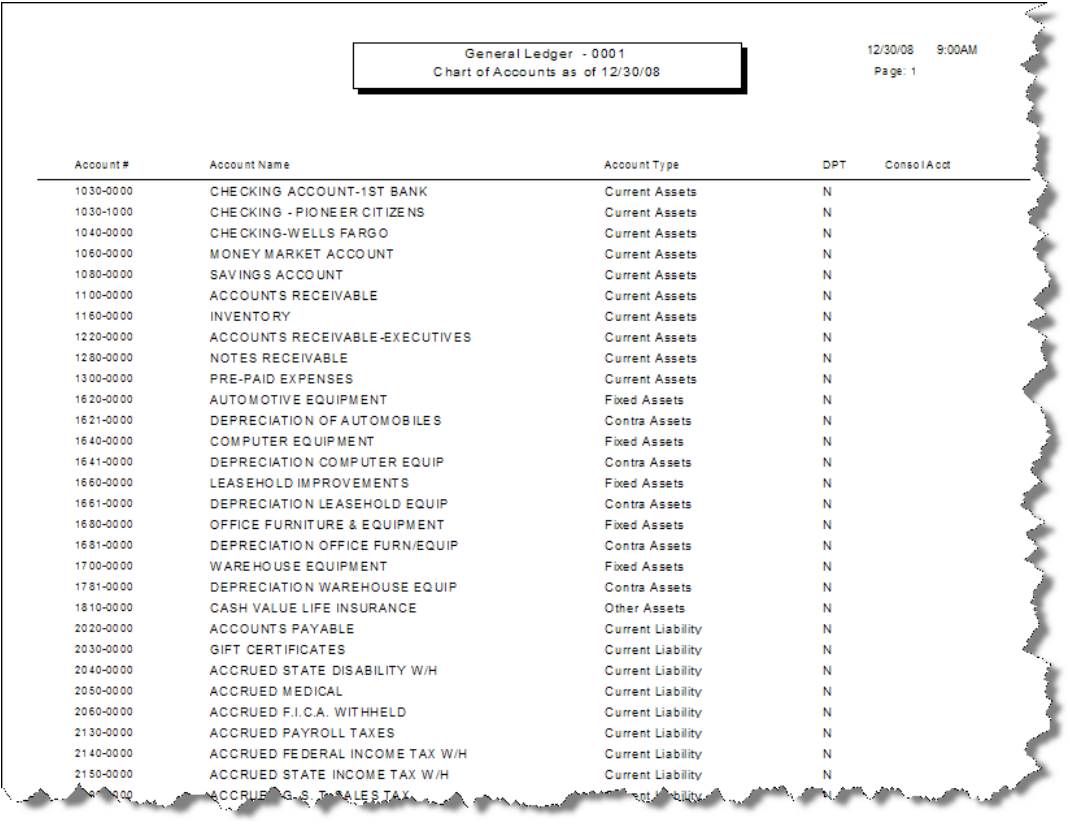
Chart of Accounts
The Chart of Accounts is a report listing your General Ledger Chart of Accounts.
|
RANGE SELECTIONS |
DESCRIPTION |
| G/L Account: | This allows you to specify the general ledger account number you want to print. All, Range or Specific. |
| Sub-Account: | This allows you to choose the sub-account you want to print. This is especially helpful if you have departmentalized your chart of accounts. All, Range or Specific. |
| Inactive Accounts: | This allows you to filter only active accounts, inactive accounts, or both in the selection. |
Financial Report Setup
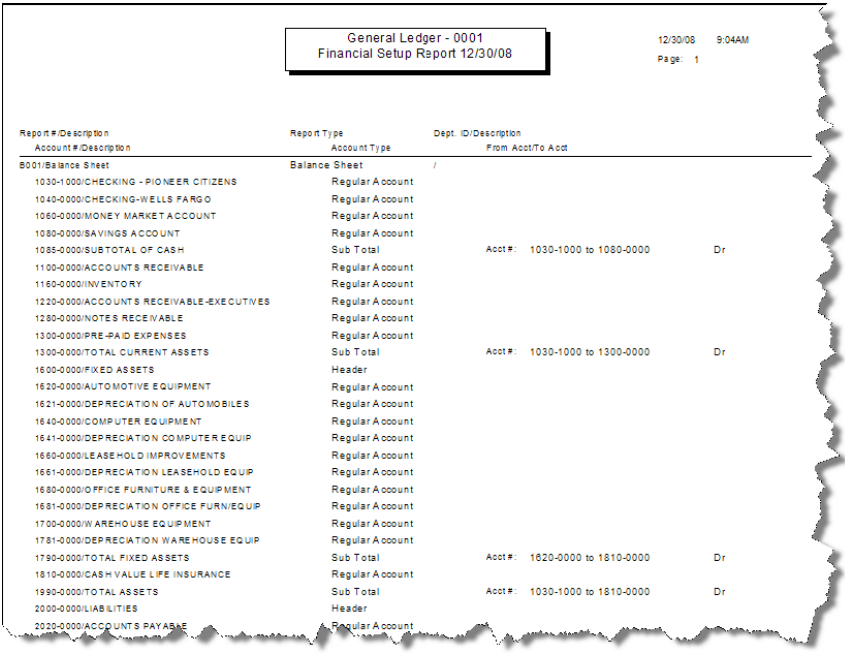
The Financial Report Setup is a report showing how you have configured your financial reports, Balance Sheet and Income Statement. Included on this report are the headings and subtotals.
Department Listing
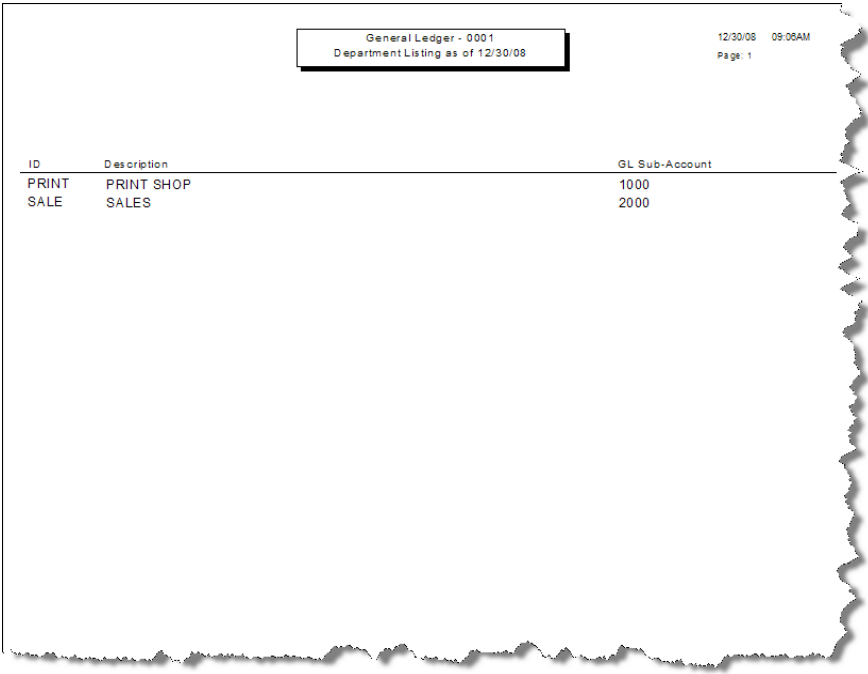
The Department Listing shows the departments that have been defined in the system. Included on this report is the department ID, description and general ledger sub-account assigned to each department. This report can be sorted by either ID or Description.
Bank Account
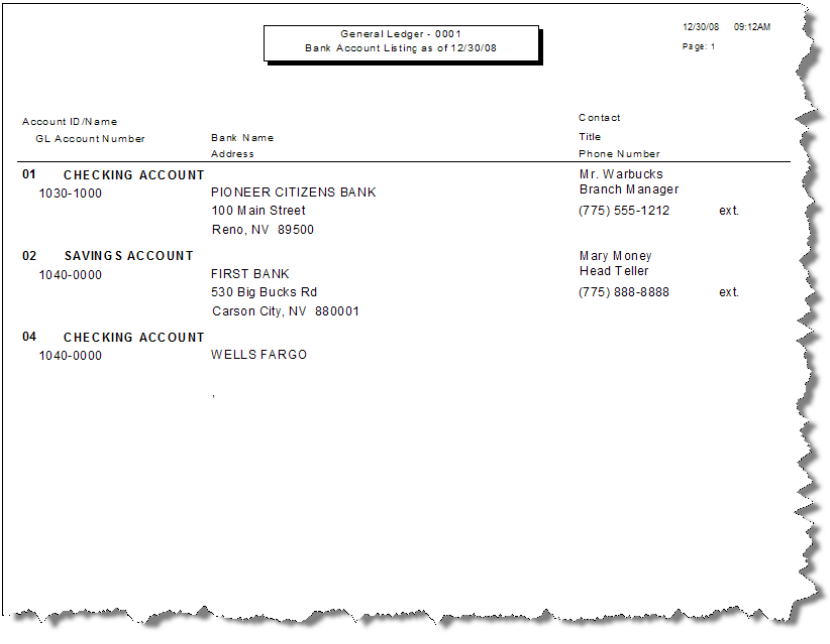
The Bank Account listing is a report showing the bank accounts that have been defined in the system. These accounts include checking, savings, money market, credit card clearing, etc. This report can be sorted by ID or Description.
Recurring Journal
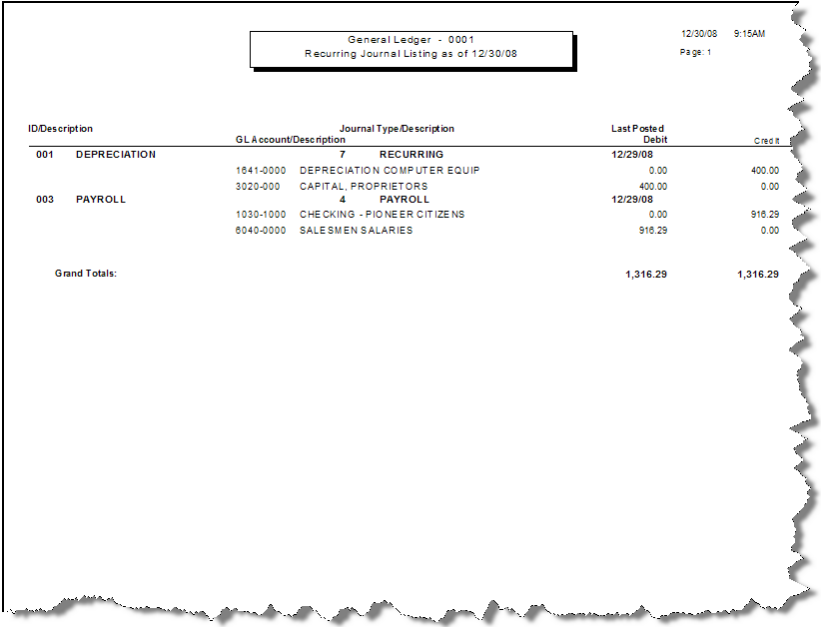
The Recurring Journal is a report listing the recurring journal entries that have been entered into the system. This report prints a breakdown of the general accounts, disbursements and reason for the entry.
G/L Reports Frequently Asked Questions (FAQs)
1. What report should I run to review all transactions within the General Ledger?
The General Ledger Report provides a detailed breakdown of all transactions posted to each GL account, including debits, credits, and batch details. You can filter transactions by G/L Batch ID, Transaction Date, Journal Type, and Source.
2. How can I check my company’s financial position at a specific point in time?
The Balance Sheet Report summarizes assets, liabilities, and equity for a selected period, helping you assess financial stability.
3. What report allows me to track income and expenses over time?
The Income Statement (Profit & Loss) provides insights into revenue, expenses, and net profit over a defined period. e-Quantum offers multiple format options, including:
- Standard Income Statement
- Income Statement w/o LYTD (Last Year to Date)
- Percentage Income Statement
- Variance Income Statement
- Budget Income Statement
- Budget Income Statement w/ LYTD
- 12-Month Income Statement
-
Income Statement w/ Percentages
4. How do I verify if an account is balanced correctly?
The Trial Balance Report lists all GL accounts with their ending balances, ensuring total debits and credits are equal.
5. How can I track changes in my general ledger balances over multiple periods?
The 12-Month Income Statement provides a month-by-month breakdown of revenue and expenses, helping you spot trends and fluctuations.