EQC: Home Page Builder Quick Guide
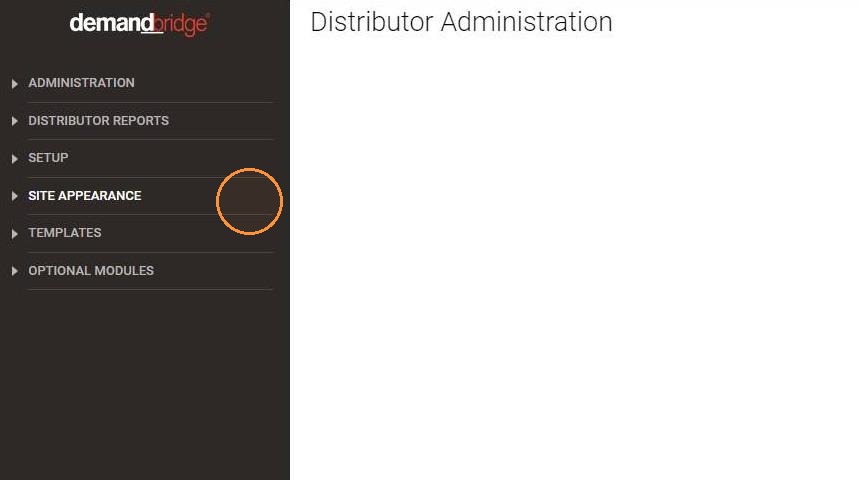
1. Navigate from Distributor Administration > Site Appearance
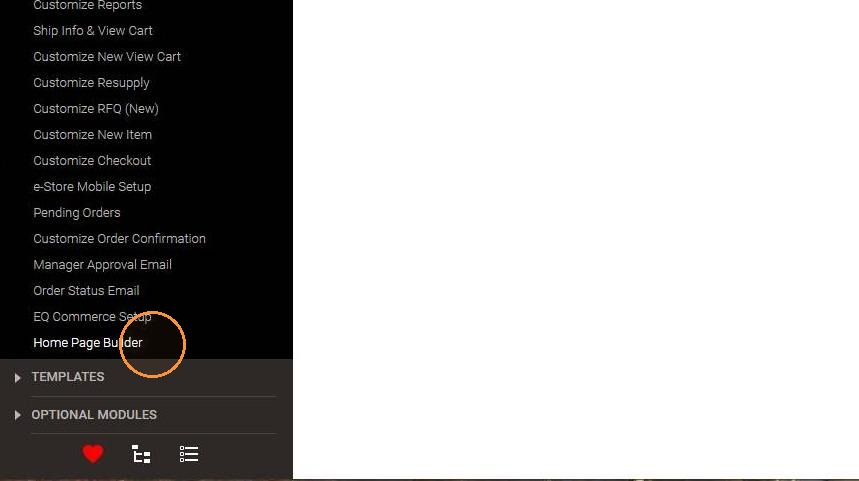
2. Click Home Page Builder
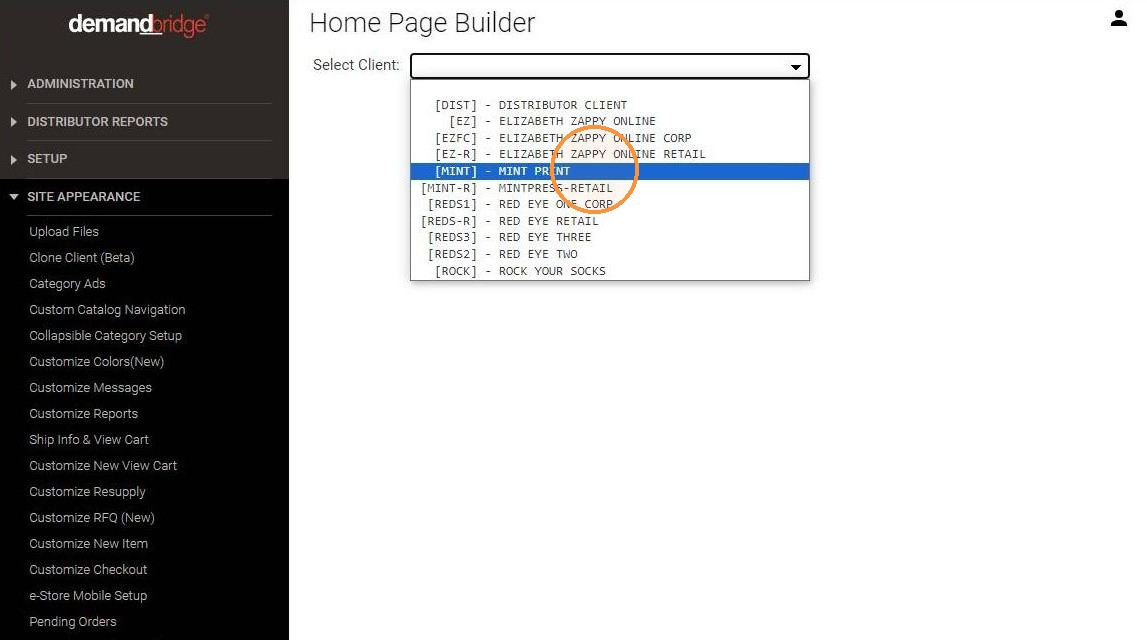
3. Select Client to customize
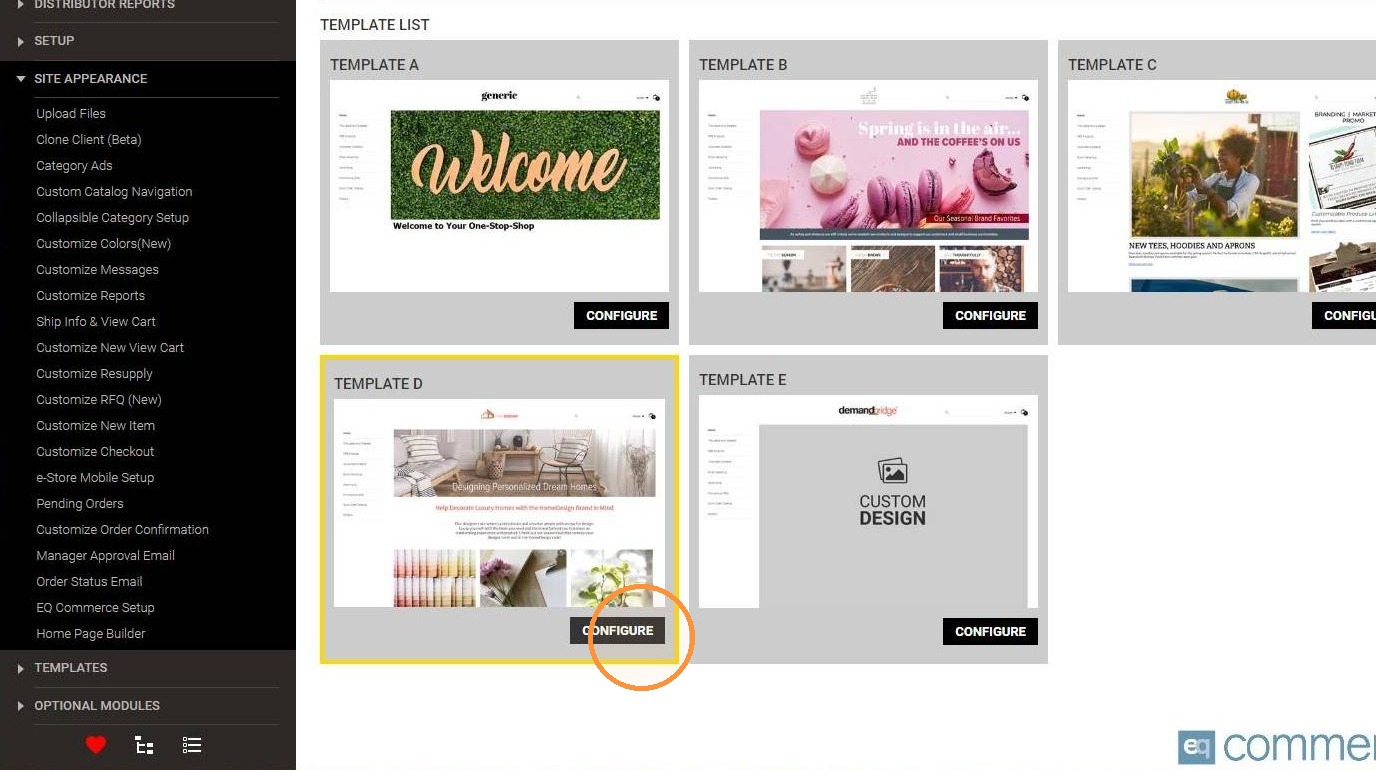
4. Select from pre-defined templates to get started OR select "TEMPLATE E" (custom design) to start from scratch
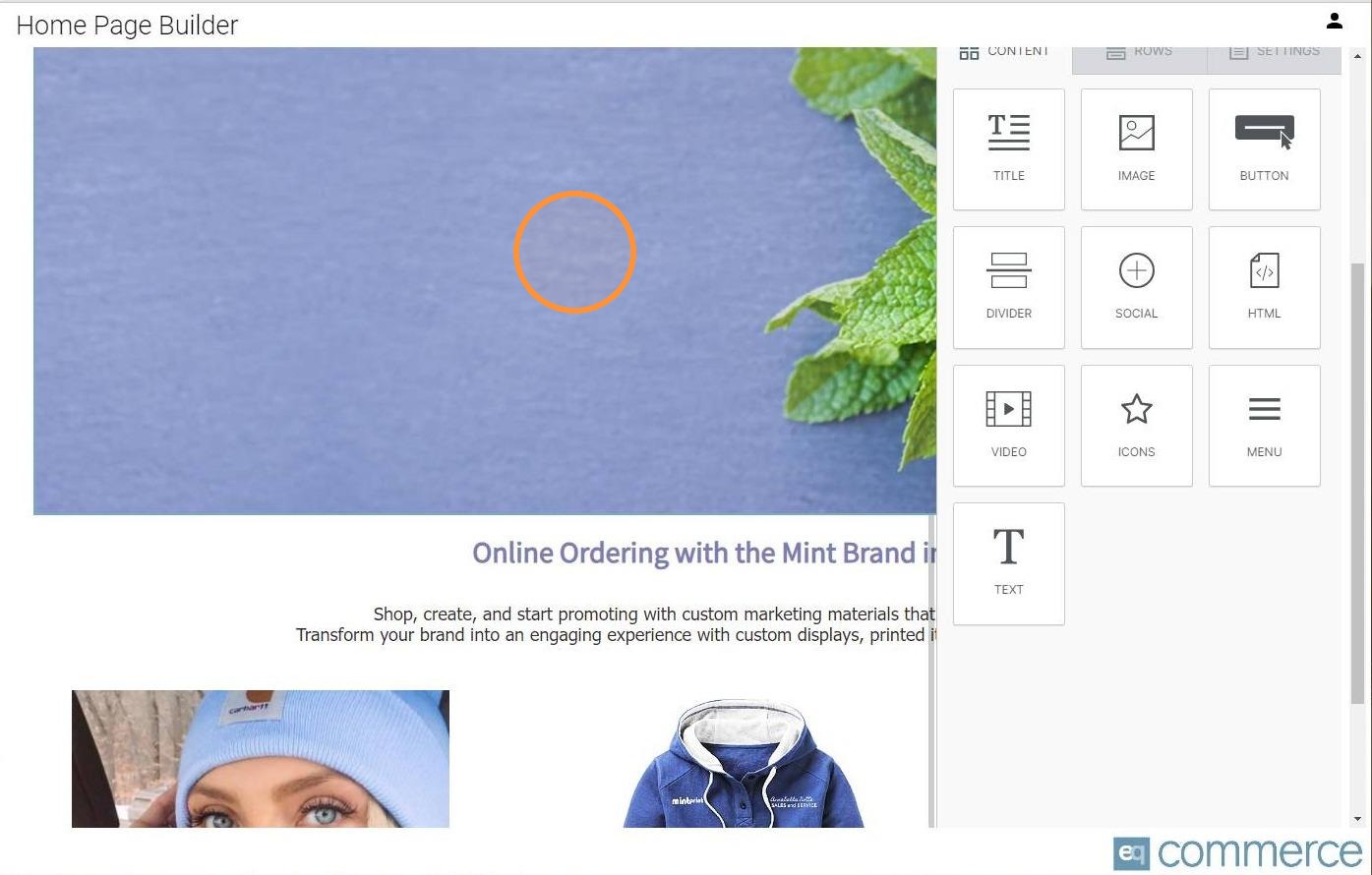
5. Selecting an existing image or text object brings up a properties panel on the right, where you can add/adjust links, text, change images, layout, and more.
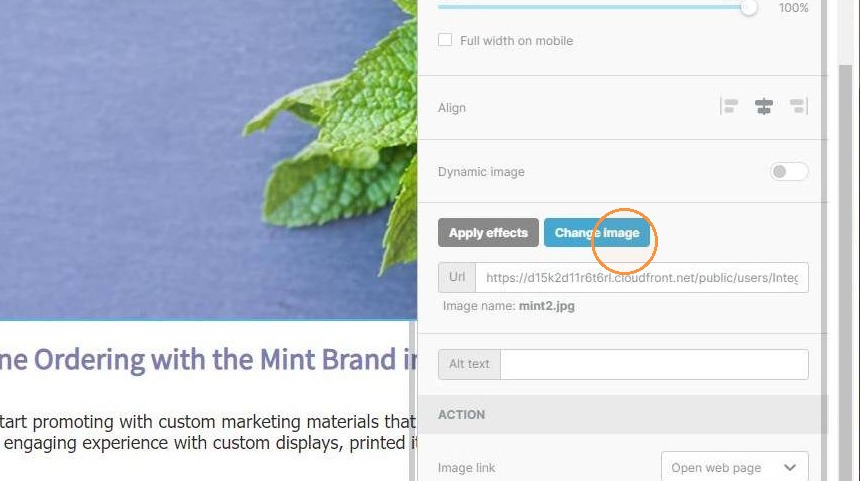
6. Example: after clicking an image to select it, click Change Image to select a different image.
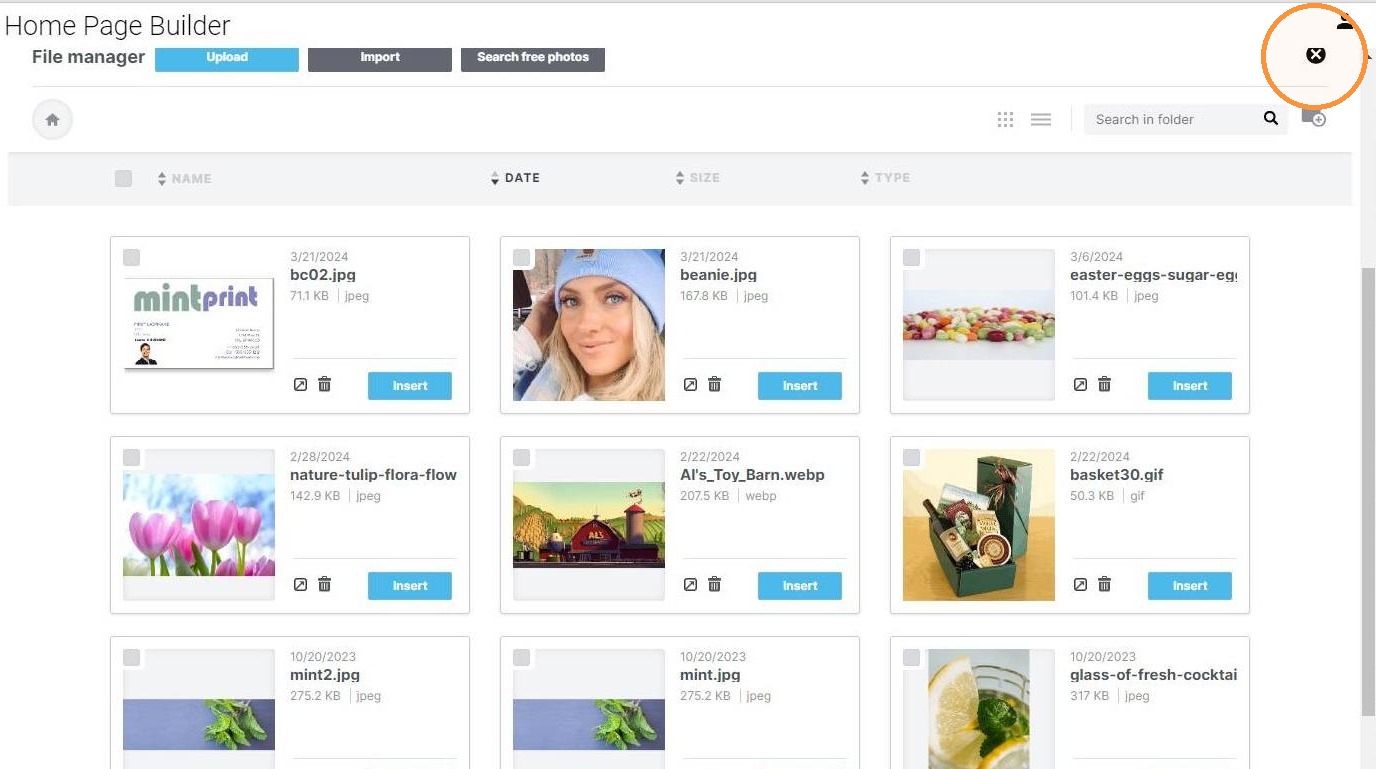
7. Select from free stock photos or upload your own images.
8. The Url field allows you to change the link target (where the user will be taken when they click on the image).
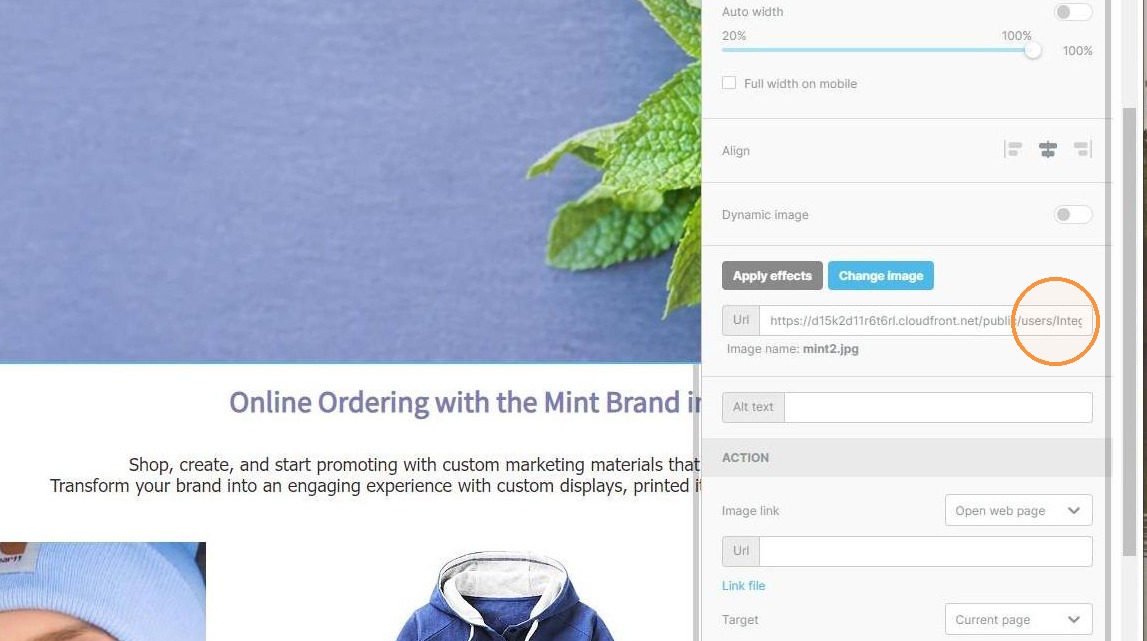
9. Use the built-in "link creator" to get the direct links to catalogs, categories, and items.
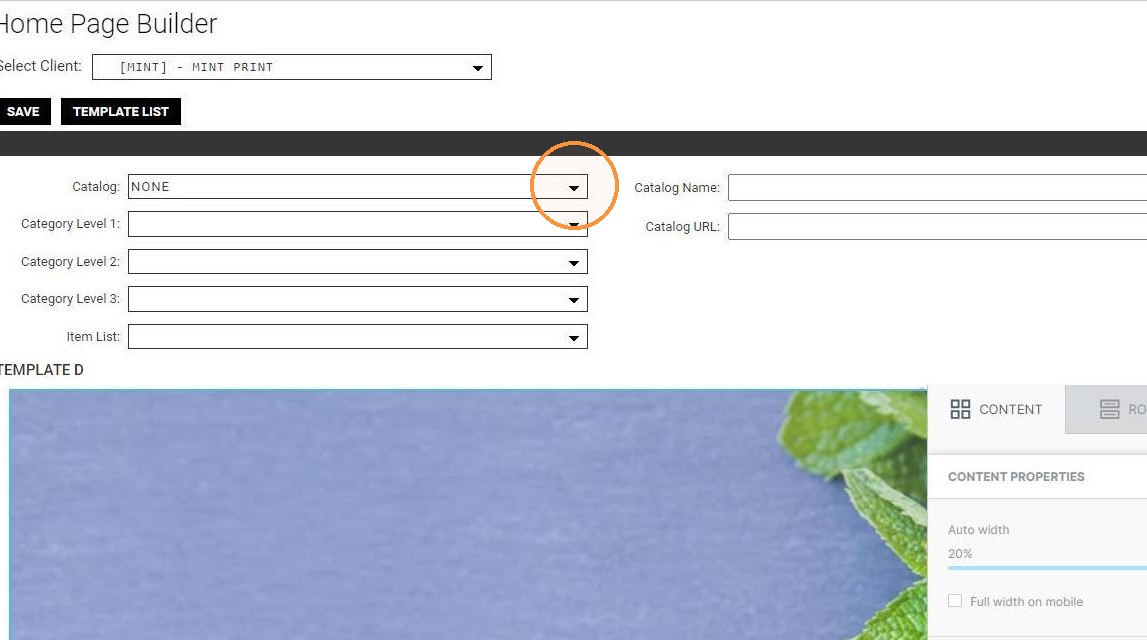
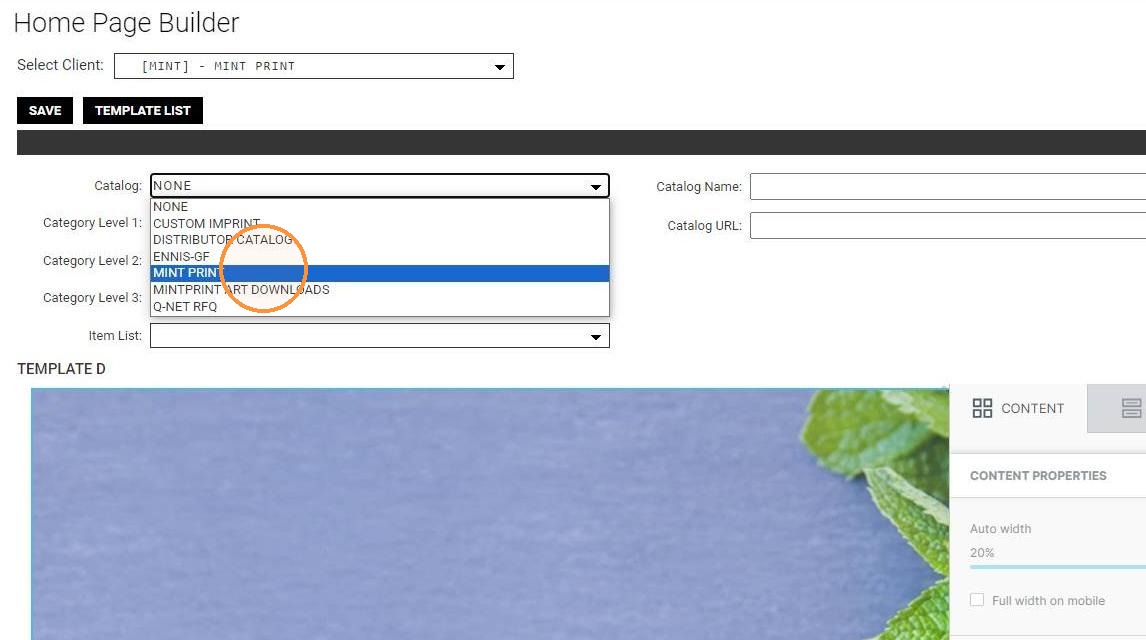
10. Select a catalog from the dropdown
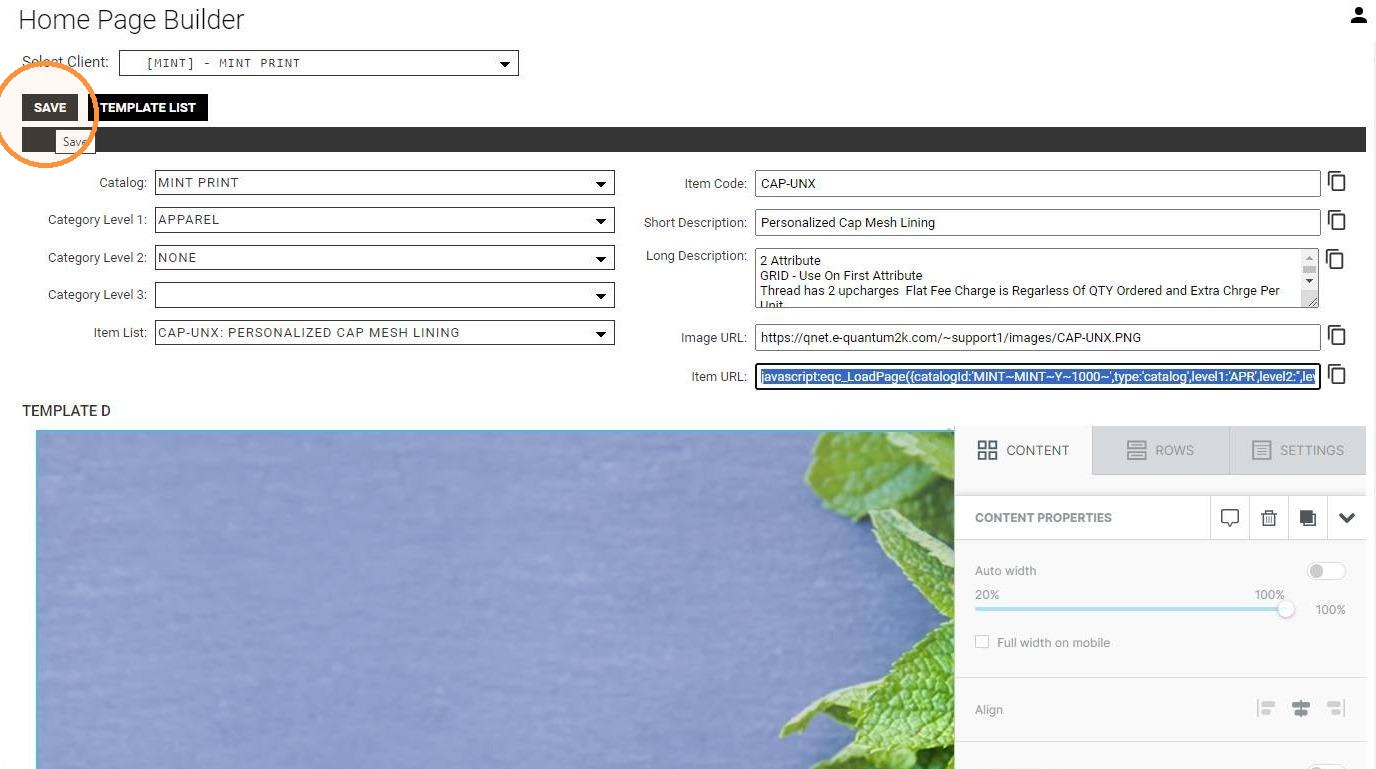
11. Once a catalog, category, or item is selected from the dropdowns on the left, the URL displays on the right. Click the "pages" icon to the right side of the field to copy that URL. You can now paste this into the Url field for an image to link that image to the selected catalog, category, or item.
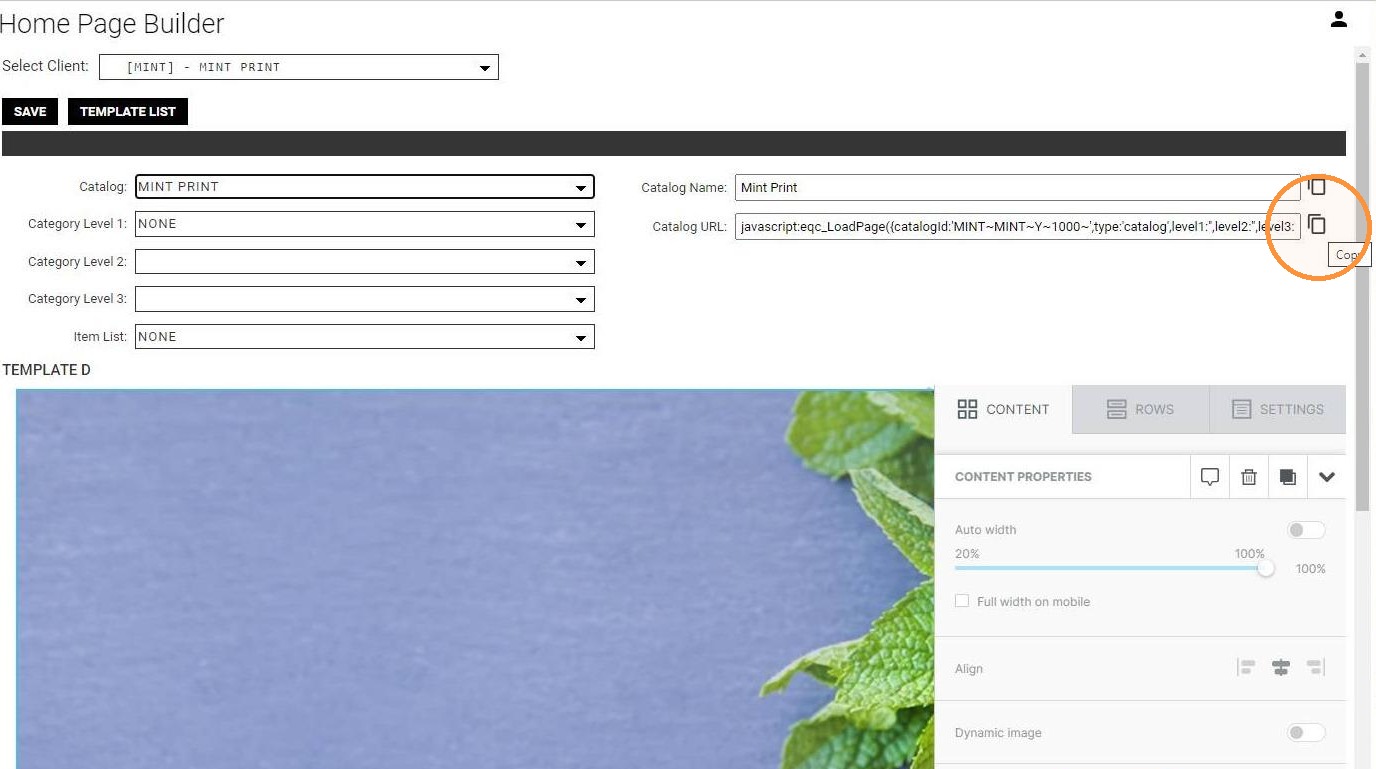
12. Use the built-in "link creator" to get the direct links to catalogs, categories, and items.
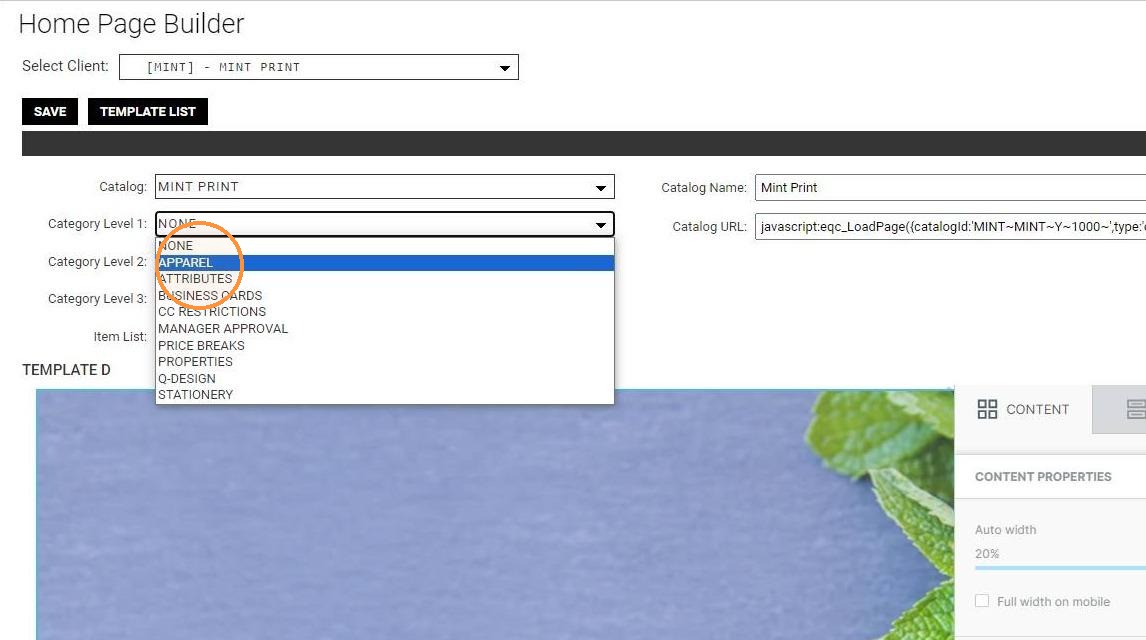
13. Use the built-in "link creator" to get the direct links to catalogs, categories, and items.
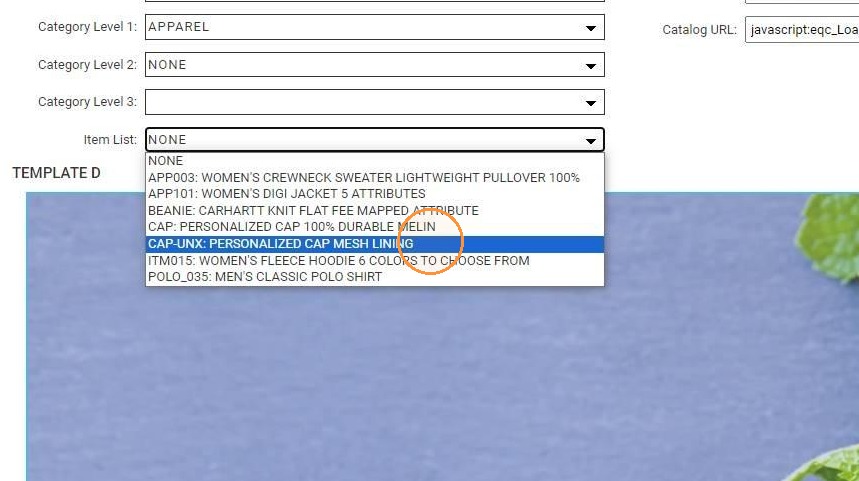
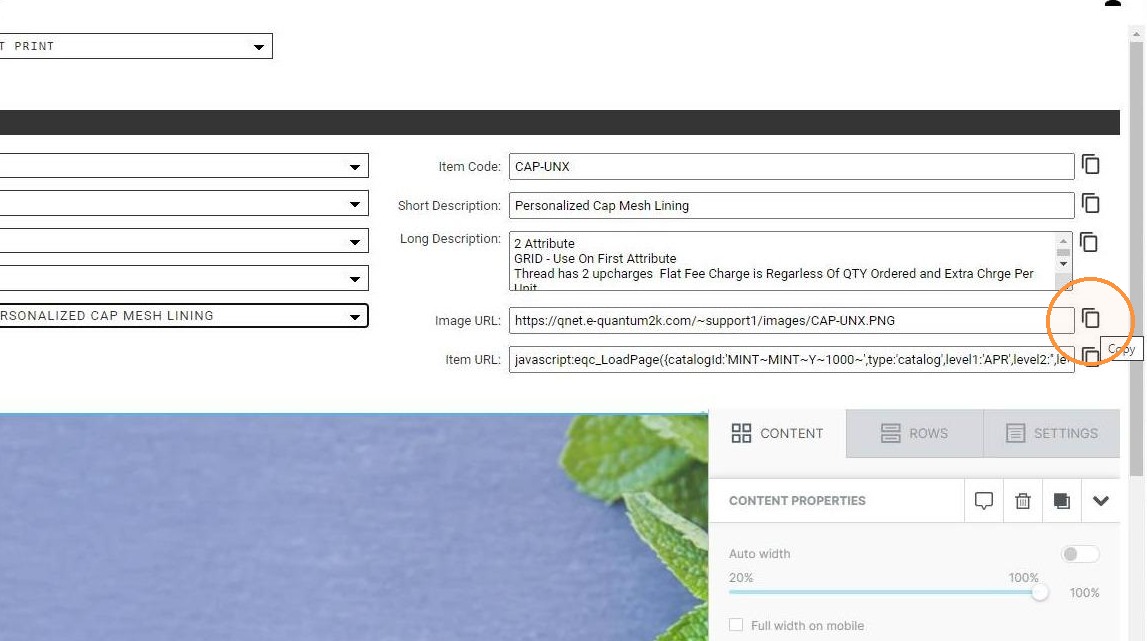
14. Once an item is selected from the dropdowns on the left, the Image URL (the URL of the actual image of the item) as well as the Item URL (the link to the item page) display on the right.
Click the "pages" icon to the right side of the field to copy that URL. You can now paste this into your layout to use the image of the item and/or link the image to the item detail page.
15. SAVE button will save and activate your changes/layout on the home (welcome) page of the selected client.