EQD: Importing Sales Tax data from FastTax
1. REMINDERS:
- BACK UP YOUR DATA (Steps included below)
- ENSURE ALL USERS ARE LOGGED OUT OF EQD
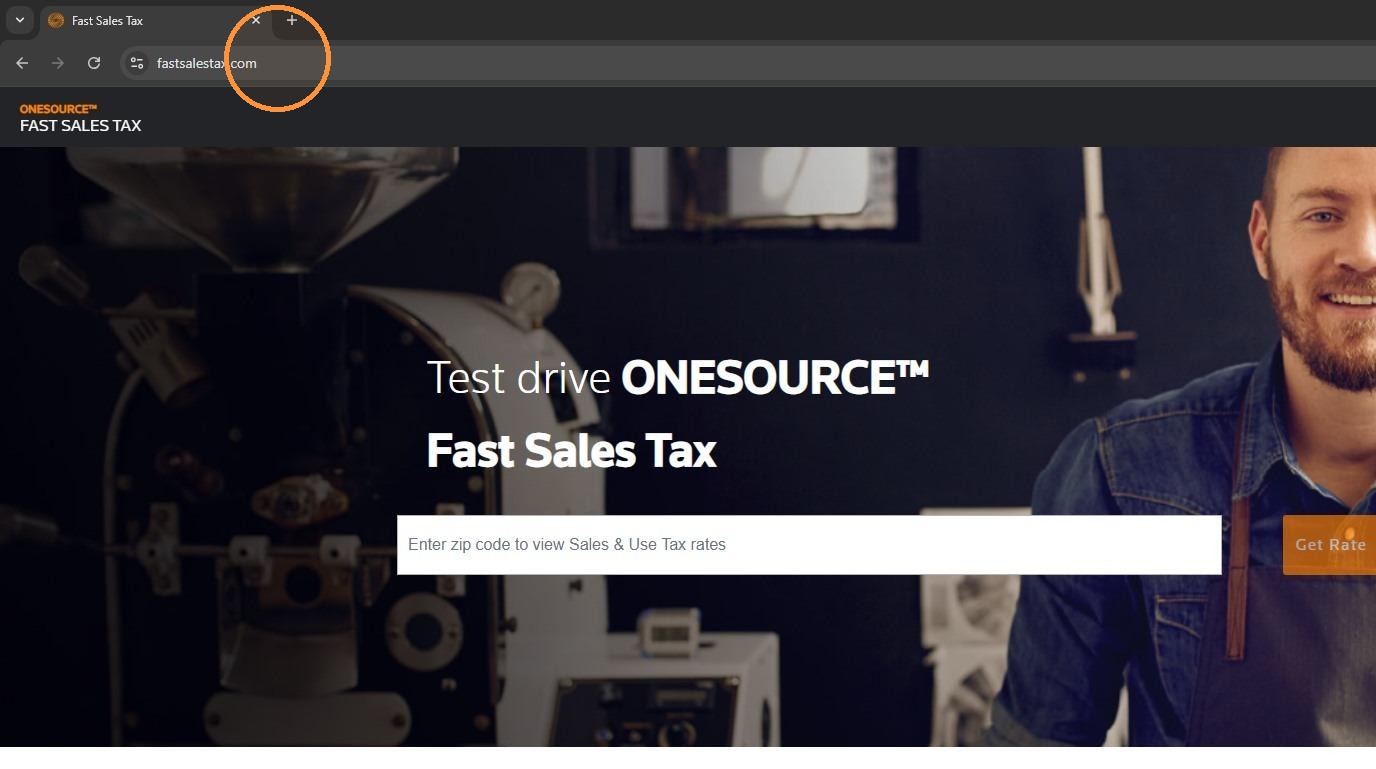
2. Navigate to "fastsalestax.com"
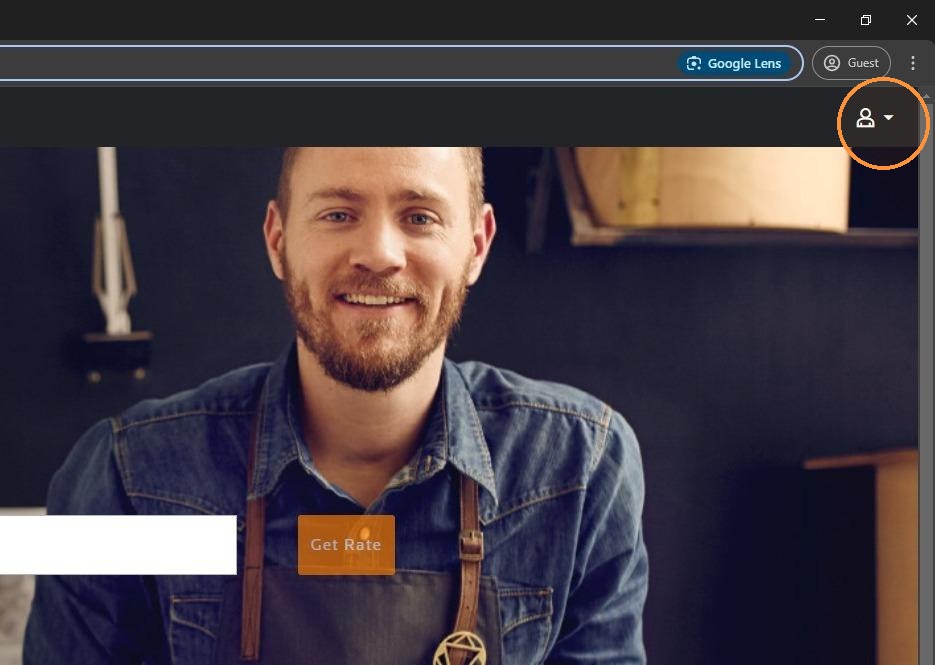
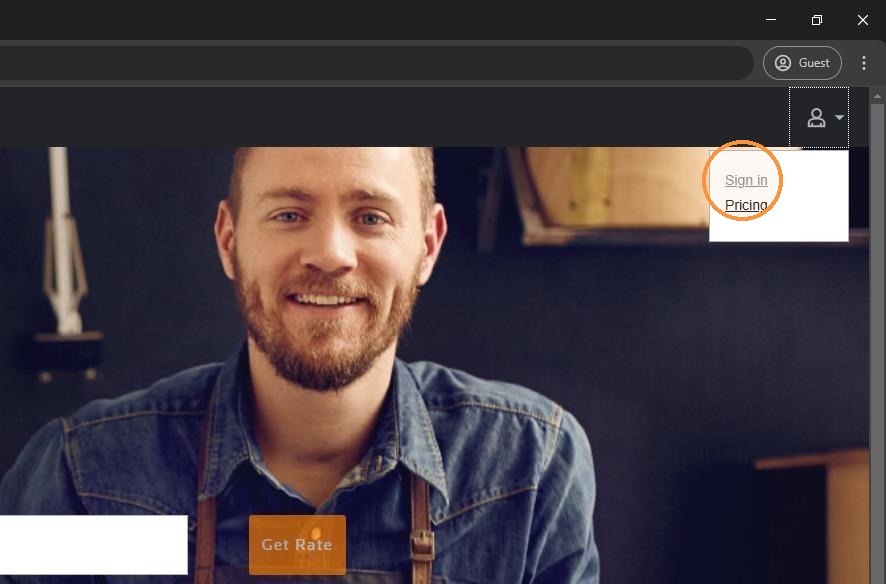
3. Click here to Sign in
4. Sign in
5. Click "Rate information" then "Rate File Automation"
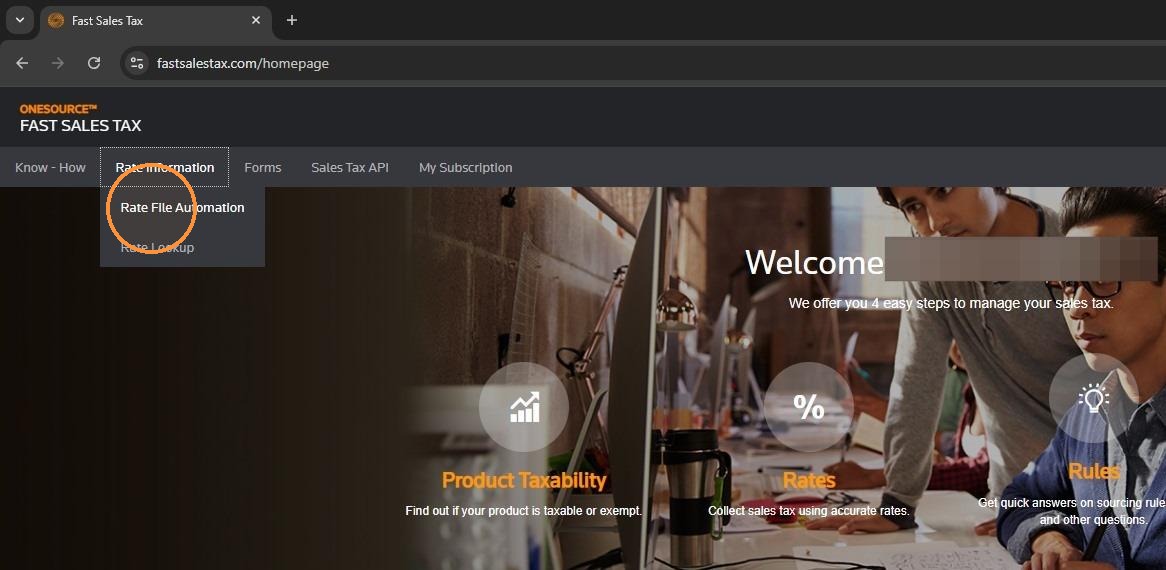
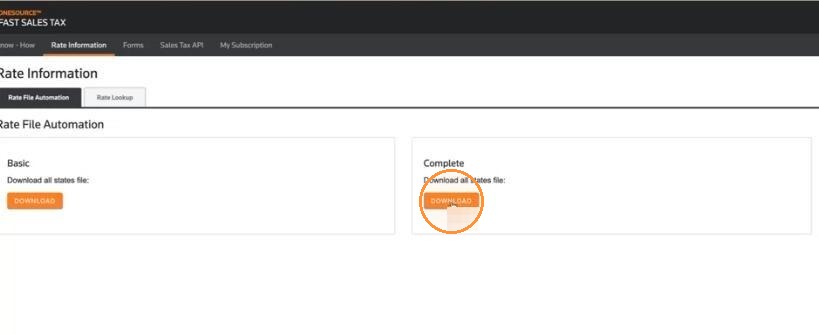
6. Click "Download"
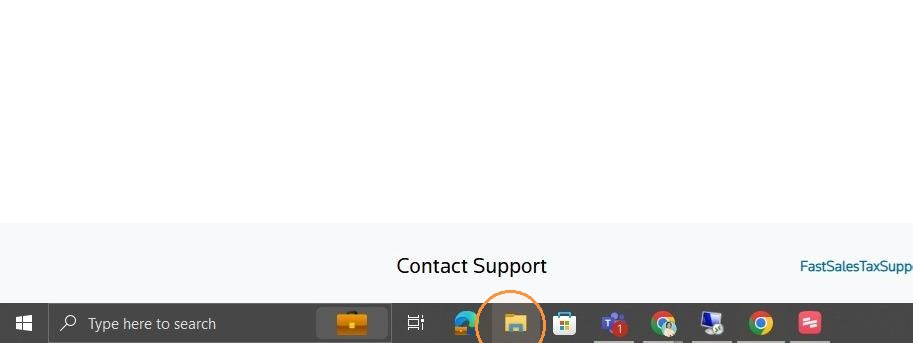
7. Open "File Explorer"
8. Open "Downloads" folder
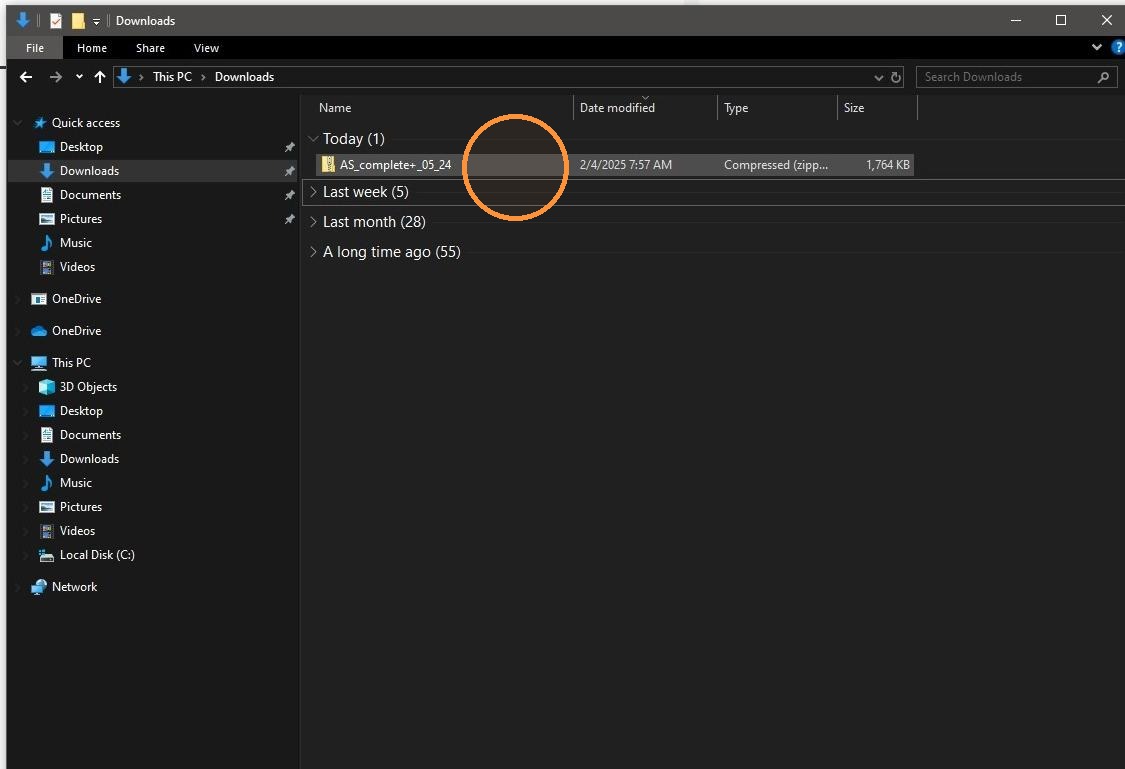
9. Right click on the downloaded file.
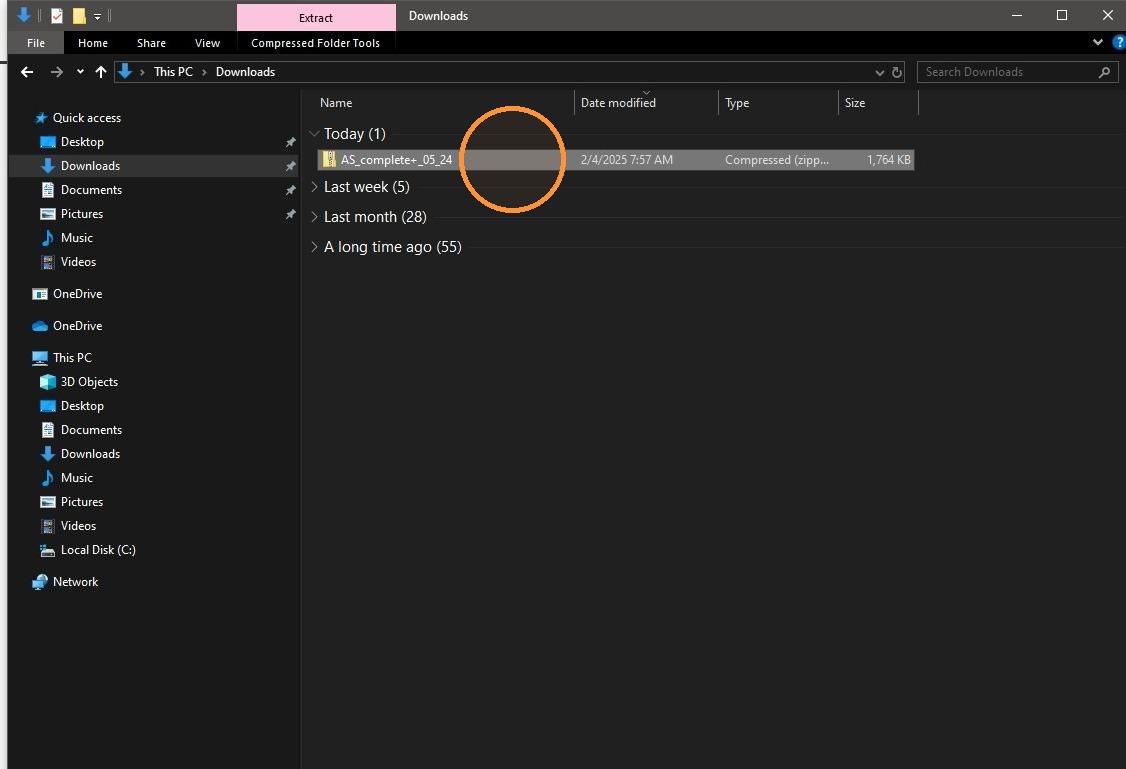
10. Click "Extract All..."
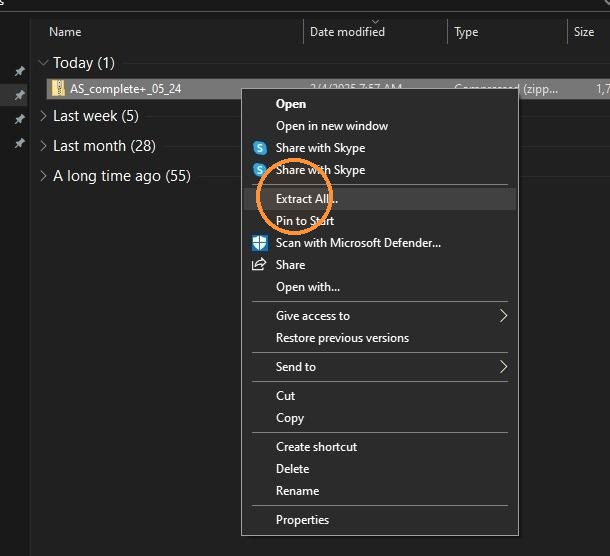
11. Click "Extract"
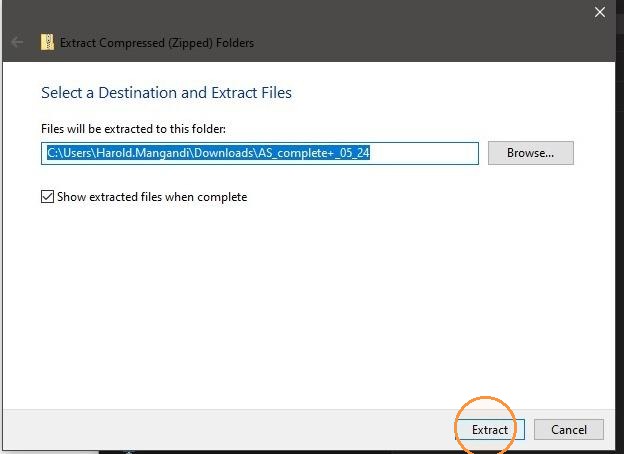
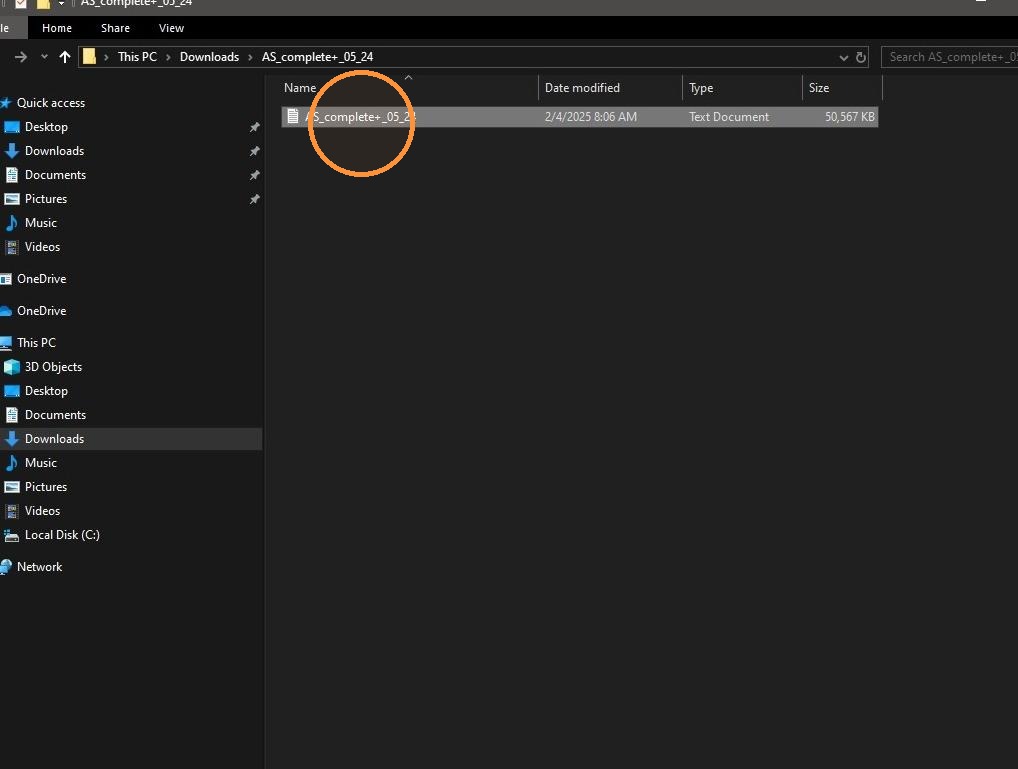
12. Select the text file using Left Click.
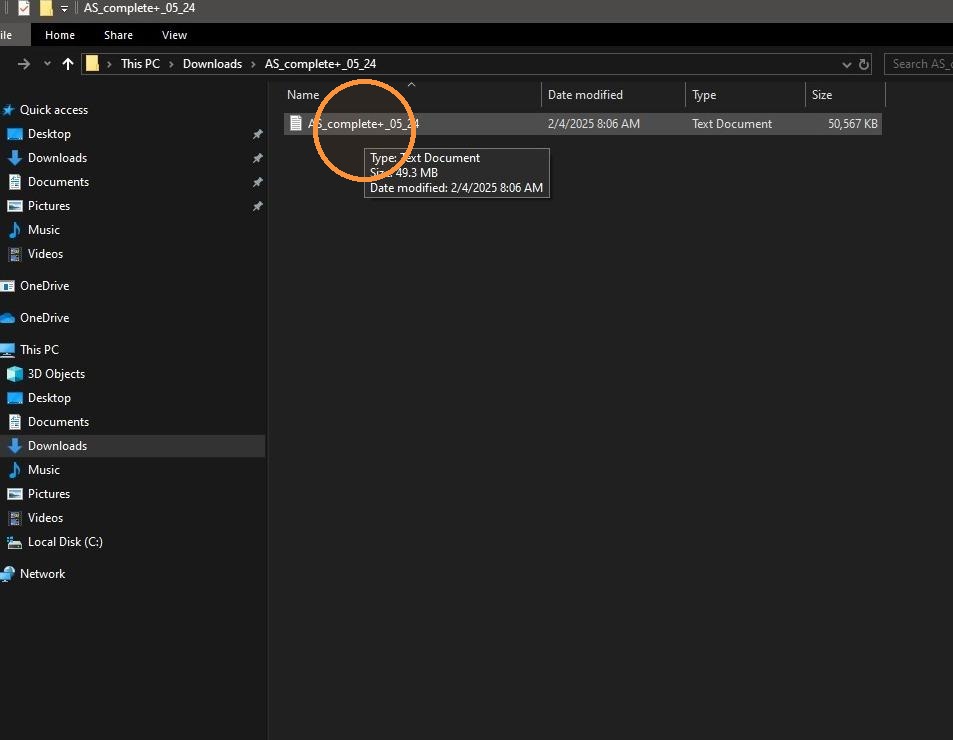
13. Right click the downloaded file
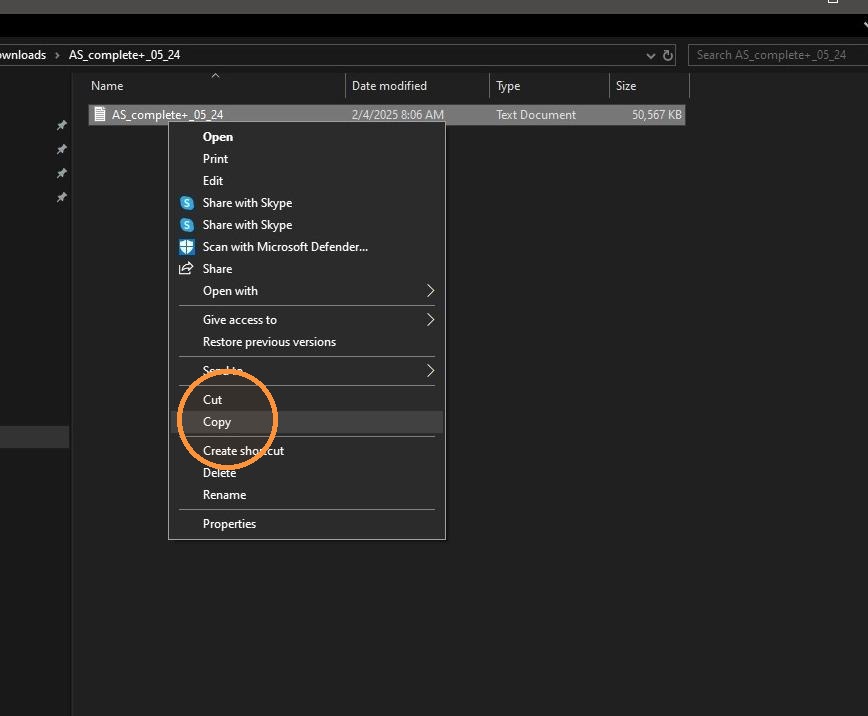
14. Click "Copy"
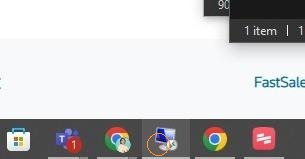
15. Open the Remote Desktop Connection for hosted users.
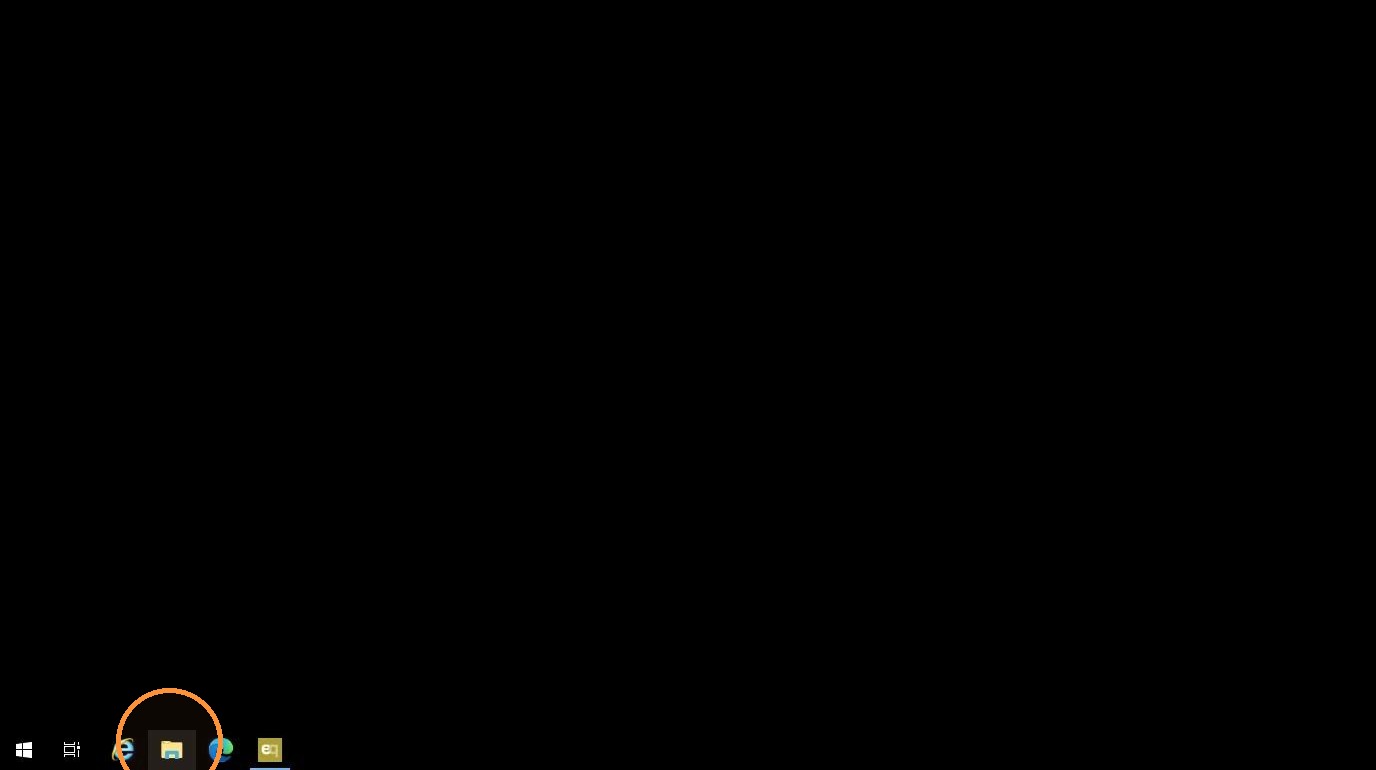
16. Click "File Explorer" inside the Remote Desktop
17. Click "Drive F" (where Quantum is saved; it may be different per User)
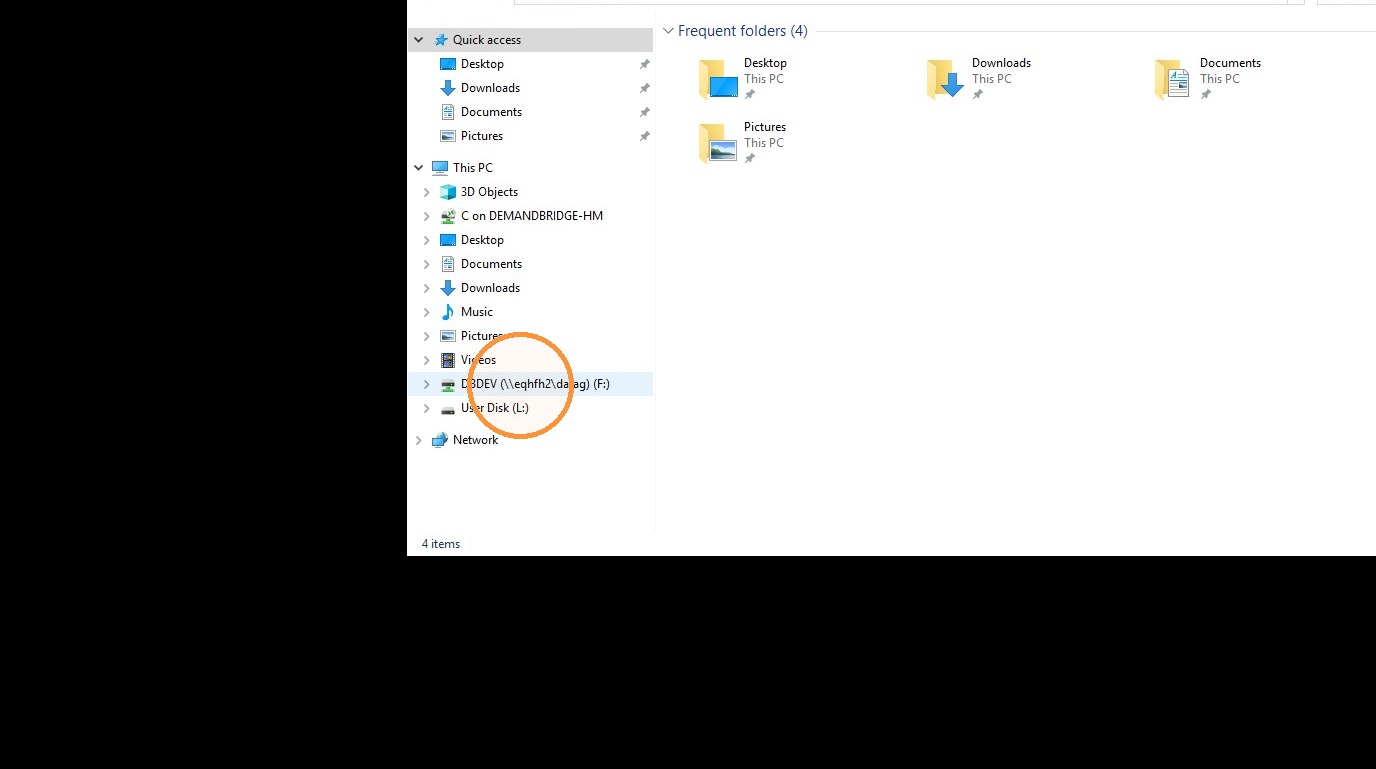
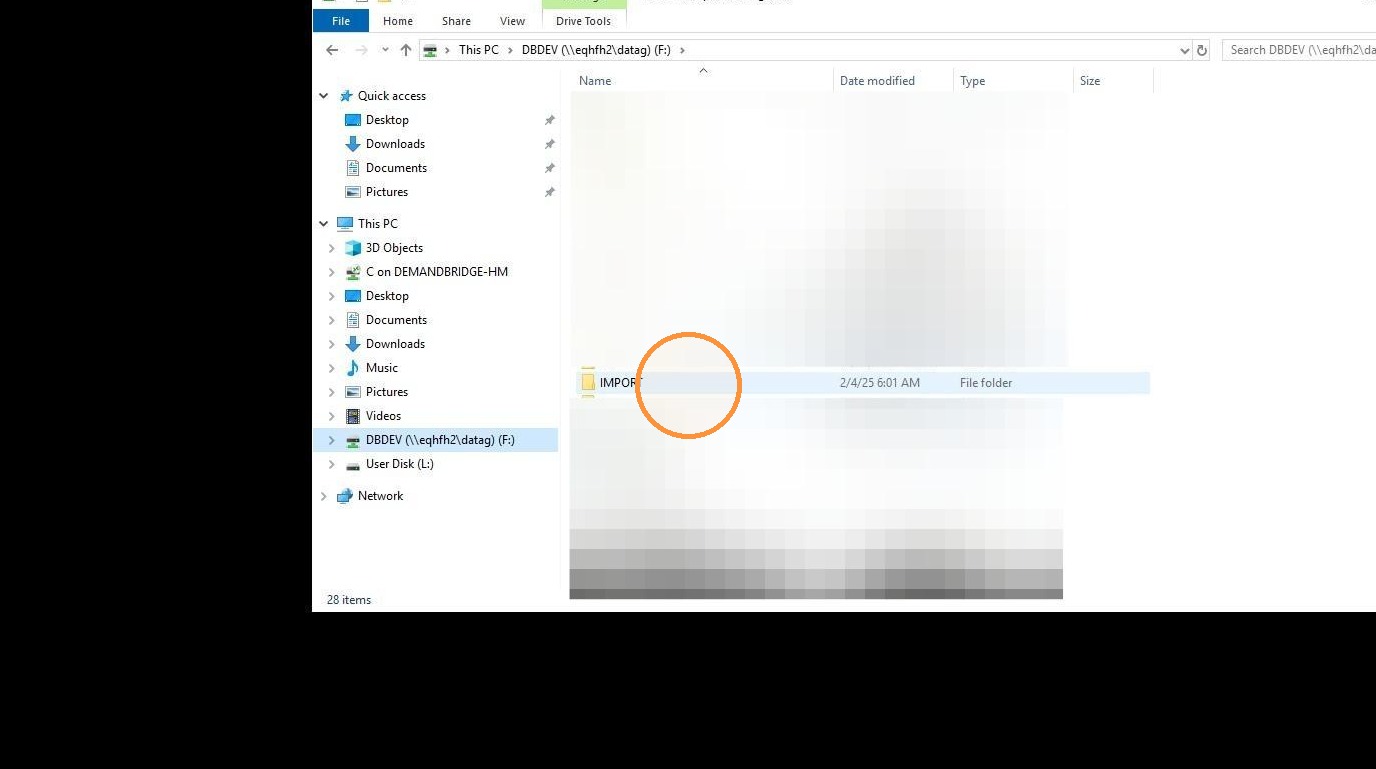
18. Enter "Import" folder
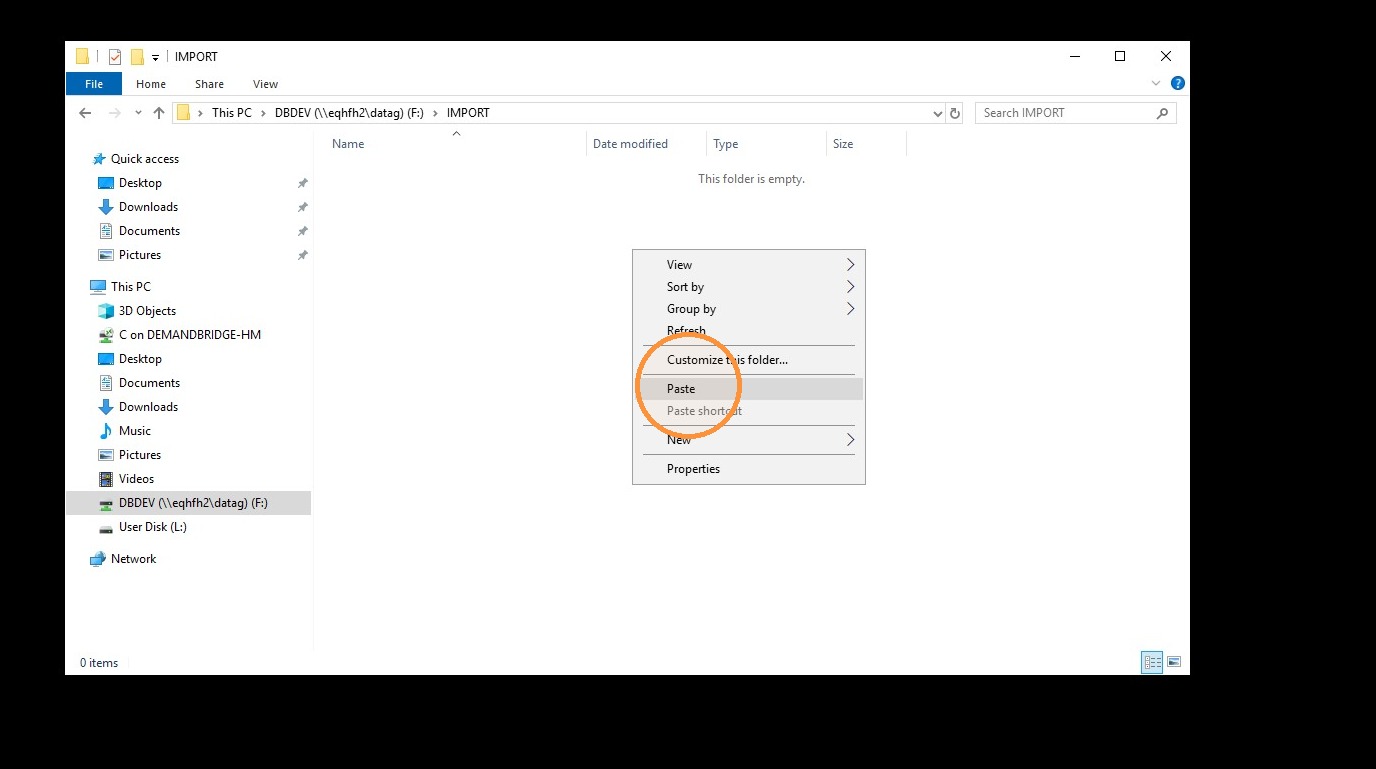
19. Paste copied file
20. ! BACKUP YOUR DATA !
Follow steps below
21. Go back to the Drive
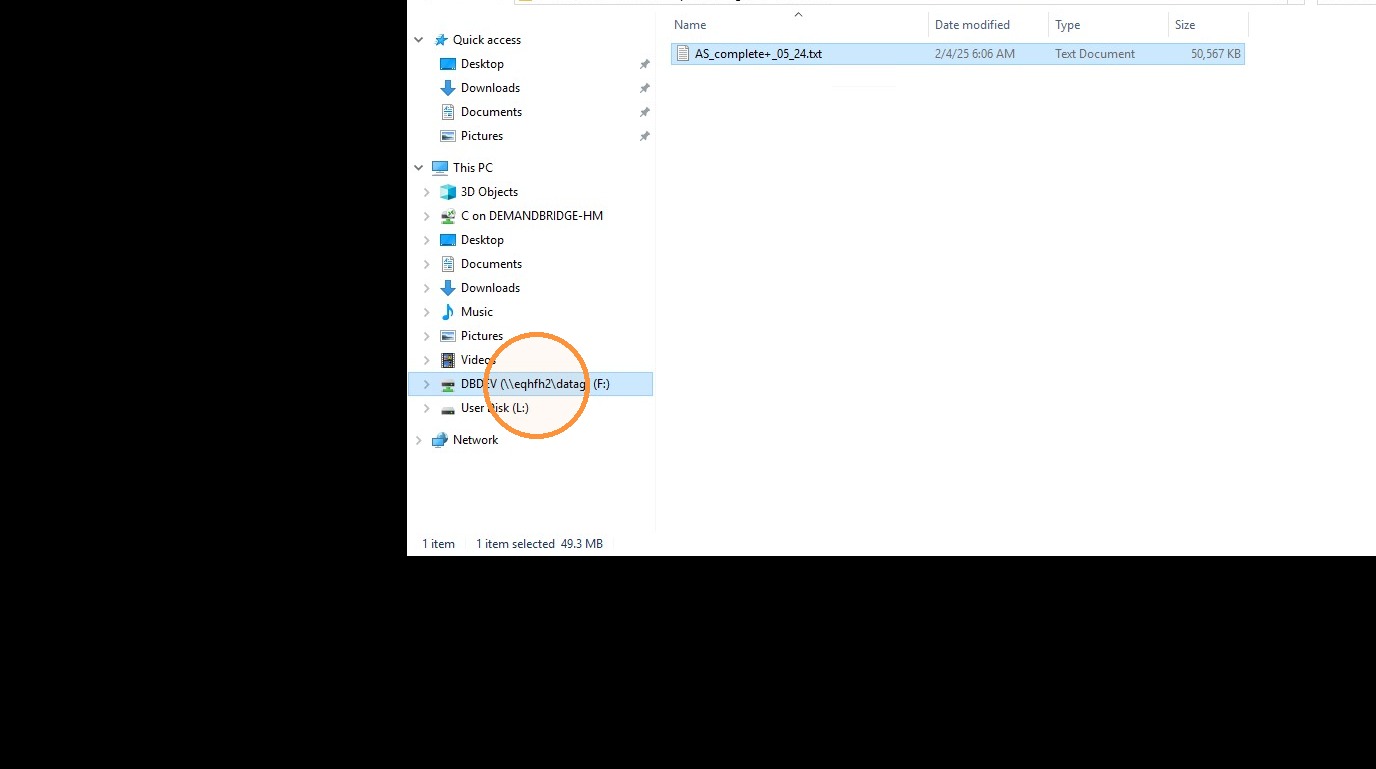
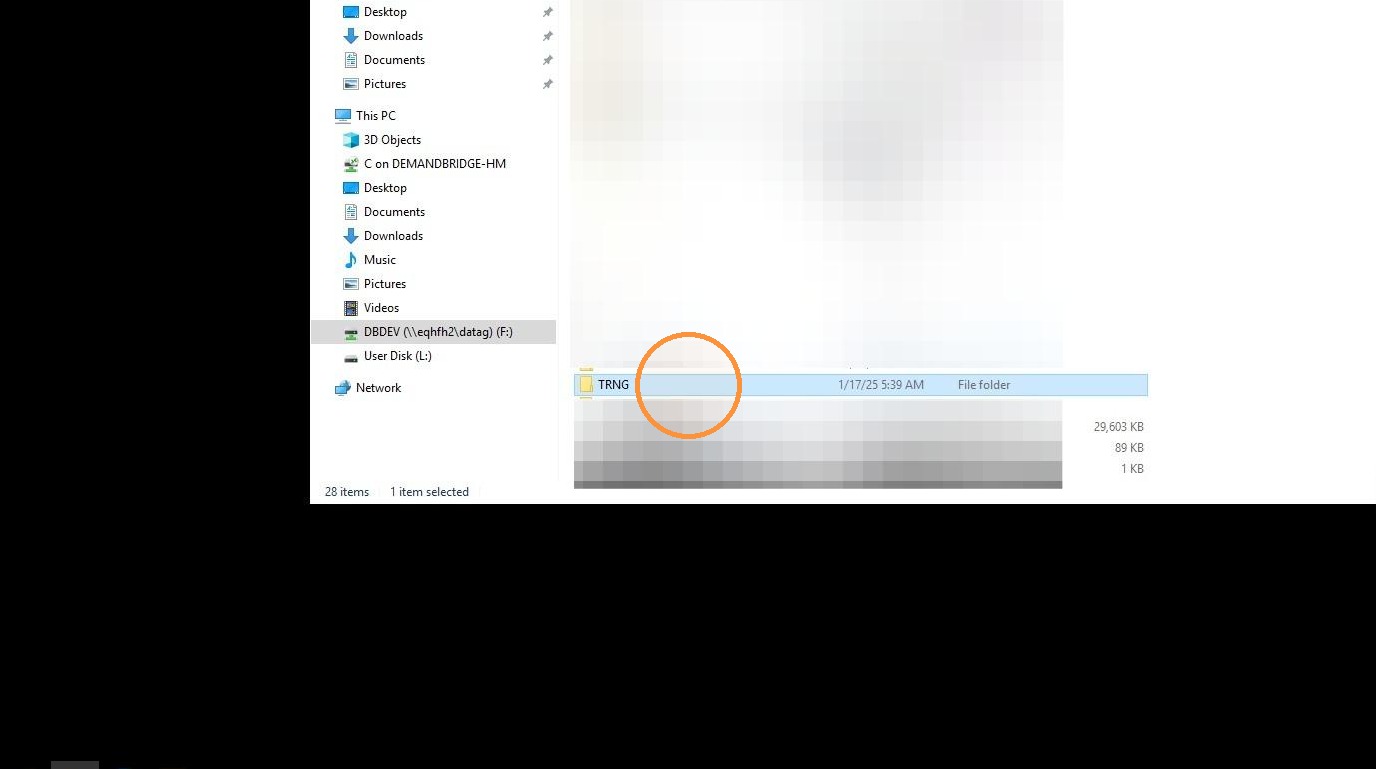
22. Select your Company Folder by using left click (Your company folder may be named "0001")
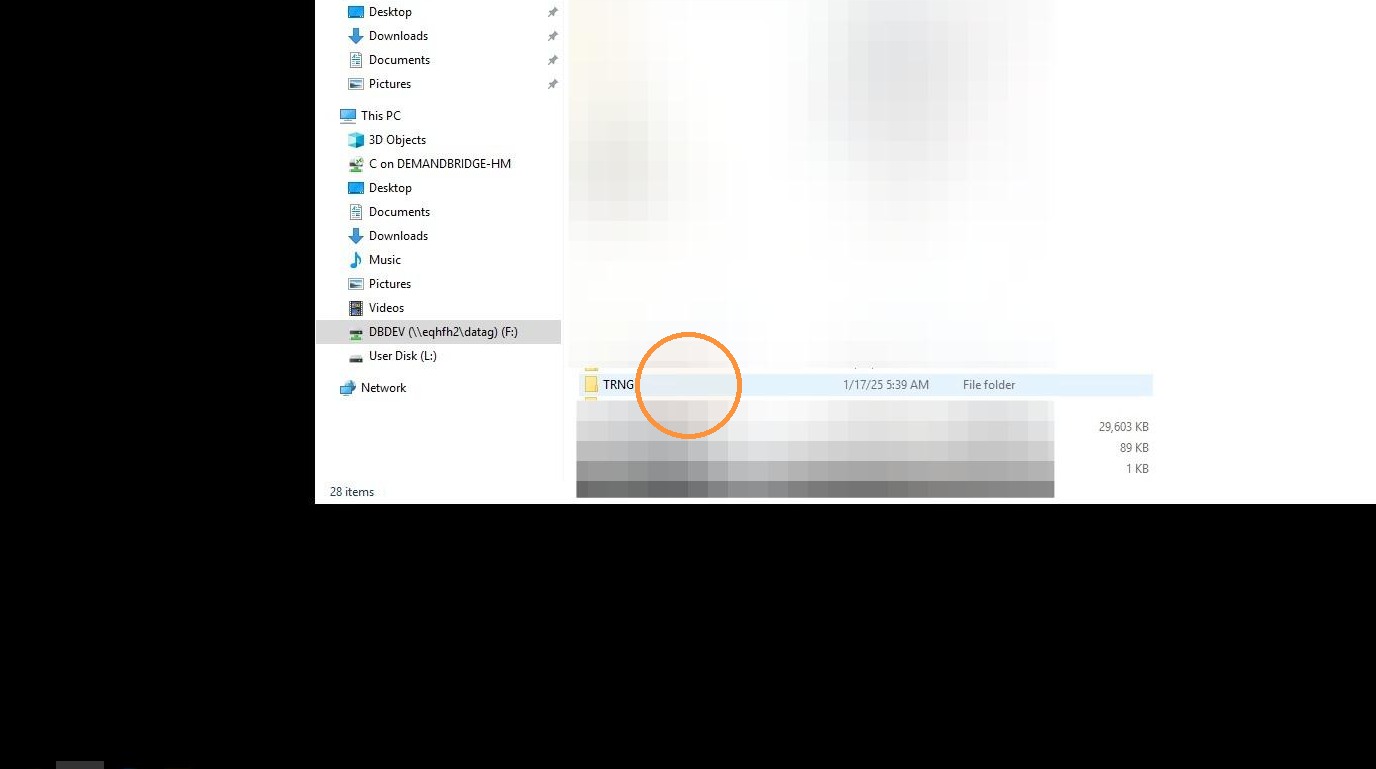
23. Right click the selected folder
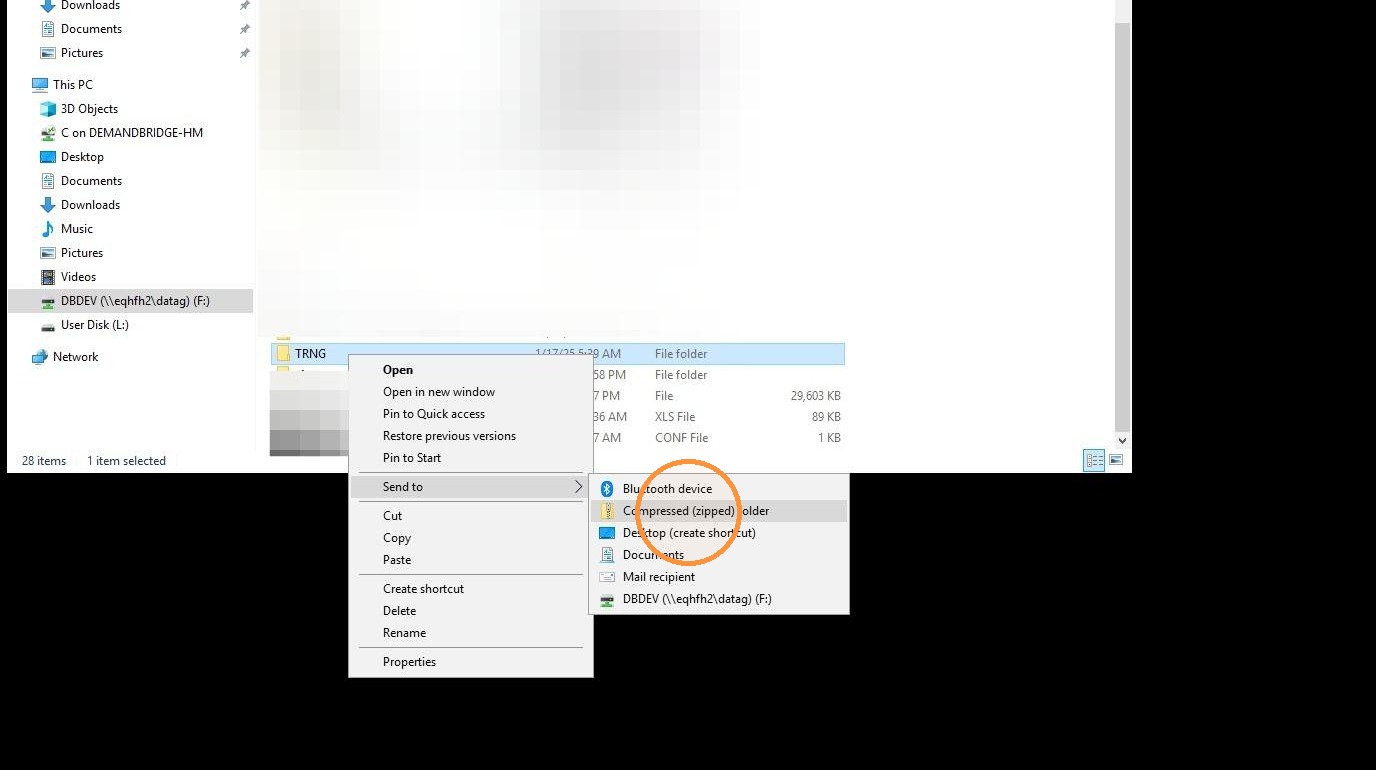
24. Compress into a zipped folder
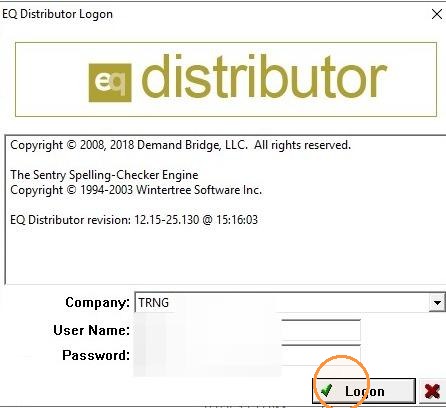
25. After backing up, Open eQuantum
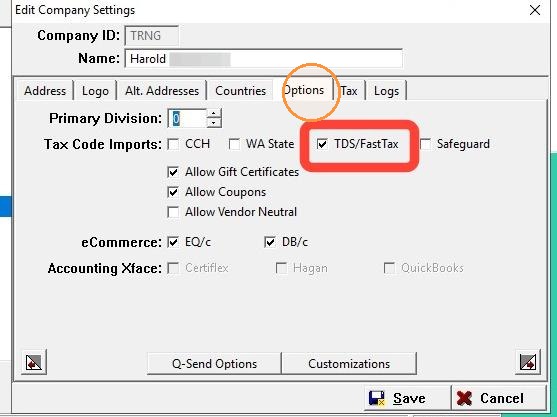
26. Making sure Fast Tax imports are enabled:
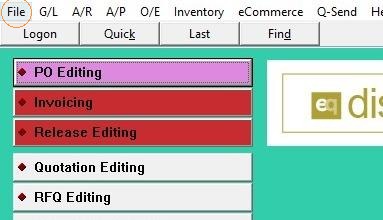
27. Click "File"
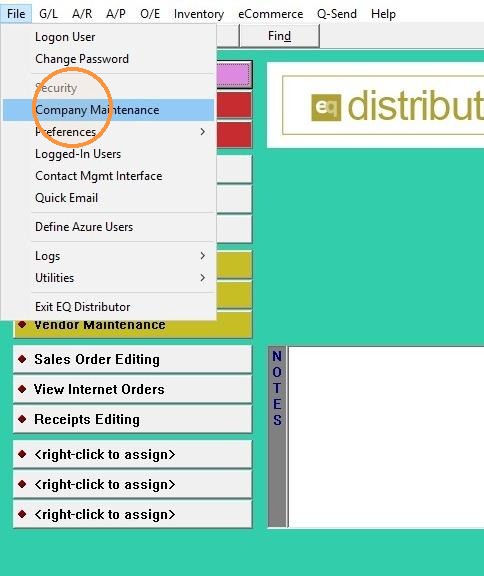
28. Click "Company Maintenance"
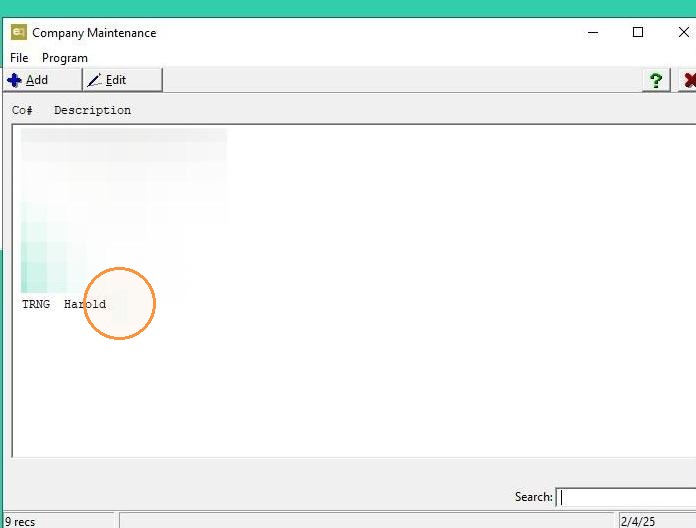
29. Double-click your company
30. Head to "Options" tab and ensure "TDS/FastTax" is enabled
31. Starting the import:
32. Close out all windows and Click "Q-Send"
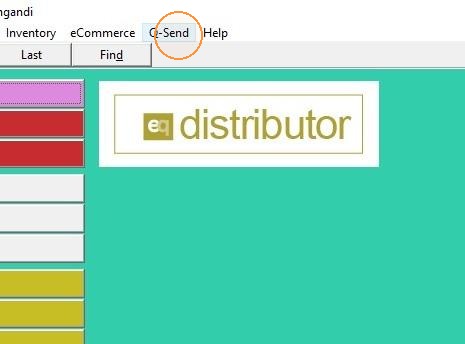
33. Click "Import Sales Tax Data"
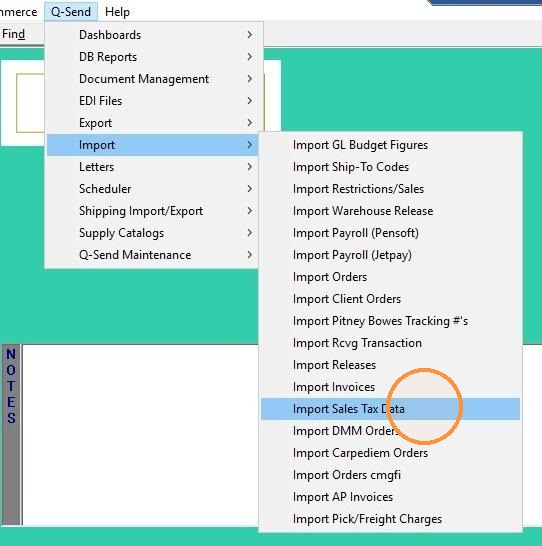
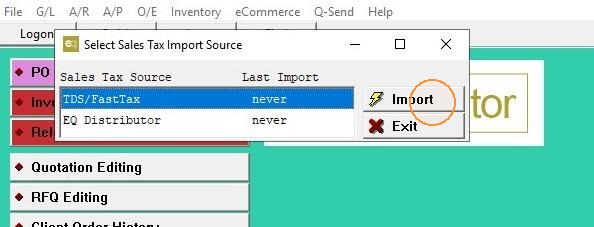
34. Select "TDS/ FastTax" and Click "Import"
35. Click the box once you have read the Disclaimer
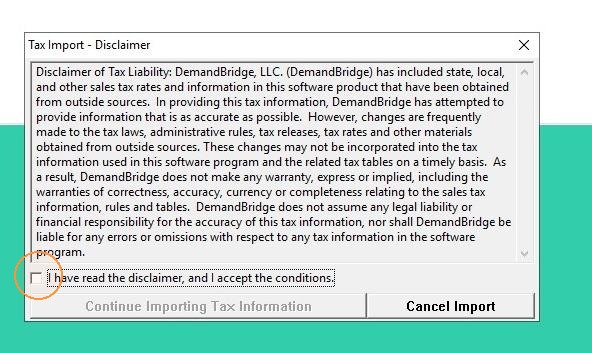
36. Click "Continue Importing Tax Information"
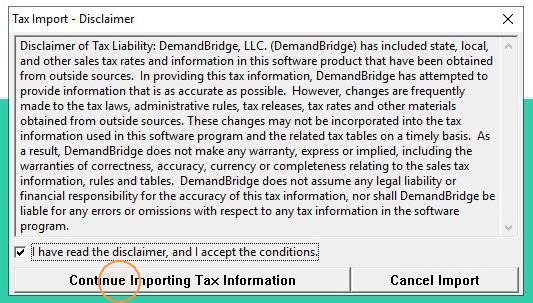
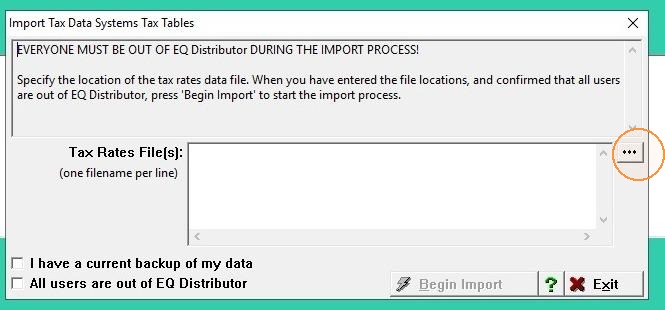
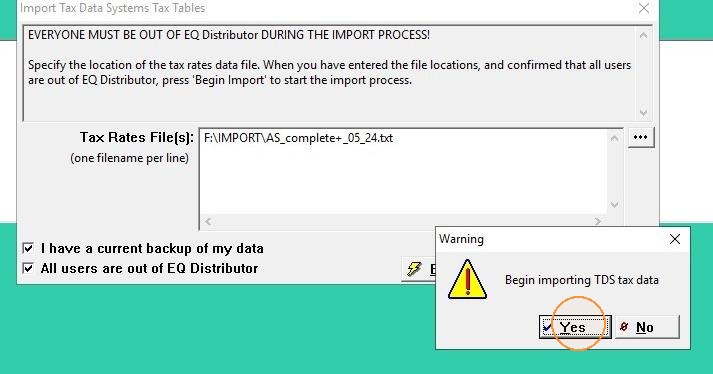
37. Click the three dots to browse and select files for import.
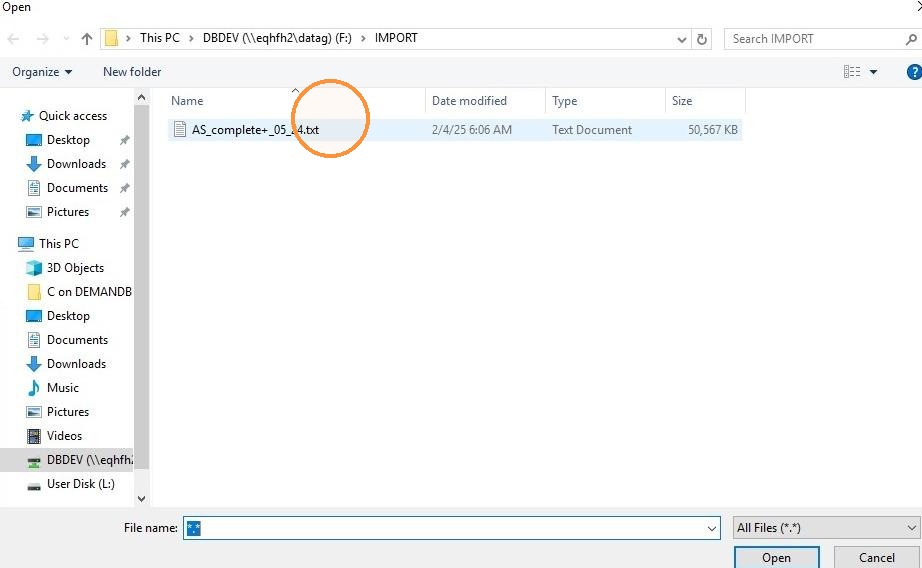
38. Select and open the file you recently added to the "IMPORT" folder
39. Click both boxes to begin the import
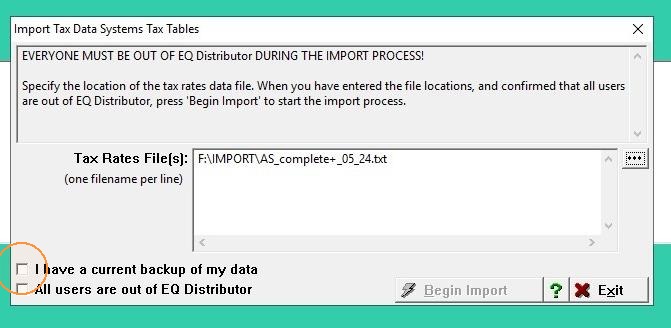
40. Click "Begin Import"
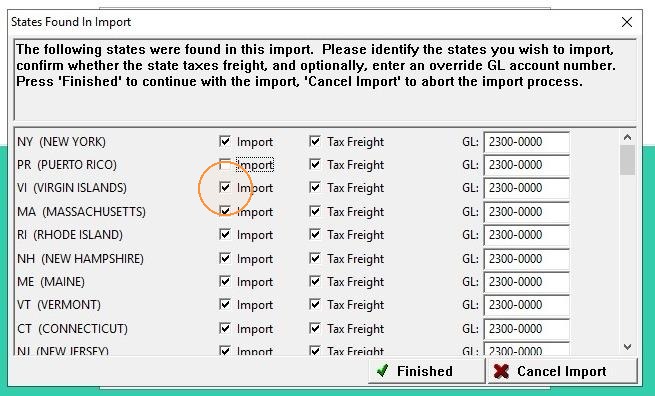
41. Unselect the States that you don't want to be imported
Disclaimer: Confirm with your accountant if you are unsure of the GL account number.
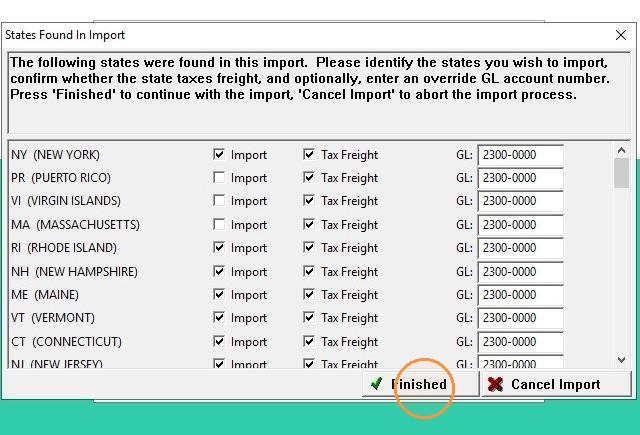
42. After confirming all selections are as intended, click "Finished"
43. You can view the Tax Rule Exception Log to identify which ship-to tax rules couldn't be applied.
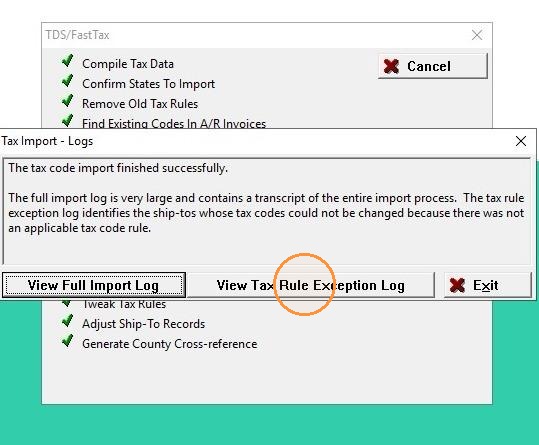
44. See sample log below
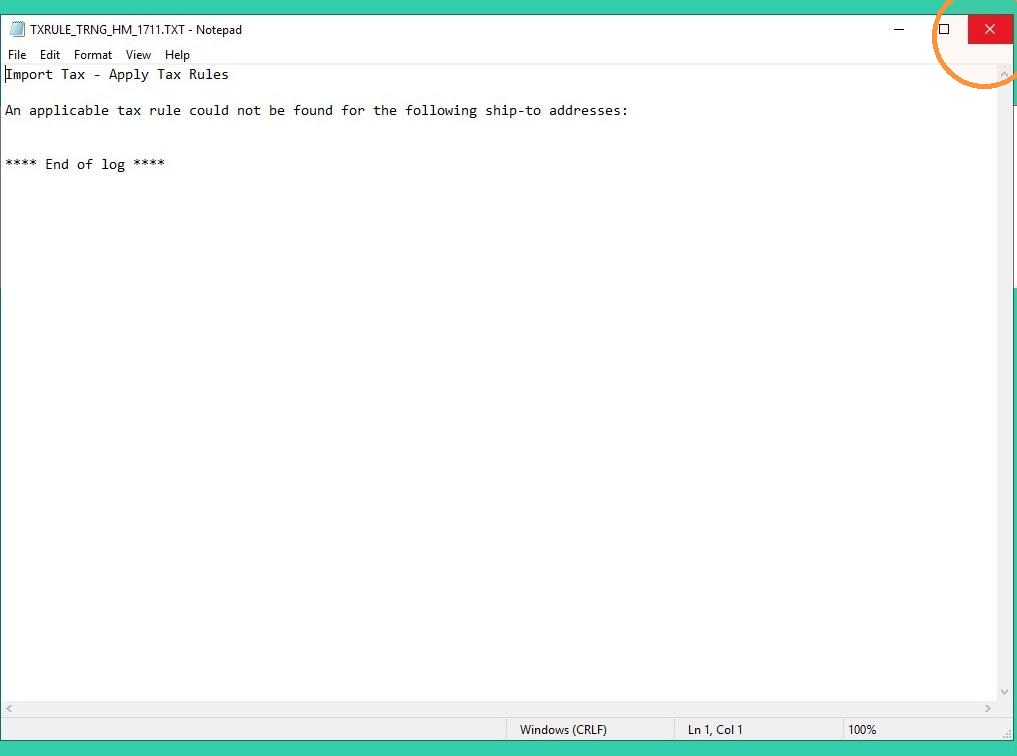
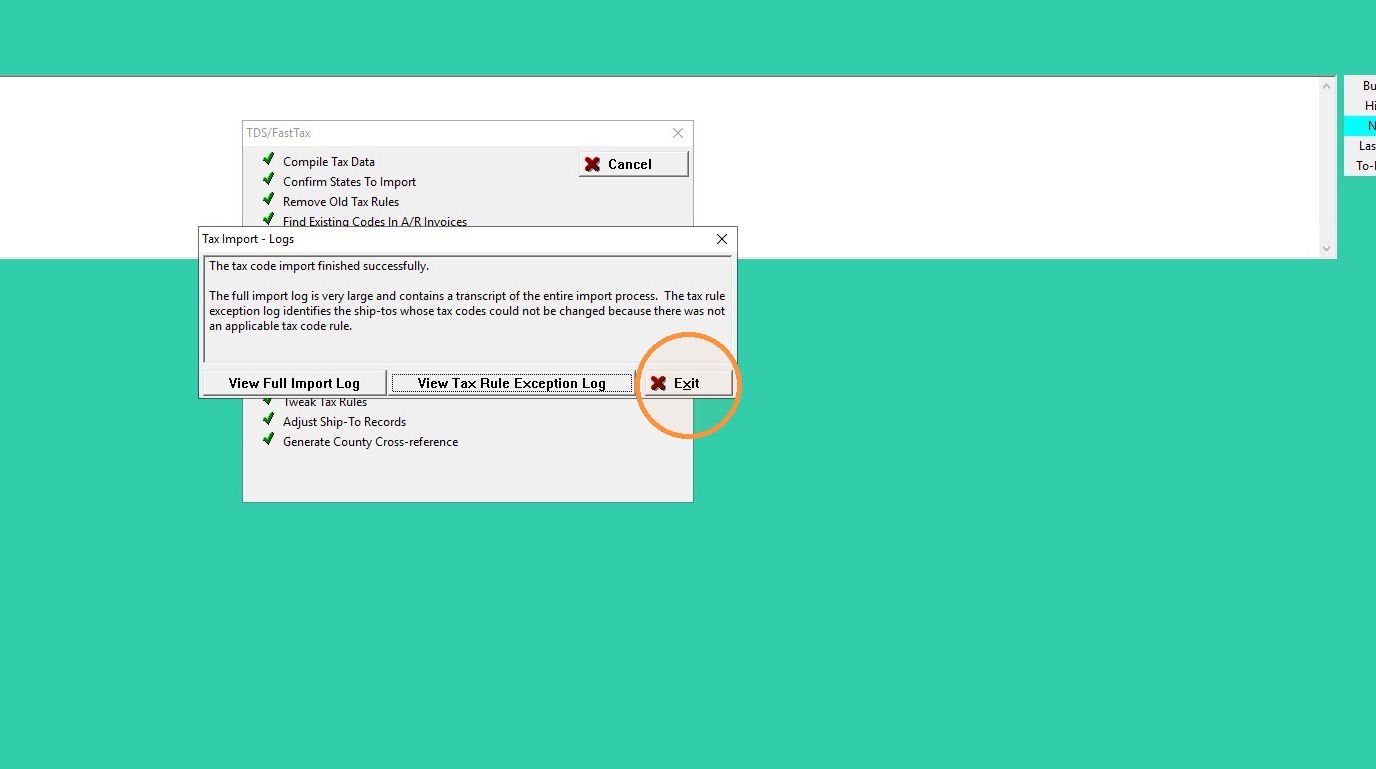
45. Click "Exit"