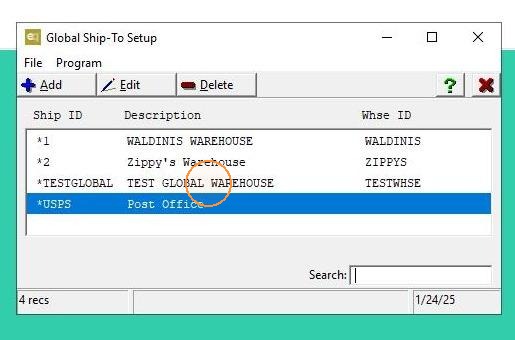
EQD: How to Create and Add a Global Warehouse
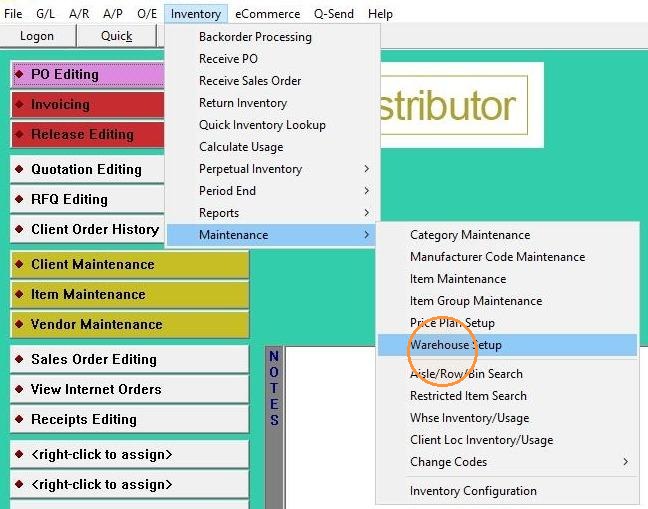
1. First, navigate to the Inventory section to add a new warehouse, place your cursor over Maintenance and select Warehouse Setup by clicking on it.
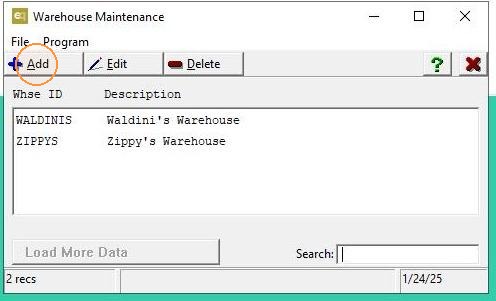
2. Click on "Add" to proceed.
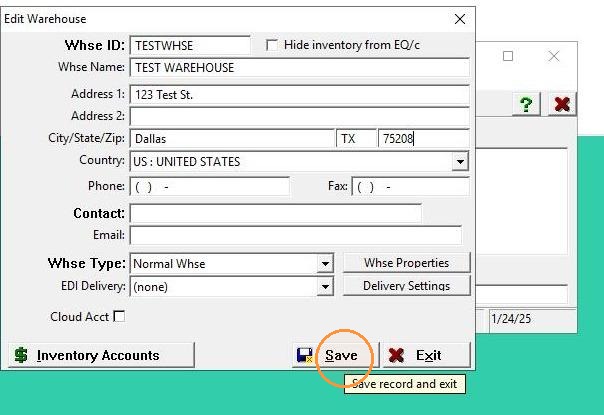
3. Enter the warehouse information, then click Save to finalize.
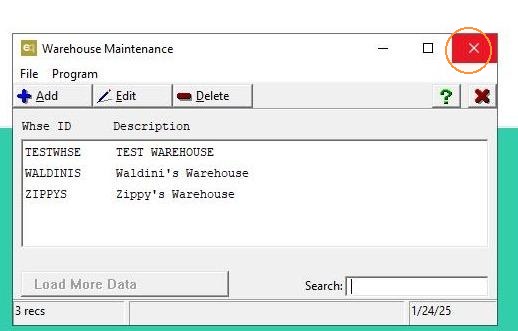
4. Exit the warehouse setup screen.
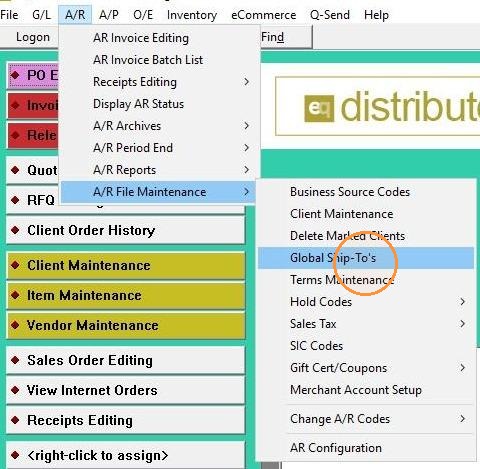
5. Navigate to the A/R section, hover over A/R File Maintenance and select Global Ship-To's by clicking on it.
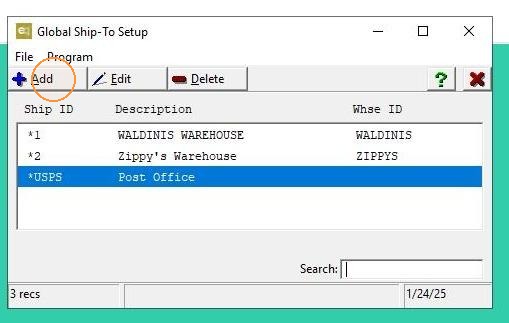
6. Click on Add to create a new entry.
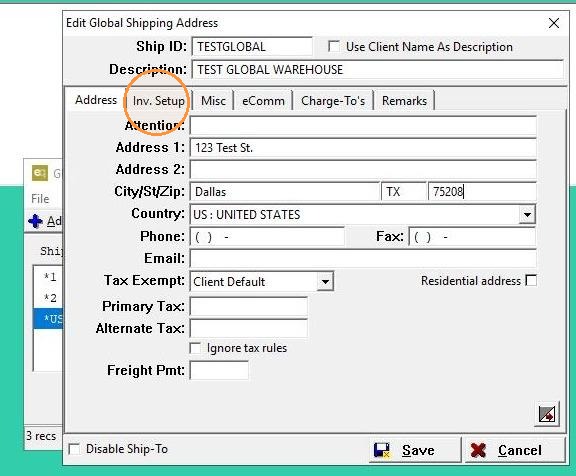
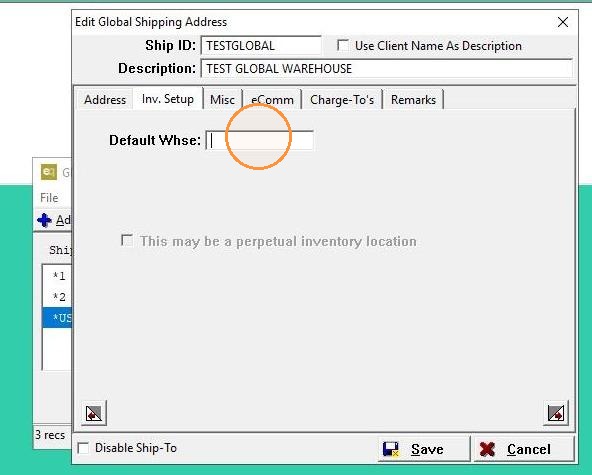
7. Enter the Global Warehouse information, then navigate to the second tab labeled Inv. Setup.
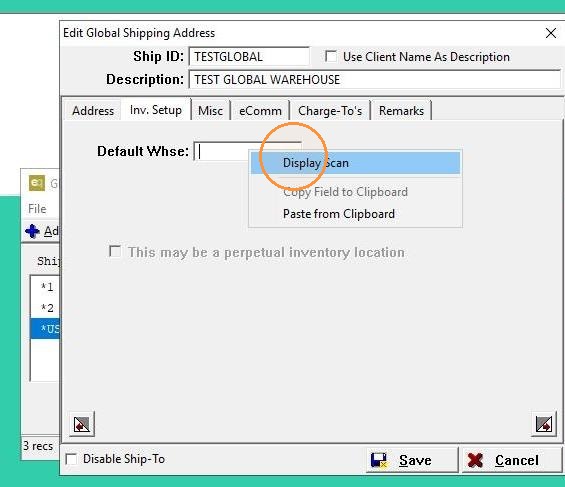
8. Right-click on the box beside Default Whse.
9. Click on Display Scan.
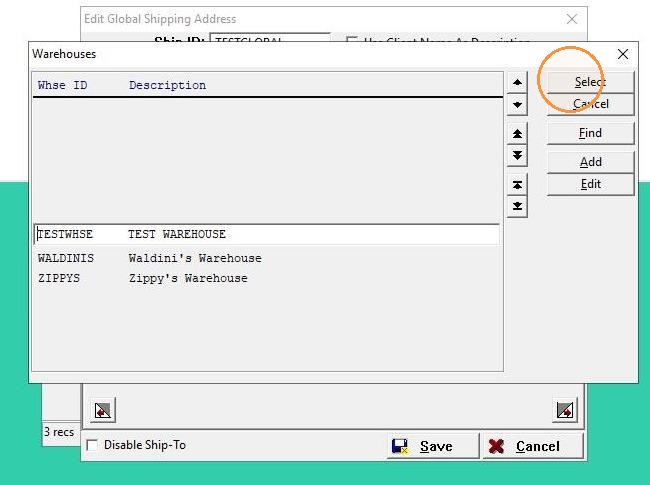
10. Select the warehouse you created earlier from the list.
11. Once you're finished, click Save to apply the changes.
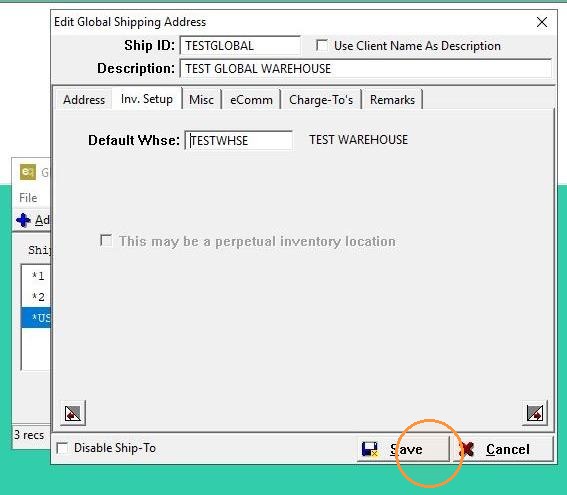
12. The Global Ship-To is now set up and should be part of the list.