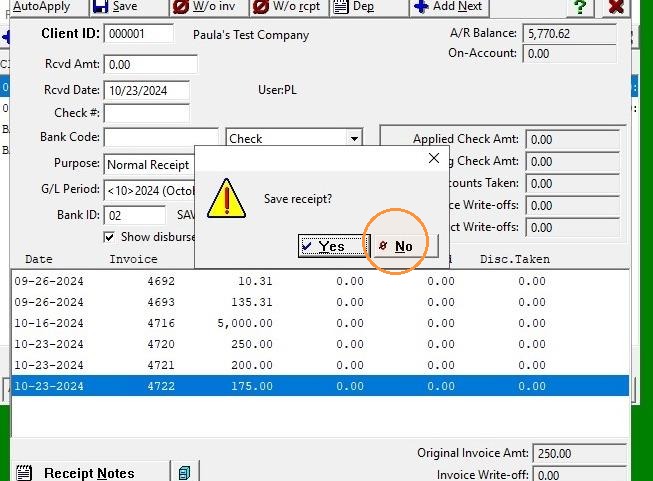
EQD: Applying a Credit Invoice to an Order Before Invoicing
Note: This process was created in a test environment. The information selected is for training purposes only and will not match the data you will use in your company's system.
1. Click "Locate credit in A/R"
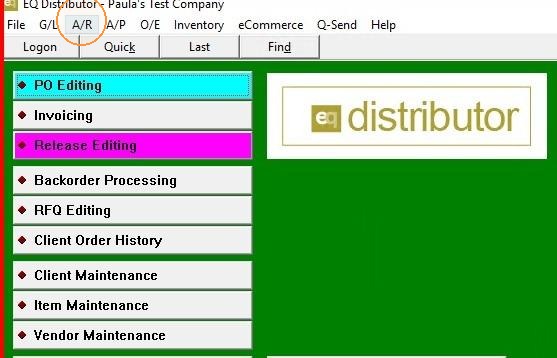
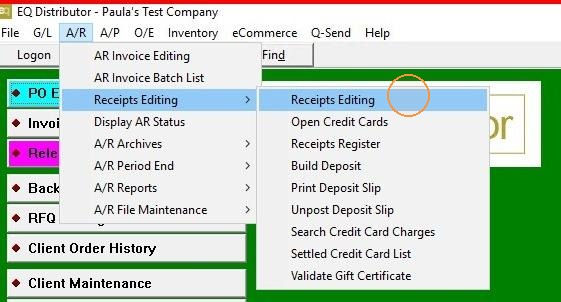
2. Click "Receipts Editing"
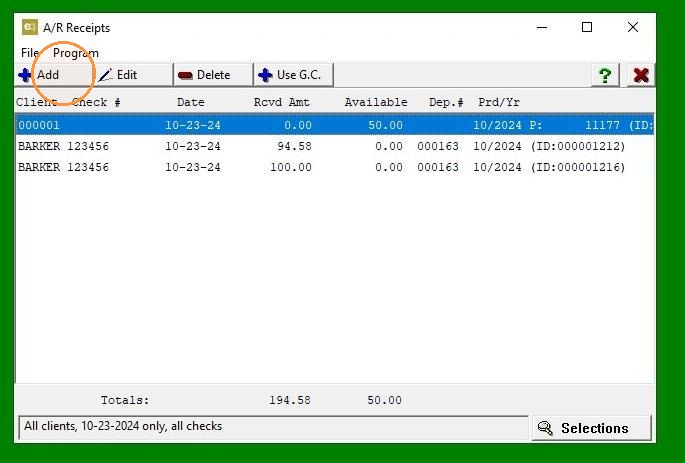
3. Click "Add to pull up client"
4. Right-Click and Select "Or Enter Client ID"
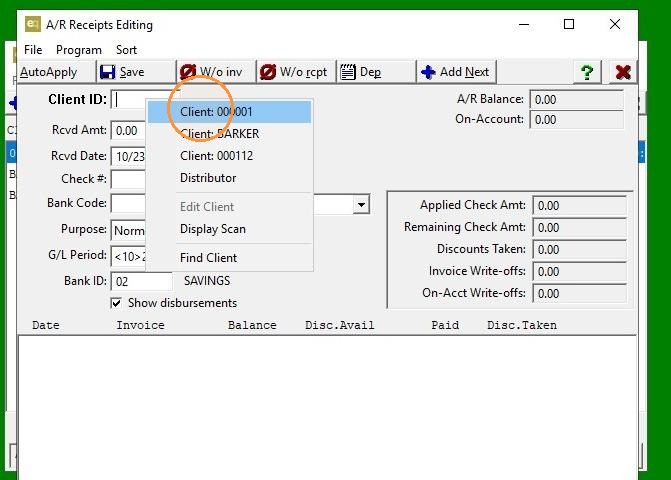
5. Double Click "Credit and Save"
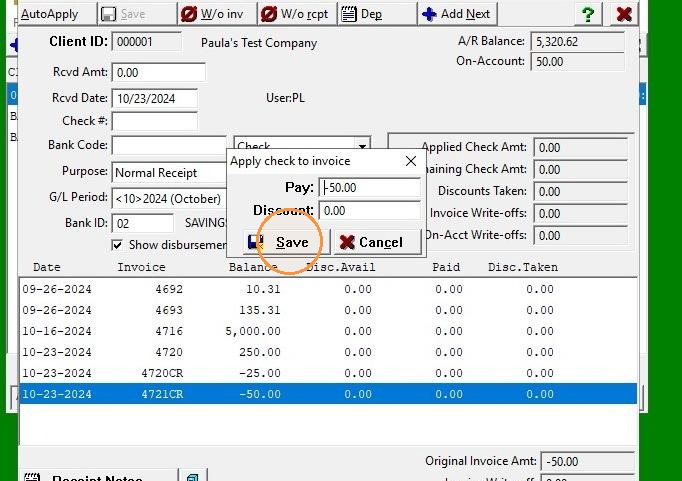
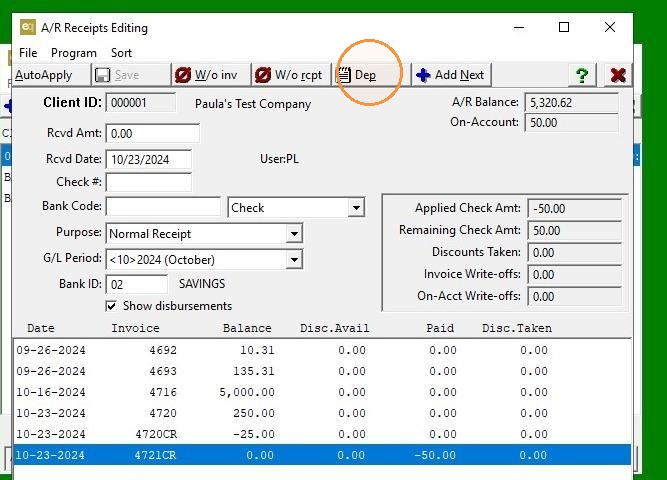
6. Click "Dep" Deposit Tab"
7. Right-Click and Select PO "Or Enter PO"
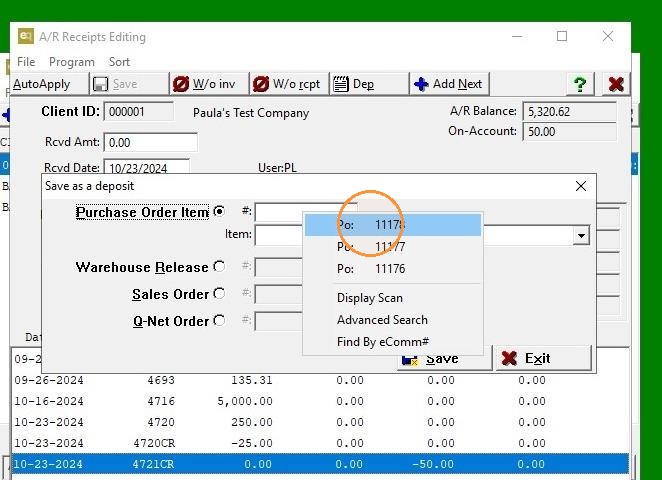
8. Click "Save"
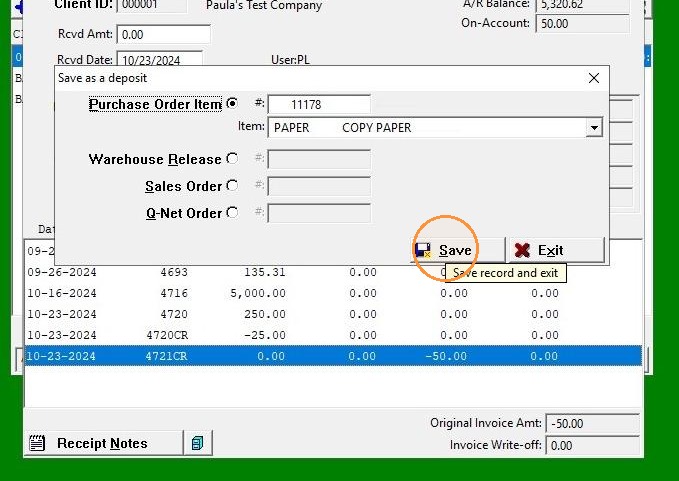
9. ***Multiple Credits Can Be Applied***
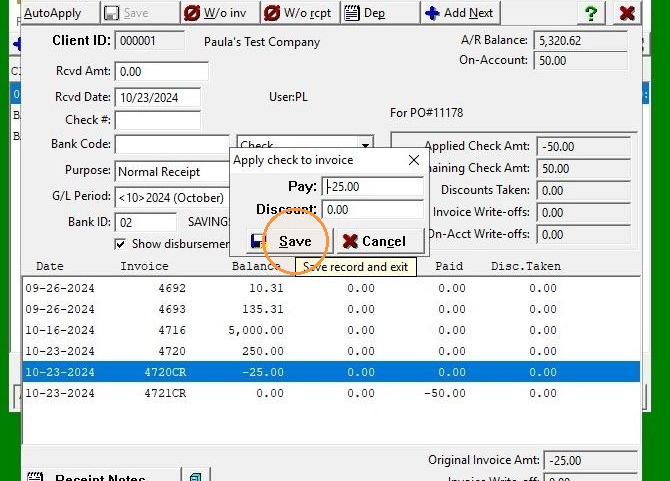
10. Click "Dep" Deposit Tab"
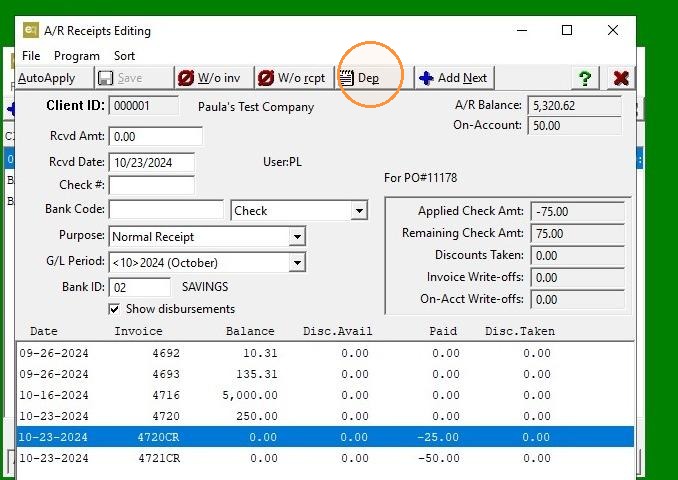
11. Click "Save"
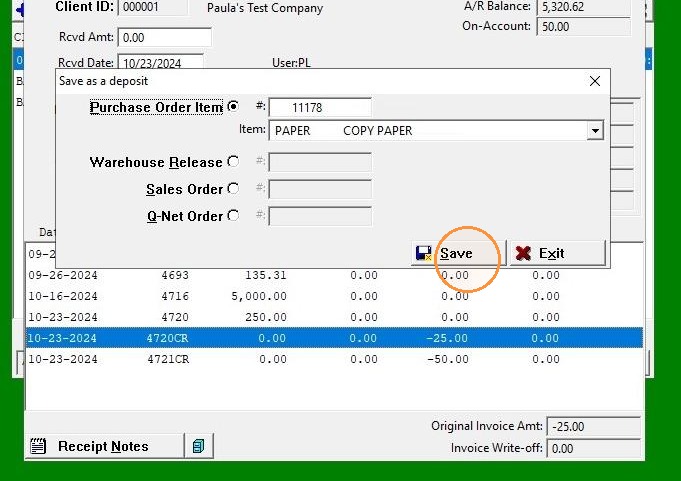
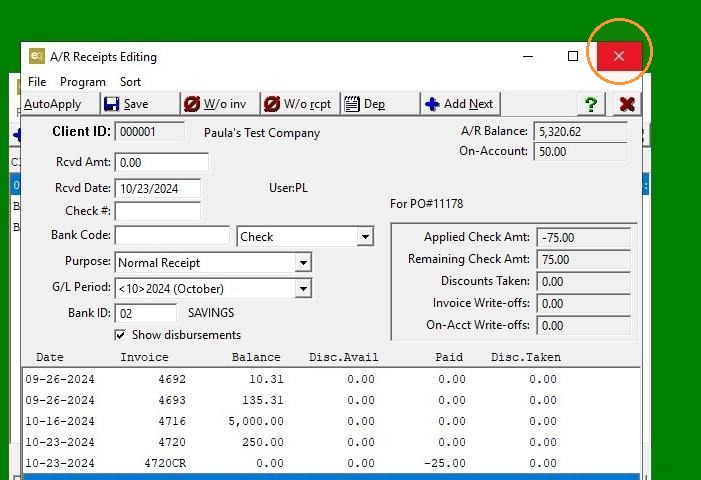
12. Click "Exit"
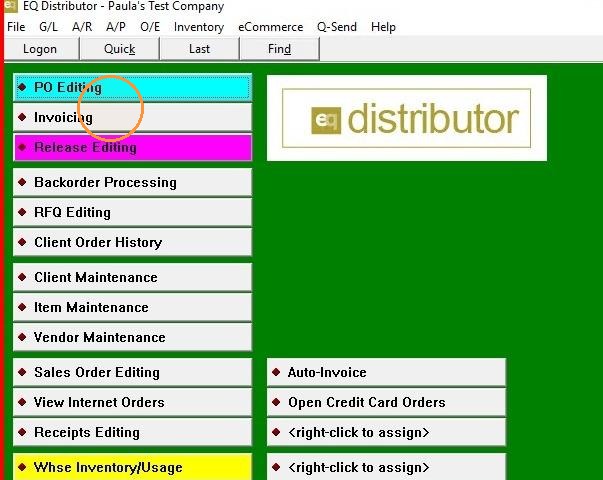
13. When Ready to Invoice, Click "Invoicing"
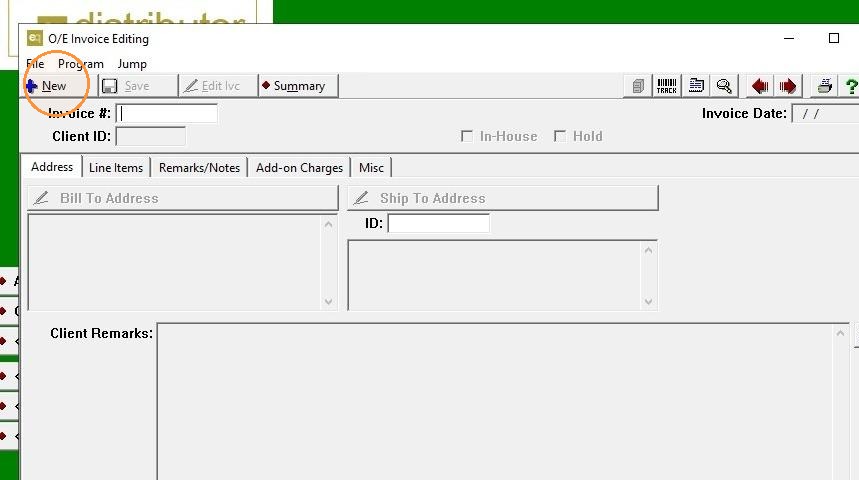
14. Click "New"
15. Right-Click and Select Client "Or Enter Client"
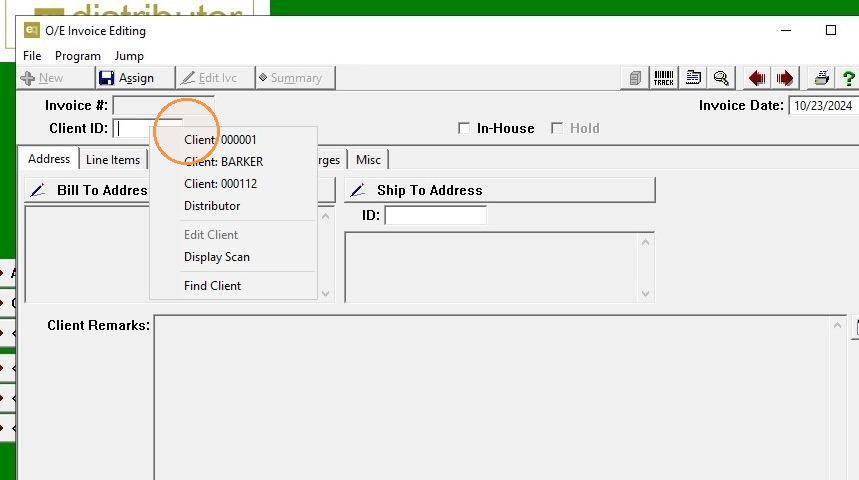
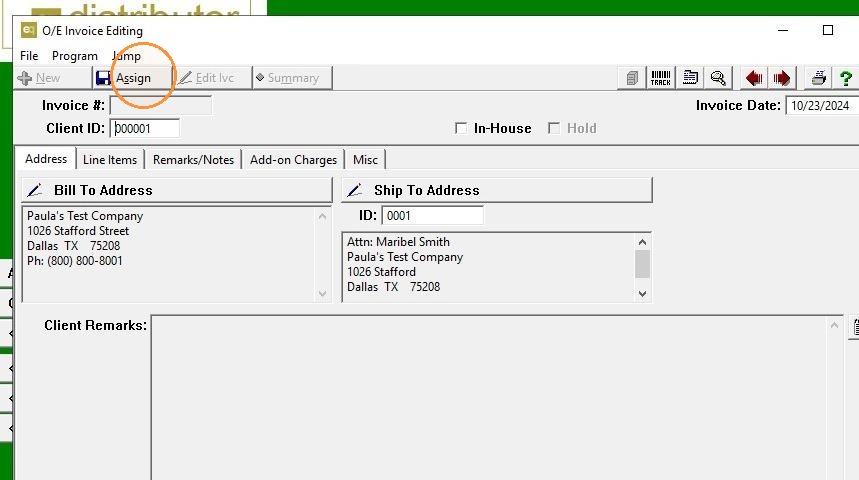
16. Click "Assign"
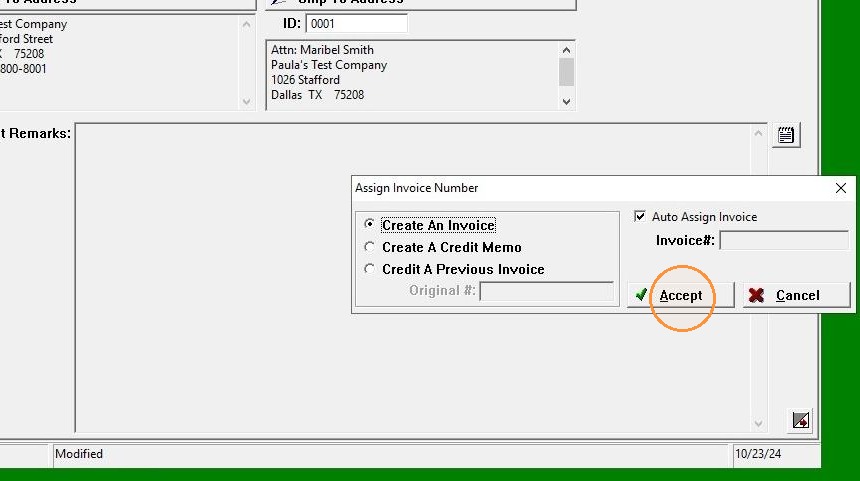
17. Click "Accept"
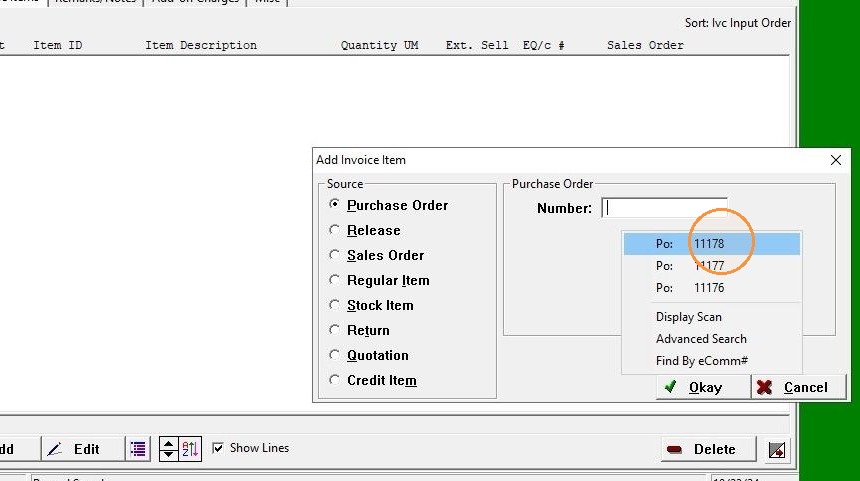
18. Right-Click and Select PO "Or Enter PO"
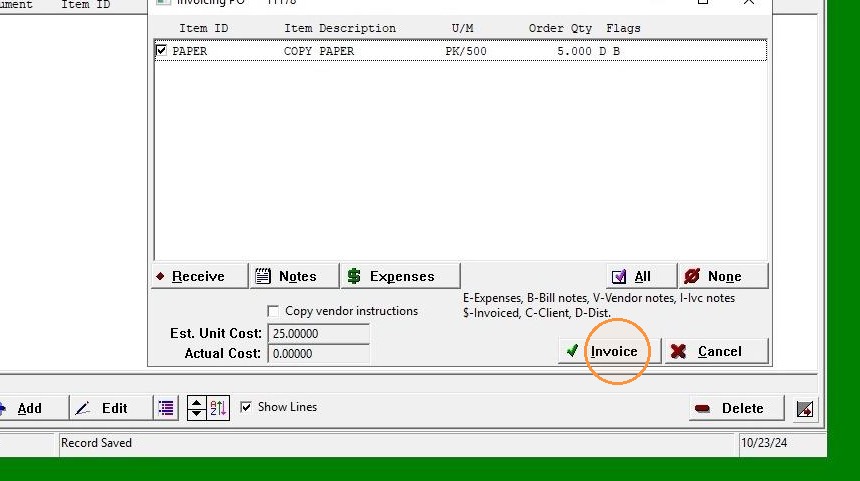
19. Click "Invoice"
20. Click "Print Preview"
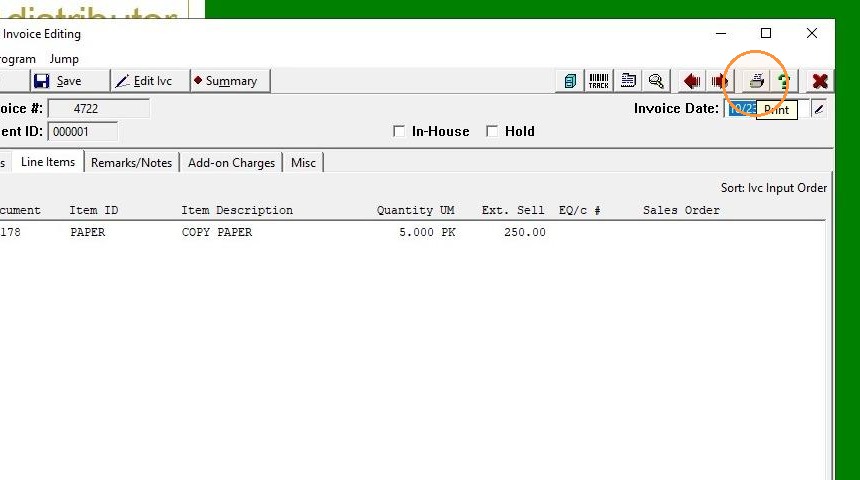
21. Click "Preview"
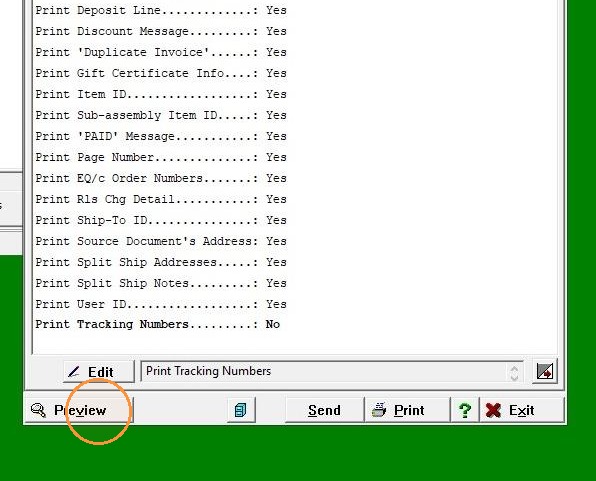
22. "Preview to display the deposit note."
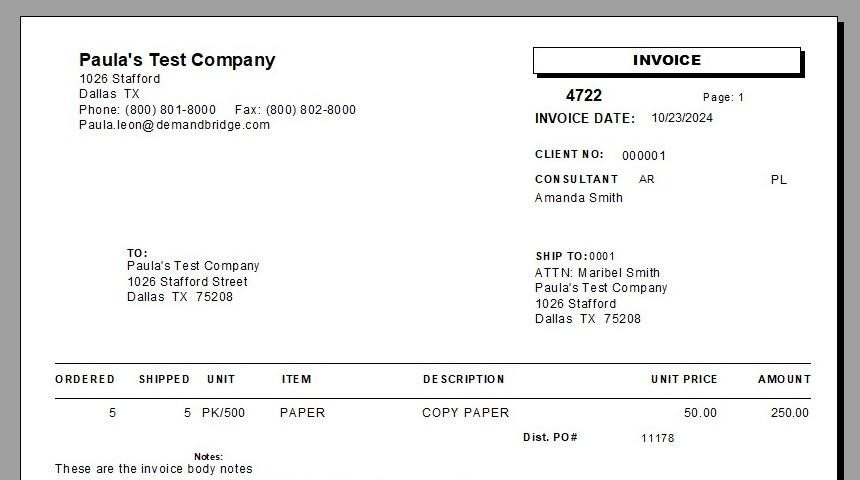
23. Click "Exit"
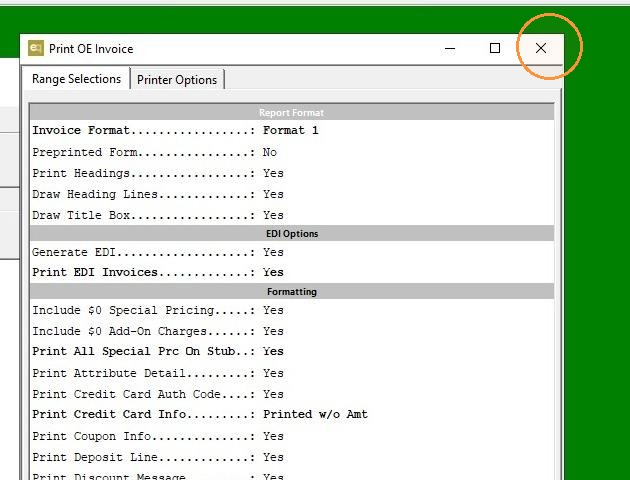
24. Click "Last"
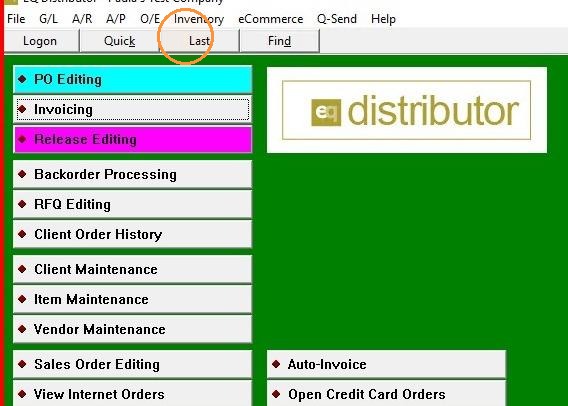
25. Click "Invoice Posting"
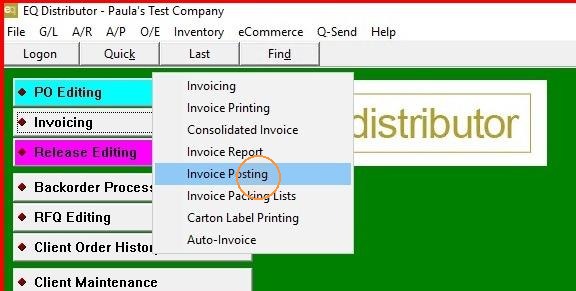
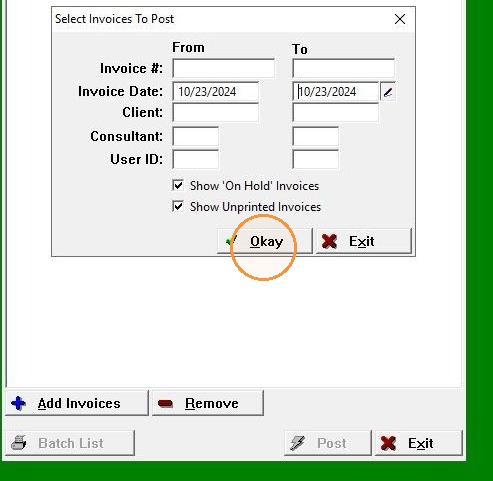
26. Enter "Dates"
27. Click "Post"
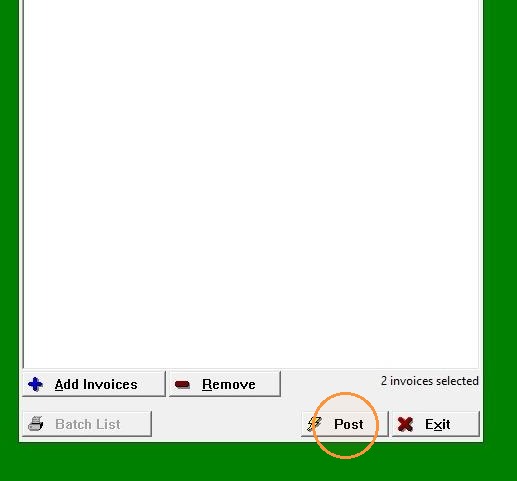
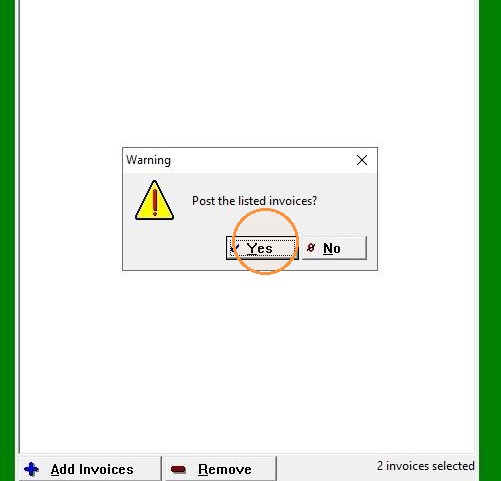
28. Click "Yes"
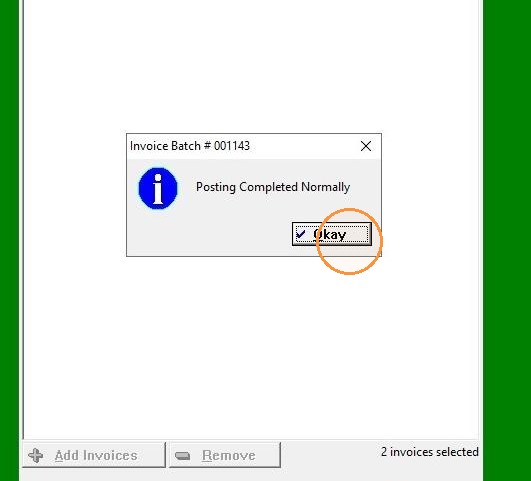
29. Click "Okay"
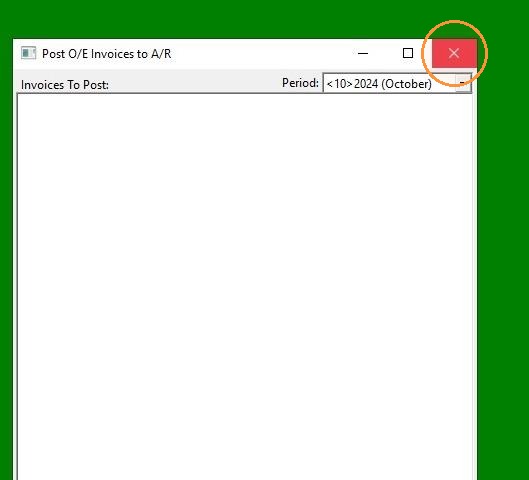
30. Click "Exit"
31. Click "A/R"
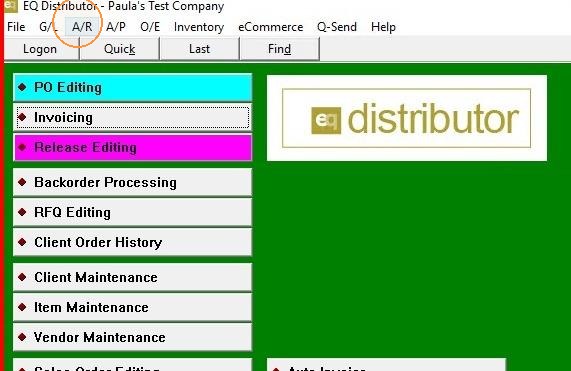
32. Click "Receipts Editing"
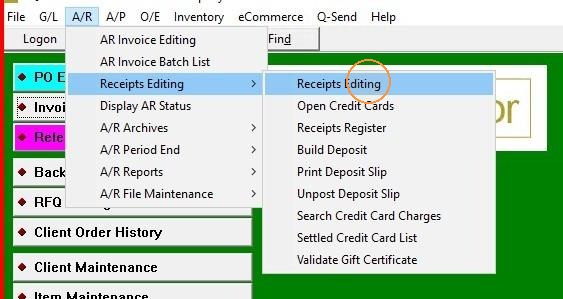
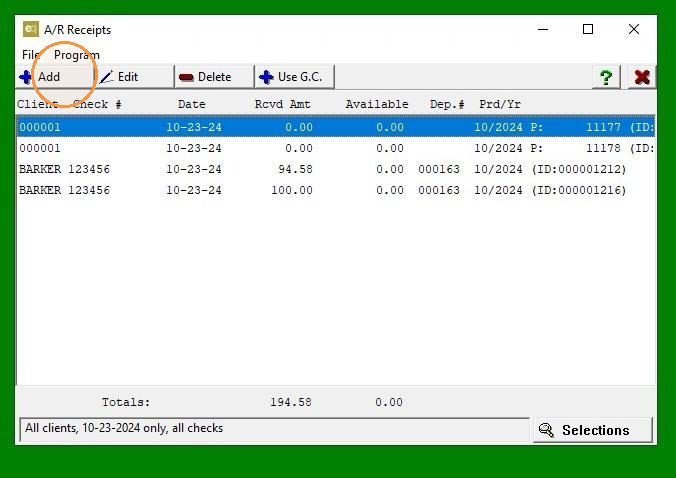
33. Click "Add"
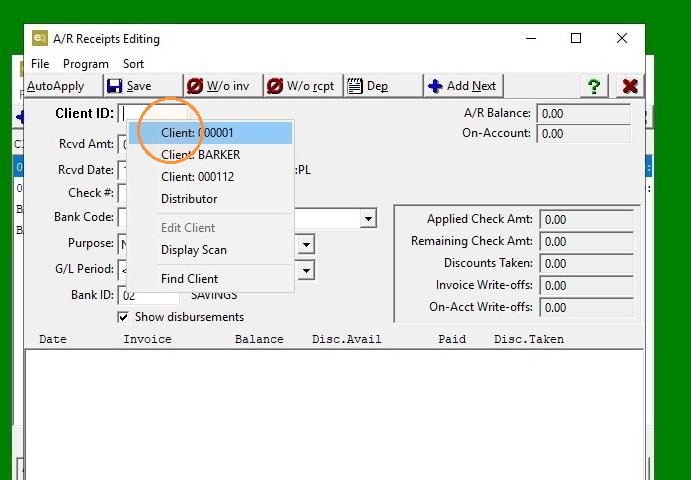
34. Right-Click and Select Client "Or Enter Client"
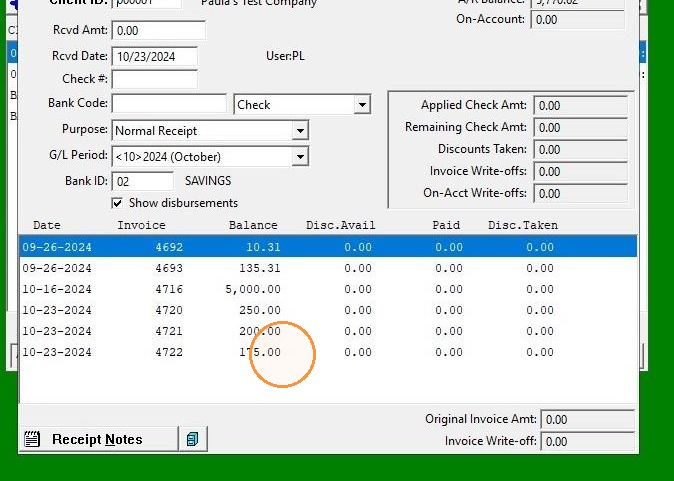
35. The remaining balance of the invoice will be displayed if it is not paid in full.
36. Click "Exit and No"