EQC: Q-Design Linked Variable Rules
Q-Design: Linked Variable Rules
Tip: Linked Variable Rules allow the designer to restrict options in the Linked Variable dropdown so they will only appear for certain users. These restrictions are based on cost center.
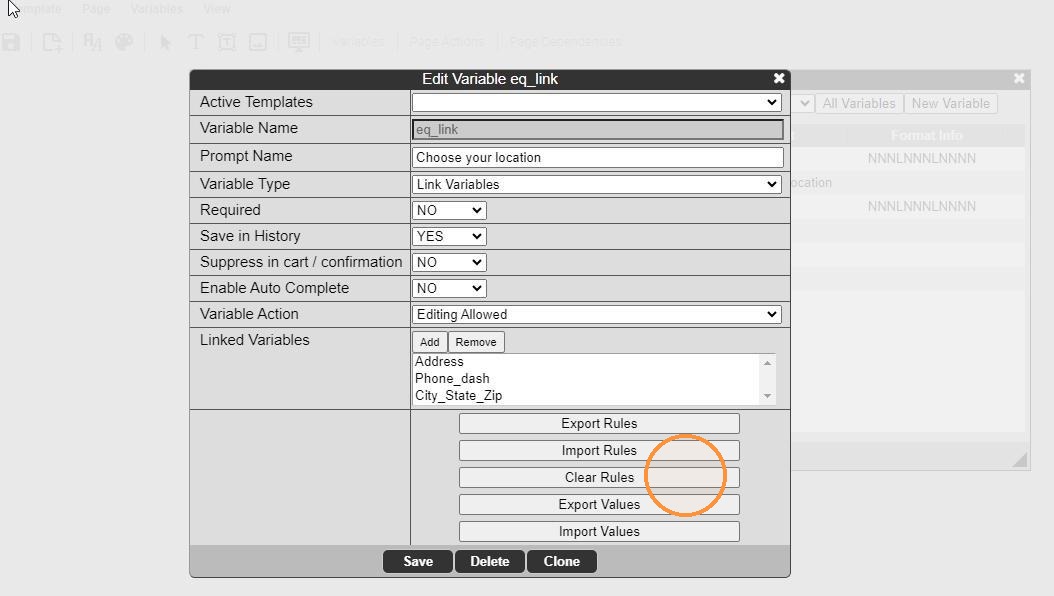
1. Edit the Linked Variable. Click Export Rules.
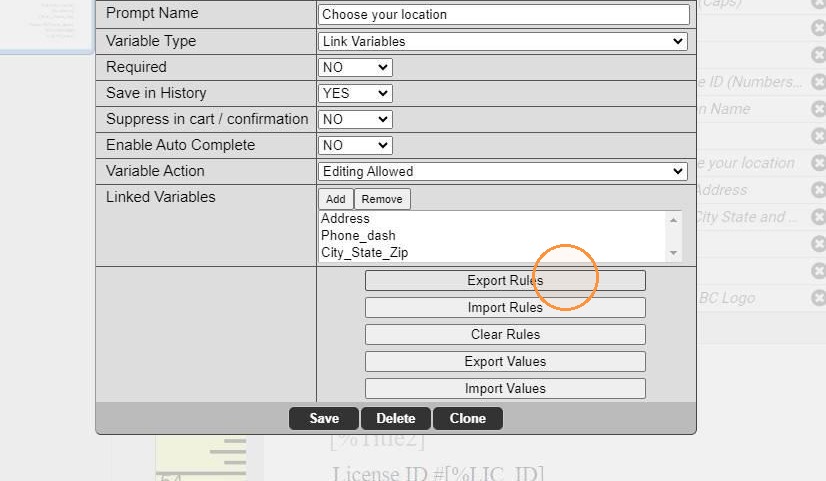
2. Click Export Excel. (Note: You may Export Text and edit a text file directly. Excel just allows for easier editing.)
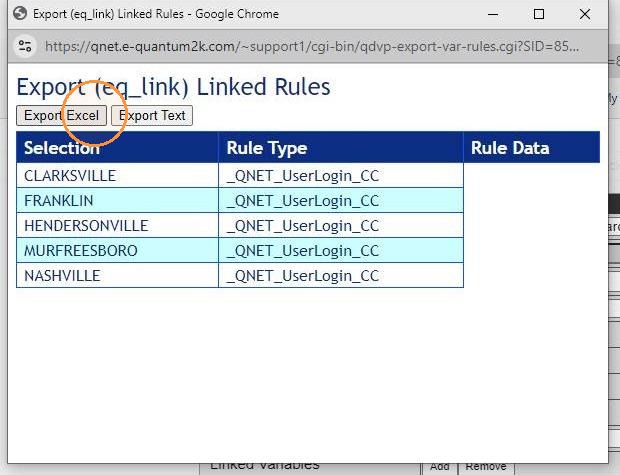
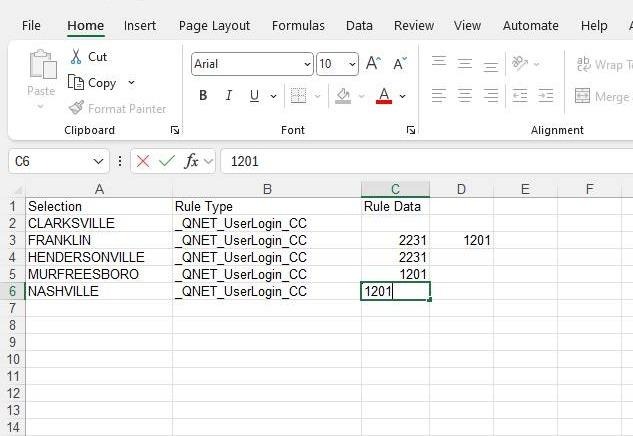
3. Open the saved file in Excel. Rule Data is the only column(s) that should be edited. (The Selection and Rule Type columns should never be edited in this process.)
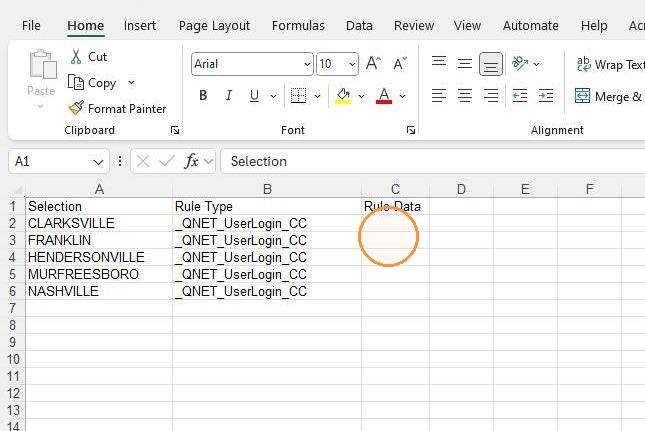
4. Under the Rule Data column, for each selection in the variable, enter the cost center ID that is allowed to view that selection.
If the selection is available to more than one cost center, enter each cost center ID in a new column.
In the following example:
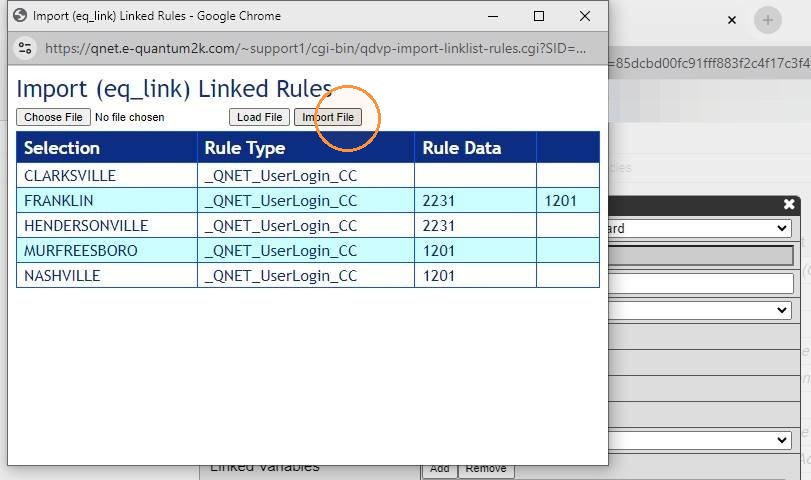
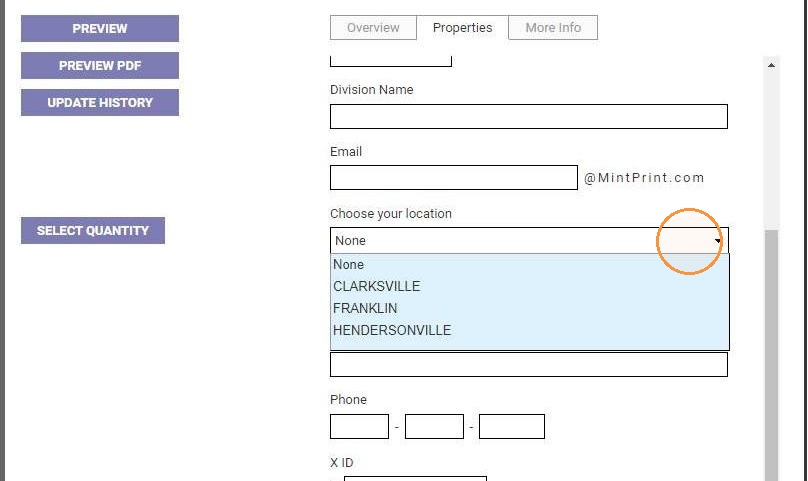
CLARKSVILLE can be viewed by all cost centers (Rule Data is left blank).
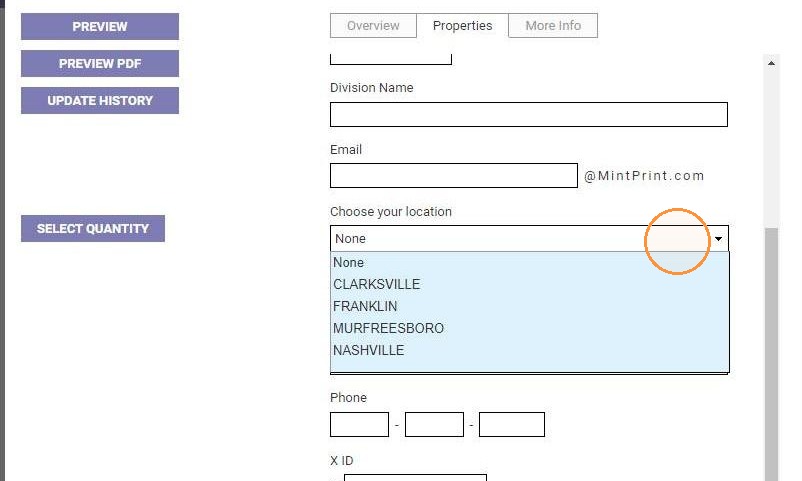
FRANKLIN can be viewed only by cost centers 2231 and 1201.
HENDERSONVILLE can be viewed only by cost center 2231.
MURFREESBORO can be viewed only by cost center 1201.
NASHVILLE can be viewed only by cost center 1201.
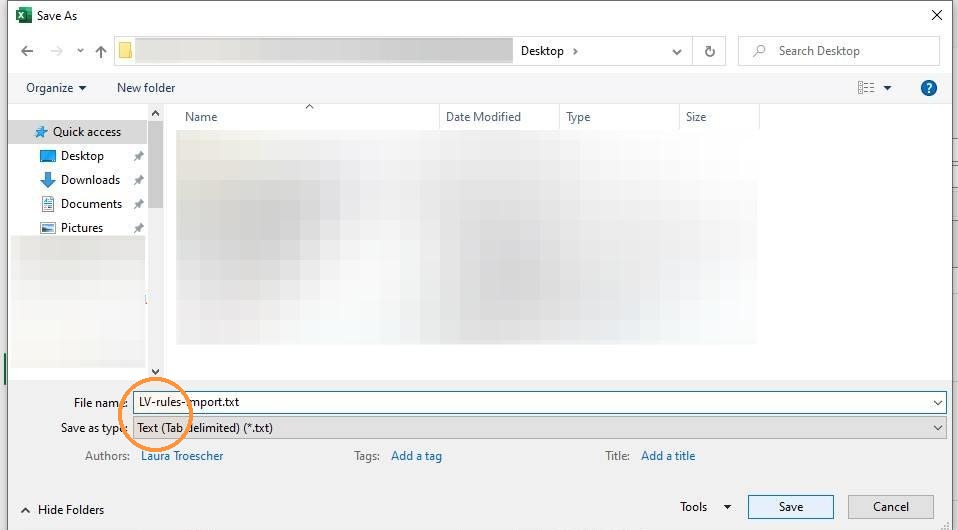
5. Save the file as type Text (Tab delimited).
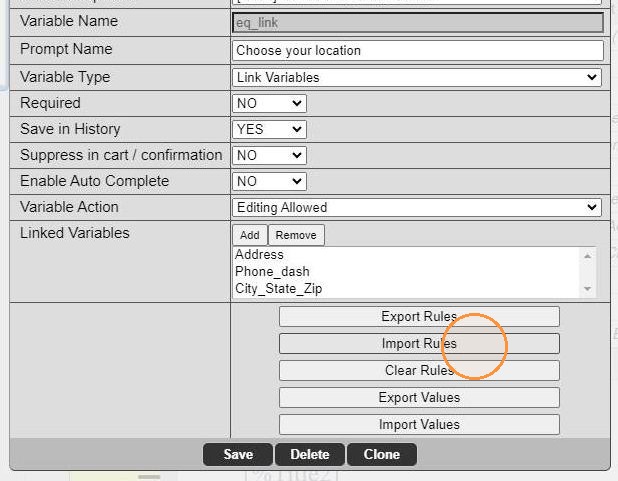
6. Edit the Linked Variable. Click Import Rules.
7. Click Choose File
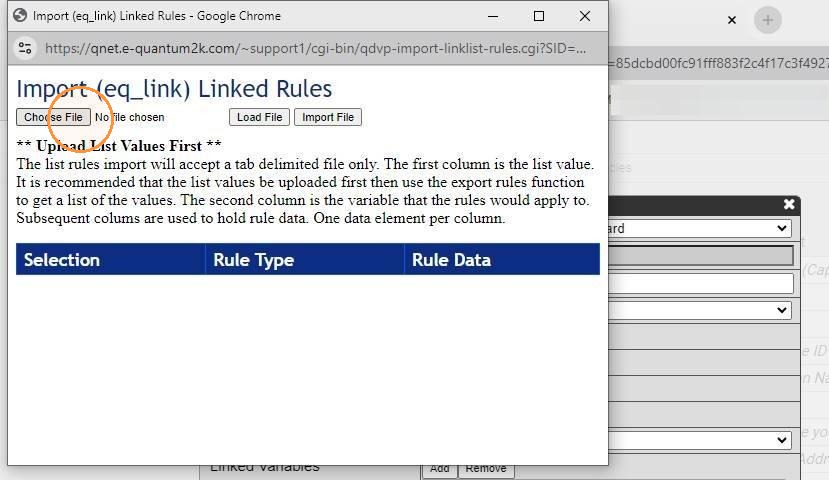
8. Locate the saved .txt file and open it.
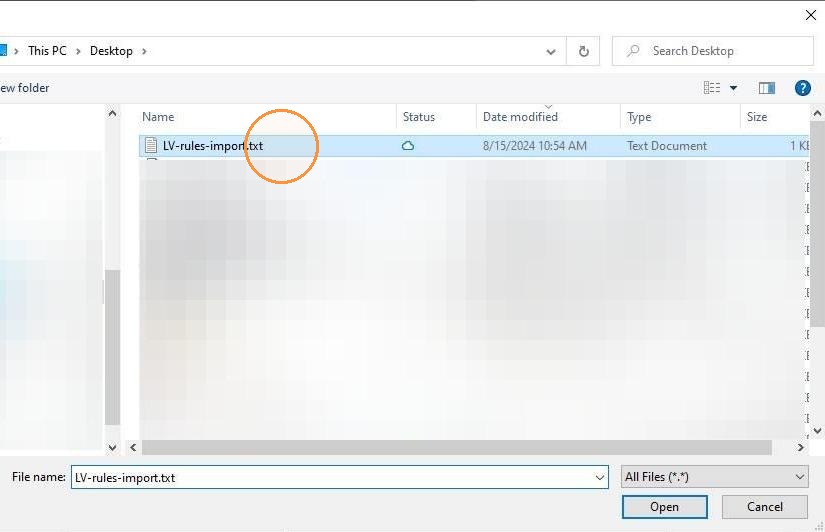
9. Click Load File
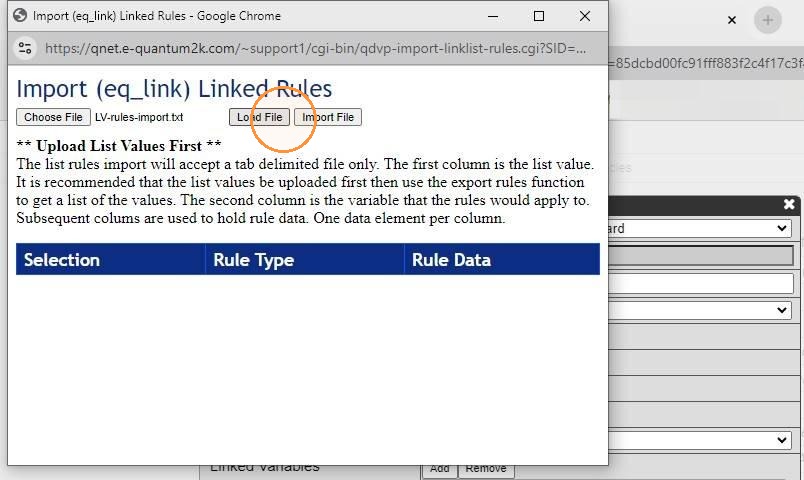
10. Preview the data to ensure everything looks correct. Click Import File.
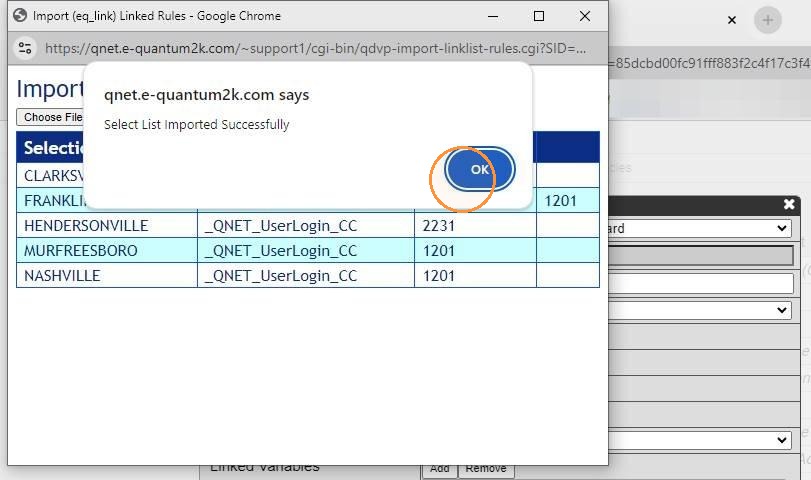
11. Click OK to confirm.
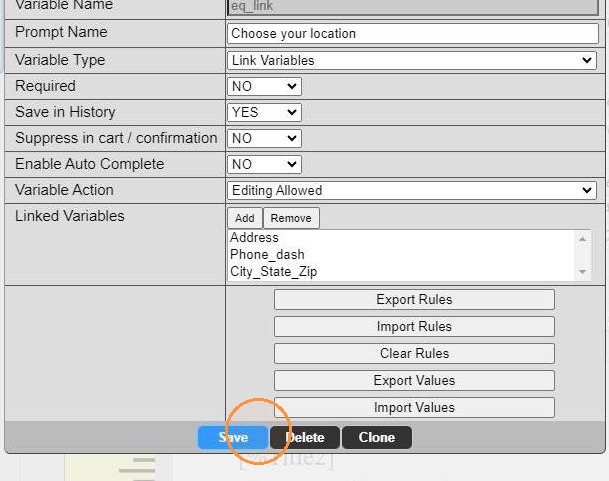
12. Click Save.
13. In this example, below is what a user logged into cost center 1201 will see.
14. In this example, below is what a user logged into cost center 2304 will see.
15. Use the Clear Rules button to remove all existing rules for this variable.