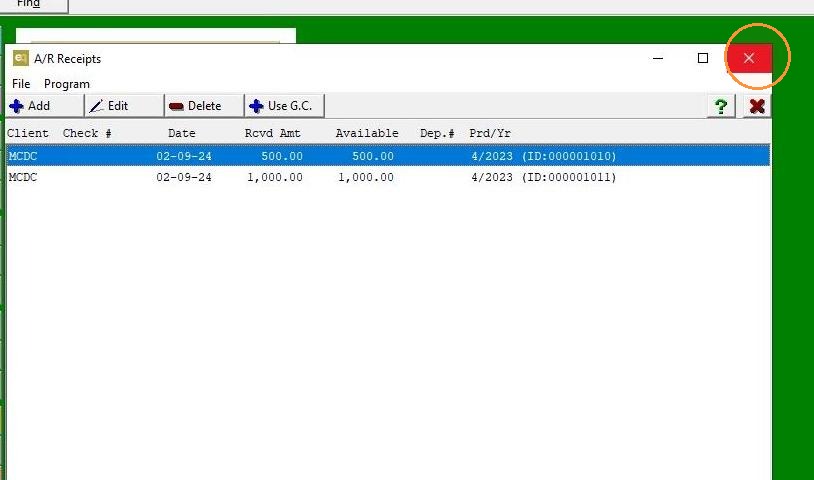
EQD: Guide to Writing Off the Remainder of the Receipt
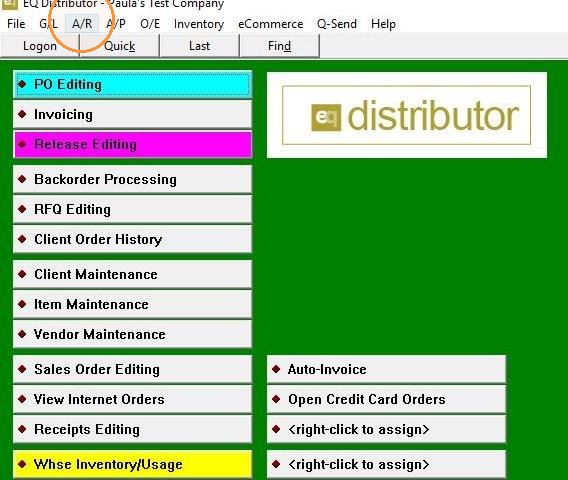
1. Click "A/R"
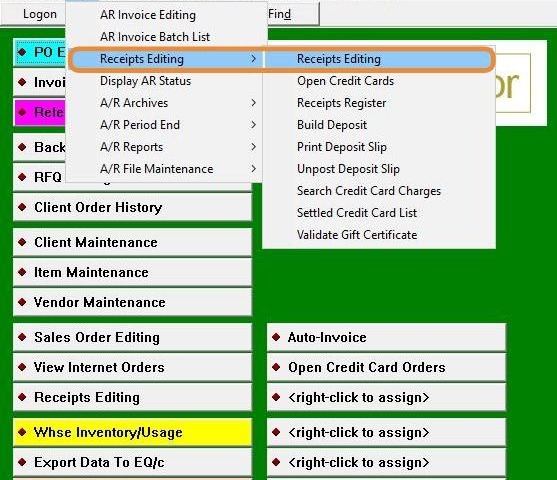
2. Click "Receipt Editing"
3. Click "Selections"
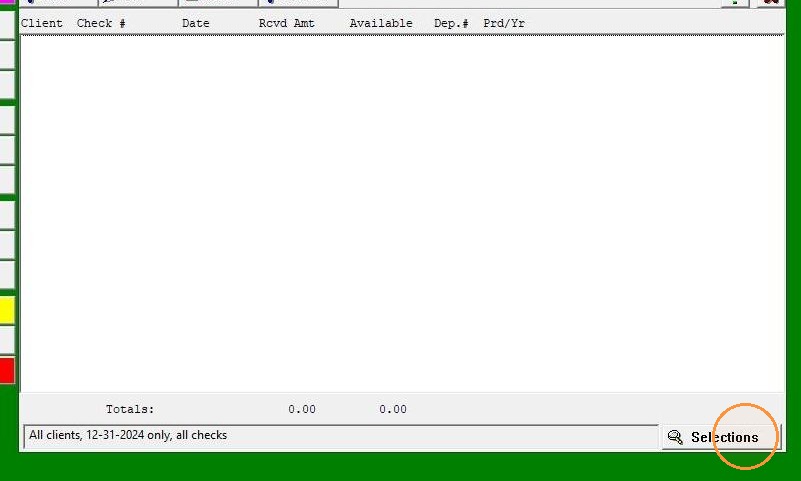
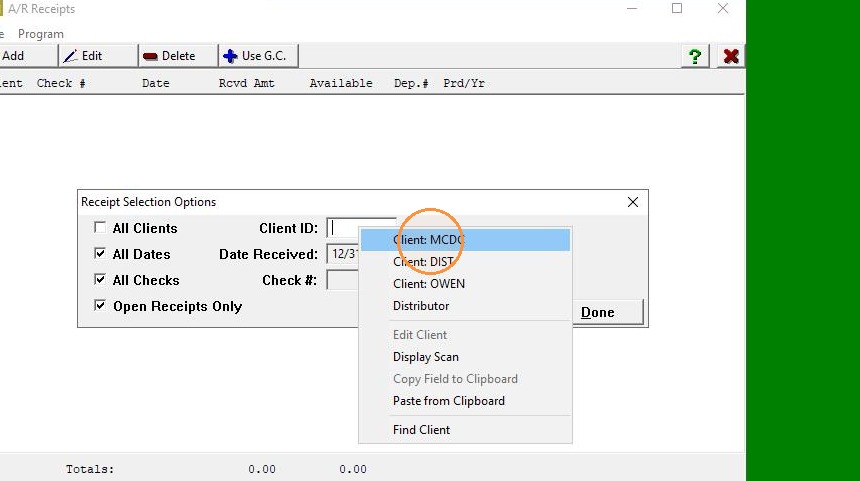
4. Check all three boxes, then right-click on Client ID to search for the client or manually enter the Client ID.
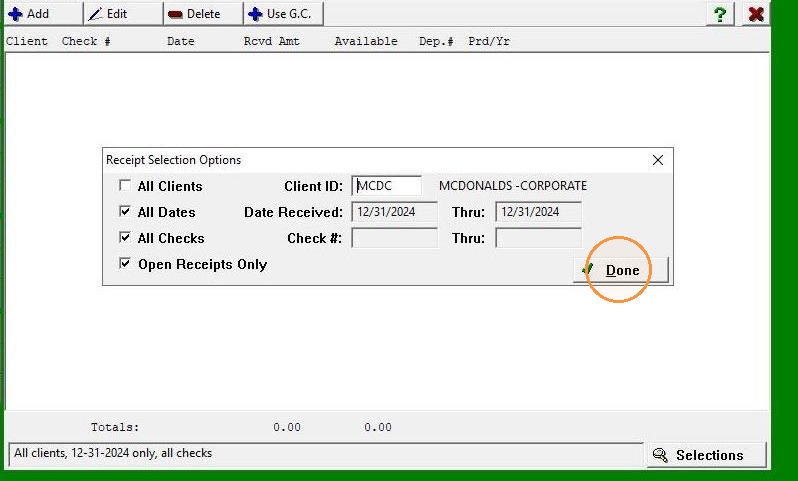
5. Click "Done"
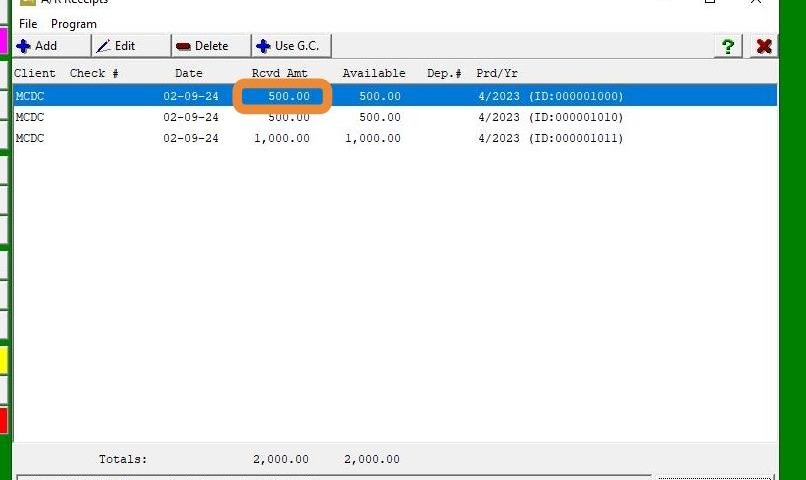
6. Double-click "Receipt"
7. Double-click on the invoice to which you are applying the partial On-Account.
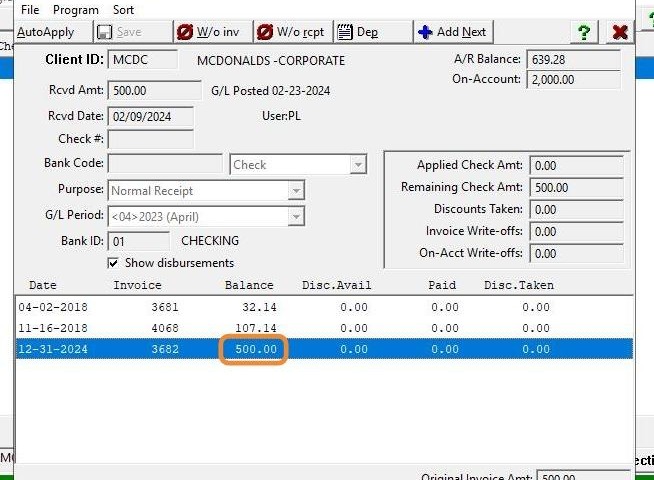
8. The full amount of the invoice will be displayed.
Note: This is a sample invoice used for training purposes only. It will not reflect the actual invoice or dollar amount you select.
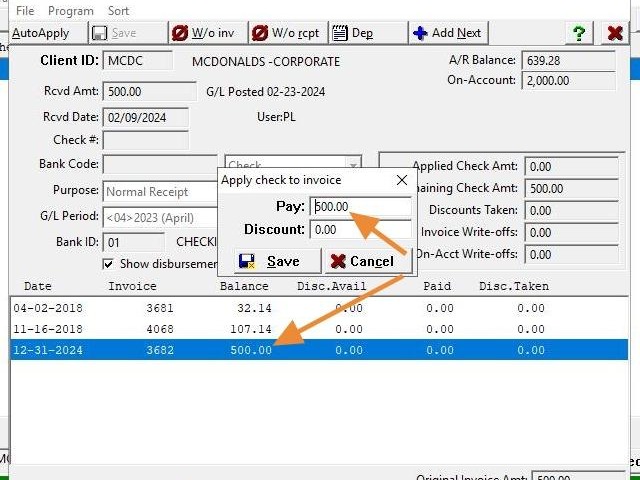
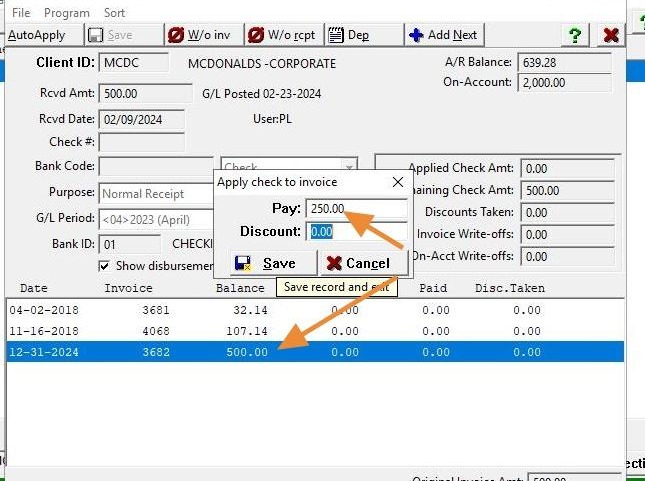
9. Adjust the receipt amount to reflect the portion you want to apply to the invoice.
Note: The receipt is for $500.00, but only $250.00 is being applied to the invoice. This is a sample receipt used for training purposes only. It will not reflect the actual receipt amount you select.
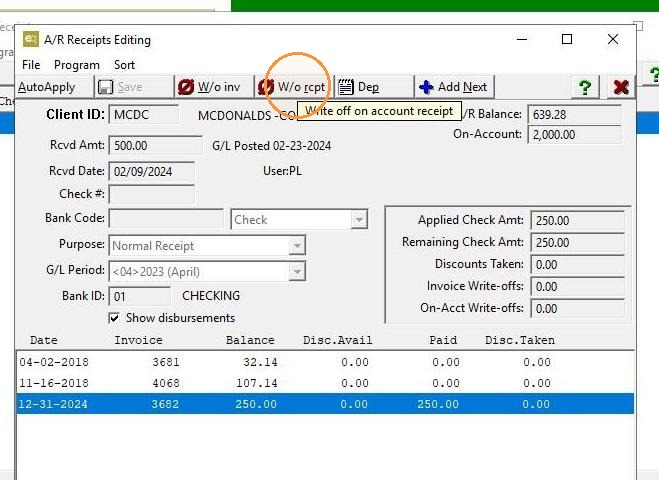
10. Click "W/o rcpt" to write off the remaining balance of the receipt.
11. Click "Add"
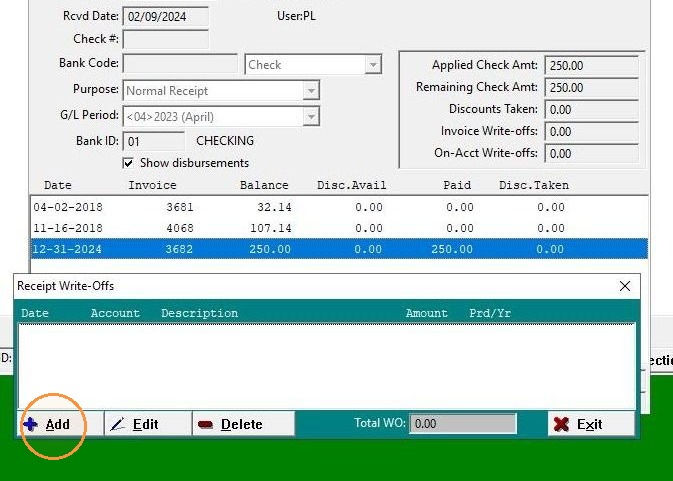
12. Verify the period and G/L account where you want to write off the balance, then click "Save."
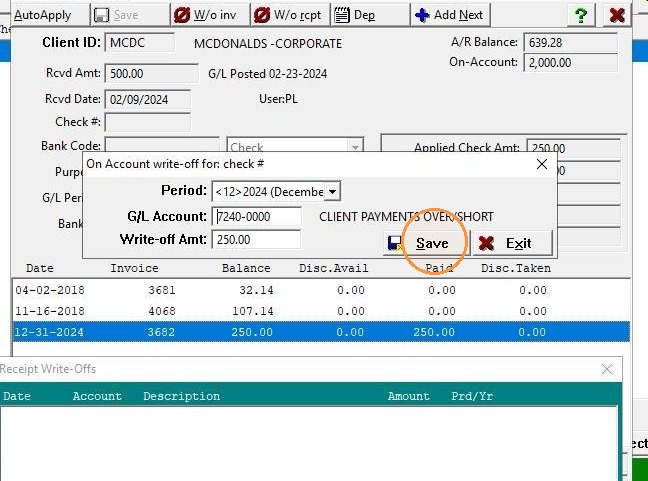
13. Click "Exit"
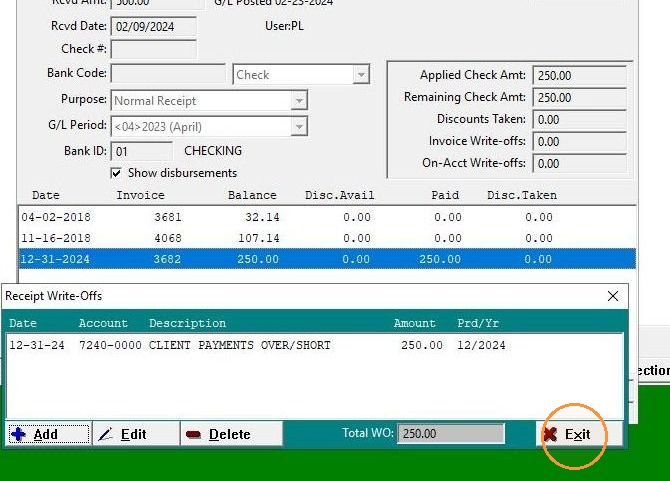
14. Click "Exit"
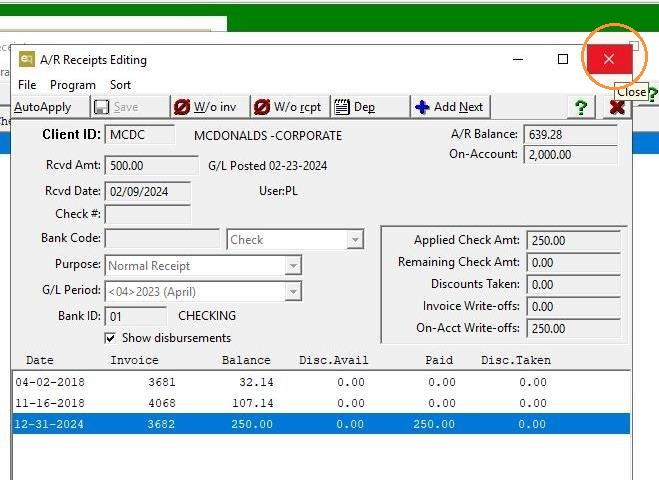
15. Click "Exit"