
DBC: Companies > Retail
OVERVIEW
A Retail Storefront, allows visitors to browse your storefront without requiring a login. This enhancement creates a more open and flexible shopping experience by enabling users to explore products, view catalogs, and build their carts before deciding how they would like to check out.
At checkout, shoppers can choose to create an account or continue as a guest, making it easier for new customers to complete purchases without needing to register first. This feature is designed to support more traditional retail-style shopping while still allowing organizations to capture customer information when appropriate.
In This Article


Retail Site Set Up
Administrators will continue to configure sites within the Distribution Admin Interface.
Under Companies there is a new option, Retail Settings. Here you will enable a site as retail and define a group that all users who checkout as a guest or create a user are assigned to. Users can be moved to other groups by an admin if desired and will inherit those group permissions.

Considerations When Enabling a Retail Site
When configuring a retail site, there are several features that may be beneficial to enable, as well as some that are recommended to avoid based on typical retail workflows.
Suggested Features to Enable
The following features are recommended to support a standard retail purchasing experience:
- Custom Ship To – Allows users to enter shipping addresses during checkout.
- Credit Cards – Enables credit card payments for retail transactions.
- Coupons – Allows promotional codes or discounts to be applied during checkout.
- Shipping Misc Field (Phone Number Collection) – Configure this field to capture a customer phone number for shipping and order-related communication.
Features to Avoid
The following features are generally not recommended for retail sites, as they may conflict with the simplified retail checkout workflow:
- Self Registration
- Requested By Date
- Spending Accounts
- Distributed Checkout
Features That Will Continue to Work
The following features remain compatible with retail site functionality and may still be used if needed:
- Ship To / Bill To Locations
- Approvals
Order Form catalog types are not supported at this time.
Retail User Creation Workflow
Users can access the retail site without logging in. A user record will automatically be created once a visitor adds an item to their cart. These users can be viewed under User Management, where retail users are identified with the prefix “RET.”
A new column, Retail Origin, has been added to the User Management page within Dist Admin and Cust Admin to indicate whether a user was created through the Retail workflow or through manual user setup by an administrator.
Before completing checkout, users will be prompted to either continue as a guest, create an account, or sign in.
-
If a user chooses to create an account:
They will be asked to complete their account information during checkout. Once the account is created, the system will convert their temporary RET user ID to the newly created user ID. The Retail Origin column will still indicate that the account was originally self-created through the retail site.
-
If a user chooses to continue as a guest:
The user will remain listed as a RET user. However, the user’s email address will be associated with the RET ID, allowing administrators to contact the user if needed regarding their order and enabling the system to send the order confirmation email.

Retail Shopping Workflow
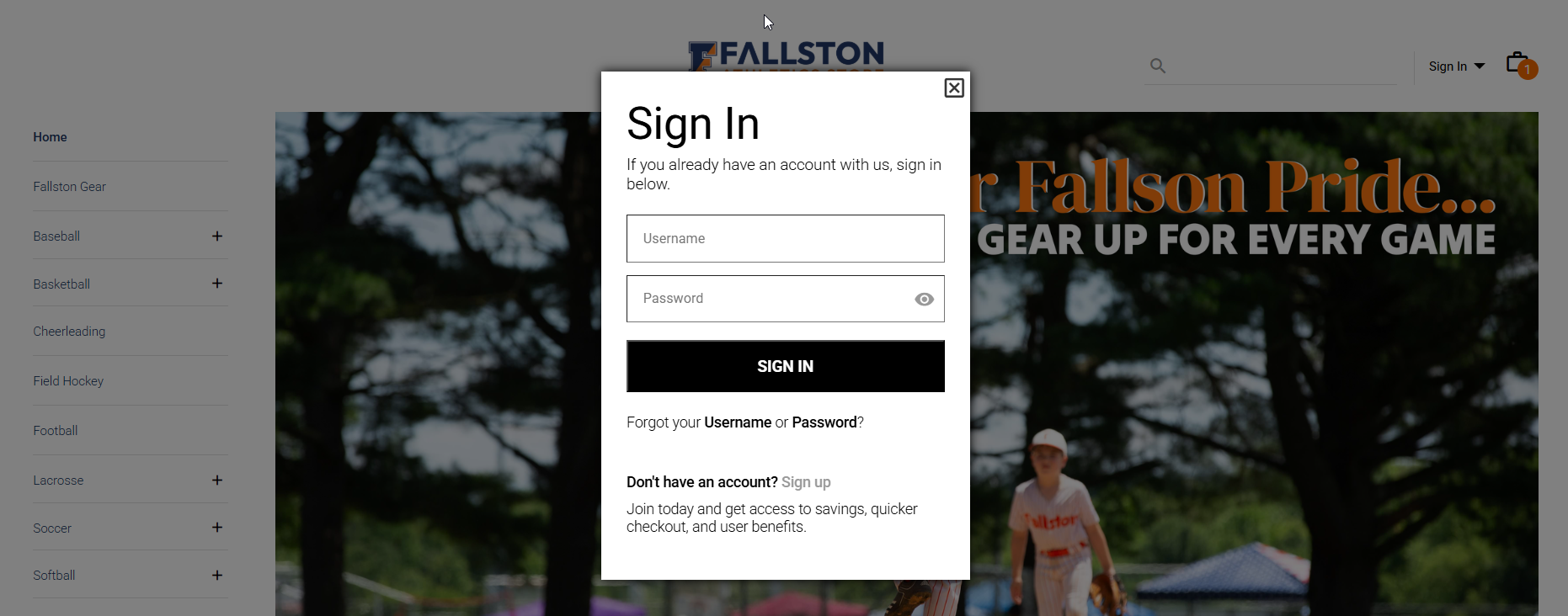
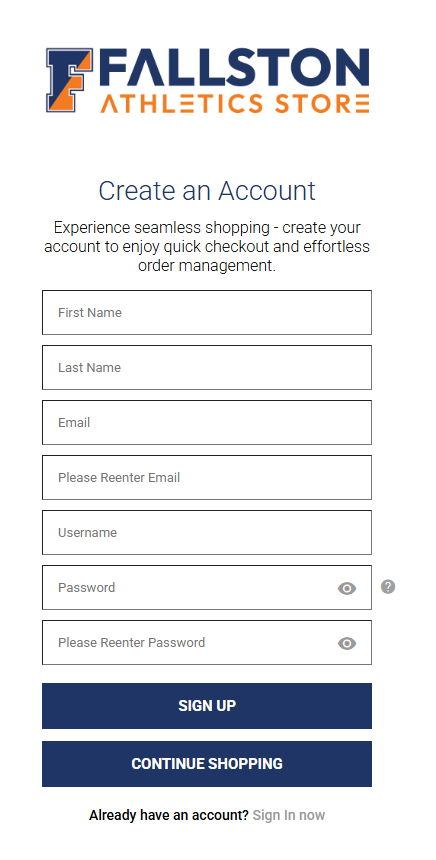
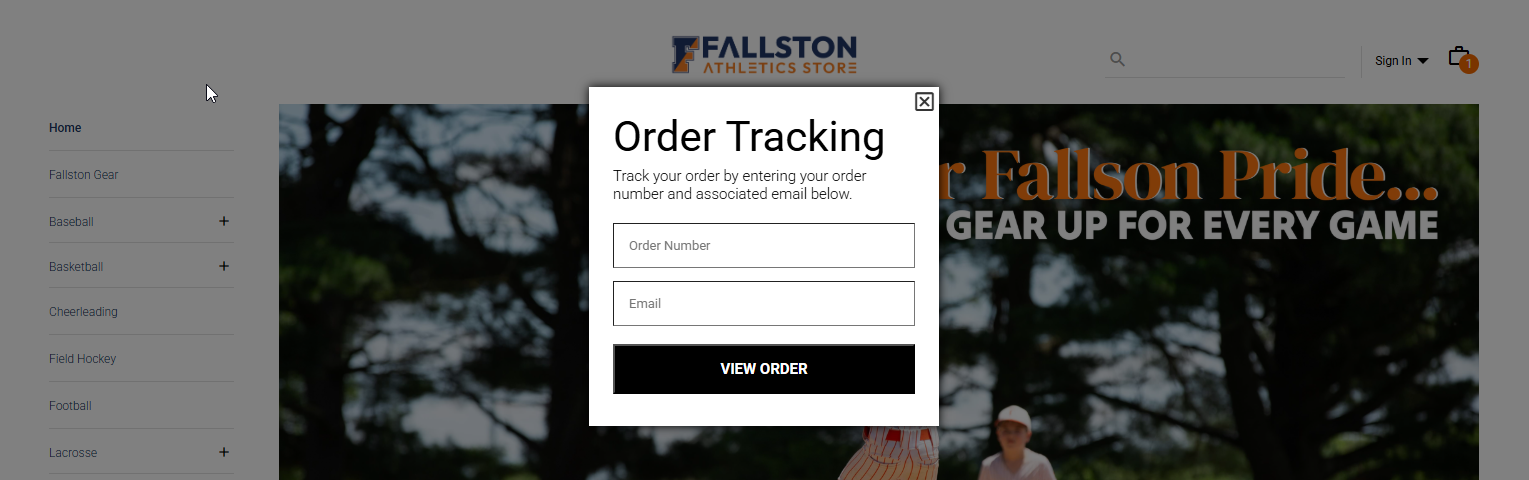
Users will access the retail site and have several options available in the navigation menu: Sign In / Create an Account, Track Orders, or Shop.
-
Sign In allows users with an existing account to log in and access their saved information.
-
Sign Up / Create an Account allows new users to create an account that can be used for future purchases.
-
Track Orders allows both retail guests and registered users to view the status of their order. To access this feature, users must provide a valid order number and email address. If the information provided does not match the order details, the user will be notified within the modal.
Users may browse and shop throughout the site, which maintains the same functionality as a traditional DB Commerce site. Once items are added to the cart, users can proceed to checkout.
When a user selects Checkout, if they are not already logged in they will be presented with the following options:
- Checkout as Guest
- Sign In
- Create an Account
Checkout as Guest
If a user chooses to continue as a guest, they will be prompted to enter their email address before proceeding through checkout. An email address is required to send the order confirmation and to allow customer service representatives to contact the user if there are any issues with the order.
Sign In
If a user signs in, the system will recognize their account and their username will be displayed in the top right corner of the site. The user can then proceed through checkout with their saved account information.
Sign Up / Create an Account
If a user selects Sign Up, they will be prompted to enter the required information to set up their account. Once the account is created, it can be used for future purchases and faster checkout.
Order History
Orders will continue to be tracked through the Distribution Admin and Customer Admin interfaces.
Within the User column:
- If the user created an account, the system will display the Username, followed by the user’s First Name and Last Name in parentheses.
- If the user checked out as a guest, the system will display the Retail User ID, followed by the email address in parentheses.

Additional Notes
- The site does not require users to create an account in order to place an order.
- If a user places multiple orders using the same email address, the system will not prompt them to create an account.
- For customizable items, user profiles and the Save button have been removed to streamline the ordering process, unless user has logged in.