EQD: Client-Level Convenience Fee Setup
Purpose: This process allows you to charge a convenience fee for a specific client only, rather than applying it globally to all clients.
Step 1: A/R Configuration Set Up
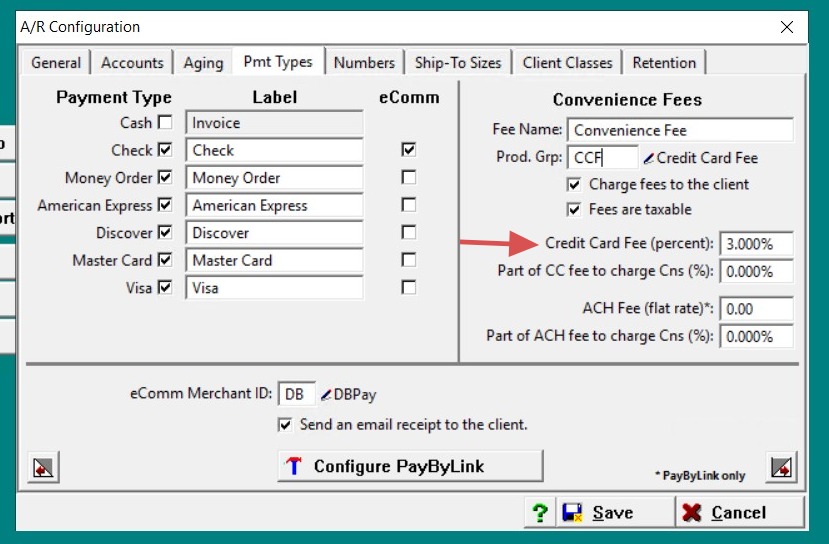
1. 1. Navigate to: AR → AR File Maintenance → AR Configuration.
2. In the Fee Name field, enter: Convenience Fee .
- Note: Avoid using “Surcharge,” as it is not recommended.
- In the Product Group field, right-click → Display Scan to locate the correct convenience fee code.
- If no code exists, add a new one.
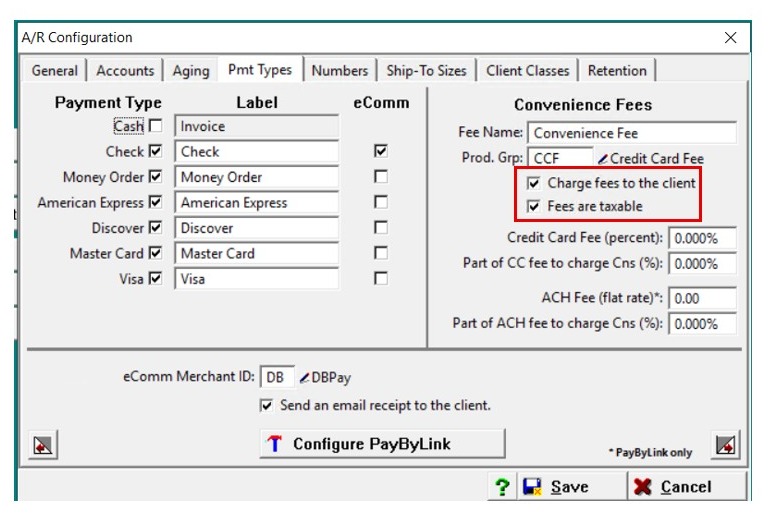
- Check both boxes:
- Charge Fees to Client
- Charge Fees Are Taxable
- Leave all other fields at 0.
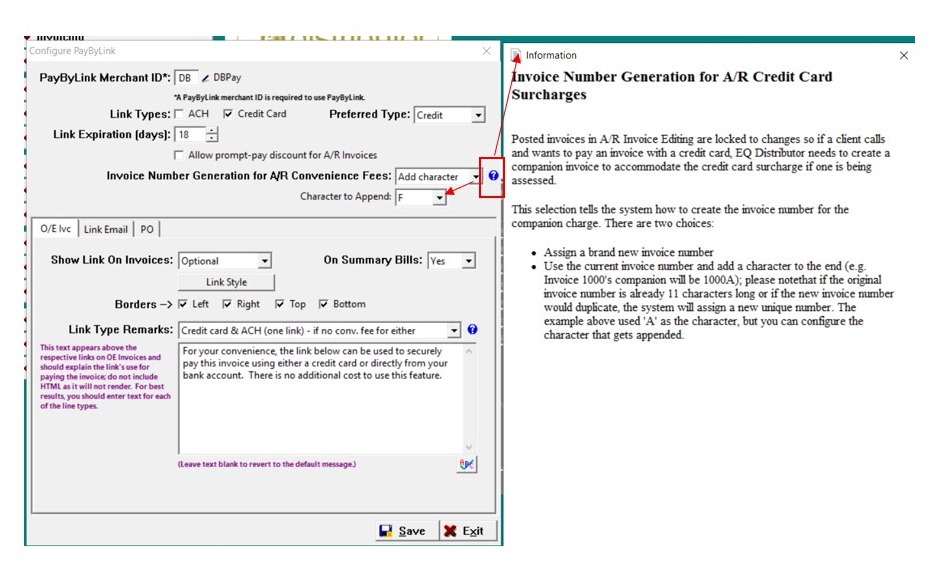
Step 2- Click **Configure Pay By Link** at the bottom of the AR Configuration screen.
2. - For Invoice Number Generation for AR Convenience Fee, select:
- Drop-down options:
Add CharacterorAssign New Number. - Important: Click the question mark (?) next to this field. It provides a full explanation of what this feature does and how invoice numbers will be generated for convenience fees.
- Click Save once configuration is complete
Step 3: Set Convenience Fee at the Client Level
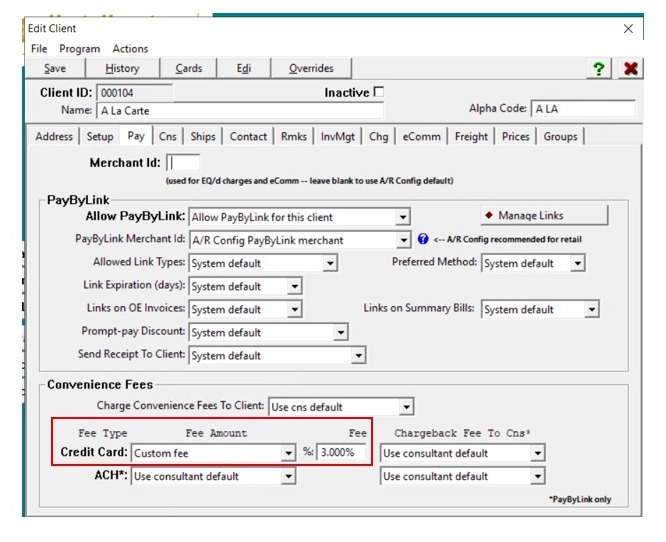
3. - Navigate to the specific client in Client Maintenance.
- Go to the Pay tab.
- At the very bottom, find Convenience Fee under the Credit Card section.
- Use the drop-down → select Custom Fee.
- Enter the percentage you want to charge for this client’s convenience fee.
- Example:
3%
- Example:
Step 4: Adding Convenience Fee to an Invoice
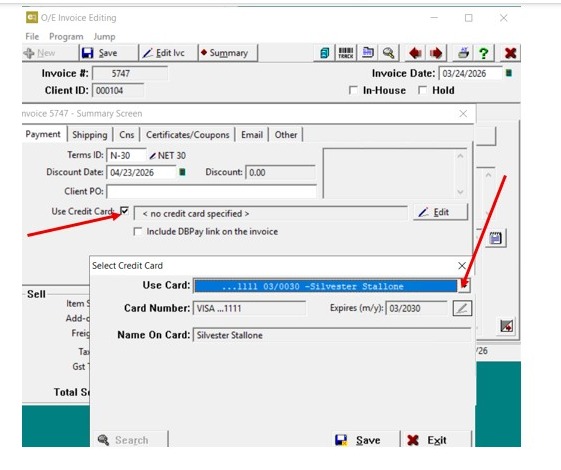
4. - Open any invoice → Edit → Summary.
- Check the box: Use Credit Card.
- In the dialogue box:
- Select Use Card → assign the credit card saved at the client level.
- Click Save.
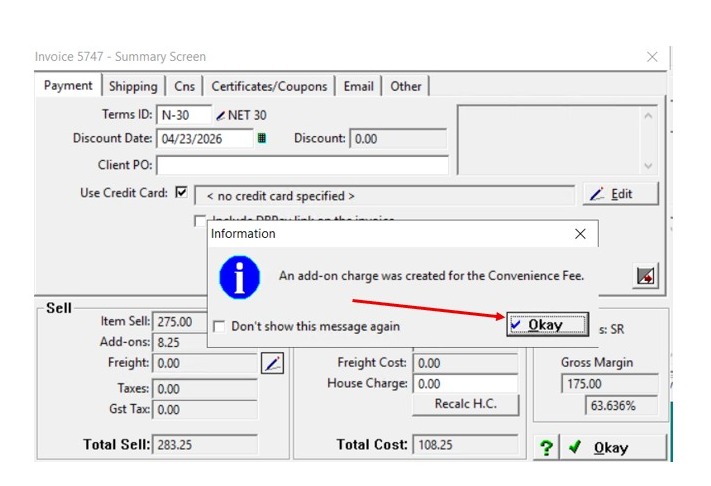
5. - A message will appear: “An add-on charge was created for the convenience fee” → click OK.
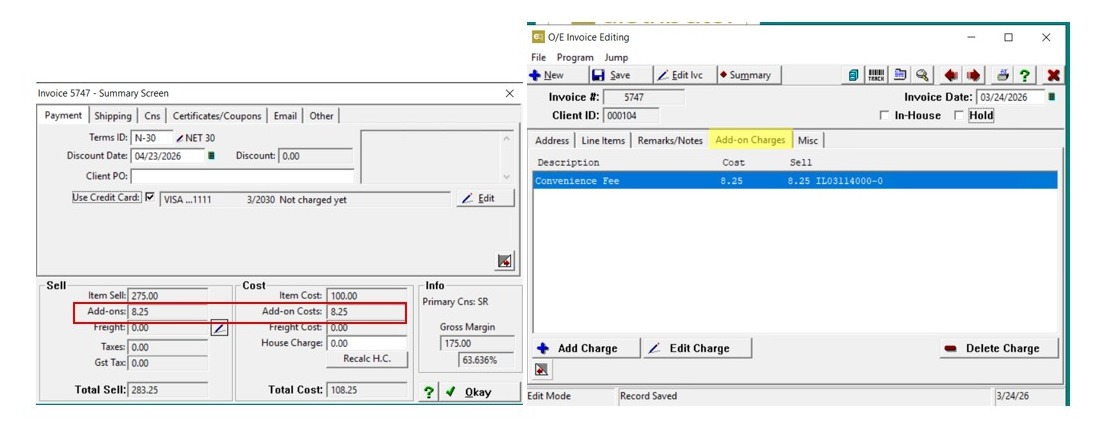
6. - The convenience fee will now display:
- Under Selling Cost
- Under Invoice Add-On tab
Step 5: Adding Convenience Fee to via PayByLink
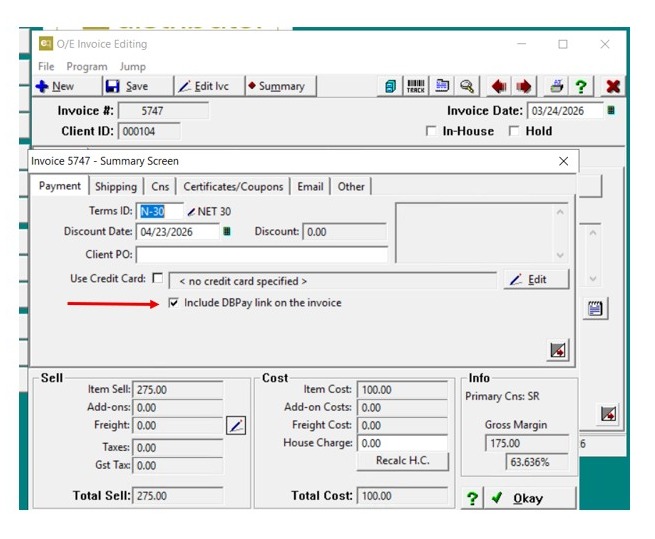
7. - Uncheck Credit Card in Summary.
- Check Include DBPay Link on Invoice.
- Note: Unchecking the credit card box removes the fee.
8. Send invoice to the client.
- The client receives the invoice link including the convenience fee.
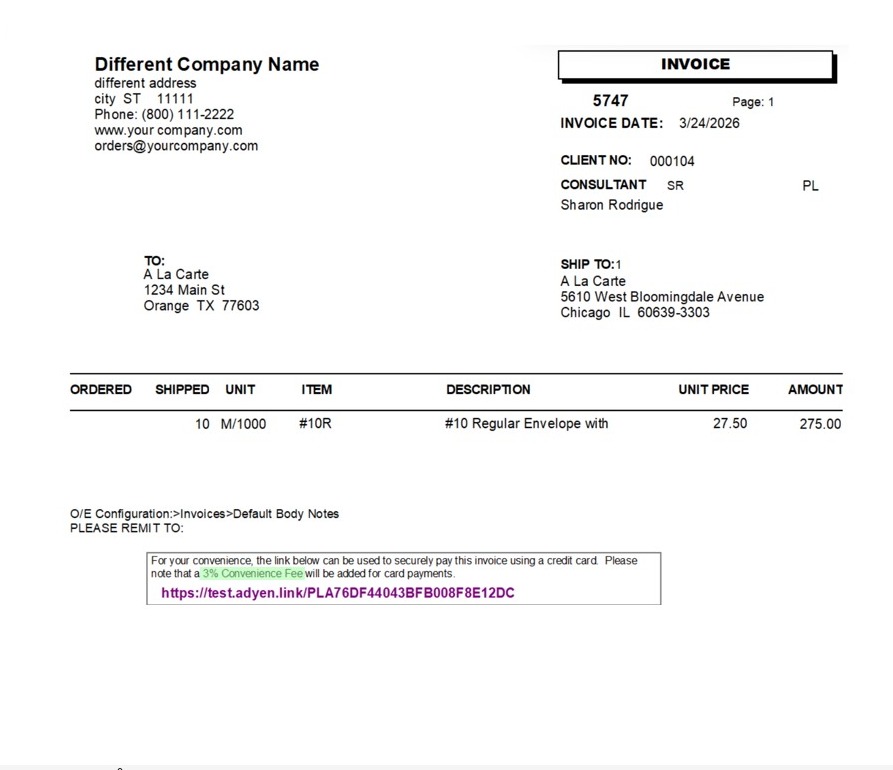
9. - When the client clicks the link:
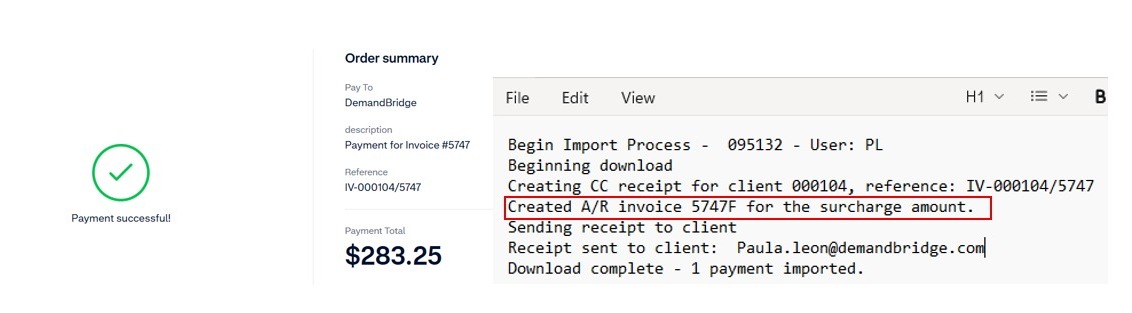
- The total charged will include the original invoice amount + the convenience fee.
- Import the payment.
- Check the log → it will indicate that an AR invoice was created.
- Example: Original invoice
5747→ convenience fee invoice5747F.
- Example: Original invoice
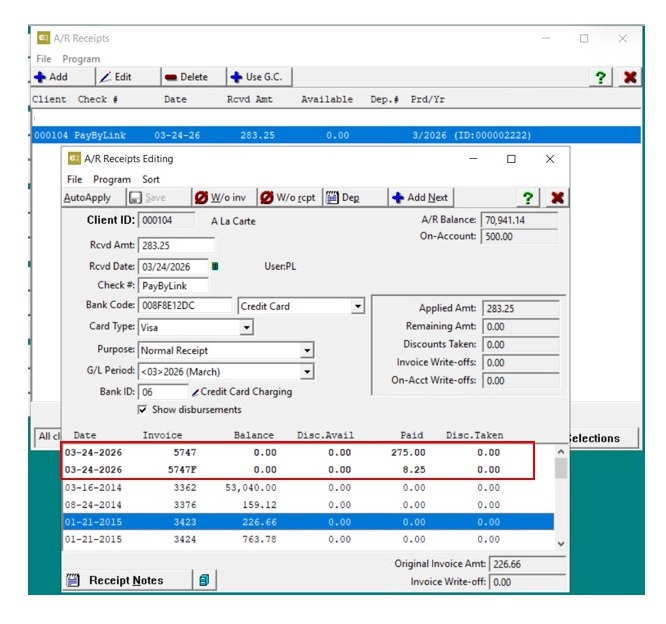
10. Navigate to Receipts Editing → open the transaction.
- Both invoices will display at the top in bold:
5747(original invoice)5747F(convenience fee)
Alert: Note: Enter Convenience Fee for All Clients (Global Level)
11. If you choose to charge the convenience fee at the global level (for all clients):
- Go to AR → AR File Maintenance → AR Configuration.
- Enter the convenience fee there.
- This will automatically apply the fee to all customers.