
DBC: Vendors - Vendor Overview
The Vendor Overview is where you configure the full details for an individual vendor. From here, you can update the vendor's name and status, assign a vendor code and plant code, and manage how orders are transmitted—whether via FTP or email. Transmission settings include the delivery method, email recipients, XML format preferences, and a range of options that control what information is included in the order file.
You can also assign specific items to the vendor and, if applicable, set up company-level reference codes. Any changes made here apply only to the selected vendor.
General Information
This is where vendor records are created and managed within DB Commerce. Vendors in DB Commerce and your back-office system are maintained independently—so a vendor may exist in one system but not the other.
Note: Vendors assigned to Promo Items must be set up using a valid Vendor Code that exists in your back-office system.
- Vendor Name: The name assigned to the vendor when the record was first created. This can be updated at any time by editing the field directly.
- Select Vendor Code: Click to browse vendors that have been transmitted from your back-office system.
- Select Plant Code: Click to browse plants that have been transmitted from your back-office system and are associated with a vendor.
- Transmission Status: This setting allows you to temporarily suspend order transmissions to a vendor when needed. If a vendor is experiencing email or FTP issues, you can pause transmissions until the problem is resolved, and then reactivate them once the vendor is stable.

FTP Transmission Settings
For vendors who prefer to receive order notifications via FTP—either instead of or in addition to email—this section is where administrators configure the destination URL and access credentials. Click Test FTP to verify the connection; the system will confirm whether the settings are valid.
- Site Address: The FTP server URL or IP address where order notifications will be delivered.
- Path (Optional): A specific directory or folder path on the FTP server where files should be deposited. Leave it blank if the files should be delivered to the root directory.
- Username: The username required to authenticate and access the FTP server.
- Password: The password associated with the FTP user account.
- Test FTP: Click this button to verify the connection using the credentials you entered. The connection does not test the paths on the FTP server; it tests only the connection itself. If there is a path issue, that would be why you see success in Dist admin but a failure during the actual transmission.

Email Transmission Settings
This section allows administrators to designate order notification recipients and configure how those emails are delivered. Enter the primary contact in the Primary Email field, and any additional recipients in the Secondary Email field, separated by semicolons.
- File Delivery Method: Defines how order-related files are delivered to the vendor via email. There are two options:
- Attachments: Files are embedded directly in the email as attachments. The vendor can open or download them without leaving their inbox. This is the most straightforward delivery method, but it may be limited by email file size restrictions.
-
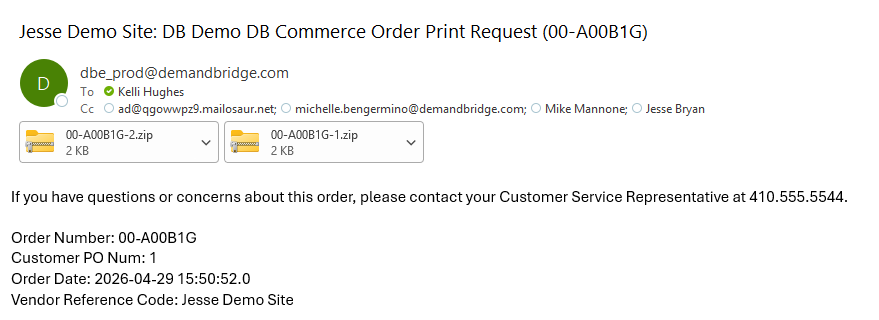
-
Links: Instead of attaching files directly, the email contains a link that the vendor clicks to retrieve the file. This is useful for larger files that may exceed email attachment size limits, since the file is hosted and downloaded on demand rather than sent inline.
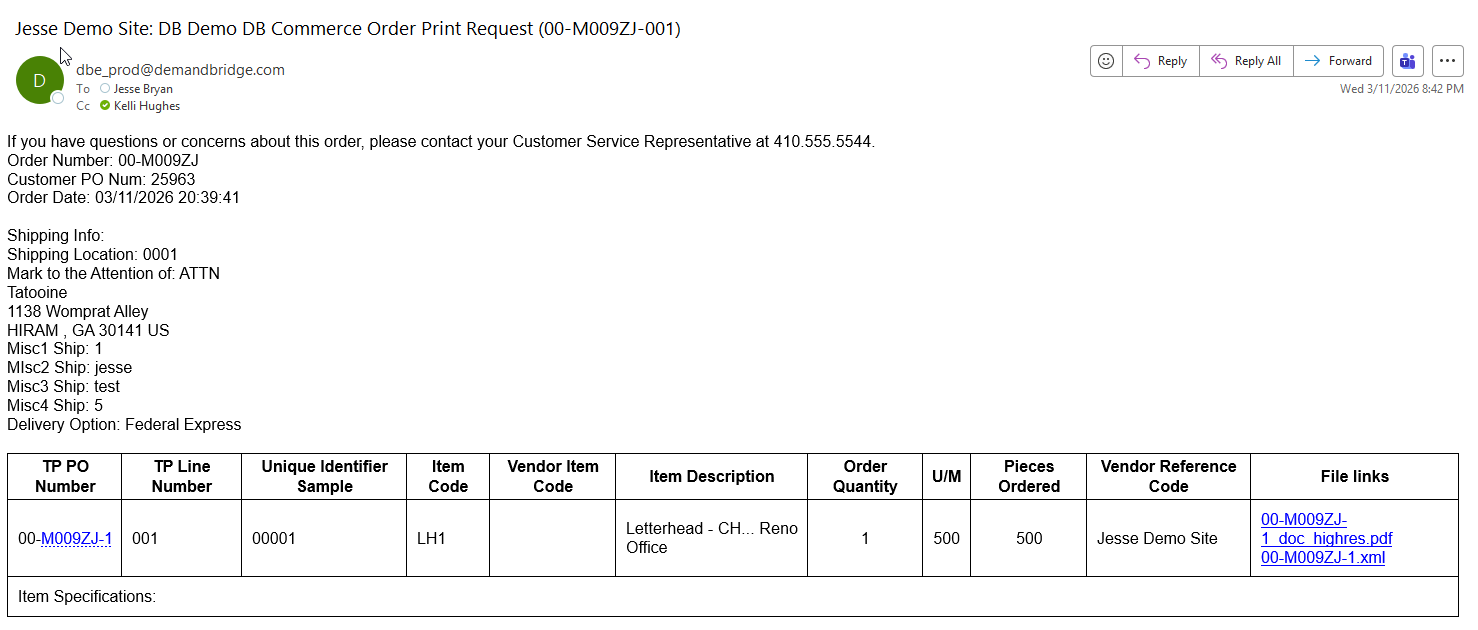
When a new vendor is set up Links is selected by default.
- Primary Email: The main email address where order notifications will be sent. Only one email address can be entered in this field.
- Secondary Email: Additional recipients who should also receive order notifications. Multiple email addresses can be entered in this field, separated by semicolons (e.g., vendor1@example.com; vendor2@example.com).
- XML Notification: You can choose to include order data as an XML file attachment. The following options are available:
- None: XML is not included with the order notification.
- Regular File: Includes an XML-formatted request in addition to the standard plain text notification.
- XML Only: Sends the XML-formatted request only, with no plain text.
- XML Version (max DTD): You can also choose to include order data as an XML file attachment. The following options are available:
- If Regular File or XML Only is selected, you will be prompted to choose an XML Version:
- Version 2: The base version.
- Version 3: Adds the ability to include cost information in the XML file.
- Version 4: Adds the ability to pass the customer's country in the XML file.
- Version 5: Only available when using the Email Links method.
- If Regular File or XML Only is selected, you will be prompted to choose an XML Version:
The following additional options can be configured based on each vendor's preferences:
- Show Cost: Includes item cost information in the XML file. Available with Version 3 or 4 only.
- Show Ship To Info: Includes ship-to information in the XML file.
- TP Lines: Displays the final line number assigned on the DB/d side, which may differ from the DB Commerce line number (for example, when companion items are added on the DB/d side).
- Attachment on Email Included with FTP: When FTP transmission is enabled, checking this option will also include artwork file attachments in the vendor email. If left unchecked, attachments will be sent to the FTP address only and will not be included in the email. This setting is intended for handling large attachments.
-
Consolidate Email: By default, vendors receive one email per order line. Enabling this option consolidates all lines into a single email. Emails cannot be consolidated in a promotional products order with a service vendor.
Note: Be mindful of file size—if combined attachments exceed 10 MB, the email will fail to send. FTP is recommended as a backup method when this option is enabled.
- Simplify Attachments: Automatically renames file attachments using the format order number + order line number + file extension, provided there is no more than one attachment per line. This is useful for vendors with automated processing systems that expect a standardized file naming format.
- Send Variable Data: When enabled, variable print data fields for a line item are included in the XML file attachment. Requires XML to be enabled.
- Zip Attachment Files: Compresses all attachments into a zip file to reduce the overall email size. Not valid for the Link file delivery method.

Assign Items to Vendor
This section allows administrators to associate one or more items with a vendor. A tabbed display makes it easy to toggle between items already assigned to the vendor and the full list of items configured for a selected company. Unlike Catalogs and Items, vendors are specific to a distributor rather than an individual company; therefore, a company must be selected manually.
Once a company is selected, you can search by item code or description to filter results. To assign items, click the company tab and check the box next to each desired item. To assign items from another company, click the icon next to the current company tab and select a different company. Checking the box above the item list will select all items on the current page, allowing multiple items to be assigned or removed at once.

Company Reference Codes
Customer company names appear in print order requests sent to vendors. If a vendor identifies a customer by a different name or internal alias, you can enter a reference code here to substitute the company name in those communications.
