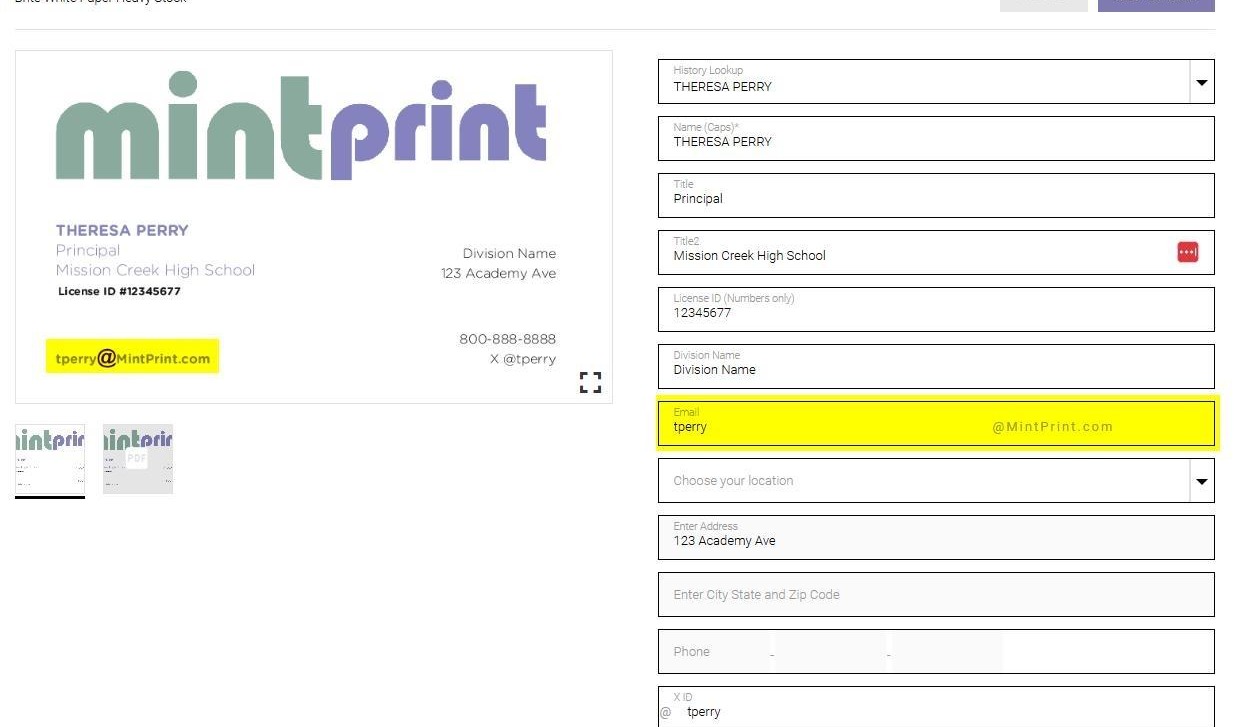
EQC: Q-Design Global Text Rules
A Global Text Rule is a configuration to allow a specified character or string of characters to use a different font or color.
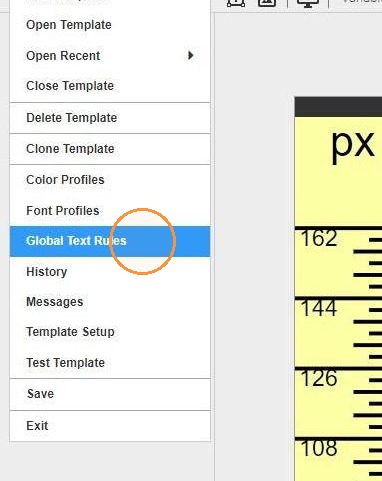
1. In the Template menu, navigate to Global Text Rules.
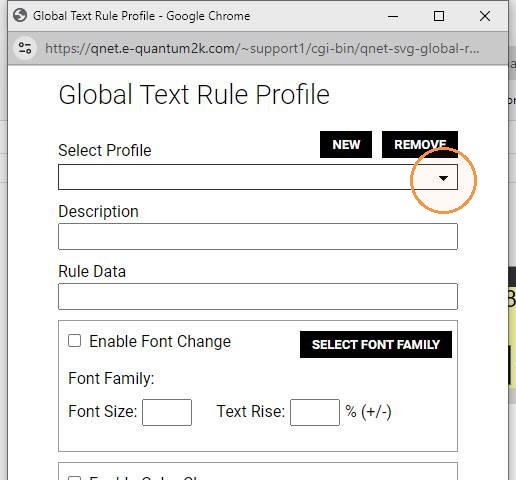
2. The Select Profile dropdown allows you to view or edit existing rules.
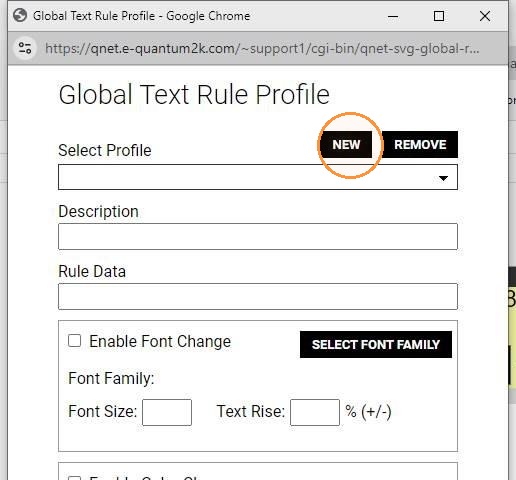
3. To create a new rule, click NEW.
4. Use the Description field to assign an arbitrary name to the new rule.
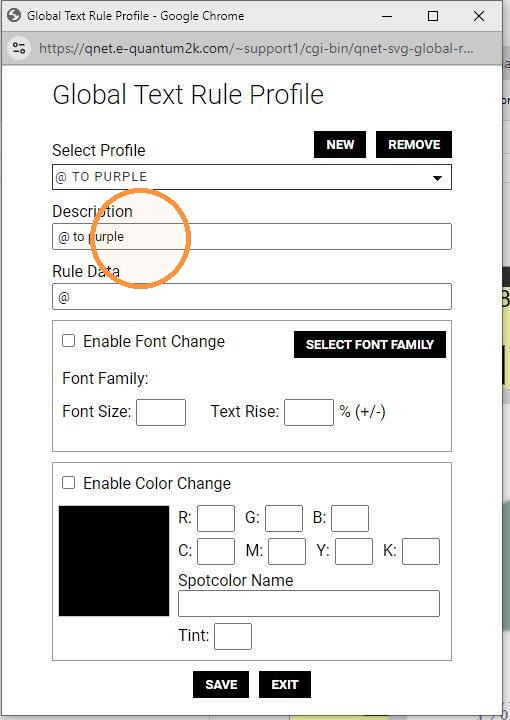
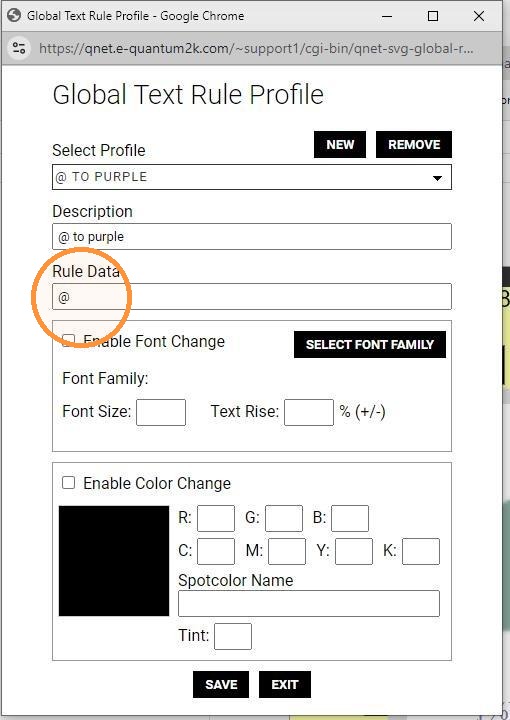
5. Rule Data will be the character or string of characters that will be changed by the rule. In this example, we are changing the font and color of the @ symbol character.
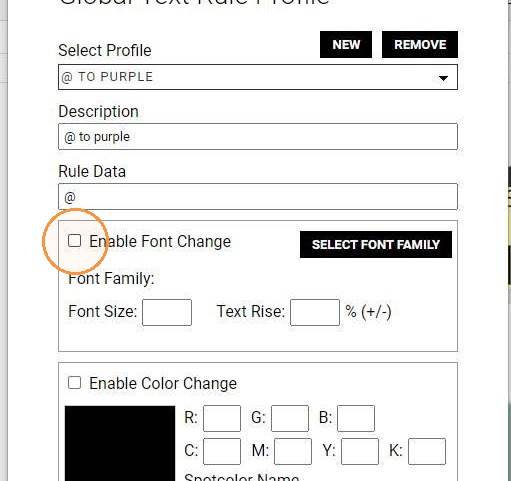
6. To apply a font change to this character, select Enable Font Change.
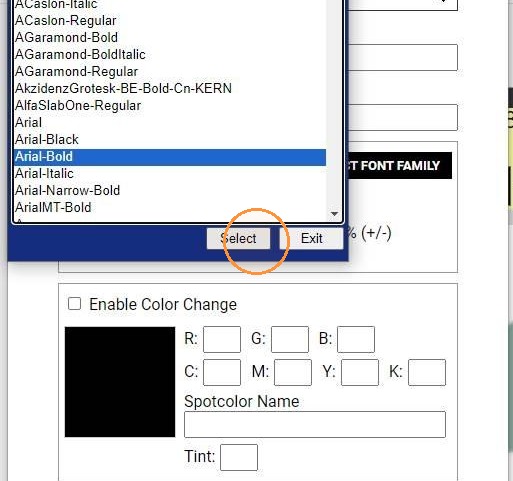
7. Click Select Font Family to select a font to apply to this character.
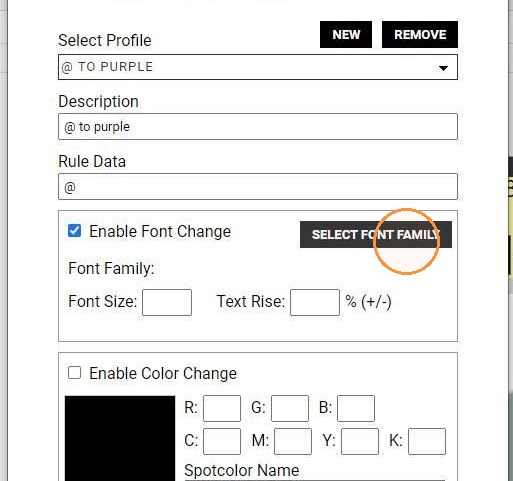
8. Select a font to apply to this character.
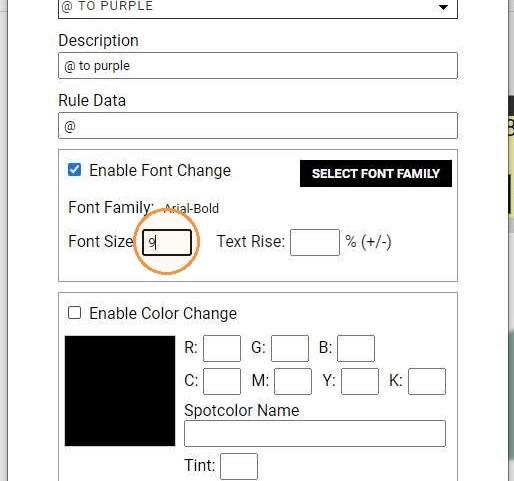
9. To apply a font size change to this character, input the desired font size.
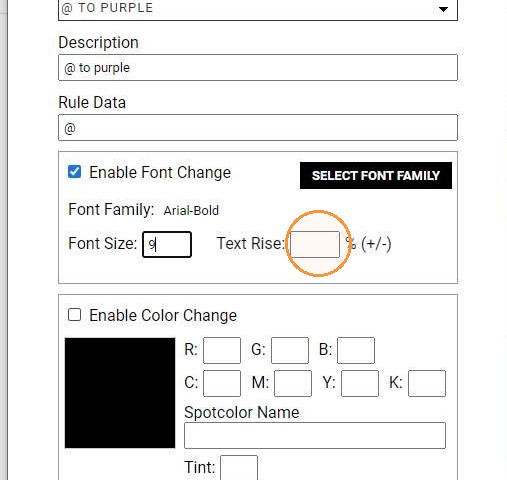
10. To apply a vertical offset to this character, input the desired Text Rise. This will be a percentage.
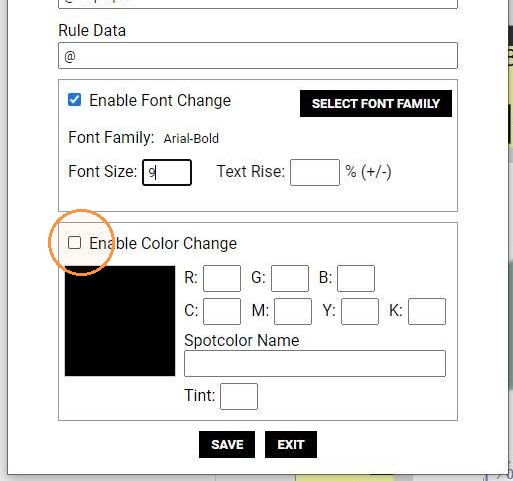
11. To apply a color change to this character, select Enable Color Change.
12. Click on the square color swatch to select a Pantone color from the pre-selected library.
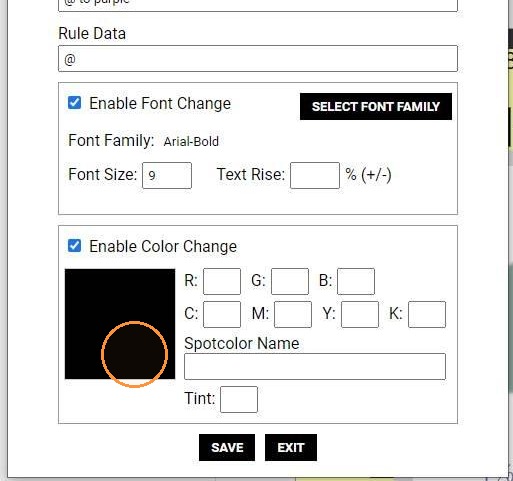
13. Click on the square color swatch to select a Pantone color from the pre-selected library.
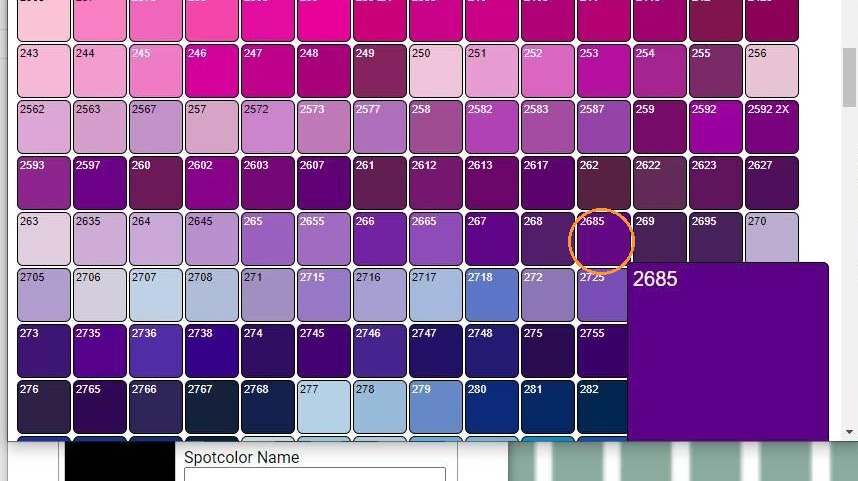
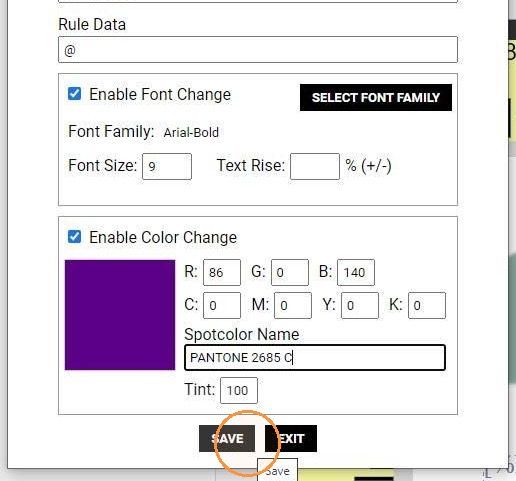
14. You can also input the RGB and/or CMYK values manually. Remember that if you are using a Pantone/spot color, the Spotcolor Name must be completed properly. Click Save to save the rule.
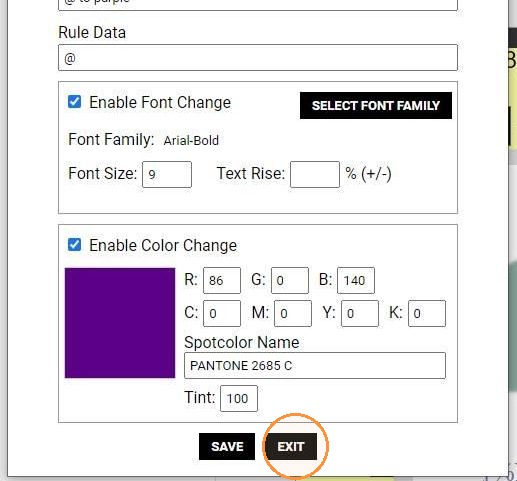
15. Exit the rule popup
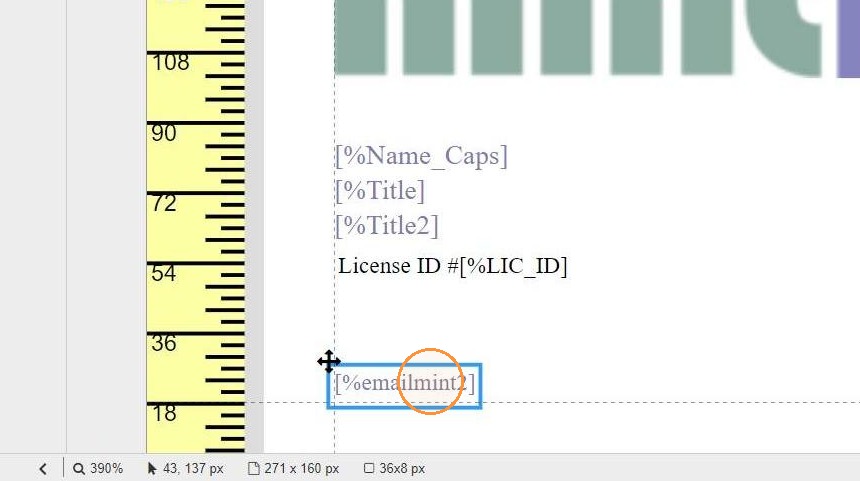
16. To apply a color rule, select a text object on a template page.
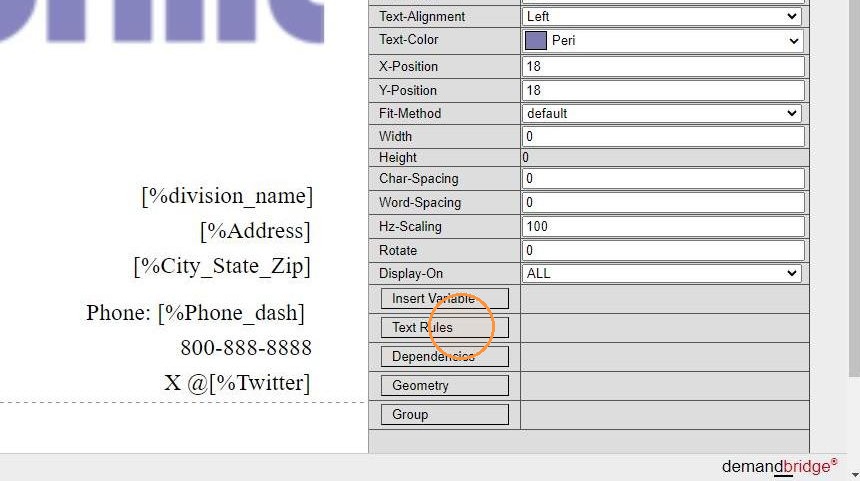
17. In the Properties panel, click on Text Rules.
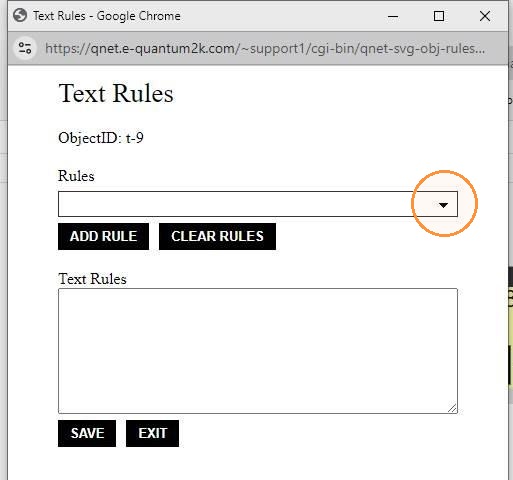
18. Select a rule from the Rules dropdown. (This dropdown is populated by the Description of each rule.)
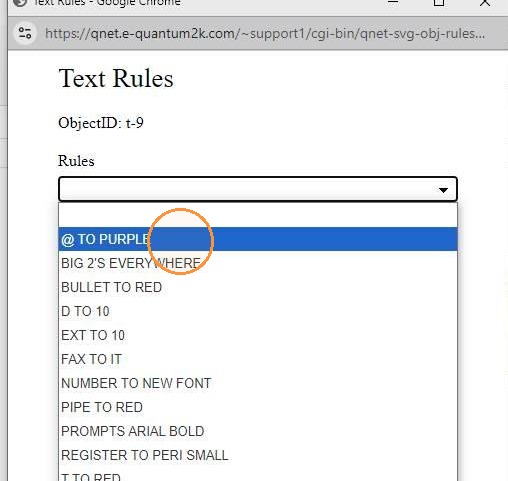
19. Select a rule from the Rules dropdown. (This dropdown is populated by the Description of each rule.)
20. Click Add Rule to apply the rule to the selected object.
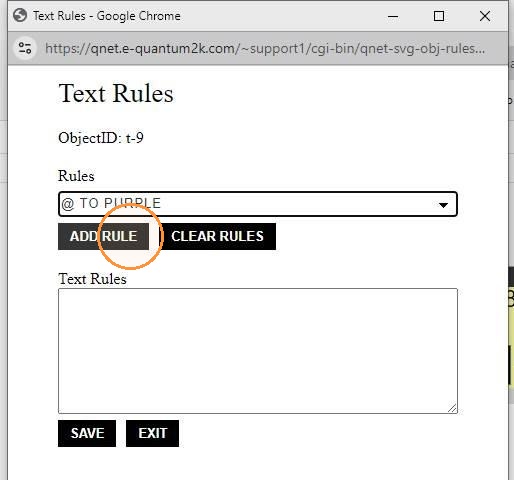
21. The selected rule will populate in the Text Rules list. Click Save.
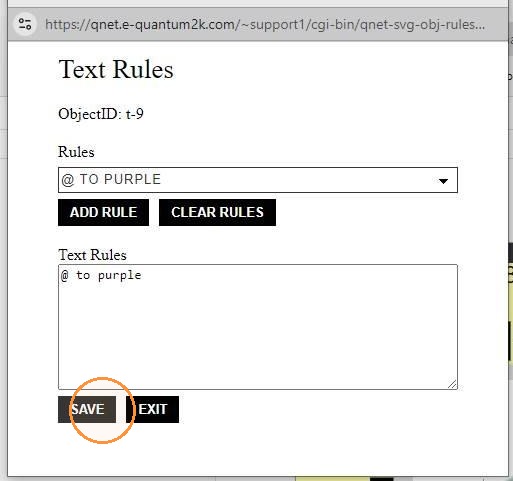
22. The rule will be applied to the object when that character or string is used.