DBD: Freight Tracking Entry
Use this guide to record freight tracking information for shipments processed outside of integrated carrier shipping systems. This function lets you manually log carrier details, shipping weights, costs, and tracking numbers directly against an order.
Before You Begin
Ensure you have the following information on hand before creating a manual entry:
- Order number or Requisition number
- Specific box number and total carton count
- Carrier ID/Name
- Tracking number or Bill of Lading (BOL) number
- Total freight cost (if applicable)
Step-by-Step: Manual Freight Entry
Navigation Path: DB Distributor Optional Modules > Shipping Management > Shipping Interface > Processing > Freight Tracking Entry
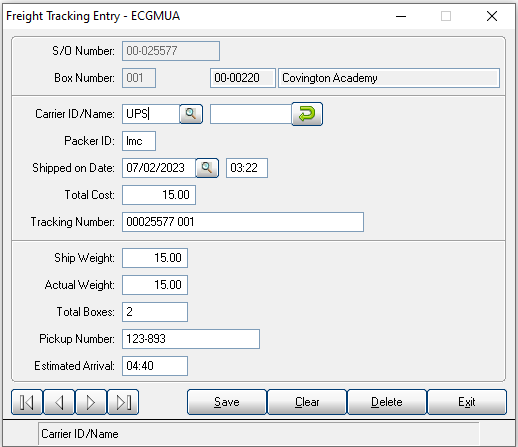
- Enter the target Order Number or Requisition Number, followed by the specific Box Number.
- Select the option to Add the entry.
- Carrier ID/Name: Enter how the order was shipped. You can provide both a carrier name and a brief description.
- Packer ID: This defaults to the user code currently logged in. Tip: If you are using an internal company truck, you can overwrite this field with the driver’s initials.
- Shipped On: This defaults to the current system date and time. If the shipment left at a different time, modify it manually; otherwise, press Enter to accept the default.
- Total Cost: Enter the total freight cost to be charged to the customer.
- Tracking Number: This field defaults automatically to a combination of the order number-box number. Overwrite this with your actual carrier tracking number or Bill of Lading (BOL #) if available.
- Shipping Weight: Enter the estimated shipping weight if required.
- Actual Weight: Enter the physical weight of the package if required.
- Total Cartons: Enter the total number of physical cartons included in this shipment.
- Pickup Number: Enter the carrier's pickup reference number if needed.
- Estimated Arrival: Enter the projected delivery date if needed.
System Behavior & Parameter Settings
The way the system processes your manual data depends on a key administrative parameter setting.
Navigation Path: DB Distributor Optional Modules > Shipping Management > Shipping Interface > Setup > Shipping Interface Parameters
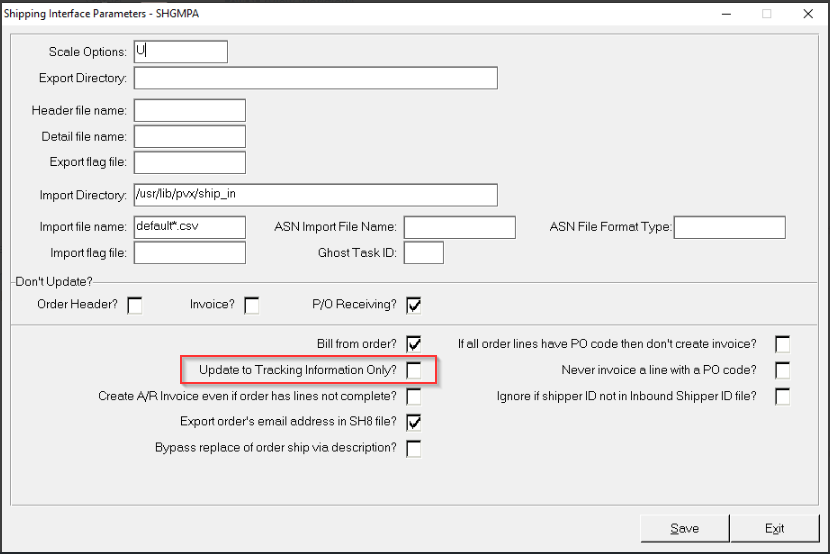
Review how the Update Tracking Information Only checkbox is configured:
- If the field is CHECKED: The system will only update the tracking information to the SM4 Sales Order History Detail File.
- If the field is UNCHECKED: New records will automatically update both the SM0 Shipping Manifest Information and the SM4 Sales Order History Detail File. This data will then route downstream to be processed normally by the Customer Invoicing Gateway. Additionally, the freight cost entered in Step 6 will be automatically added to the order header.
Configuration: Linking Carrier Tracking URLs
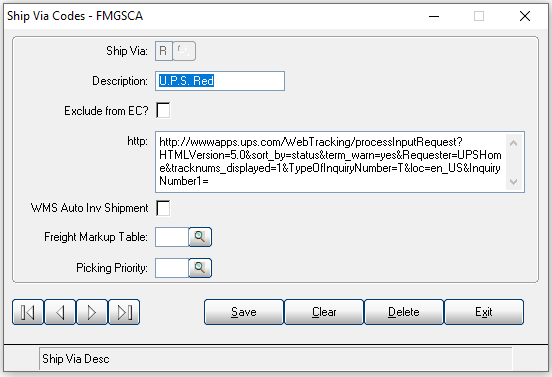
To make manual tracking numbers clickable hyperlinks for your users or customers, you must configure the base URL paths inside your Ship Via configuration.
Navigation Path: Order Processing > Setup > System > Support files > Recommended > Ship Via Codes