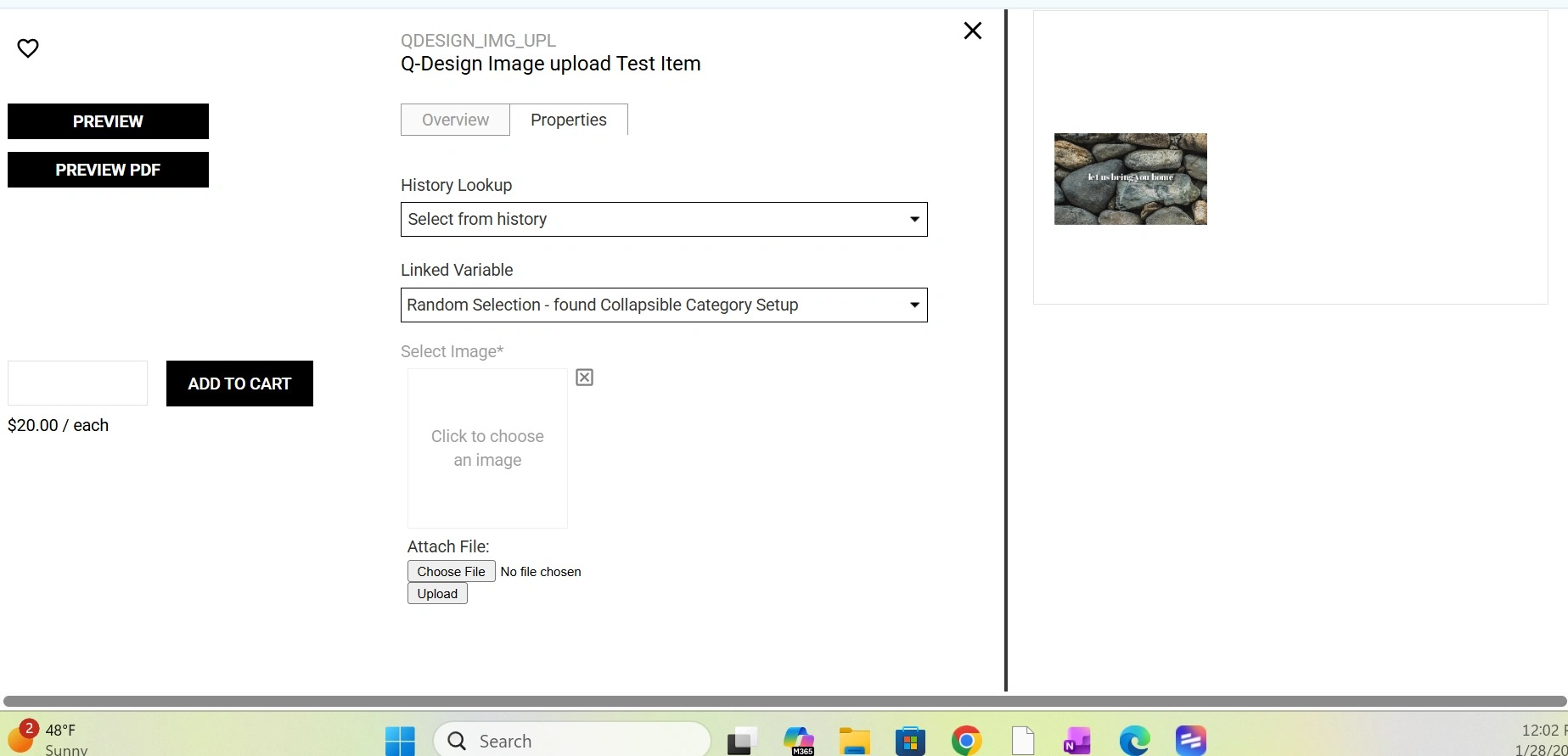
EQC: Q-Design Connecting a template with an item from EQd
This guide explains how to connect a Q-Design template to an item in EQd. It provides step-by-step instructions to help users complete the setup, especially those who are new to the process.
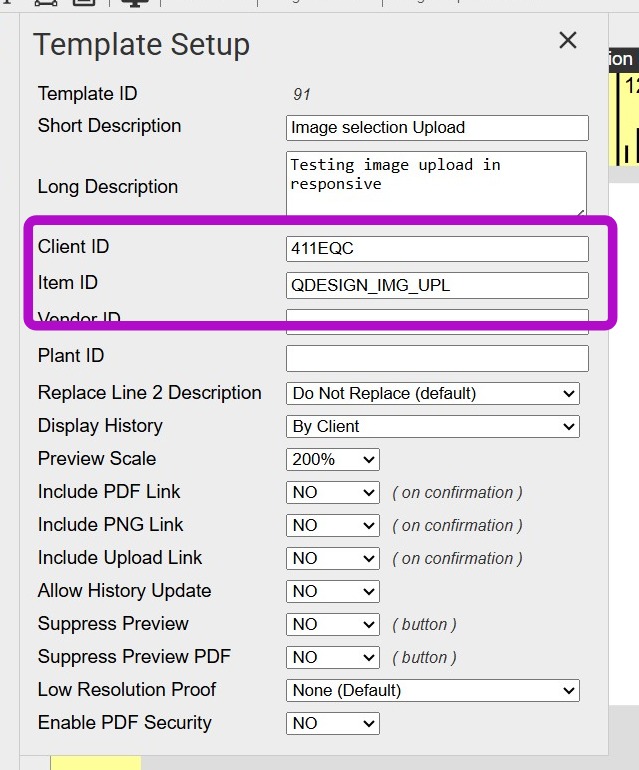
Tip: The linking factor is the Item ID. The Item ID needs to match exact.
The Client ID will assign the template to the specific client, If this template can be used for more than one client, leave the Client ID blank. It is important to note that if the Client ID is left blank any item in EQd with the Item ID will connect to this template.
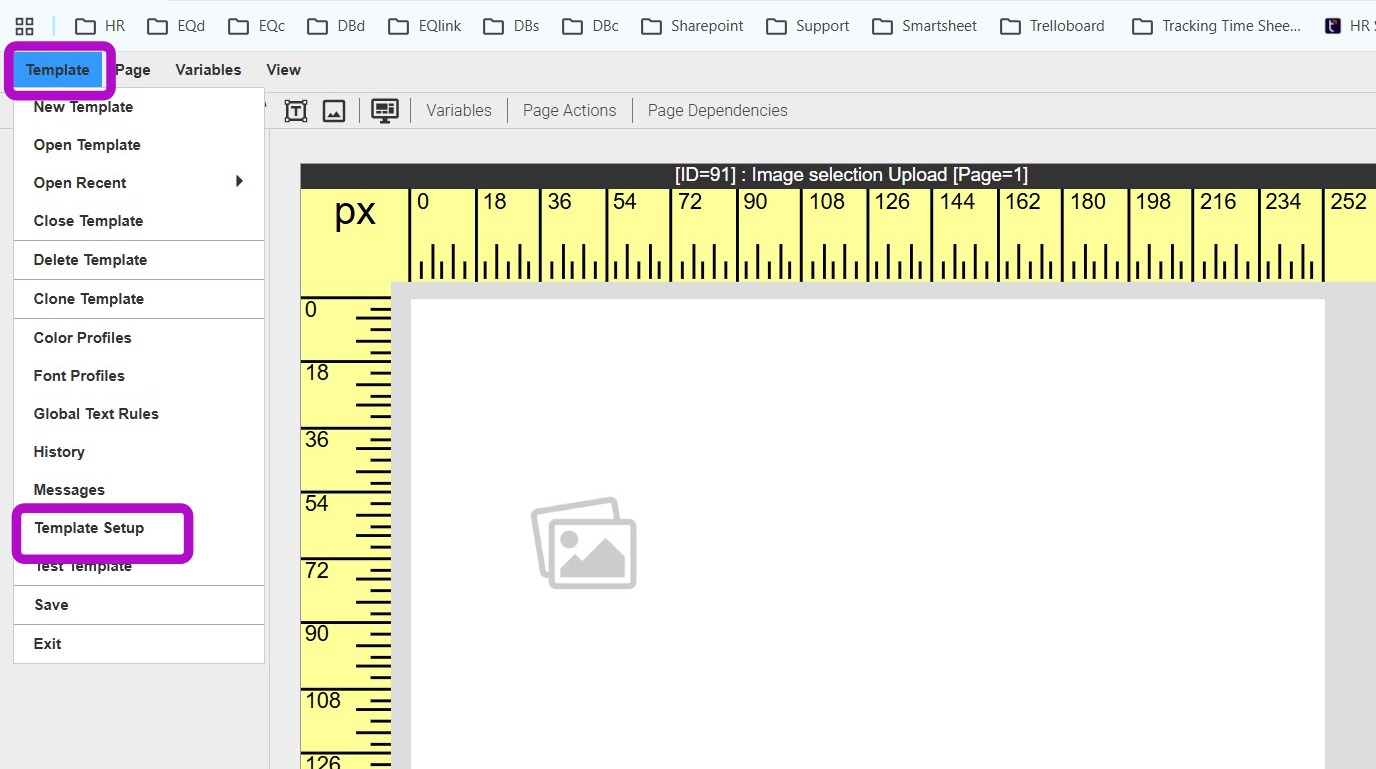
1. In Q-Design, open the template and navigate to Template > Template Setup
2. Item ID and Client ID is found in Temple Setup
3. In EQd go to Item Maintenance and Edit the item.
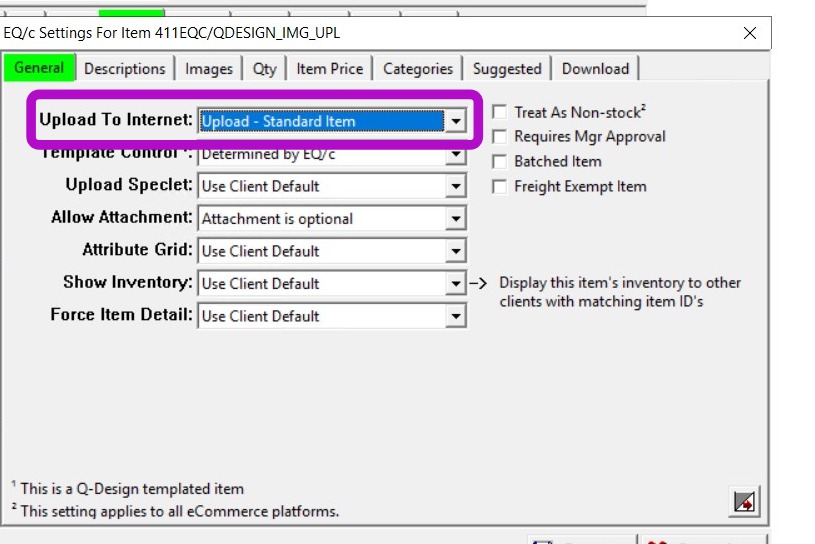
from the item click on the EQc tab > open General tab
Confirm in the bottom left corner the connection to Q-Design has been made.
This is a Q-Design templated item
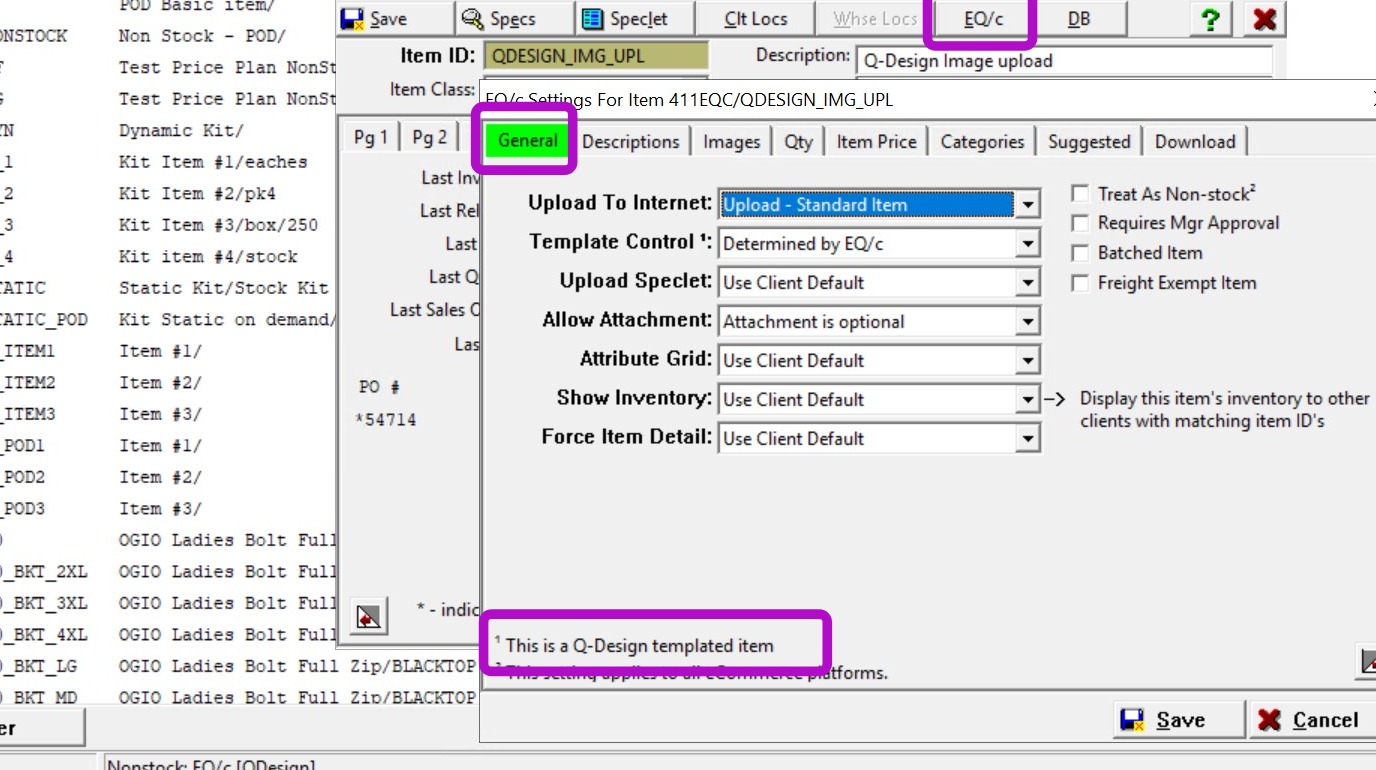
4. To upload this item to EQc, Upload To Internet will need to be set - Upload Standard Item
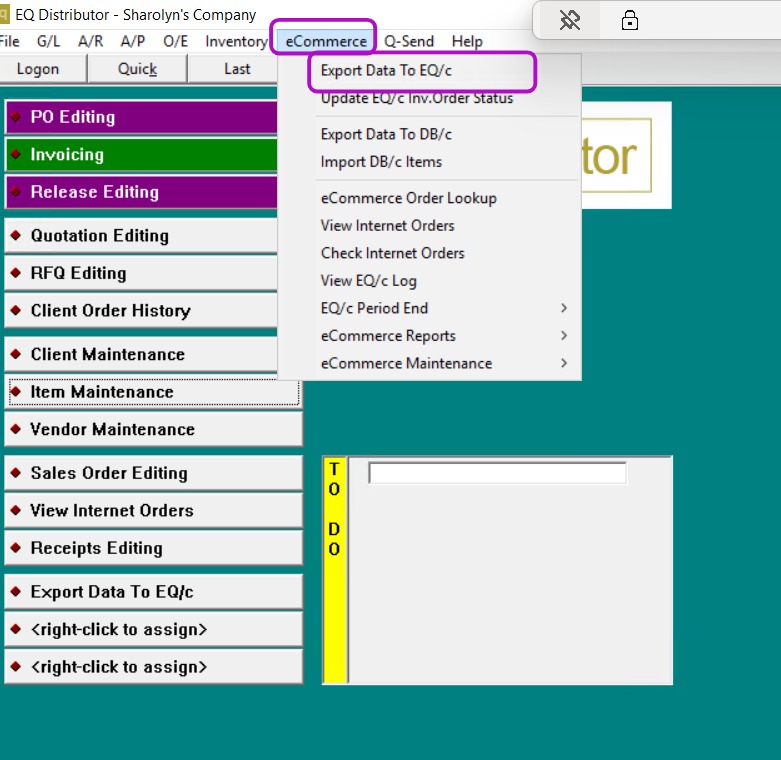
5. Export Data to EQ/c
eCommerce > Export Data to EQ/c
6. Confirm Item is appearing on EQc site as expected