EQD: DBPay - PaybyLink: Add a Credit Card or ACH at the Ship-To Level
You can store either a Credit Card or ACH payment method on file by following the same steps below. This feature allows you to securely capture and store your client’s preferred payment method directly within Quantum. Once a card or bank account is added, it can be used for future transactions without requiring the client to re-enter their information each time. Once added, the card cannot be edited. If the card expires, you will need to follow the same process to add a new one.
Alert: Note: This process was created in a test environment. The information selected is for training purposes only and will not match the data you will use in your company's system.
Tip: Note: This is for when you’re already in the client and adding a card specifically for a ship-to.
Part 1: Saving a Credit Card
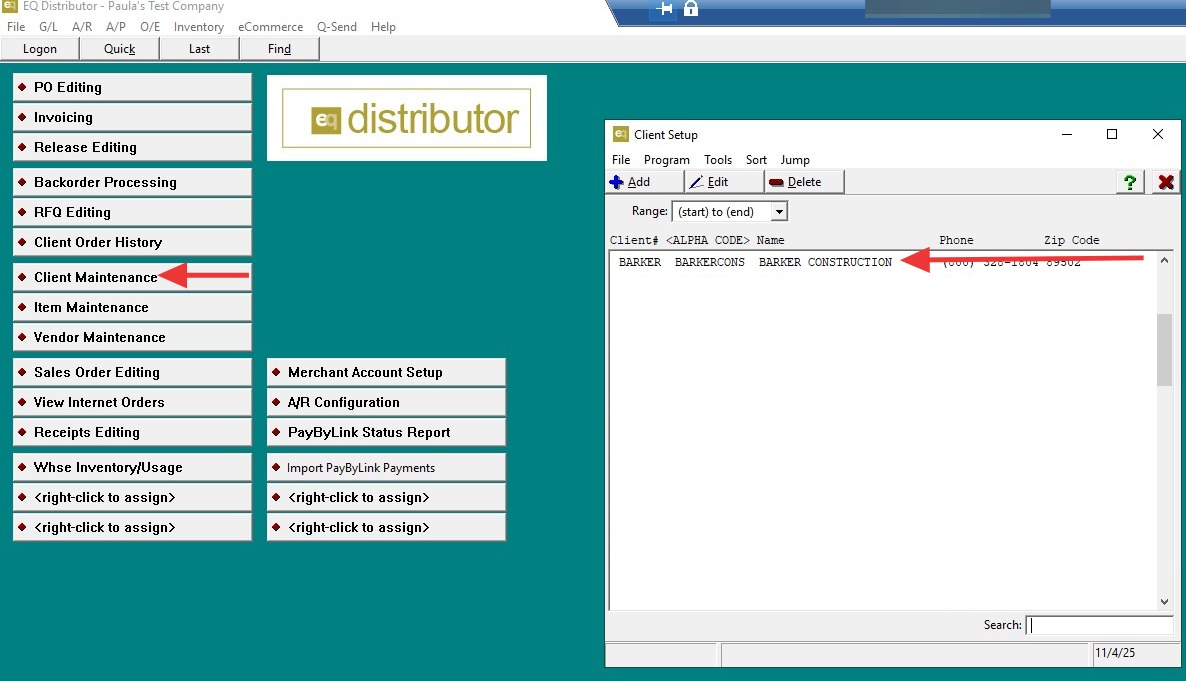
1. Go to Client Maintenance.
- Select the client you want to add the payment method for.
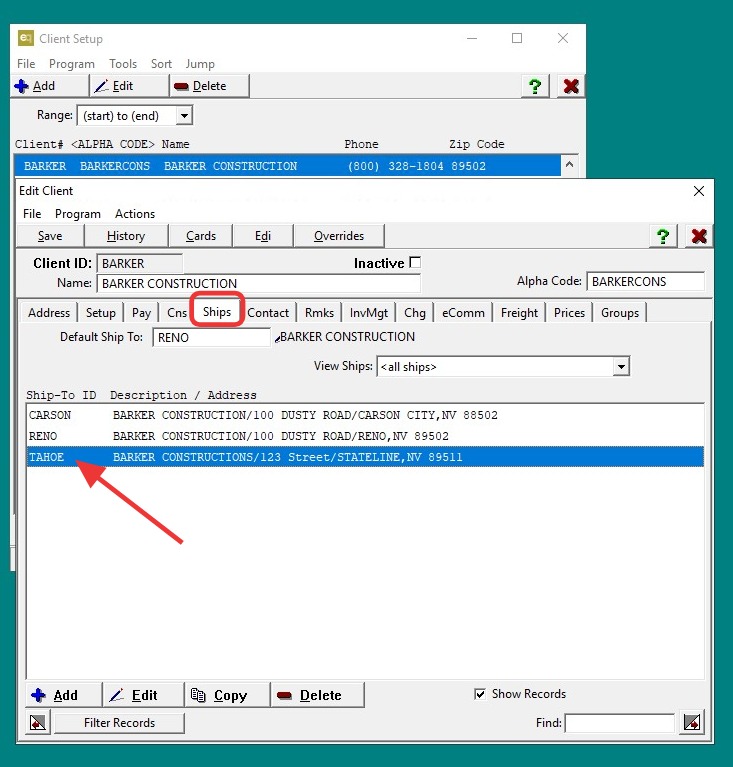
2. Go to the Ships tab and select the Cost Center where you want to add the credit card.
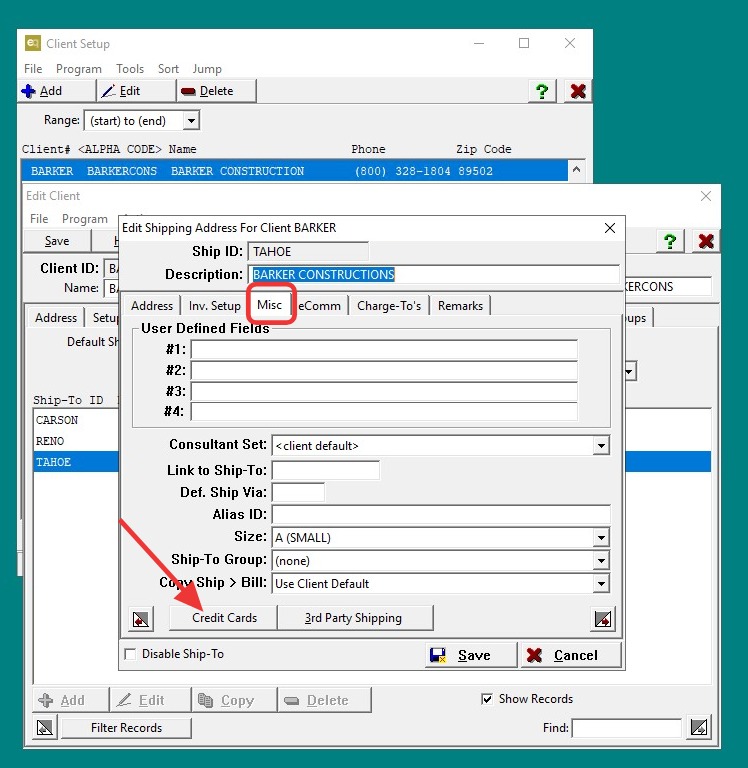
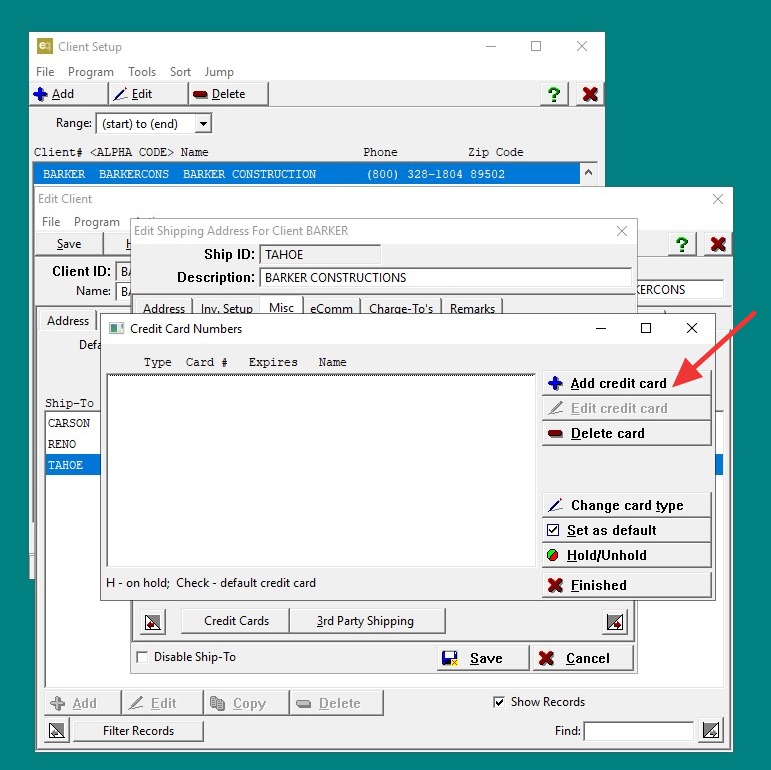
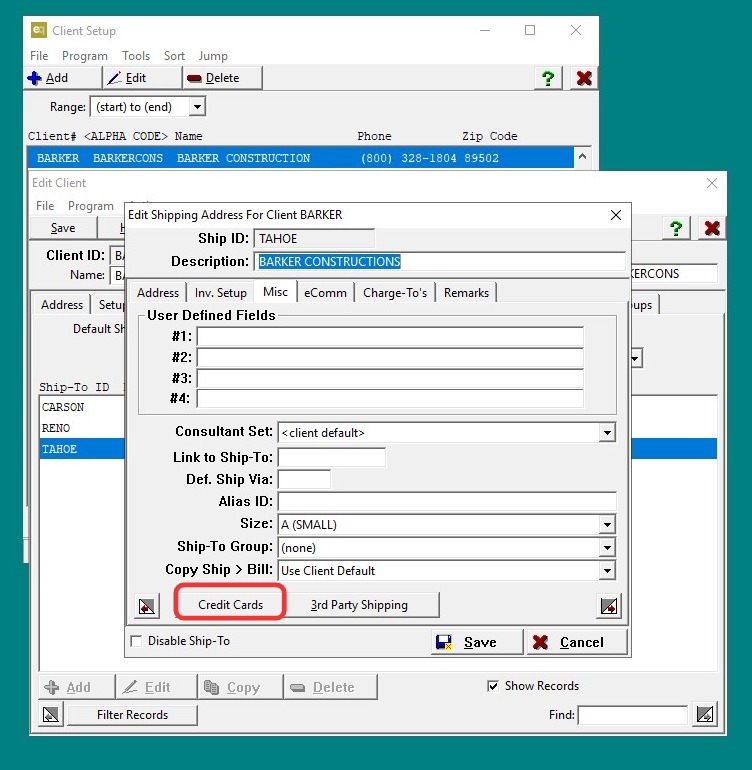
3. Go to the Miscellaneous tab. At the bottom of the Miscellaneous tab, click the Credit Cards radio button.
4. Click Add Credit Card.
- The system opens a screen where you can select the payment type:
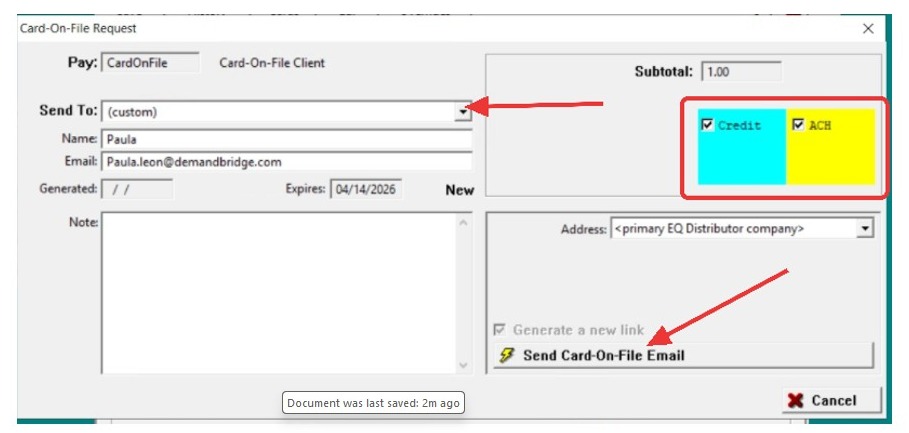
5. The next screen will give you the option to either save a Credit Card or an ACH. Configure the email address you want the link to be sent to.
- Click Send Card on File Email.
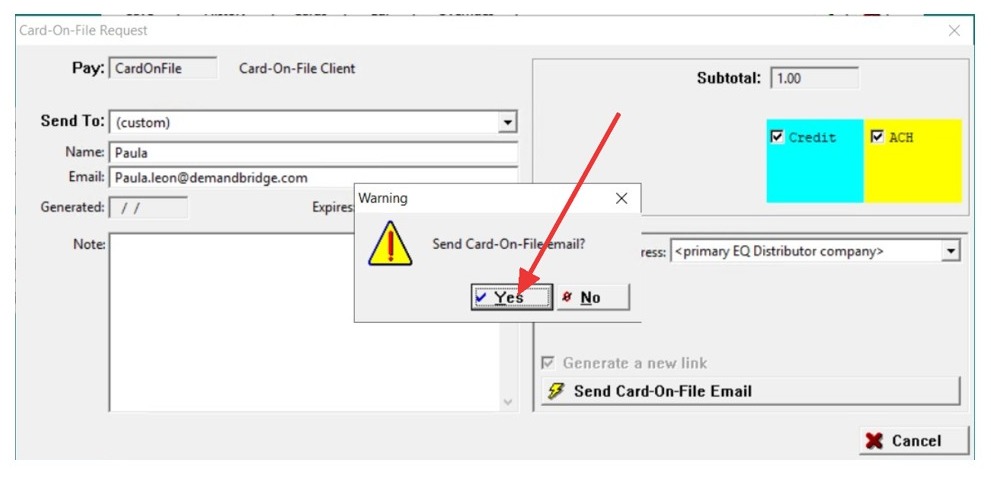
6. Click "Yes" to confirm sending the card-on-file email.
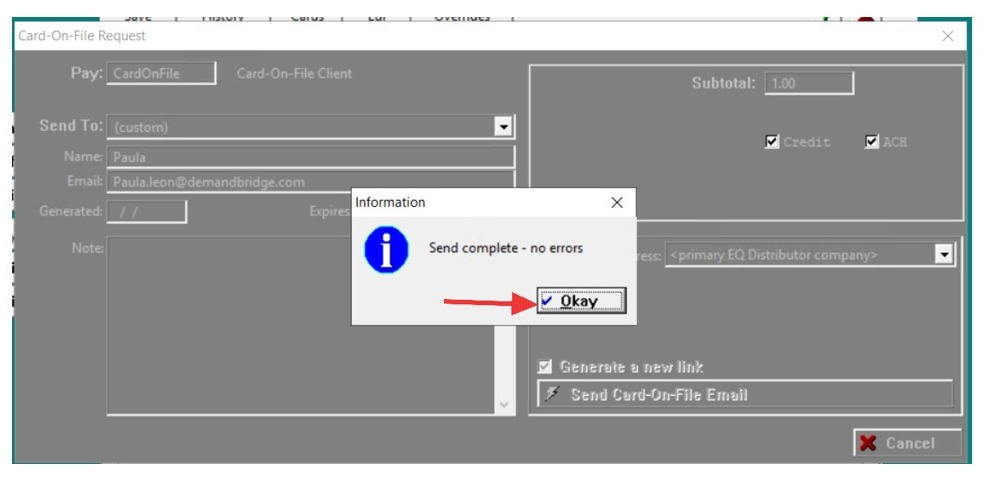
7. Click "OK" to complete — ensure no errors appear.
8. The client will receive an email with the subject line “On File Payment Information.”
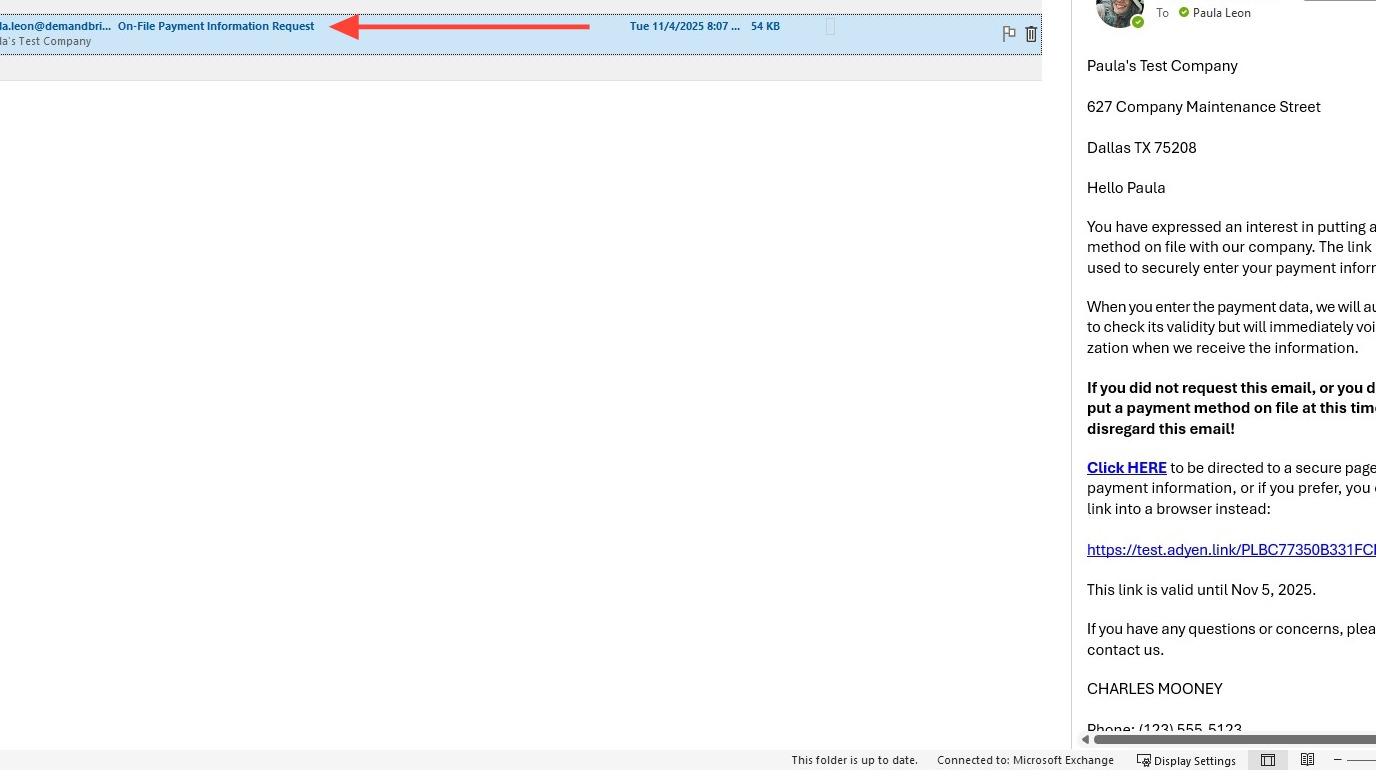
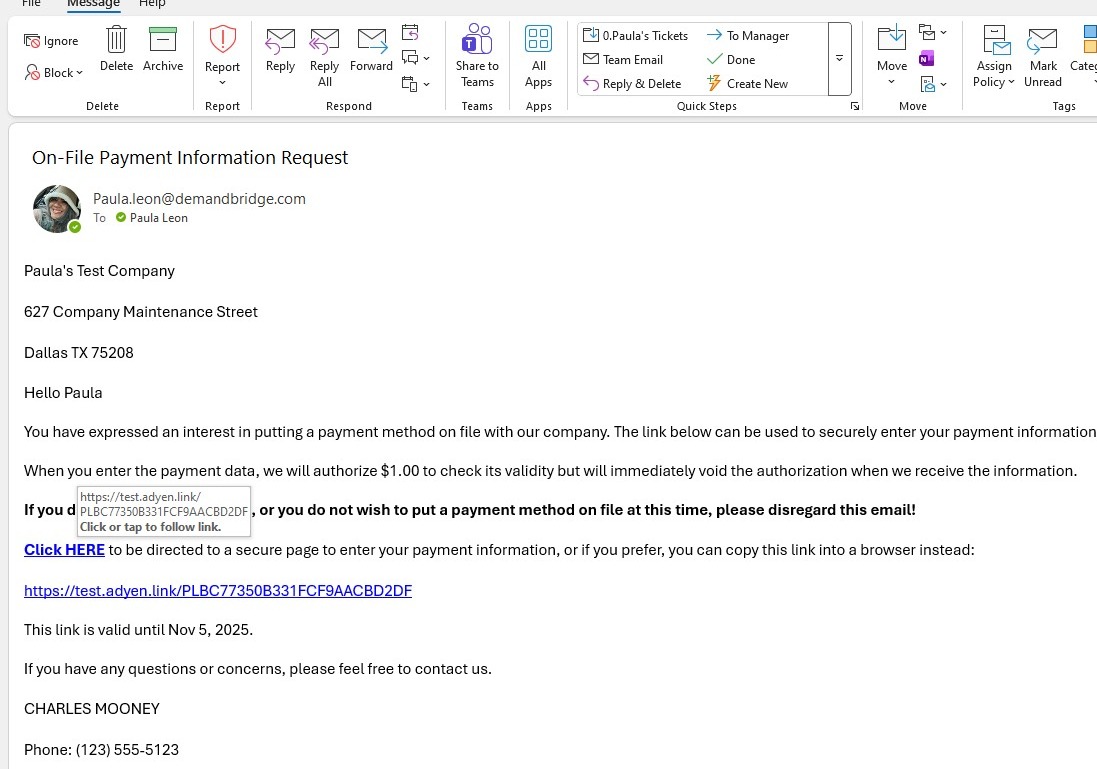
9. The email contains secure links for both Credit Card and ACH options.
- The client can click either link — both direct to the same secure payment entry screen.
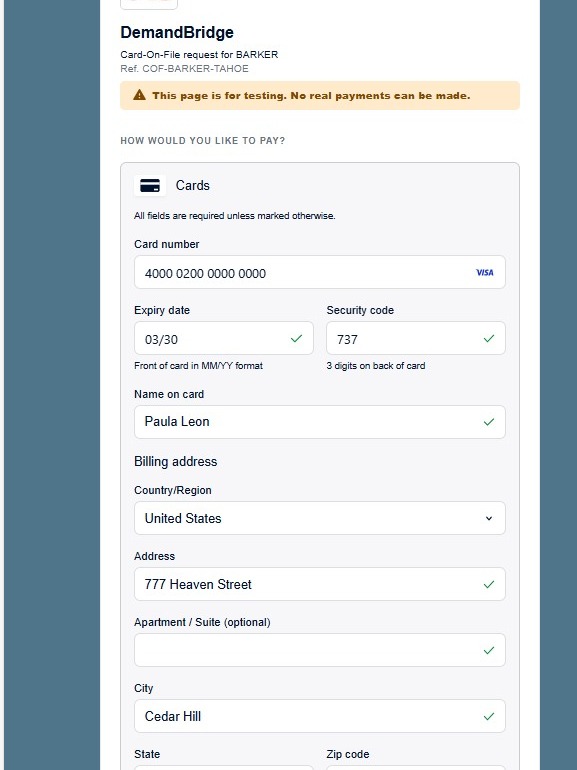
10. The client will then enter their credit card or bank (ACH) information and submit it.
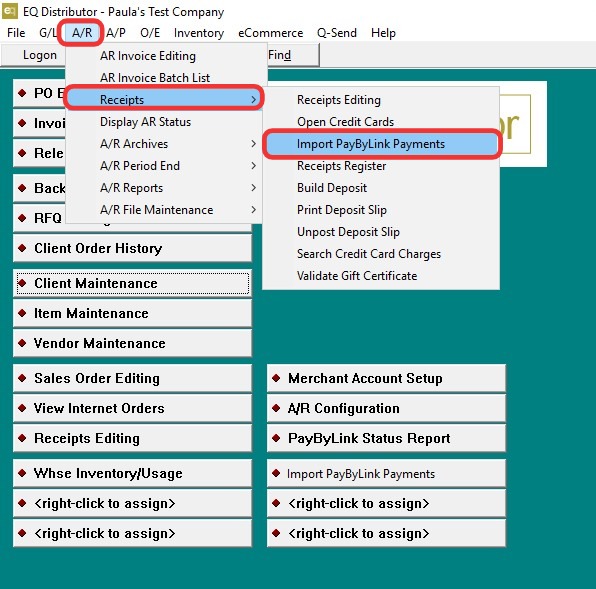
11. After the client completes their entry, go to A/R > Receipts>Import PayByLink Payments.
- Click Import Pay by Link Payments.
12. Once the import finishes, exit the screen.
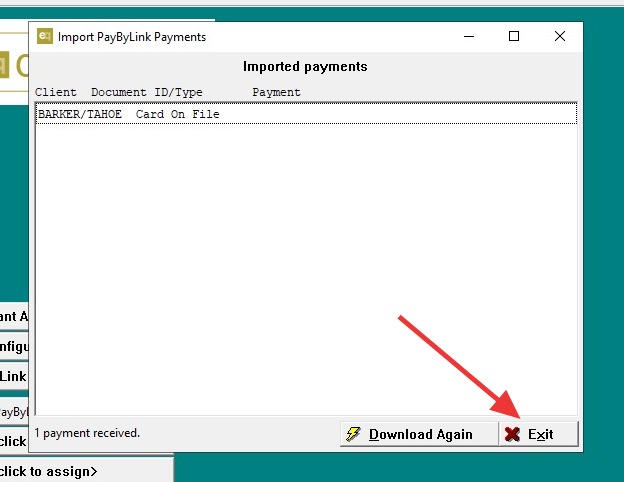
13. When prompted with Process Complete – View Log, click Yes.
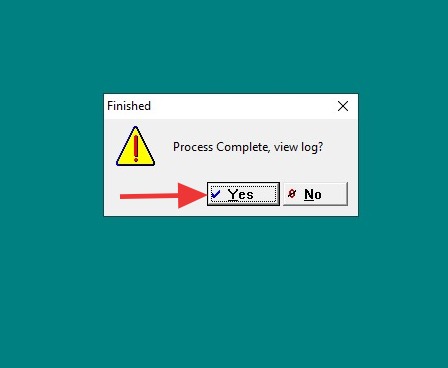
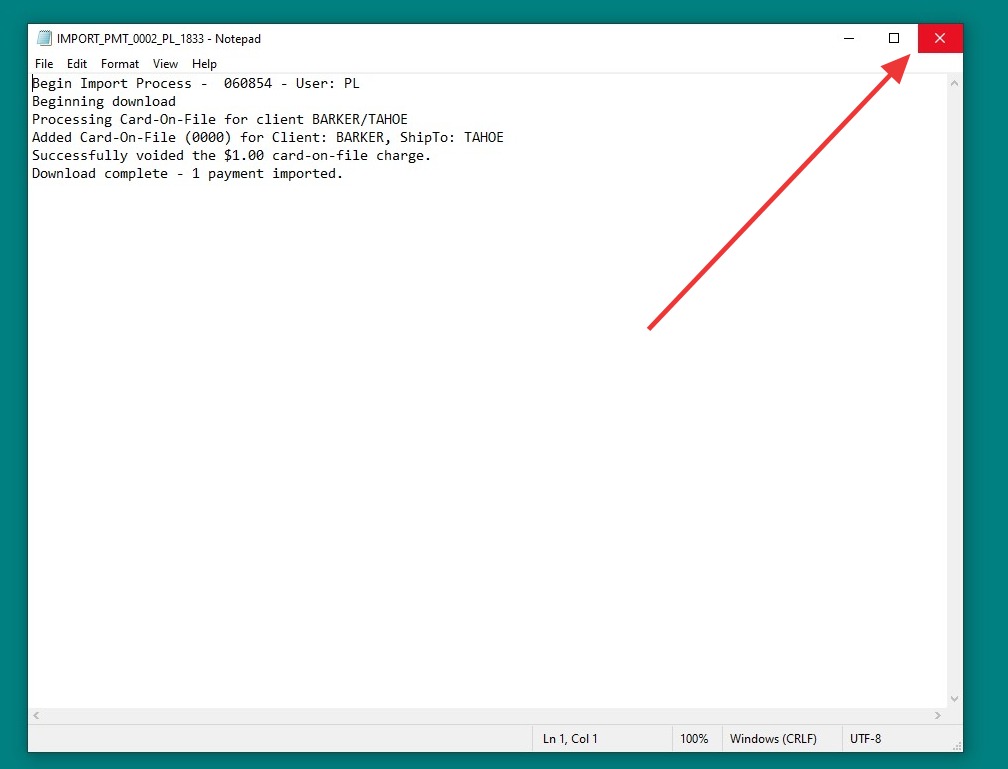
14. A log summary will appear showing what was processed from the time the link was clicked until it was imported.
- Review and close the summary.
Part 2: Verifying and Finalizing the Saved Credit Card
15. Return to Client Maintenance.
- Select the same client that received the payment link.
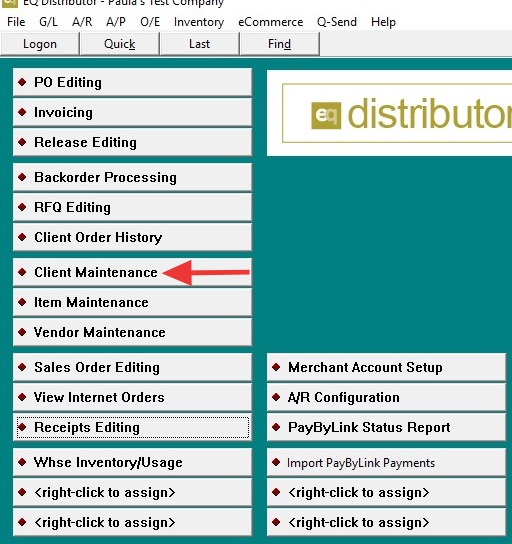
16. Locate the original SHIP-TO record where the credit card was added.
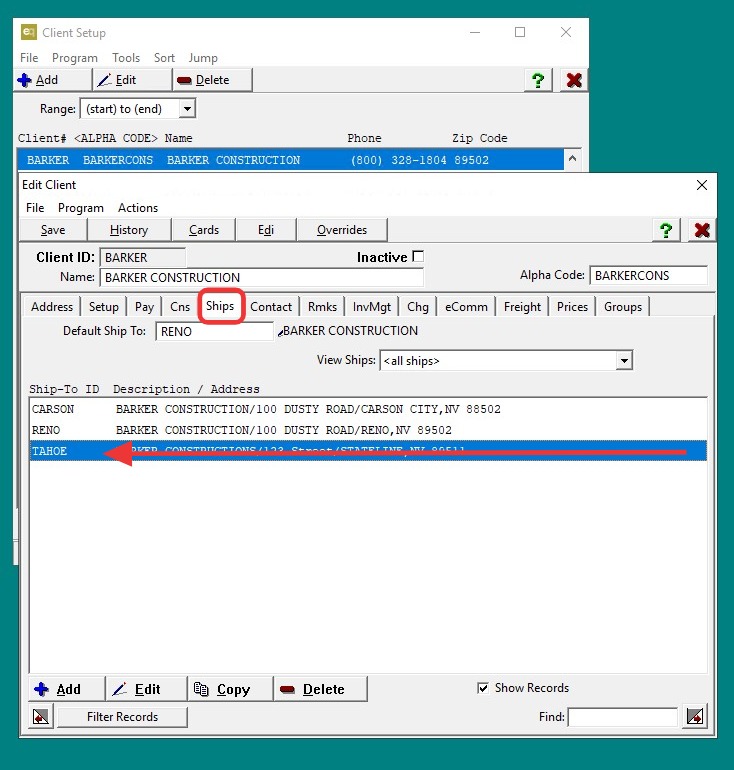
17. Go back to the Miscellaneous tab.
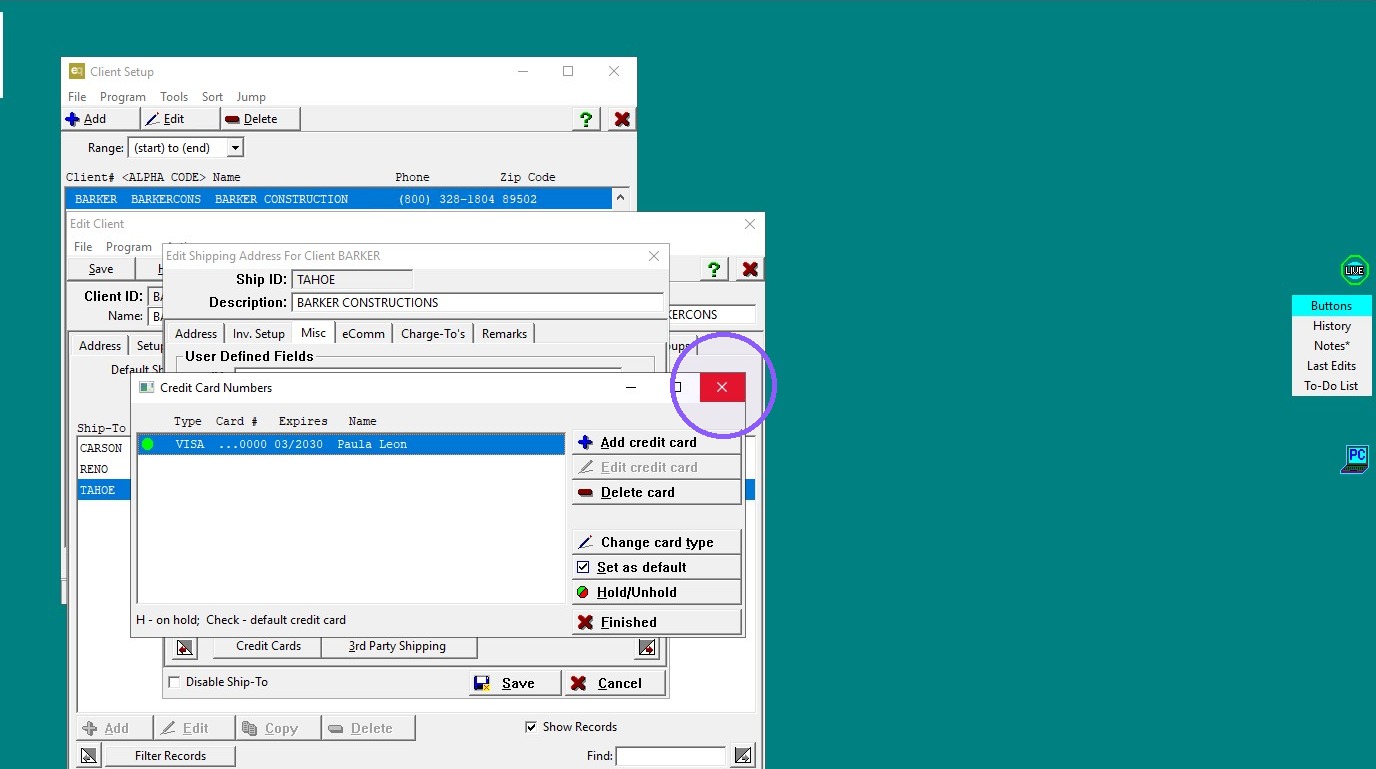
- Click Credit Card again — the saved card should now display.
18. Click "Exit"
- The Credit Card or ACH payment method is successfully saved on file.
- The client’s payment link process is seamless — once the link is completed and imported, the card or bank account appears automatically under the client record.
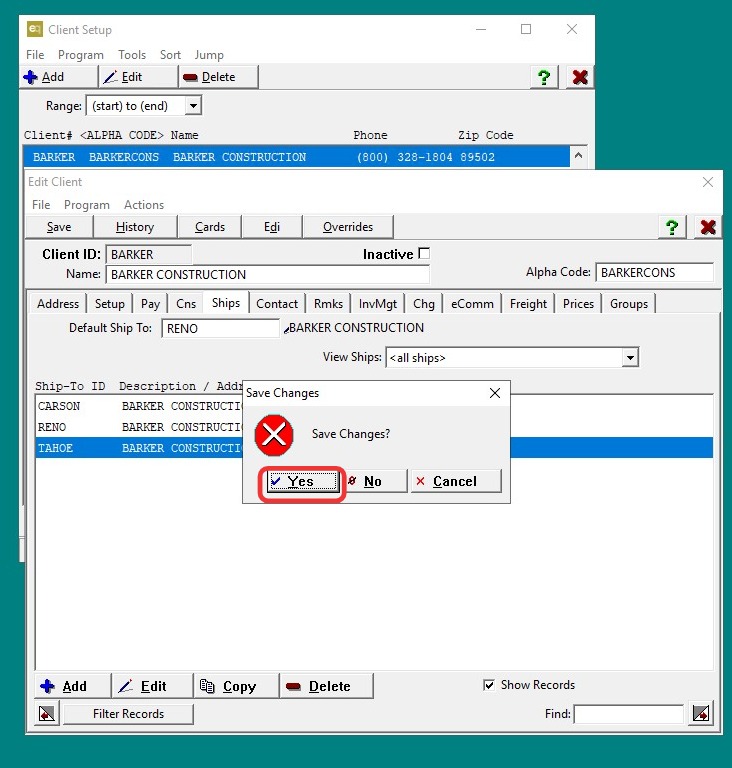
19. Click "Save" then, exit Client Maintenance.
Part 3: Applying a Credit Card to a Document (e.g., Purchase Order)
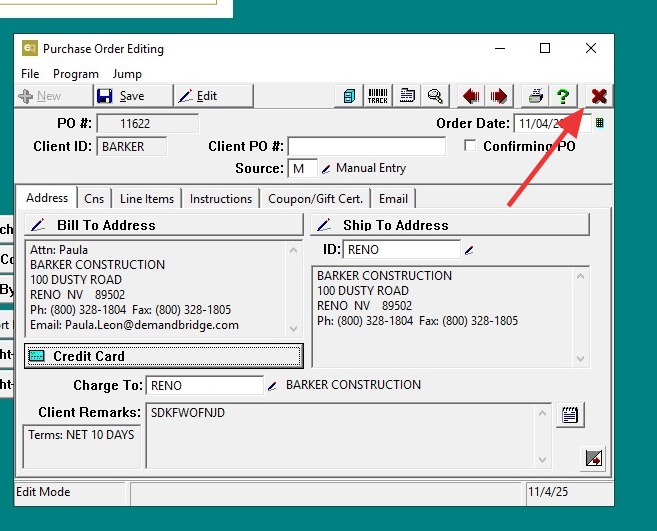
20. Pull up the Purchase Order you want to attach the credit card to.
- Click Edit to enter Edit Mode.
- Go to the Credit Card tab under the Address tab
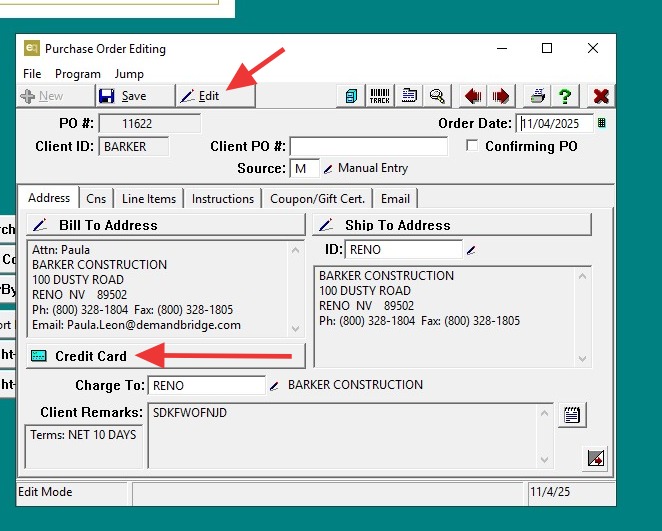
21. Click the Credit Card button, then click the pencil icon to access the credit card options.
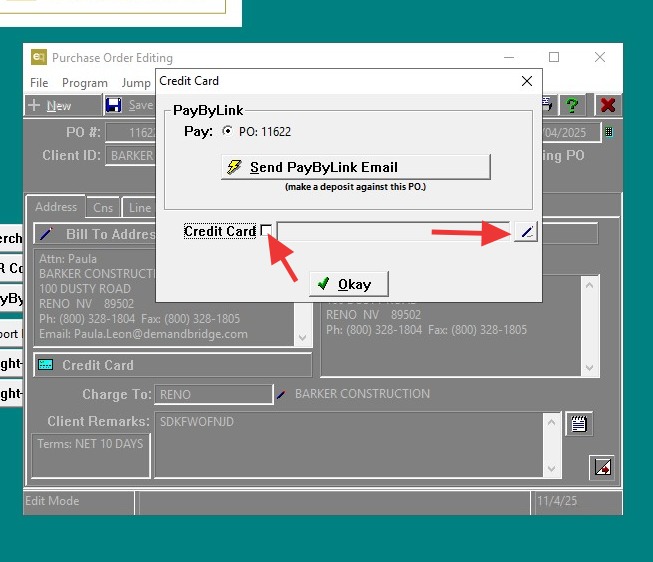
22. Click the drop-down to select the credit card that you just saved in Quantum.
- After selecting the credit card, click Save
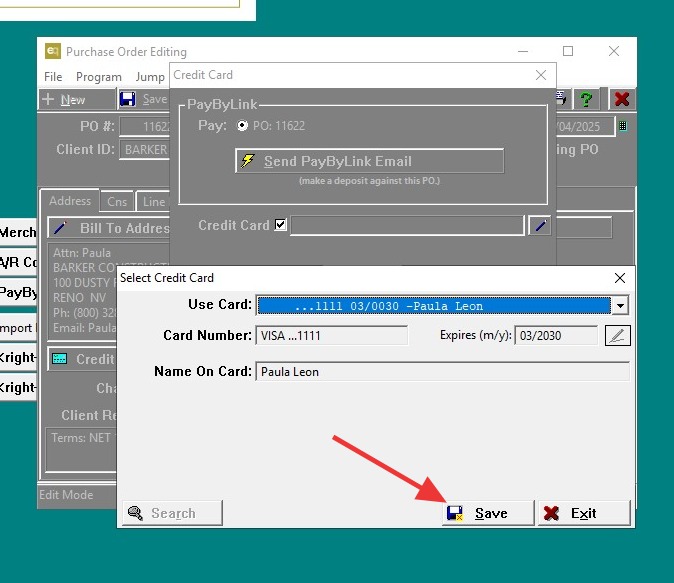
23. Click "Okay"
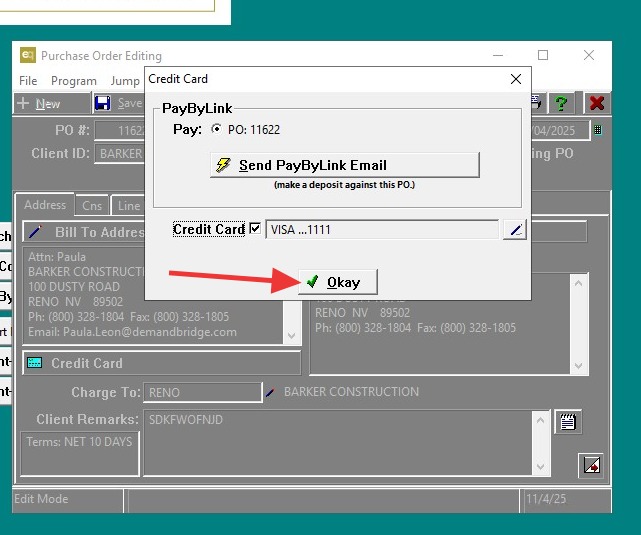
24. This screen shows the credit card now saved to the purchase order.
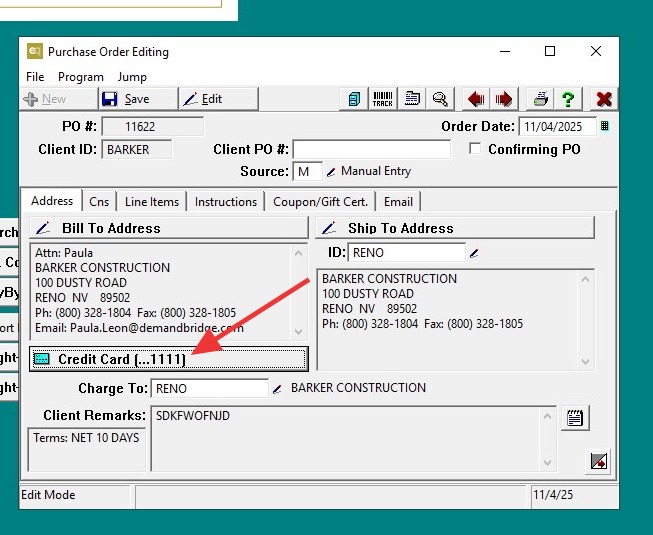
Part 4: How to Remove a Credit Card Saved to a Document
Tip: Note: In the event you want to delete the credit card attached to the purchase order, follow these steps:
25. - Click the Credit Card button.
- The next screen will display the credit card box. Uncheck the credit card and click OK.
- When prompted with “Remove credit card from the document,” click Yes.
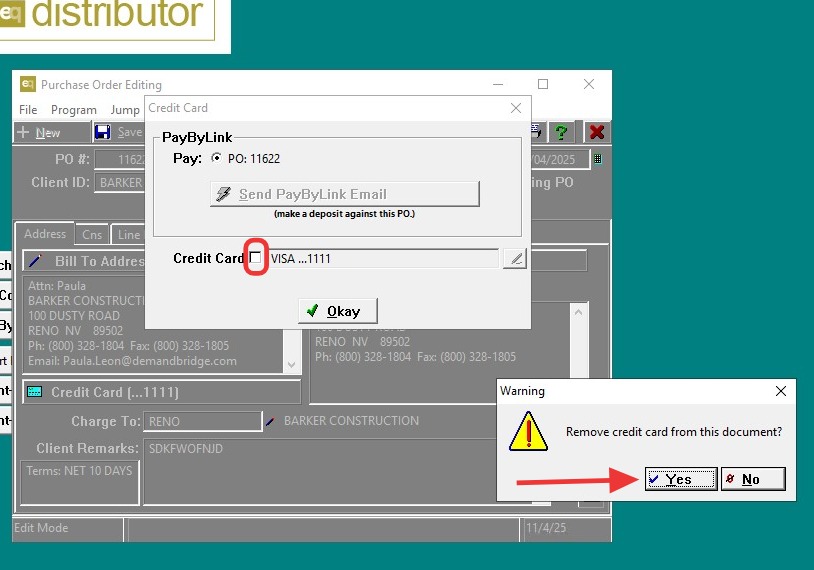
26. Click Yes to confirm removing the credit card from the document.
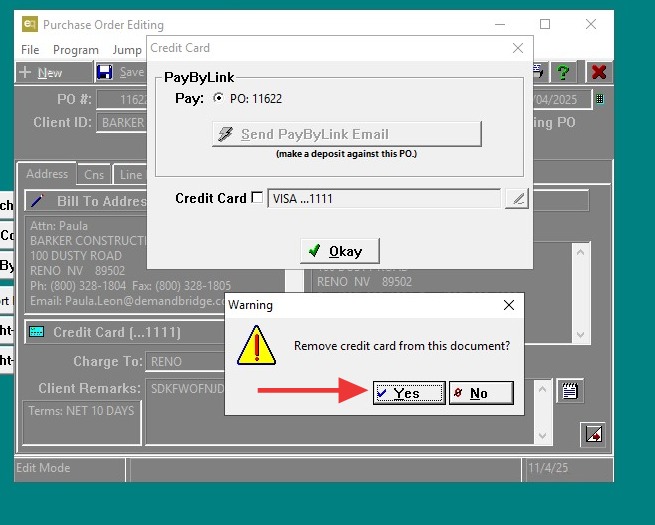
27. Exit the screen; the process is now complete.