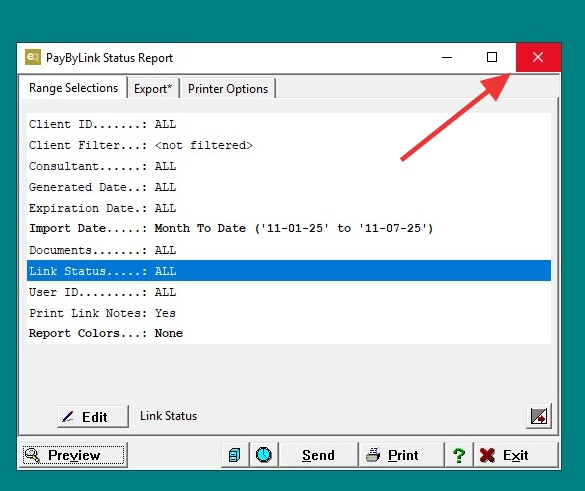
EQD: DBPay - PaybyLink: How to Run a PaybyLink Status Report
Made by Paula Leon with Scribe
Note: The Pay-By-Link Status Report allows you to view and track the current state of payment links — whether they’re used, expired, deleted, or open. You can also configure the export layout to include the details you need.
Alert: Note: This process was created in a test environment. The information selected is for training purposes only and will not match the data you will use in your company's system.
Part 1: Running the Report
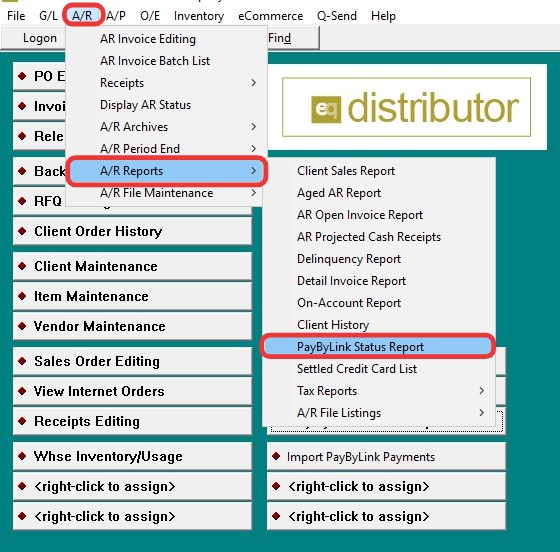
1. Navigate to A/R → A/R Receipts → Pay-By-Link Status Report.
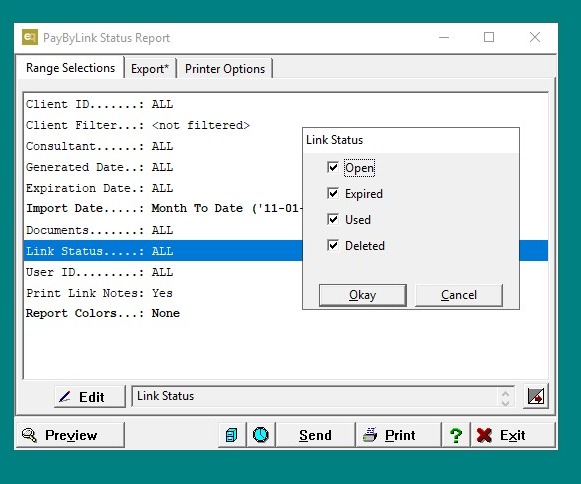
2. - In the Configuration section, select the link status you want to view:
- Used – links that have been paid.
- Expired – links that have passed their expiration date.
- Deleted – links that were removed.
- Open – active links that have not been used yet.
- Choose any other filters as needed for your report.
Part 2: Configuring the Export File
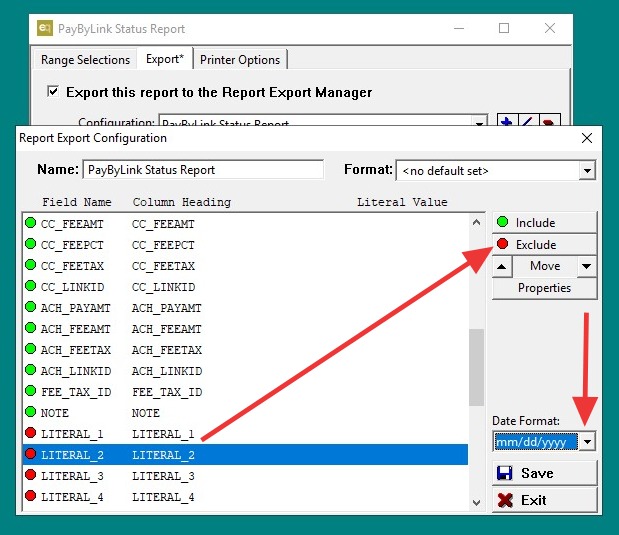
3. Go to the Export tab and check the "Export this report to the Report Export Manager"
- To edit how your export file will appear, click the pencil icon on the far right.
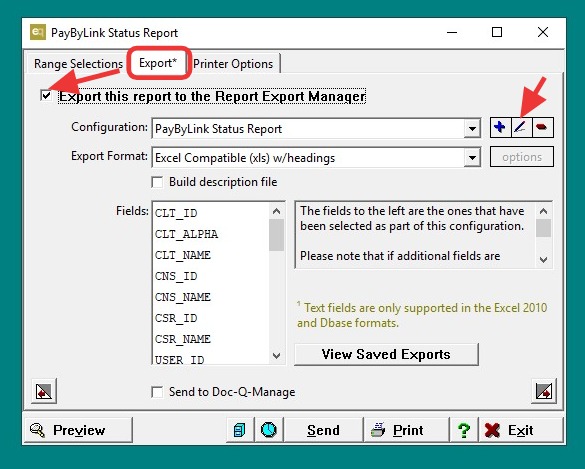
4. Make any necessary changes to the export layout (for example, add or remove fields).
- Click "Save", then Exit to return to the main screen.
Part 3: Previewing and Exporting the Report
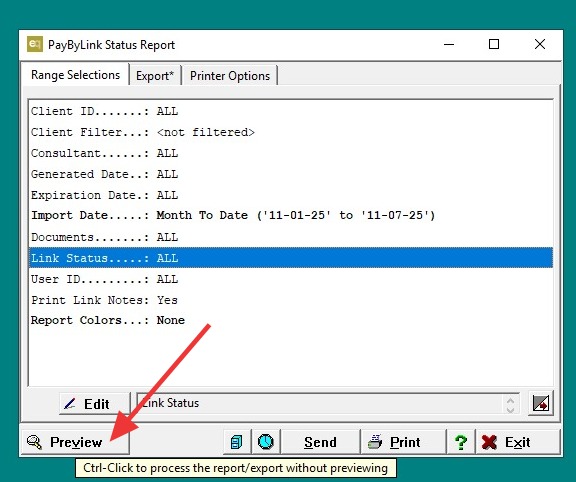
5. Once your configuration is set, click "Preview".
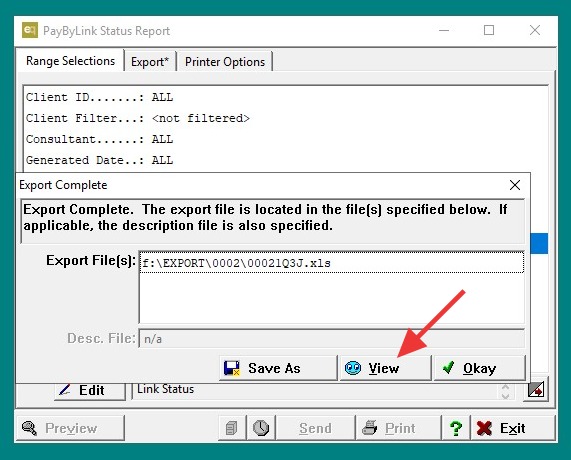
6. If you have the Excel Export option checked, a message will appear showing Export Complete and the location where the file will be saved.
- You can open the exported Excel file directly from here by clicking View (Excel version) or OK (PDF version).
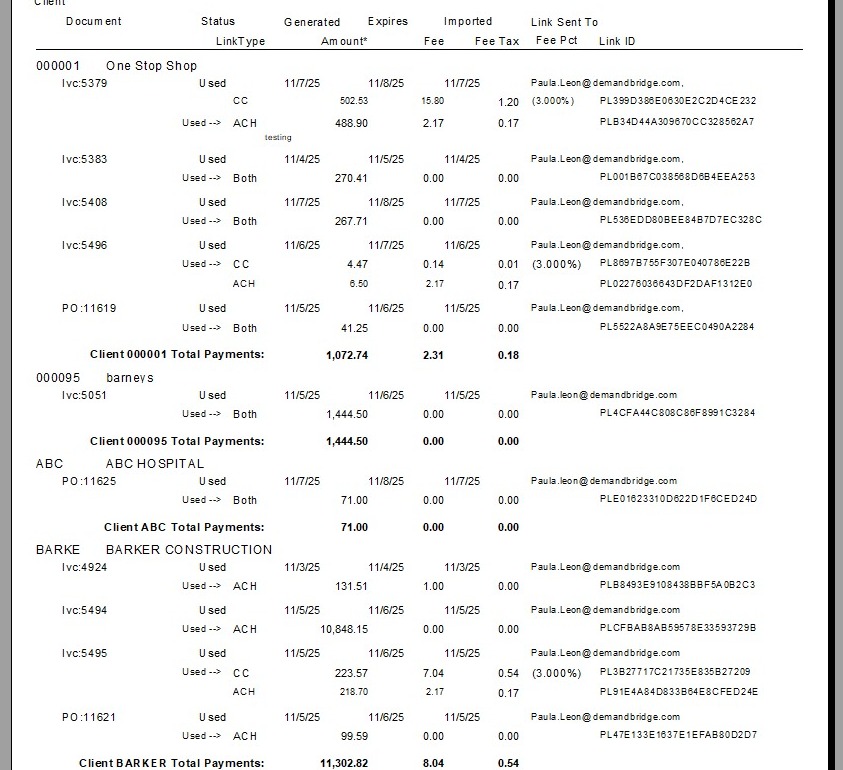
7. Note: The Excel export contains the same information as the PDF.
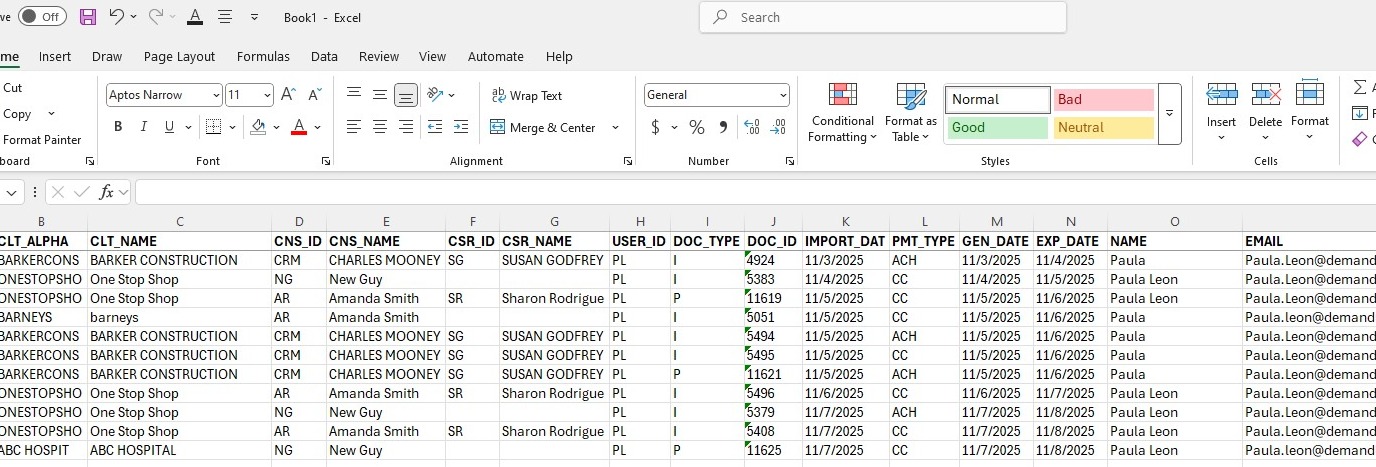
8. When the report opens:
- Use the navigation arrows at the top to move through the report:
- Single arrow (right/left): move one page at a time.
- Arrow with a line (right/left): jump to the end or beginning of the report.
- Click Print if you want a paper copy.
- Click Exit when finished.
9. Click "Exit" when finished.