EQD: DBPay - PaybyLink: How to Import PBL Payments
Note: In order for payments to be downloaded from dbPay, the import process must be completed. Once downloaded, the payment will appear in Receipts Editing.
Alert: Note: This process was created in a test environment. The information selected is for training purposes only and will not match the data you will use in your company's system.
Tip: ### Before We Begin
For demonstration purposes, I’ll start by sending myself a Pay-By-Link so you can see the process before the payment is made.
Once the payment has been submitted, I’ll show you how to import the payment and view it in Receipts Editing.
Part 1: Sending a Pay-By-Link
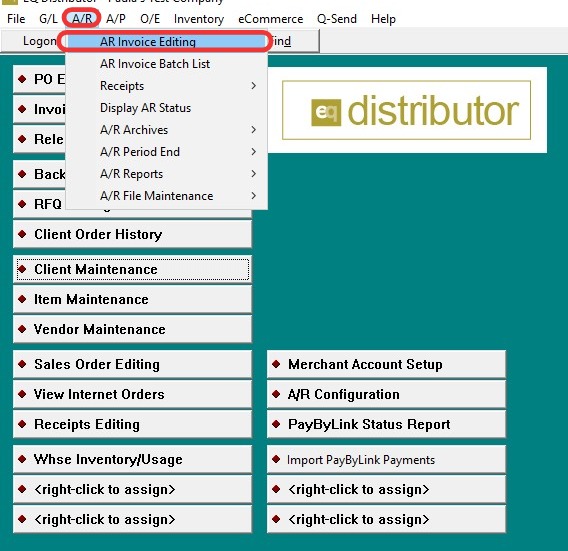
1. Go to AR → AR Invoice Editing.
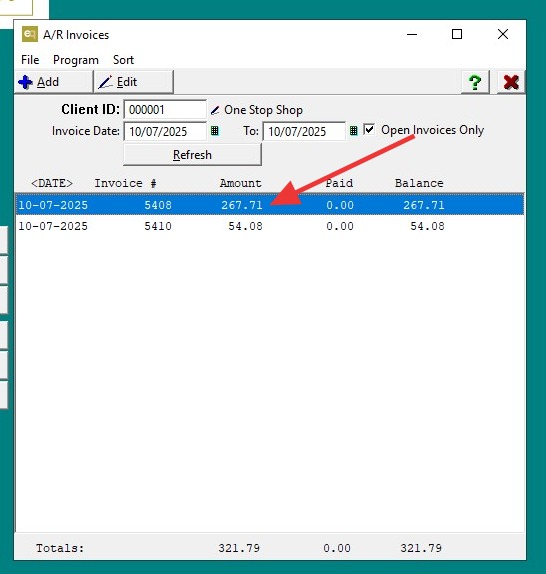
2. Pull up the client you want to send the link for.
- Check Open Invoices Only.
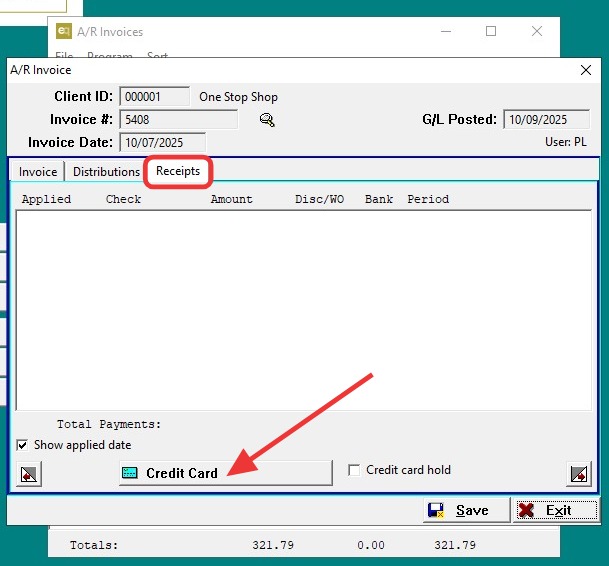
3. Go to the Receipts tab.
- At the bottom, click Credit Card.
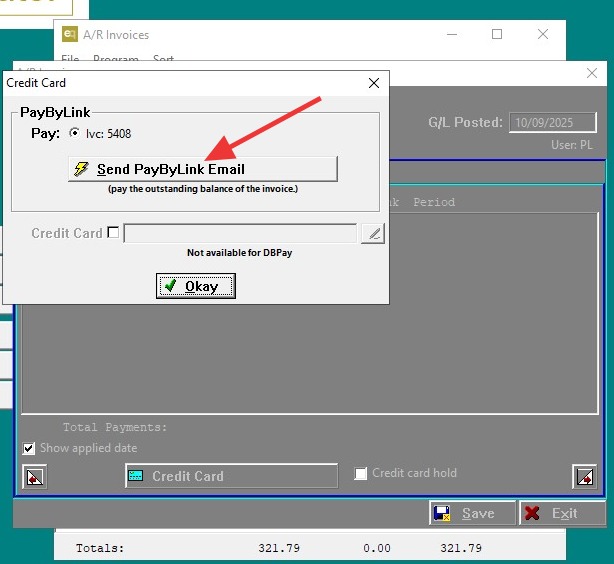
4. A box will appear showing the invoice to be paid. Click Send Pay-By-Link Email.
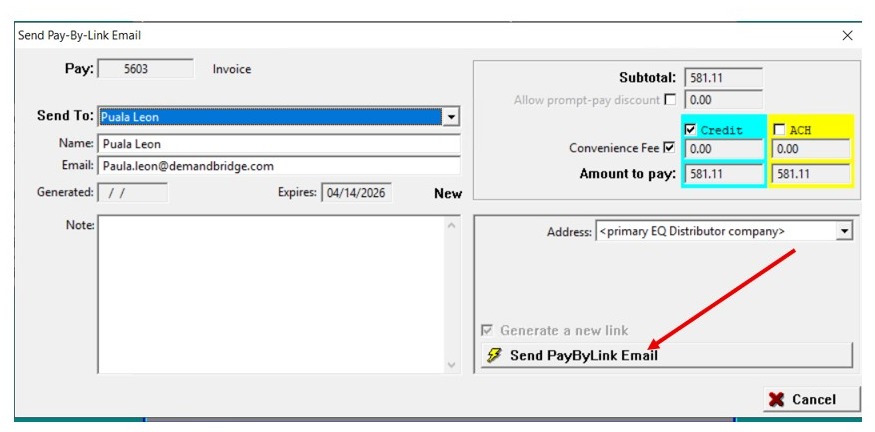
5. In the email configuration window, enter the recipient’s name and email address, then click Send Pay-By-Link Email.
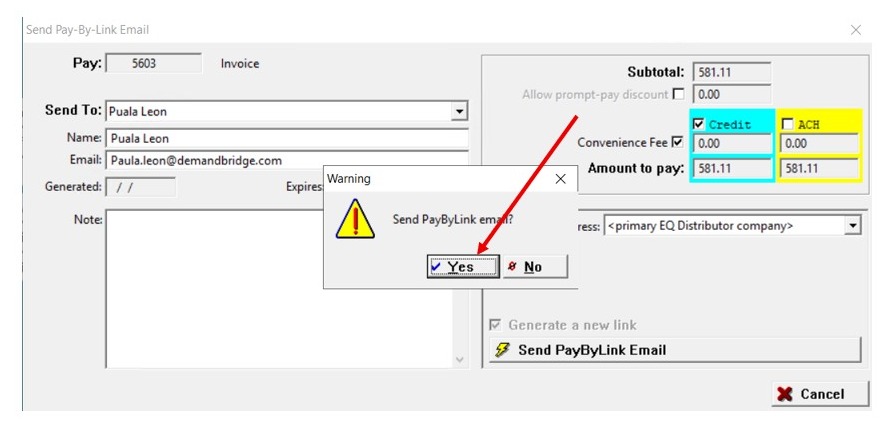
6. When prompted, click "Yes" to send the email.
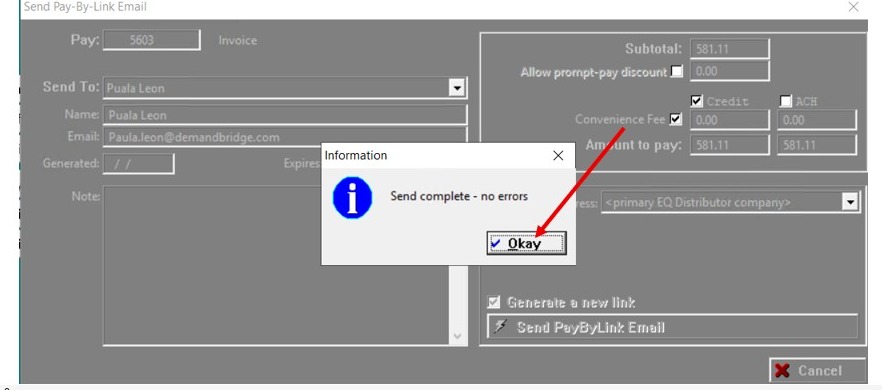
7. Click "OK" once the send is complete.
- If there are any errors, they will display in this window.
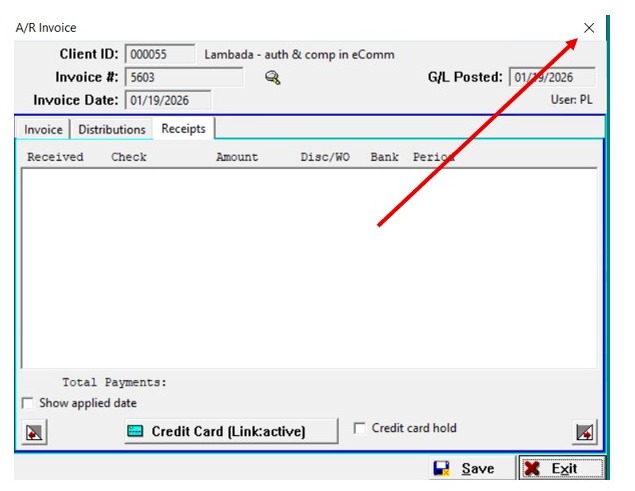
8. Exit all the way out.
Part 2: Importing the Payment
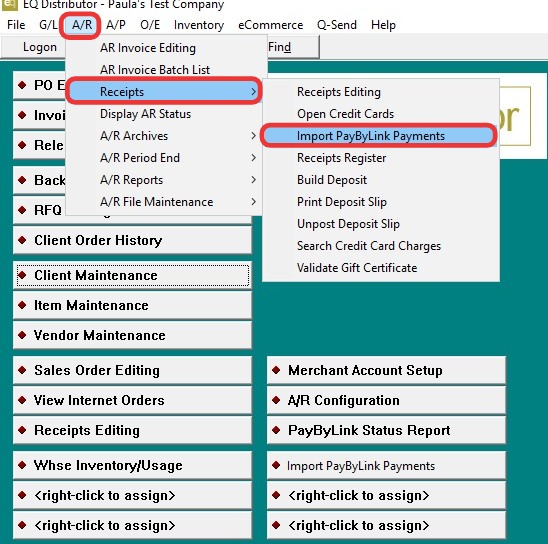
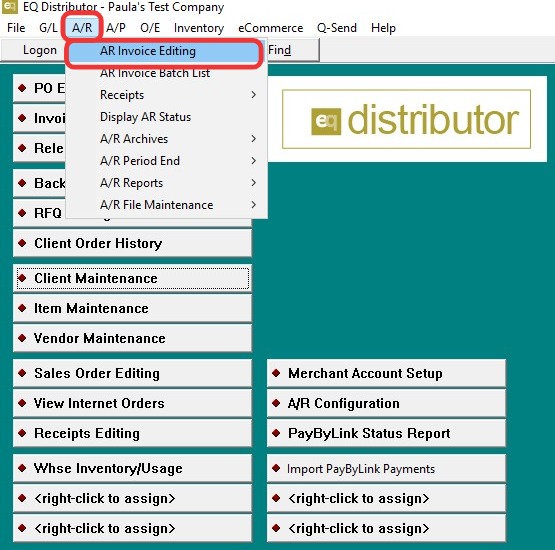
9. Go to AR → Receipts → Import Pay-By-Link Payment.
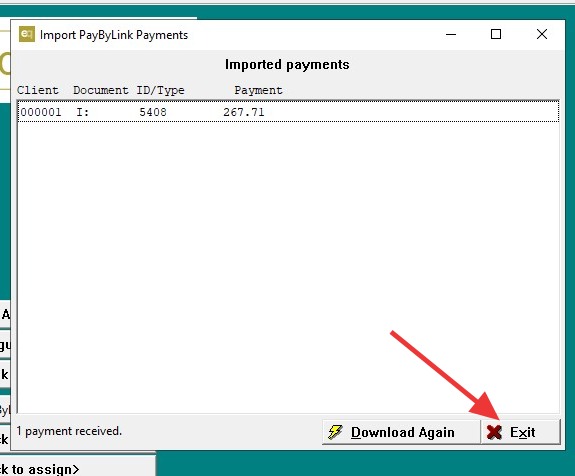
10. The system will download the payment data and display the Client ID, Invoice Number, and Amount Paid.
11. - Click "Yes" to Process Complete, view log.
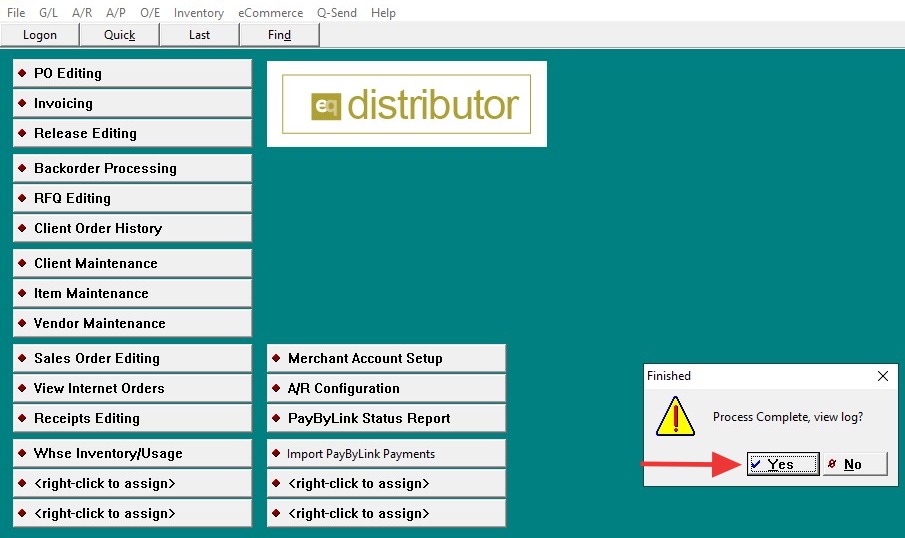
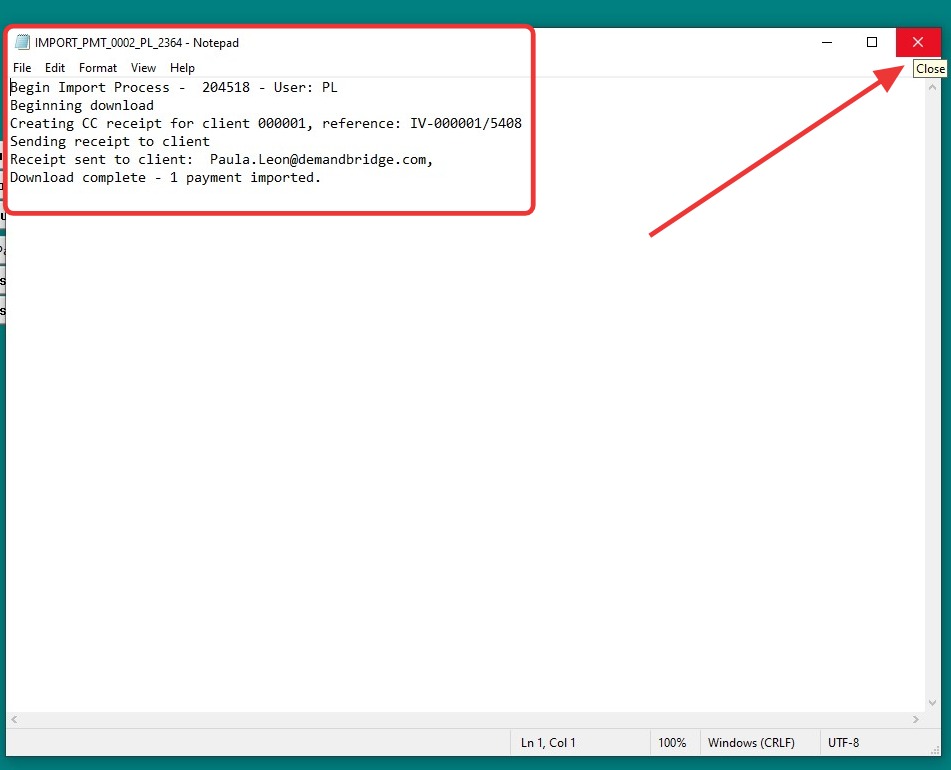
12. The log provides full details of the process—from the time the link was sent to when the payment was downloaded.
- To print the report, click File in the upper-left corner and select Print.
- Exit all the way out.
Part 3: Viewing the Payment in AR Invoices
13. Go to AR → AR Invoice Editing.
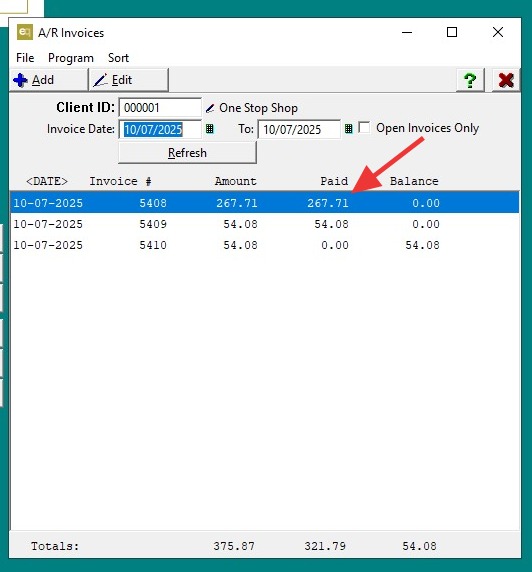
14. Pull up the client and locate the invoice.
- You’ll now see that the payment has been applied to the invoice.
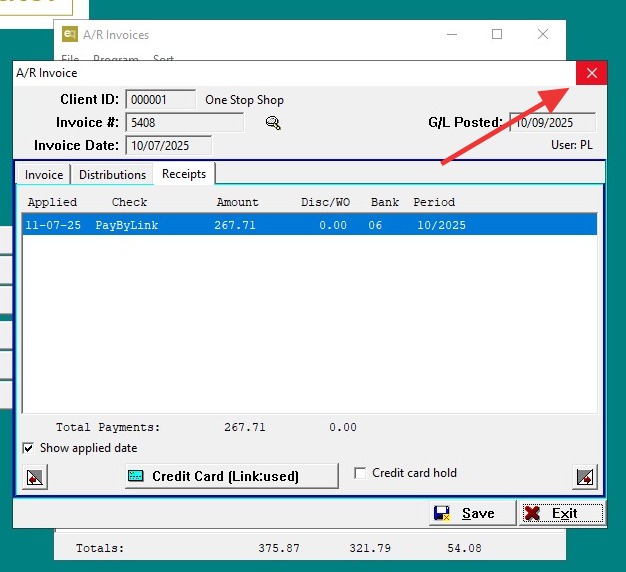
15. Click "Exit" to close the window, then exit all the way out.
Part 4: Verifying the Receipt
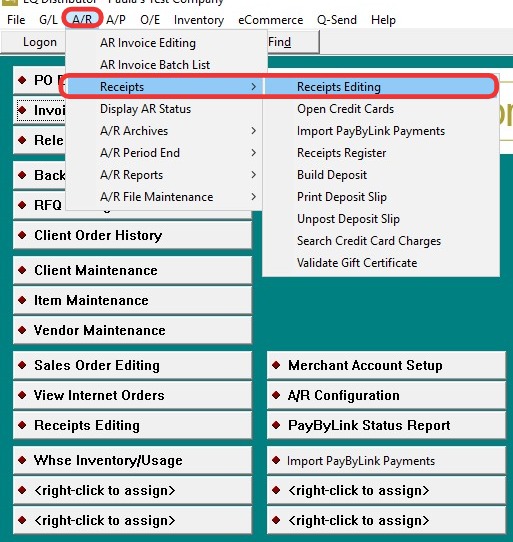
16. Go to AR → Receipts → Receipts Editing.
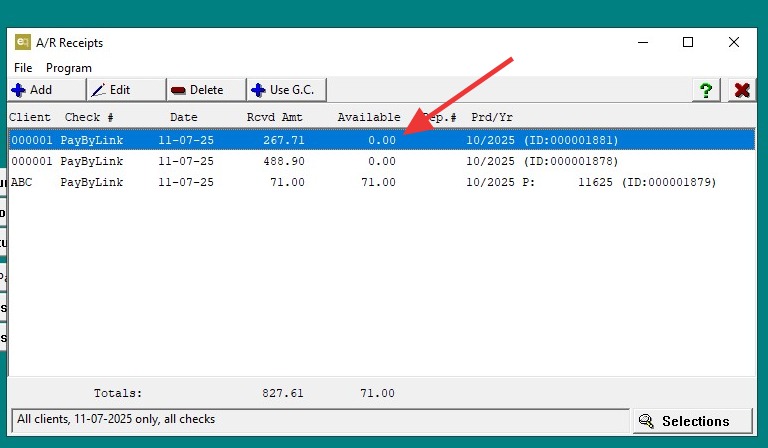
17. Locate the deposit or invoice paid.
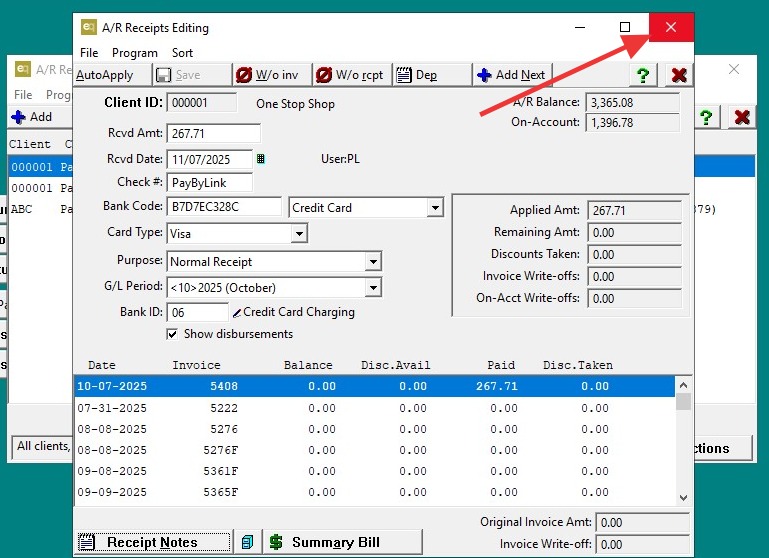
- Open the receipt to view the applied payment.
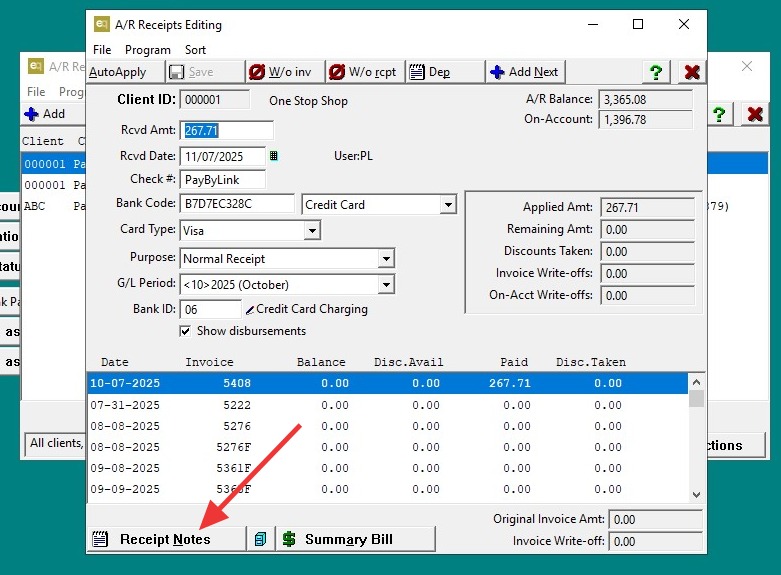
18. At the bottom, open Receipt Notes.
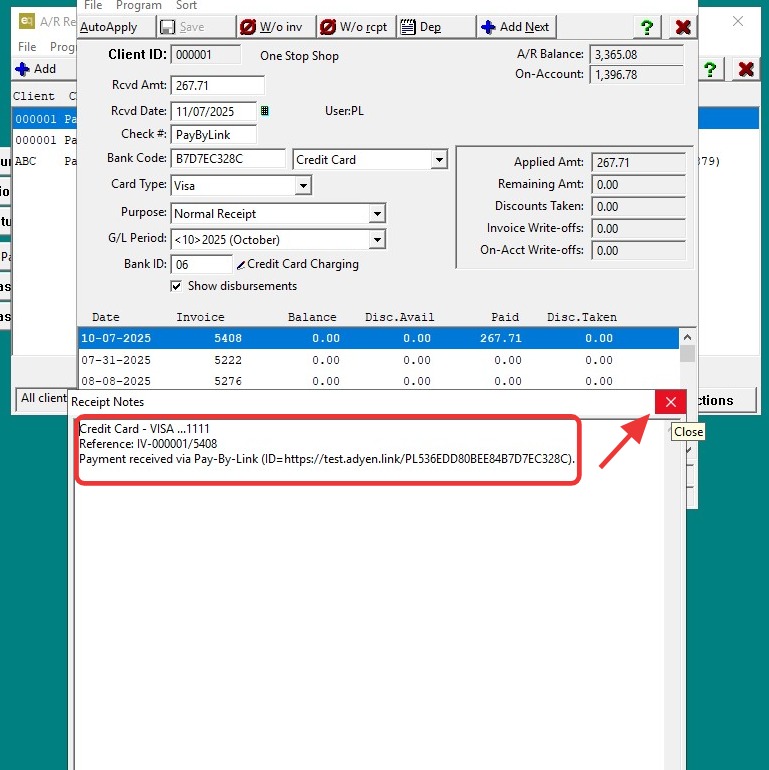
19. The notes section will display the last digits of the credit card and Pay-By-Link details.
- Click "Exit".
20. Exit completely.