EQD: DBPay - Configuring Credit Card Settlement Settings for eComm
DBPay offers flexible settlement for EQ Commerce orders. You can now authorize a card at checkout and delay the actual charge until later or charge the card at the time of the order.
Alert: Note: This process was created in a test environment. The information selected is for training purposes only and will not match the data you will use in your company's system.
Part 1: Configure at the Global Level
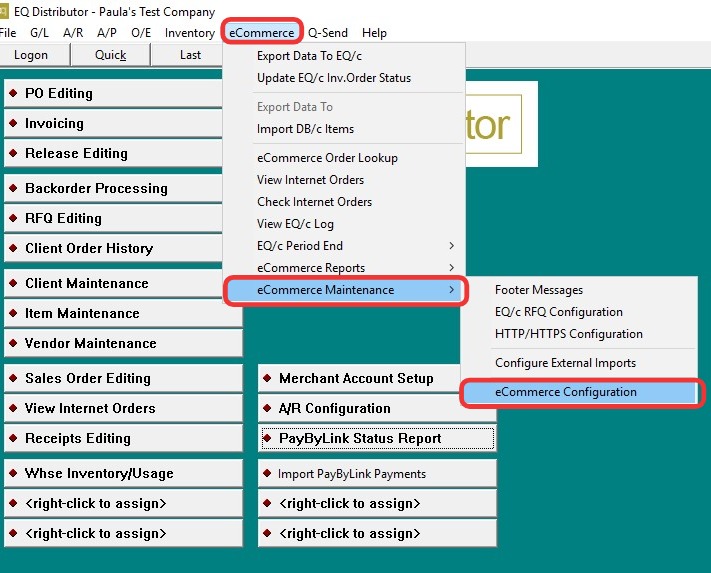
1. Go to eComm→ eCommerce Maintenance → eCommerce Configuration
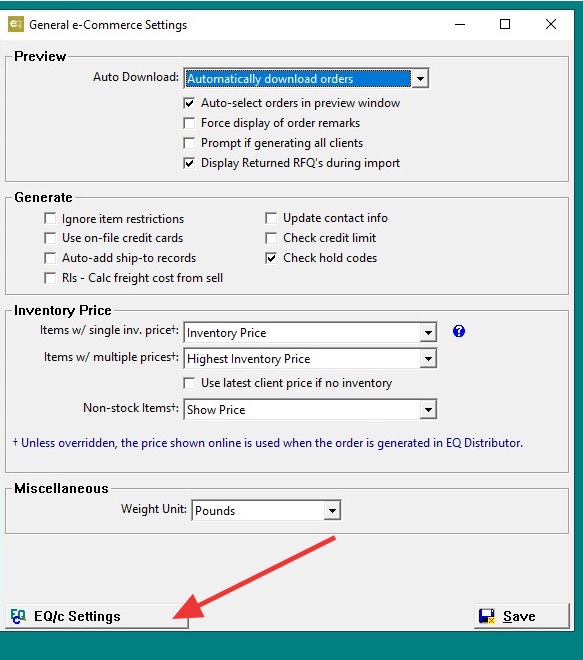
2. Click "EQ/c Settings"
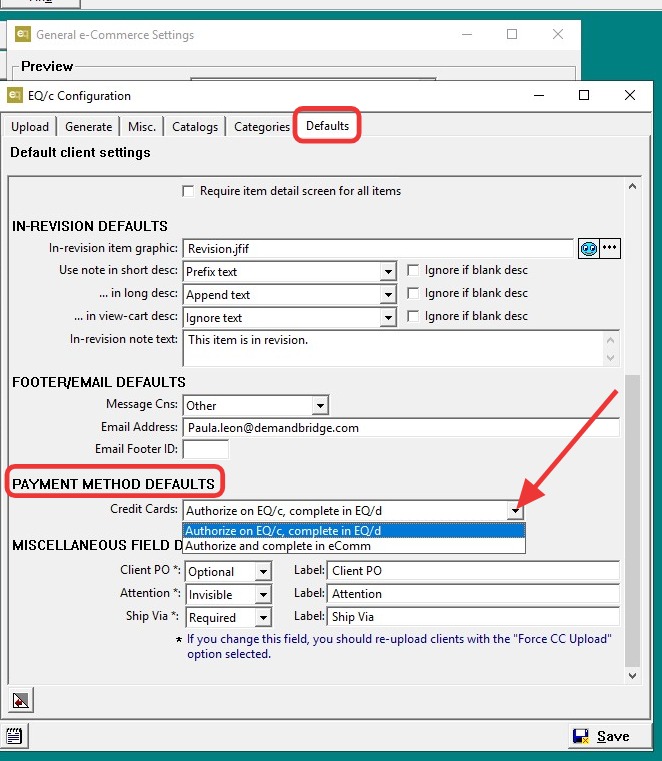
3. Navigate to Defaults.
- Scroll down to "Payment Method Defaults" In the dropdown, select one of the following options:
- Authorize and Complete in eComm
- Authorize on EQC and Complete in EQD
What’s the Difference Between the Two Options?
- Authorize and Complete in eComm: Payment is approved and processed immediately in the eCommerce system.
- Authorize on EQC, Complete in EQD: Payment is authorized, then completed later in Quantum.
- Click Save → Exit.
> ✅ This setting applies to all clients unless overridden at the client level.
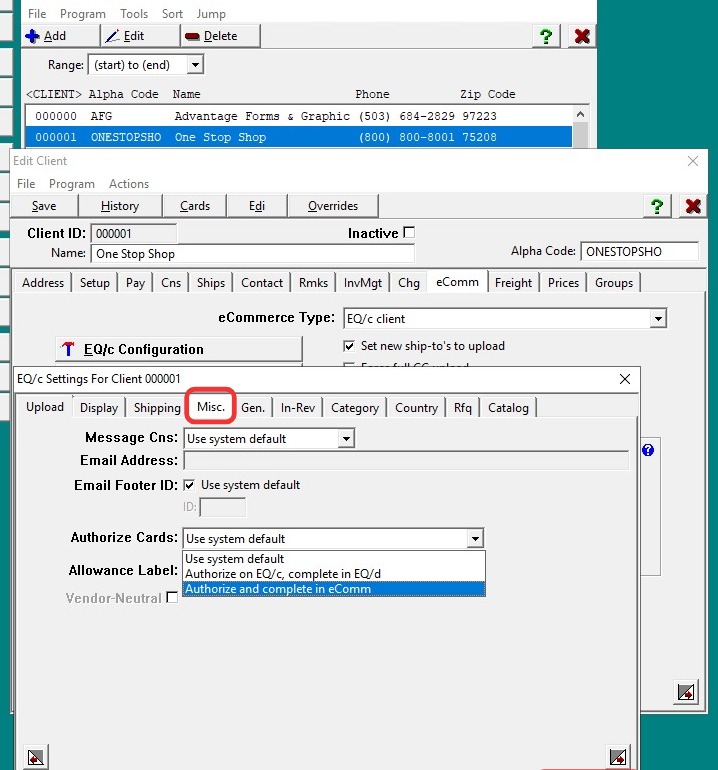
Part 2: Configure at the Client Level (Overrides Global Setting)
4. Go to AR → AR File Maintenance → Client Maintenance.
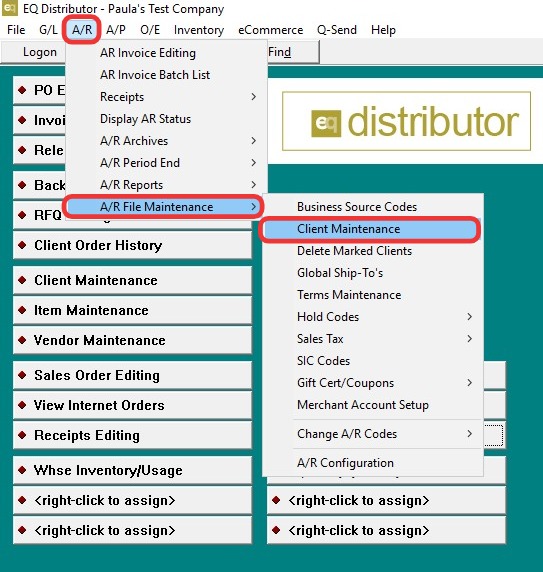
5. Under the eComm tab, select the EQ/c Configuration.
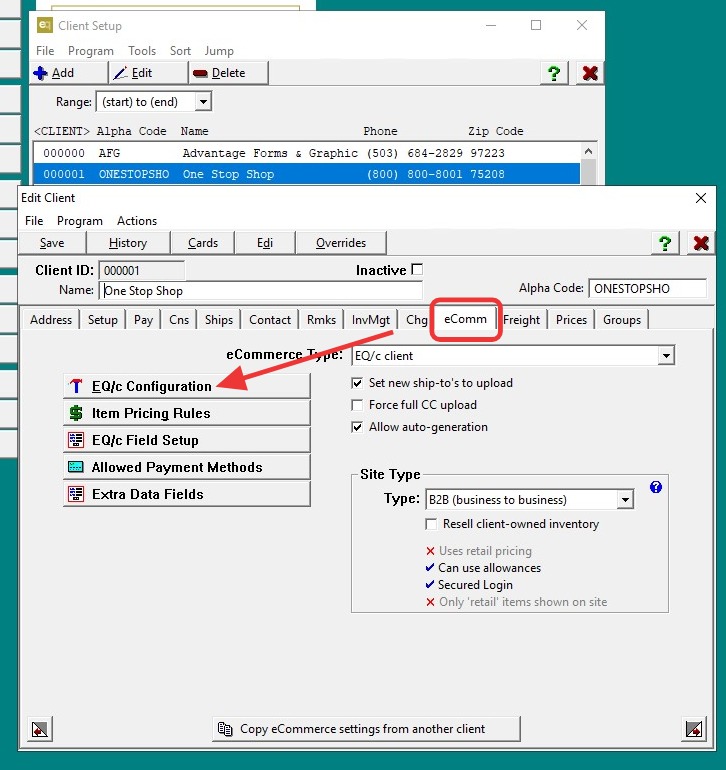
6. - Navigate to the Misc. tab.
- In the dropdown, select one of the following options:
- Authorize and Complete in eComm
- Authorize on EQC and Complete in EQD
What’s the Difference Between the Two Options?
- Authorize and Complete in eComm: Payment is approved and processed immediately in the eCommerce system.
- Authorize on EQC, Complete in EQD: Payment is authorized, then completed later in Quantum.
- Click Save → Save the client.
> ✅ This setting applies to this client only.