DBPay: How to Configure and Apply Fees in EQ Commerce Using Markup
Convenience Fee Workaround Using Markup Since QNet does not have the ability to charge a convenience fee directly, a workaround is to apply a markup under Merchant Account Setup. This ensures the total charge to the credit card includes both the product price and the convenience fee.
Important Note:
This workaround only applies to clients configured to authorize in EQc and complete in EQd. It will not work for clients set up to both authorize and complete in eComm. In those cases, the markup entered under the merchant account on the website is the exact amount charged to the client during checkout. As a result, the charged total will not match the final invoice total.
How It Works
- The client is charged order total + markup (convenience fee) at checkout.
- The order confirmation in eCommerce/QNet will not show the convenience fee, but the client will still receive a copy of the order confirmation.
- Once the payment is downloaded, Quantum will send a receipt to the client that reflects the full amount charged.
- The invoice will also display the convenience fee, showing it explicitly as a convenience fee line item.
- In Quantum:
- The PO shows the pretax order total.
- O/E Open Credit Cards shows the authorized amount, which includes the markup.
Alert / Reminder:
Add a disclaimer in eCommerce notifying clients that:
A convenience fee will be applied at time of checkout.
1. Navigate to Merchant Account Setup
- Go to eCommerce
- Select Distributor Setup
-
Click Setup Merchant Accounts
Under Type: DB Pay, enter your convenience fee markup percentage with a small buffer to cover tax.
- Example:
- Base fee: 3%
- Tax rate: 8.25%
- Configured markup: ~3.25%
- Example:
- Important: Entering only the base percentage (e.g., 3%) will result in under-collection for tax.
- Save your changes to apply the updated markup.
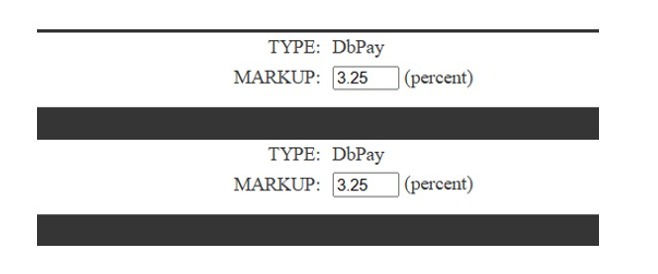
2. Client Order in eCommerce/QNet
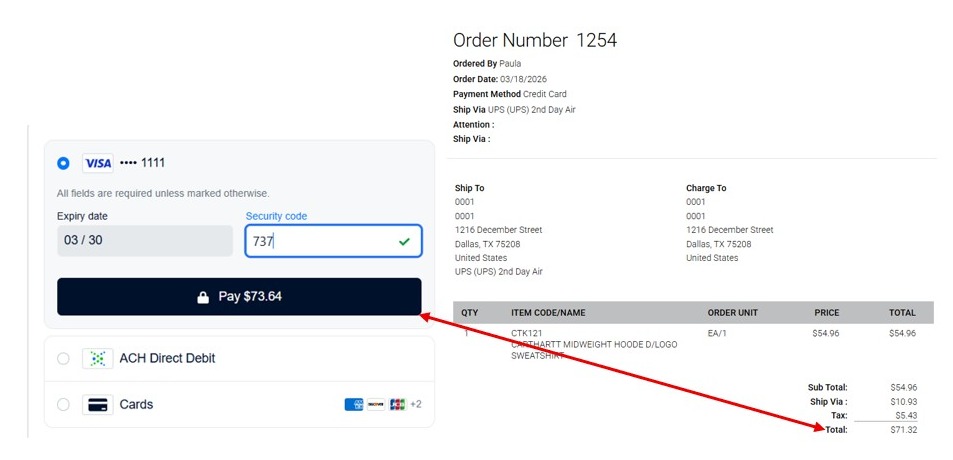
- The credit card screen will show the full total including markup.
- The order confirmation will display the order without the markup fee.
3. Once Orders Are Downloaded into Quantum
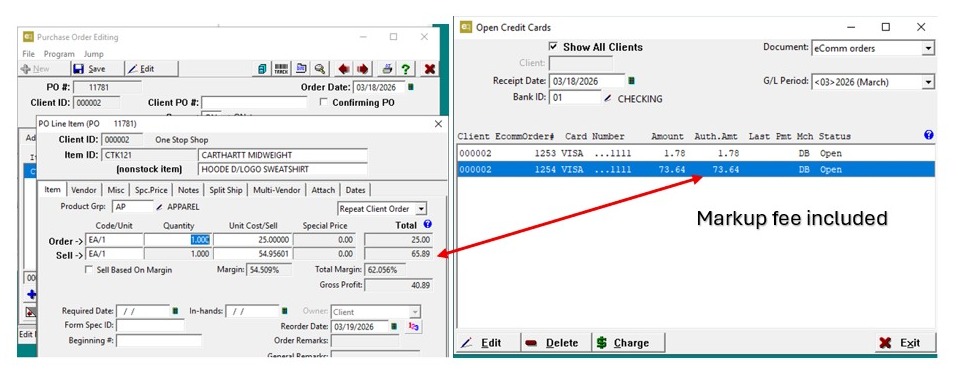
- The PO will show the pretax total.
- O/E Open Credit Cards shows the authorized amount, which includes the markup added under Merchant Account Setup.
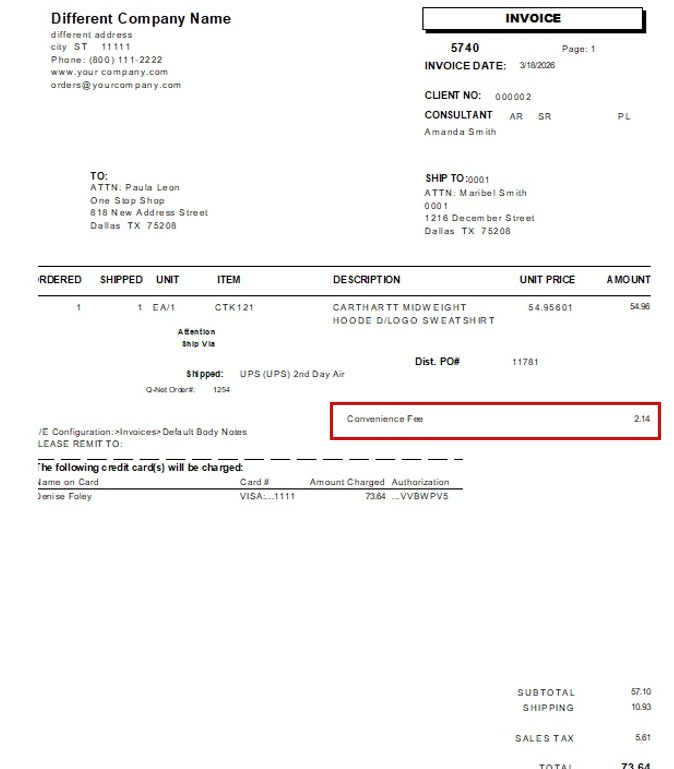
4. - The screenshot provided shows how the invoice will display the convenience fee that was added in QNet.
- The convenience fee will appear on the invoice as a separate line item labeled “Convenience Fee.”