EQD: DBPay - How to Regenerate PayByLink Link to Display Newly Added Convenience Fees
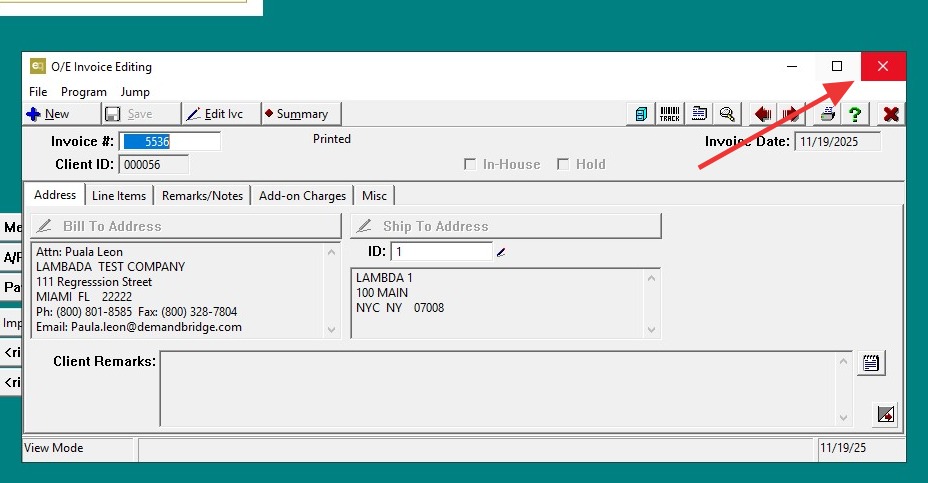
This scribe demonstrates how to regenerate a Paid-by-Link for an invoice to display a convenience fee that was added after the invoice was initially created and previewed.
Alert: This process was created in a test environment. The information selected is for training purposes only and will not match the data you will use in your company's system.
1. Create/Preview Invoice Without Fee
- Generate the invoice as usual.
- Pull up the invoice and select Preview.
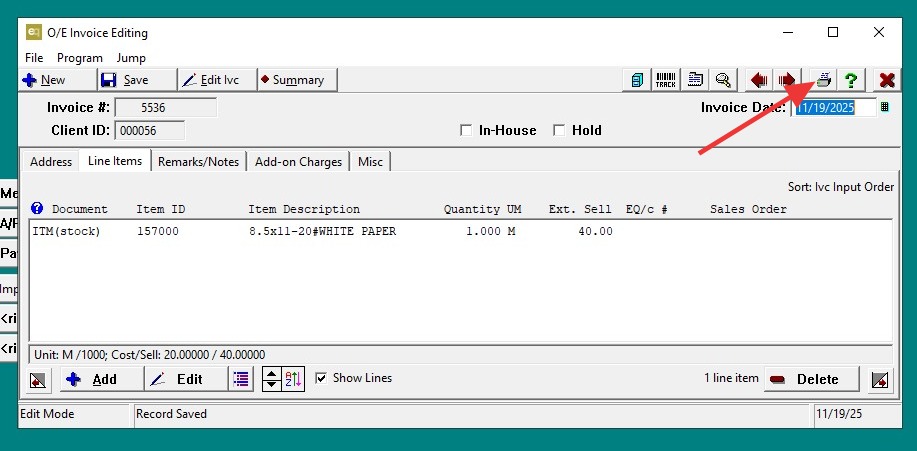
2. Click "Preview"
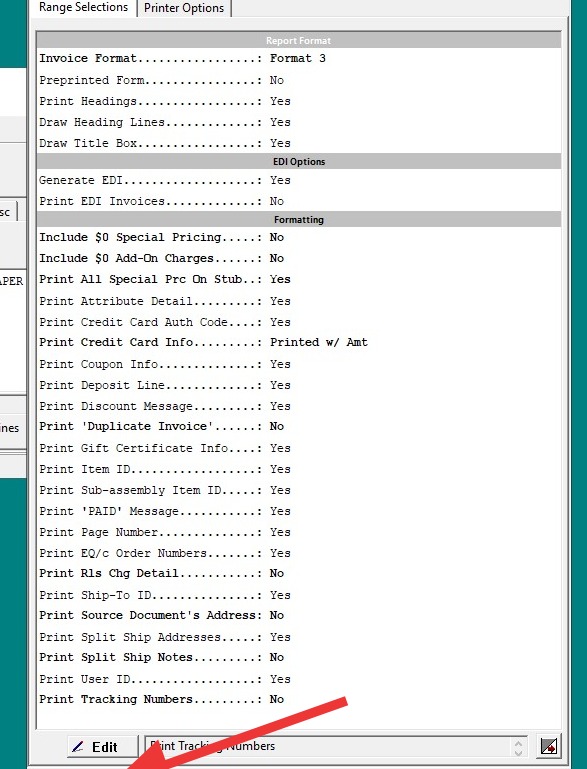
3. Notice that the Paid-by-Link does not include a convenience fee.
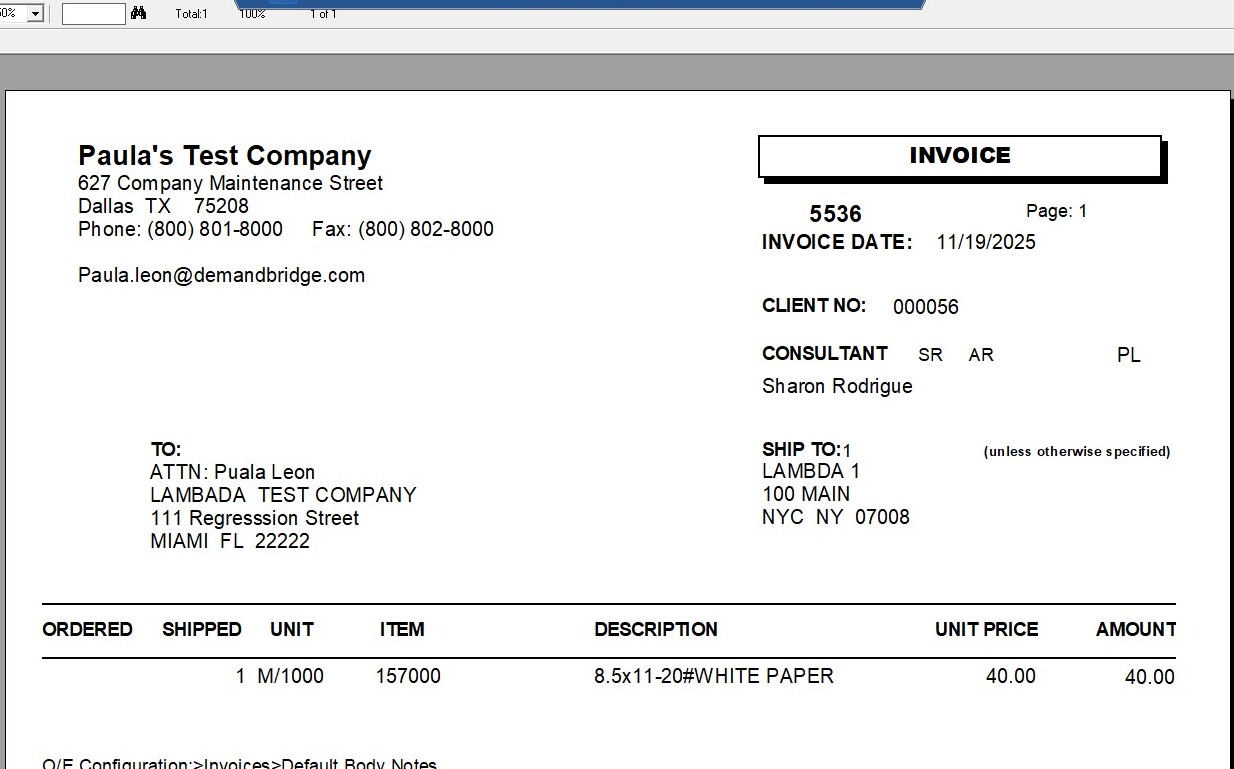
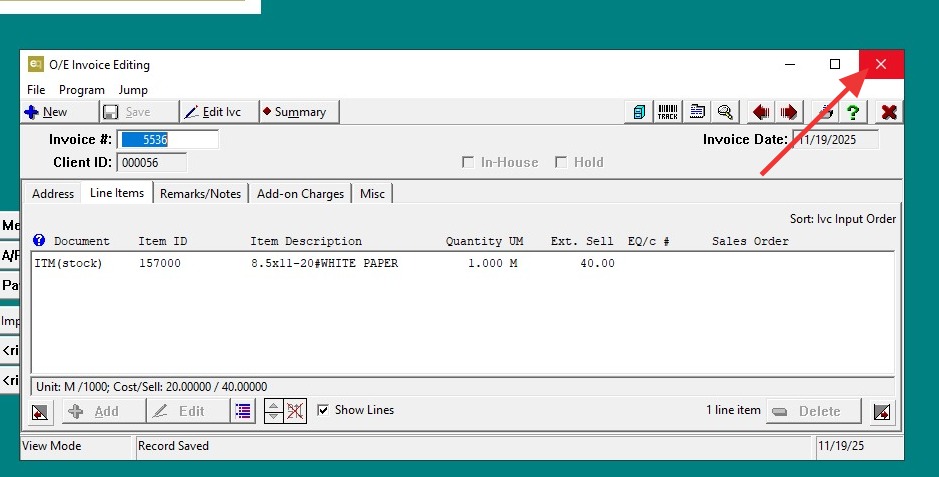
4. Exit the invoice completely.
Add the Convenience Fee
5. Go to A/R → A/R File Maintenance → A/R Configuration.
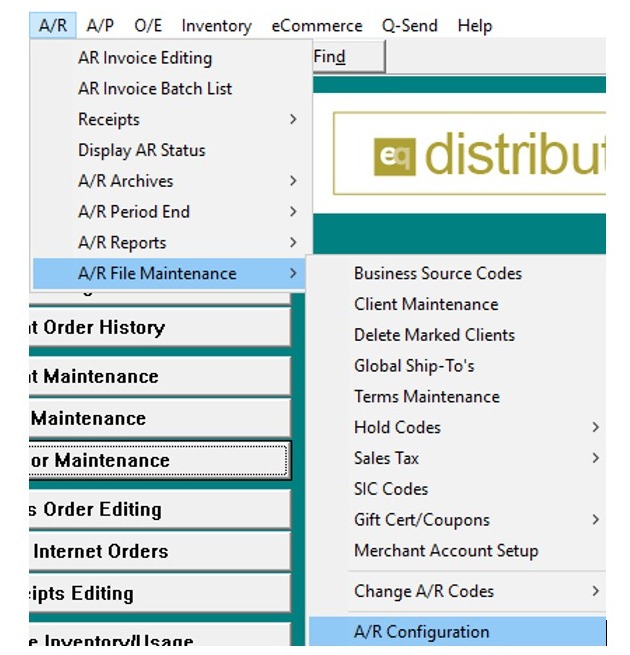
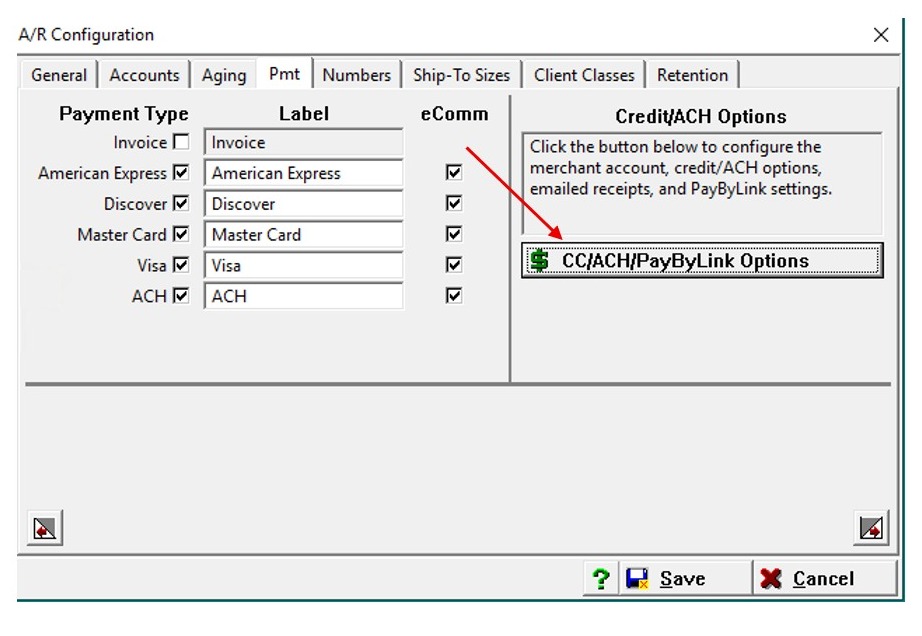
6. On the Pmt tab, click CC/ACH/PayByLink Options.
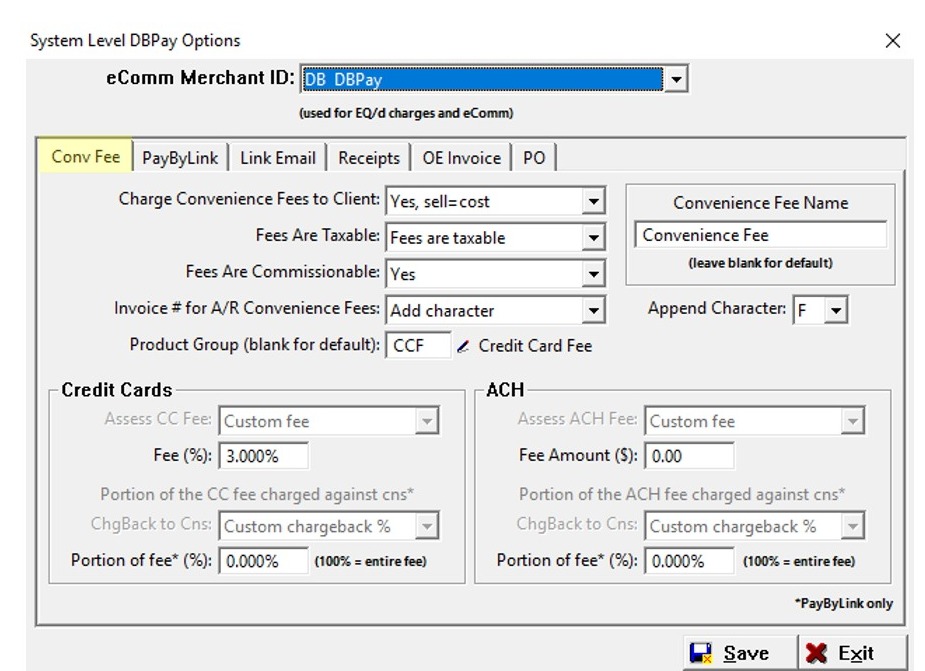
7. On the Conv Fee tab, set up the convenience fee. For example, set Charge Convenience Fees to Client to "Yes" and enter the Fee (%) under Credit Cards. Click Save, then Exit.
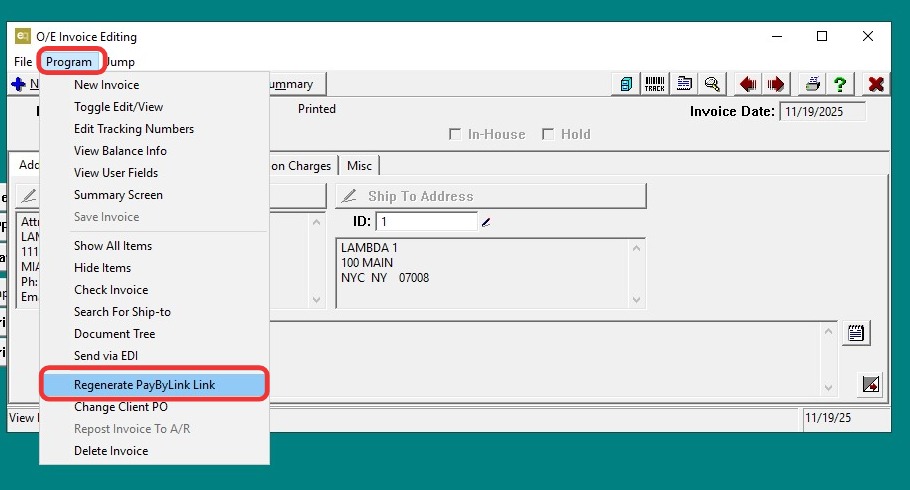
8. Regenerate Paid-by-Link for Invoice
-
Open the invoice that needs the updated link.
-
Go to Program → Regenerate Paid-by-Link.
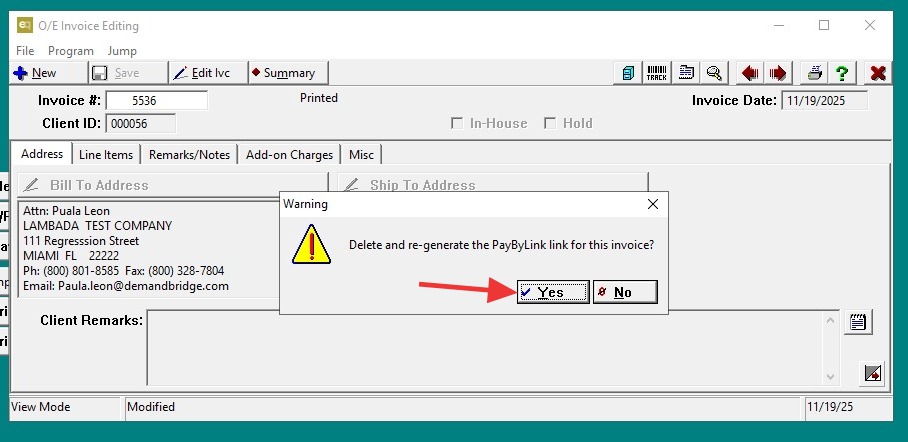
9. A pop-up will ask: "Delete and Regenerate the Paid-by-Link for this invoice?" Click "Yes".
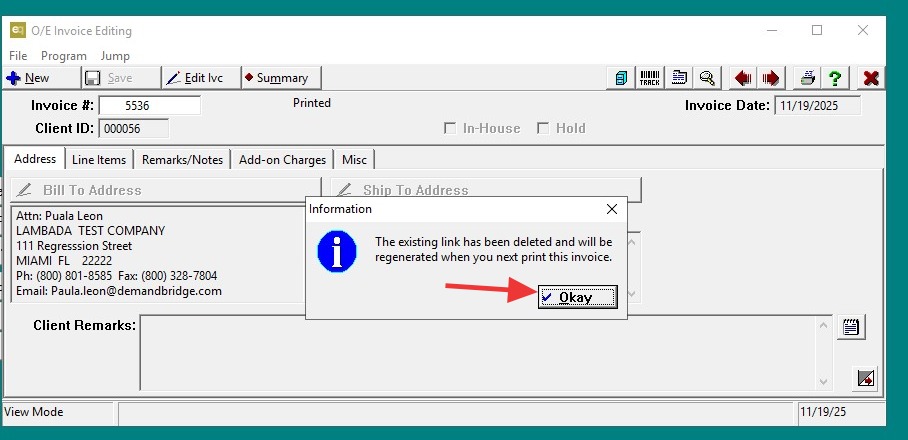
10. A second pop-up will say: "The existing link has been deleted and will be regenerated when you next print this invoice." Click "OK".
11. Preview the Updated Invoice
- Click the "Print" icon at the top right.
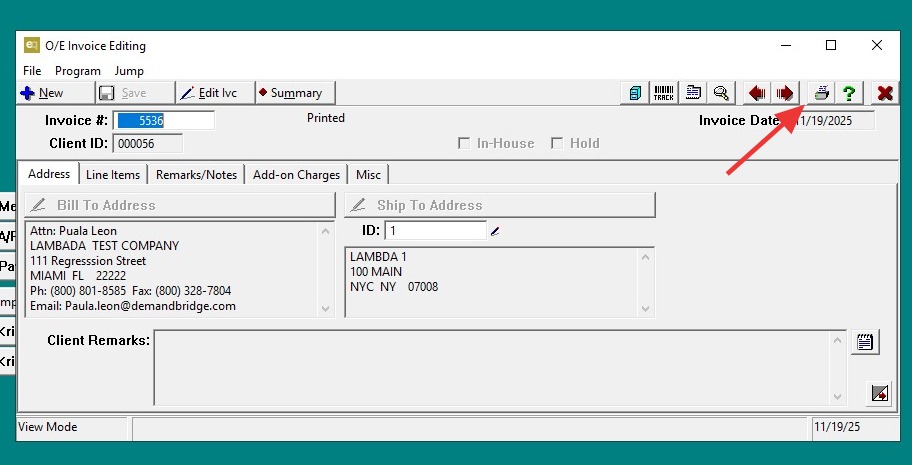
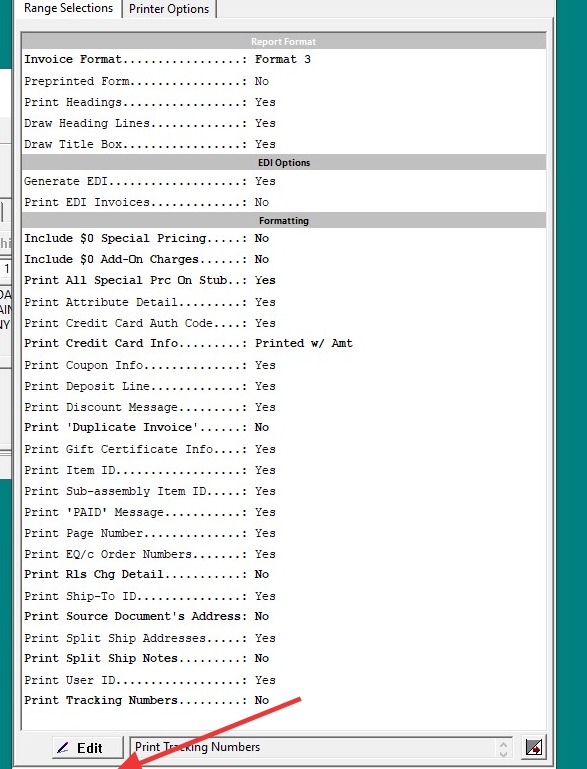
12. Select Preview at the bottom and view the invoice.
13. The invoice will now reflect the convenience fee you configured.
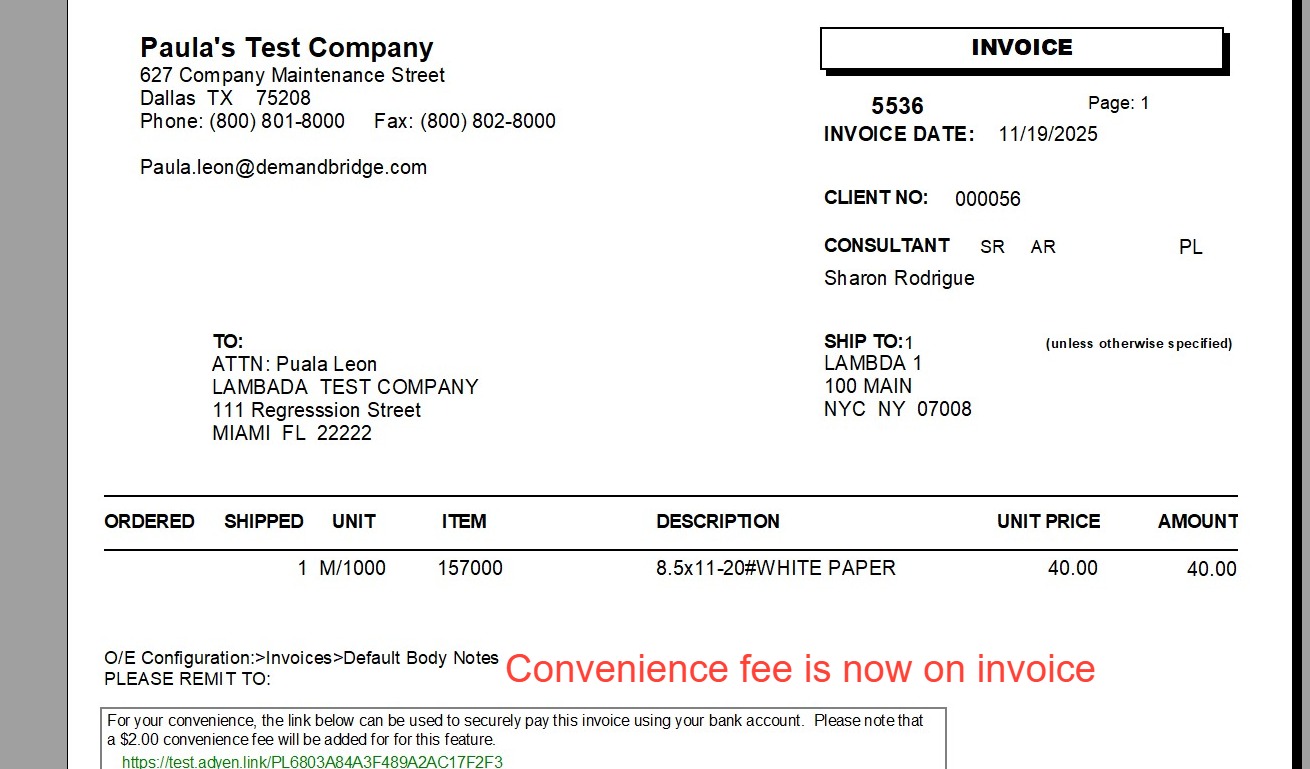
14. Exit all the way out. The Paid-by-Link for this invoice is now updated with the convenience fee.