
EQD: Setting Up and Charging Convenience Fees to CNS
This scribe provides step-by-step instructions on how to configure and apply a convenience fee for credit card payments in Quantum, including how to automatically charge a portion of the fee back to consultants (CNS). It covers both global-level settings (default system-wide) and client-level settings, as well as how to process the invoice, import payments, and verify the consultant adjustments and commission impact. Screenshots accompany each step to make the process easy to follow.
Alert: Note: This process was created in a test environment. The information selected is for training purposes only and will not match the data you will use in your company's system.
Part 1: Global-Level Setup
1. Go to AR Configuration
- Navigate to: AR → AR File Maintenance → AR Configuration.
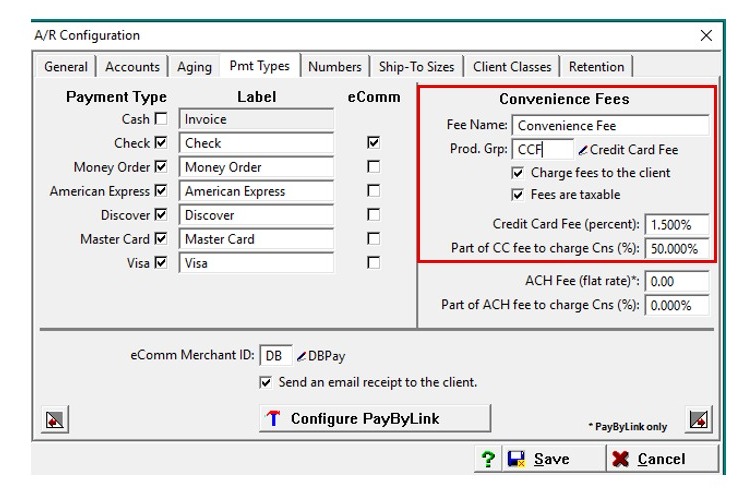
- Under Convenience Fee:
- Create your product group.
- Check Charge Fees to Client.
- Check Fees Are Taxable (consult your accountant or your state rules first).
- Set Convenience Fee to the desired percentage (example: 1.5%).
- Set Part of CC Fee to Charge CNS to the percentage you want charged back to the consultant (example: 50% = half of 1.5%).
2. Client Maintenance Settings (Global Default)
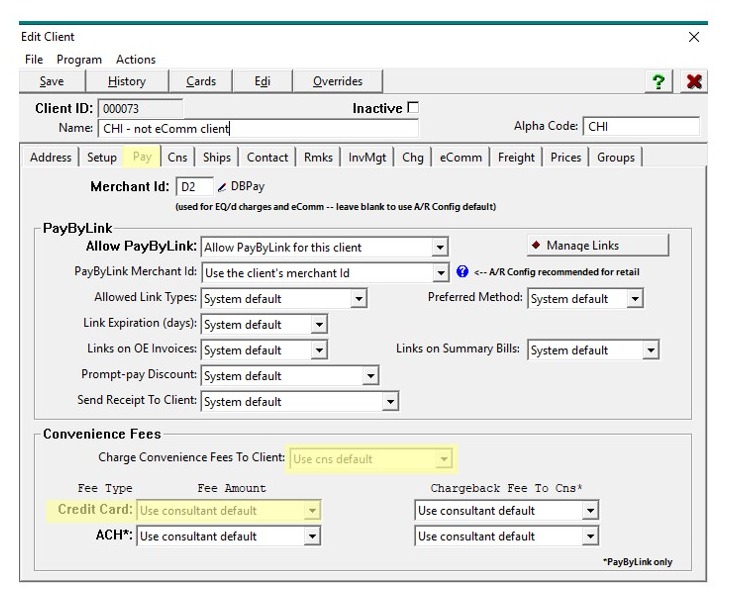
- Go to Client Maintenance → Select Client → Pay Tab.
- For Convenience Fee and Credit Card Fee, set both to Use CNS Default.
Consultant (CNS) Setup
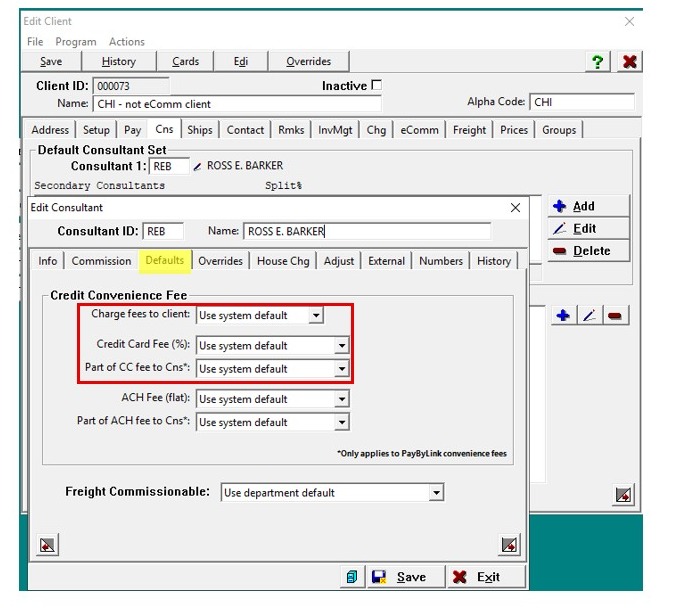
3. - Go to CNS Tab → Click Pencil under Default Consultant.
- In the Default Tab, make sure all three settings are set to Use System Default.
Invoice Creation
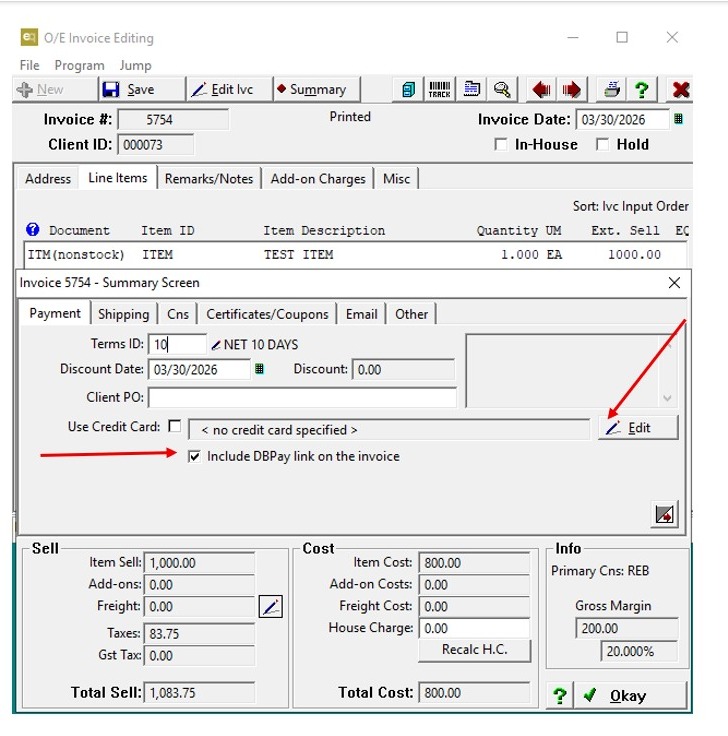
4. - Create your invoice.
- In the Summary Tab:
- Select Credit Card and either:
- Pull in a saved card from the dropdown, or
- Use Include DB Pay Link to send a payment link.
- Select Credit Card and either:
Processing the Payment
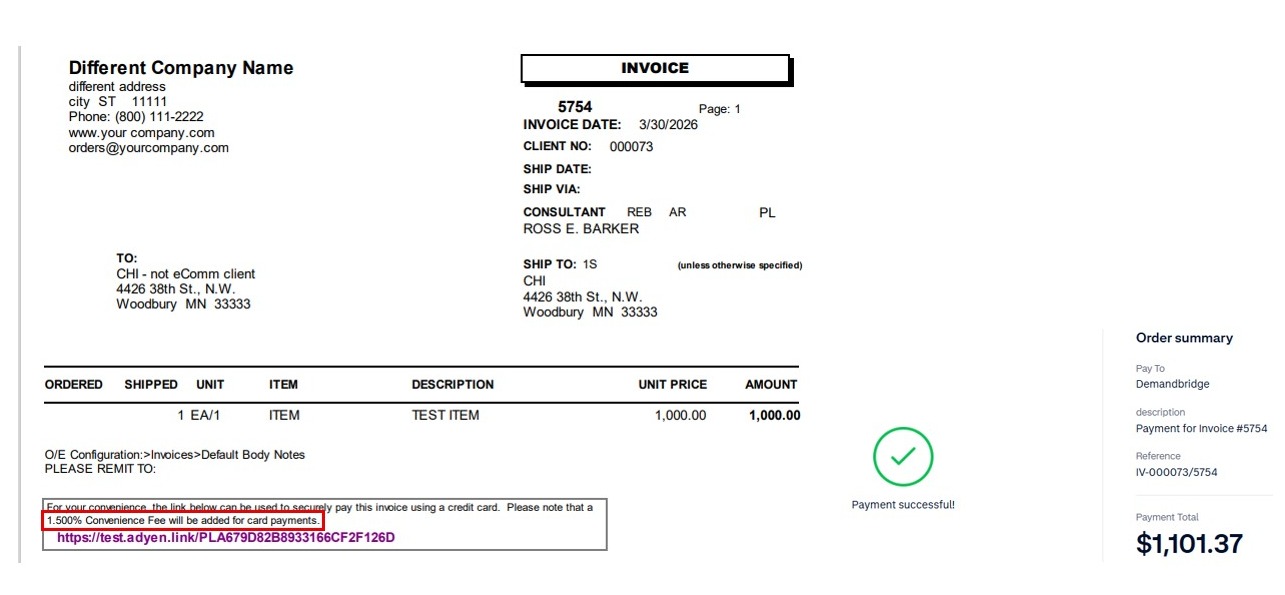
5. - The screenshot shows the invoice with the payment link message, indicating that a 1.5% convenience fee will be added to card payments.
- Once the customer pays the link, the total will include:
- The invoice amount
- The convenience fee
- Any tax on the convenience fee
Import Payment and Verify Consultant Adjustments
6. - Go to AR → Receipts → Import Pay by Link Payments and complete the import.
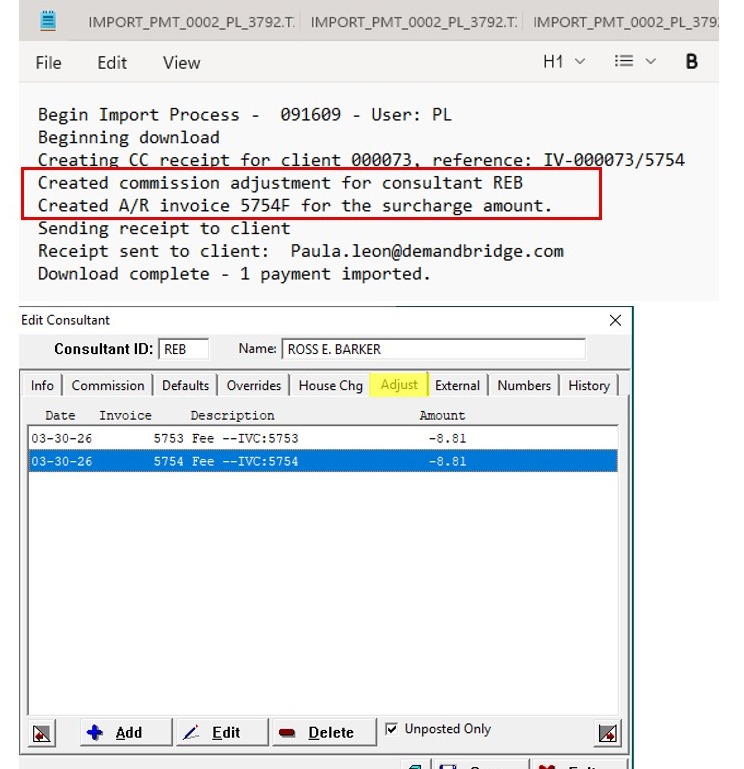
- View the log to verify that:
- A commission adjustment was created for the consultant based on the percentage of the convenience fee charged back.
- An AR invoice was created for the surcharge amount.
- To review adjustments in detail:
- Go to OE → OE Maintenance → Consultant Information → Consultant Setup.
- Select the consultant and check the Adjustment Tab.
- Negative dollar amounts reflect the portion of the convenience fee charged back.
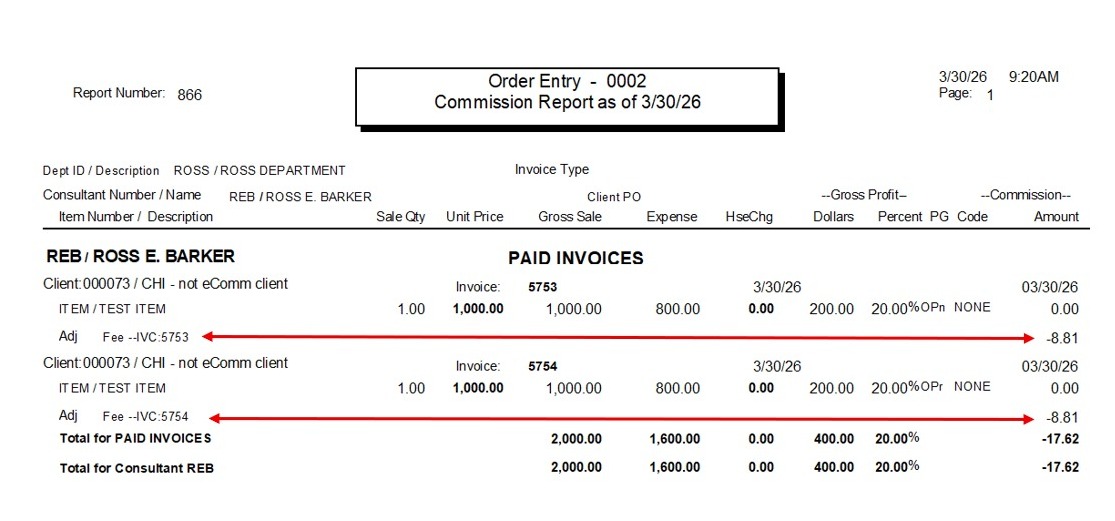
7. The Commission Report screenshot shows the Adjustment Fees with the deduction amount for the convenience fee.
- Do not focus on the actual commission setup—that’s not what we’re highlighting here.
- This example is from a test environment, so the commission settings for this consultant may differ from your live setup.
Part 2: Client-Level Setup
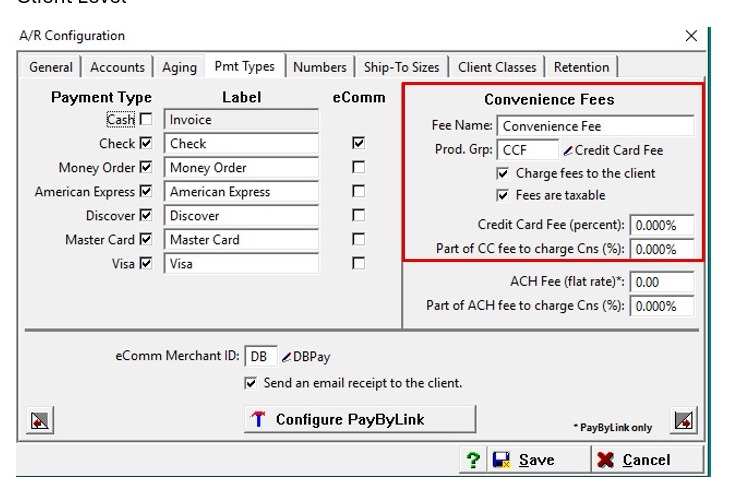
8. AR Configuration Adjustments
- Go to AR → AR File Maintenance → AR Configuration.
- Set Credit Card Fee and Part of CC Fee to Charge CNS to 0 (since you’ll set it at the client level).
Client Maintenance Settings
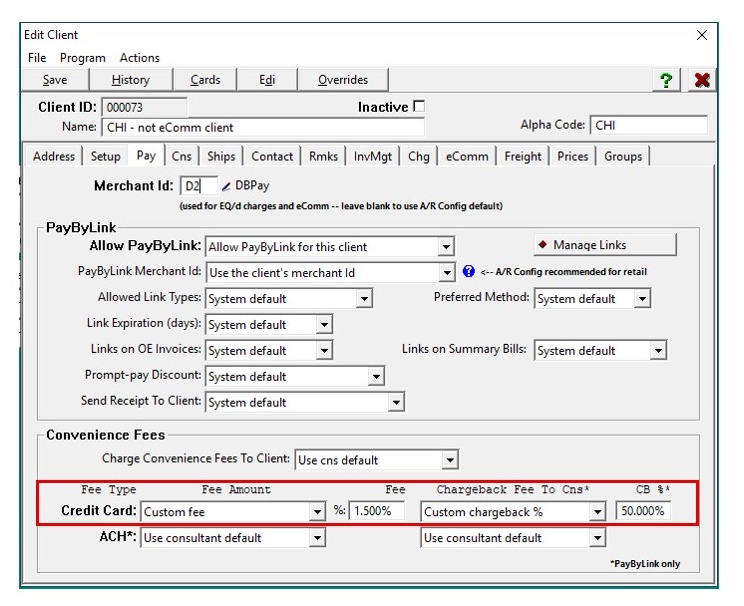
9. - Go to Client Maintenance → Select Client → Bottom of the screen (Convenience Fee section).
- Set Credit Card Fee to Custom Fee and enter your desired percentage.
- For Chargeback Fee to CNS, set Custom Chargeback Fee and enter the percentage to charge back to the consultant.
Tip: Invoice and Payment Processing
- Follow the same steps as in the global setup to create the invoice, send the link, post it, import the payment, and verify consultant adjustments.