DBC: Checkout - Field Configurations
The Field Configurations page allows administrators to customize the fields displayed on the checkout page for both the Shipping and Payment sections. Field configurations can be set per customer, giving you the flexibility to tailor the checkout experience to individual account requirements and collect any additional data needed for order processing.
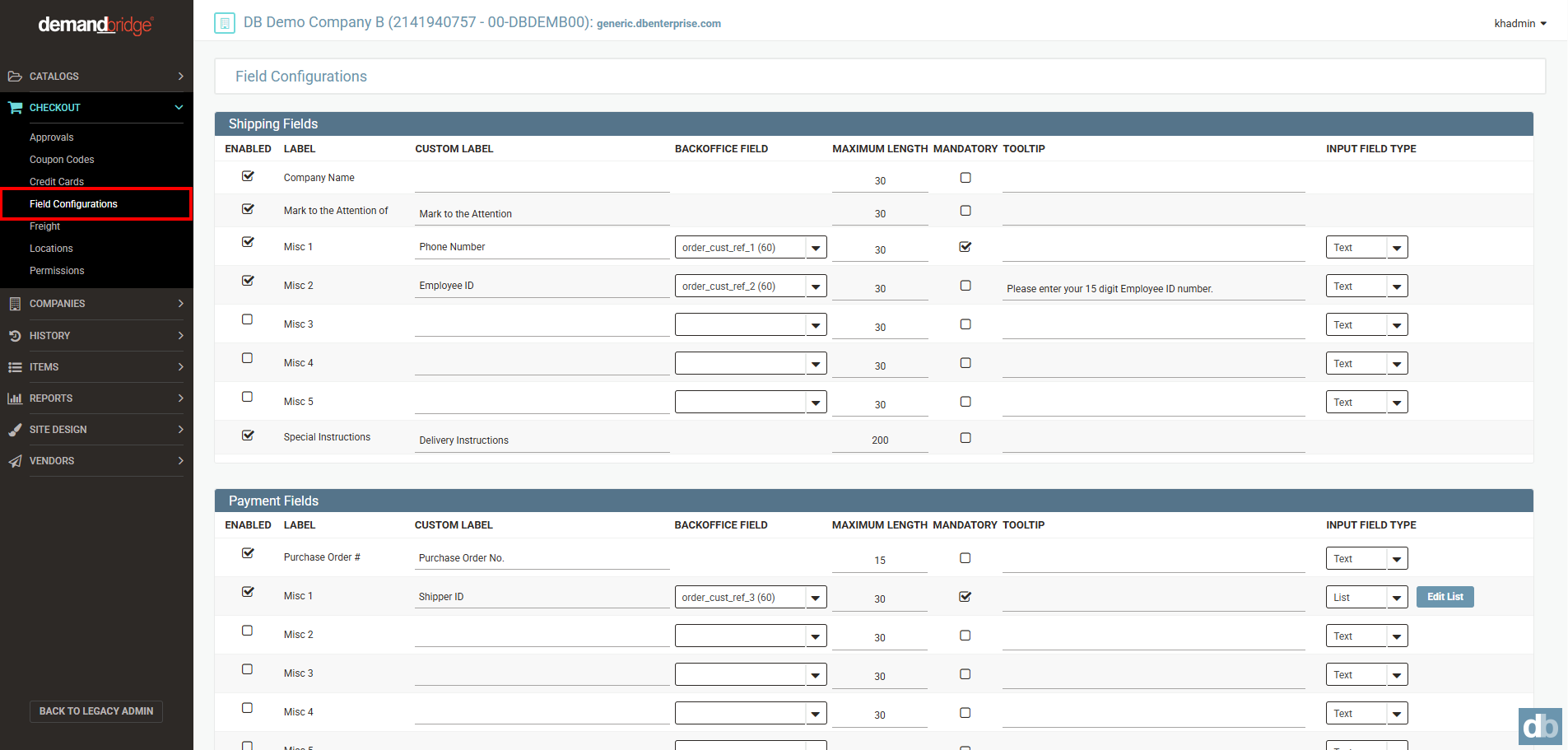
The Field Configurations page is divided into two sections: Shipping Fields and Payment Fields. Each section shares the same set of configuration options:
- Enable/Disable – Toggle individual fields on or off to control what appears during checkout.
- Label – The default field name displayed to the end user if no custom label has been applied.
- Custom Label – Overrides the default label with terminology specific to your organization.
- Backoffice Field Mapping – Links a checkout field to a corresponding back-office field for data integration.
For DB/d Distributors, the following dropdown list will show:
- ordered_by (20)
- ship_with (15)
- mark_for (35)
- order_email_addr (40)
- inside_delivery (15)
- acct_number (15)
- fmn_note1 (50)
- fmn_note2 (50)
- fmn_note3 (50)
- fmn_note4 (50)
- fmn_note5 (50)
- fmn_note6 (50)
- fmn_note7 (50)
- fmn_note8 (50)
- fmn_note9 (50)
- fmn_note10 (50)
- sales_tax_code (10)
- rc_number (20)
- line_external_ref1 (10)
- order_cust_ref_1 (60)
- order_cust_ref_2 (60)
- order_cust_ref_3 (60)
- order_cust_ref_4 (60)
- order_cust_ref_5 (60)
- order_cust_ref_6 (60)
- order_cust_ref_7 (60)
- order_cust_ref_8 (60)
- order_cust_ref_9 (60)
- order_cust_ref_10 (60)
For EQ/d Distributor, the following dropdown list will show:
- order_cust_ref_1 (50)
- order_cust_ref_2 (50)
- order_cust_ref_3 (50)
- order_cust_ref_4 (50)
- order_cust_ref_5 (50)
- order_cust_ref_6 (50)
- order_cust_ref_7 (50)
- order_cust_ref_8 (50)
- order_cust_ref_9 (50)
- order_cust_ref_10 (50)
For EQ/d, once the order is downloaded, the values appear in the order summary at the time of download:

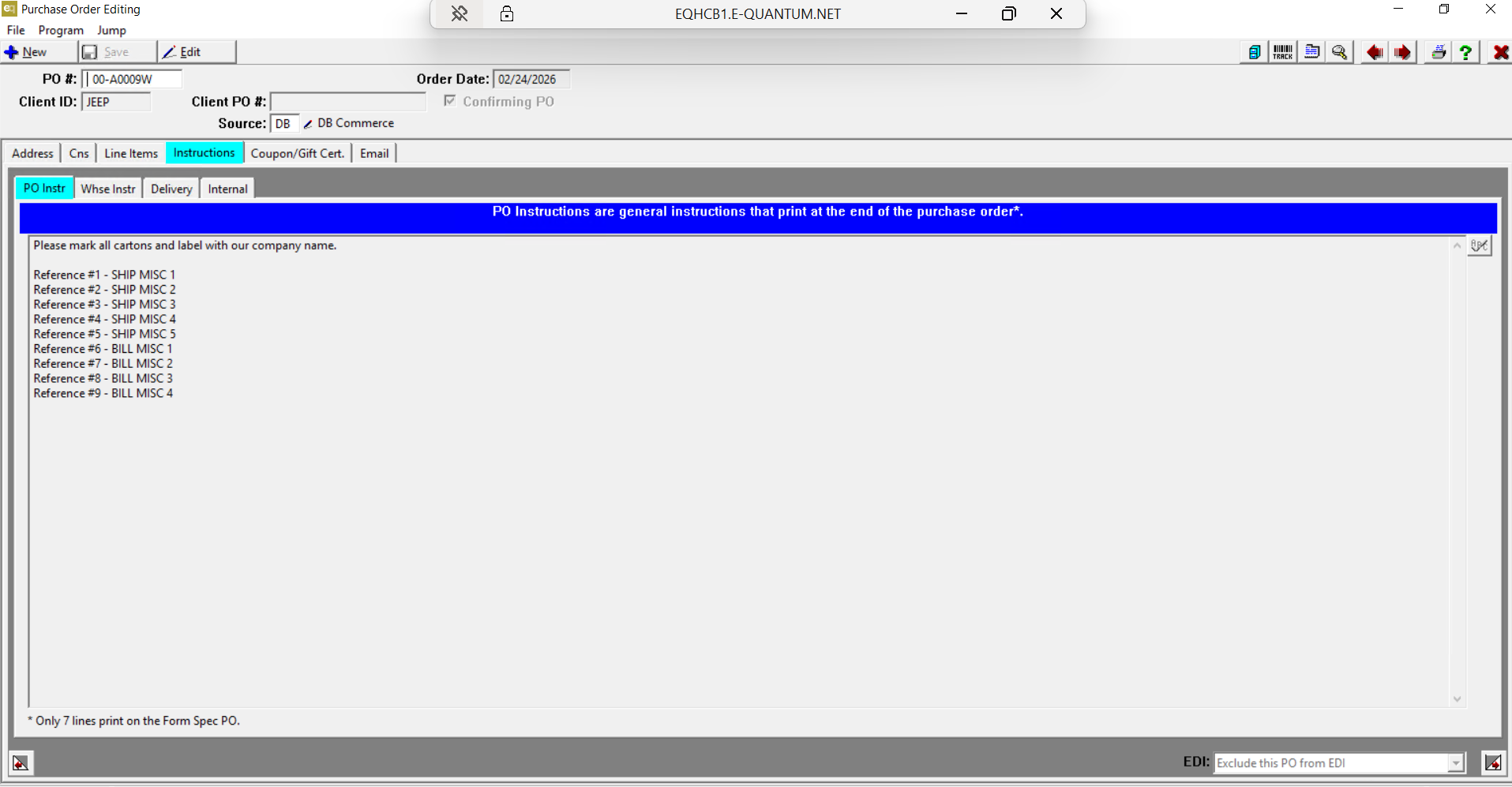
Once the order is generated, these reference values also appear under the “Instructions” tab in Purchase Order Editing.
-
- Maximum Length – Defines the maximum number of characters a customer can enter, helping to enforce data formatting and consistency.
- Mandatory – Marks a field as required, preventing order submission until the field is completed.
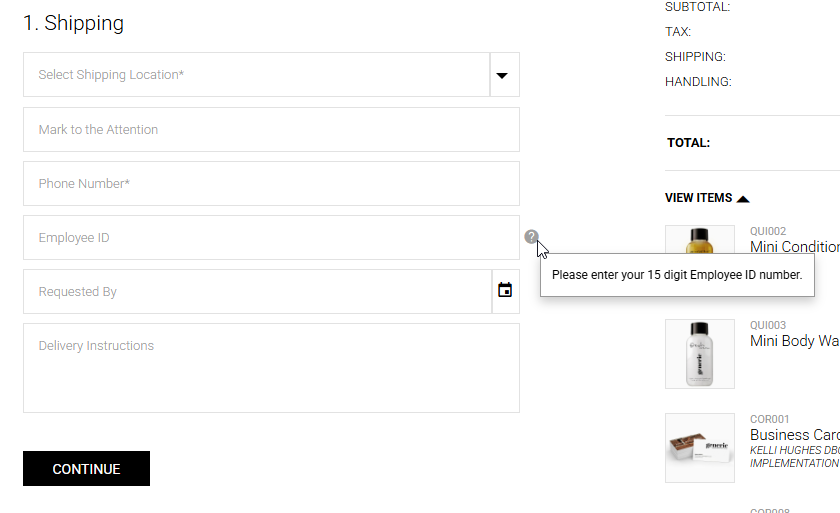
- Tooltip – Displays helper text to guide customers on what to enter in a given field.
- Input Field Type – Specifies whether the field accepts free-text input or presents a dropdown list. Dropdown options can be managed using the Edit List button.
- By default, the following fields are enabled: Company Name, Mark to the Attention of, Special Instructions, and Purchase Order Number.
The Misc 1–5 fields, available in both the Shipping and Payment sections, provide a flexible way to collect any additional data from end users. These fields can be mapped to a corresponding backoffice field in DB/d or EQ/d and will display accordingly based on that configuration.
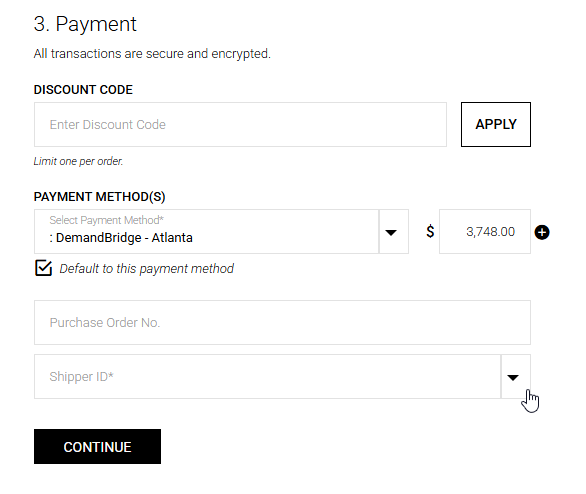
End User Shipping Fields View
End User Payment Fields View