EQD: Setup Remote Connection on a Mac
EQD: Create Desktop Shortcut for EQD Remote Connection
This guide provides a straightforward process for creating a desktop shortcut to the EQD Remote Desktop.
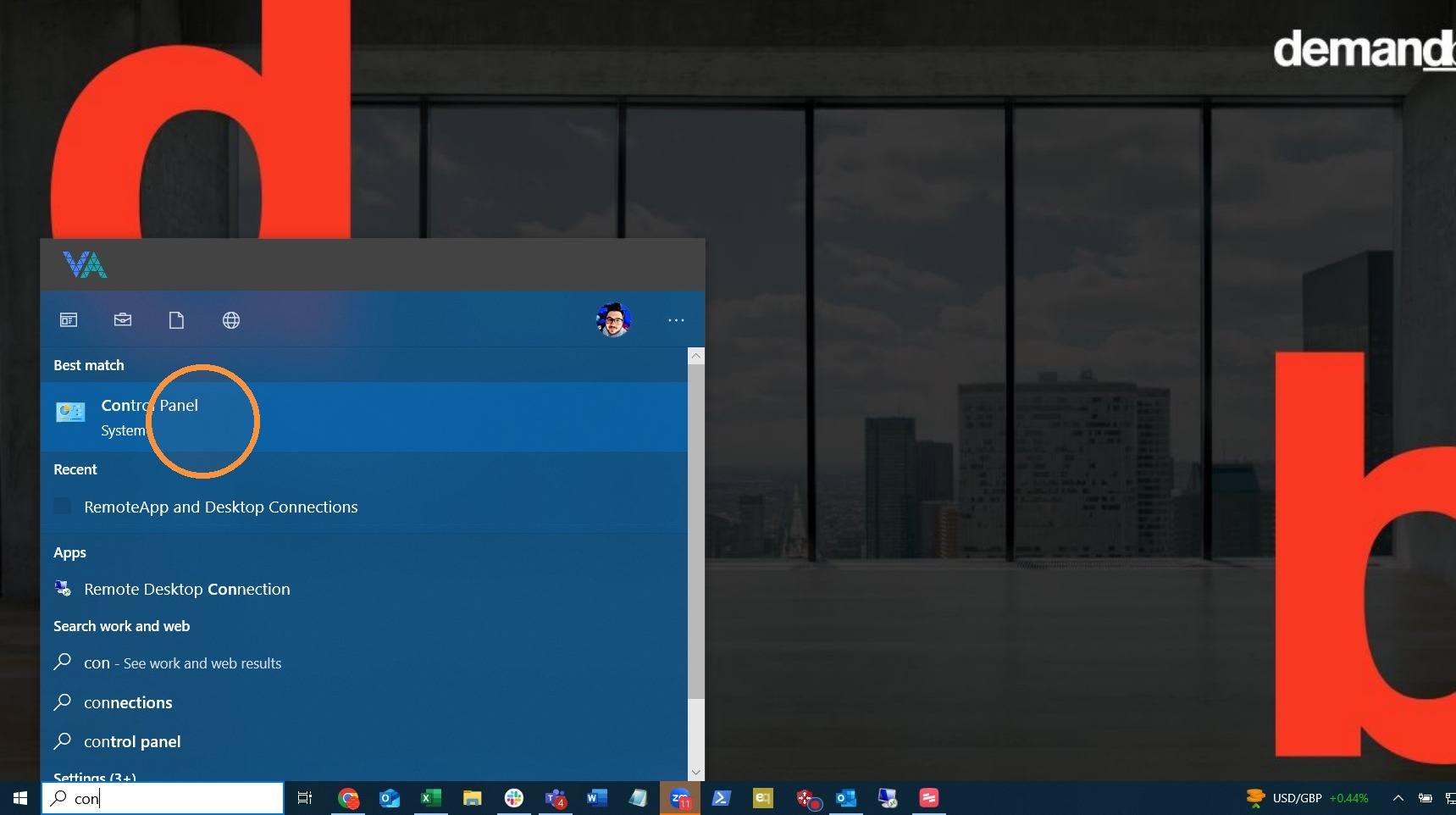
1. Open Control Panel.
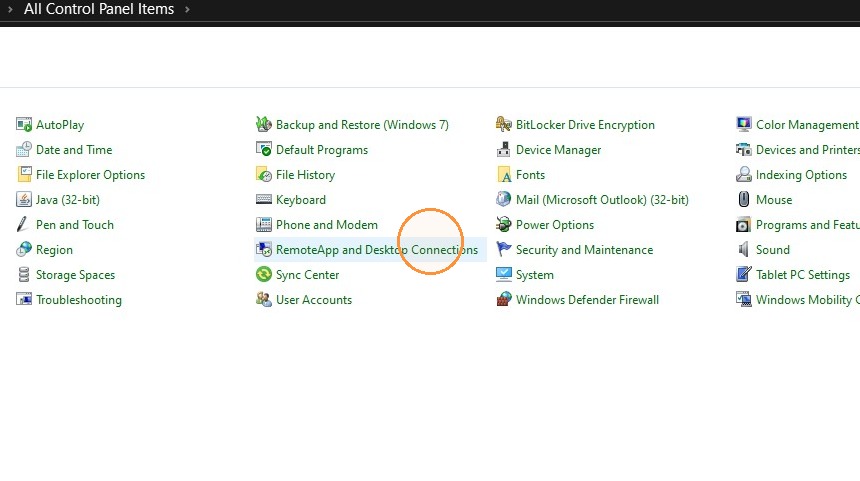
2. Navigate to the “RemoteApp and Desktop Connections”
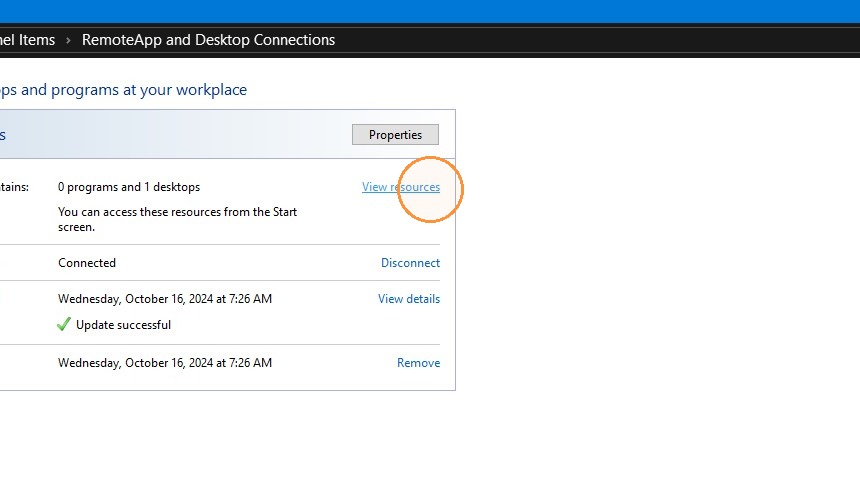
3. Click where it says View Resources
4. This should bring up a file explorer with a file that says eqhFH1, eqhFH2, or eqhFS1 Work Resource. Double click on that file and see if it connects to the remote desktop.
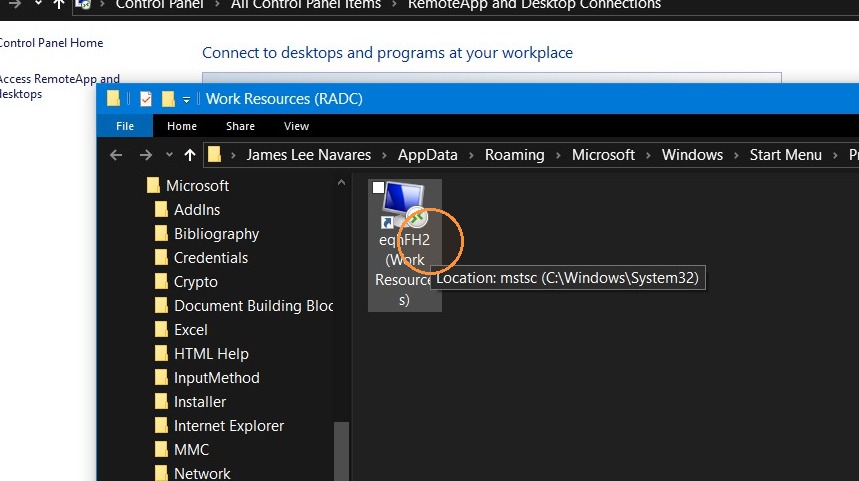
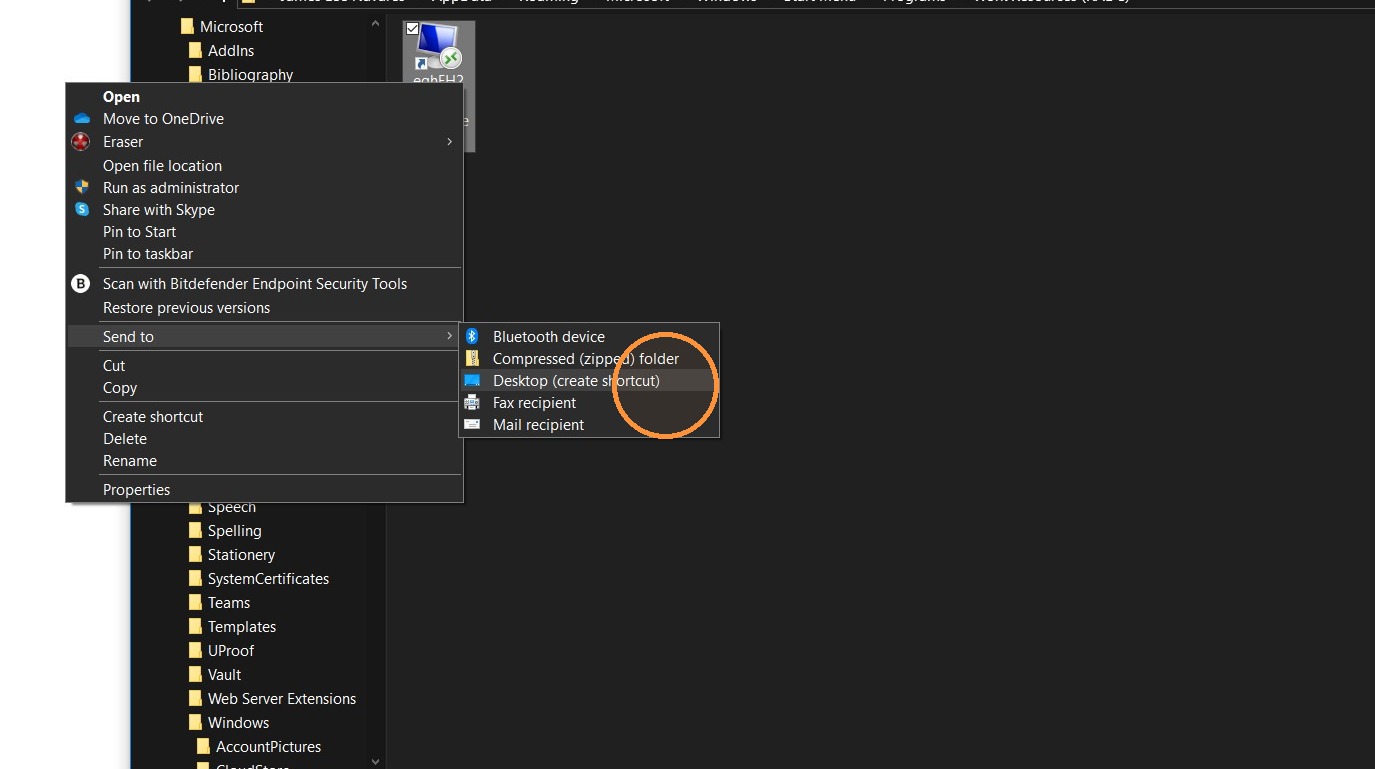
5. If it does connect, right-click on that file and go to send to and choose Desktop (Create Shortcut). You can also copy this file and paste it to your desktop.
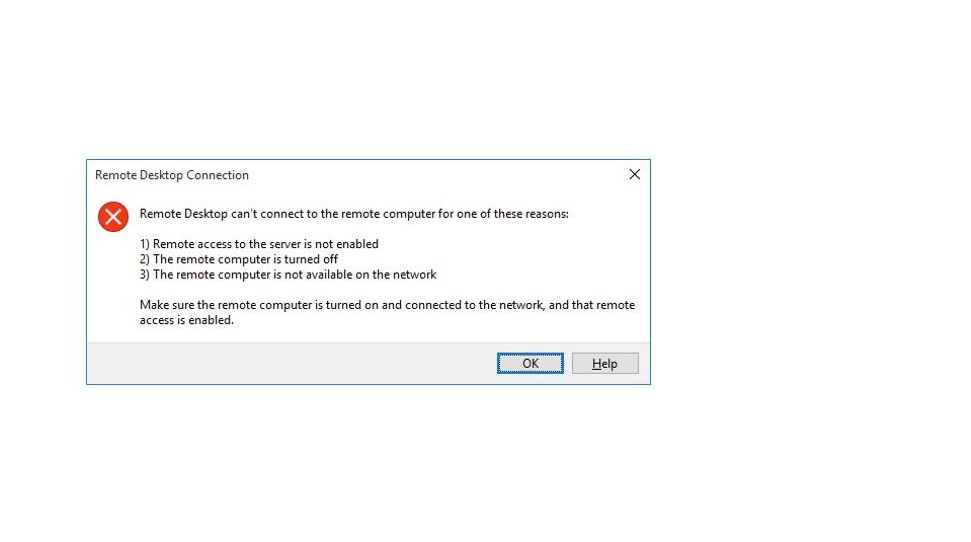
Tip: If you get an error please take a screenshot and send it in a reply if you have a ticket opened. Or emailsupport@demandbridge.com or use the DB Service Desk Portalto submit a support ticket. Please include a detailed description of the issue.
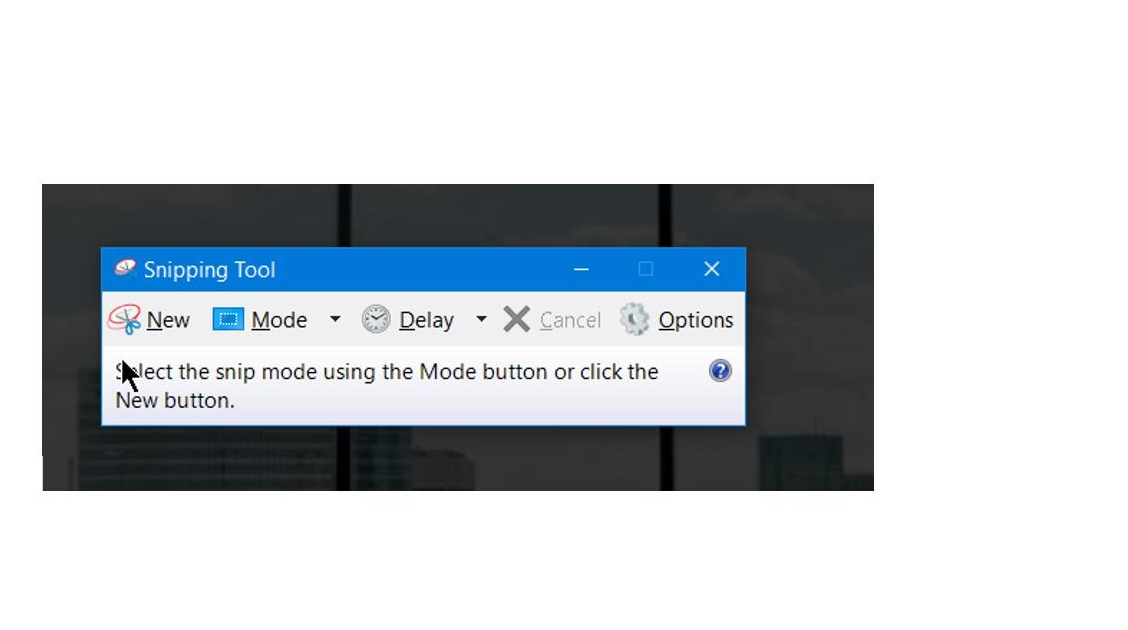
Tip: If you are unfamiliar with how to take a screenshot Click here to learn how.
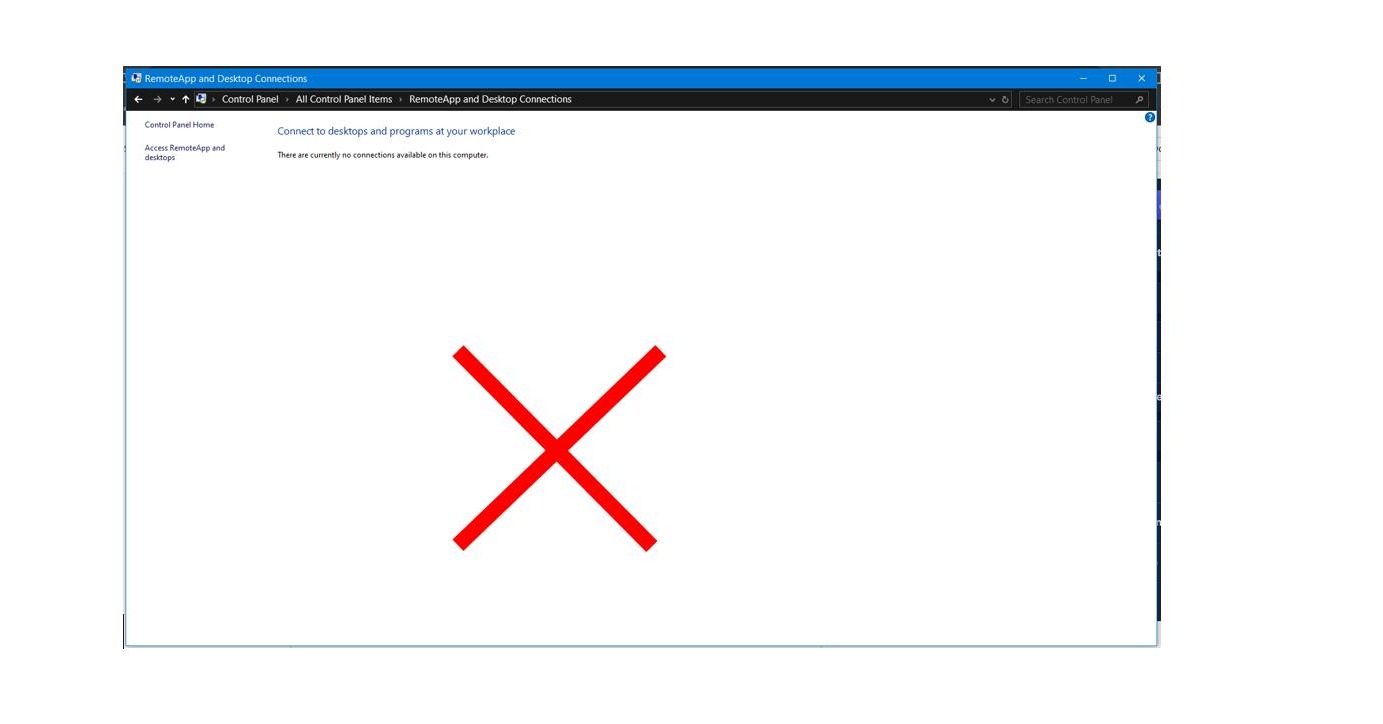
Tip: If there is no connection setup in “RemoteApp and Desktop Connections” Click here to learn how to set up a connection.
Tip: If you have further questions, reach out to Demand Bridge support.