
EQD: Configuring Send-From Email Overrides
Made by Paula Leon with Scribe
The Send-From Email Overrides feature lets you choose which user's email settings are used when certain documents are emailed. Instead of coming from the person who sends them (or the Supervisor when sent by the Scheduler), emails can come from a shared account such as Accounting, Sales, or Shipping. Each document type can be set up separately, allowing different documents to be sent from different users.
Tip: How the Global Send-From Override Is Used
After configuring the Send-From Email Override, the selected user's email settings will automatically be used when emailing the supported document types from their respective modules.
Examples include:
- A/R Receipt – Navigate to A/R > Receipts Editing, open a receipt, then select Program > Email Receipt to Client.
- PayByLink Email – Navigate to A/R > A/R Invoices, open the invoice, go to the Receipts tab > Credit Card, then click Send PayByLink Email.
- Invoice – Navigate to O/E > Invoicing, then email the invoice.
- Warehouse Release – Navigate to O/E > Release Editing, open the release, then email the warehouse release.
- A/R Statements – Navigate to A/R > A/R Period End > Statement Processing > Statement Printing.
- Ship Notice Email – Navigate to O/E > Send Ship Notices, select the shipment, and send the notification.
In each of these cases, the email will be sent using the user selected in the Send-From Email Overrides configuration instead of the logged-in user's email settings.
Configure Send-From Email Overrides
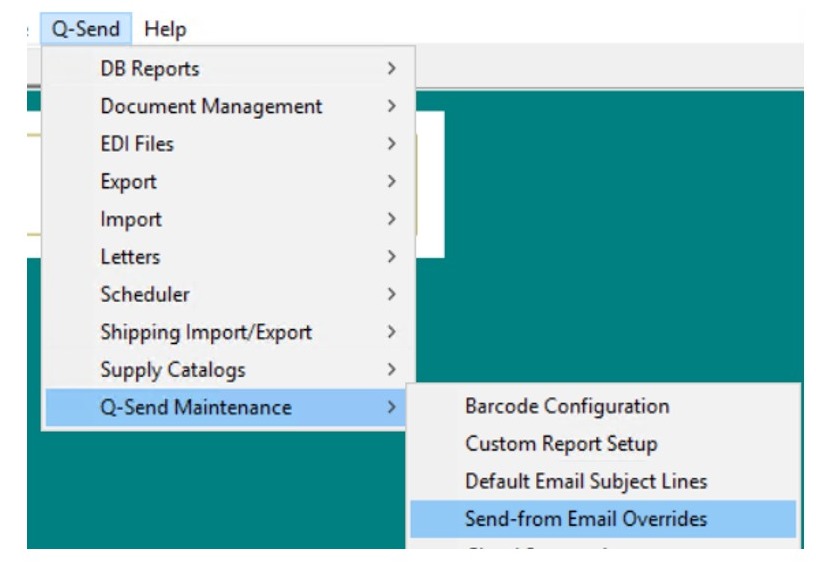
1. Navigate to Q-Send > Q-Send Maintenance > Send-From Email Overrides.
This screen is used to configure the default sender for supported document types. Any document type configured here will use the selected user's email settings whenever that document is emailed.
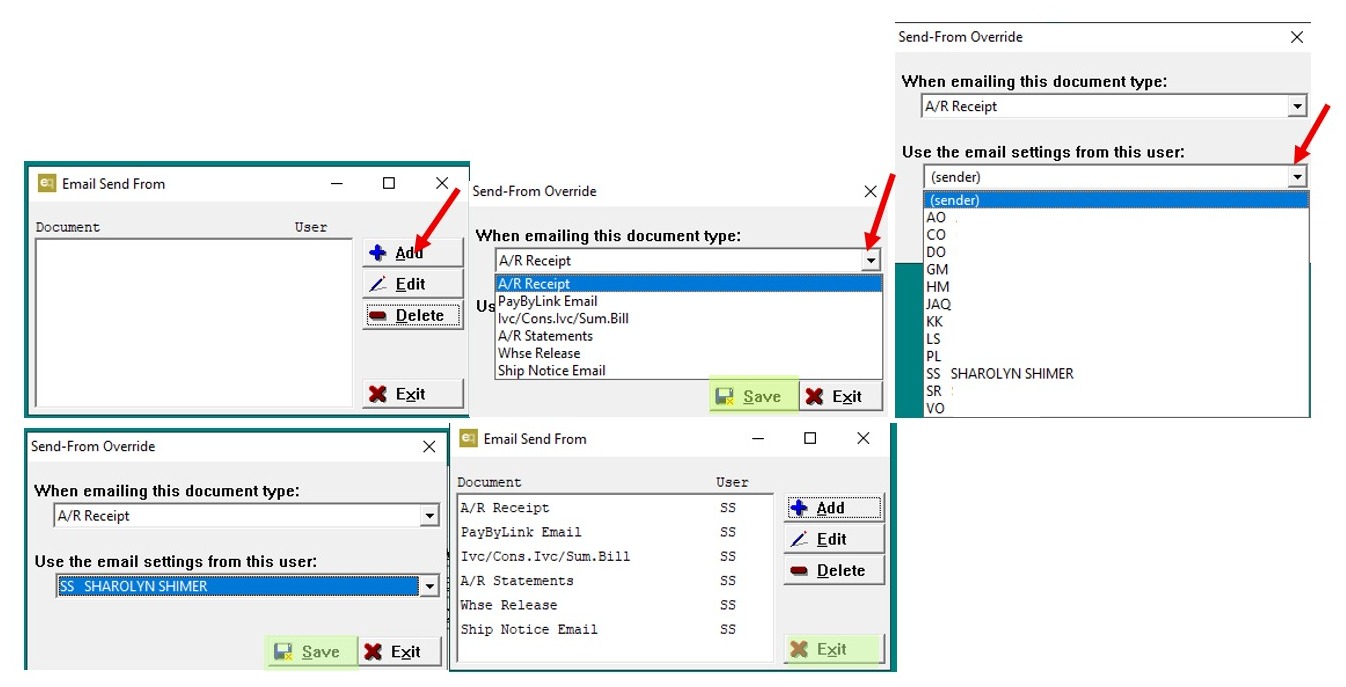
2. - Click Add.
-
From the When emailing this document type drop-down list, select the document type you want to configure.
Available document types include:
- A/R Receipt
- PayByLink Email
- Invoice / Consolidated Invoice / Summary Bill
- A/R Statements
- Warehouse Release
-
Ship Notice Email
Each document type can be assigned a different send-from user.
-
From the Use the email settings from this user drop-down list, select the user whose email settings should be used when sending the selected document.
The list displays all users configured within Quantum. Many companies choose a shared user account, such as Accounting, Sales, or Shipping, so client emails are consistently sent from the appropriate department rather than an individual employee.
- Click Save, then Exit.
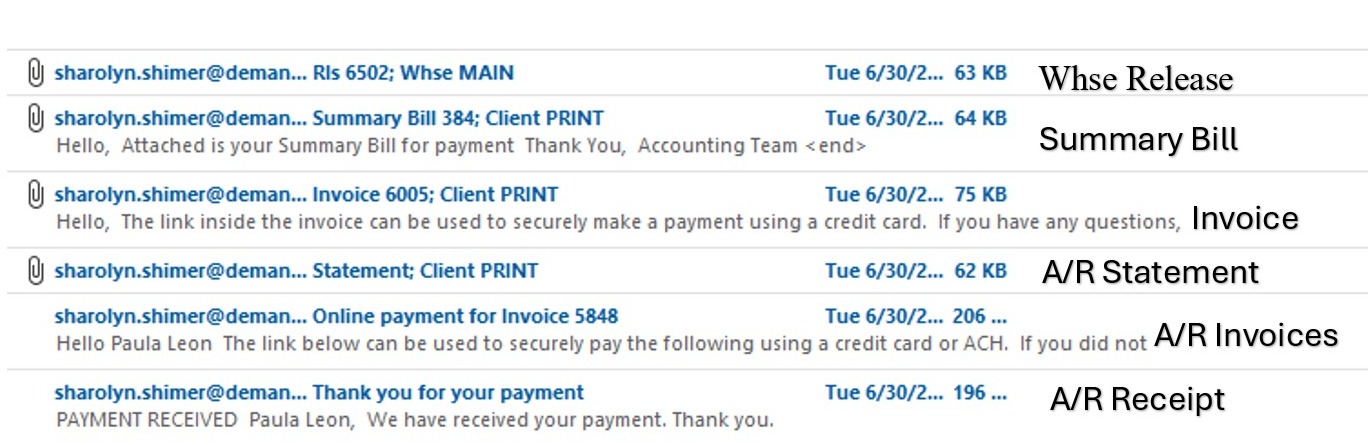
3. Example: In this example, the emails were sent by Paula Leon. Because Sharolyn Shimer was selected as the global send-from user, all emails appear to come from Sharolyn Shimer.
Configuring a Consultant Send-From Email Override
Tip: The consultant-level Send-From Email Override gives you more specific control than the global setting.
The global setting picks the default sender for everyone. The consultant setting lets one consultant use a different send-from user. When it's set up, it overrides the global setting for every client assigned to that consultant.
This helps when a consultant or department needs client emails to come from a different address than the company default.
4. Navigate to A/R > A/R File Maintenance > Client Maintenance.
- Select the client.
- Open the CNS tab.
- Click the Edit Consultant (pencil) button next to the consultant.
- In the Edit Consultant window, go to the Defaults tab and click Send-from Email Overrides.
- In the Email Send From (Consultant Overrides) window, click Add.
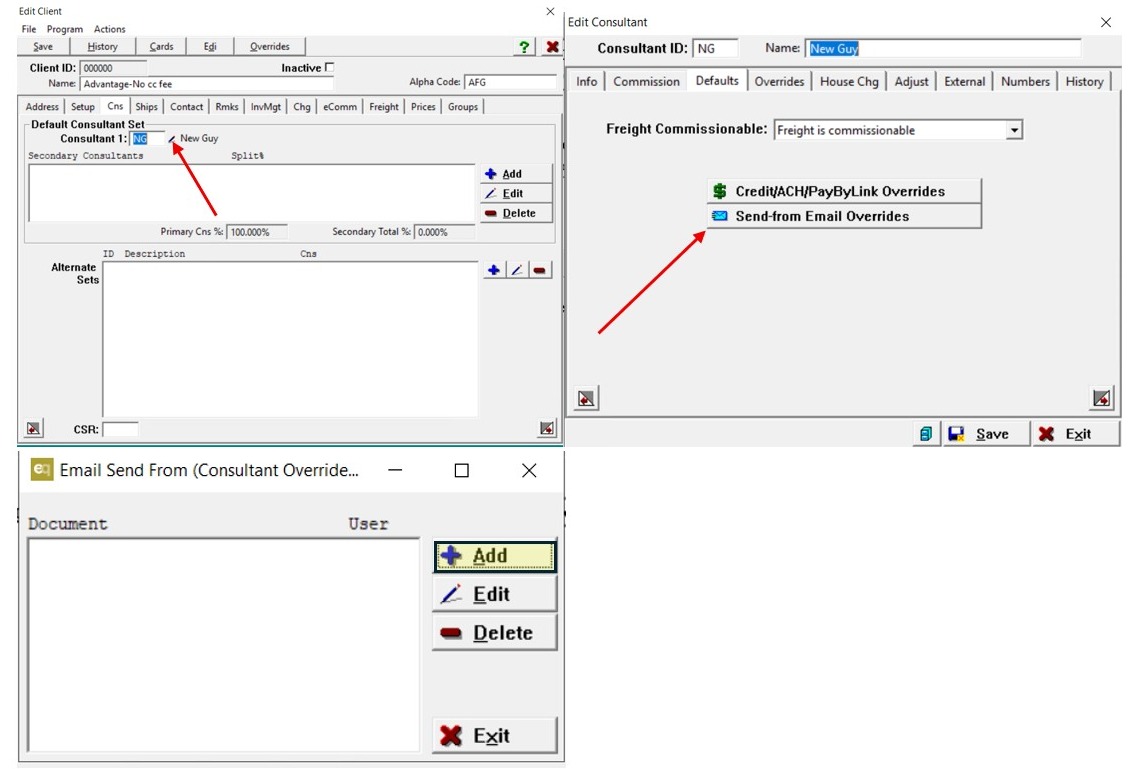
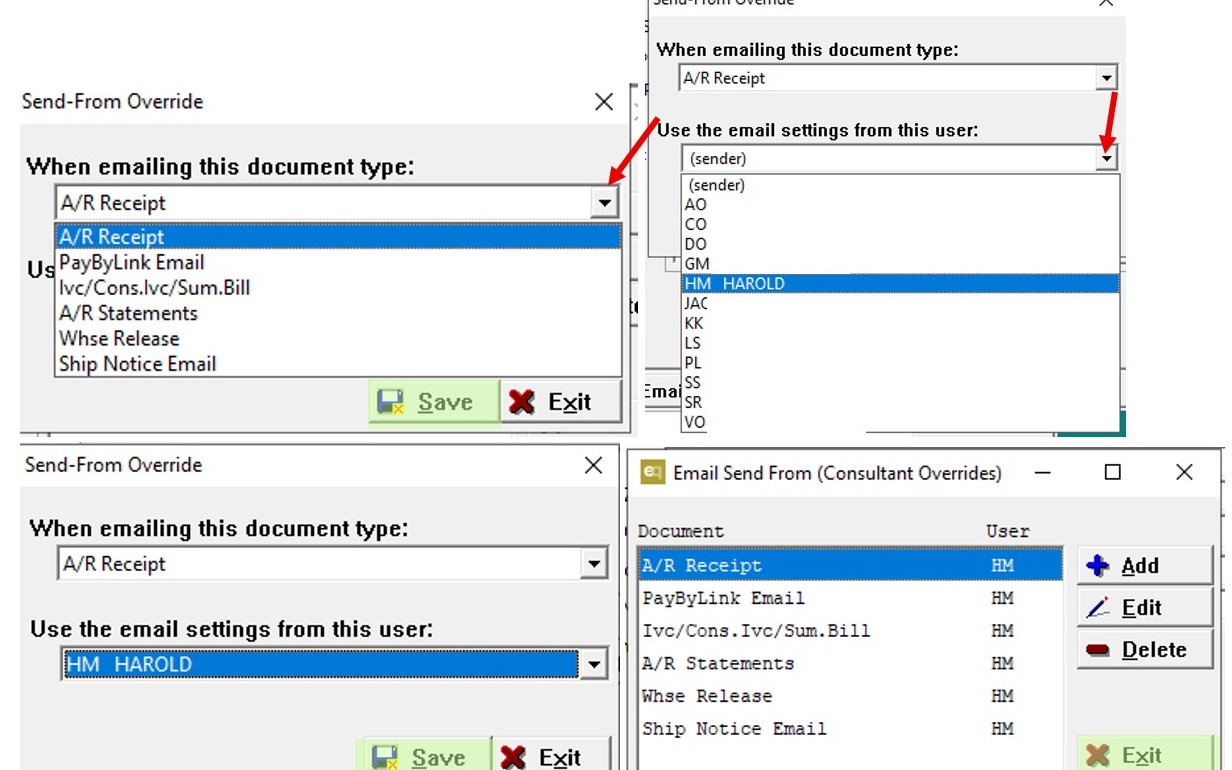
5. - From the When emailing this document type drop-down list, select the document type you want to configure.
Available document types include:
- A/R Receipt
- PayByLink Email
- Invoice / Consolidated Invoice / Summary Bill
- A/R Statements
- Warehouse Release
- Ship Notice Email
Each document type can be assigned a different send-from user.
-
From the Use the email settings from this user drop-down list, select the user whose email settings should be used when sending the selected document.
The list displays all users configured within Quantum. Many companies choose a shared user account, such as Accounting, Sales, or Shipping, so client emails are consistently sent from the appropriate department rather than an individual employee.
- Click Save, then Exit.
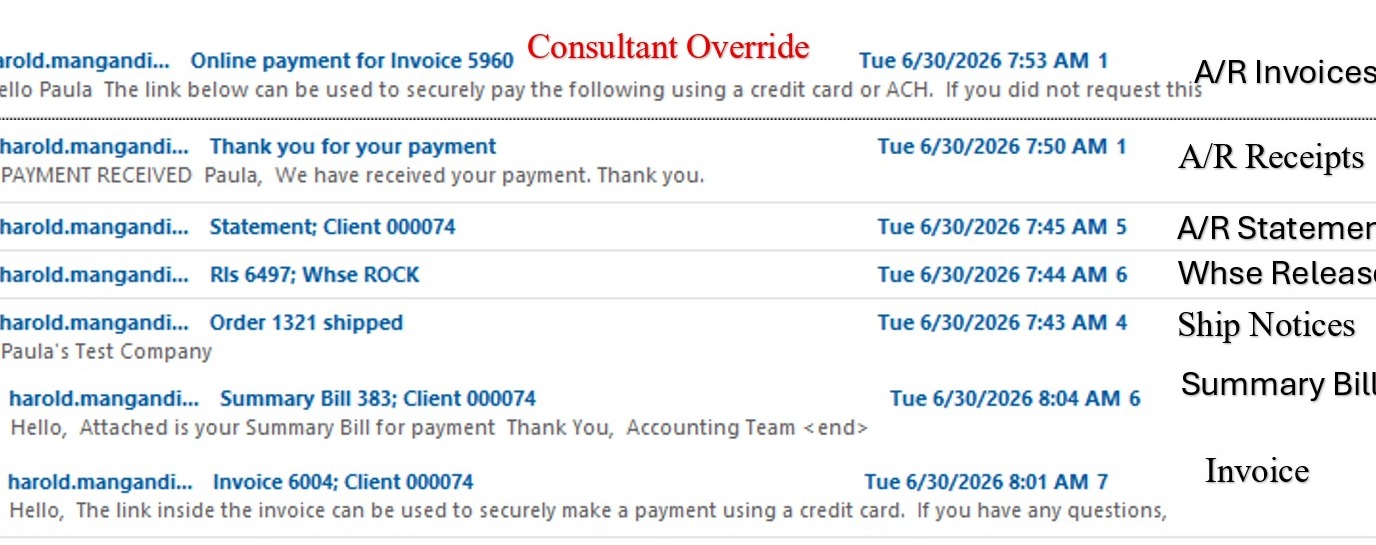
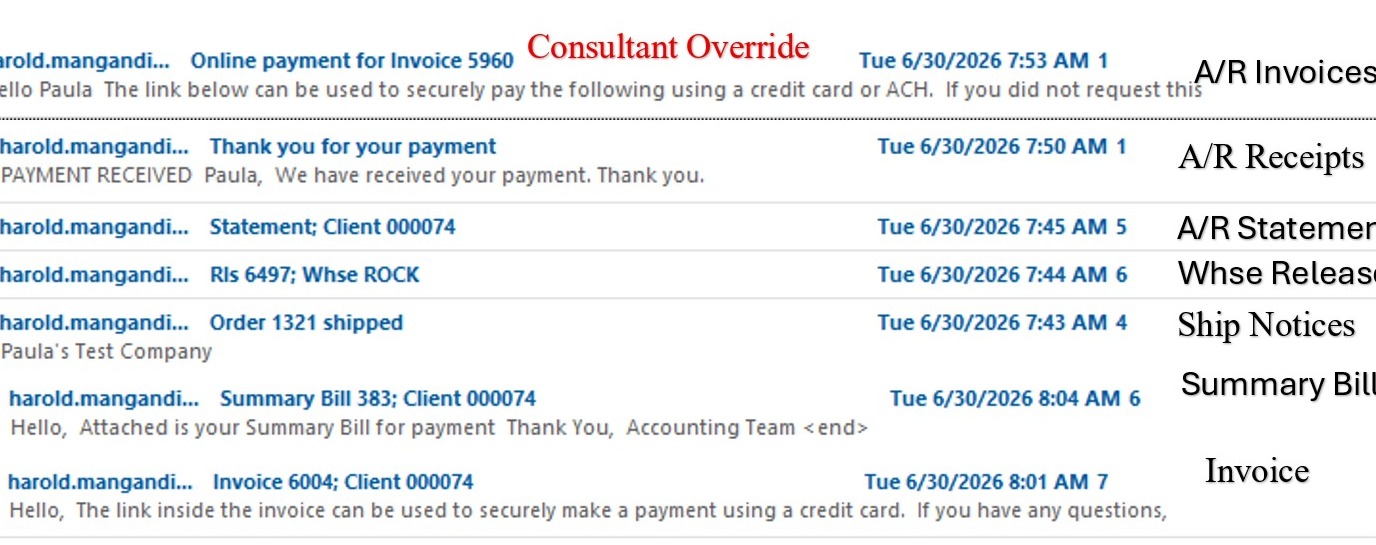
6. Example: In this example, the emails were sent by Paula Leon. However, because Harold was selected as the consultant-level Send-From Email override, all emails appear to come from Harold. The consultant-level setting overrides the global send-from setting configured in Q-Send.
Frequently Asked Questions
Q: Why are my emails showing as sent from someone else?
A: A Send-From Email Override is set up. For the document types listed, emails go out using the selected user's email settings instead of the person who sent them.
Q: Where do I set the override for everyone?
A: Go to Q-Send > Q-Send Maintenance > Send-From Email Overrides.
Q: Can one consultant send from a different user than everyone else?
A: Yes. Go to A/R > A/R File Maintenance > Client Maintenance, open the CNS tab, edit the consultant, and on the Defaults tab click Send-from Email Overrides.
Q: If both are set up, which one wins?
A: The consultant-level setting. It overrides the global setting for every client assigned to that consultant.
Q: Which documents can use a Send-From Email Override?
A: A/R Receipt, PayByLink Email, Invoice / Consolidated Invoice / Summary Bill, A/R Statements, Warehouse Release, and Ship Notice Email.
Tags: send-from email, email override, q-send, consultant override, cns, paybylink email, a/r receipt, invoice, statements, warehouse release, ship notice