EQD: Remote Desktop Connection PC Setup
This guide provides a step-by-step process for setting up a Remote Desktop Connection to access the EQD software.
Alert: Note: You will need your username and password to access the remote desktop. This is not the same as your username and password to access the eQuantum software.
- This login info is created by Demand Bridge. The user name is formatted like: e-quantum\john.smith
- The password will be a random series of 8 letters numbers and characters,
- If you do not have this login info the only option is to reset the password since we do not keep a record of user passwords.
- These instructions are for Windows 10 and 11 machines. If you are on a Mac please let us know and we can send instructions for that.
- Be Advised: Microsoft no longer supports the remote desktop application on Windows 11 Home Edition. If you have that OS the best option is to update to Windows 11 pro Click here if you would like more information on this.
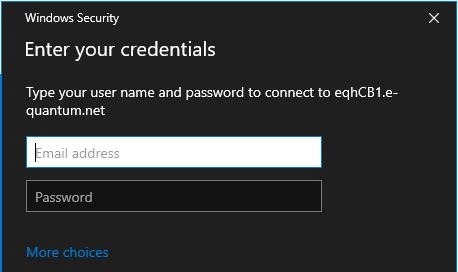
1. You will need to open the Windows Control Panel. You can get there quickly by using the Windows search
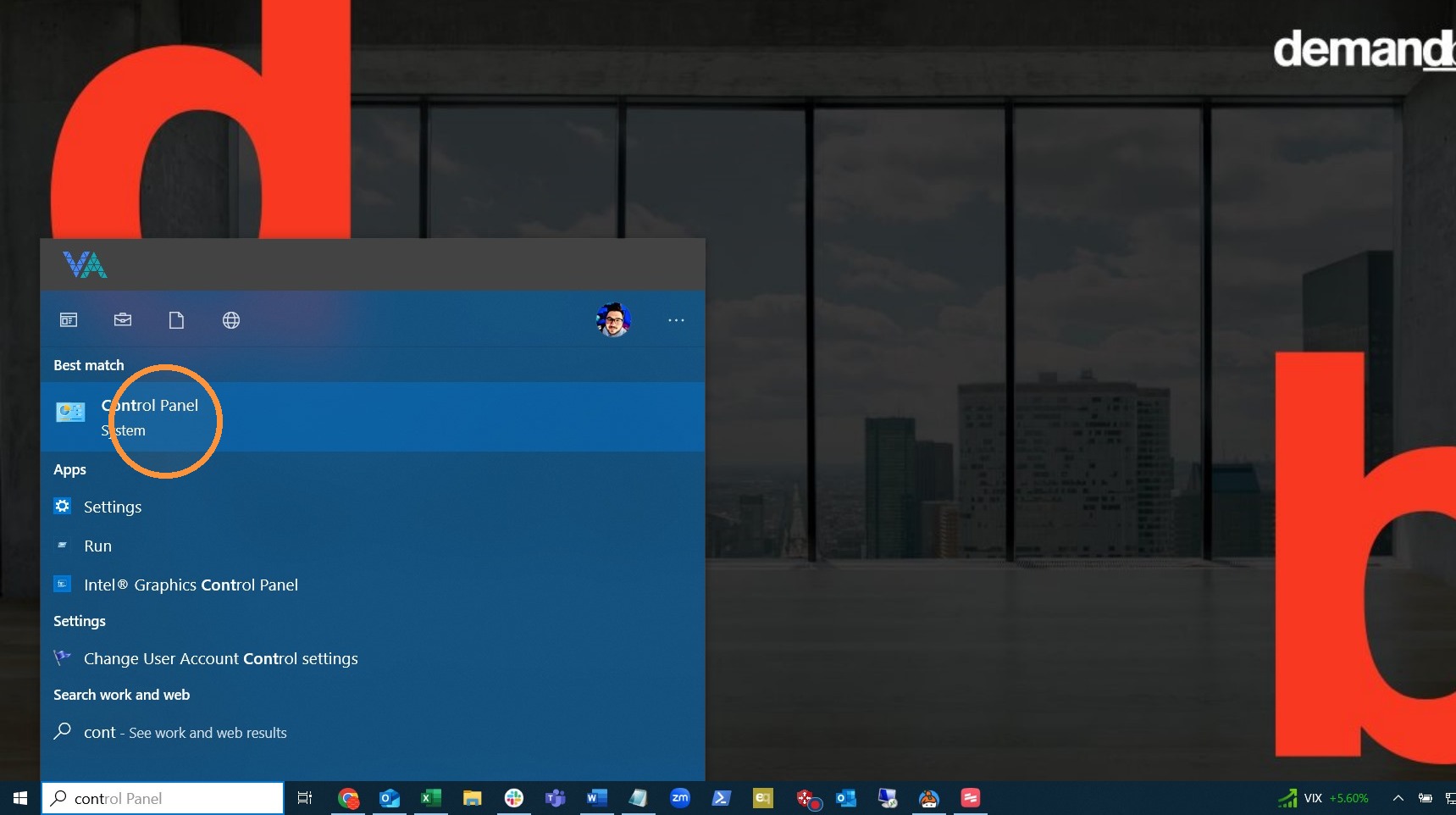
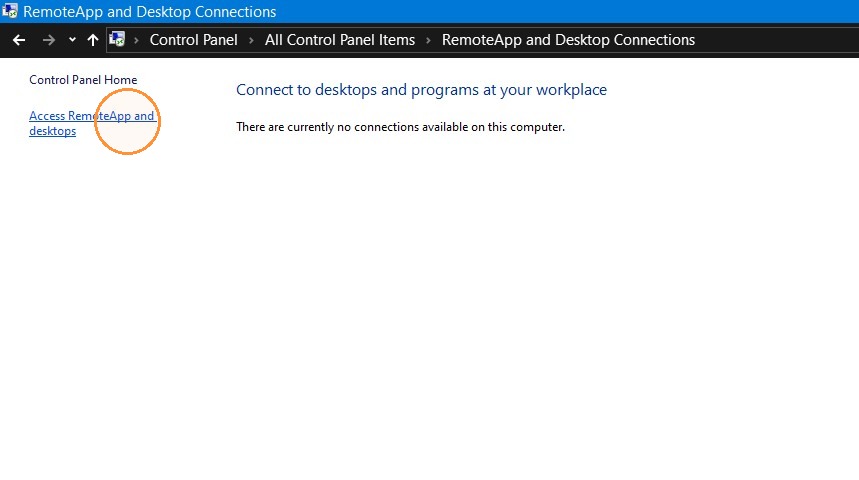
2. Once in the Control Panel navigate to the “RemoteApp and Desktop Connections”.
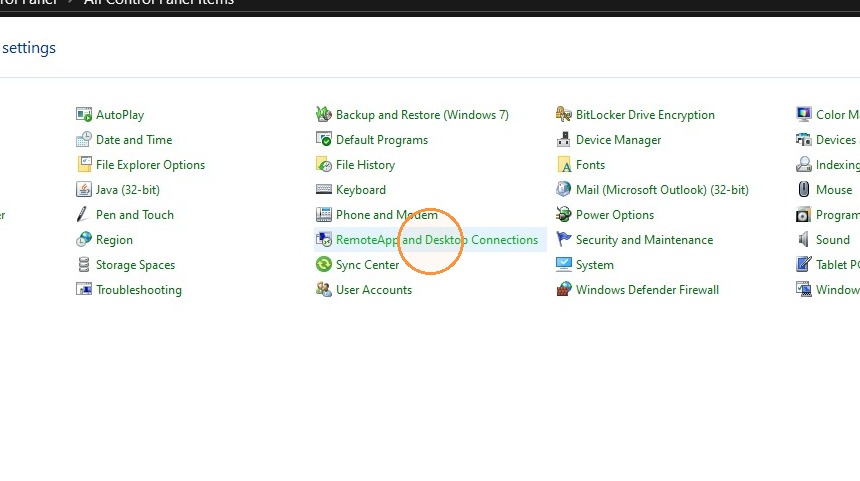
3. Click "Access RemoteApp and desktops"
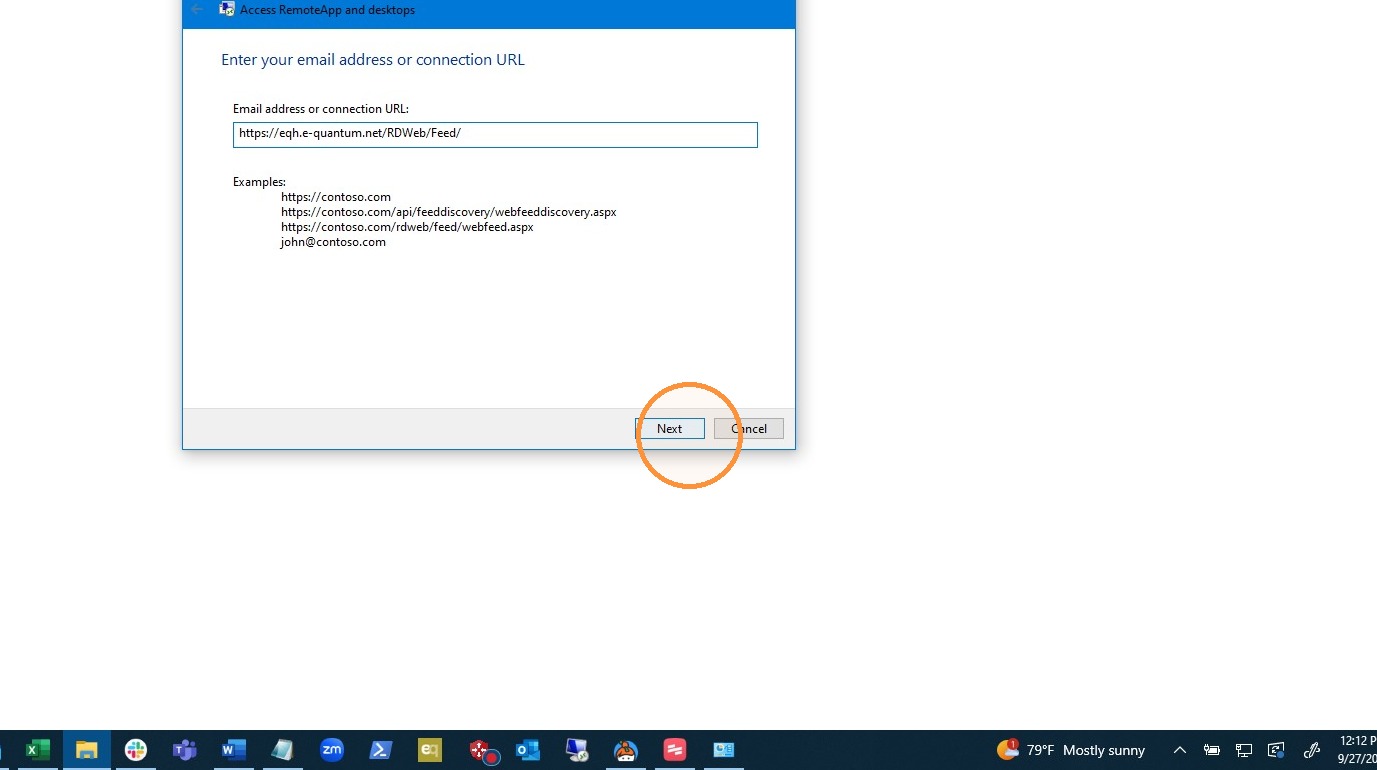
4. Enter this link where it says“Email address or Connection URL" and click "Next"
Note: it is best to right-click and copy this link. If you try to highlight it that will will usually open the link, which is not what you want. https://eqh.e-quantum.net/RDWeb/Feed/
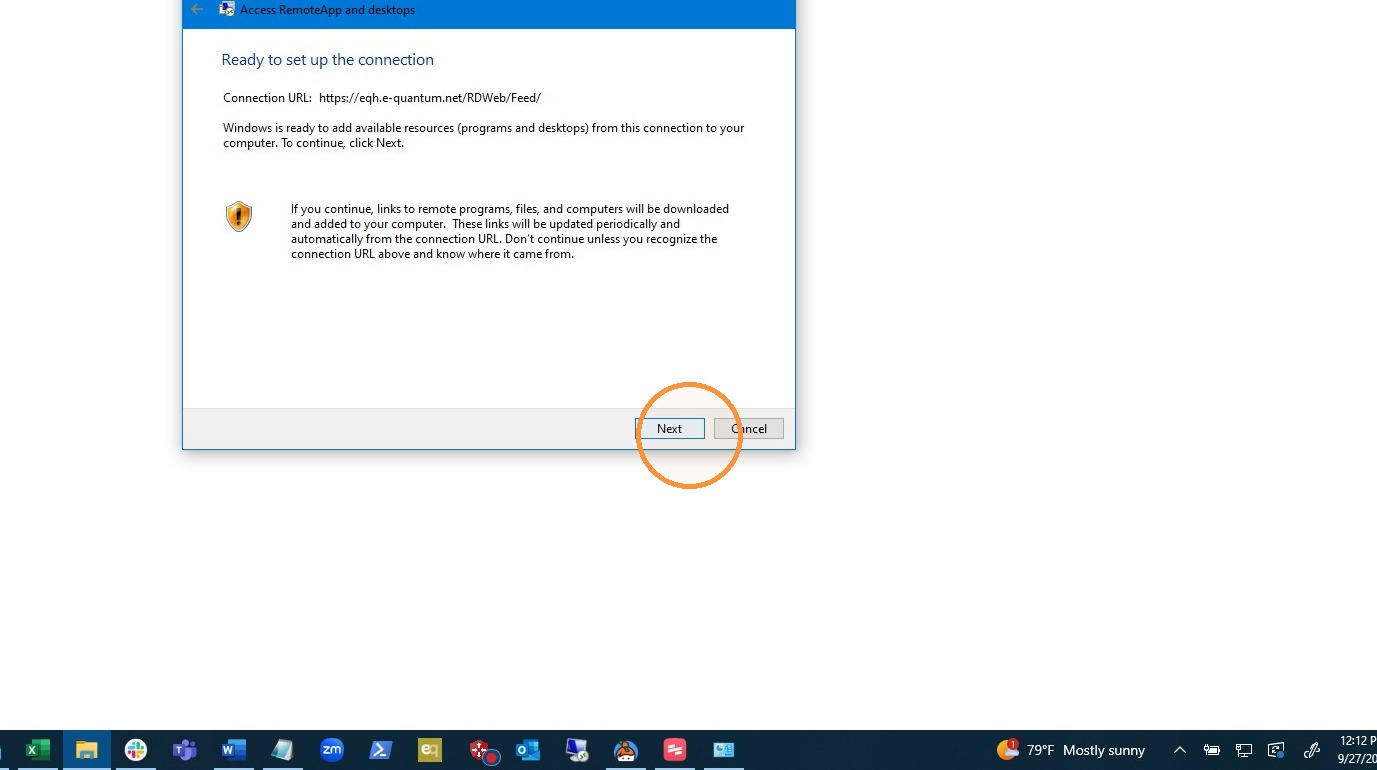
5. Click "Next"
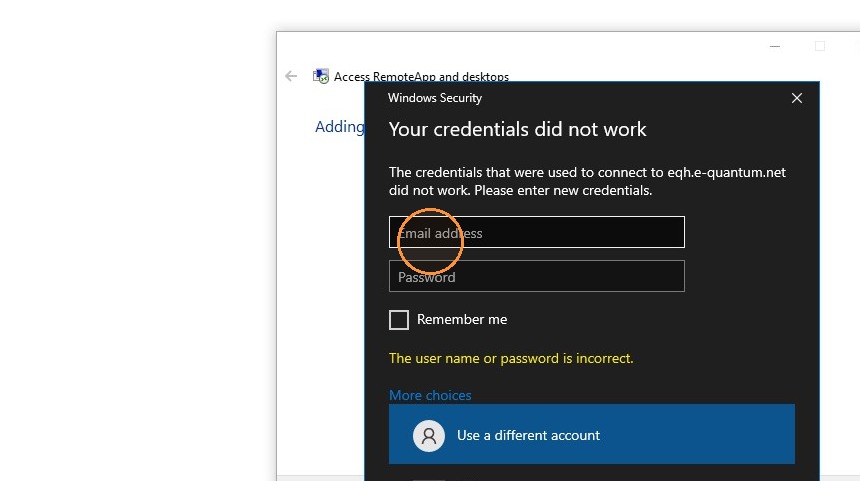
6. Fill in the Username and Password fields. Remember to include “e-quantum\” in front of username, for example, e-quantum\john.smith. If it asks for a pin number click "More choices" and "Use a different account". Then you should be able to put in a username and password. Make sure to check the "Remember me" box before clicking "OK". Then you won't have to put the credentials in every time you connect.
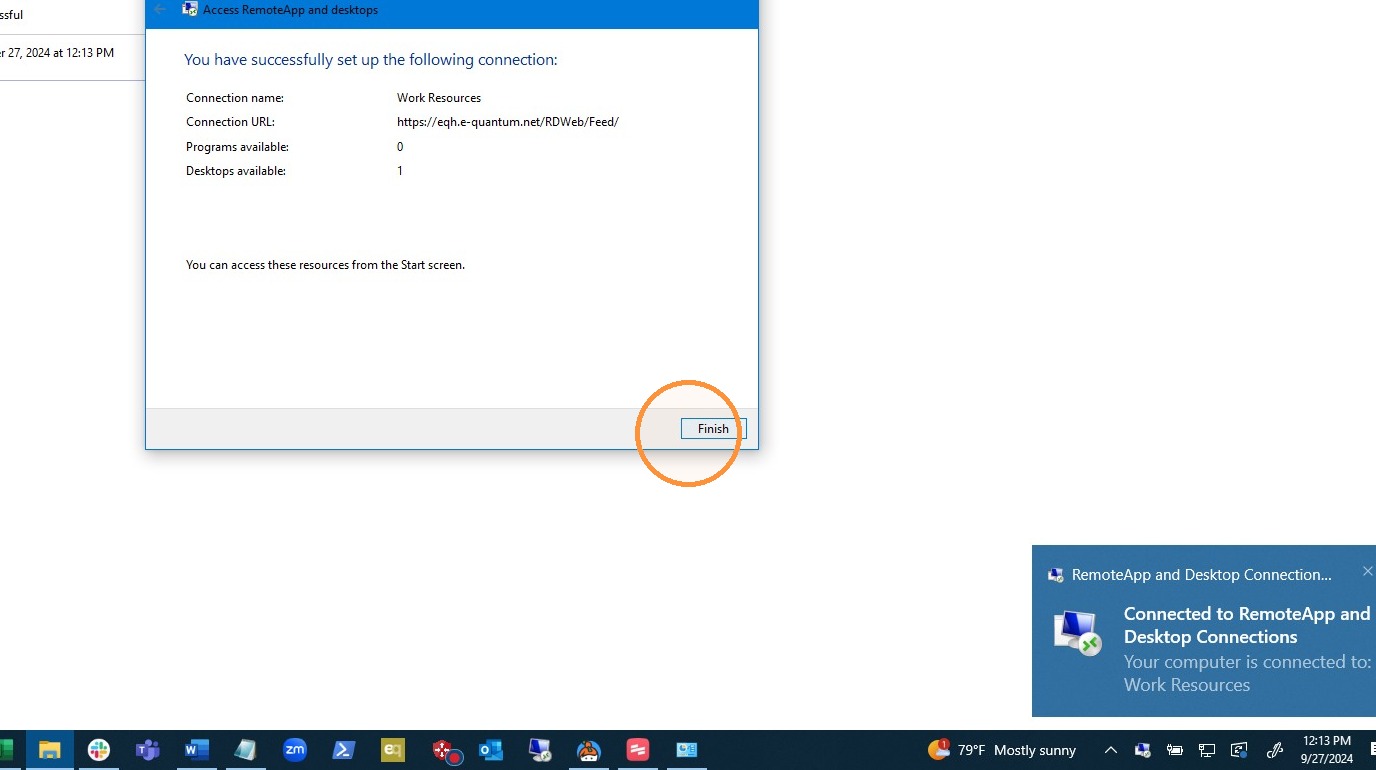
7. Click "Finish"
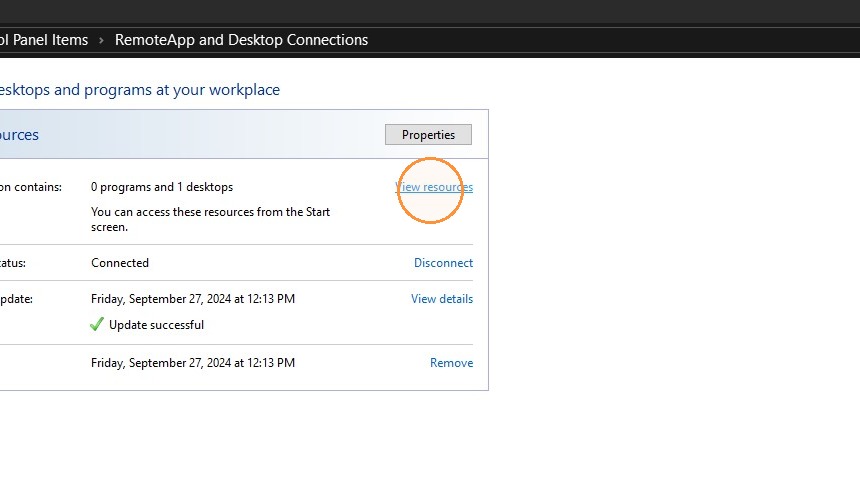
8. Click "View resources"
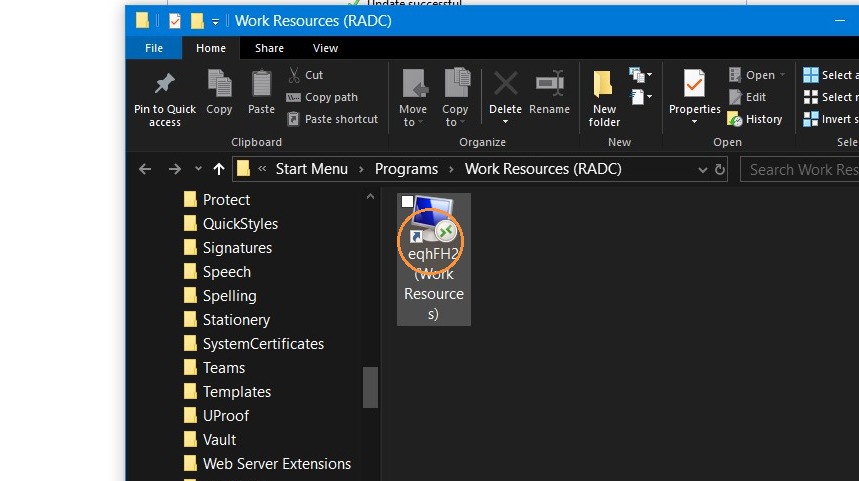
9. Right click on the RDP file.
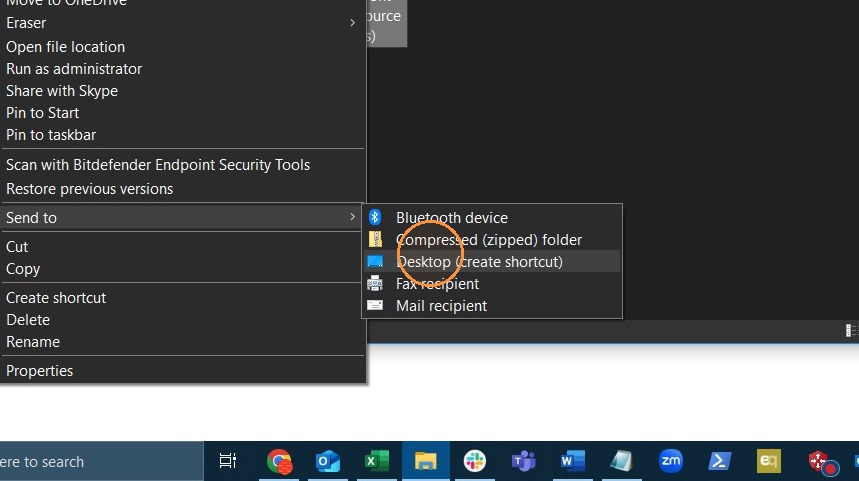
10. Go to "Send to and then click "Desktop (create shortcut)" You can also just copy and paste the RDP file to your desktop as a shortcut.
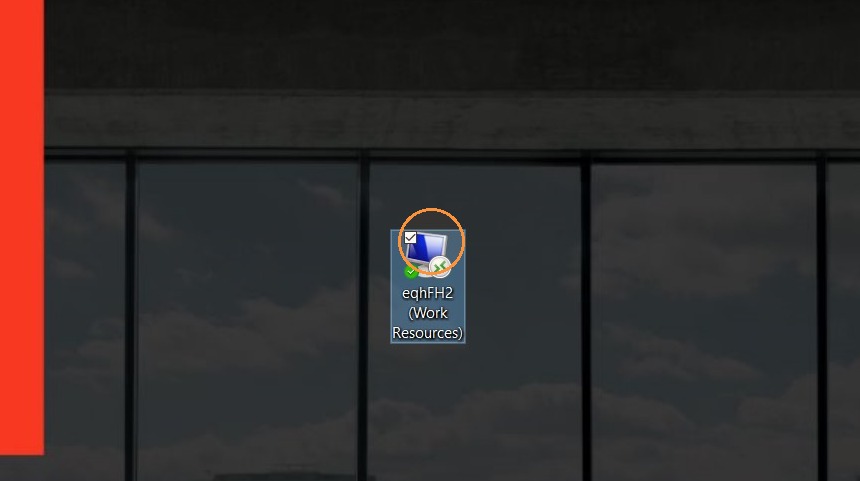
11. Double-click on the shortcut to connect.
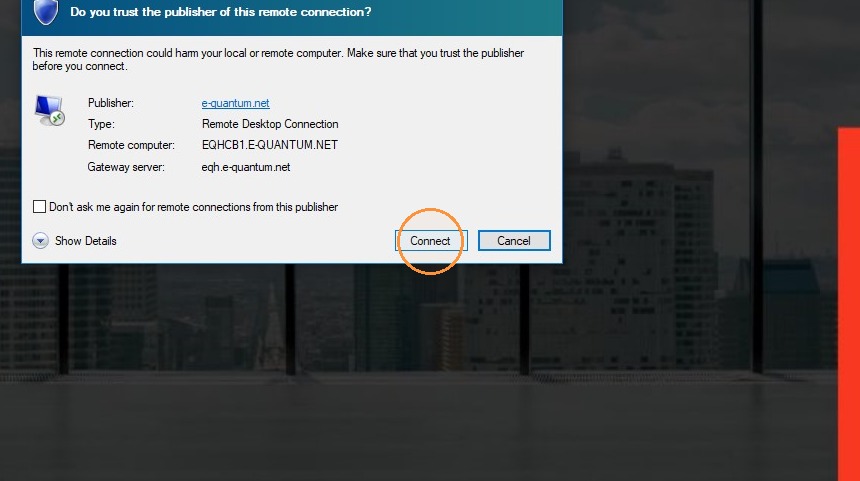
12. Click "Connect". You can check the box that says "Don't ask me again for remote connections from this publisher" and this box will not come up any more.
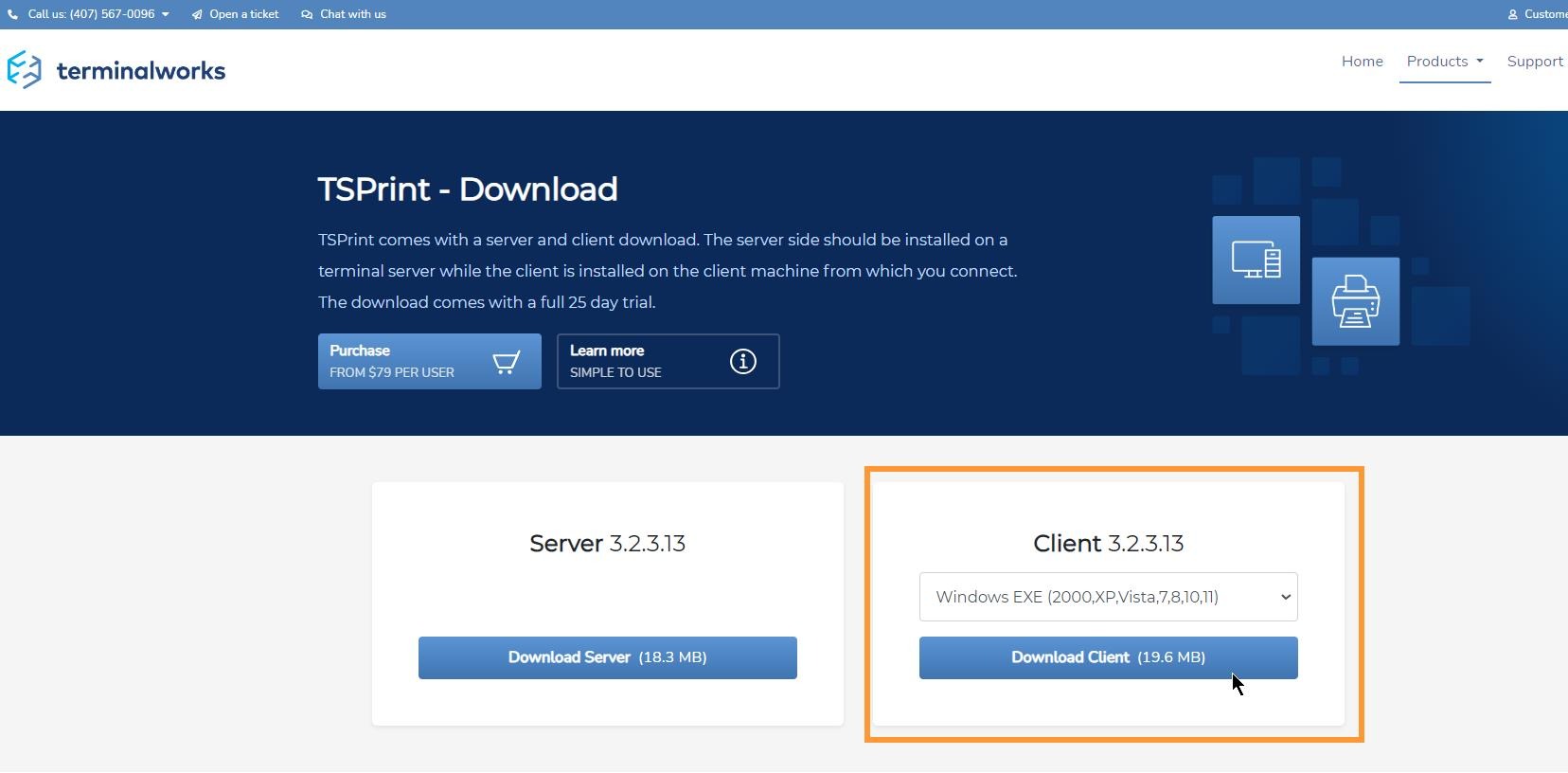
13. If you want to print from EQD you will need to download and Install TSPrint. Click here to go to the TSPrint Download Page
Tip: If you would like to watch a video of this process click here.

Tip: If you have any questions contact DemandBridge support