EQD: Create a Transfer Folder for Remote Desktop And Other Options For Moving Files Between the Two Environments
Here are the steps for setting up a transfer folder from your local computer to the the EQ remote desktop. As well as some other tips between the local and remote environment.
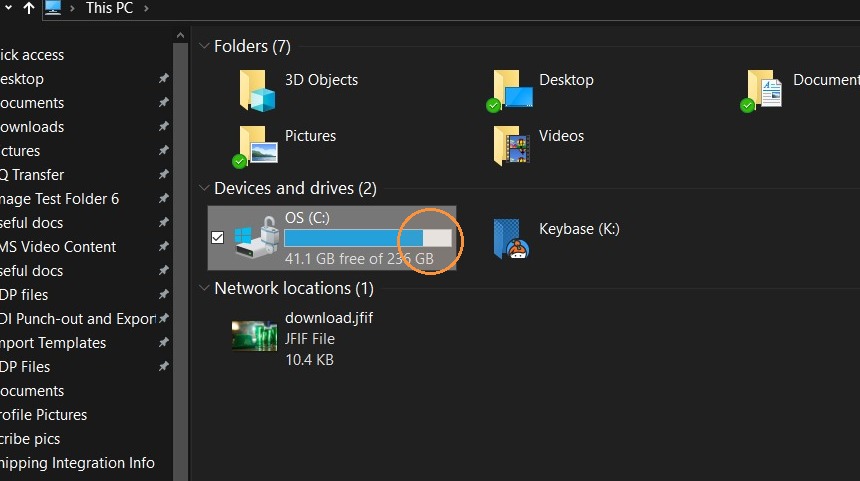
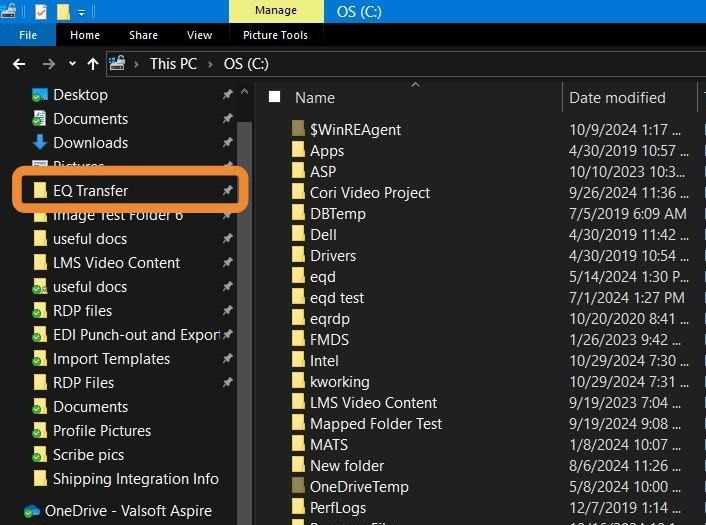
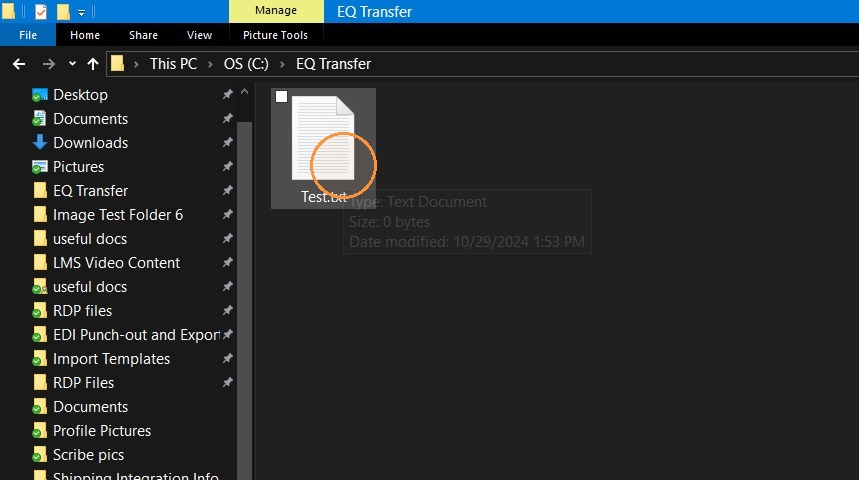
1. Open a file explorer and navigate to C: on your local computer.
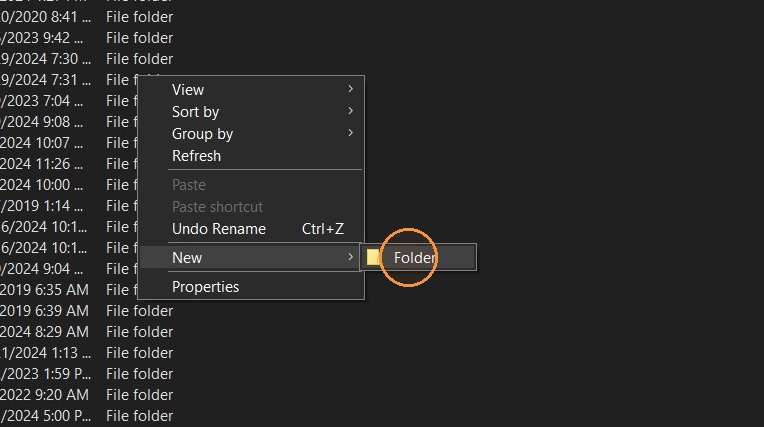
2. Right-click and go to New> Folder. Once the folder is created give it a name like "Quantum Transfer".
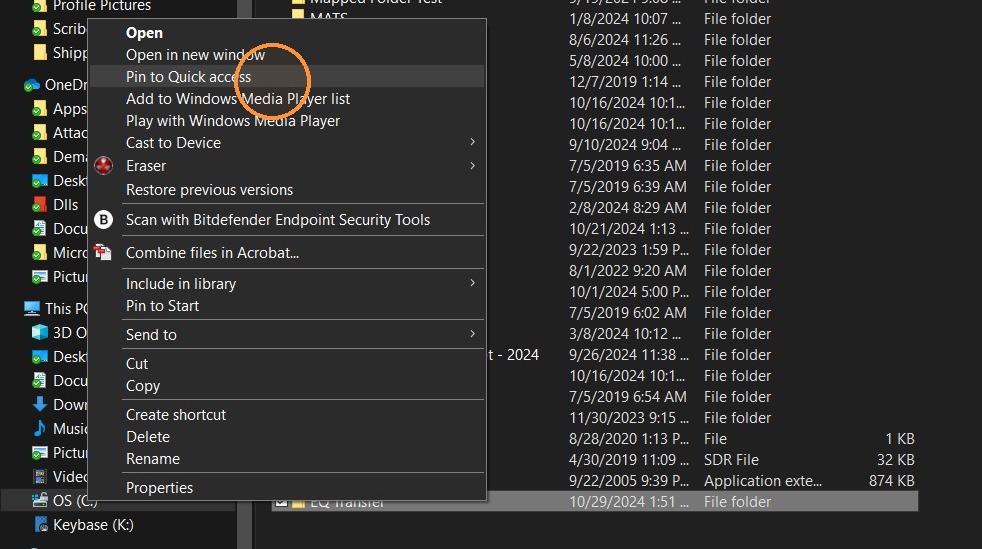
3. Right-Click on the transfer folder and "Pin to Quick access".
4. This will pin the folder to the left column for easy access.
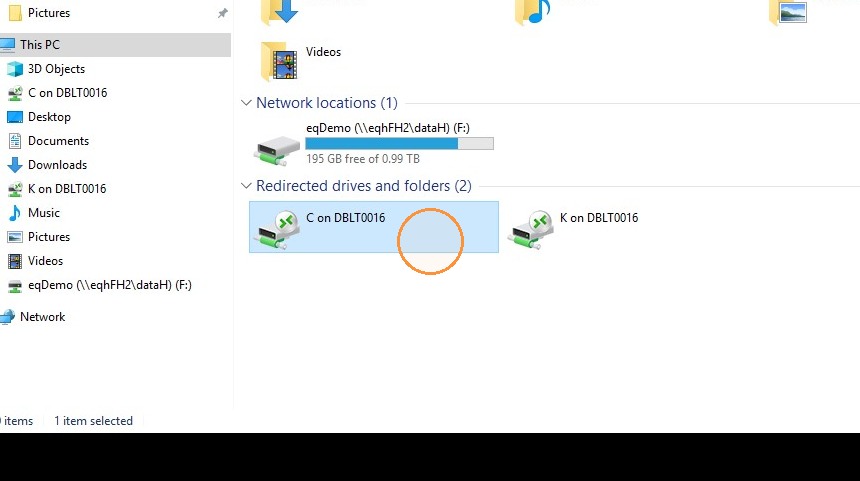
5. Open the Remote Desktop then open the file explorer in the remote. Navigate to This PC> C on (computers name).
6. Right-Click on the transfer folder in the remote and "Pin to Quick access".
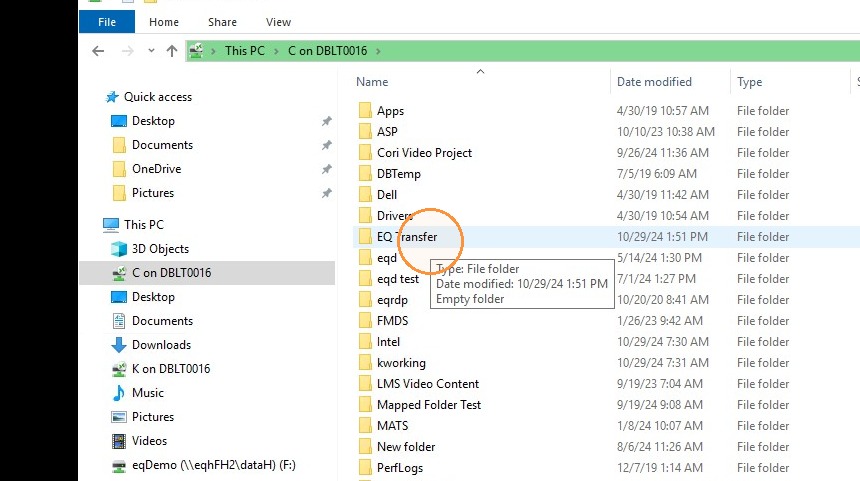
7. Now any file you save into the Quantum Transfer folder will be available on the remote desktop
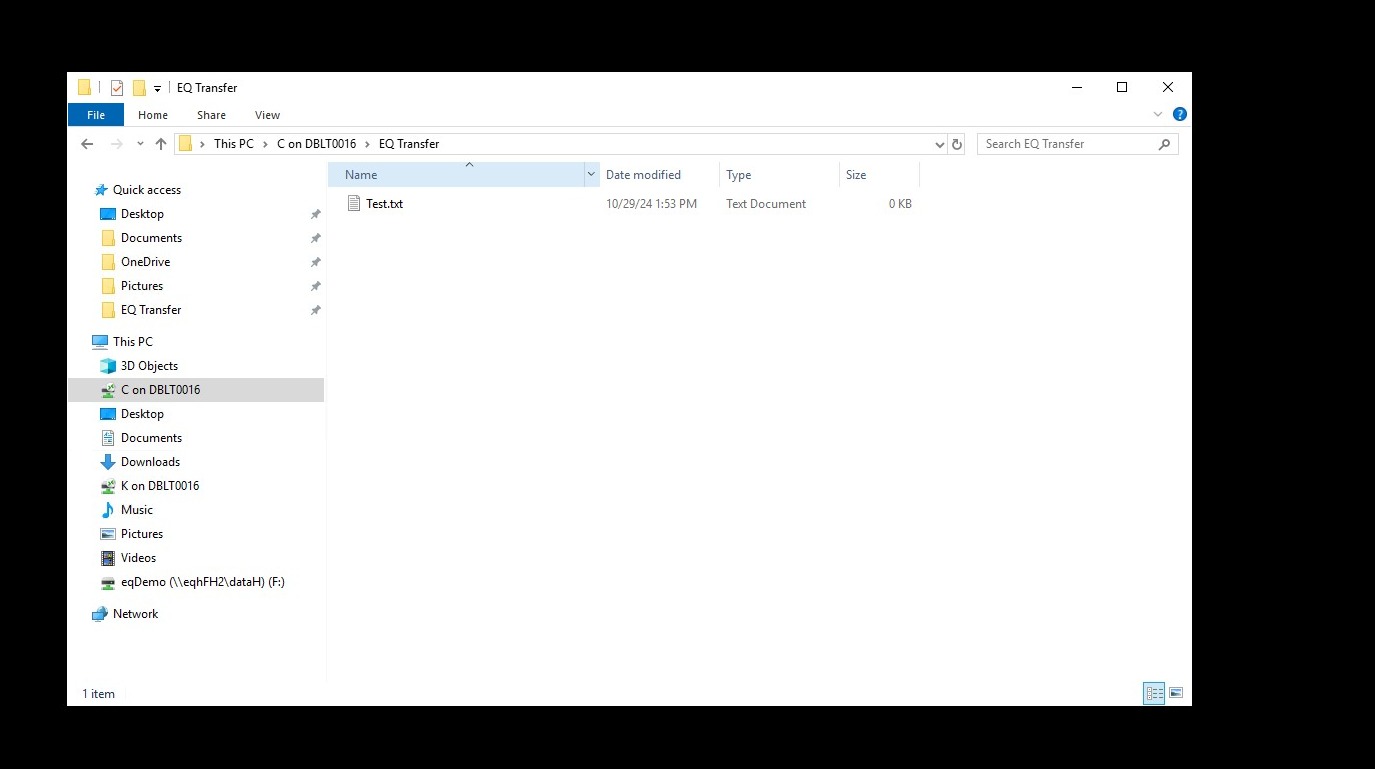
8. And your local computer.
9. Another option, if you would like to have easy access to your Documents folder from your local computer or your local computer desktop you can simply navigate to that location in the remote desktop and then pin it to the quick access.
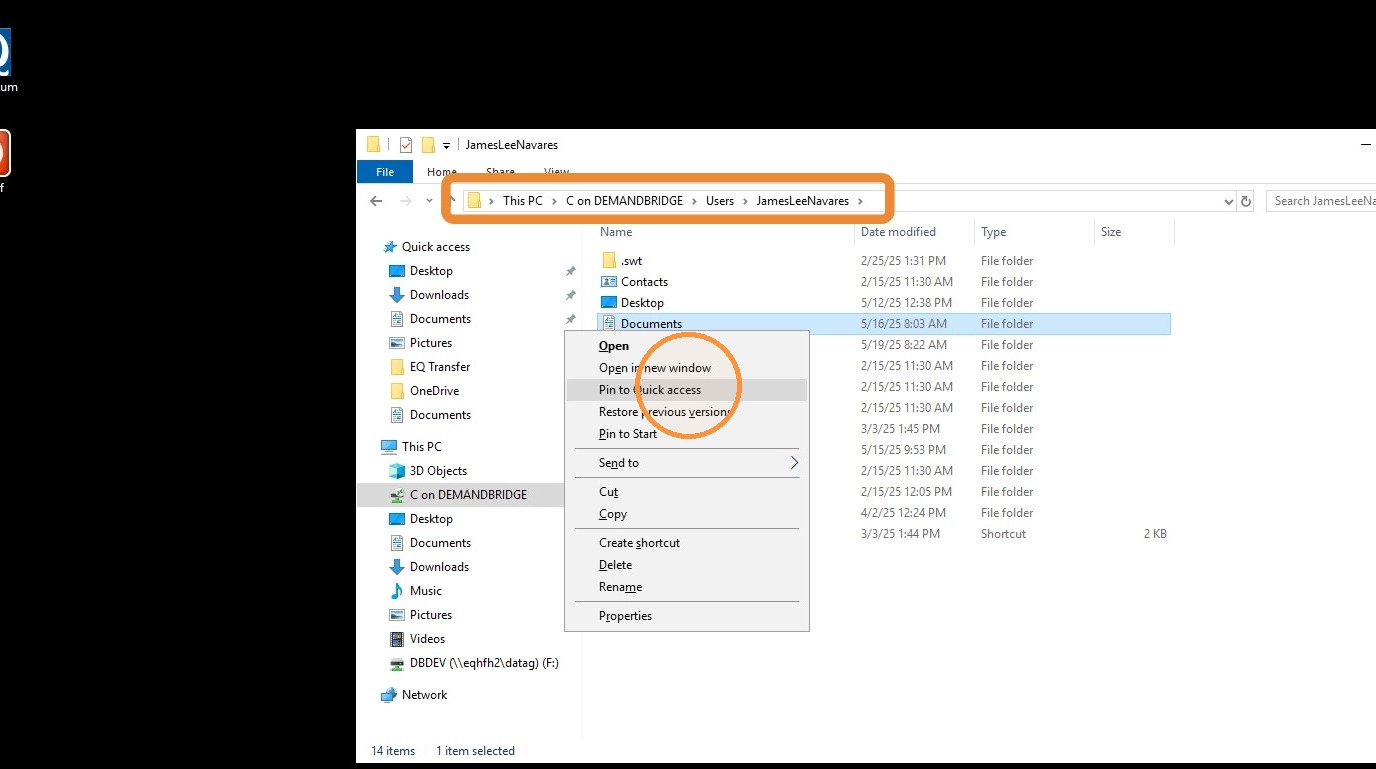
10. Then when you save anything in your documents folder or desktop you will have access to it in the remote desktop.
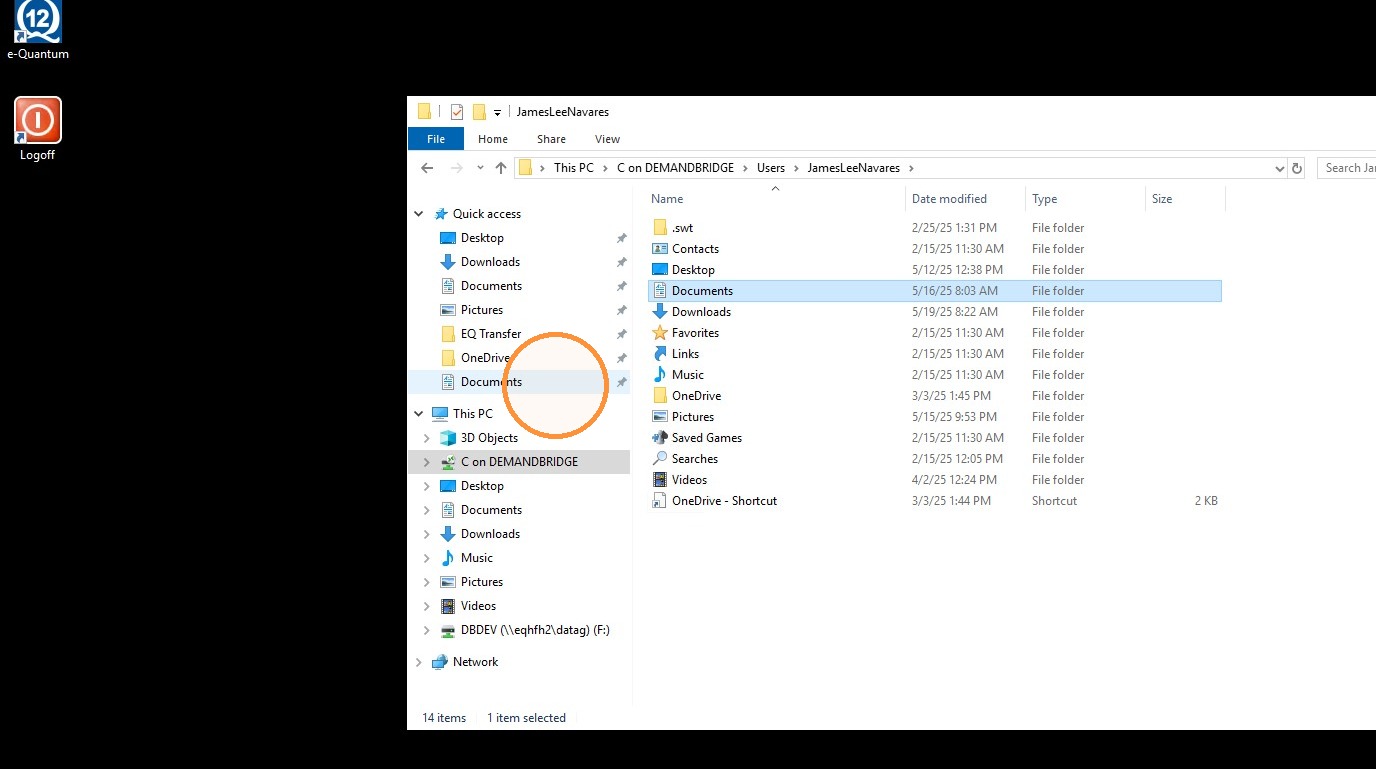
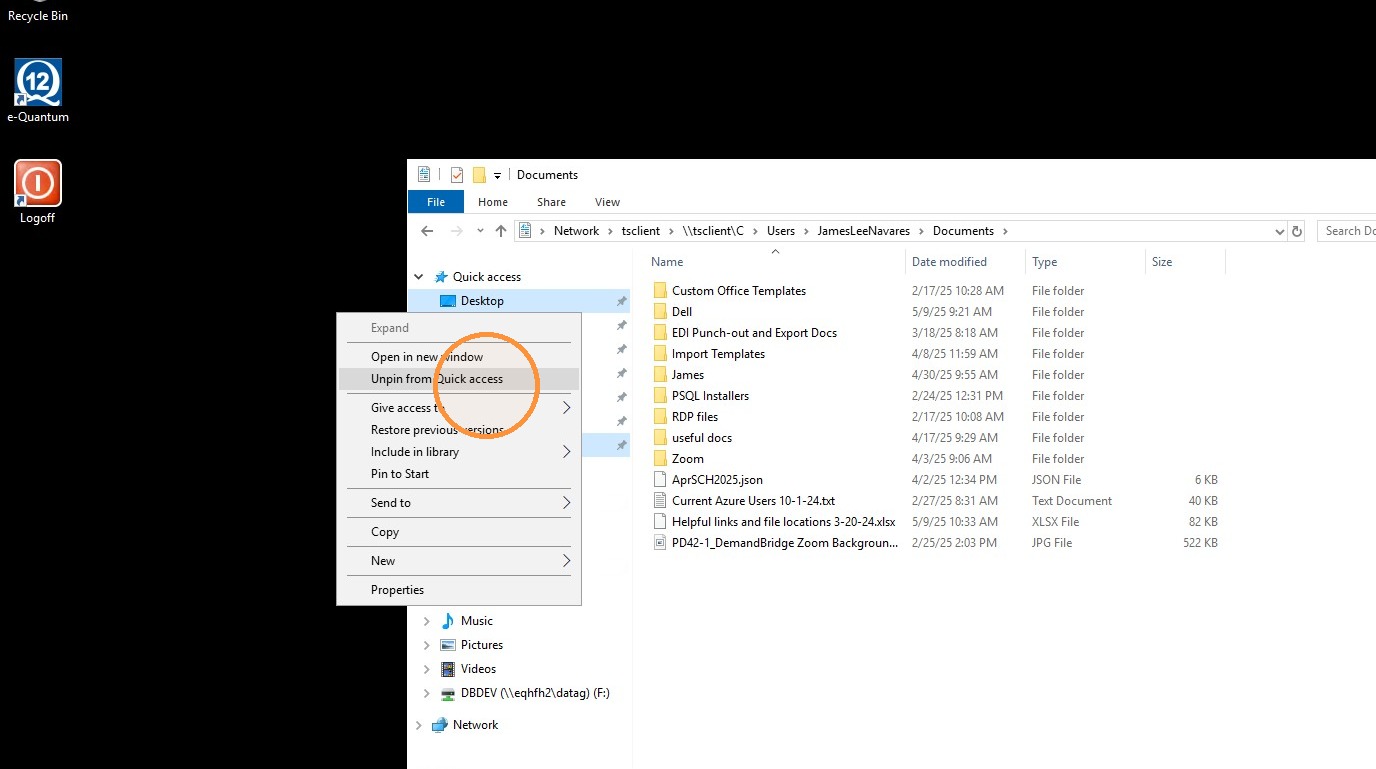
11. It is worth noting that desktop, downloads, documents and, pictures folders that are pinned to the Quick access by default do not connect to your local computer but those exist in the remote desktop.
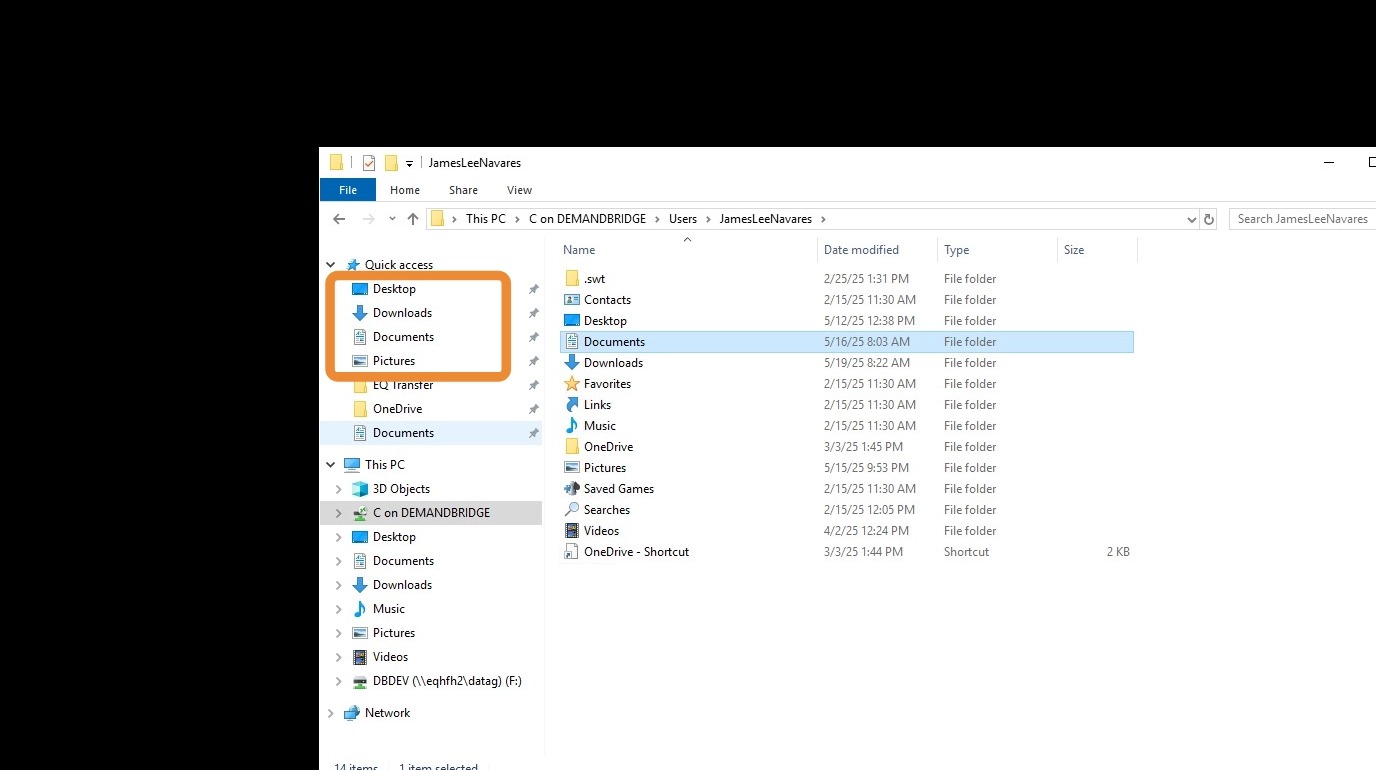
12. Since there is not really a need for these I usually unpin them from Quick access to avoid any confusion between my documents or my desktop Vs the desktop and documents folder that are in the remote desktop.
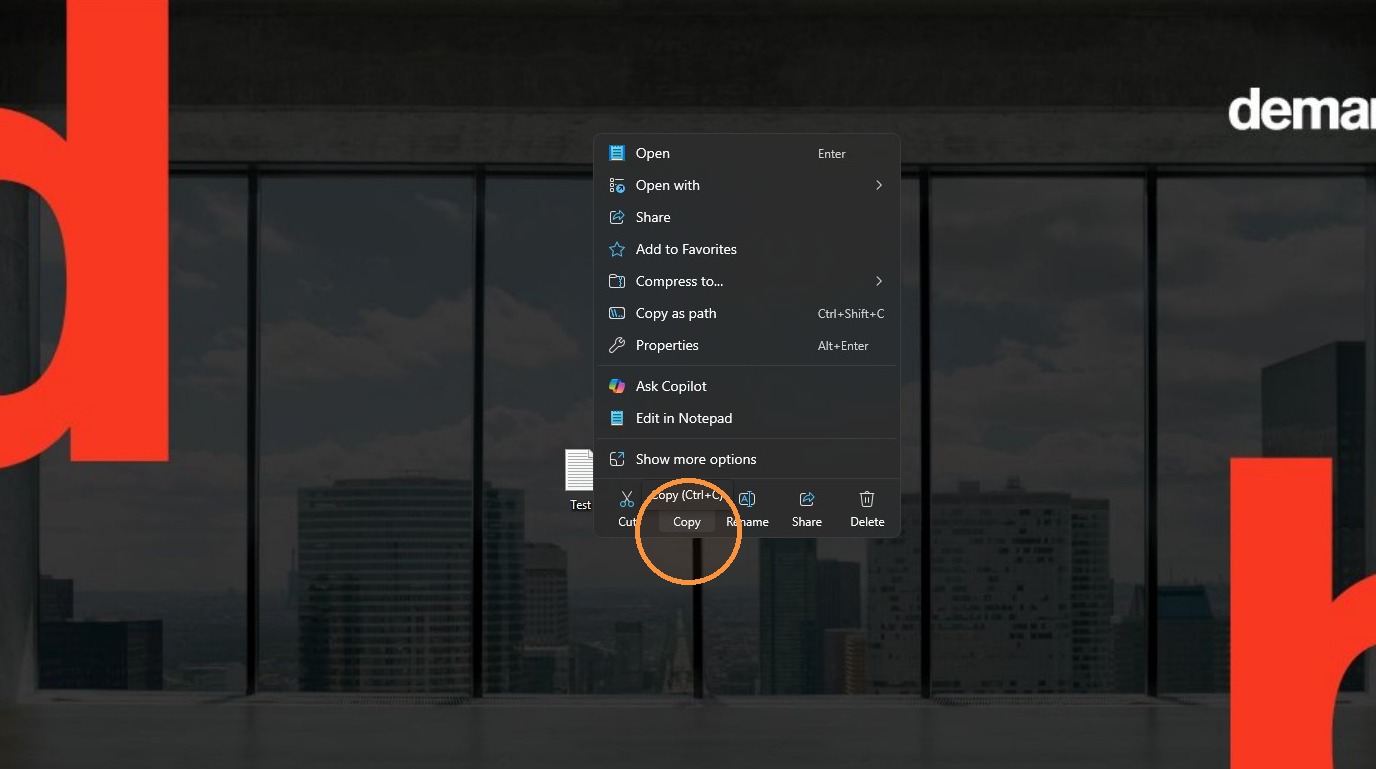
13. Another helpful tip to be aware of is that you can copy a file from your local computer.
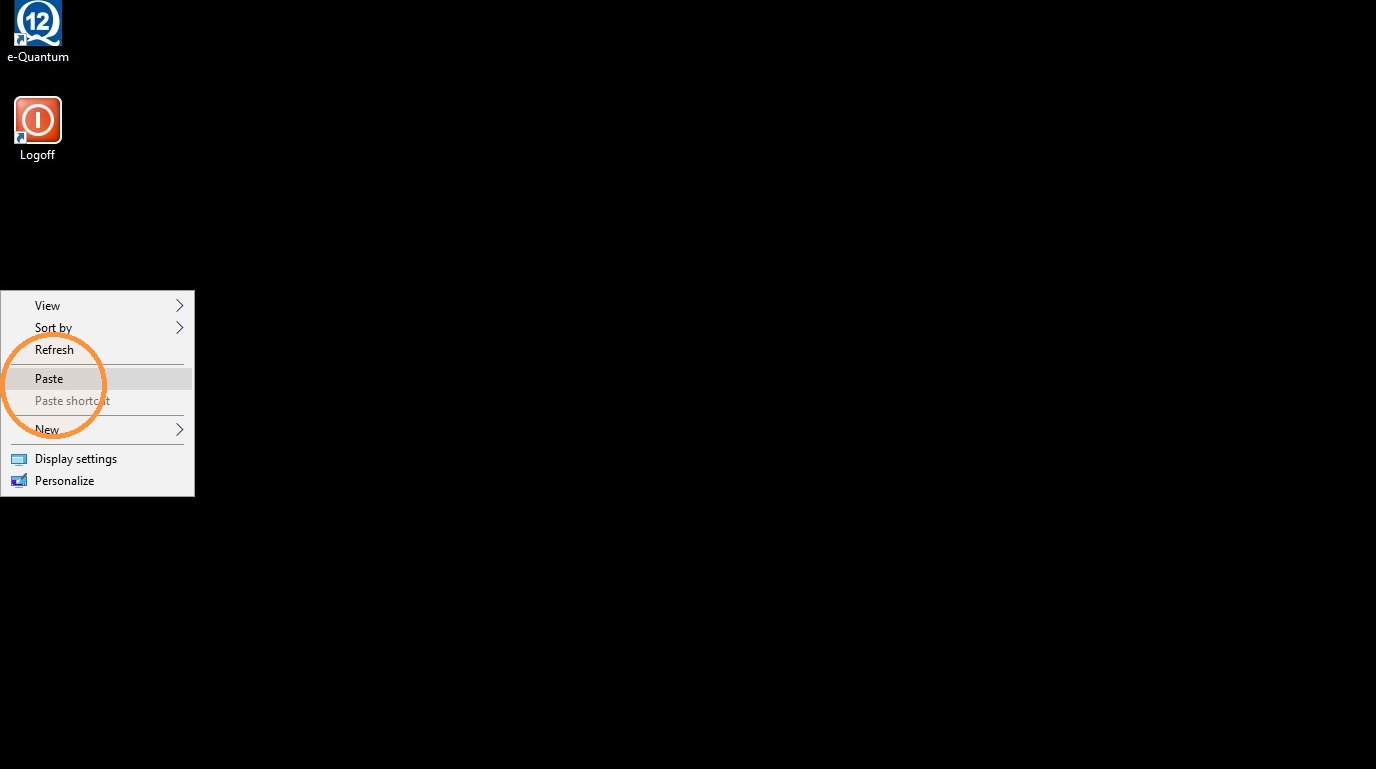
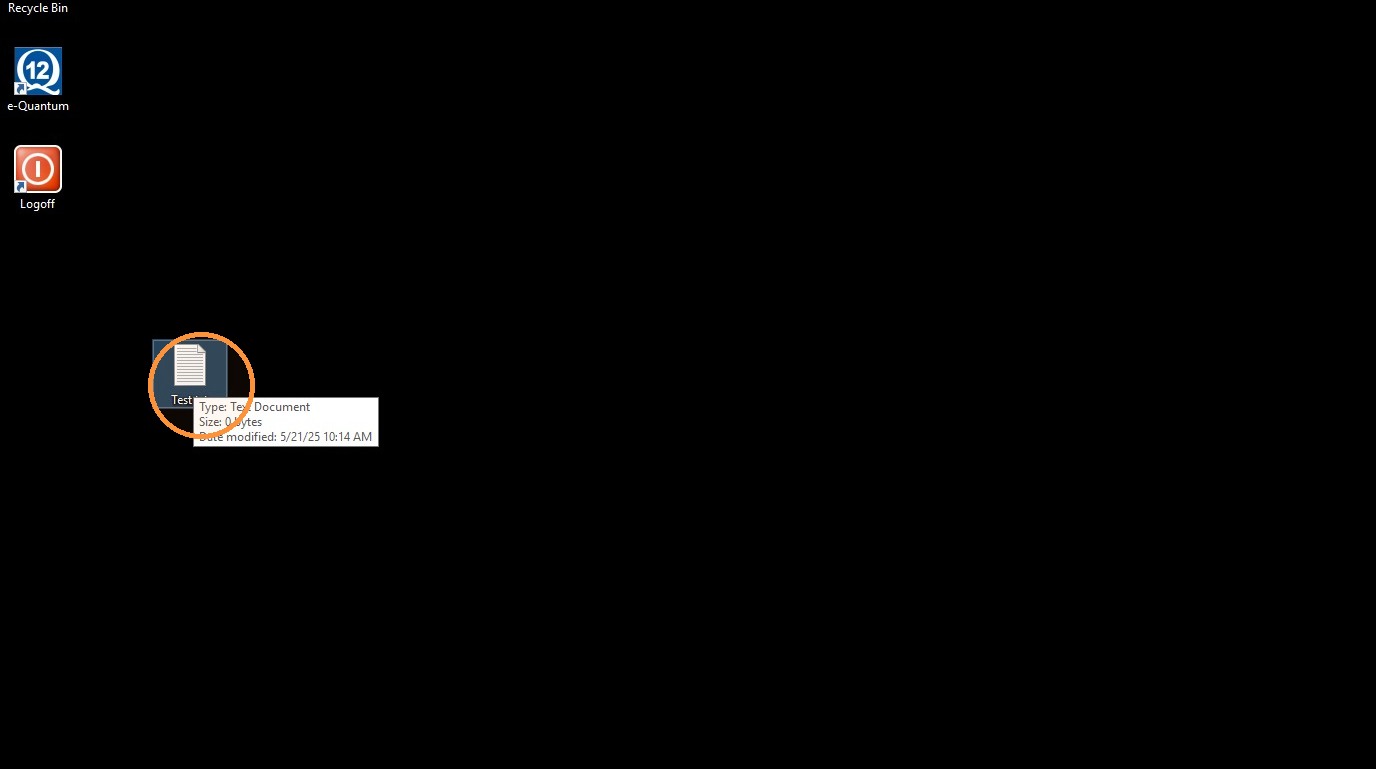
14. And paste it into the remote desktop
15. You can also copy files from the remote desktop and paste it onto your local computer.
Tip: If you have any further questions reach out to DemandBridge support