
DBD: AR - Setup Emailing Customer Statements
DBD: Accounts Receivable - Setup Emailing Of Customer Statements
🔵 Overview This procedure sets up a customer to receive statements by email, using the Statement Flag, the Electronic Forms Delivery Options, and the Email Address setup.
Step 1: Enable the Statement Flag
- Go to customer setup and inquiry and enter the customer code.
- Click Customer Constant Data.
- Click Tab 2 — Setup.
- Check the box — Statement Flag.
- Click Save and Exit.
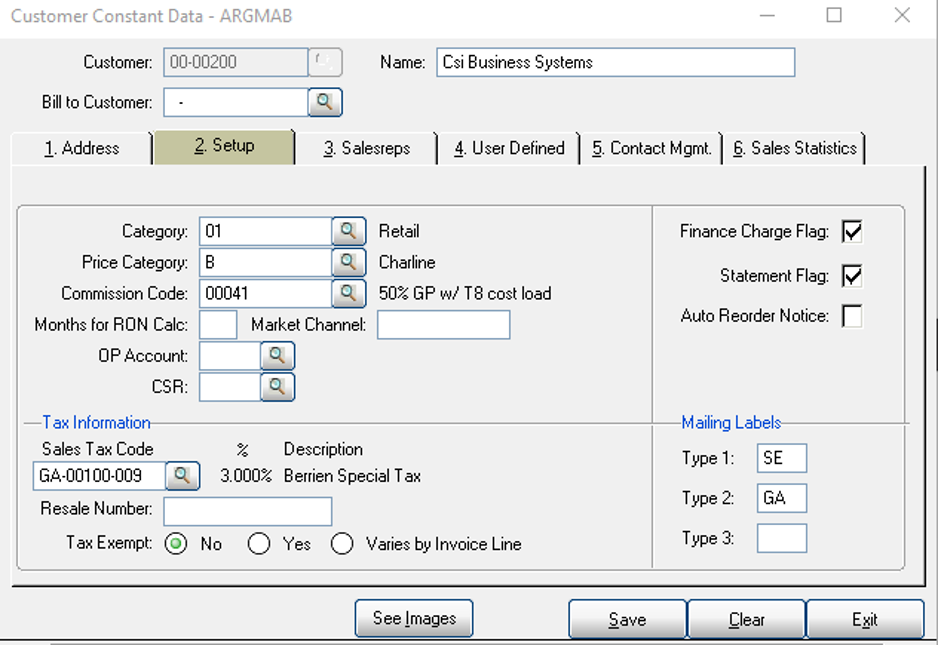
Customer Constant Data - ARGMAB
Step 2: Configure Delivery Options
Go to Electronic Forms Interface.
Path: Setup > Electronic Forms Interface > Setup > Delivery Options
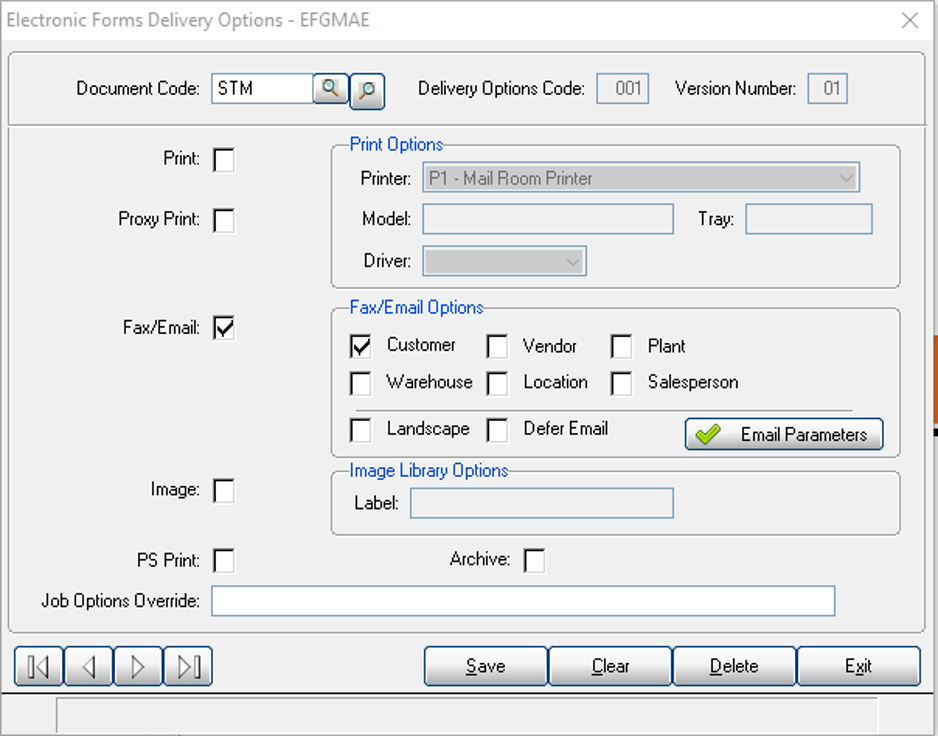
Electronic Forms Delivery Options - EFGMAE
- Click on the Right Query Button and locate Document Code STM and select it.
- Check the Fax/Email box.
- Under Fax/Email Options, check Customer.
- Click Save and Exit.
Step 3: Set the Customer's Email Address
Go to Email Setup.
Path: Setup > Electronic Forms Interface > Setup > Email Address
- Set Fax Number Type to Customer in the drop-down box.
- Enter Customer Code.
- Enter email address.
If you need more than one email address, here is the setup:
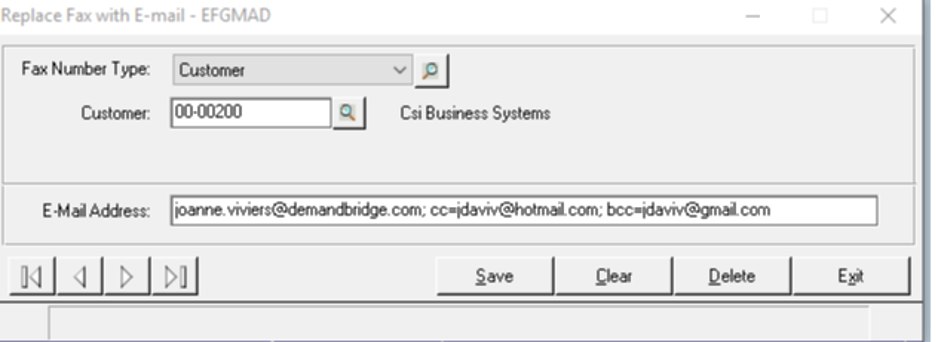
Replace Fax with E-mail - EFGMAD
💡 Note: You may wish to enter your email address on a customer to test.
Frequently Asked Questions
Q: What has to be set at the customer level for statements to email?
A: The Statement Flag must be checked in Customer Constant Data, Tab 2 — Setup.
Q: How do I turn on email delivery for statements specifically?
A: In Setup > Electronic Forms Interface > Setup > Delivery Options, select Document Code STM, check the Fax/Email box, and check Customer under Fax/Email Options.
Q: Where do I enter the customer's actual email address?
A: Setup > Electronic Forms Interface > Setup > Email Address, with Fax Number Type set to Customer, then enter the customer code and email address.
Q: Can I send a statement to more than one email address?
A: Yes — you can enter a primary address plus cc= and bcc= addresses in the E-Mail Address field, separated by semicolons.
Q: How can I confirm this is working before rolling it out to a customer?
A: You may wish to enter your own email address on a customer to test.
Tags: accounts-receivable, customer-statements, email-setup, delivery-options, statement-flag, DB-distributor