
EQD: Running a Patch Update
This guide provides a step-by-step walkthrough for performing a patch update in EQ Distributor.
Alert: Notes Before Applying the Patch.
- MAKE SURE ALL USERS ARE OUT OF EQD AND THE REPORT SCHEDULER IS CLOSED (if you have it).
- (optional) It is unlikely that you will need it, but it is not a bad idea to make a backup of the Q2000 folder or at a minimum the 0001 (or whatever the company folder is).
- (optional) If it is possible restarting the server before running the patch can help things run smoother.
- It is best to apply the patch on the server if possible. But it can be applied from a workstation (though it may take longer) .
- If possible pause any antivirus or firewalls when downloading the patch. If you have a real-time backup service like "Carbonite" it is best to turn this off as well. Keep all these paused while running the patch.
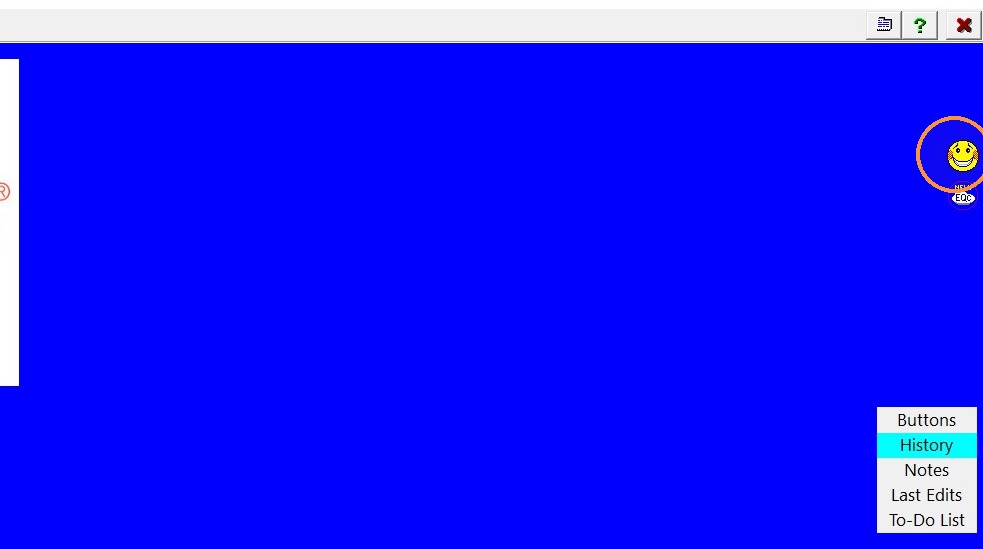
1. Double-click on the smiley face that is on the eQ home screen.
- If you do not see a smiley face you can go to File> Utilities> Install/Update> Download Program Update.
- If you do not have access to log into eQuantum you can go to https://patch.demandbridge.com/ and download the patch file there. Put that file into the Q2000.
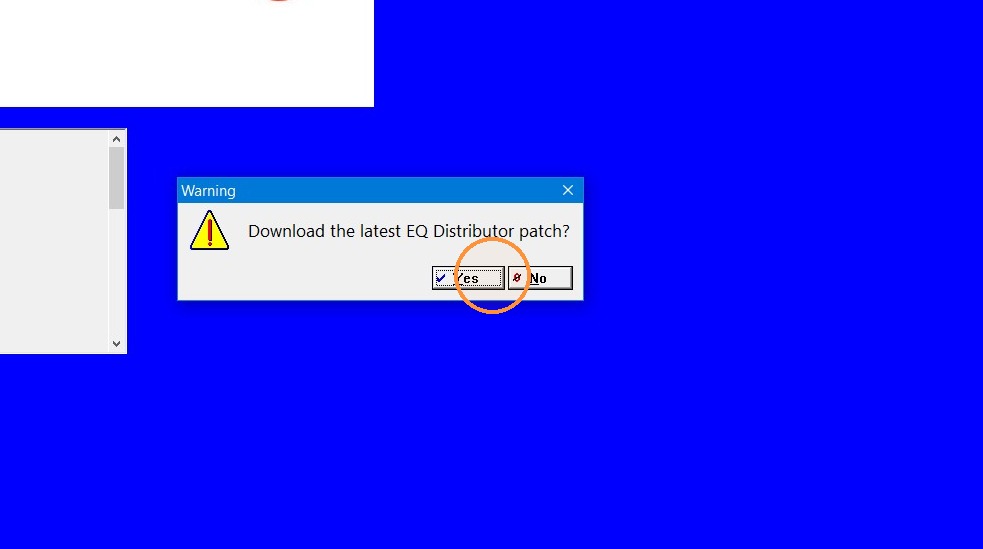
2. Click "Yes" if you are ready to download the patch.
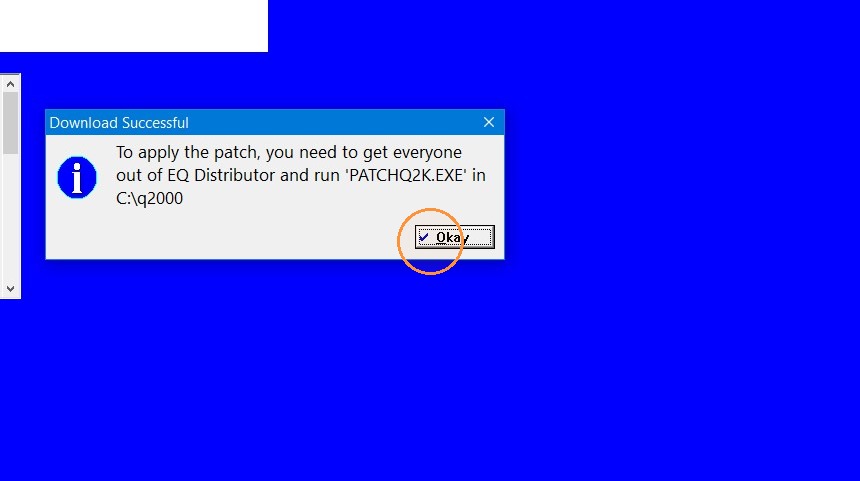
3. Click Okay. If the patch doesn't automatically start go to the Q2000 folder and run the PATCHQ2K file.
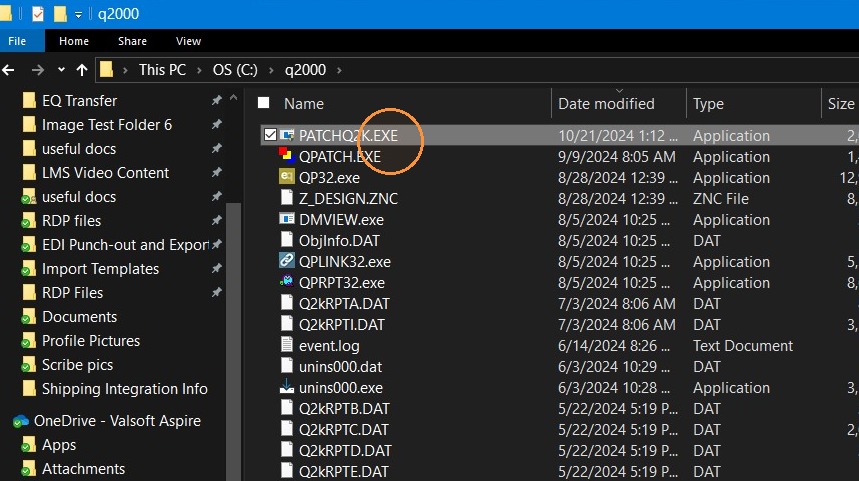
4. If you sort by Date Modified this should bring the PATCHQ2K file. To the top. Double-click to run.
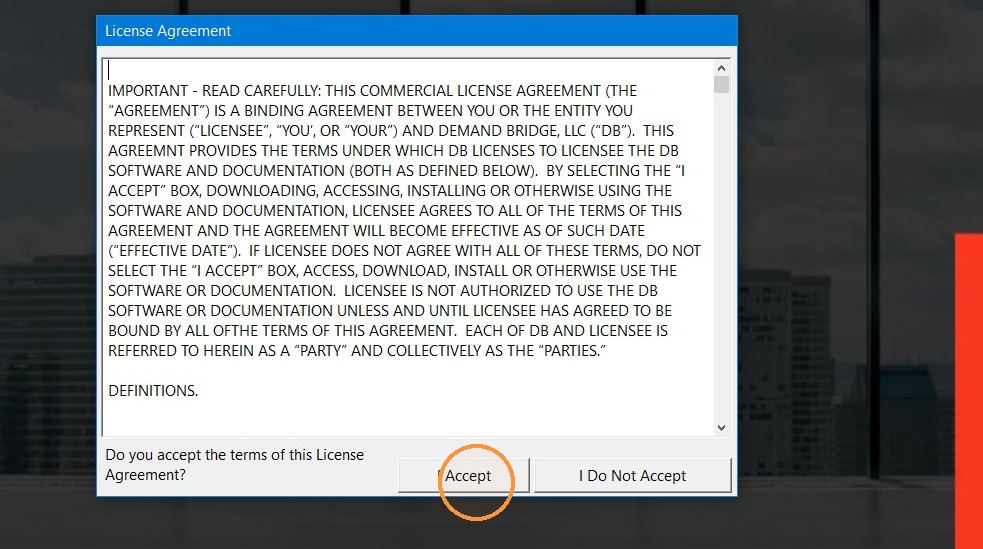
5. Click "I Accept" on the license agreement.
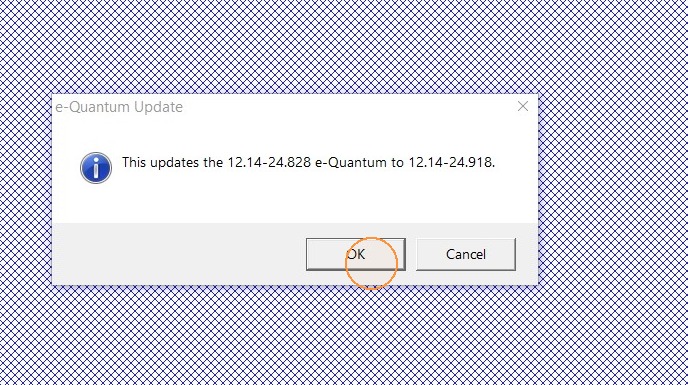
6. Click "OK"
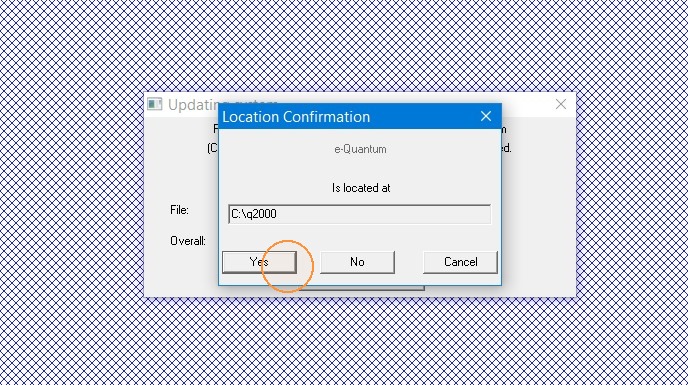
7. Confirm you are updating to the proper location, then click "Yes".
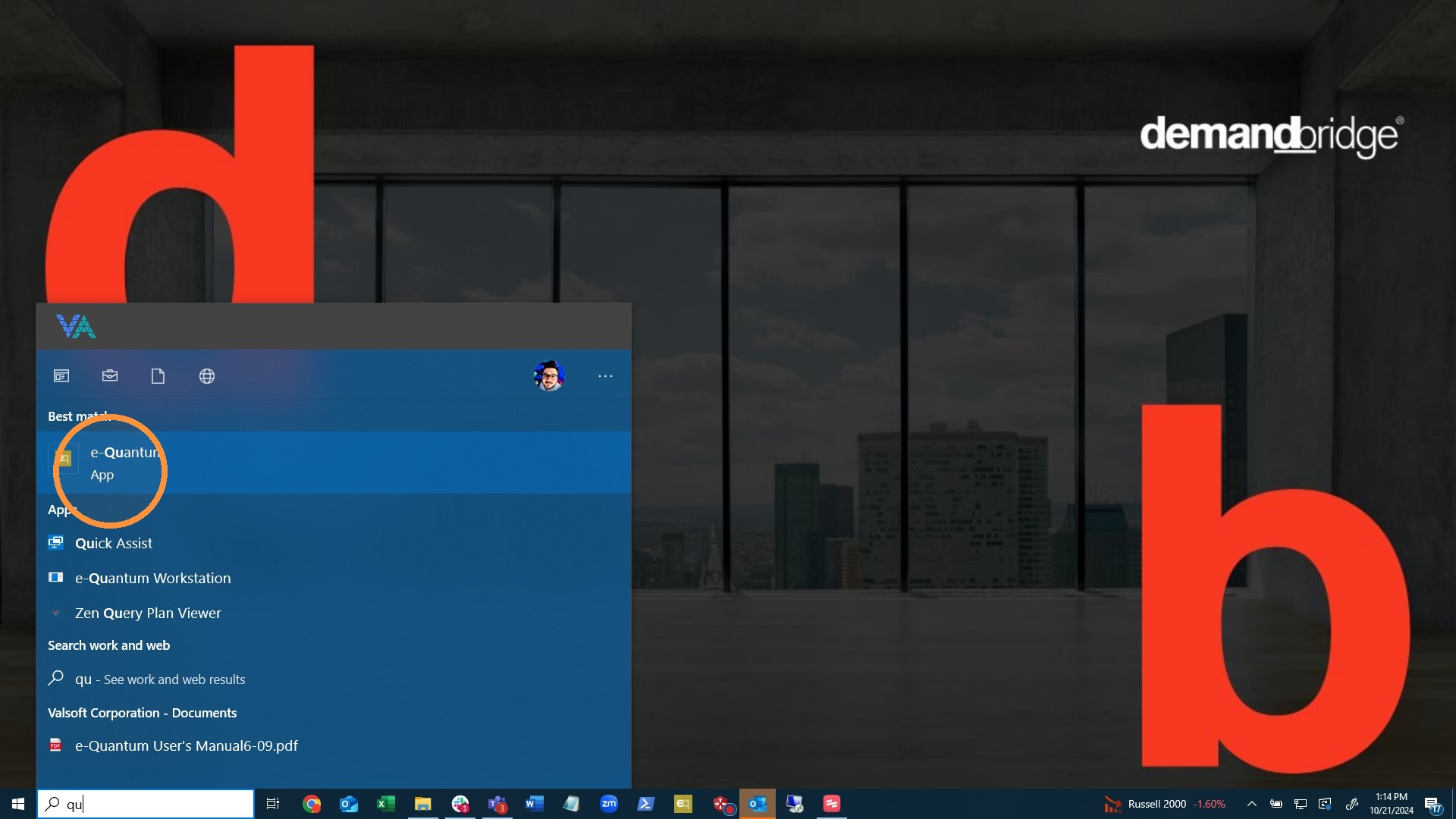
8. Once the update completes launch EQ on a workstation from the start menu NOT from a shortcut that is pinned to the taskbar. Once the workstation updates it should also update the pinned shortcut and it can be used after it updates.
Tip: If you have any questions let us know.