EQd - How to Mass Invoice Client-Owned Releases
There are two ways to close releases in Quantum, and the best option depends on your workflow. • Auto Invoice creates invoices for one or more releases while closing them. Although it requires a few additional steps, it allows you to process multiple releases at once. • Close Client-Owned Releases simply closes eligible client-owned releases without creating an invoice. This is the quickest option when you only need to close the release.
Alert: Important: When using Auto Invoice for client-owned inventory, you must check the "In House" box on the invoice before posting. This prevents the client from being charged for inventory they already own. Additional information about In House invoices is provided later in this guide.
Option 1 – Auto Invoice Releases (Recommended)
1. This is the fastest method for creating invoices and closing multiple releases at one time.
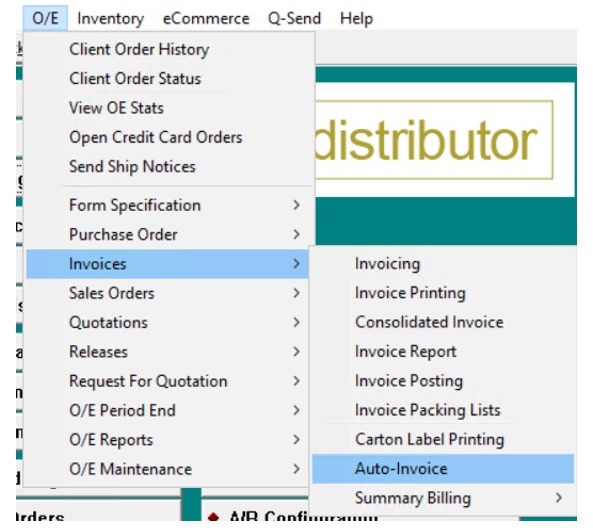
Step 1 – Open Auto Invoice
Navigate to:
OE > Invoices > Auto Invoice
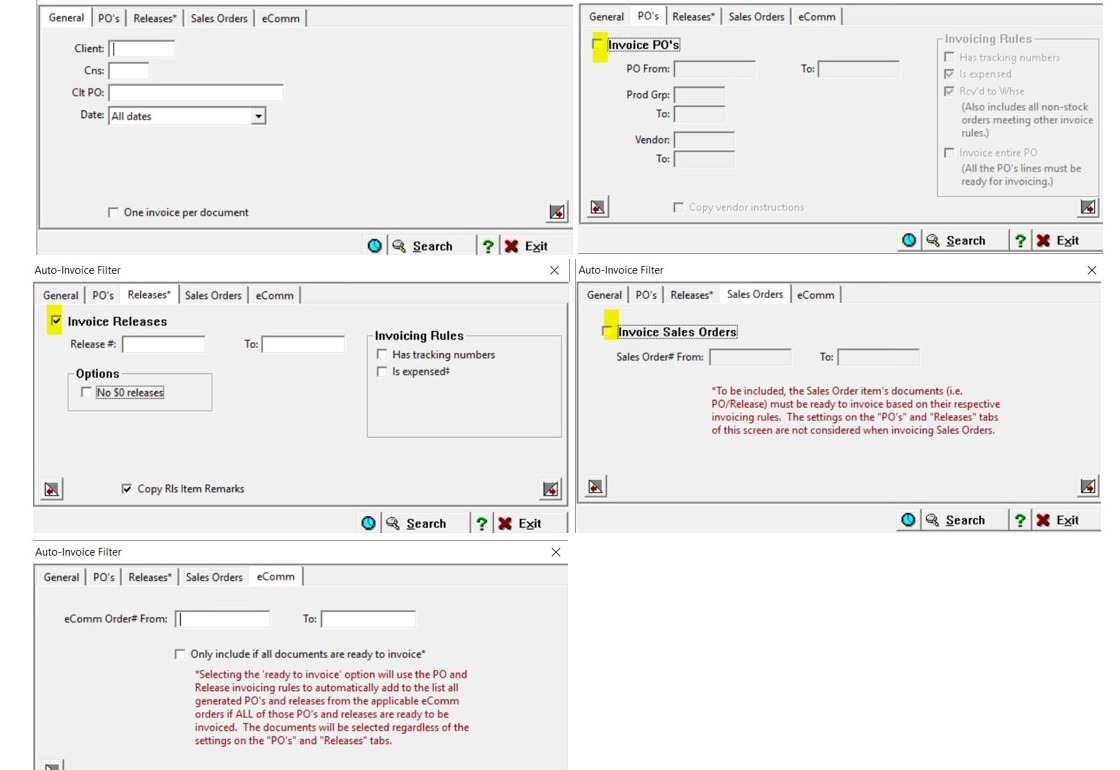
2. Step 2 – Configure the Auto Invoice Options
On the General tab:
- Select the desired Client or leave blank for all clients.
- Optionally filter by CNS, date range, or any other criteria needed.
On the PO tab:
- Uncheck the PO option since you are not invoicing purchase orders.
On the Releases tab:
- Check Invoice Releases.
- Enter a Release Sequence, or leave it blank to include all qualifying releases.
- Choose whether to:
- Follow invoicing rules.
- Include zero-dollar releases.
- If desired, check Copy Release Item Remarks onto Invoice.
On the Sales Order and E-Commerce Orders tabs:
- Uncheck both options since you are only invoicing releases.
Once all selections have been made, click Search.
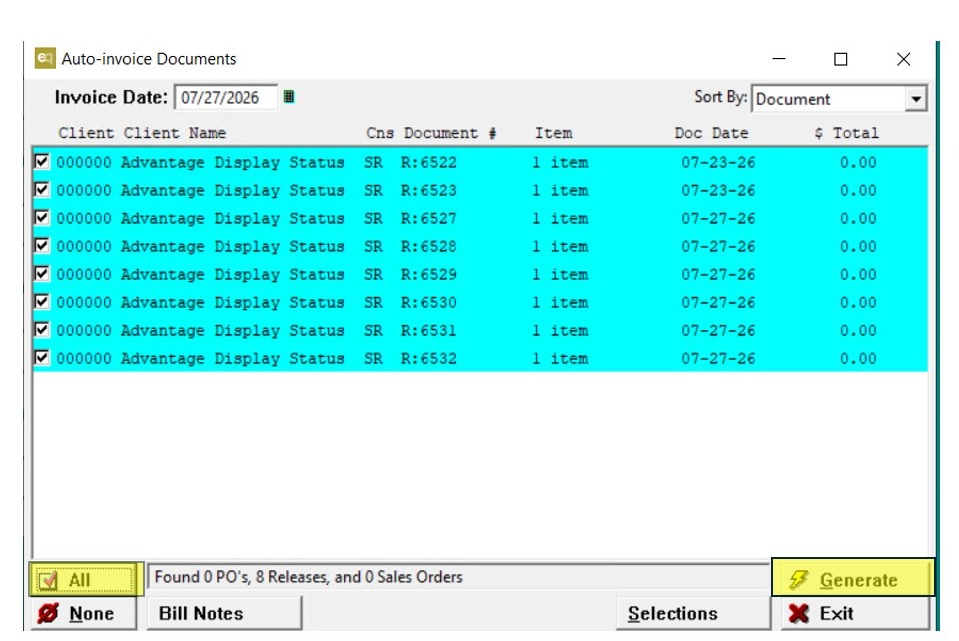
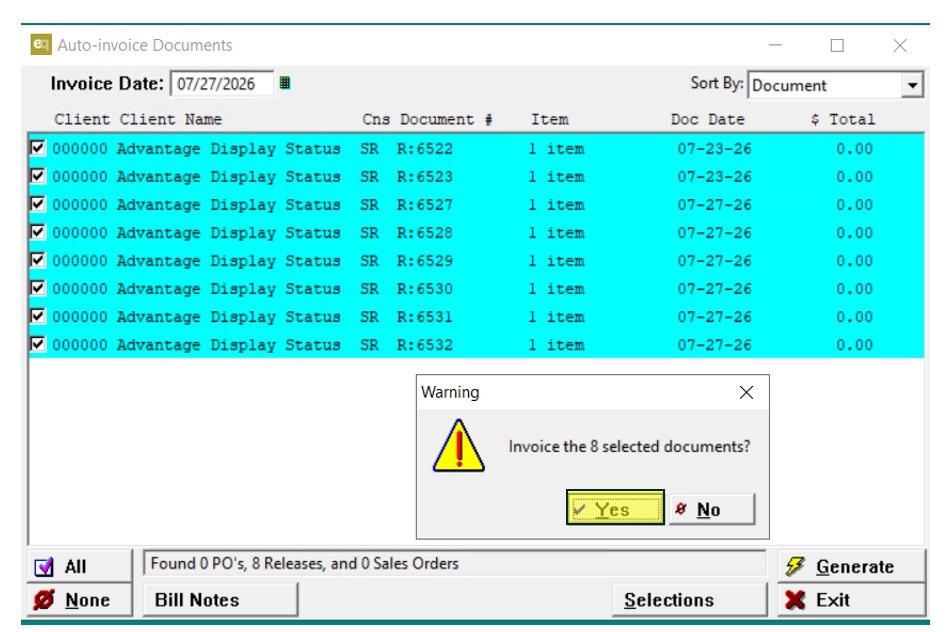
3. Step 3 – Generate the Invoice List
Quantum will generate a list of all qualifying releases based on your selections.
You can then:
- Click All to highlight every release.
- Or manually select the releases you want to invoice.
Click Generate.
4. Step 4 – Confirm Generation
Quantum will ask you to confirm the invoice generation.
For example:
Invoice the 8 selected documents?
Click Yes.
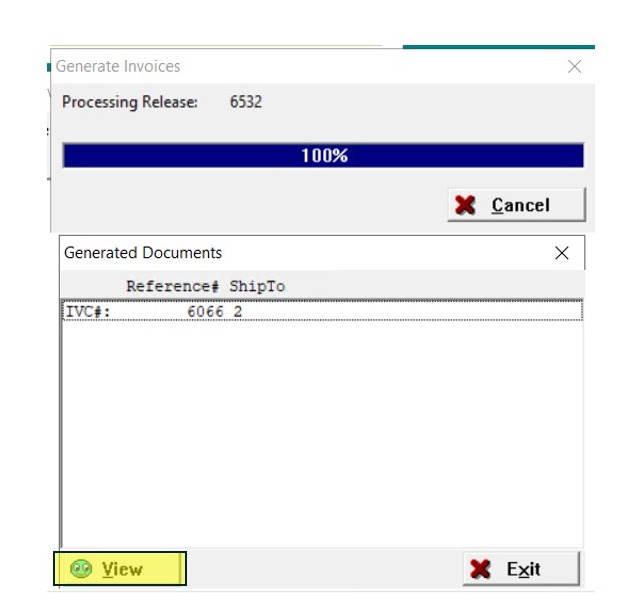
5. When processing is complete:
- The progress window will display 100% Complete.
- The processed release(s) will be listed.
- The last invoice number created will also be displayed.
Click View to open the generated invoice.
6. ## Step 5 – Mark the Invoice as In House
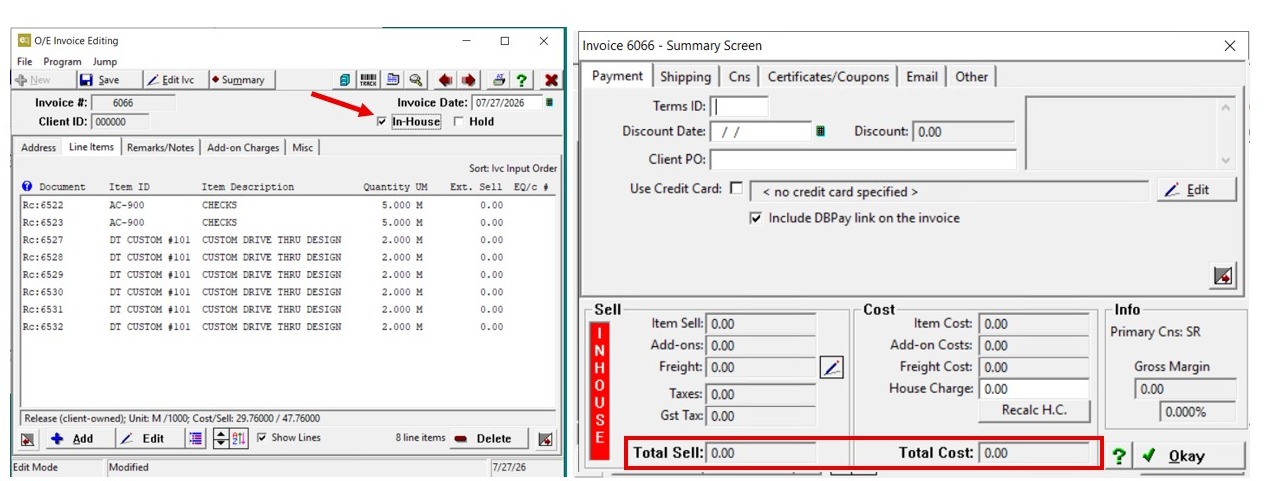
Open the invoice in Edit Mode.
Select Summary.
Before posting the invoice, always check the "In House" box.
Because this is client-owned inventory, the client should not be billed for their own inventory.
After checking In House, return to the Summary screen.
Verify that:
- Sell = $0.00
- Cost = $0.00
What Is an In House Invoice?
An In House Invoice is a zero-dollar invoice used to close a release, purchase order, or kit order without billing the client.
An In House invoice:
- Creates an invoice with $0.00 cost and $0.00 sell.
- Has no impact on the General Ledger.
- Does not generate commissions.
- Is posted to Accounts Receivable.
- Is not included in the client's invoice history.
Posting the Invoice
After verifying the invoice is marked In House:
- Print the invoice using Preview (printing or emailing is not required).
- Open Post Invoice.
- Exit when the posting process is complete.
Important: Always verify that the invoice is marked In House before posting. This ensures the invoice closes the release without billing the client or affecting the General Ledger.
Option 2 – Close Client-Owned Releases
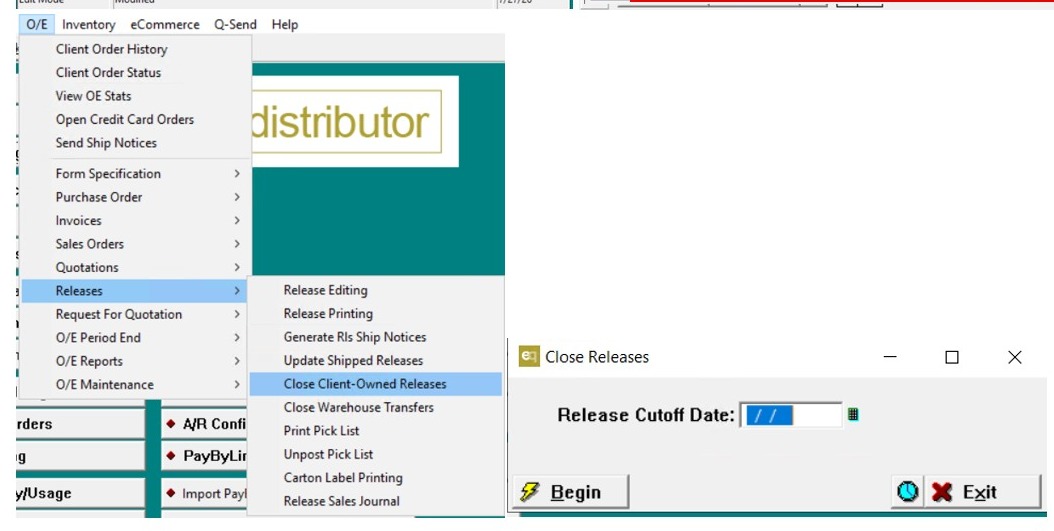
7. Close Client-Owned Releases
- Navigate to OE > Releases > Close Client-Owned Releases.
- Select the appropriate date.
- Run the process.
This will close all client-owned releases that are ready to be closed.
Important Notes
- Releases that contain both client-owned and distributor-owned inventory will not close using this process.
- Releases with backordered items that have not been filled will not close.
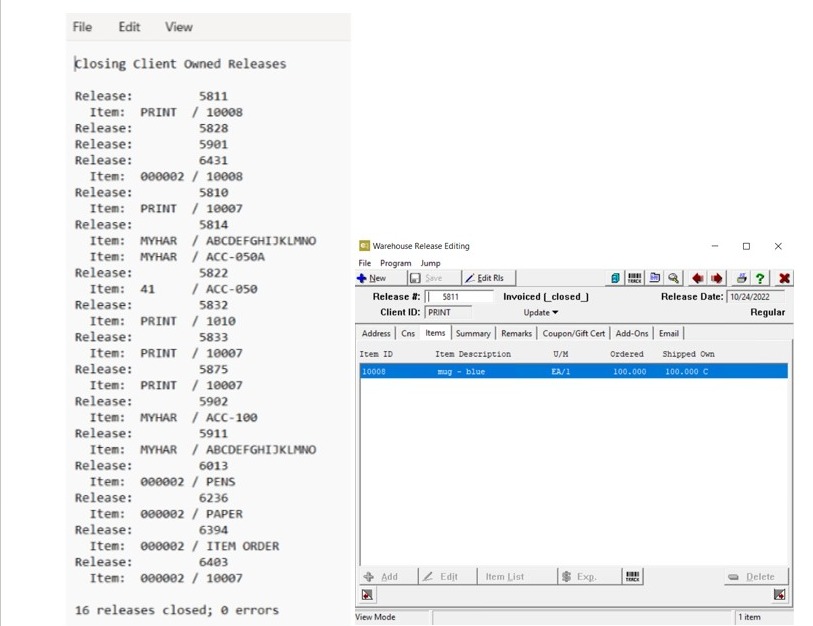
8. Step 6 – Review the Results
Once the process is complete, Quantum will ask if you would like to view the log.
The log displays all releases that were successfully closed during the process and can be printed or saved for your records.
You can also open an individual release to verify that its status has been updated to Closed.