EQd: Refunding the Client's Overpayment or On-Account Credit
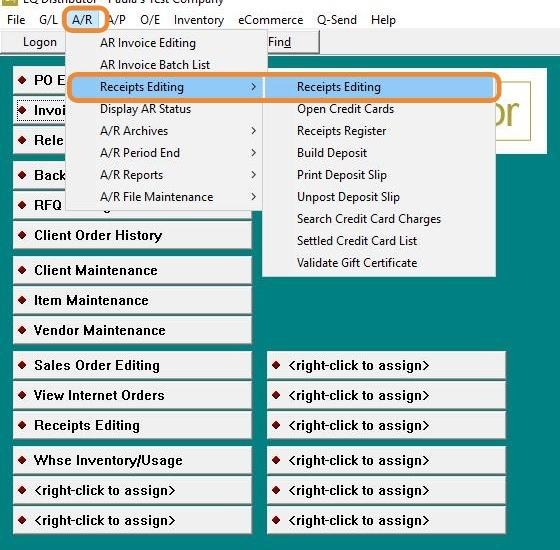
1. Access the Original Receipt:
A/R > Receipts Editing > Receipts Editing.
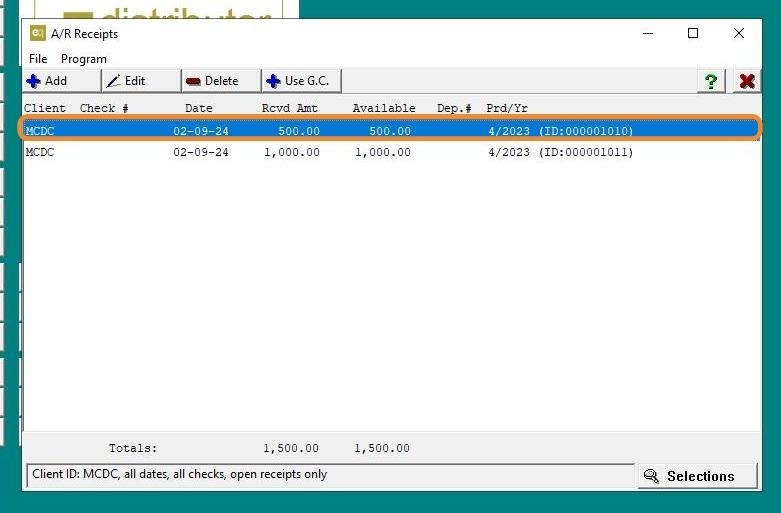
2. Click "Selections"
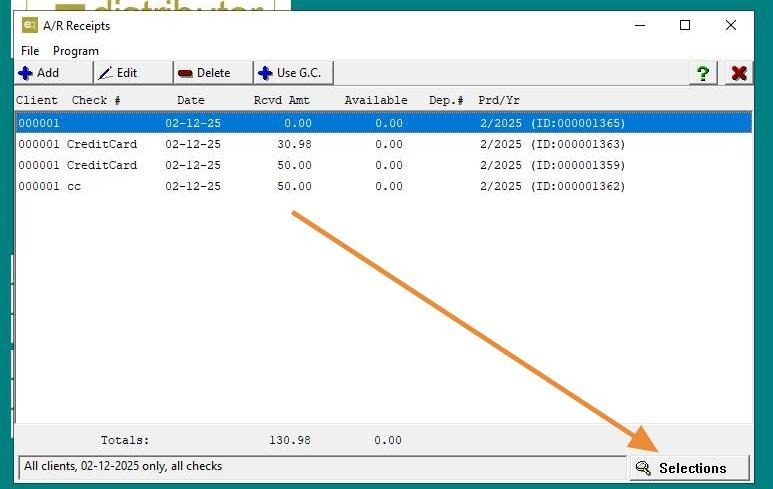
3. AR > Receipts Editing > Receipts Editing
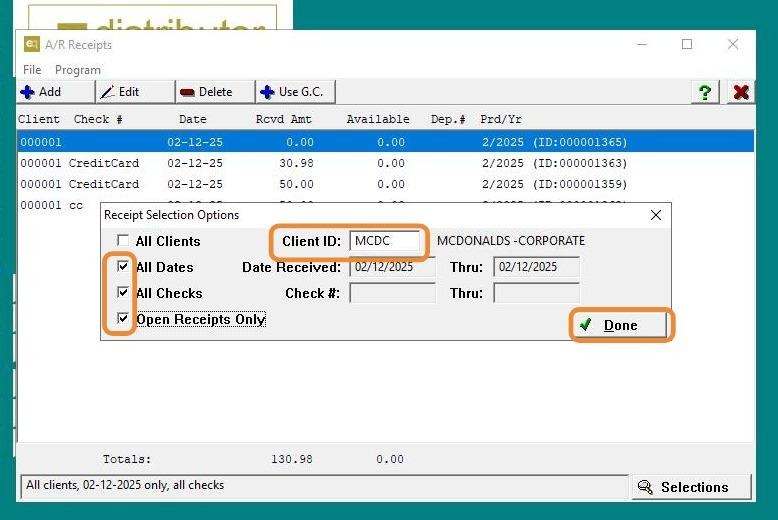
- Selections (lower right corner):
- Enter the client.
- Check the three boxes: All Dates, All Checks, Open Checks Only.
- Click Done.
4. Edit the receipt
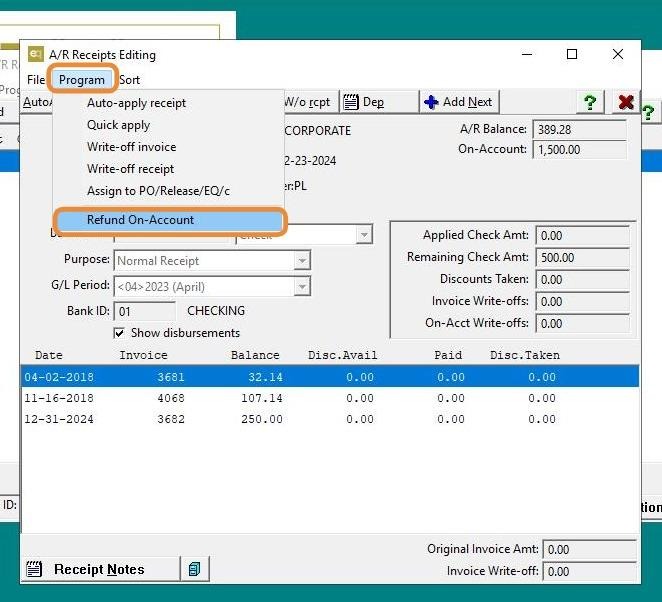
5. Select "Program" > Choose "Refund On-Account".
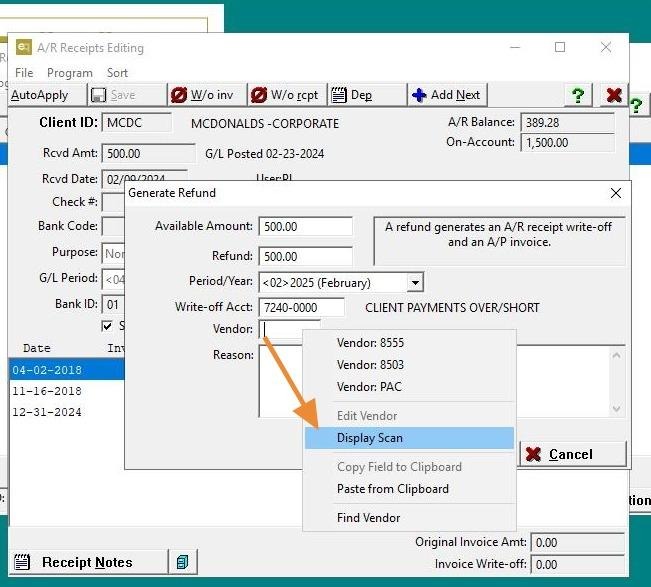
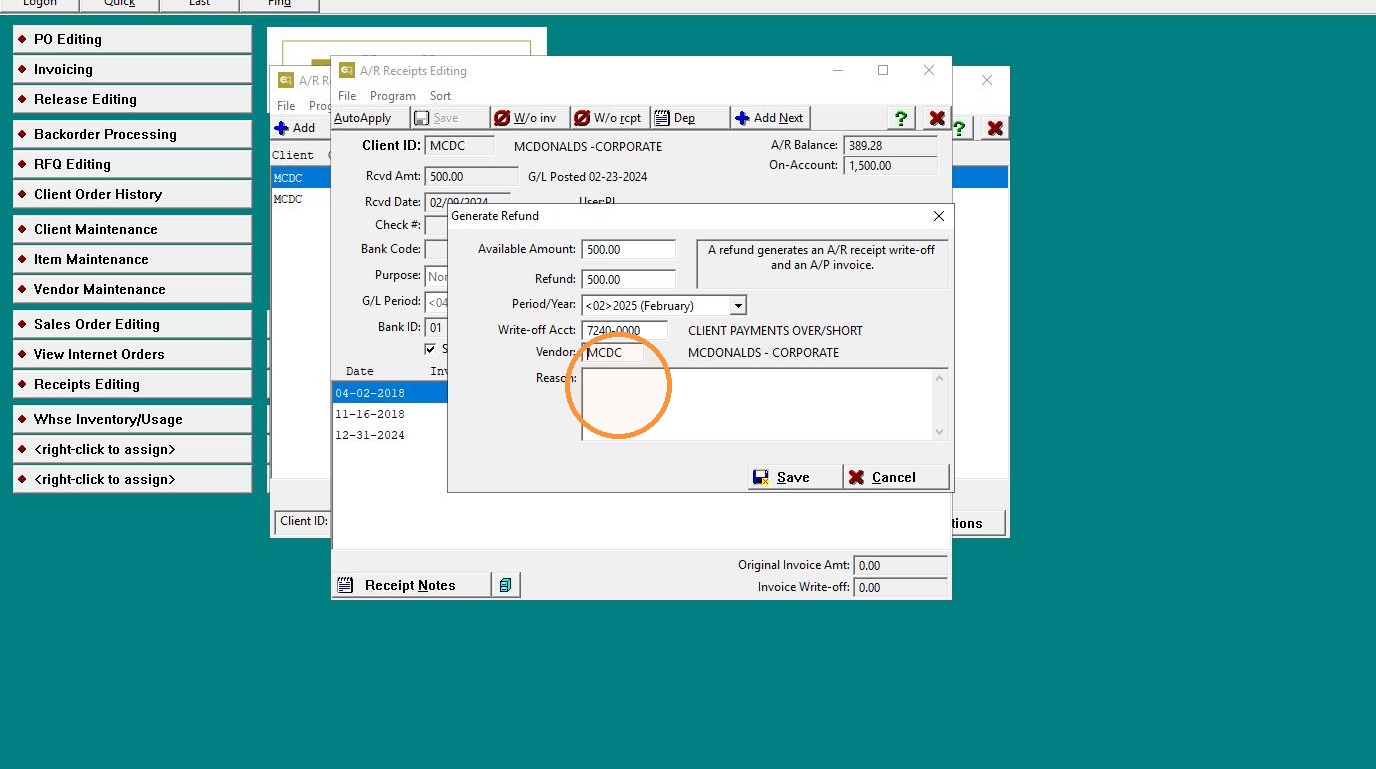
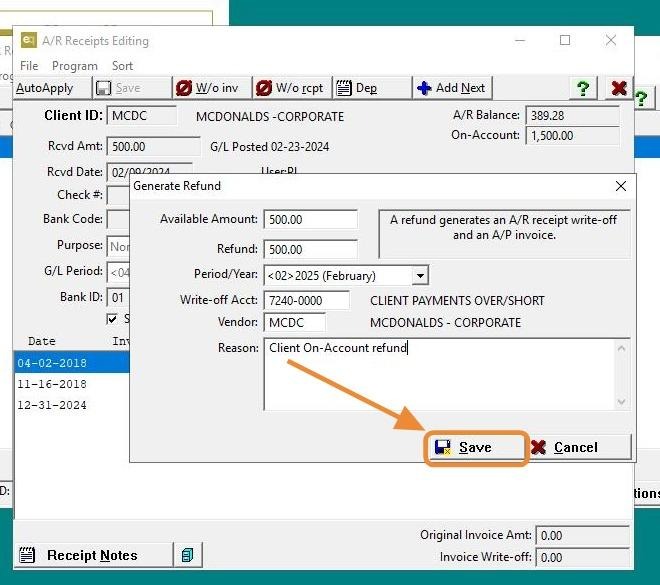
6. - Available: Auto-fills the amount.
- Refund: Enter the amount to be refunded.
- Period/Year: Select the current period.
- Write-off Account: Defaults to the write-off account listed in AR Configurations (edit if needed).
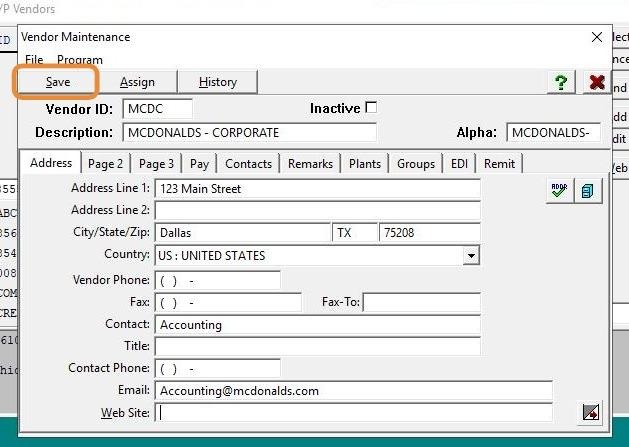
- Vendor:
- Right-click > Display Scan > Add > Add the client as a vendor.
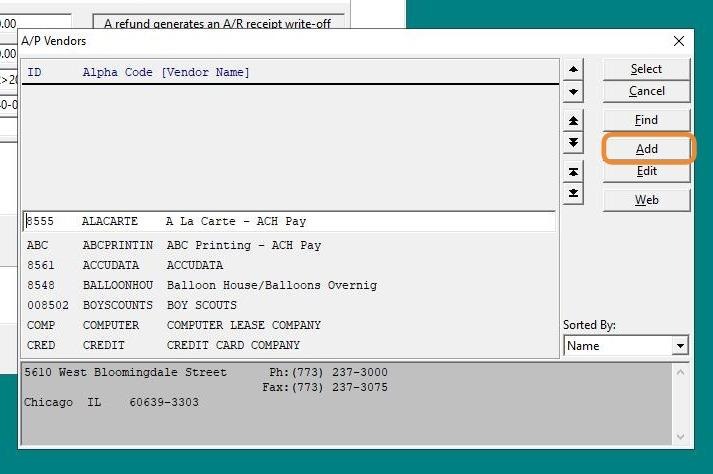
7. Click "Add" to add the client as a vendor.
8. Enter vendor information.
- Use the client ID as the vendor ID (optional).
- Default GL: (Page 2) Enter the GL account for the refund.
- Click Save.
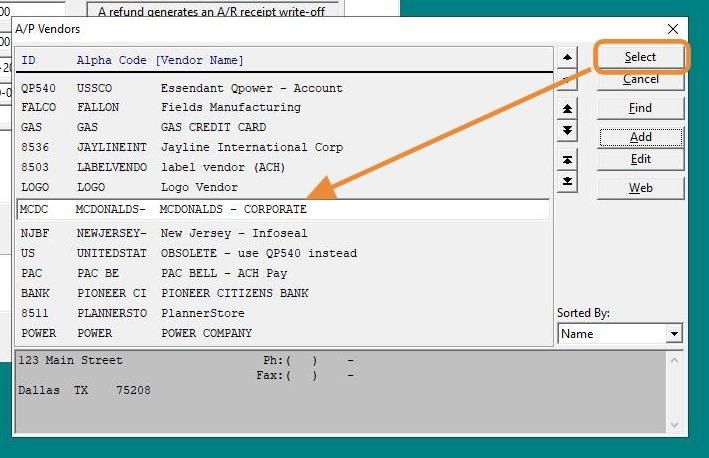
9. Click "Select"
10. Reason: Enter a reason (optional)
11. Click "Save".
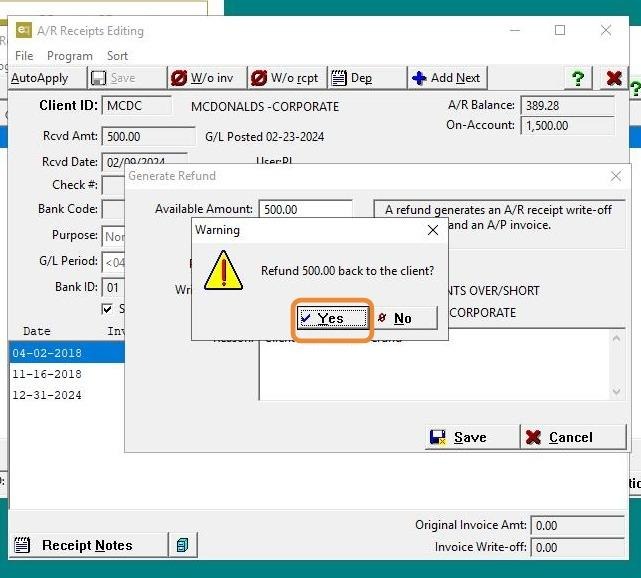
12. Click Yes> Confirm "Refund the receipt to the client?"
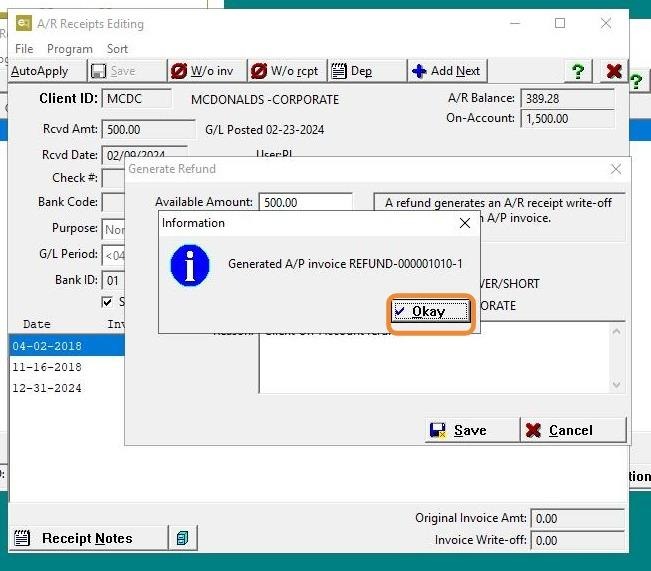
13. System generates A/P Invoice REFUND-xxxx > Click Okay.
- The on-account amount is adjusted by the refund amount.
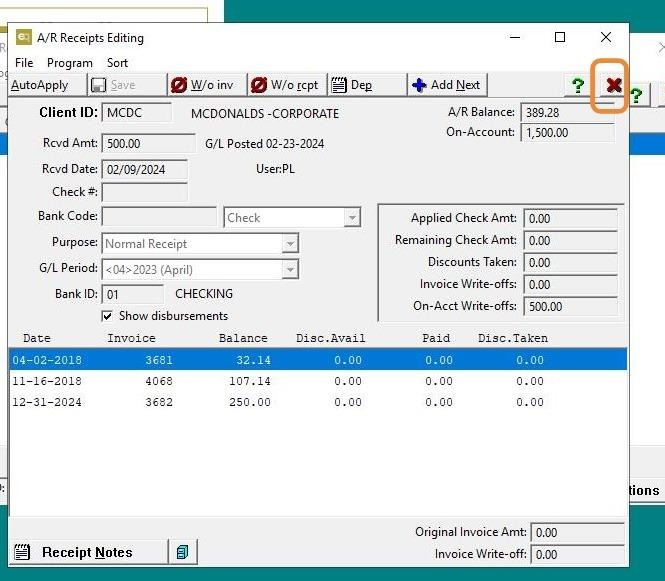
14. Click "X" icon twice.
15. #### Issue the Check to the Client
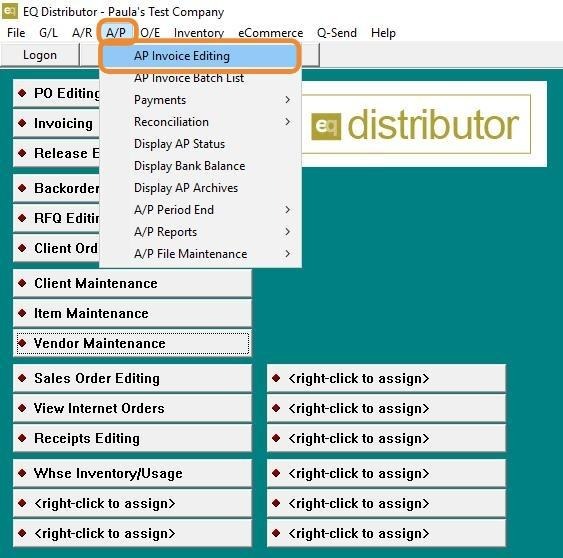
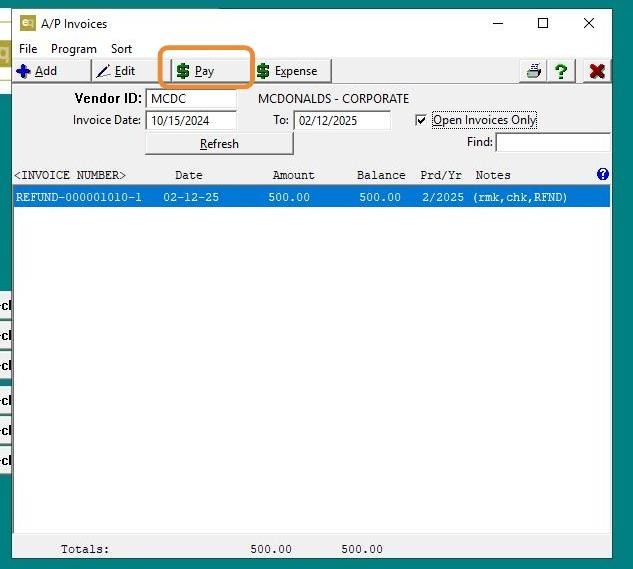
- AP > AP Invoice Editing
16. Select "Pay".
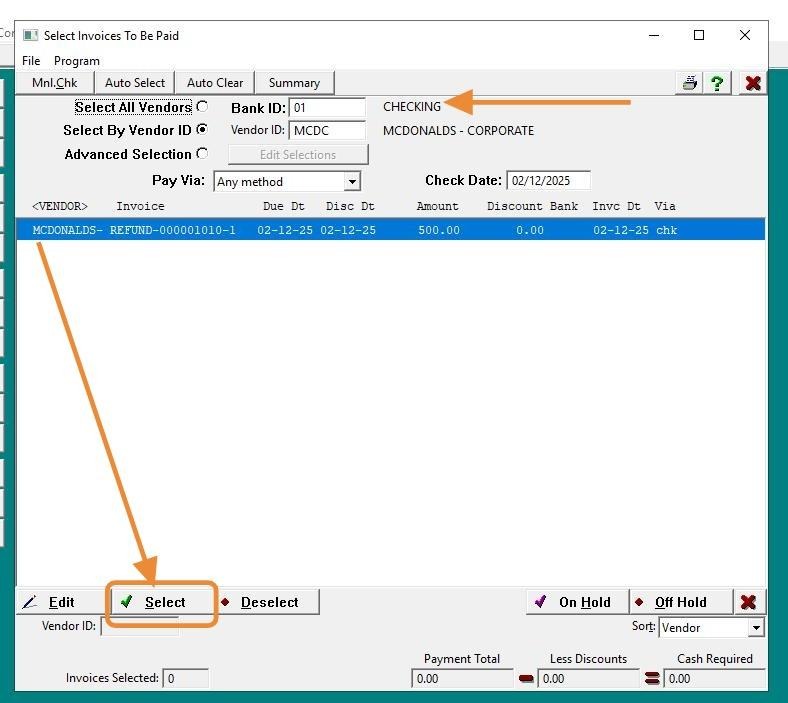
17. Highlight the invoice > Click "Select" > Enter the Bank ID > Exit twice.
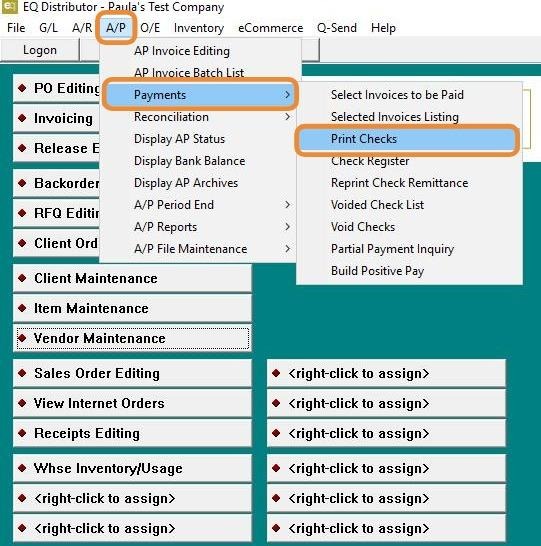
18. AP > Payments > Print Checks
19. - Vendor ID: Select the vendor.
- Review the range selections, then Preview.
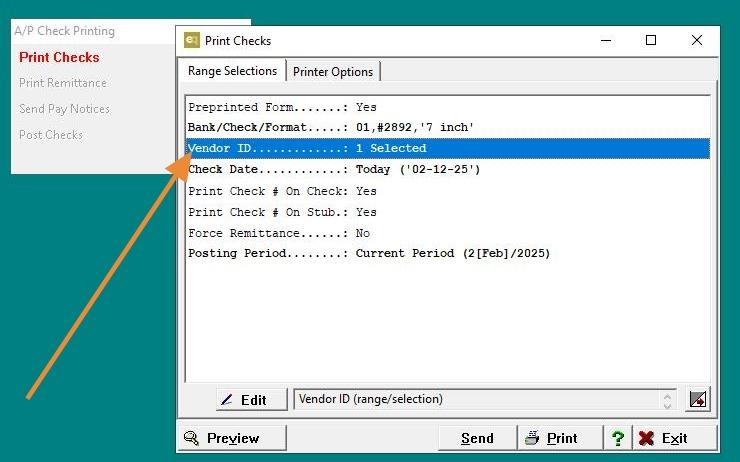
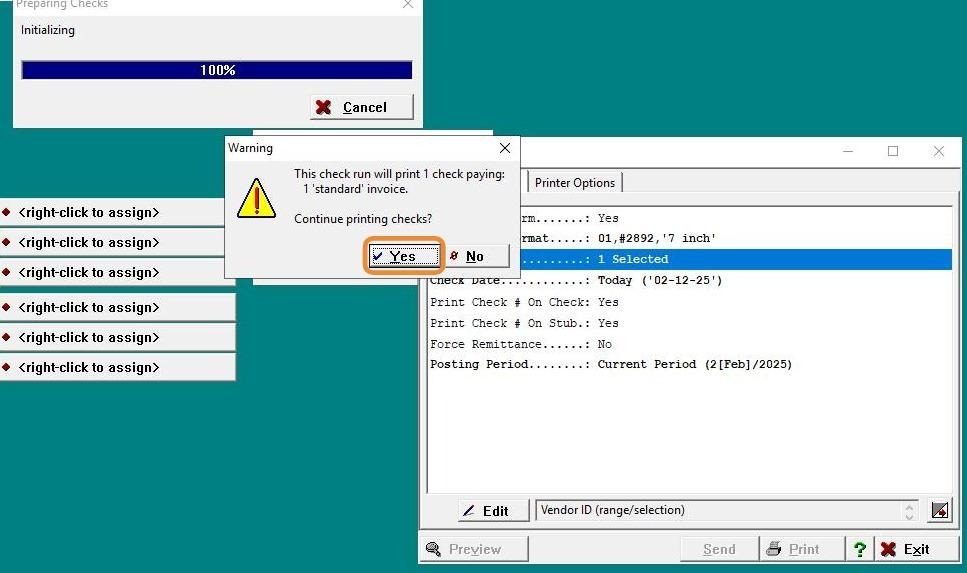
20. Click "Preview/Print", then select "Yes" to continue. Proceed to print the check.
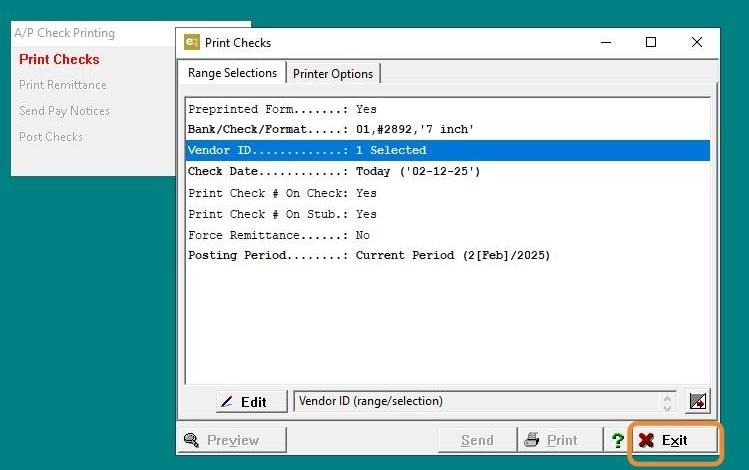
21. Click "Exit"
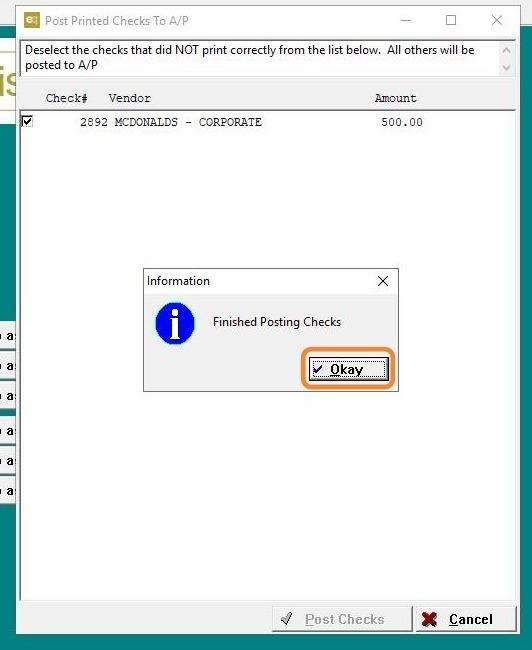
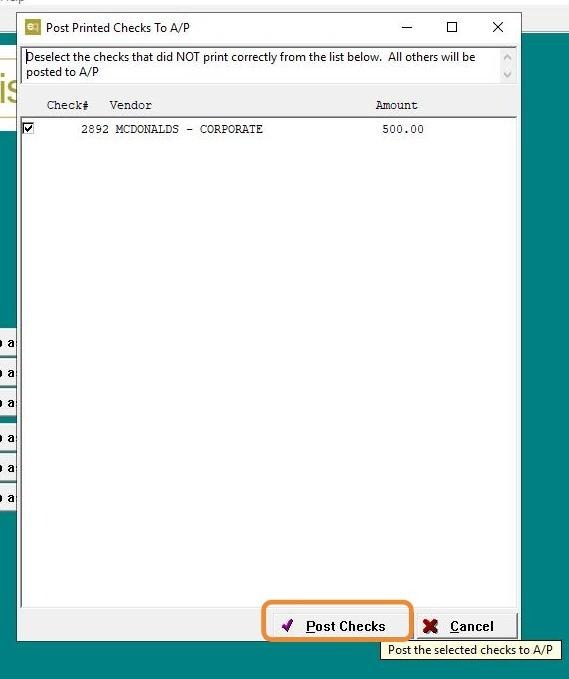
22. Click "Yes" Post the check.
23. Click "Okay"