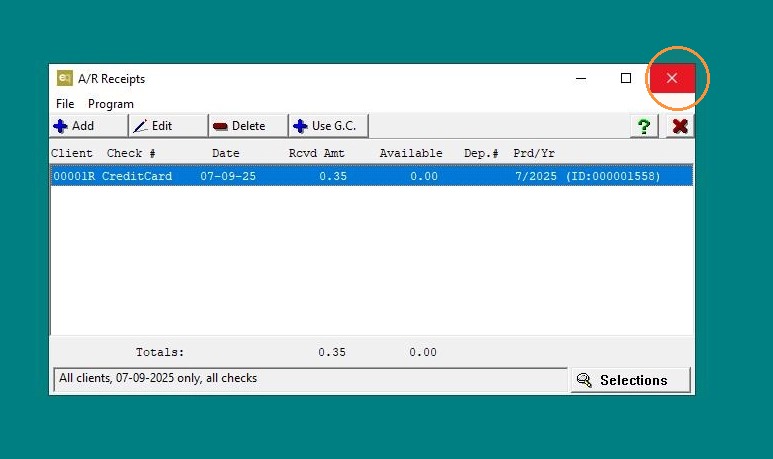
EQd: How to Delete an Unposted On-Account Receipt
Alert: Note: This process was created in a test environment. The information selected is for training purposes only and will not match the data you will use in your company's system.
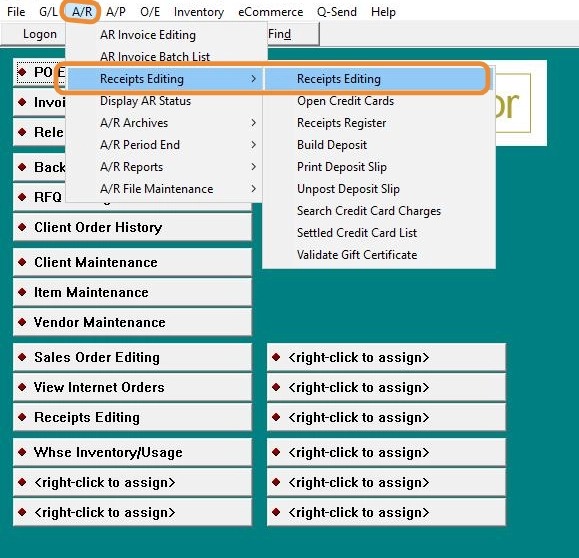
1. Access the Original Receipt:
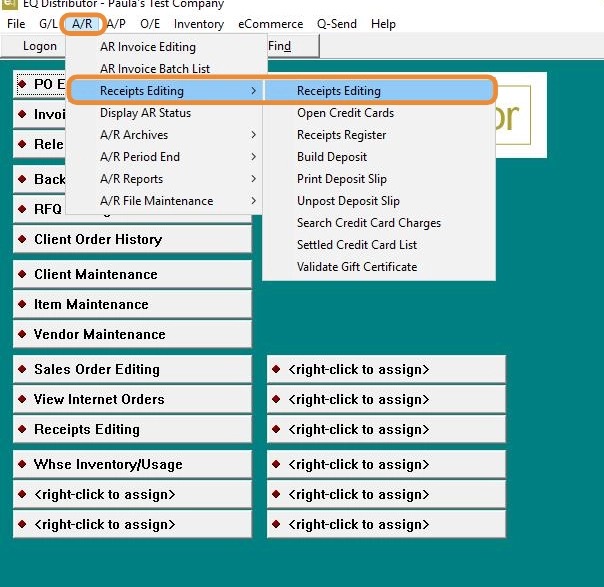
A/R > Receipts Editing > Receipts Editing.
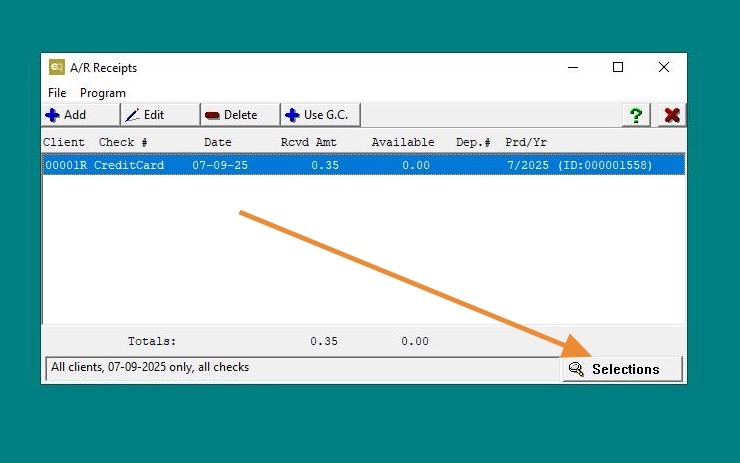
2. Click "Selections"
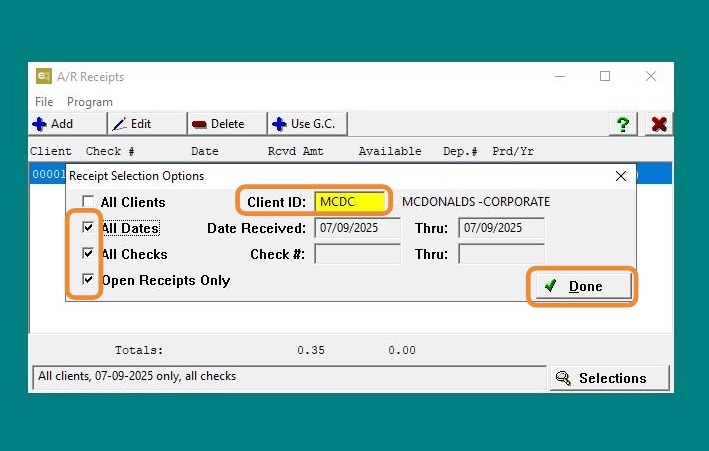
3. AR > Receipts Editing > Receipts Editing
- Selections (lower right corner):
- Enter the client.
- Check the three boxes: All Dates, All Checks, Open Checks Only.
- Click Done.
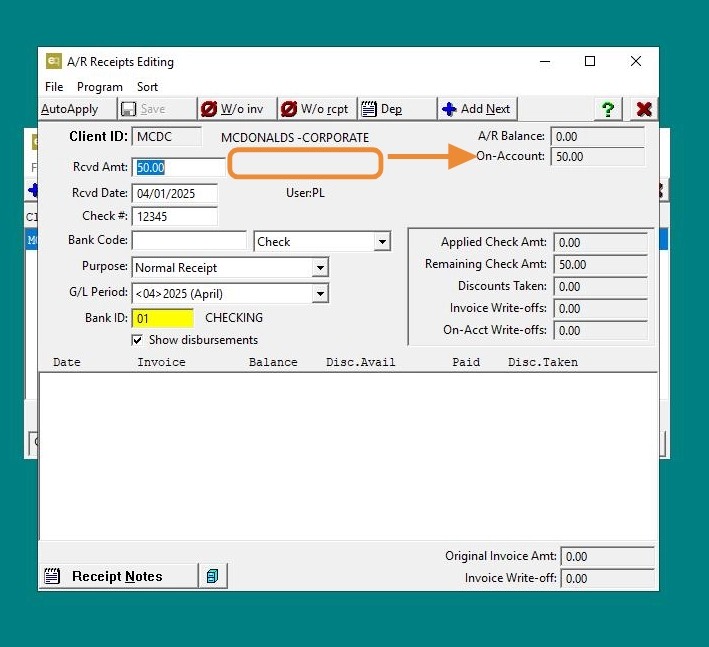
4. Locate the receipt and double-click to open it. Check whether it has been posted by looking at the area marked in the screenshot below. If a date appears, the receipt has already been posted and cannot be deleted.
If no date is shown, you can proceed. Close the receipt window, then press DELETE to remove it.
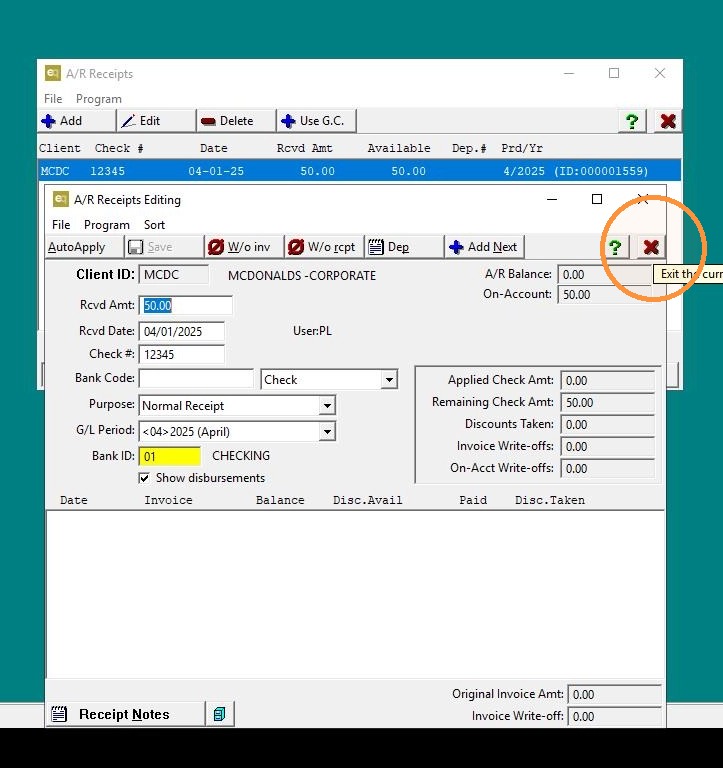
5. Click "Exit"
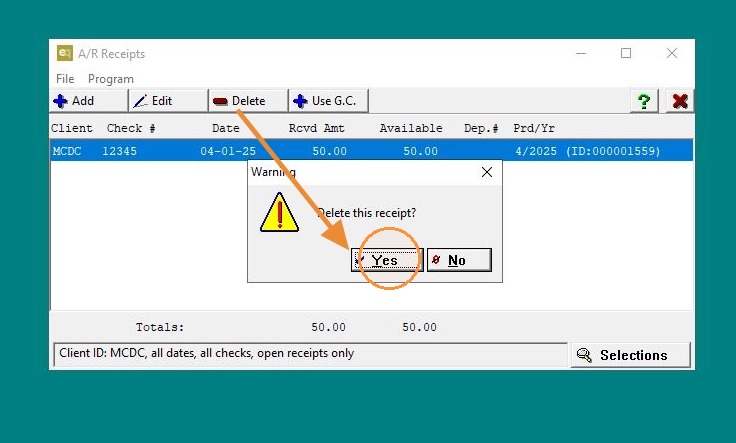
6. Click "Delete"
7. Click "Exit"
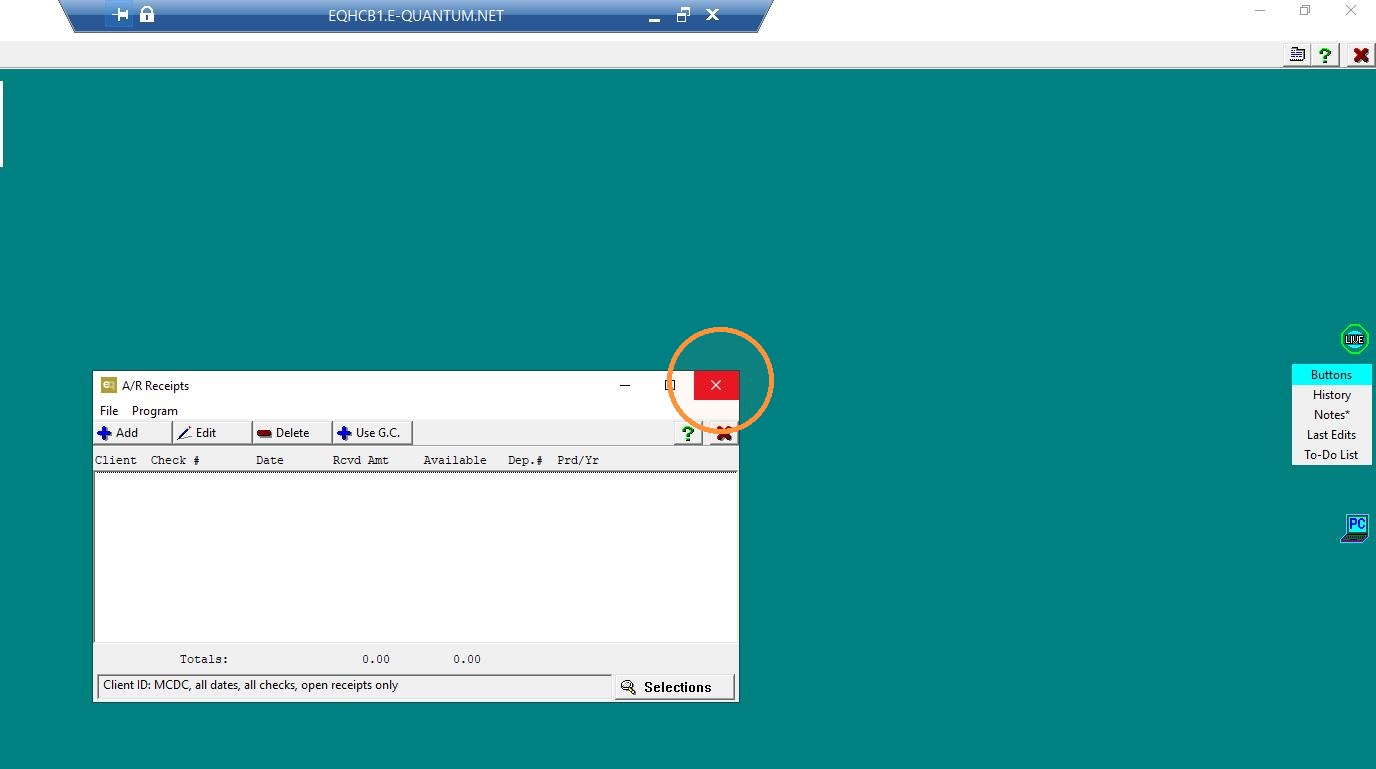
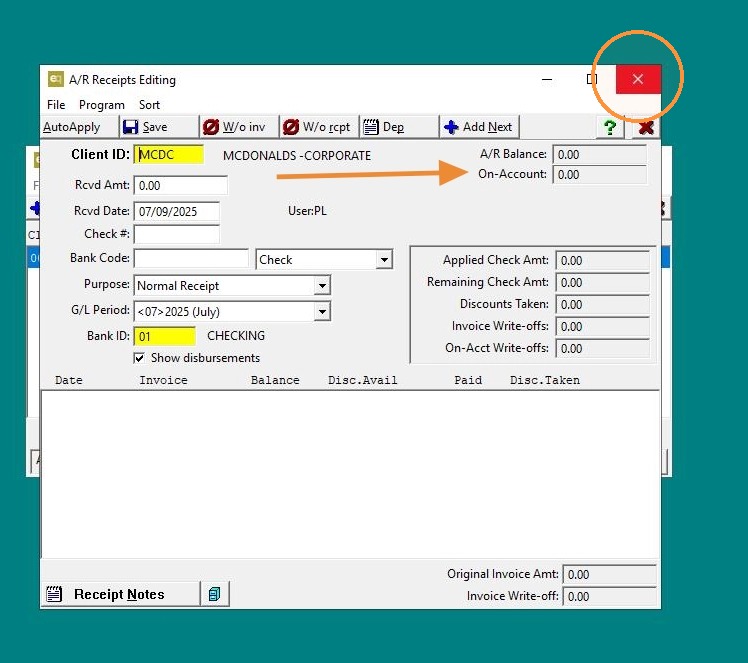
Alert: To verify if On-Account has been deleted you can go to back A/R Receipts Editing and pull up client. One open you will notice that the on-account amount is gone.
8. A/R > Receipts Editing > Receipts Editing.
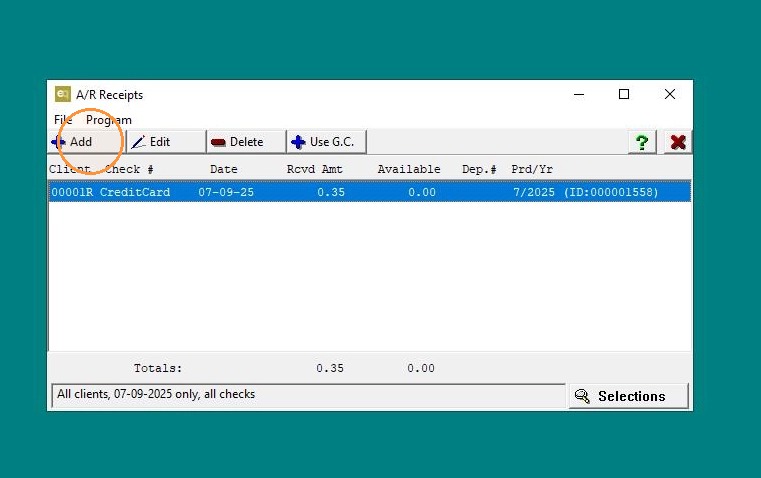
9. Click "Add"
10. On-Account amount is gone. Click "Exit"
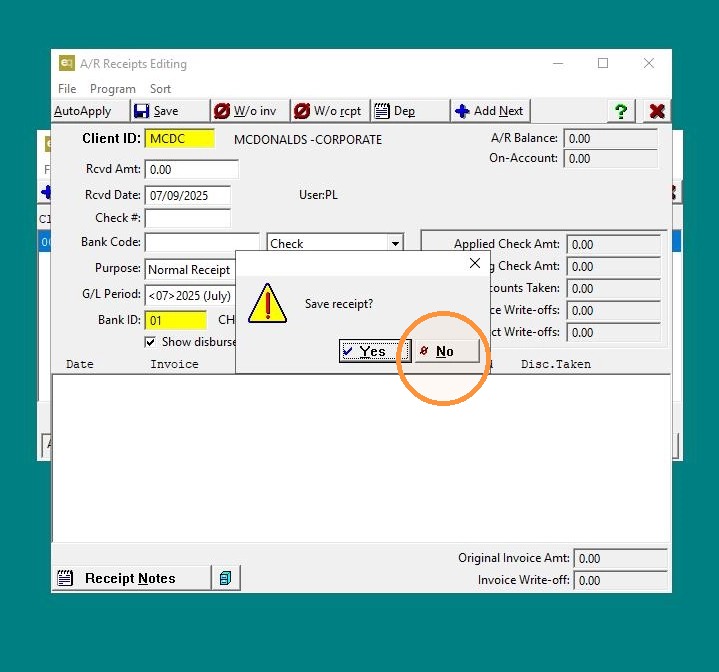
11. Click "No". Note: If you choose "Yes" it will give you a zero receipts.
12. Click "Exit"