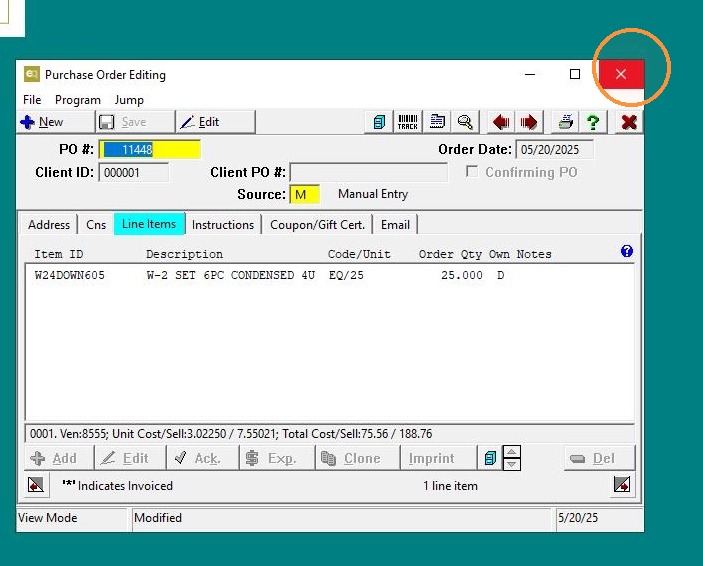
EQd: Setting Up PO Body Notes (Global and Vendor-Specific)
Alert: Note: This process was created in a test environment. The information selected is for training purposes only and will not match the data you will use in your company's system.
To Set Global PO Body Notes:
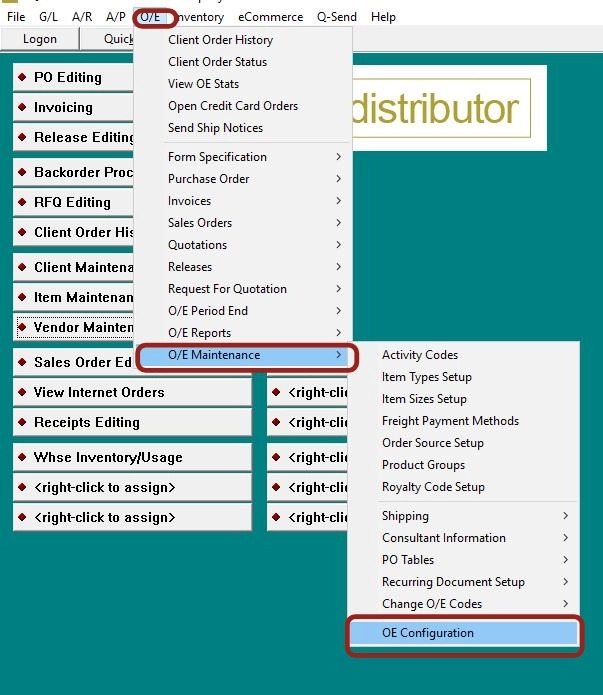
1. Go to O/E > O/E Maintenance > OE Configuration from the main menu.
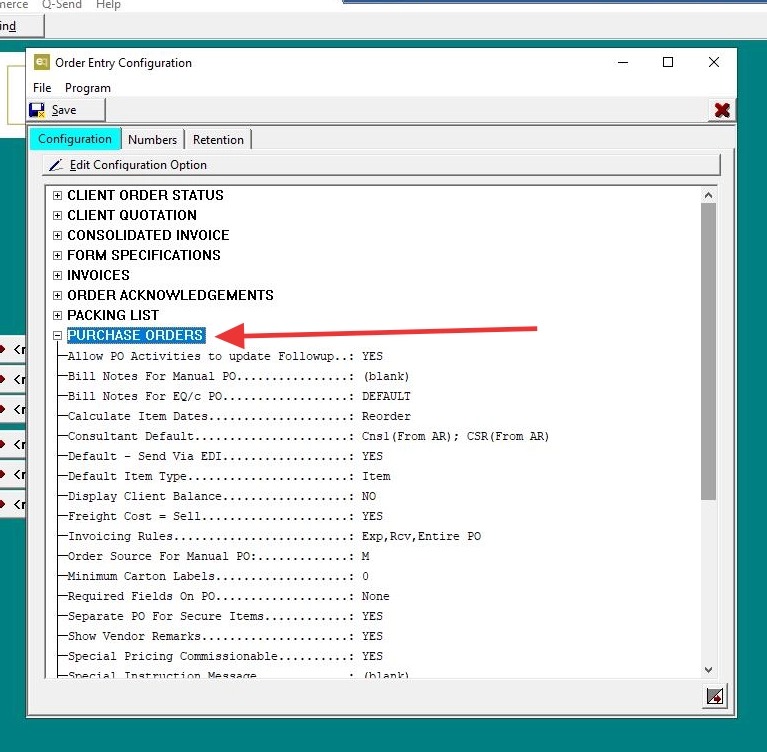
2. Navigate to the Purchase Order tab.
3. Locate the Special Instruction Message field.
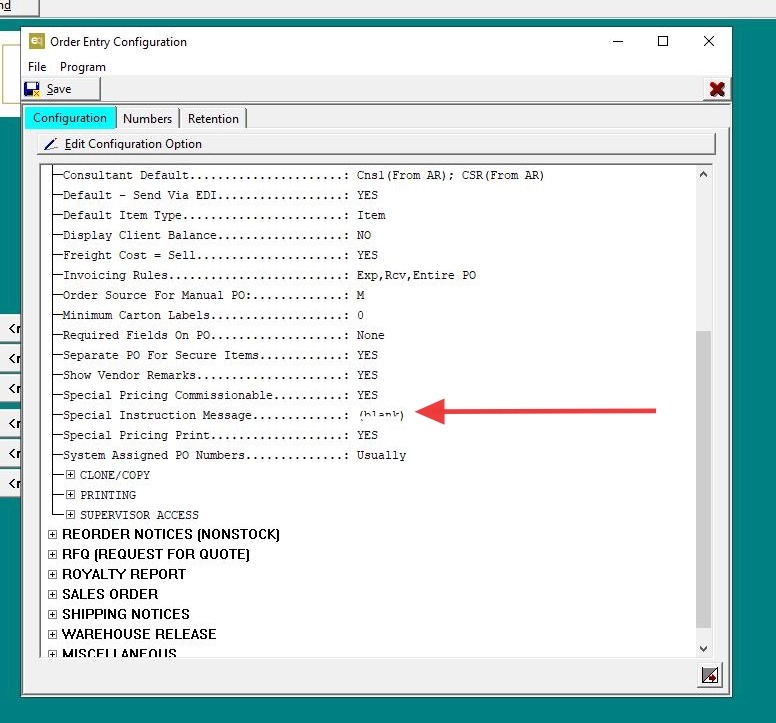
4. Enter your desired global note — this will apply to all POs unless overridden.
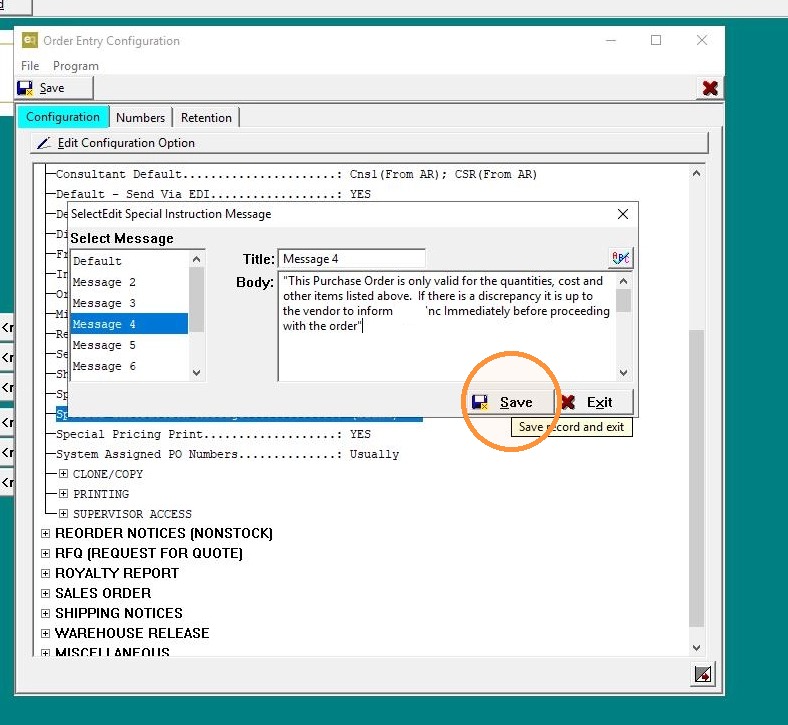
5. Click "Exit"
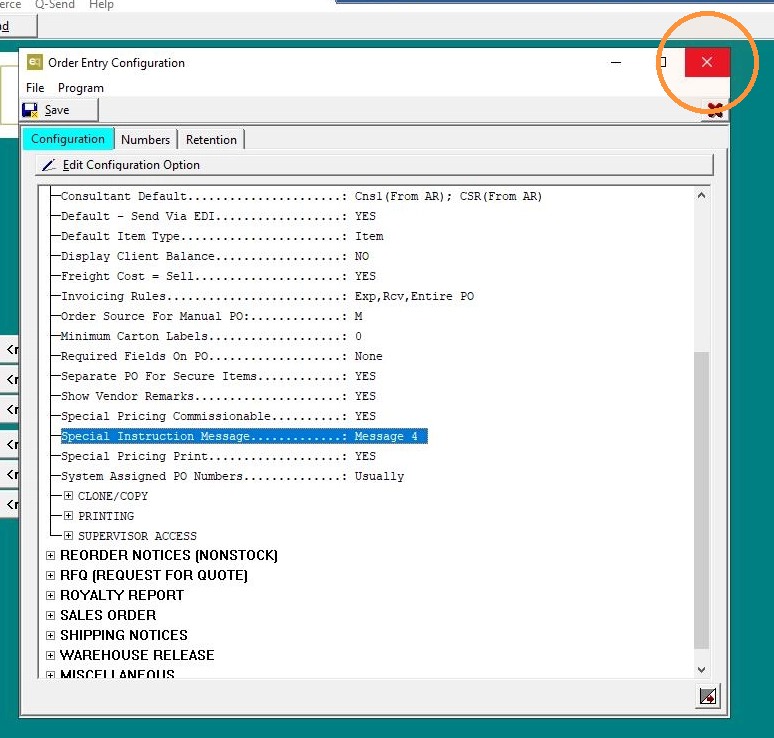
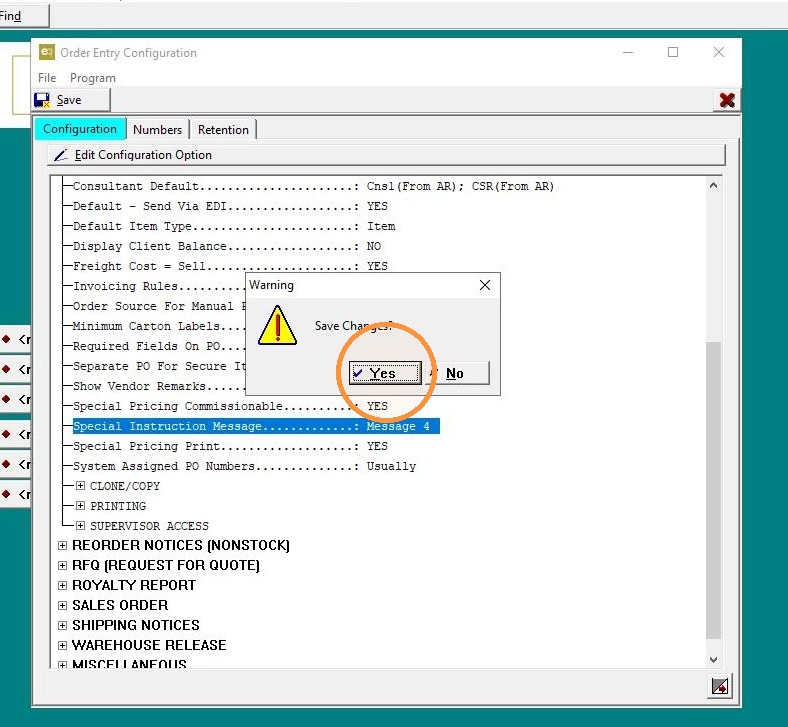
6. Click "Save"
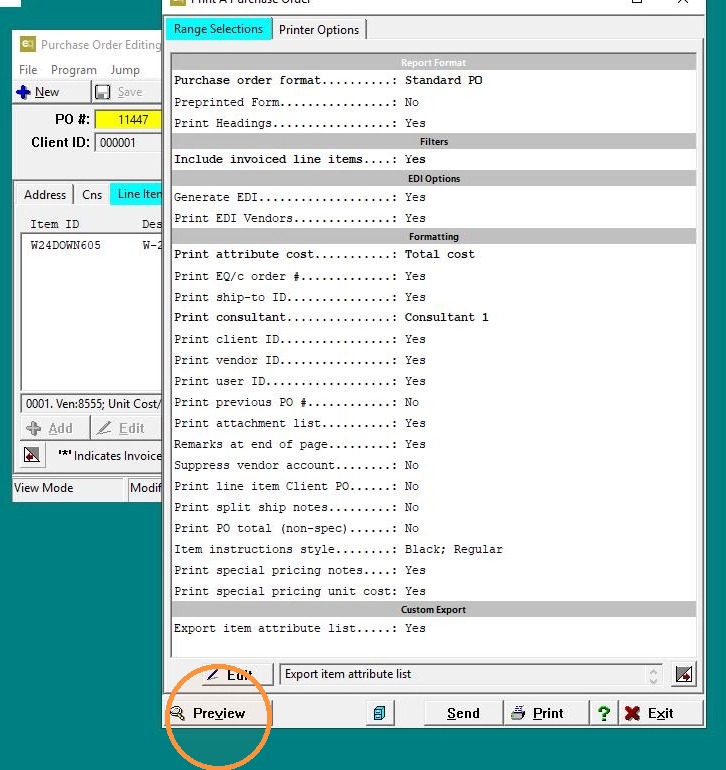
7. Create a PO and view it to confirm the note appears as expected.
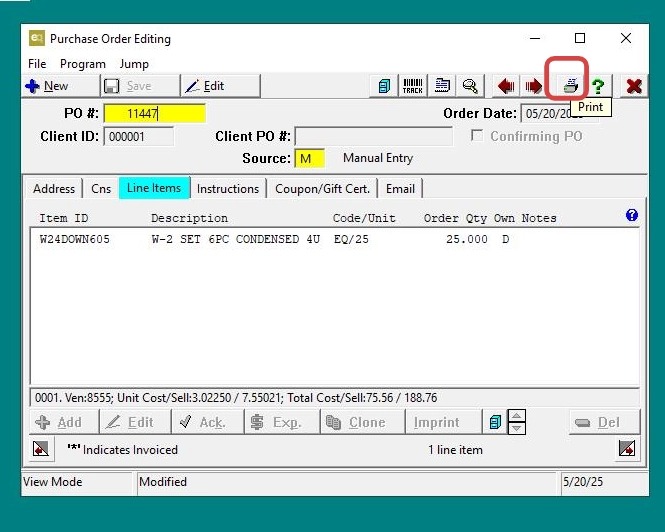
8. Click "Preview"
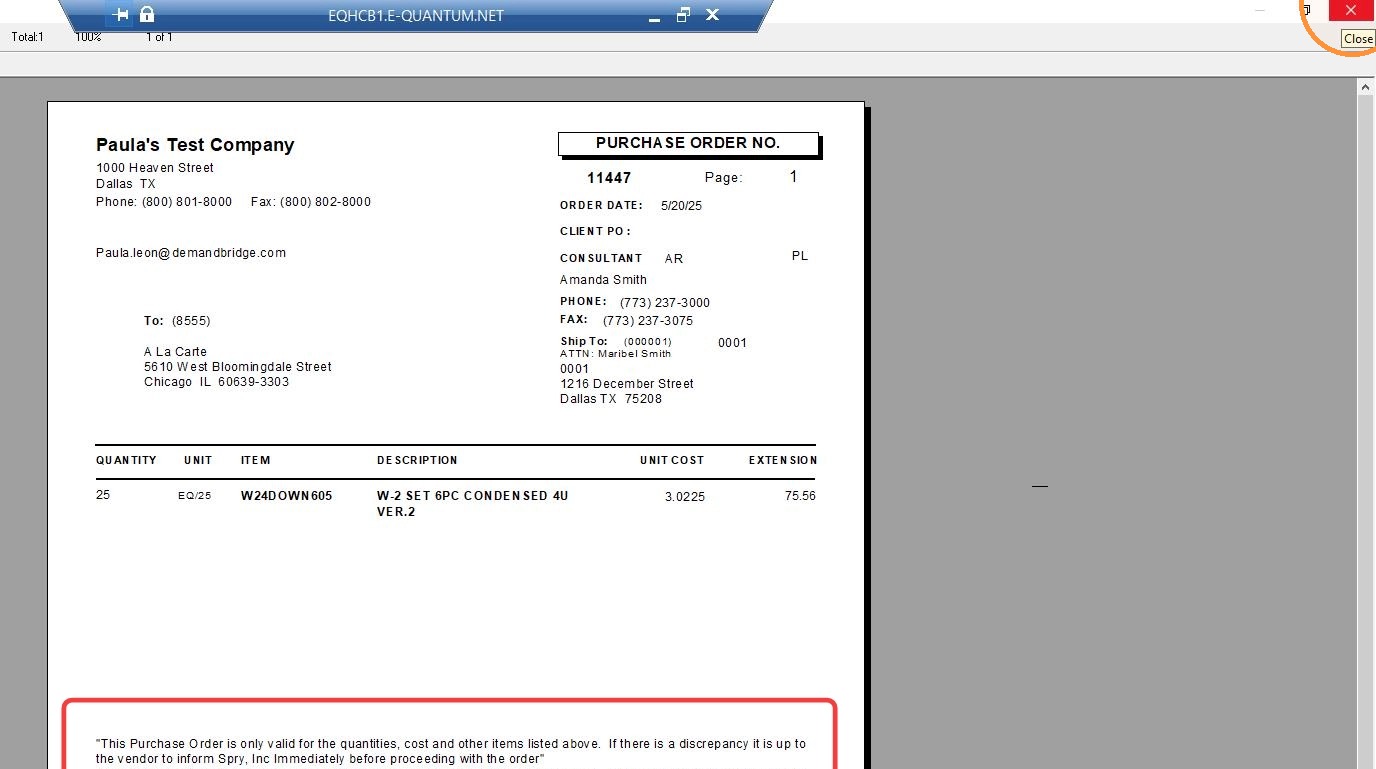
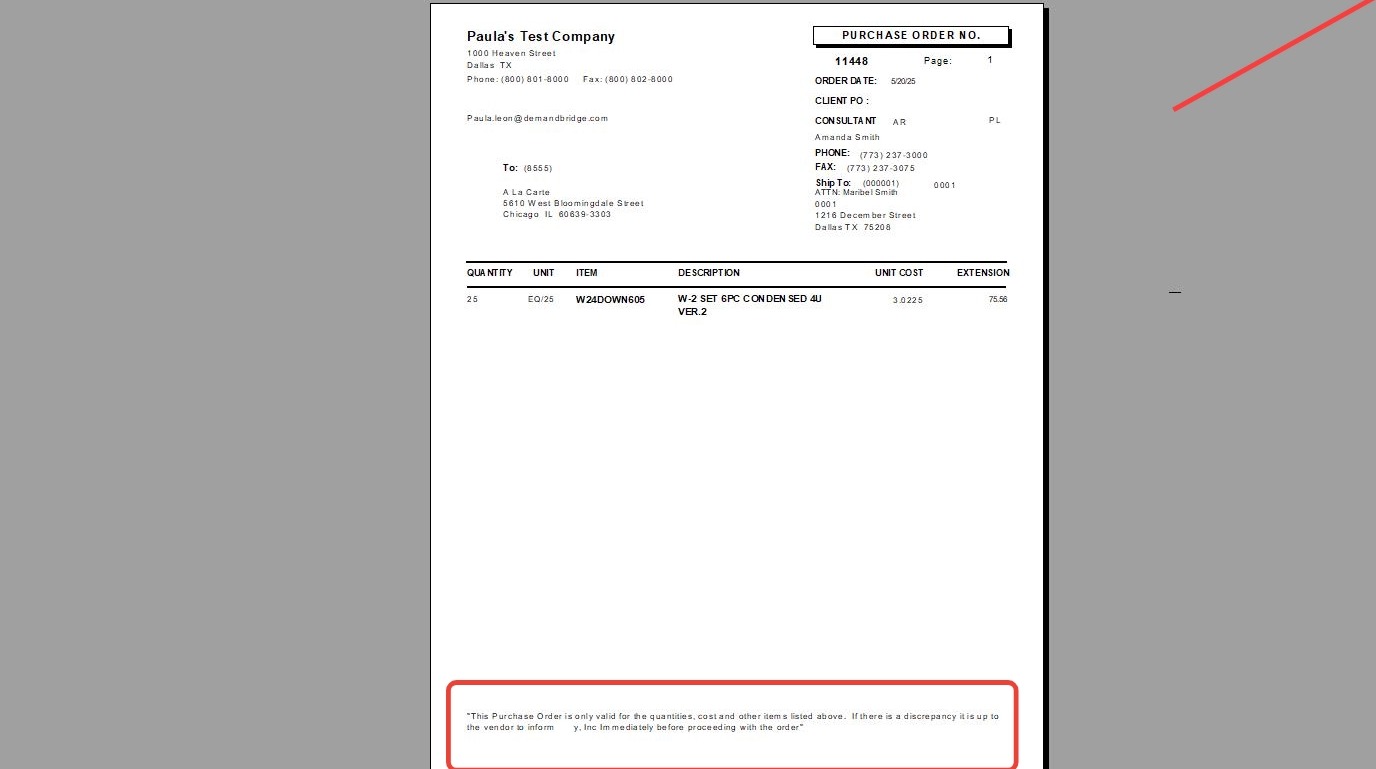
9. The note will appear in the middle of the PO.
To Set Vendor-Specific PO Notes:
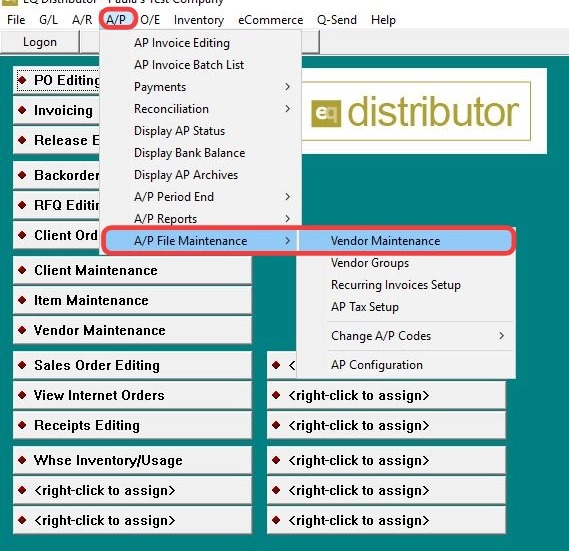
10. Go to A/P File Maintenance and click on Vendor Maintenance.
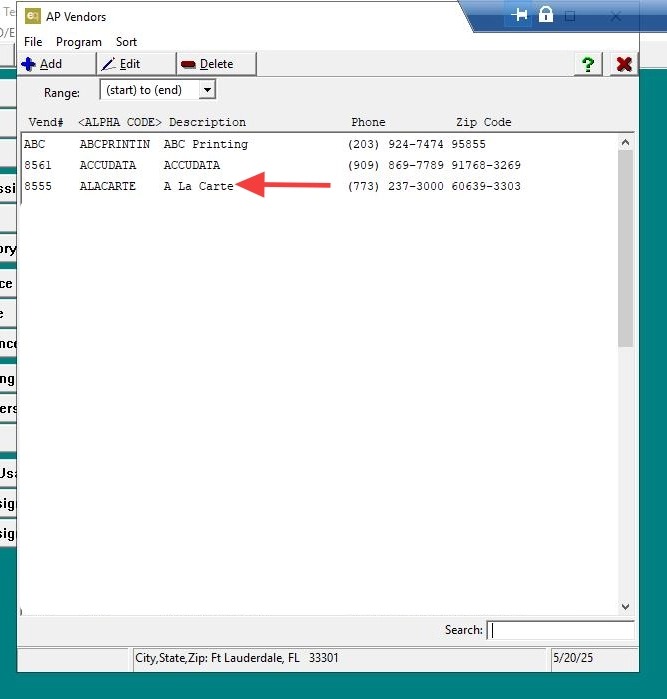
11. Double-click "Vendor"
12. Go to the Remarks section and enter your note under PO Body Notes.
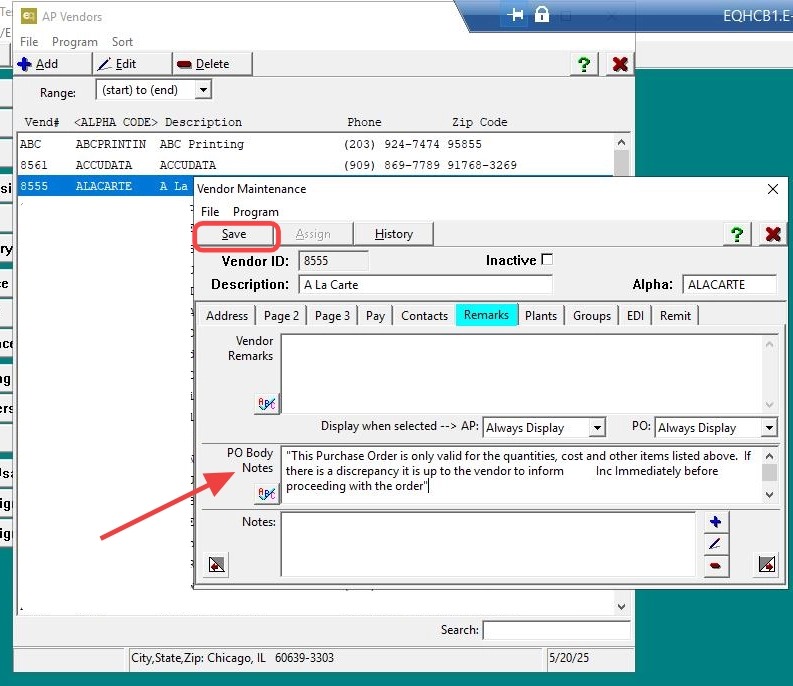
13. Click "Exit"
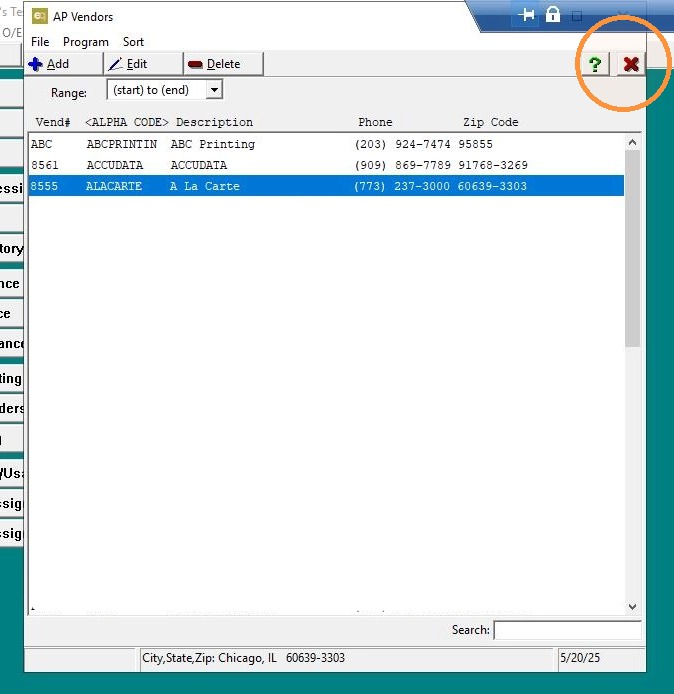
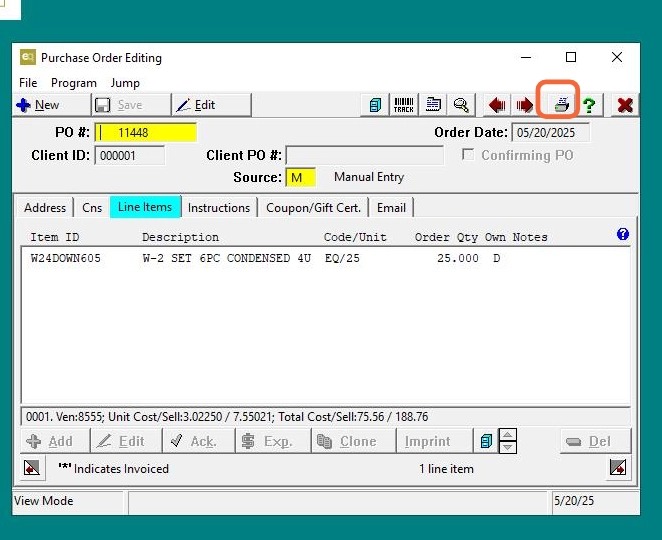
14. Create a PO for that vendor and view it to verify the note is included.
15. Click "Preview"
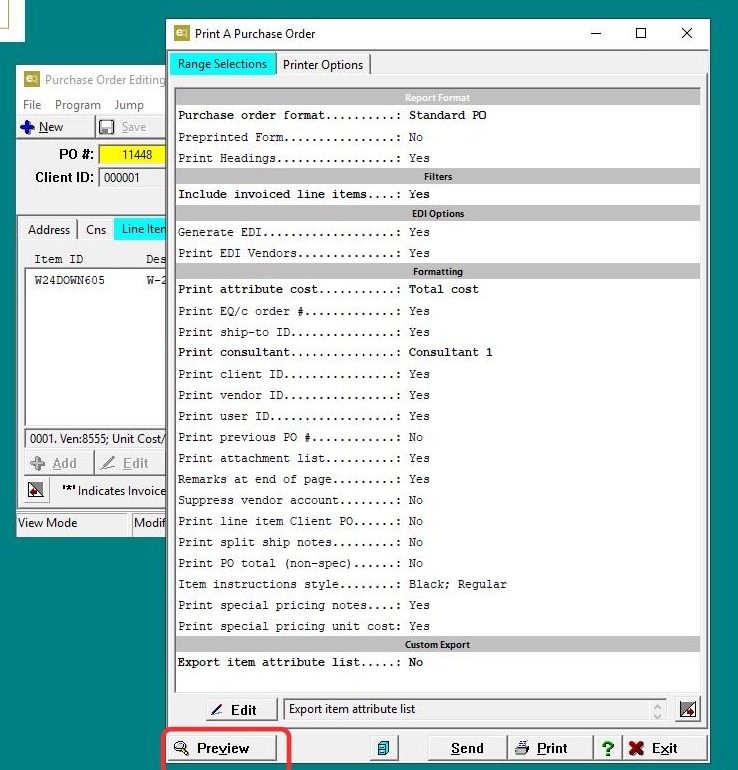
16. PO Body Notes will appear at the bottom of the PO for that vendor.
17. Click "Exit"
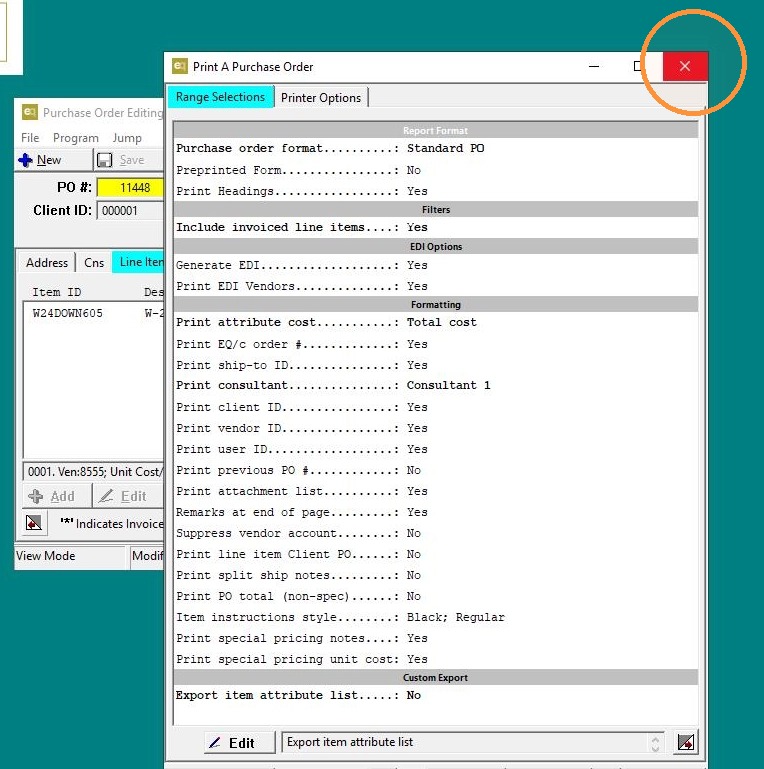
18. Click "Exit"