
EQd: Correcting a Cash Receipt Posted to the Wrong GL Period in Quantum
This guide outlines how to correct a misposted cash receipt, depending on whether or not the receipt has been posted to the General Ledger.
Alert: Note: This process was created in a test environment. The information selected is for training purposes only and will not match the data you will use in your company's system.
If the Receipt is NOT Posted to the General Ledger:
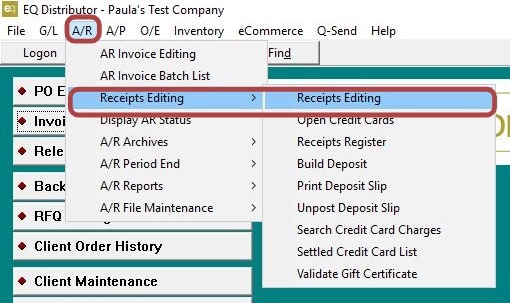
1. Go to A/R > Receipts > Receipt Editing
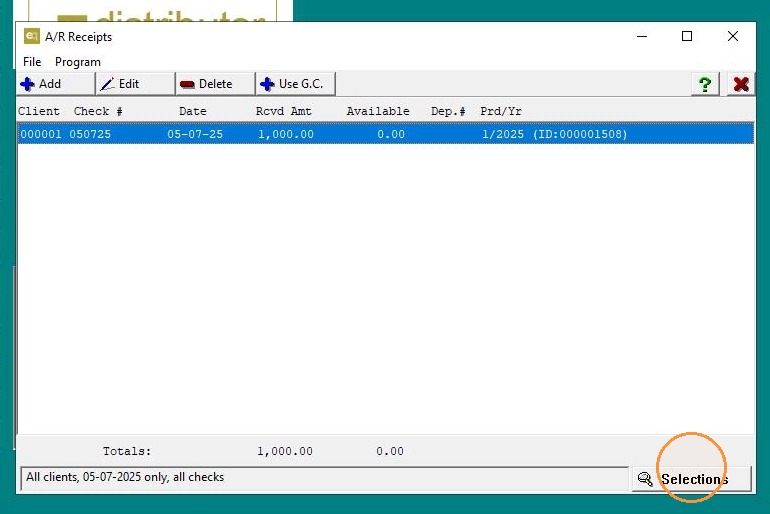
2. Click the Selections button (bottom right).
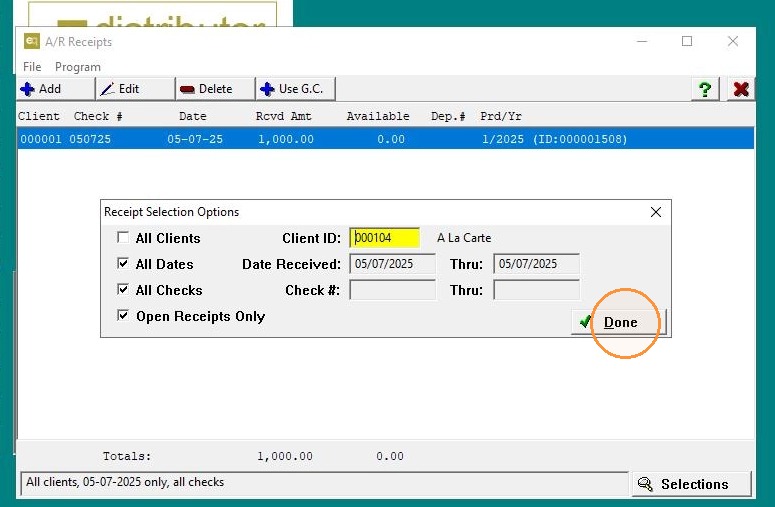
3. Enter the Client ID, select All Dates, All Checks, and Open Receipts Only click "Done".
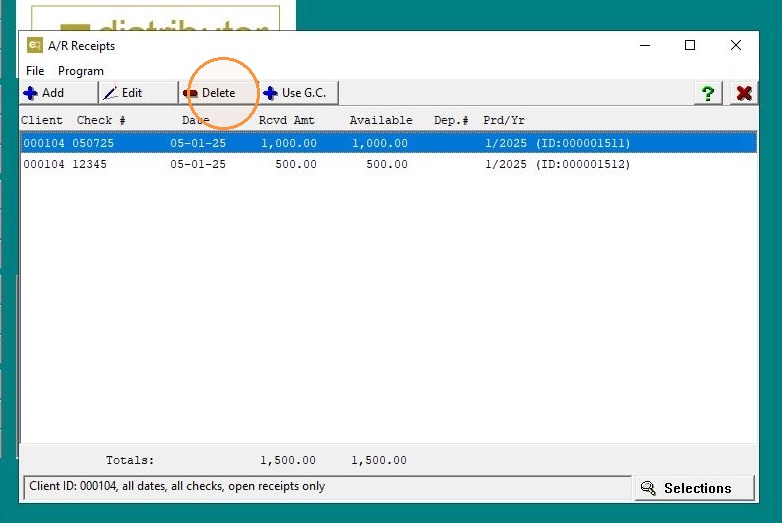
4. Highlight the receipt and click Delete.
5. Click "Yes" then "Exit"
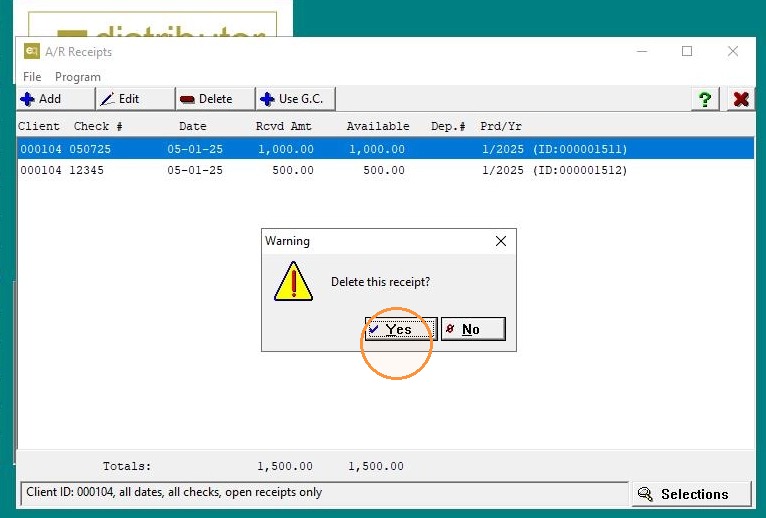
Tip: This will remove the receipt from A/R and undo the journal entry from the cash receipts journal.
If the Receipt IS Posted to the General Ledger:
6. #### Step 1: Reverse the Journal Entry
Go to G/L>Journal History Inquiry
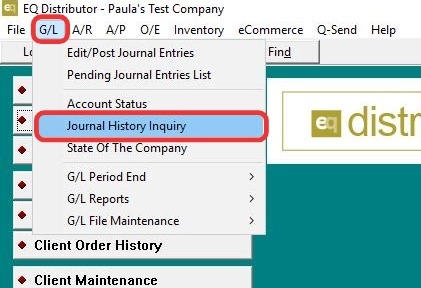
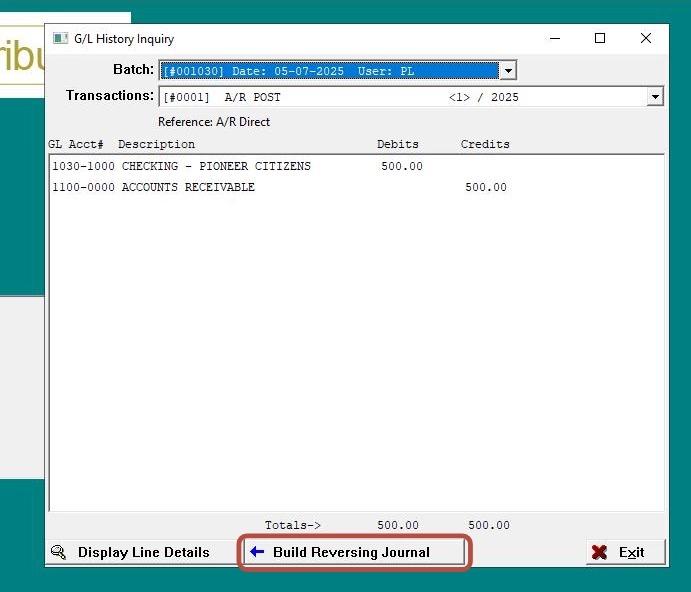
7. Locate the journal entry associated with the receipt.
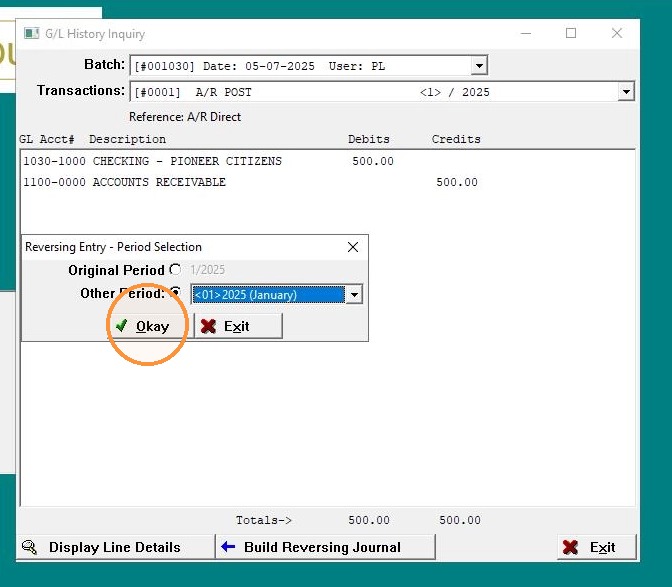
- Click Build Reversing Journal.
8. Choose the original (incorrect) period
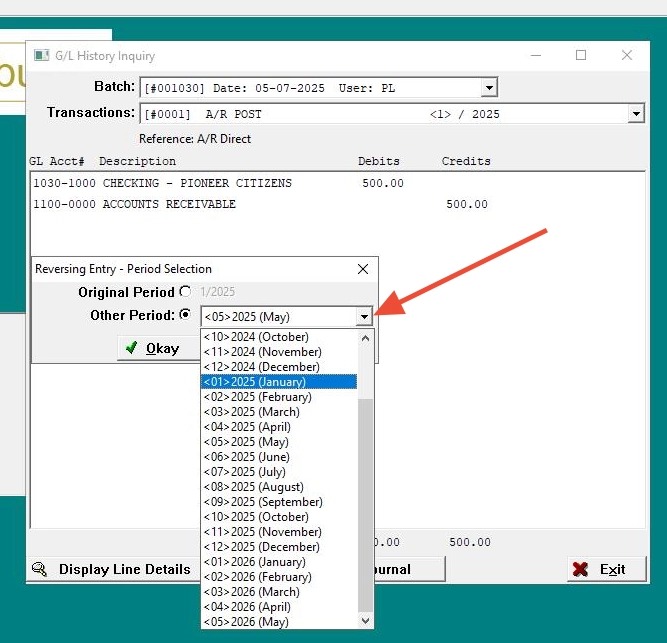
9. Click "Okay"
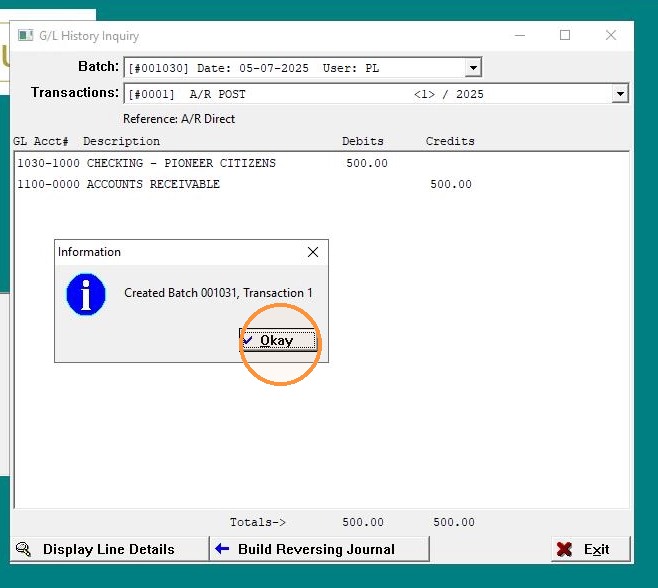
10. Click "Okay"
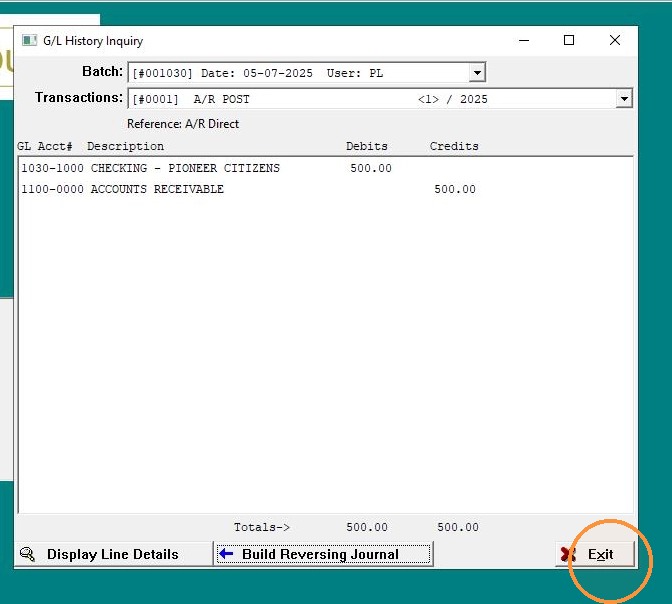
11. Click "Exit"
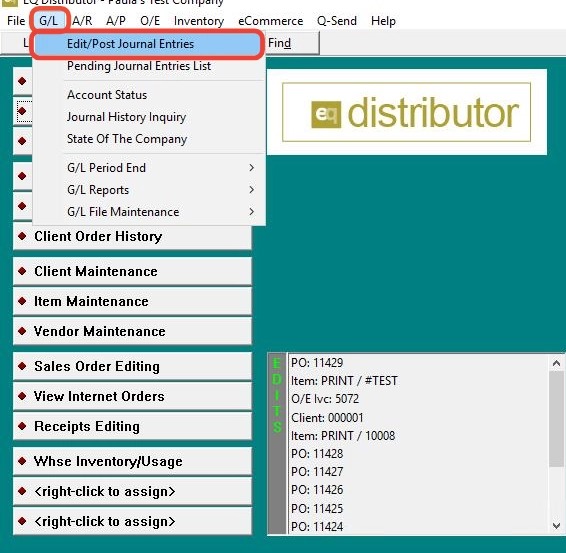
12. Step 2: Post the Reversal
Click "G/L>Edit/Post Journal Entries"
13. Locate the reversal and "post" it.
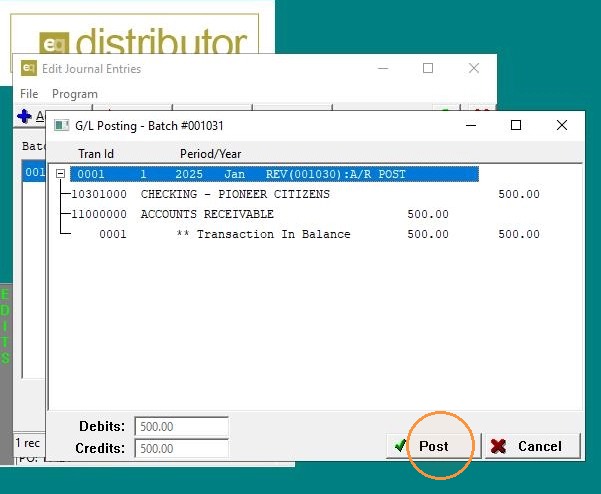
14. Click "Yes"
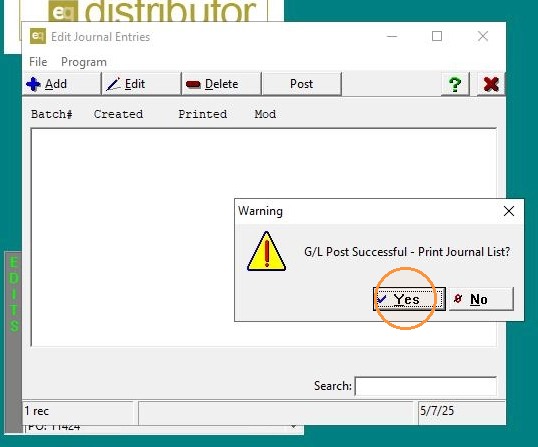
15. Click "Preview"
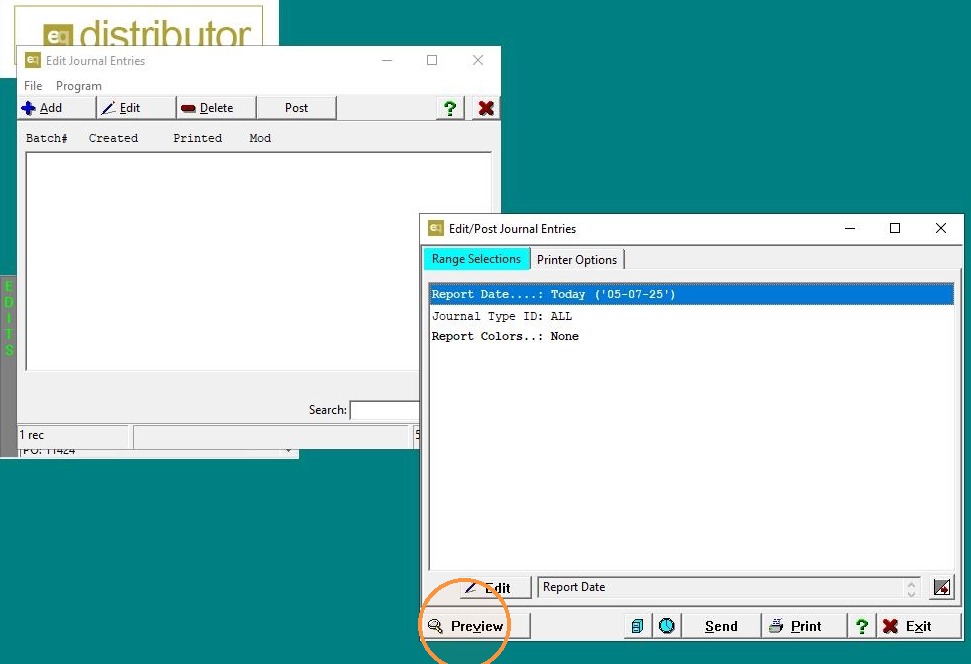
16. Click "Exit"
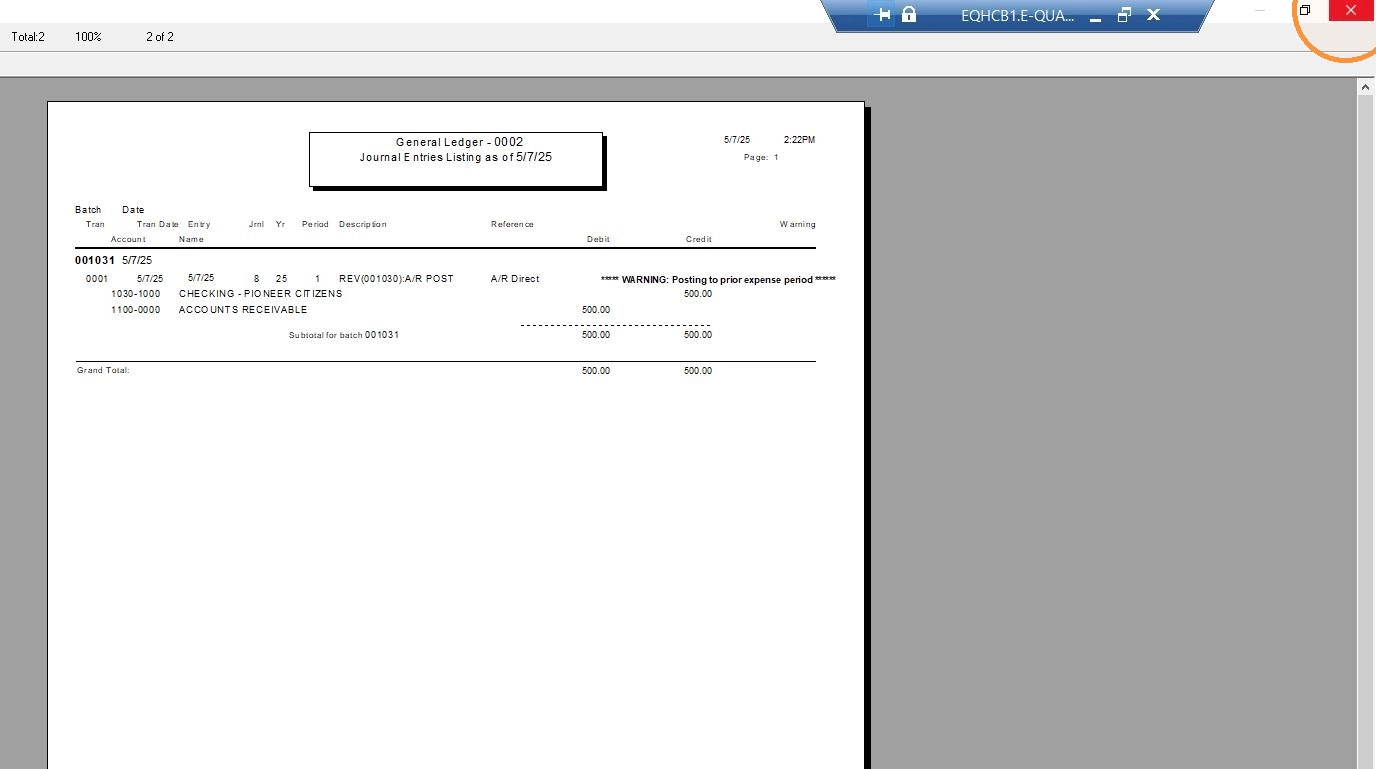
17. Click "Exit"
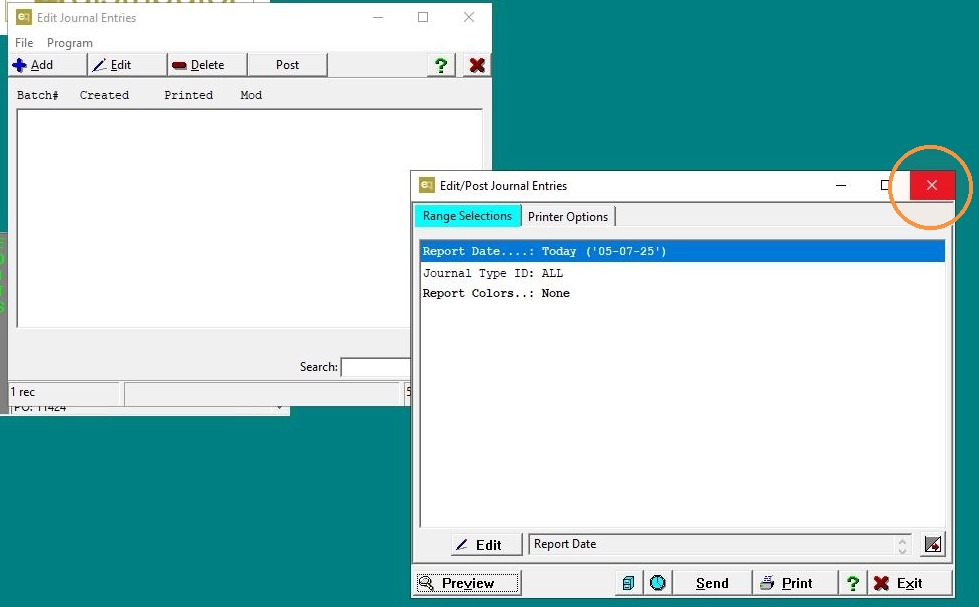
Tip: This undoes the impact of the receipt in the incorrect GL period.
18. Step 3: Write Off the On-Account Receipt
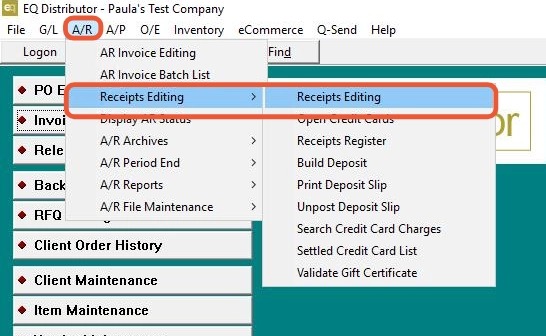
Go to A/R > Receipts > Receipt Editing
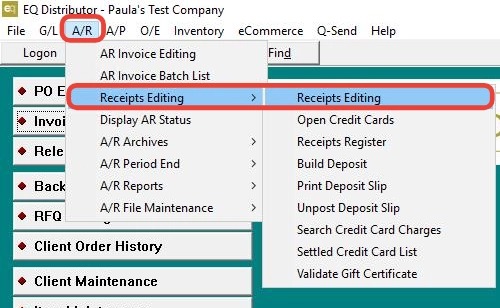
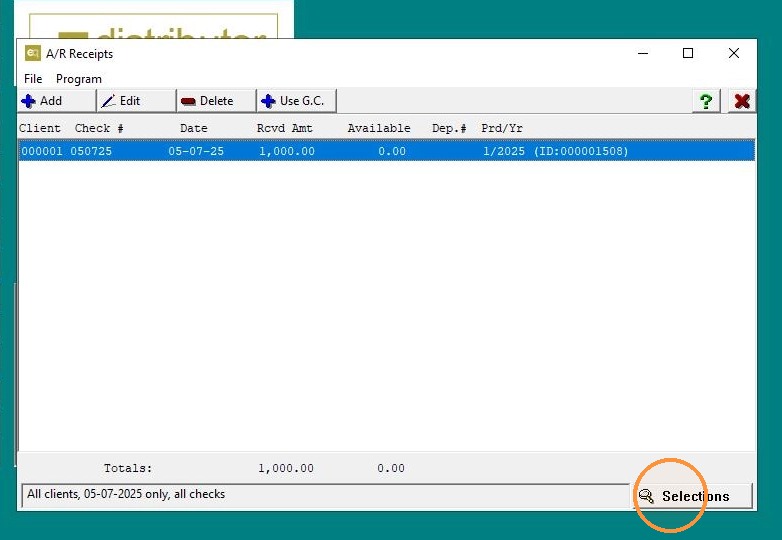
19. Click the Selections button (bottom right).
20. Enter the Client ID, select All Dates, All Checks, and Open Receipts Only click "Done".
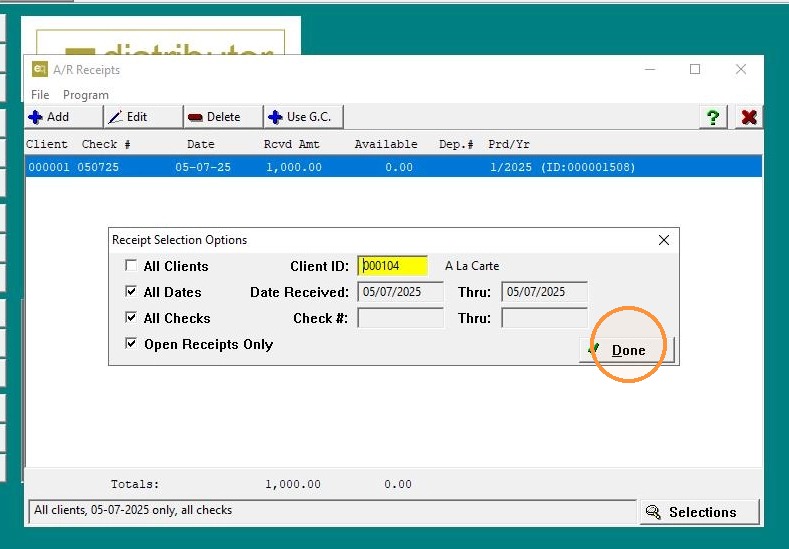
21. Select the receipt
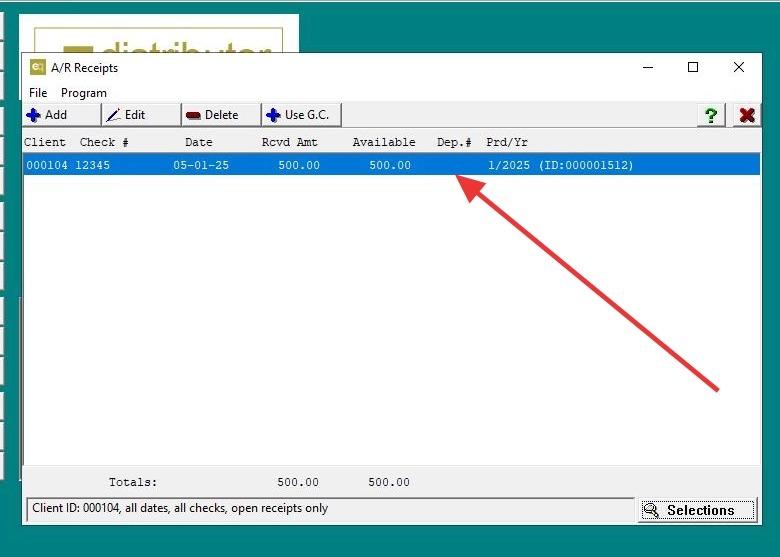
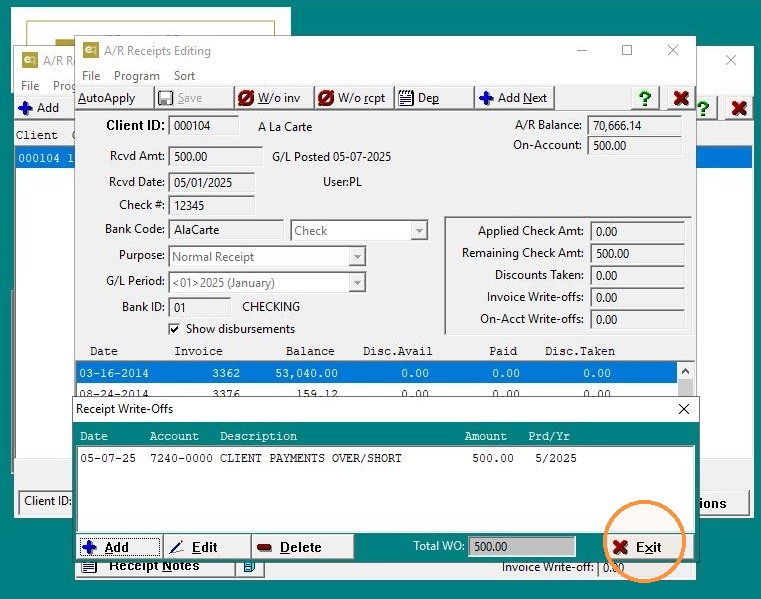
22. Click "W/o rcpt"
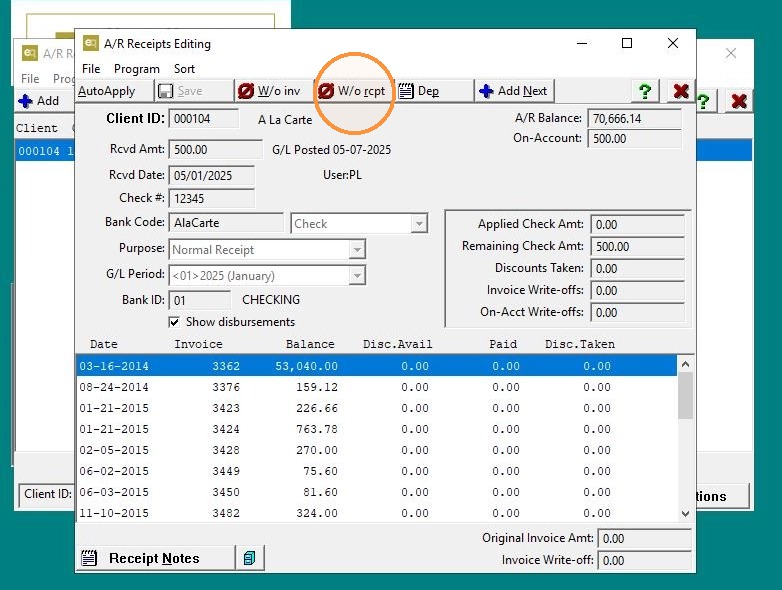
23. Click "Add"
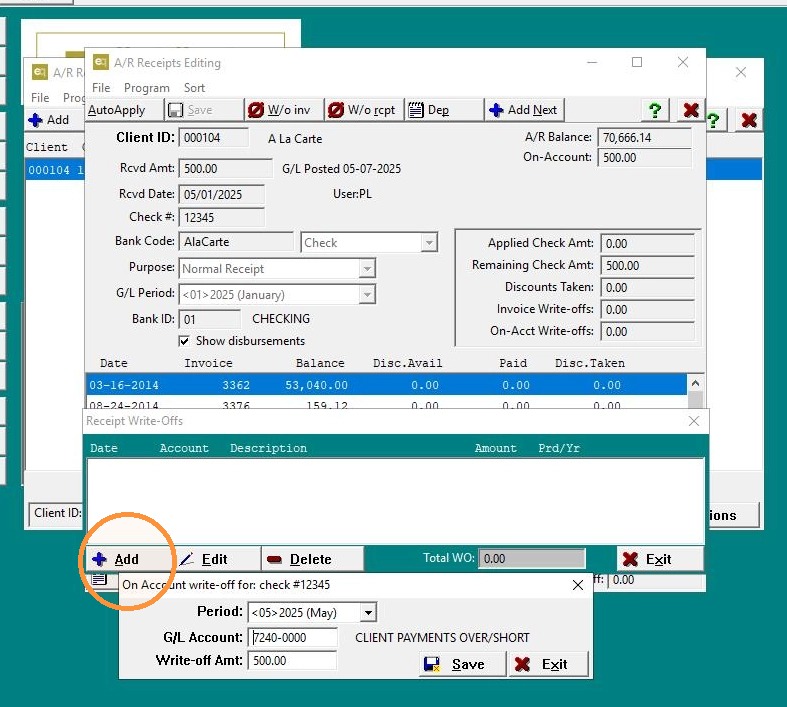
24. Enter the GL account (typically the checking account). Verify the posting period is correct. Click "Save"
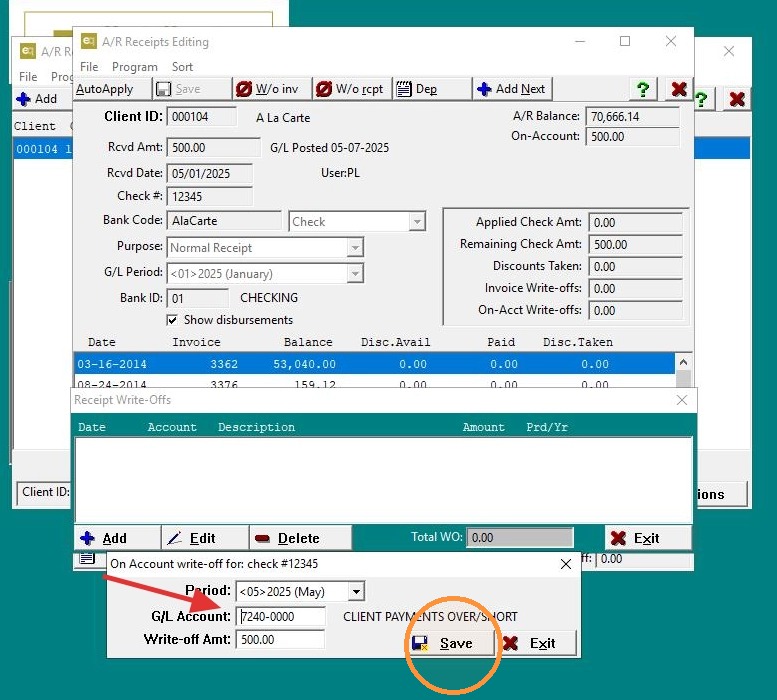
25. Click "Exit", then click "Exit" all the way out.
Tip: This ensures you’re not affecting closed books and helps maintain an accurate audit trail.
Alert: If you're correcting a misposted but valid receipt, include the step to re-enter in the correct period.
If you're removing a duplicate or invalid receipt, do not re-enter it — just reverse or delete as needed.
26. Step 4: Re-enter the Receipt in the Correct Period
Go to A/R > Receipts > Receipt Editing
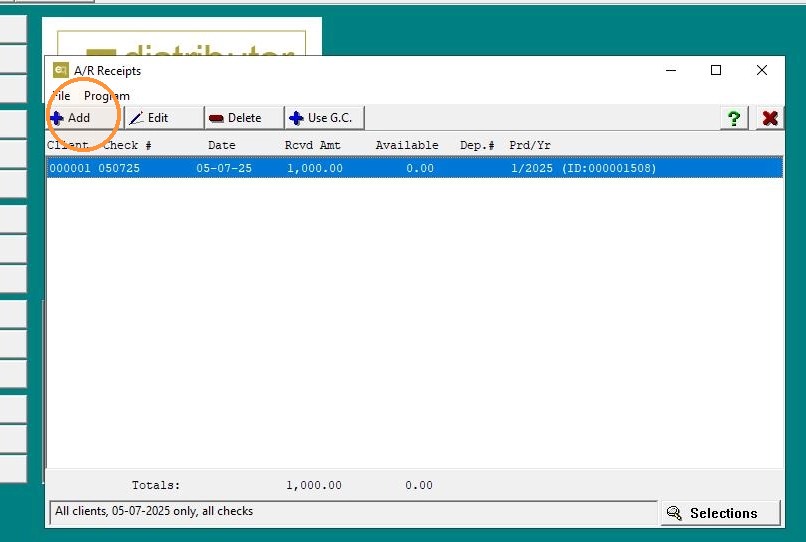
27. Click "Add"
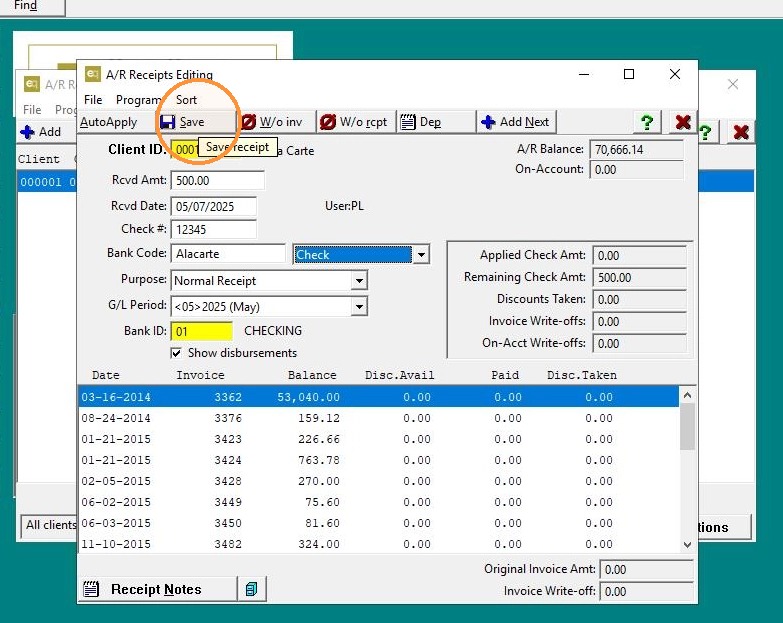
28. Re-enter the cash receipt using the correct GL date and period.
- Apply to the correct invoice or leave on-account if needed "Click "Save"
29. Click "Exit"
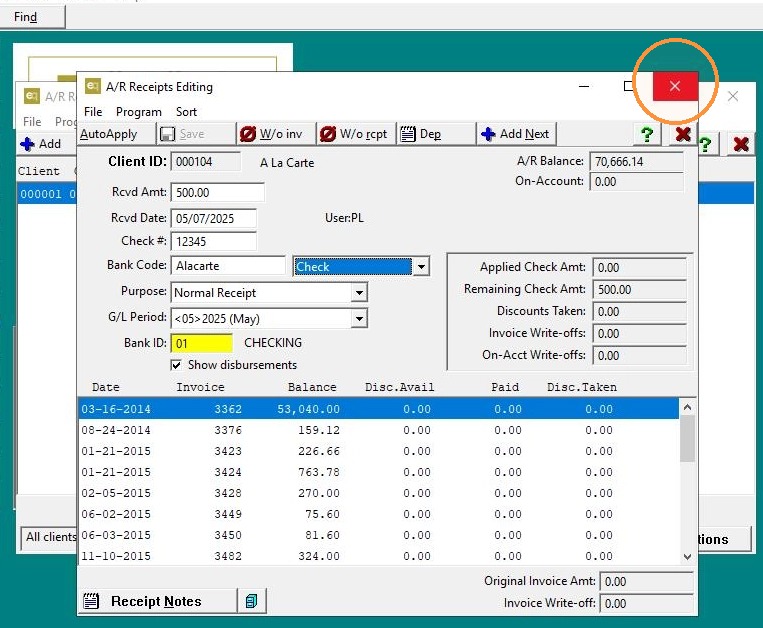
Tip: This records the cash in the correct month and period.
Final Step
30. #### Step 5: Re-close the General Ledger after posting
Go to G/L > G/L Period End > G/L Period End Processing.
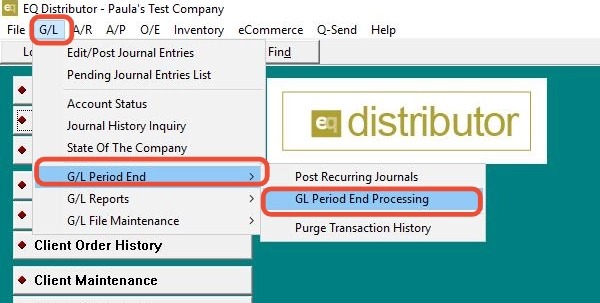
31. Select the posting period for these transactions
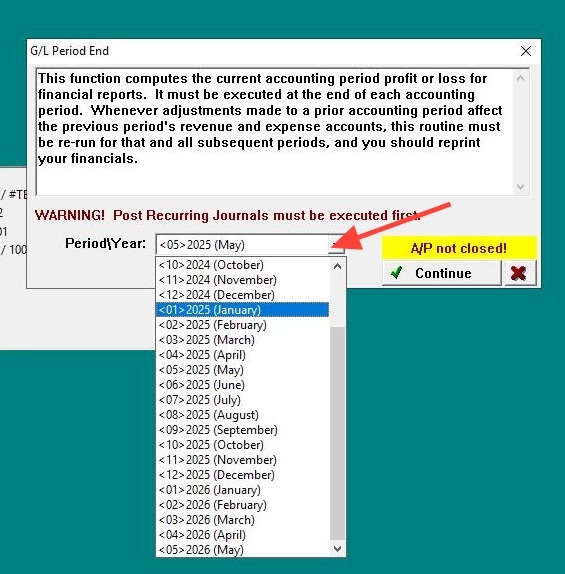
32. Click "Continue"
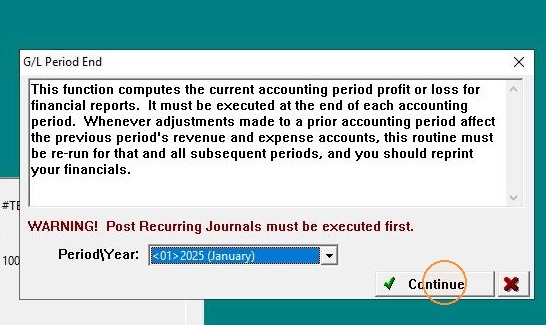
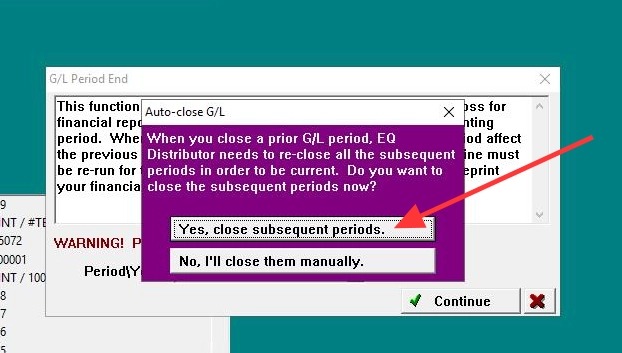
33. When prompted, select Yes to "Close Subsequent Periods."
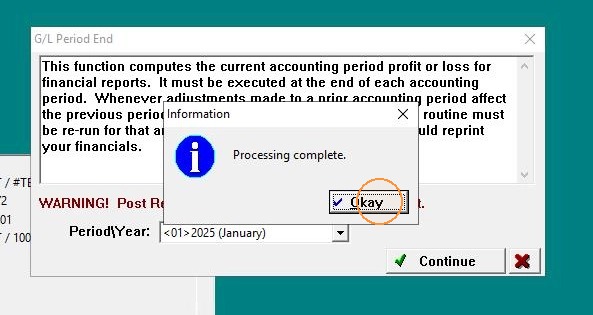
34. Click "OK" to complete the process.
Confirm the GL Corrections Were Made
35. ####
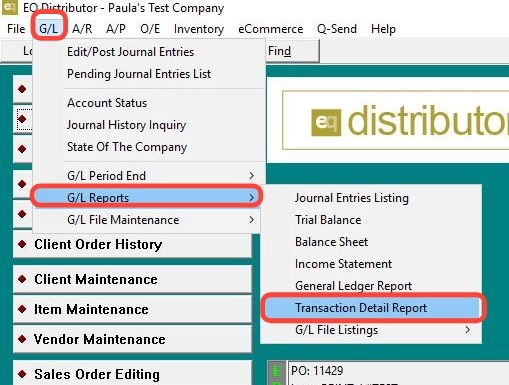
Navigate to G/L>Reports>Transaction Detail Report
36. Select only the GL accounts affected (e.g., AR, cash/checking).
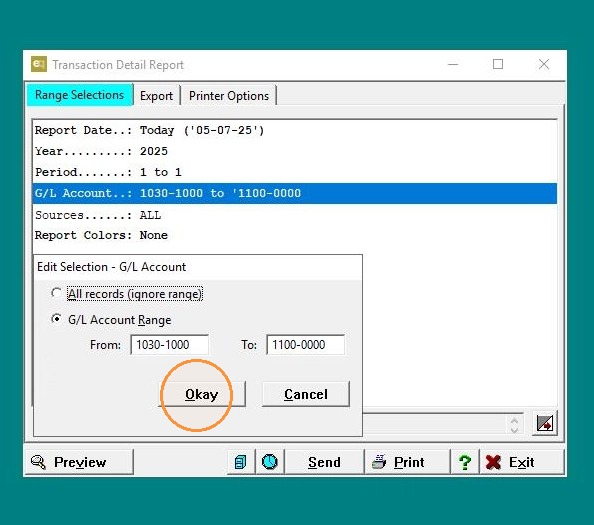
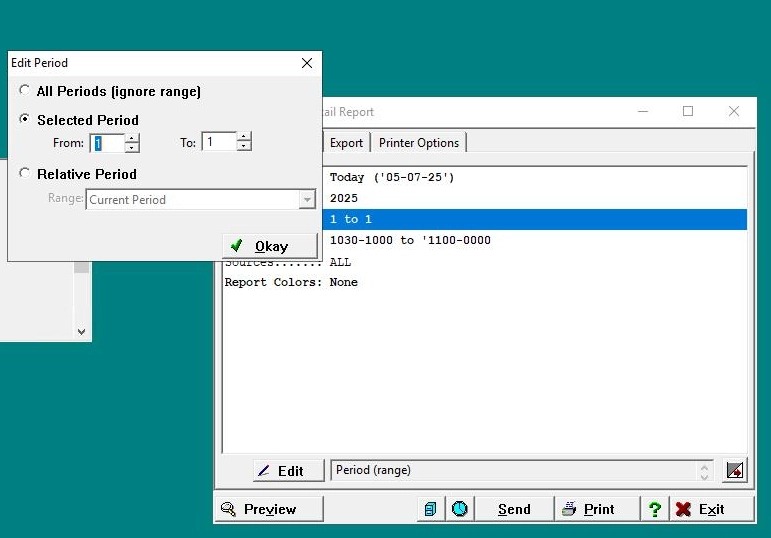
37. Change the period filter to include the original (wrong) posting period.
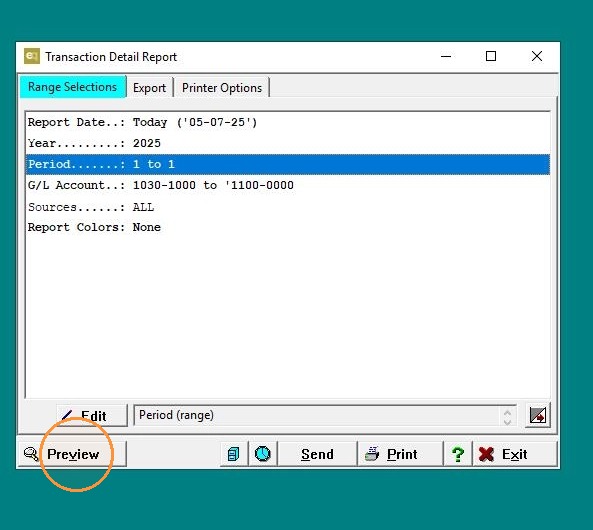
38. Click "Preview"
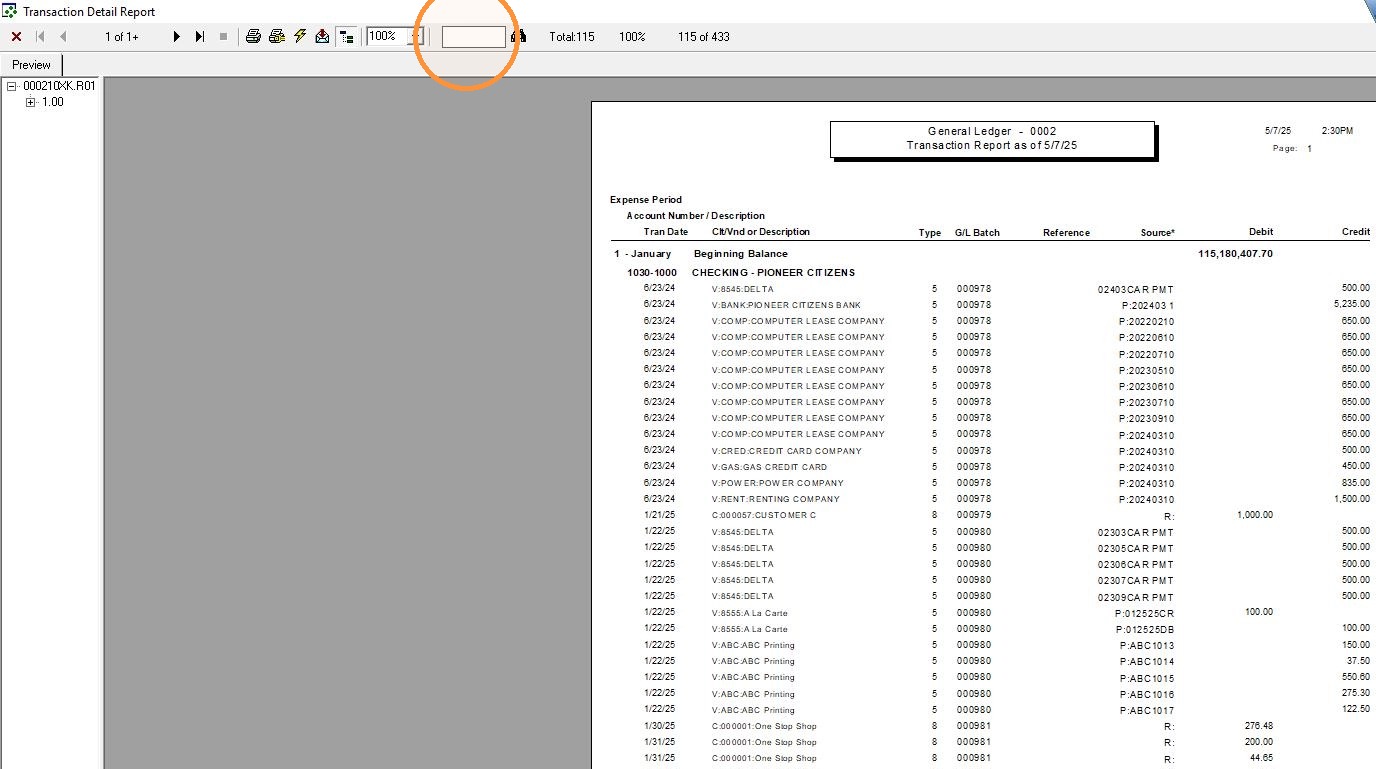
39. Confirm that:
- Both the original entry and the reversal are showing correctly.
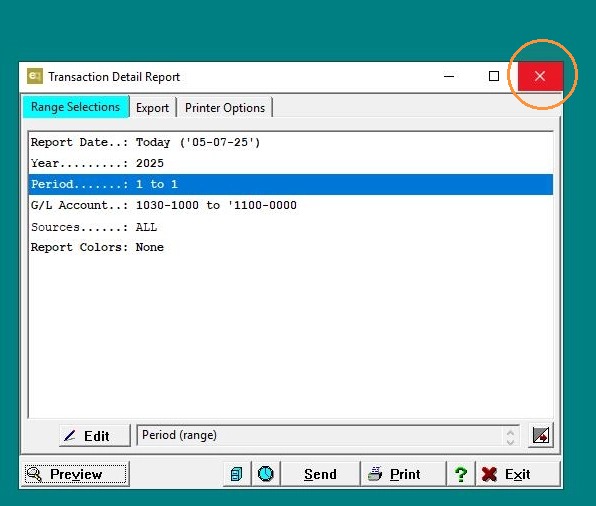
40. "Exit" the report when finished.
Tip: This step verifies that your correction is fully reflected in the ledger and your financials are accurate.