EQd: Correcting the AP Pre-posting Report in Quantum to Reflect Only Current Entries
Purpose: This guide walks you through correcting AP invoices in Quantum that were dated to wrong year, ensuring they reflect in the correct accounting period in the AP Pre-posting Report.
Alert:Note: This process was created in a test environment. The information selected is for training purposes only and will not match the data you will use in your company's system.
Tip Step 1: Run the AP Pre-posting Report
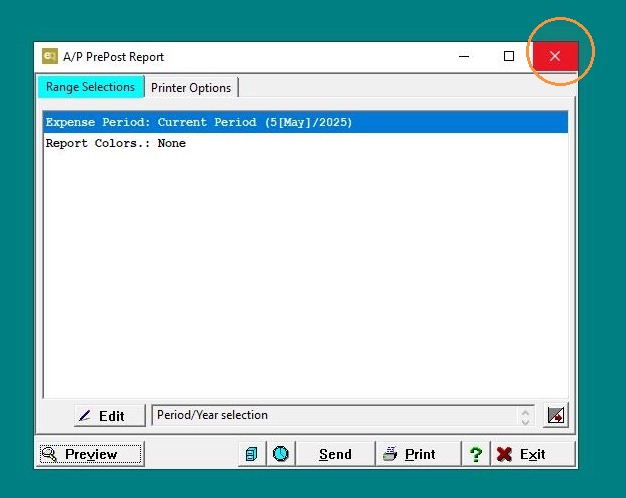
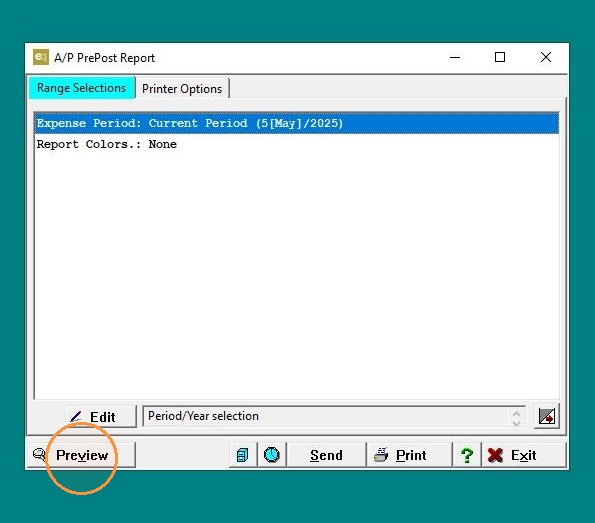
1. Navigate to: A/P>A/P Period End>PrePost Report
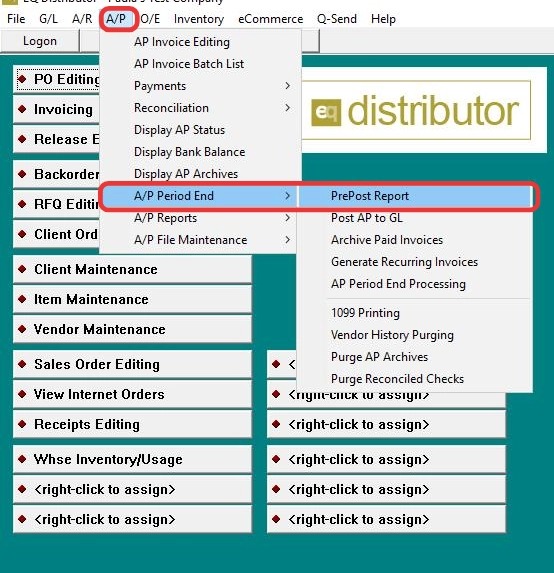
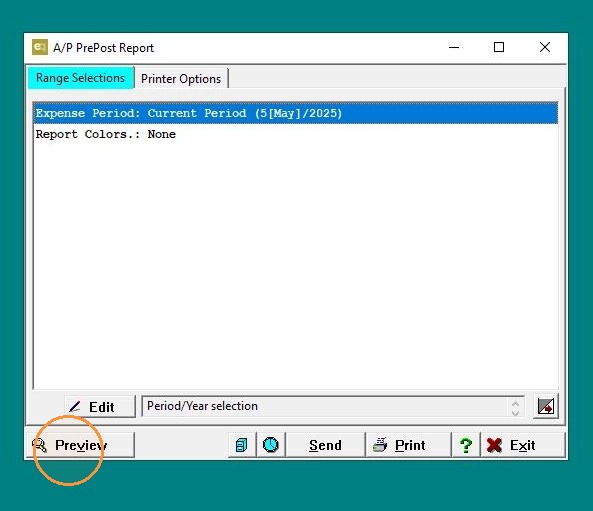
2. Select Preview and Print the report.
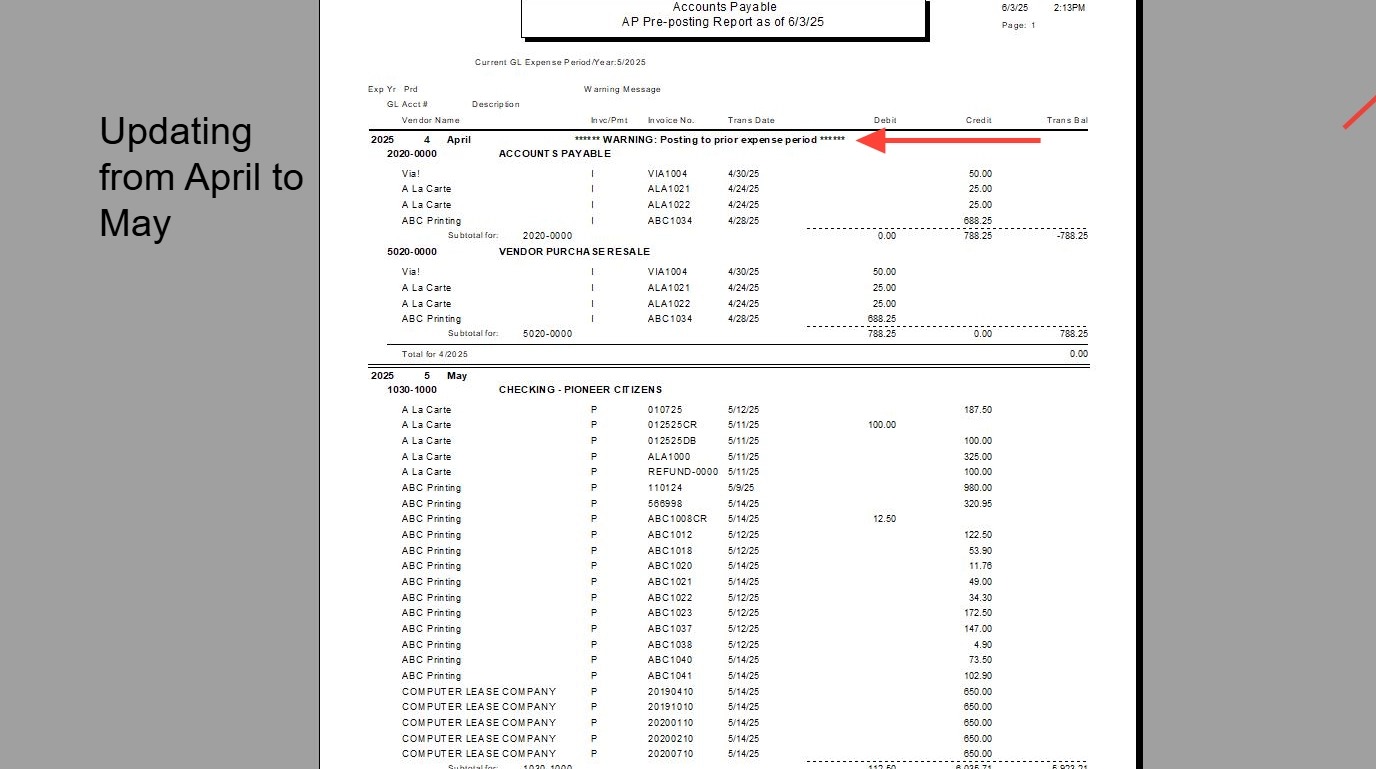
3. Review the list and note any invoices that show a wrong period.
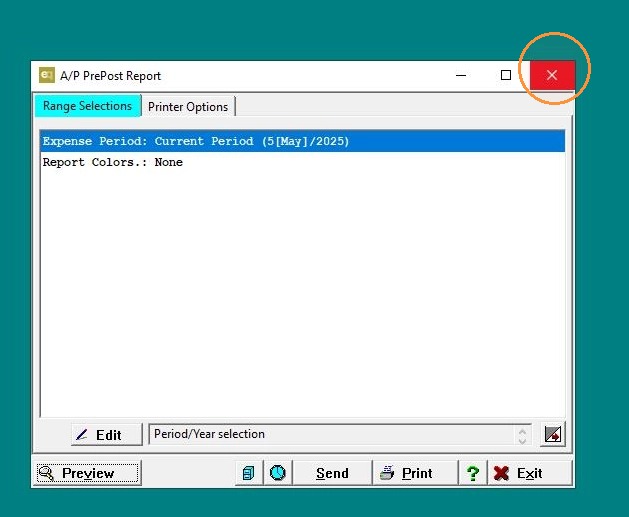
4. Exit the report once complete.
Tip: Step 2: Edit AP InvoicesTip!
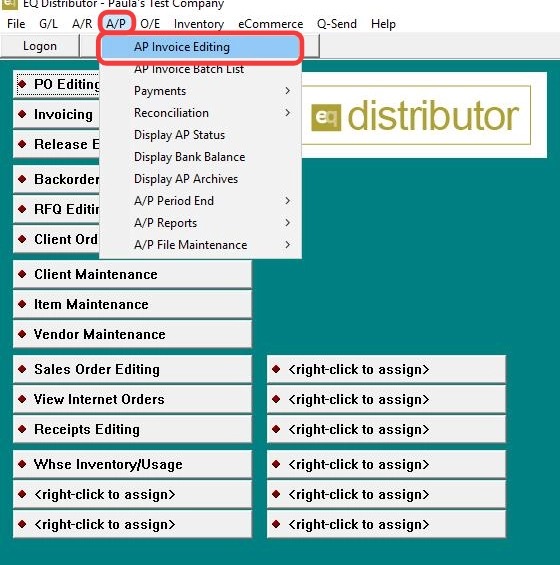
5. Go to: A/P>AP Invoice Editing
6. Enter the vendor name.
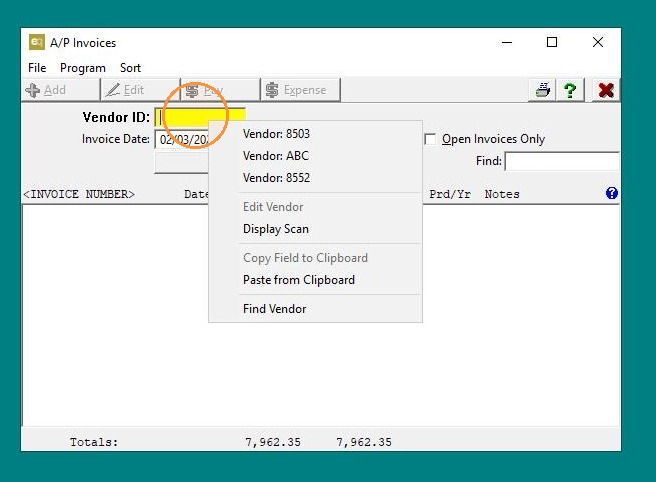
7. Press [[Return]]
8. Click the Find dial button and enter the invoice number from the report then, select the invoice.
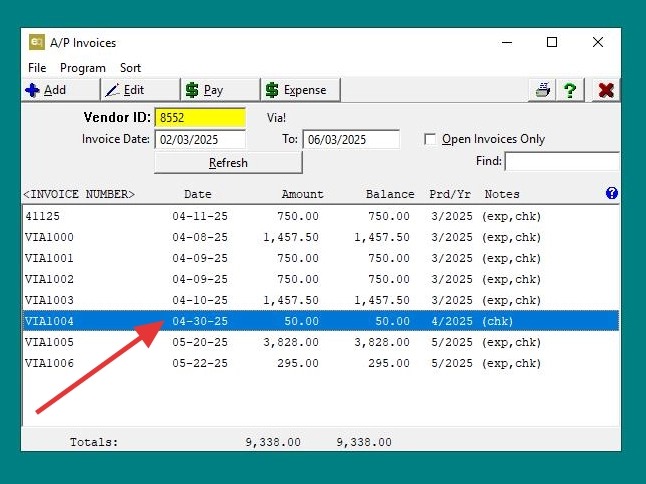
9. Under Expense Period, use the dropdown to select the current year and correct month.
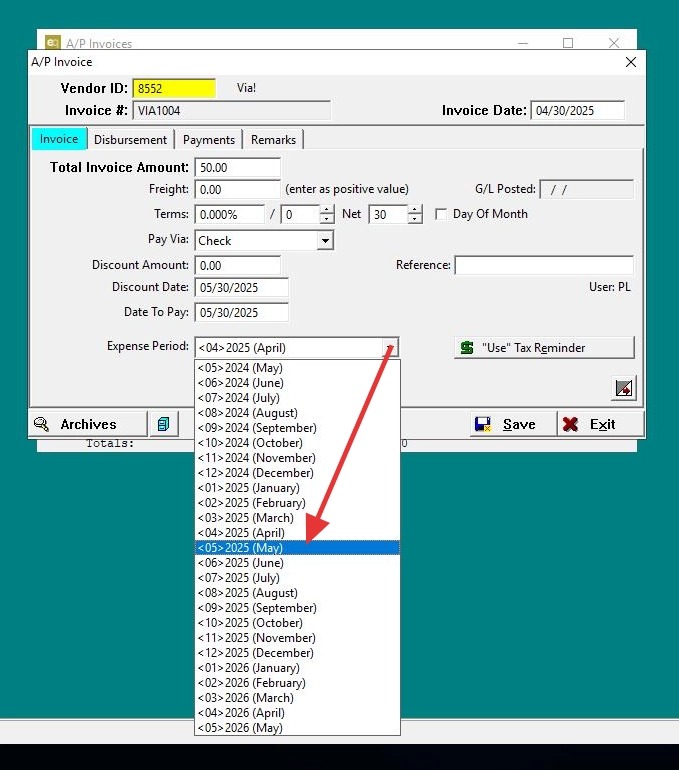
10. Click "Save" to apply the changes.
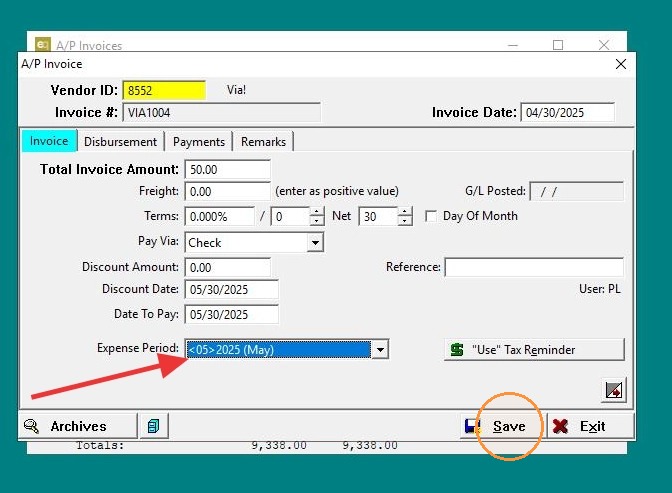
11. Exit the invoice screen.
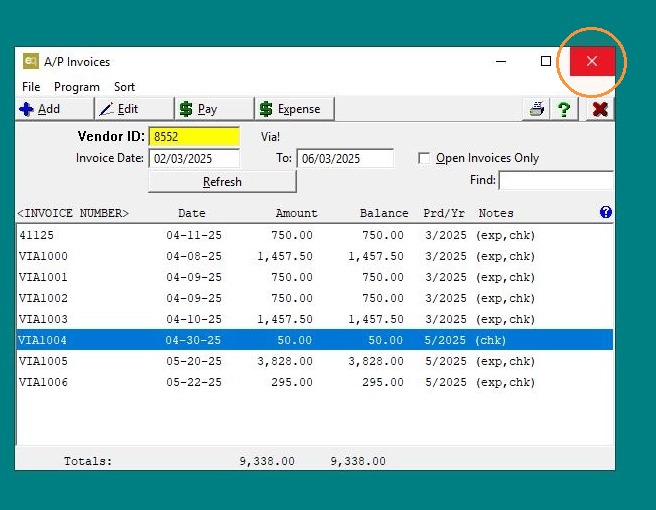
Tip: Step 3: Verify Corrections
12. Return to: A/P>A/P Period End>PrePost Report
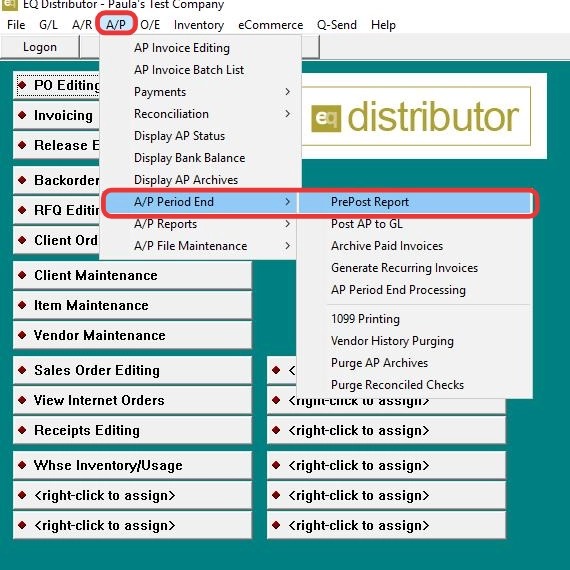
13. Re-run the report to ensure all previously incorrect invoices now show under current year and Month. Click "Preview"
14. Click "Exit"
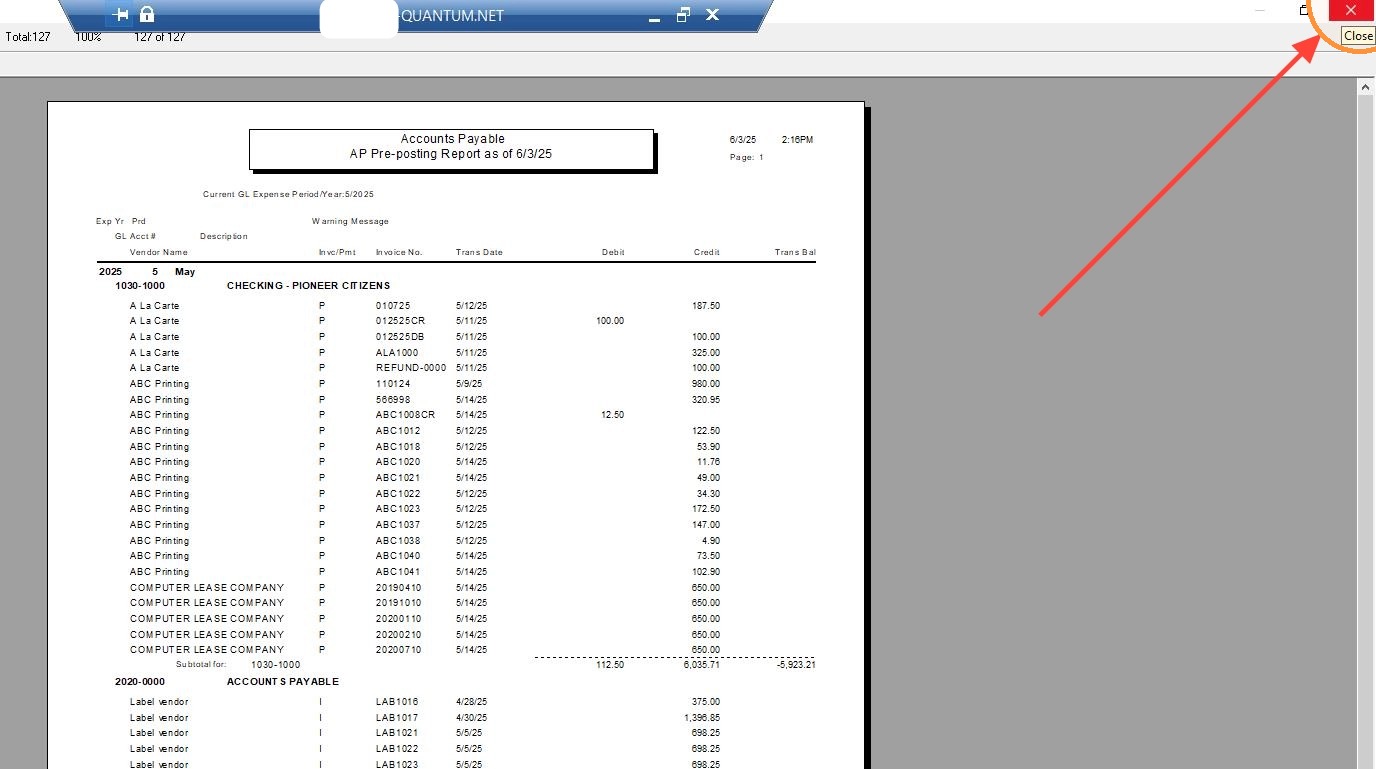
15. Click "Exit"