EQd: How To Set Up Recurring Invoices
NOTE: Before you can setup a Recurring Invoice you must have already invoiced the client for the applicable charge because the original invoice number will be used as a "Template" for the Recurring Invoices
Alert: Note: This process was created in a test environment. The information selected is for training purposes only and will not match the data you will use in your company's system.
Step 1: Set Up the Recurring Invoices
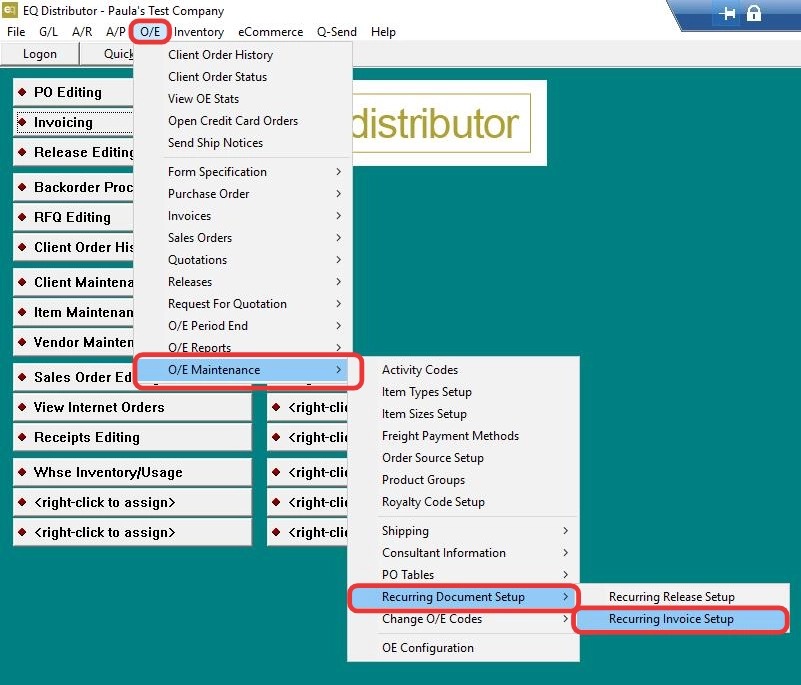
1. Navigate to O/E > O/E Maintenance > Recurring Document Setup > Recurring Invoice Setup.
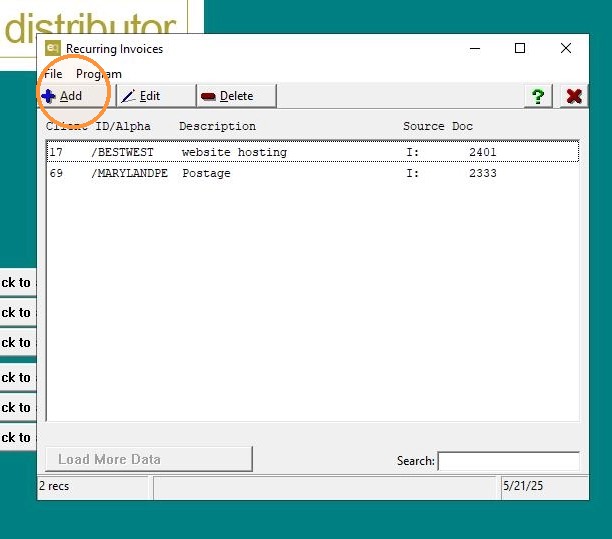
2. Click "Add"
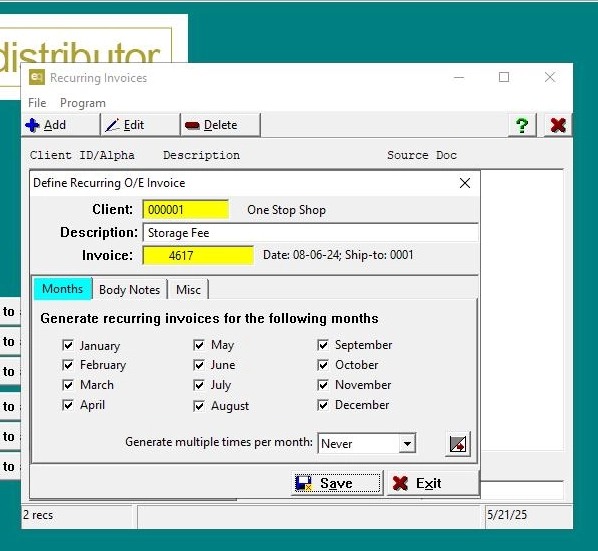
3. Fill in all the necessary fields (client, product/service details, etc.) Go to the Months tab and select the months you want the invoice to generate (e.g., every month for a retainer).
4. Go to the Remarks tab and enter any notes or descriptions you want included on the invoice.
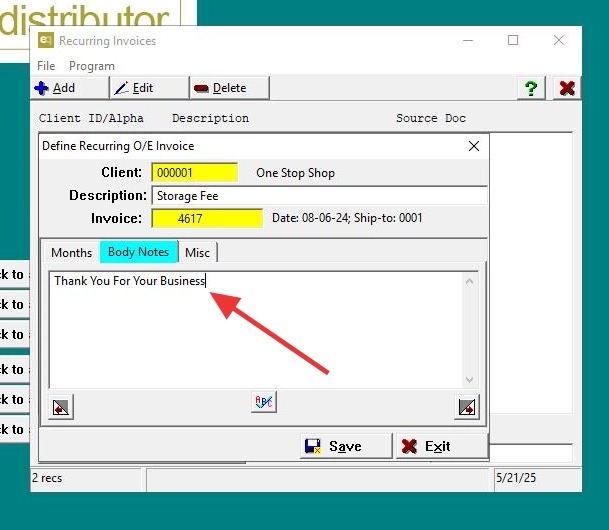
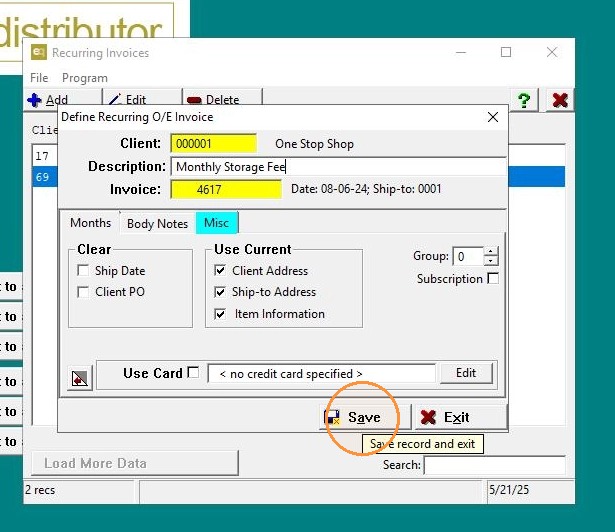
5. Under Clear or Use Current, check the boxes that best fit your needs.
> (Refer to internal documentation for guidance on what each checkbox does.) Click "Save"
6. Click "Exit"
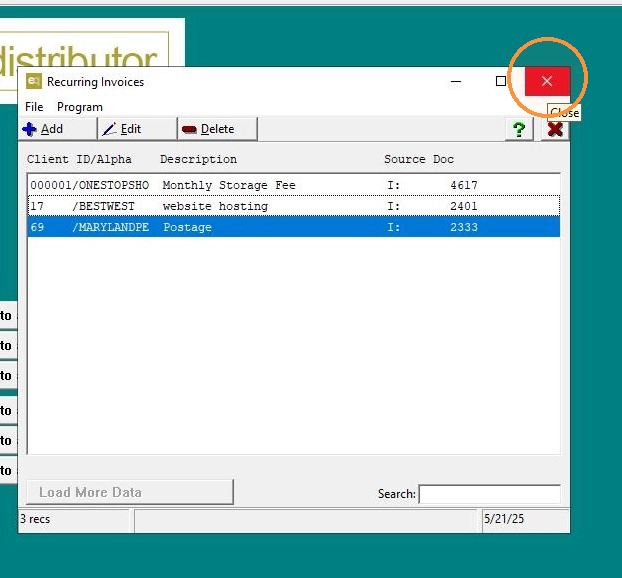
Step 2: Generate the Recurring Invoices
7. Navigate to O/E > O/E Period End > Recurring Invoices > Generate Recurring Invoices.
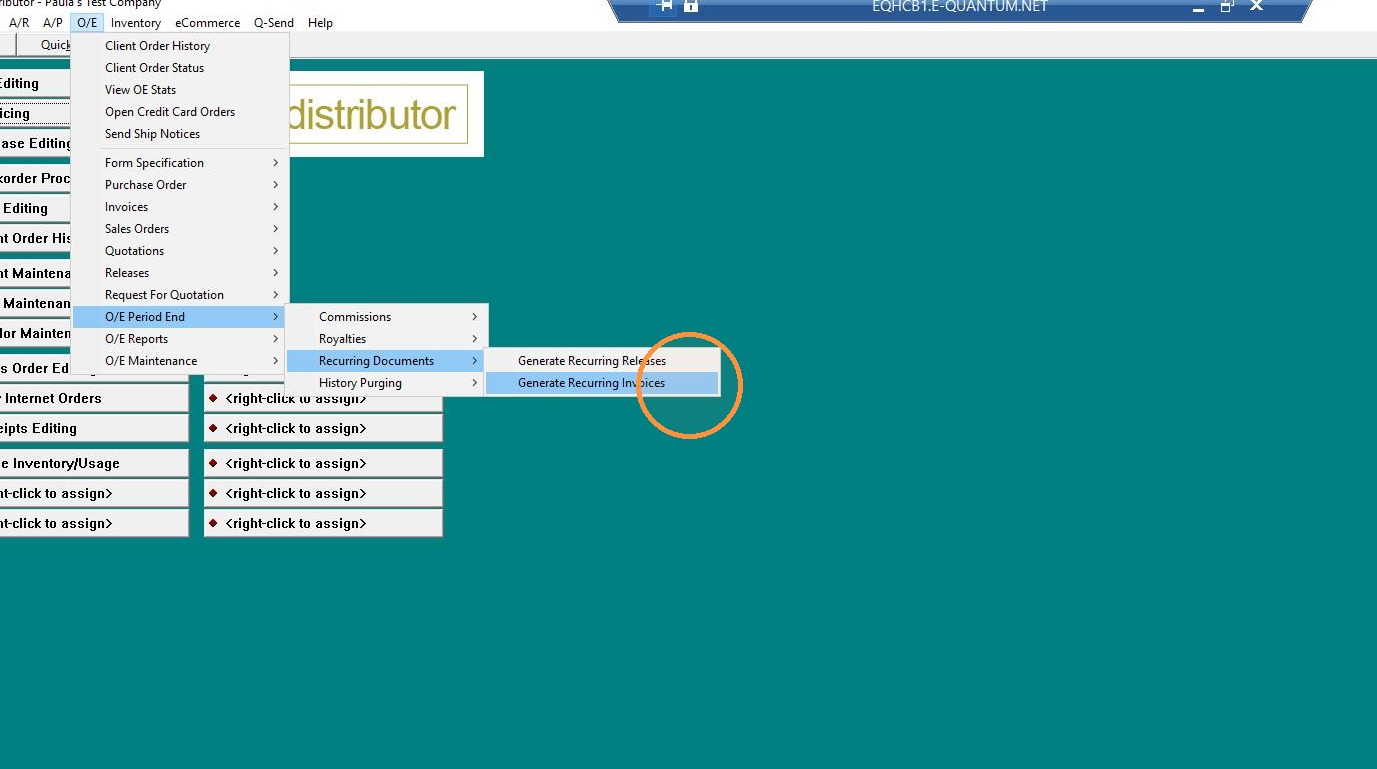
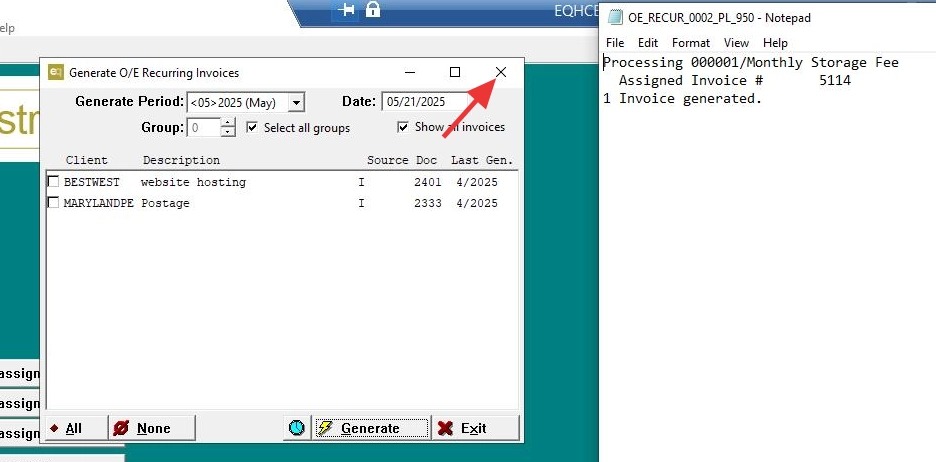
8. Select the invoice(s) you want to generate. Click "Generate".
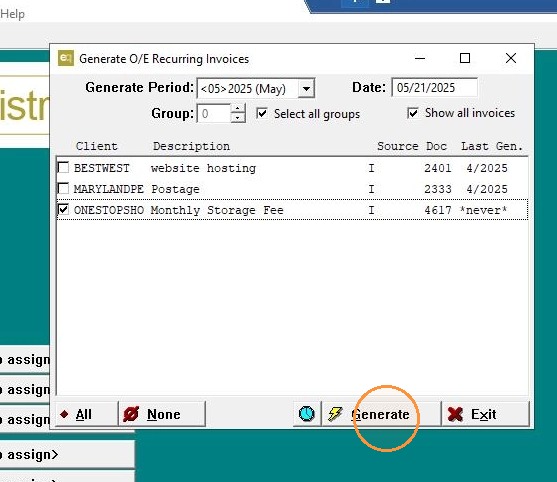
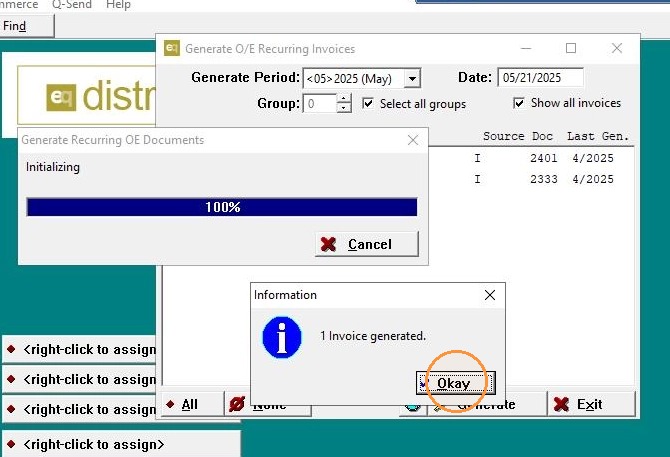
9. A message will show the number of invoices generated — Click "Okay".
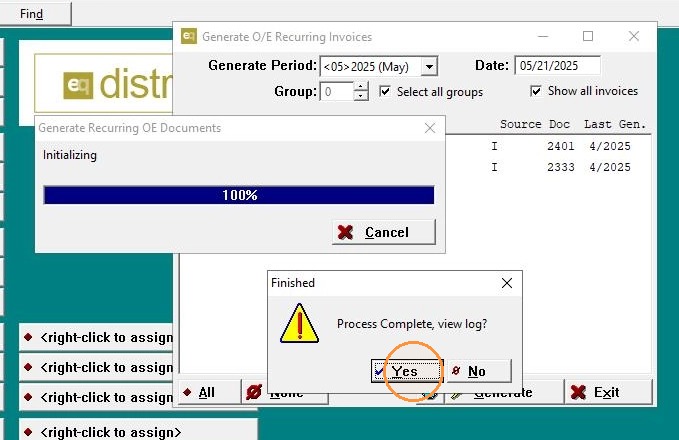
10. When prompted to view the log, click "Yes".
11. Close and Exit.