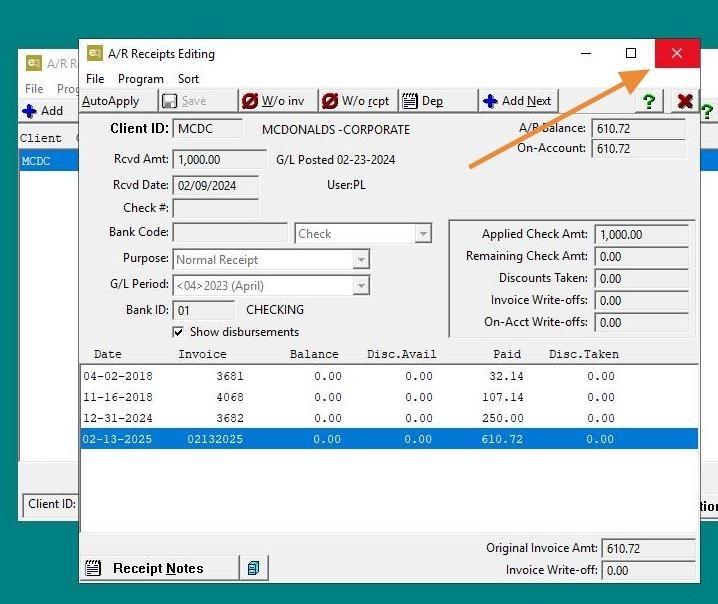
EQd: Applying an On-Account Credit
Note: This process was created in a test environment. The information selected is for training purposes only and will not match the data you will use in your company's system.
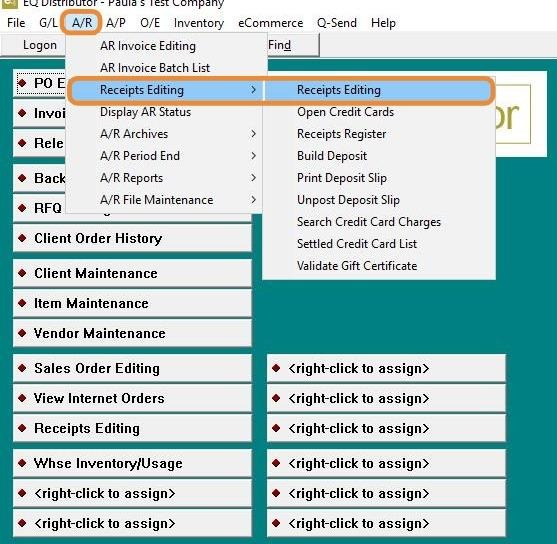
1. Click A/R > Receipts Editing > Receipts Editing.
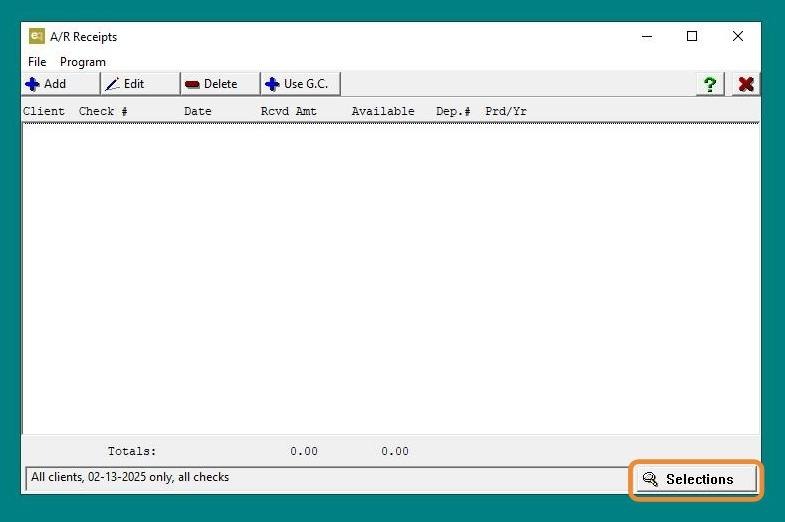
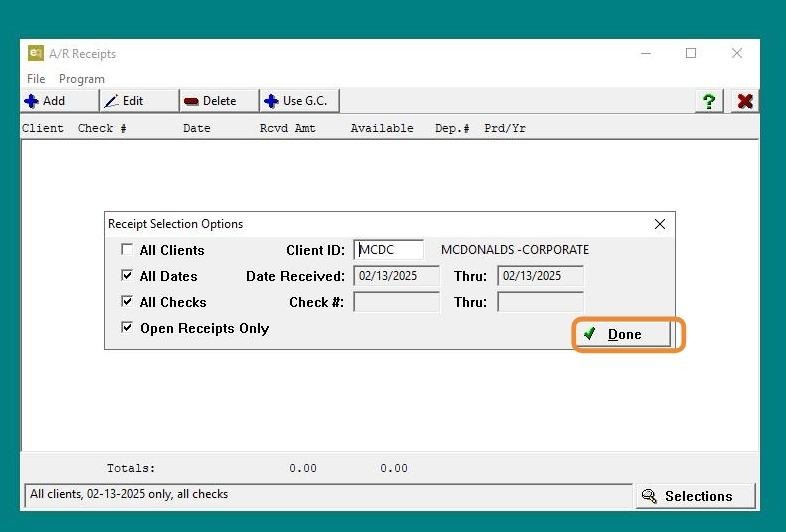
2. Click "Selections" in the lower right-hand corner.
3. Choose your Receipt Selection Options, then right-click to enter the Client ID or use the Display Scan option to locate the Client ID.
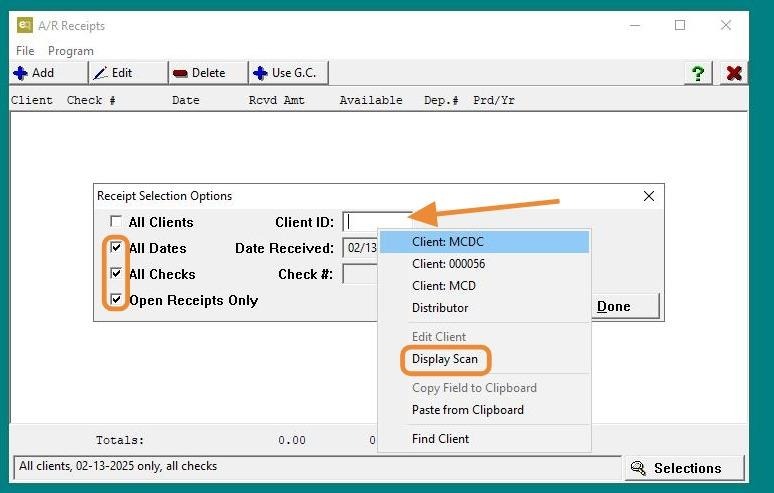
4. Click "Done"
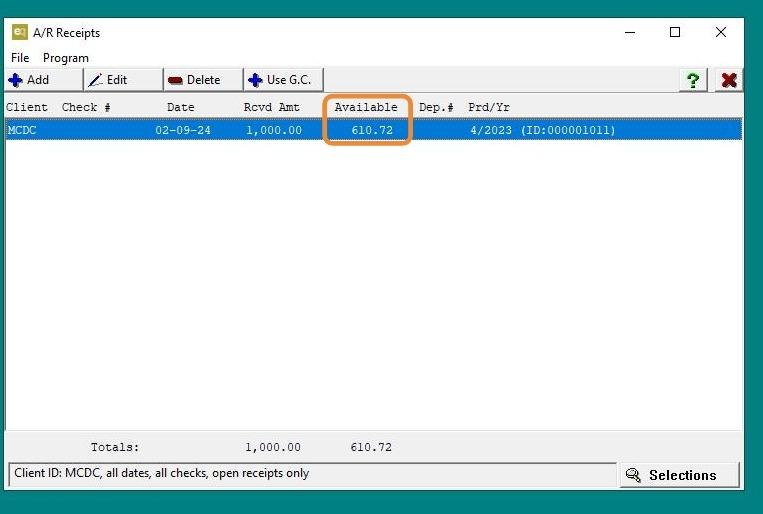
5. Locate the On-Account Receipt if multiple are listed, then double-click on Receipt Selected.
6. Double-click on Invoice to be Paid.
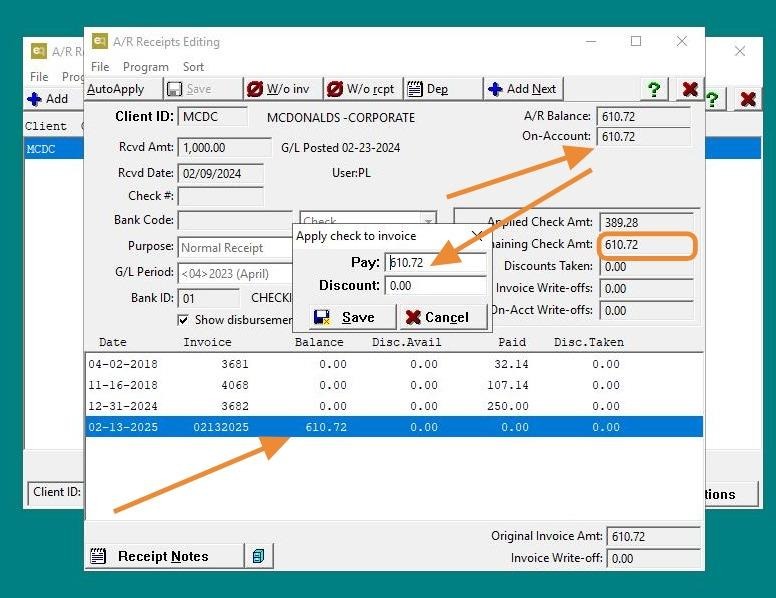
7. Click "Exit"