EQd: Remove Outdated AP Invoices with Outstanding Balances
Note: This process was created in a test environment. The information selected is for training purposes only and will not match the data you will use in your company's system.
1. To clear old AP invoices with outstanding balances: Add negative AP invoices to offset and close the outstanding amounts.
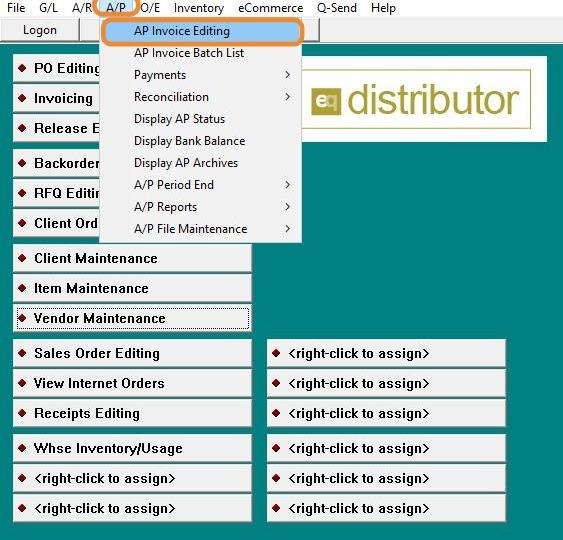
Click "AP > Invoice Editing"
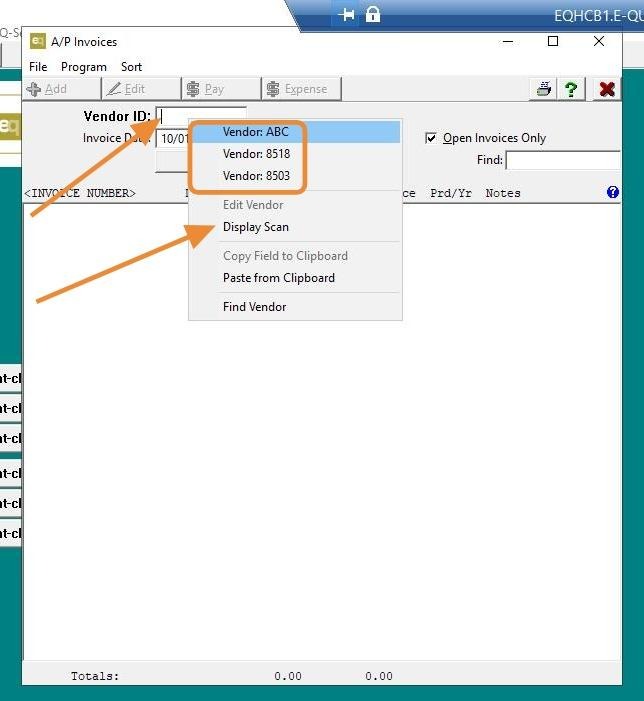
2. Right-click and choose "Enter vendor," select from the displayed list, or use "Display Scan" to locate the vendor.
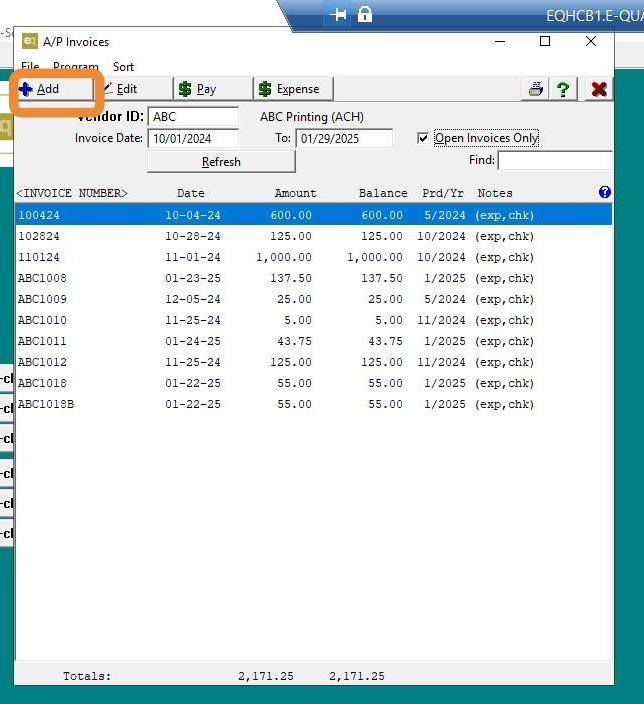
3. Click "Add" to create a new invoice.
4. Add > Invoice Number: "Close Inv #xxx", Date: Today, Amount: enter the amount as a negative number, Period: select the current period.
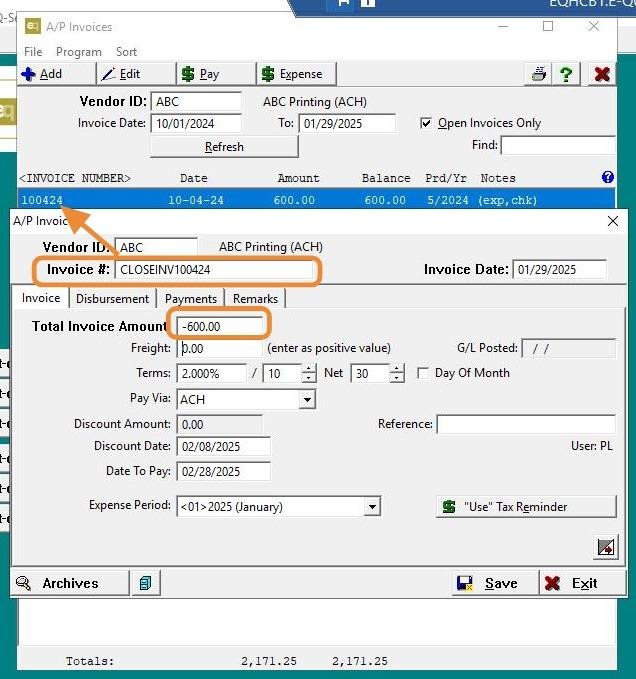
5. Click the "Disbursement" tab and confirm with your accountant which expense account to credit.
- The system will automatically select the vendor's default GL account.
- This will decrease expenses for the current month and year.
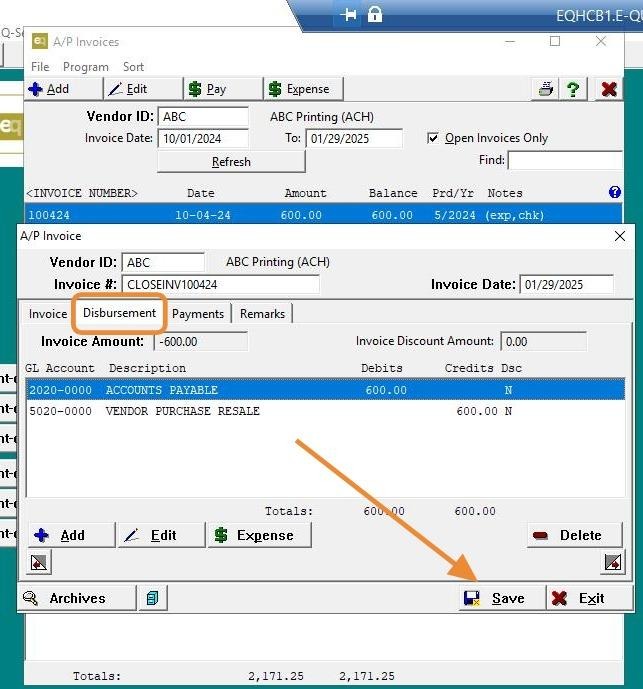
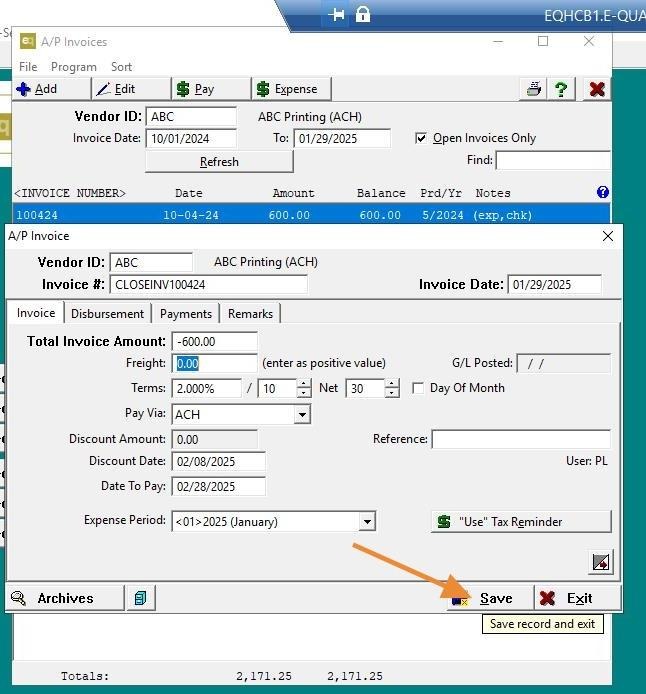
6. Click "Save" and exit the invoice.
7. Select "Pay" at the top of the "AP Invoice Editing" screen.
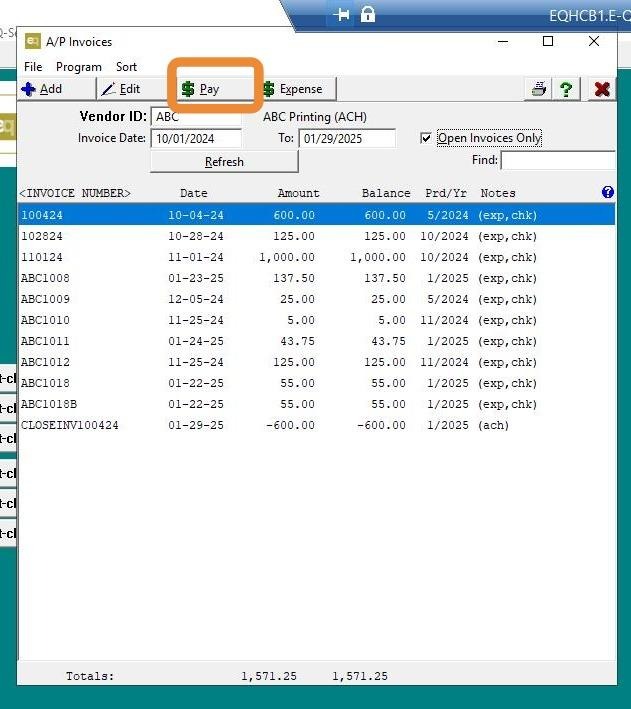
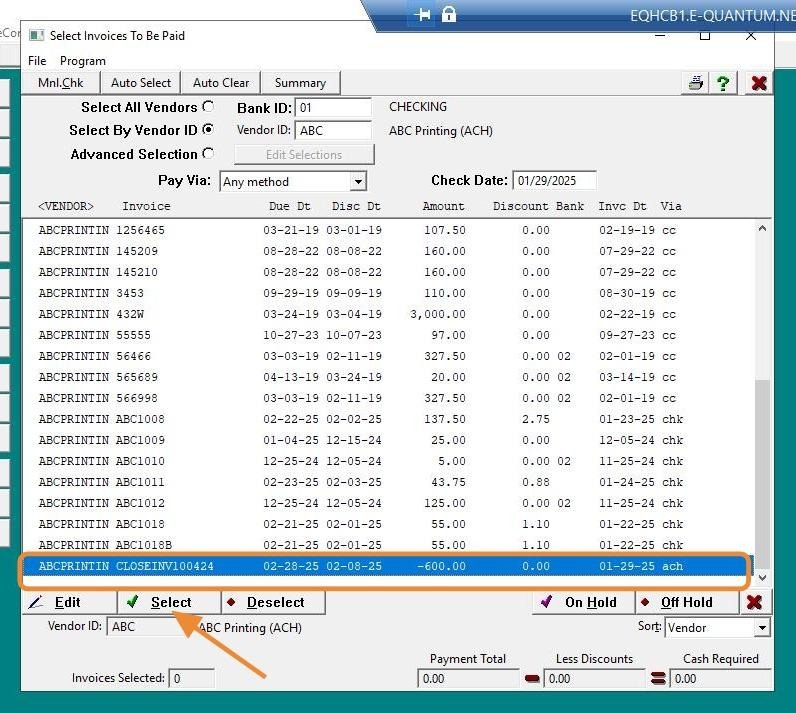
8. Find the negative invoice and select it for payment.
9. Find the positive invoice and select it for payment.
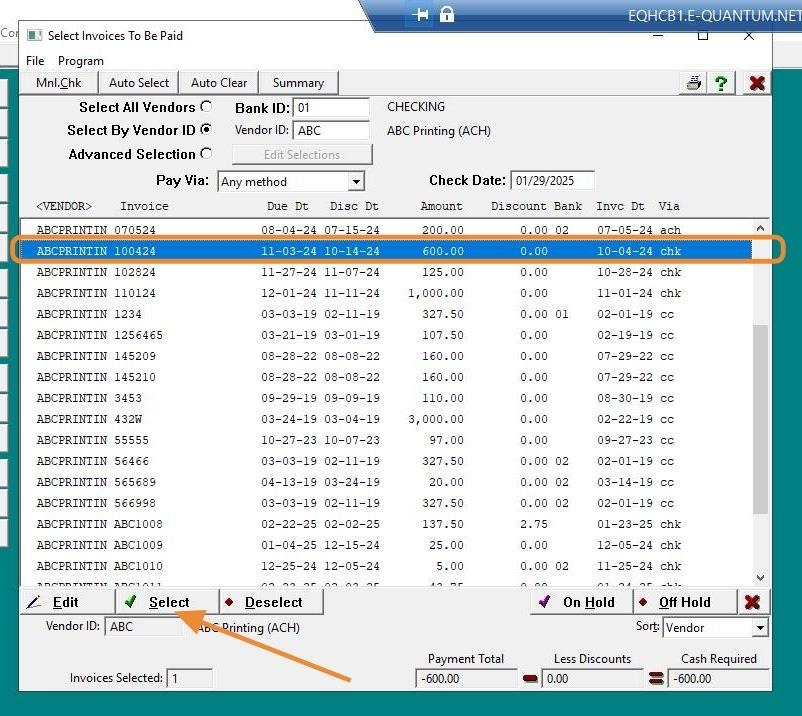
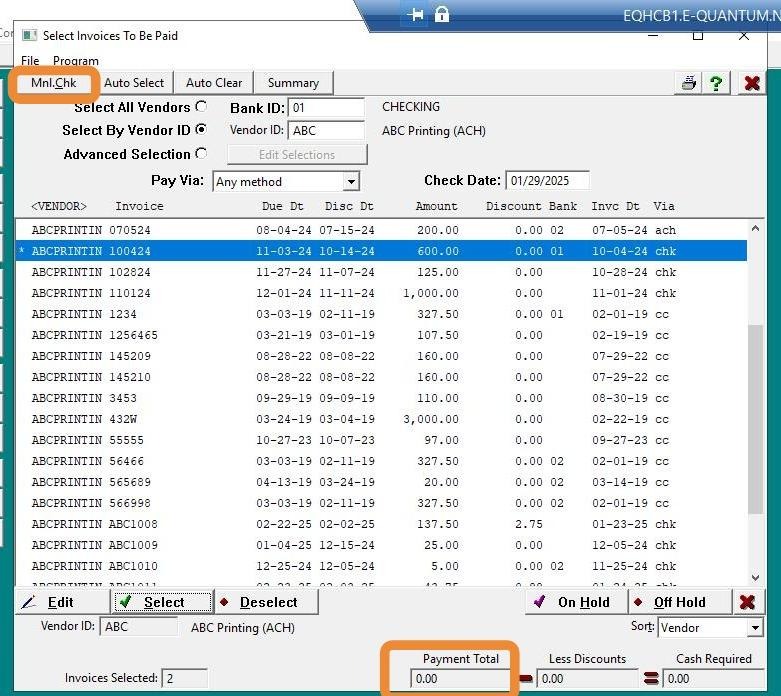
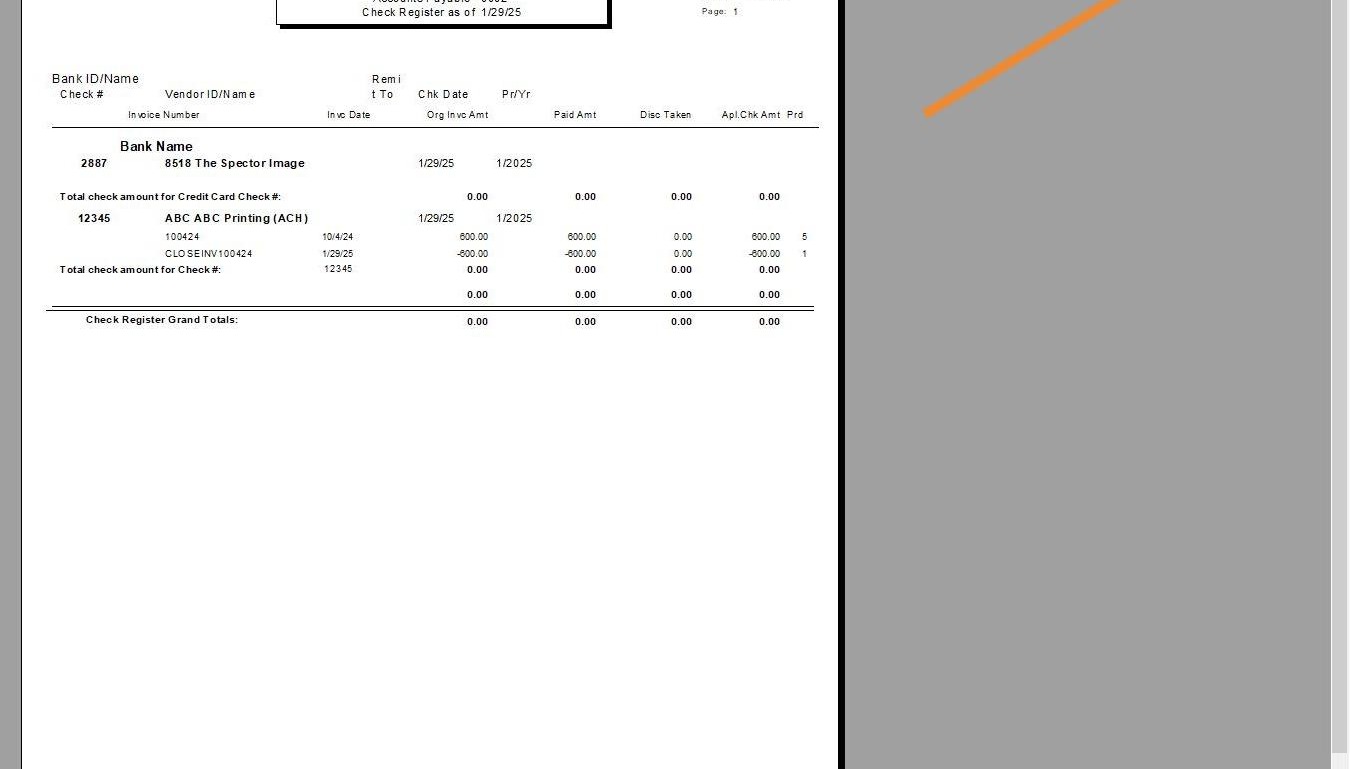
10. At the bottom of the screen, the number of selected invoices will be displayed, with the check amount showing as $0.00.
Select "MnlChk", choose the current period, enter any number for the check #, set the Check Date to today, then click Save.
11. Eter any number for the check #, set the Check Date to today, then click Save.
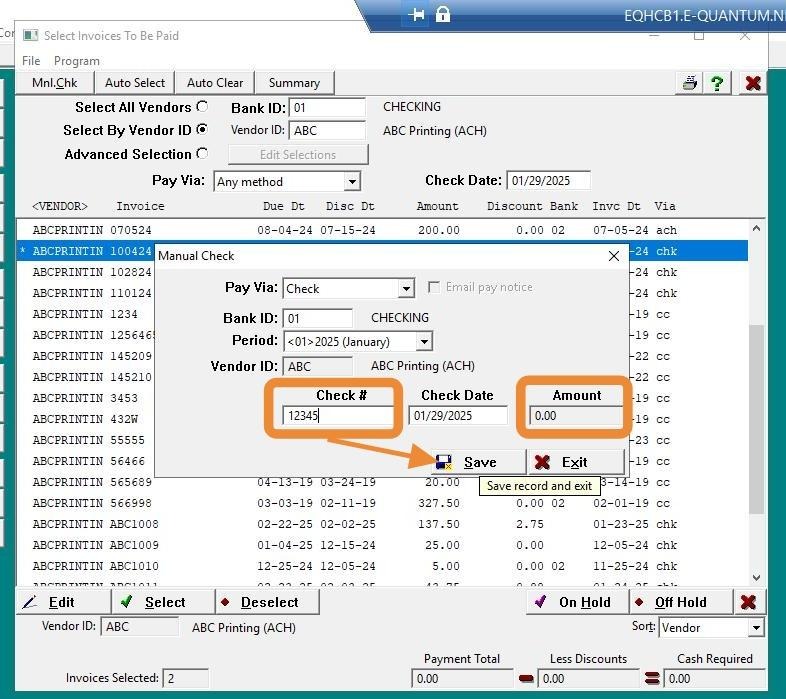
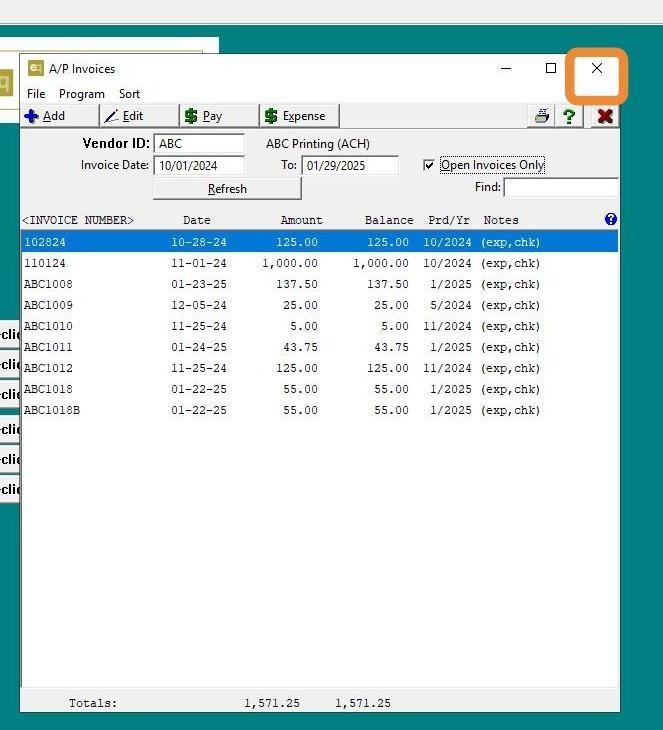
12. Click "Exit"
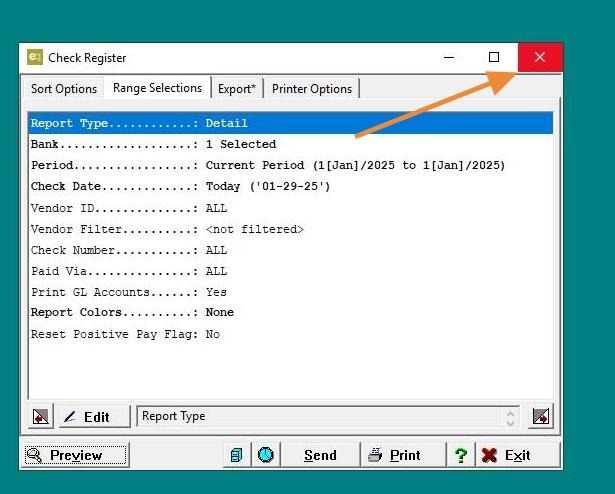
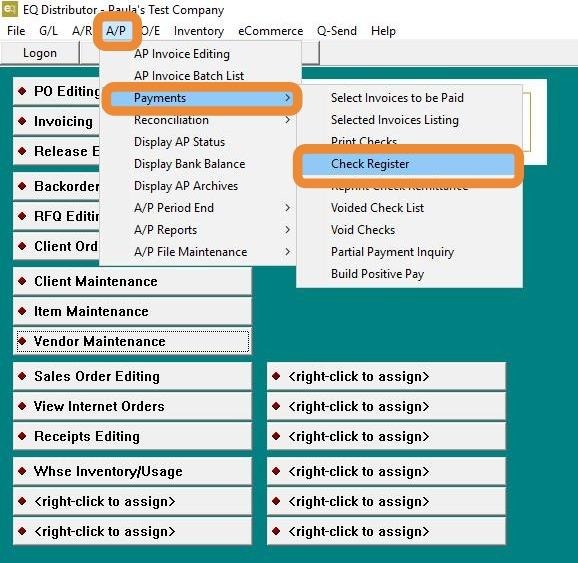
13. Final step: Navigate to AP > Payments > Check Register to view the zero-amount check.
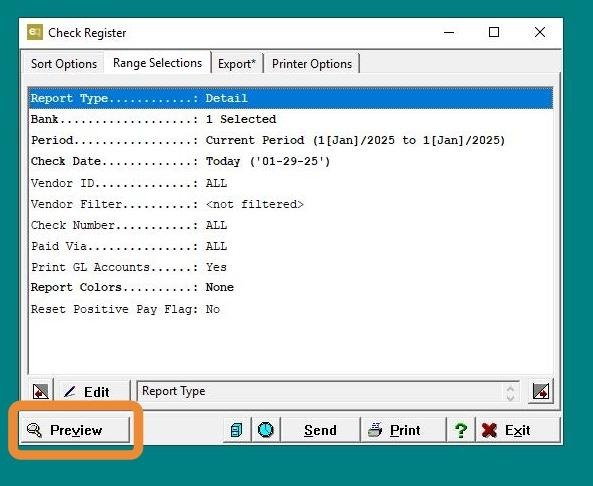
14. Click "Preview"
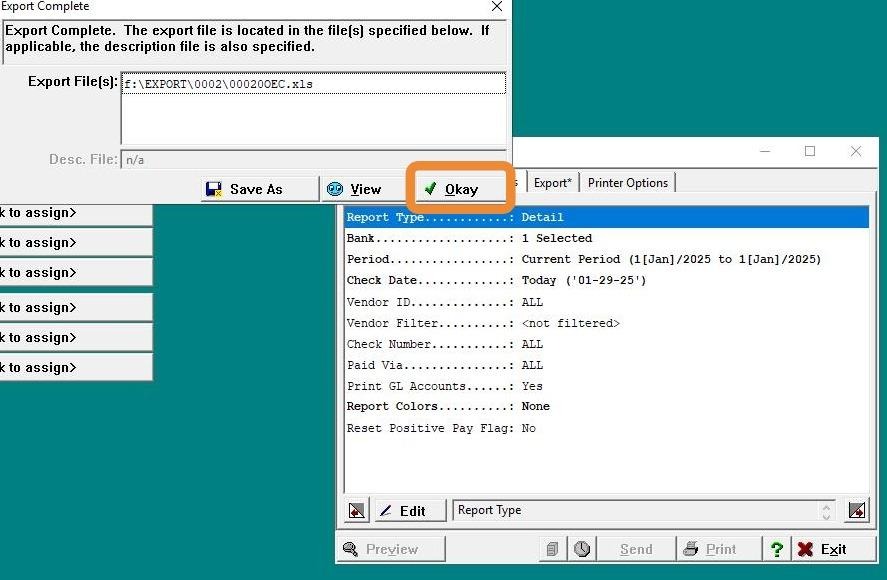
15. Click "Okay." This screen appears if you have it set to view the export. If you'd like to view the export, select "View"; otherwise, simply click "Okay."
16. Click "Exit"
17. Click "Exit"