EQd: How to Generate a CSV Export File
Note: This process was created in a test environment. The information selected is for training purposes only and will not match the data you will use in your company's system.
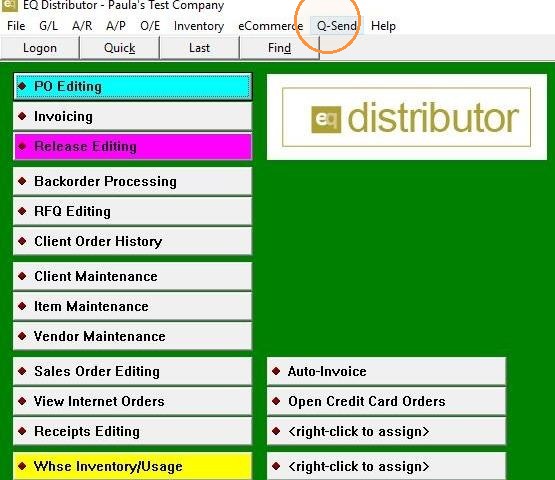
1. Click "Q-Send"
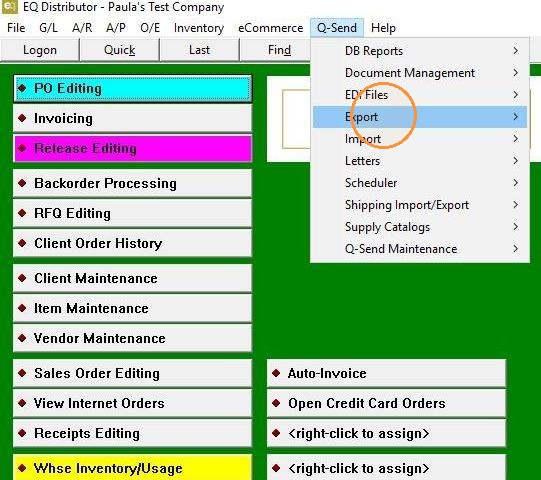
2. Click "Export"
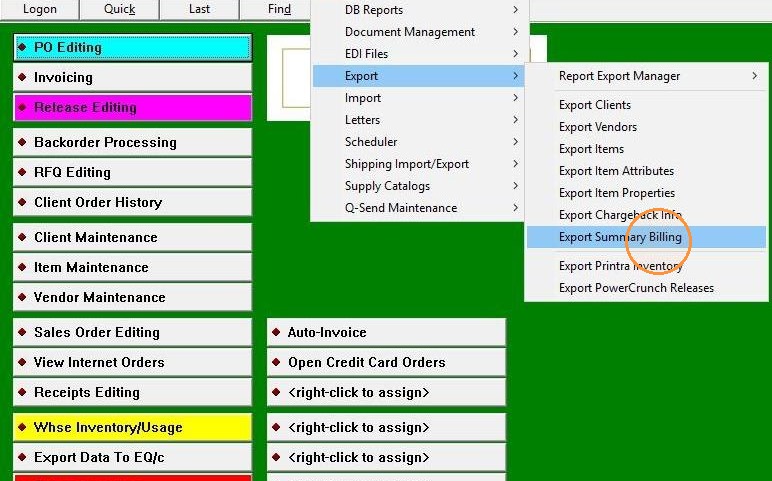
3. Click "Export Summary Billing"
4. Right-click, select "Client," type the client ID or find the client using Display Scan.
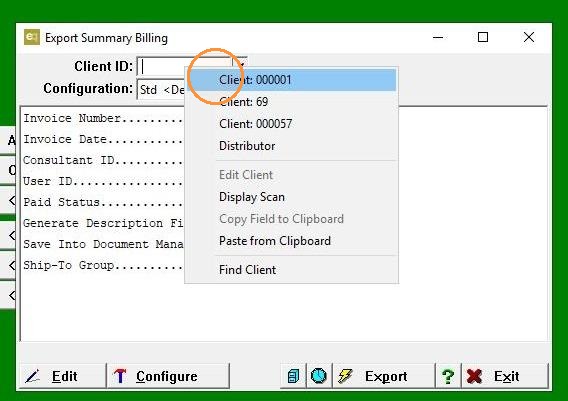
5. Click "Export"
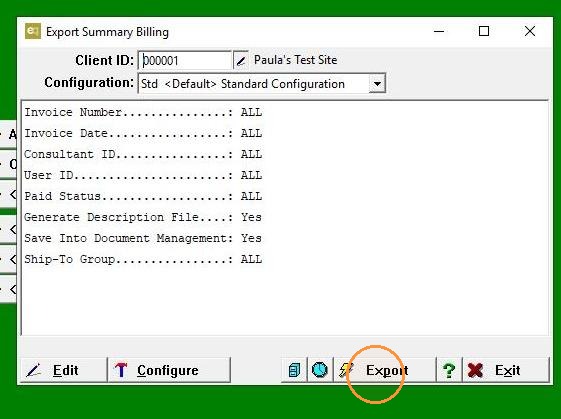
6. Click "View"
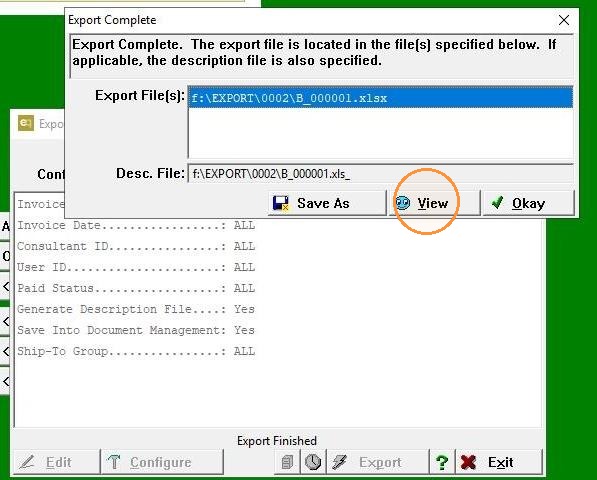
7. Customize the report to your preference, then click "File."
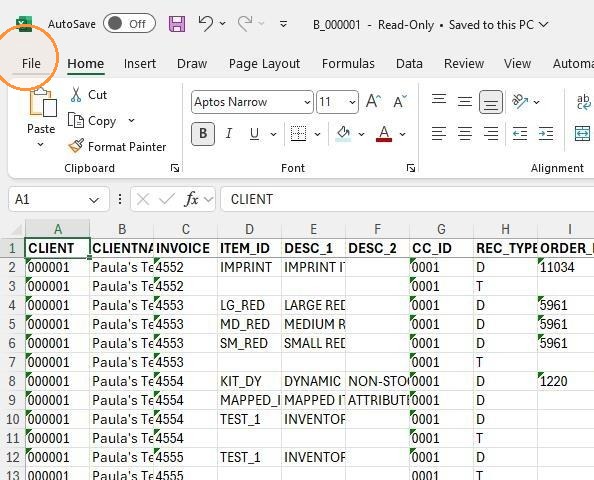
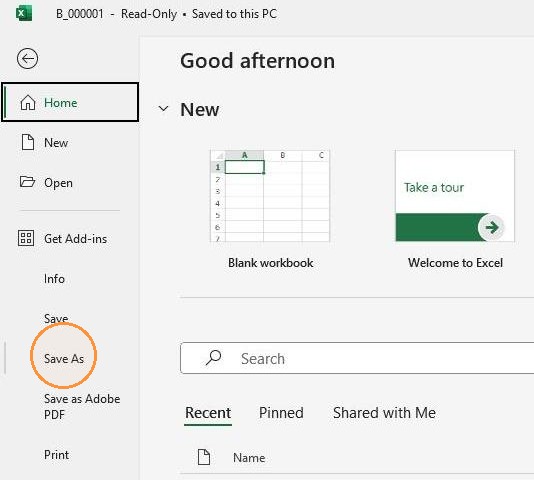
8. Click "Save As"
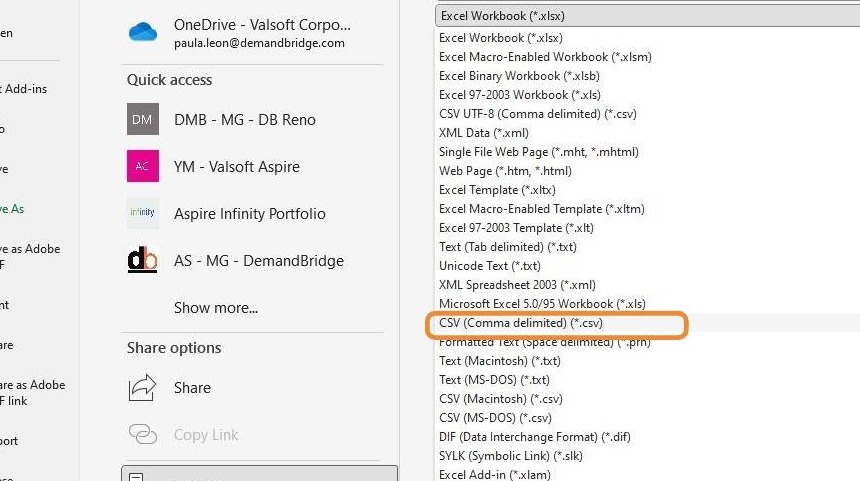
9. Click "CSV (Comma delimited) (*.csv)"
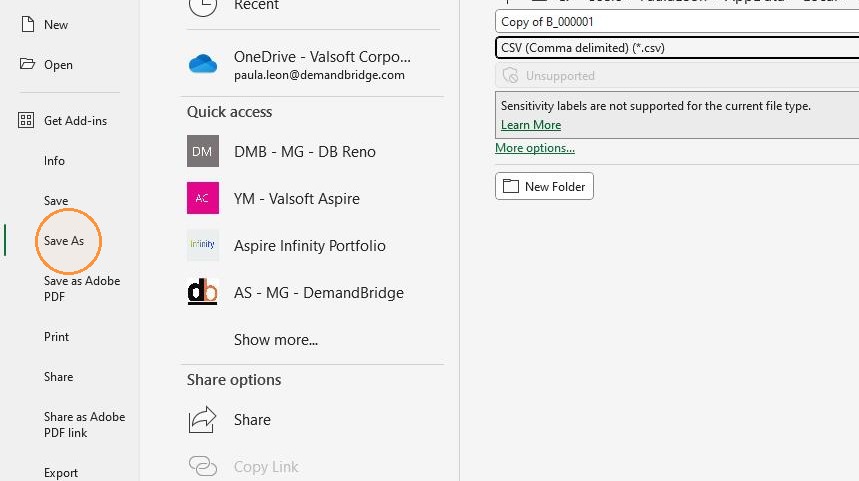
10. Click "Save As"
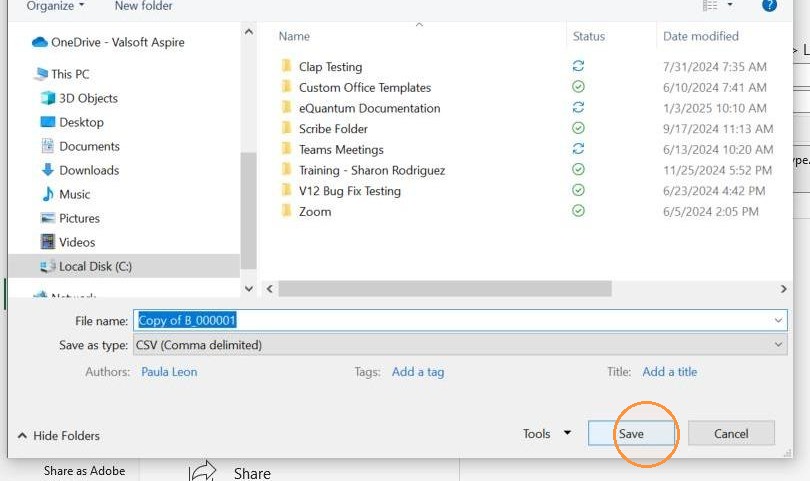
11. Click "Browse"
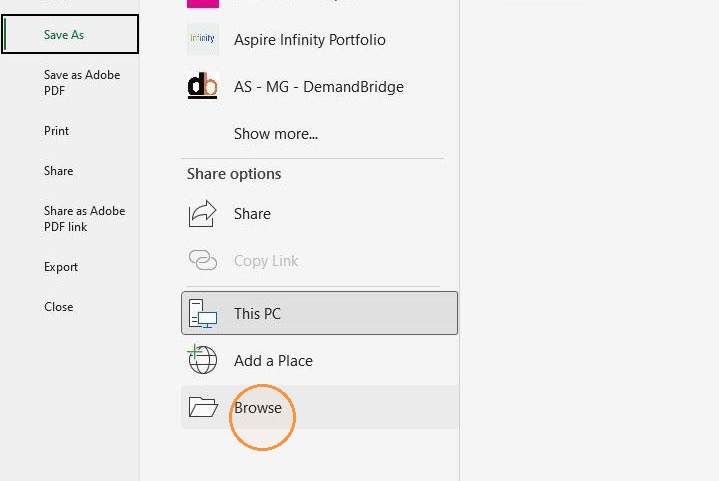
12. Choose the location where you want to save the file, then click "Save."