EQd: How to Update the Terms Message Globally for All Clients
The global setting can be overridden at the client level. Instructions for updating at the client level are provided in the next section. Note: This process was created in a test environment. The information selected is for training purposes only and will not match the data you will use in your company's system.
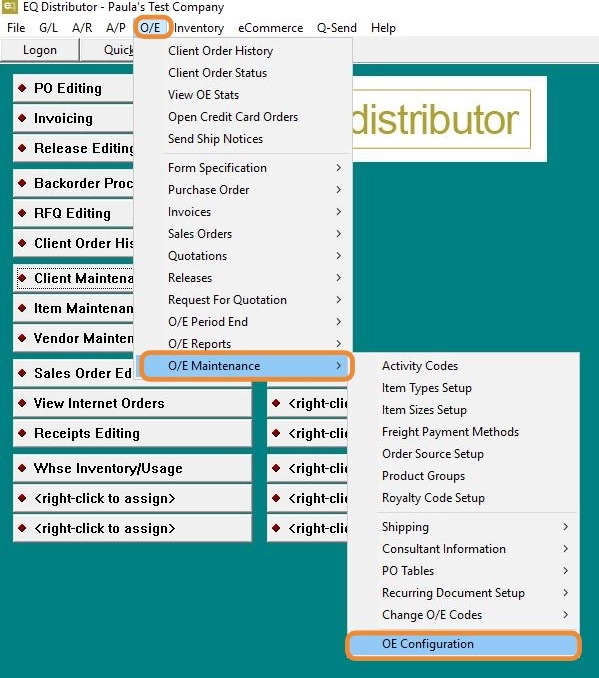
1. Navigate to O/E > O/E Maintenance > O/E Configuration.
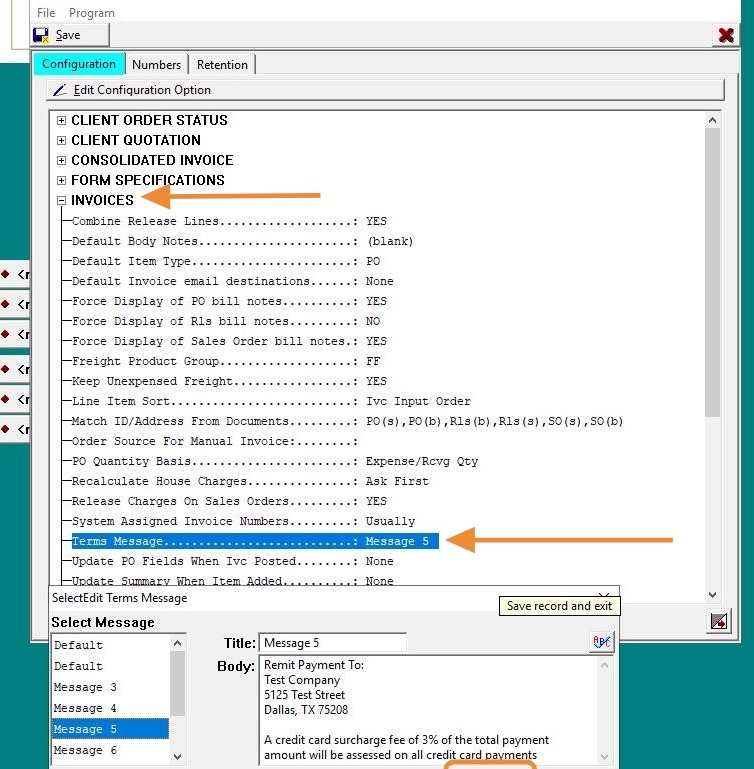
2. In the Configuration tab, go to the Invoices section, select the Terms Message area, locate the Default Message field, update the terms message as needed, then click Save and Exit.
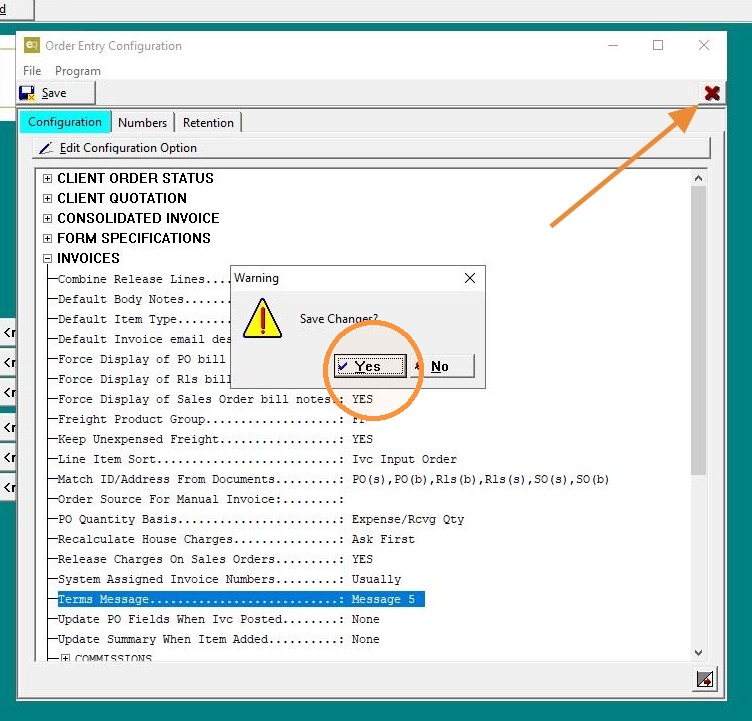
3. Click "Exit"
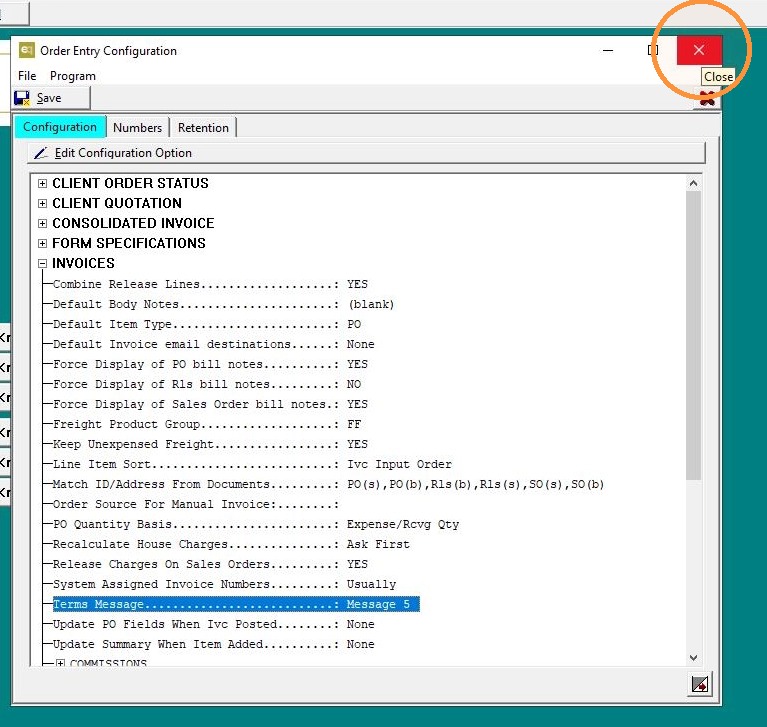
4. Click Save, then Exit the screen.
5. How to Update the Terms Message at the Client Level
Note: Changing the message at the client level overrides the global setting for that specific client.
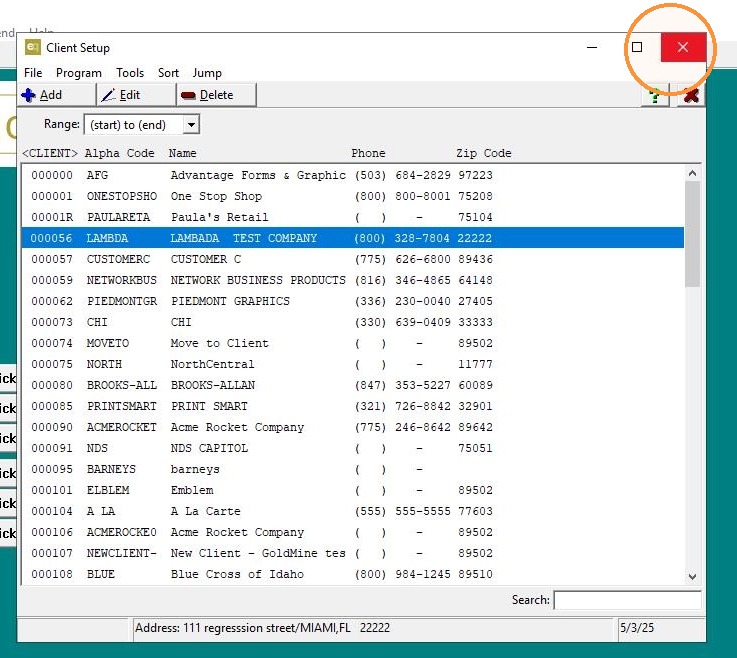
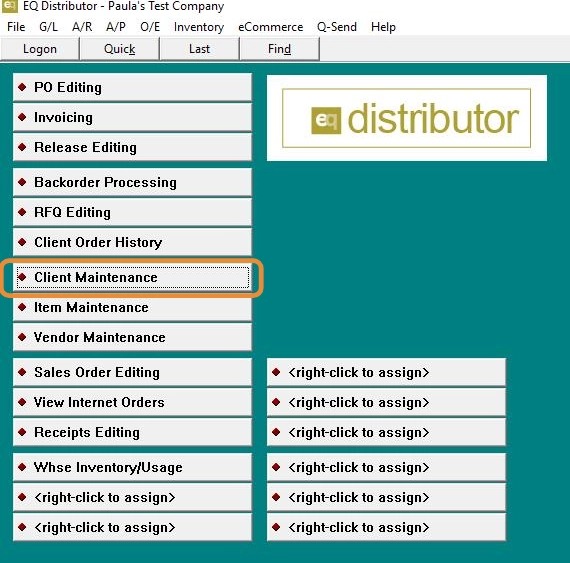
Navigate to A/R > A/R File Maintenance > Client Maintenance,
or access Client Maintenance through the Quick Button.
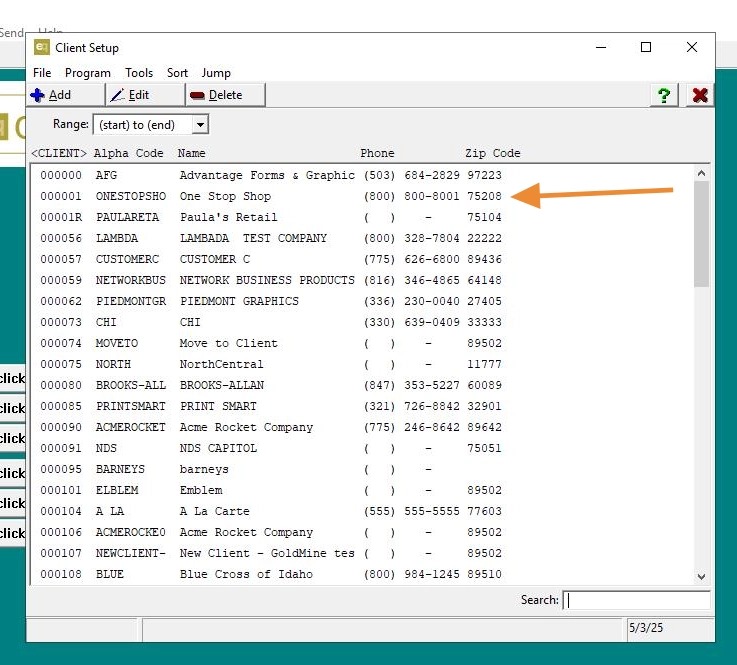
6. Double-click on the client you want to update.
7. Select the Overrides tab.
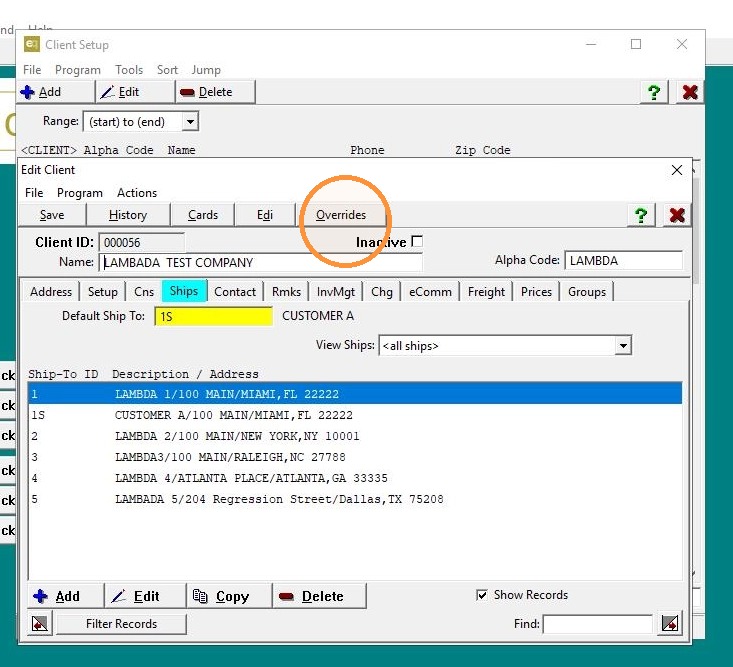
8. Click into the Message field section.
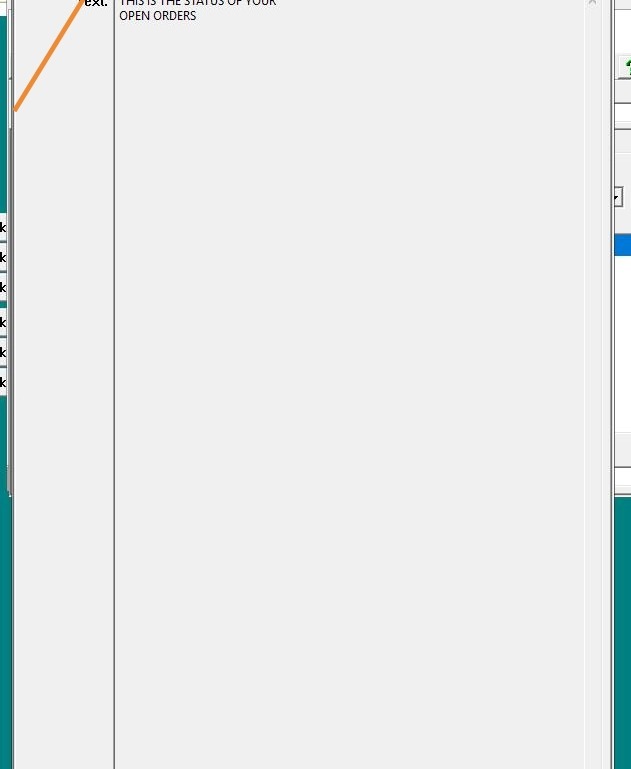
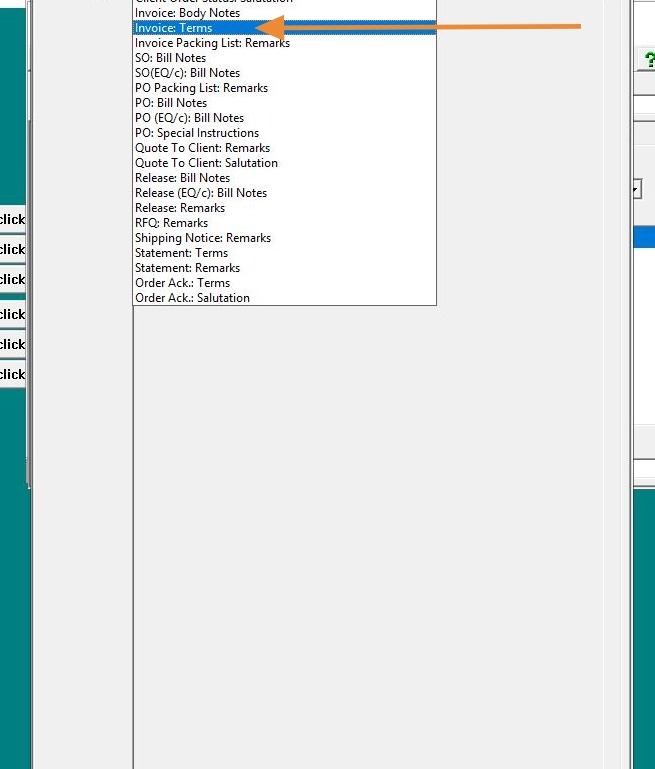
9. From the dropdown, select Invoice Terms.
10. Click the Overrides checkbox next to the dropdown button at the top.
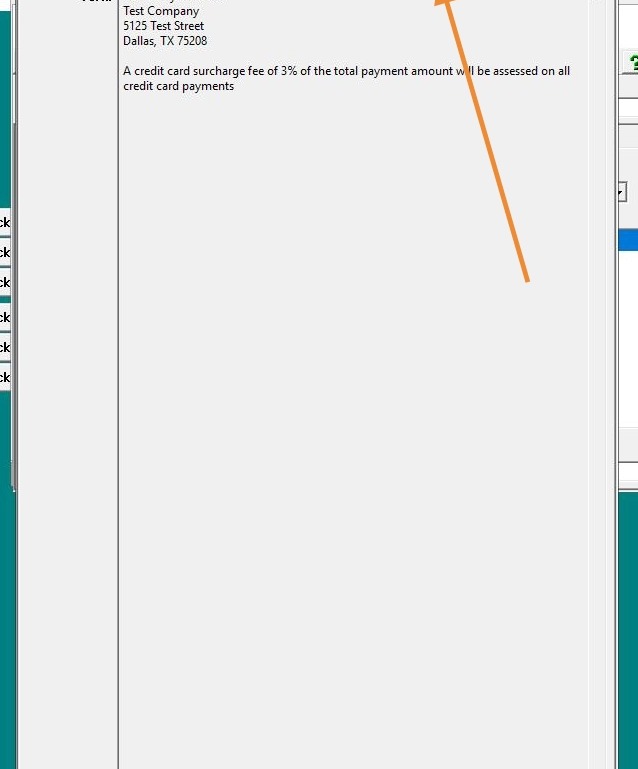
11. Once checked, you can remove the global message and enter a new terms message for this specific client.
Click Save, then Exit the screen.
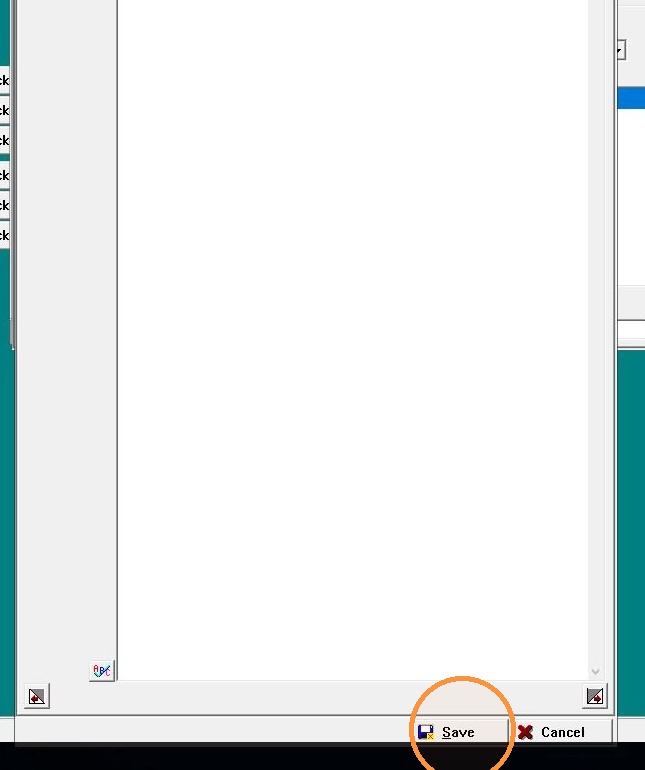
12. Click "Exit"