EQd: How to Mark a Product Group as Inactive Using Rename and Code Change
⚠️ Note: Product Groups cannot be deactivated. However, the following steps help prevent users from selecting obsolete Product Groups in the system. This process was created in a test environment. The information selected is for training purposes only and will not match the data you will use in your company's system.
1. Navigate to Product Group Maintenance
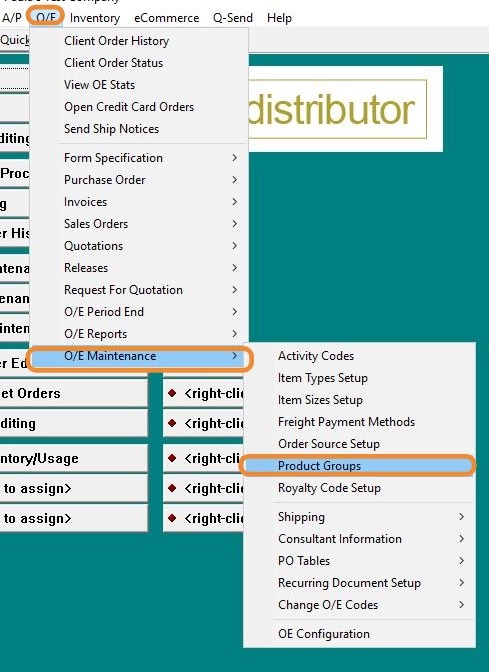
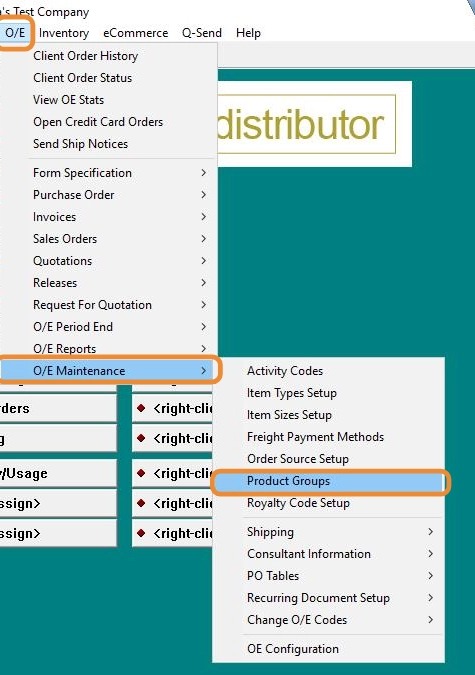
- Go to O/E > O/E Maintenance > Product Group.
2. - Locate the Product Group
- Use the lookup or search function to find the Product Group you want to restrict.
- Rename the Product Group
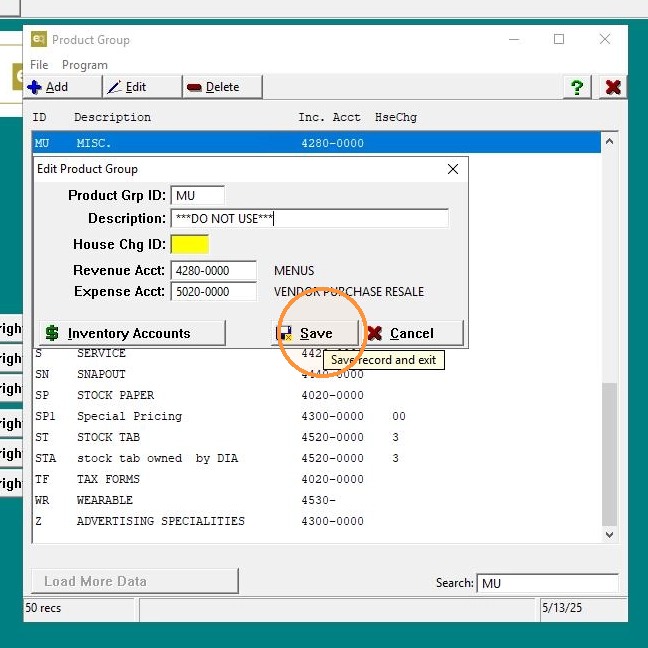
- Change the description to
"DO NOT USE"to make it clear to all users that this group should no longer be used. Click "Save"
- Change the description to
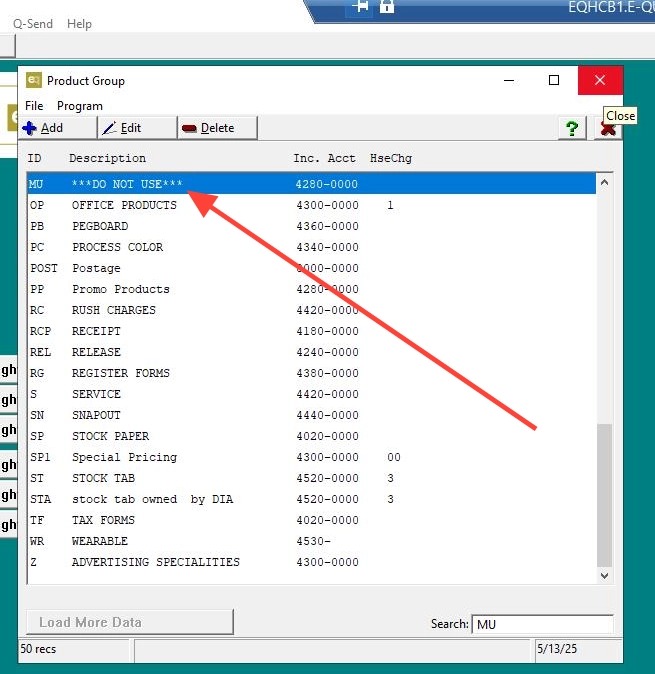
3. Click "Exit"
4.Change the Product Group Code (Optional but Recommended)
This step helps move the group to the bottom of lists and reduce accidental selection.
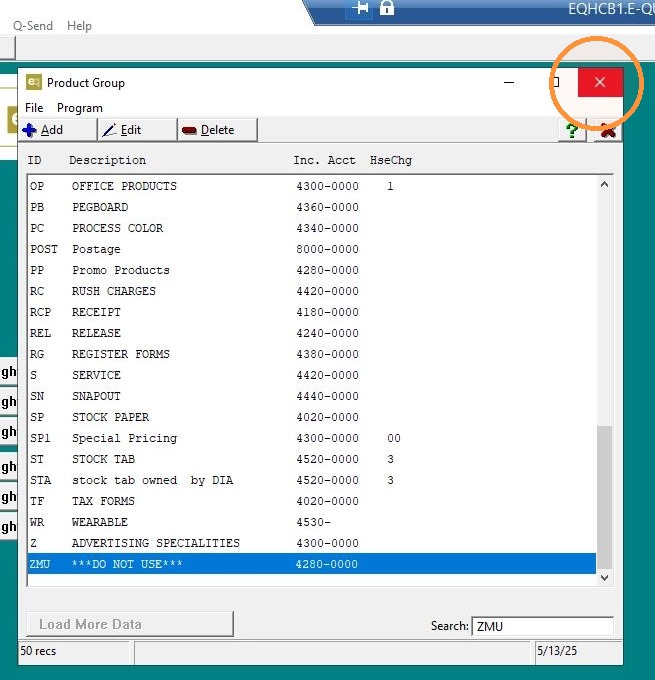
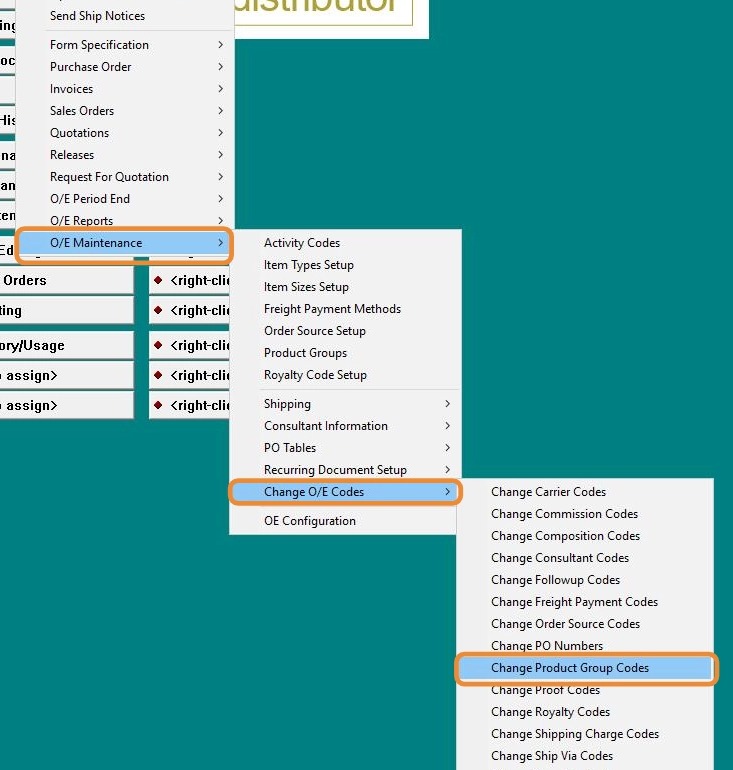
- Go to O/E > O/E Maintenance > Change O/E Codes > Change Product Group Codes.
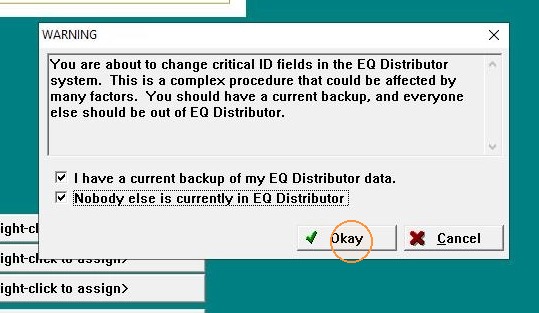
5. - Before proceeding:
-
Ensure a backup of the system has been created.
-
Confirm that no users are currently in the system.
-
Click OK to continue.
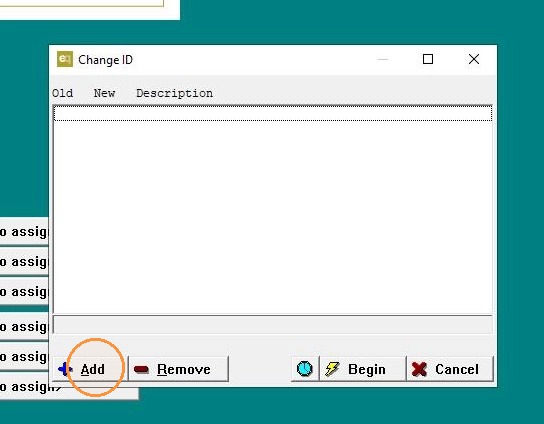
6. Click "Add"
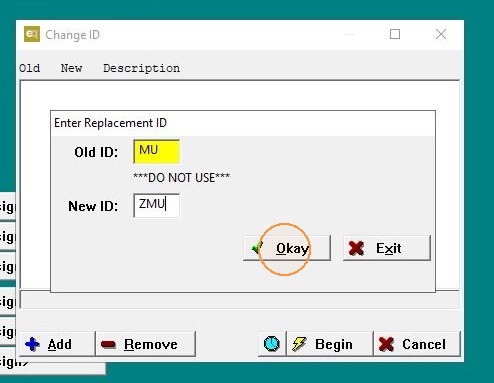
7. - Enter the old Product Group (PG) code.
- Enter the new Product Group code, adding a
"Z"at the beginning (e.g., if the original PG wasABC, the new code should beZABC).- ✅ Adding "Z" will push the group to the bottom of selection lists, making it less likely to be used.
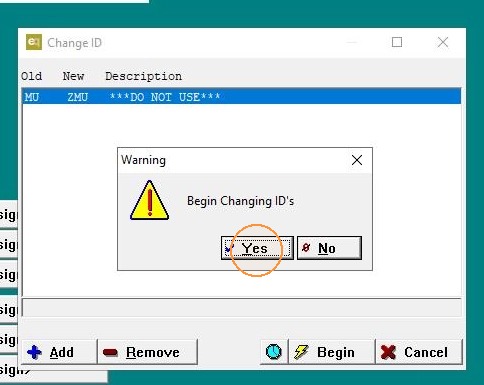
8. Click "Yes"
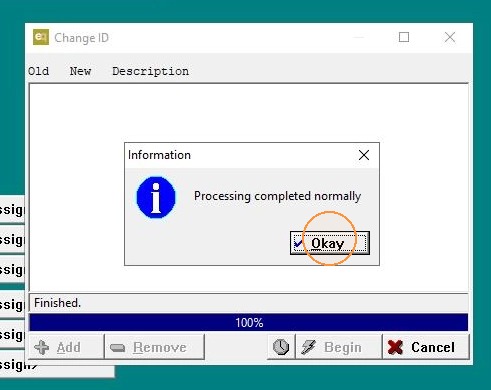
9. Click "Okay"
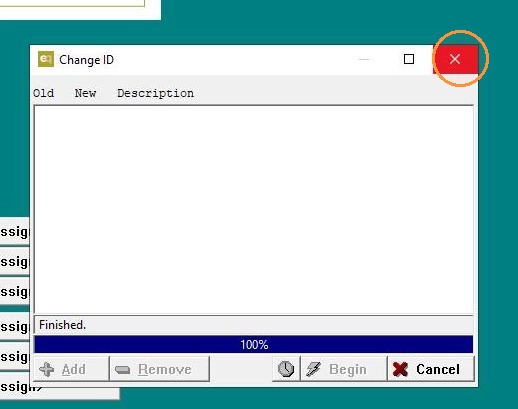
10. Click "Exit"
11.Confirm the Change
- Return to O/E > O/E Maintenance > Product Group.
12. Use the lookup or search function to locate the Product Group you modified.
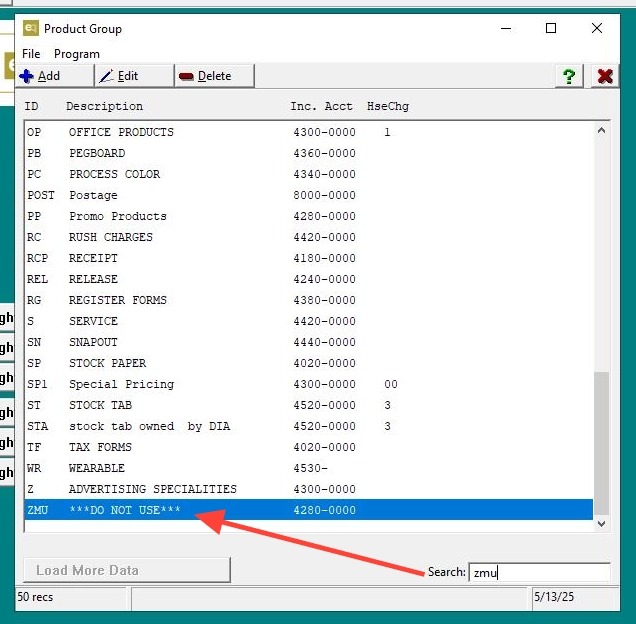
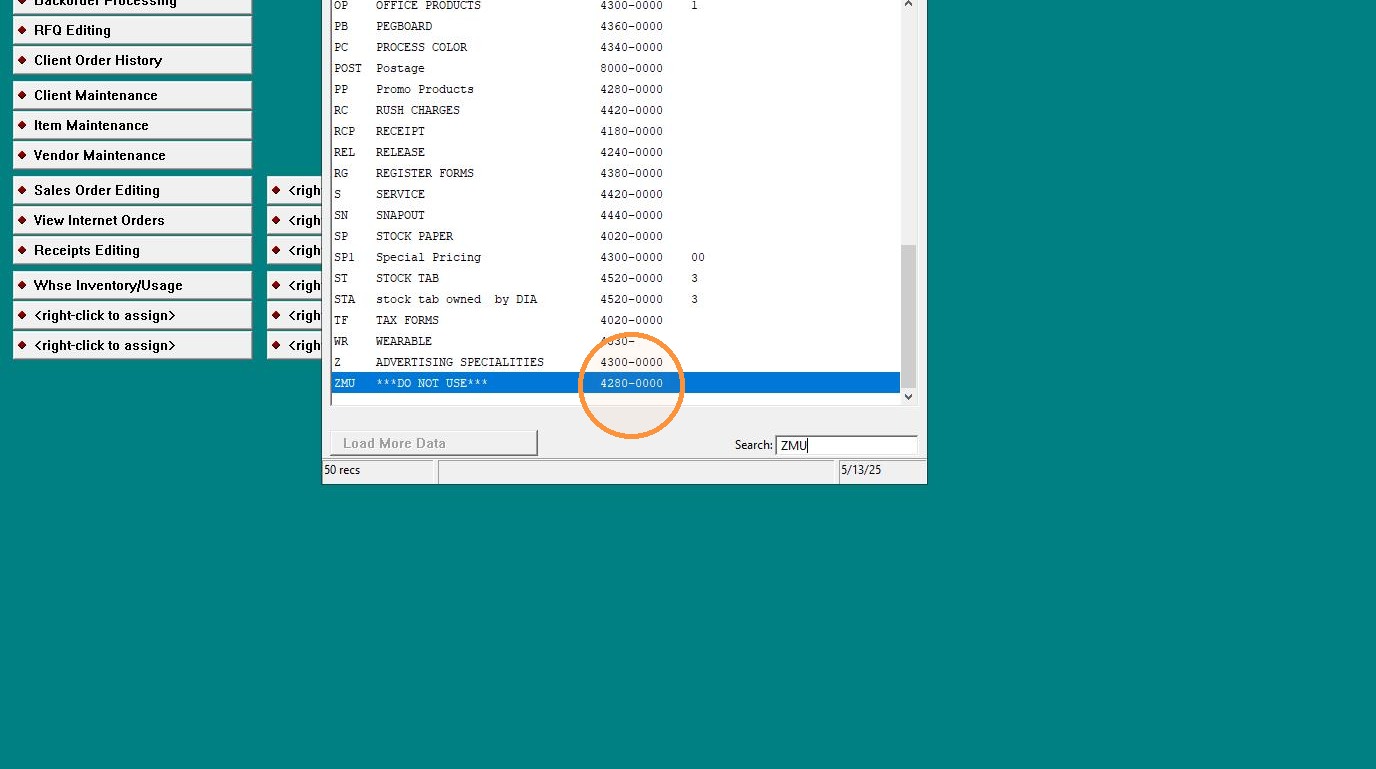
13. You should see it listed at the very bottom of the Product Group list, indicating the code change was successful.
14. Click "Exit"