
EQD: Installing and using TSPrint.
TS print is a printer driver that is required in order to print from the EQ Distributor remote desktop to a local printer. These instructions will walk you through how to install TSPrint and use it.
1. Download the TSPrint client install from the TerminalWorks website and run it: https://www.terminalworks.com/remote-desktop-printing/downloads
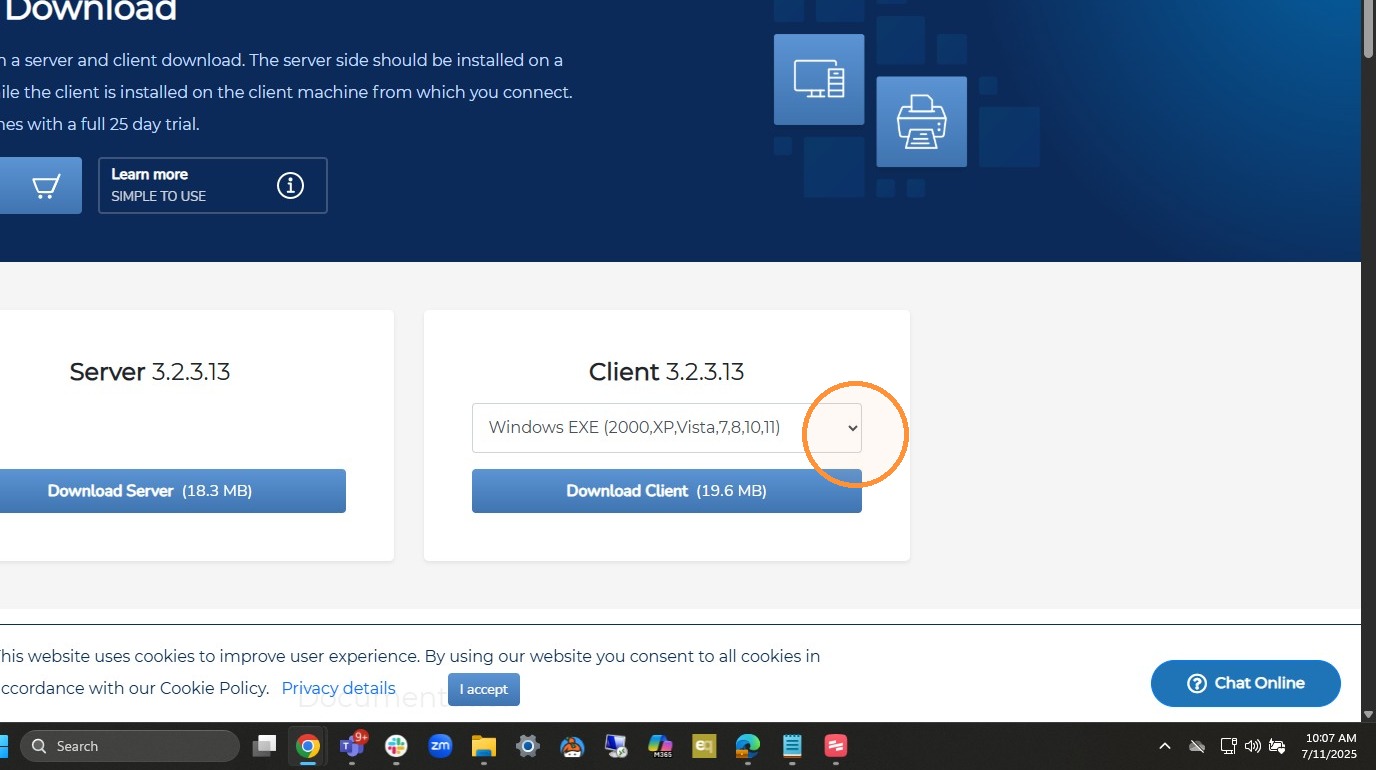
2. Click "OK"
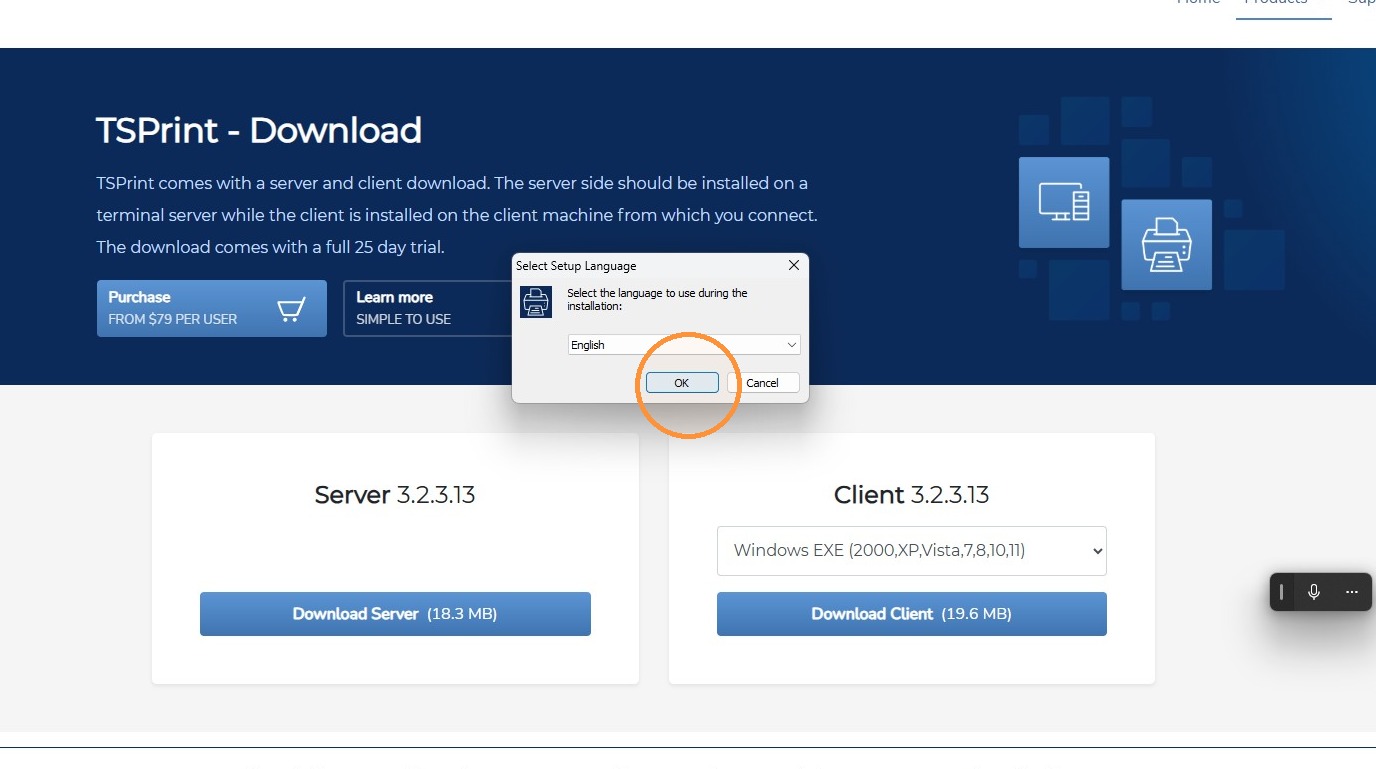
3. Click "Next >"
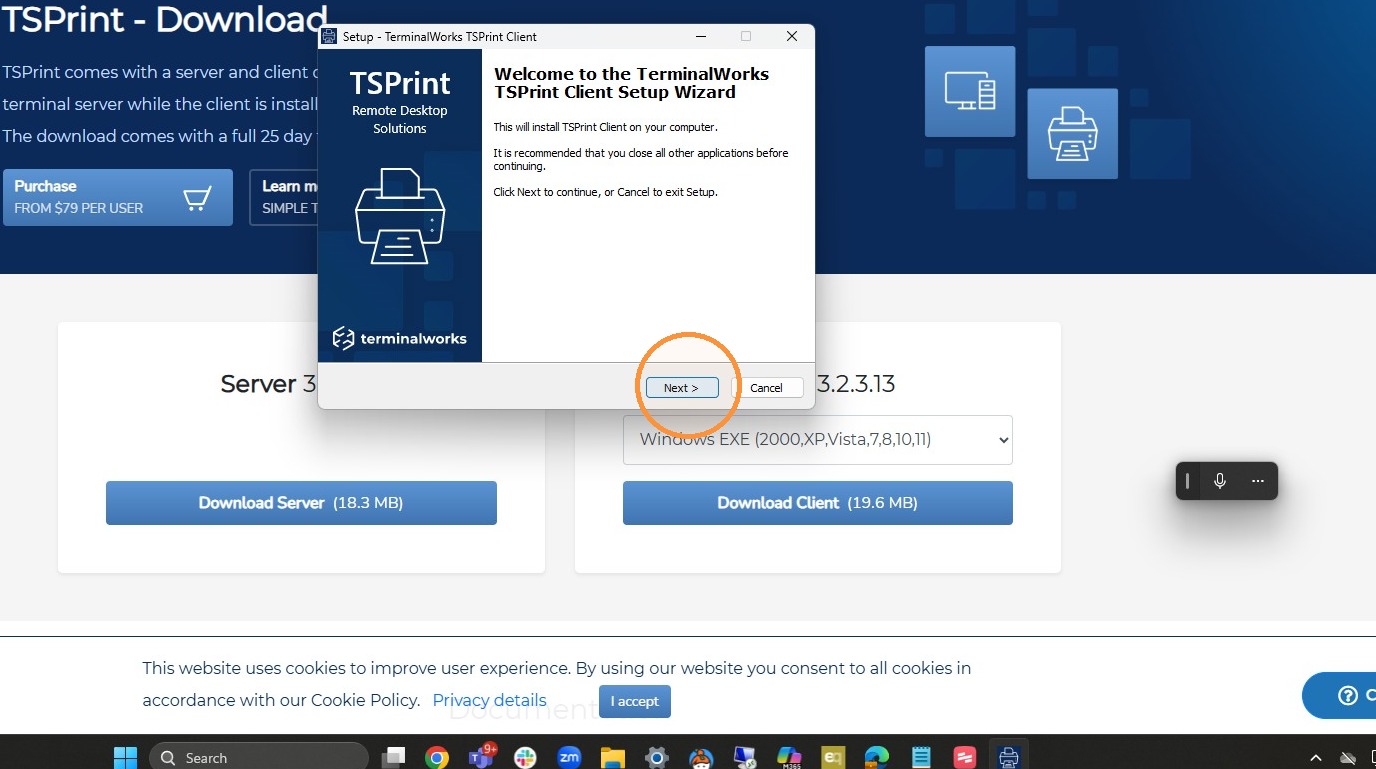
4. If you accept the agreement check the "I accept the agreement" box then click "Next".
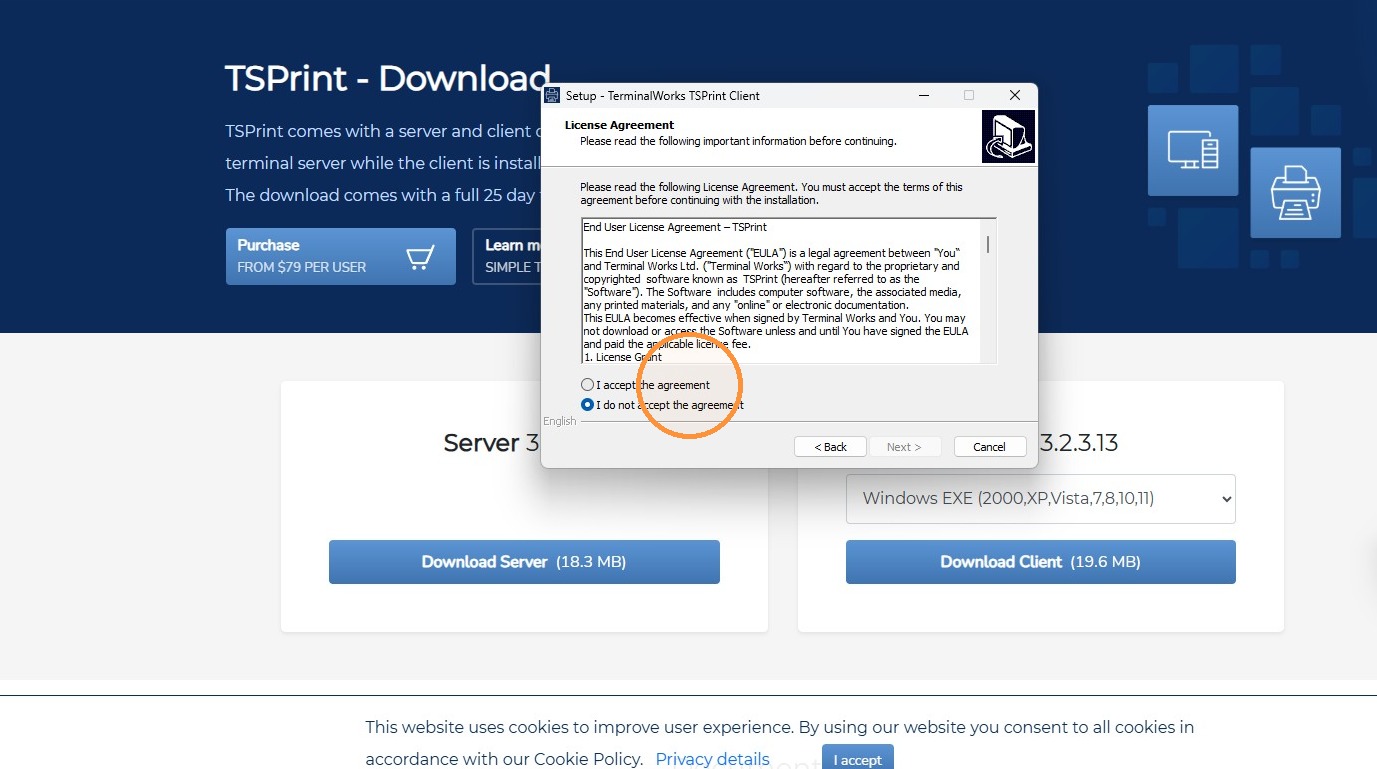
5. Click "Next >"
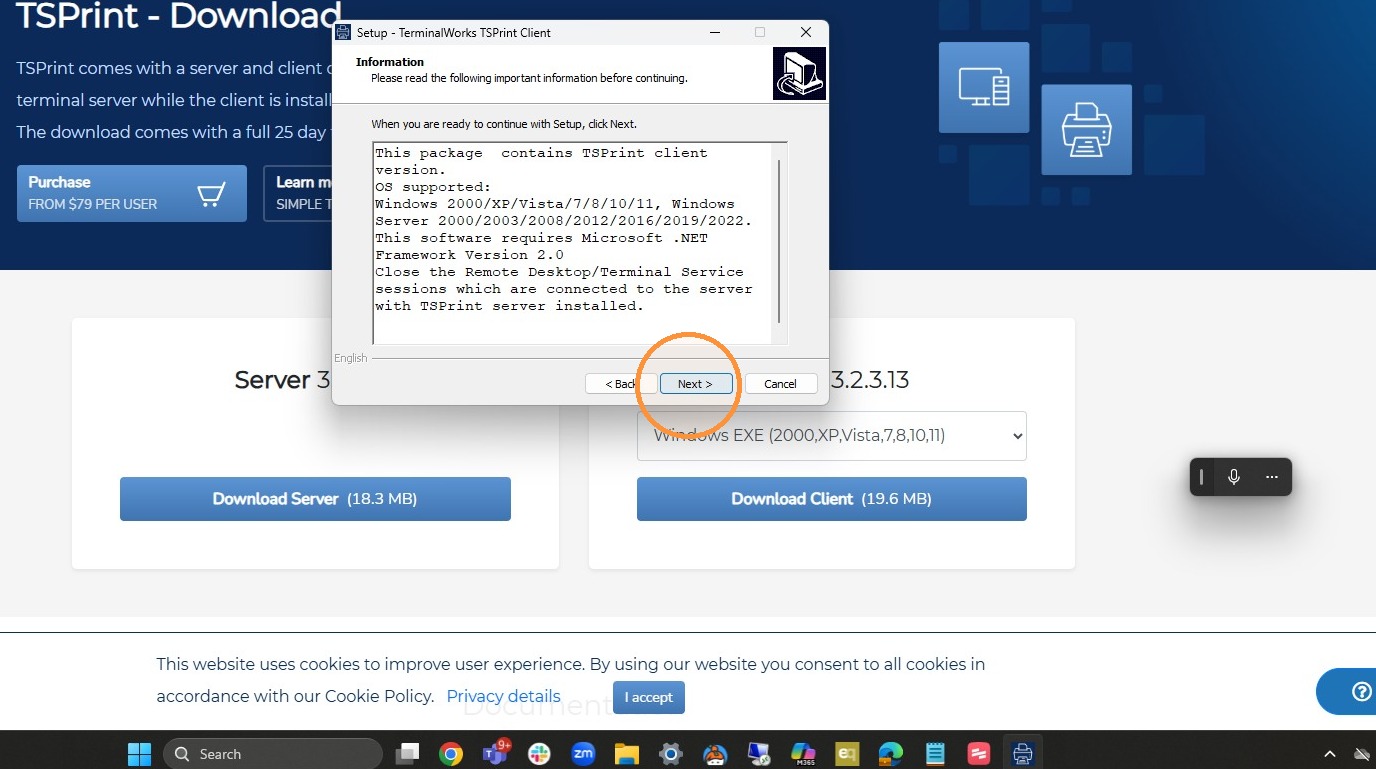
6. Click "Install"
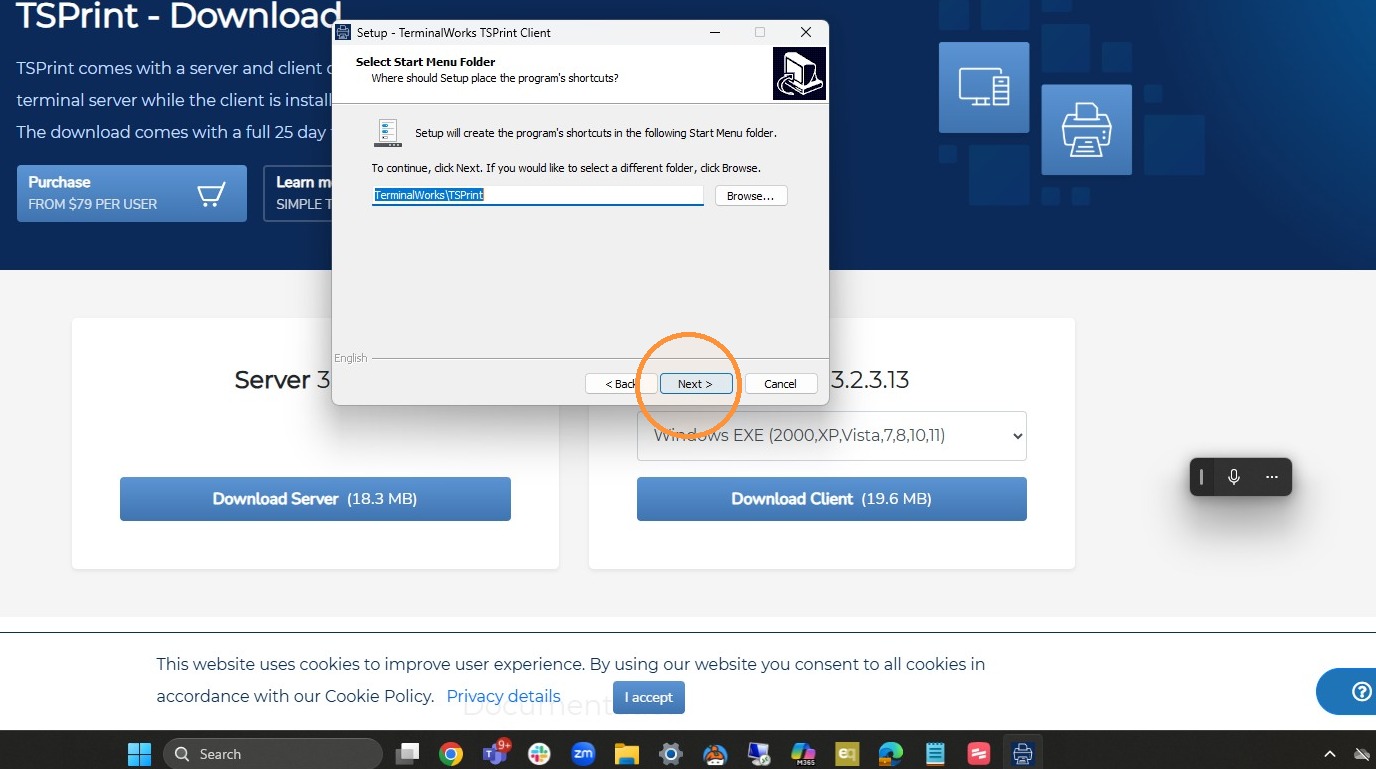
7. Click "Install"
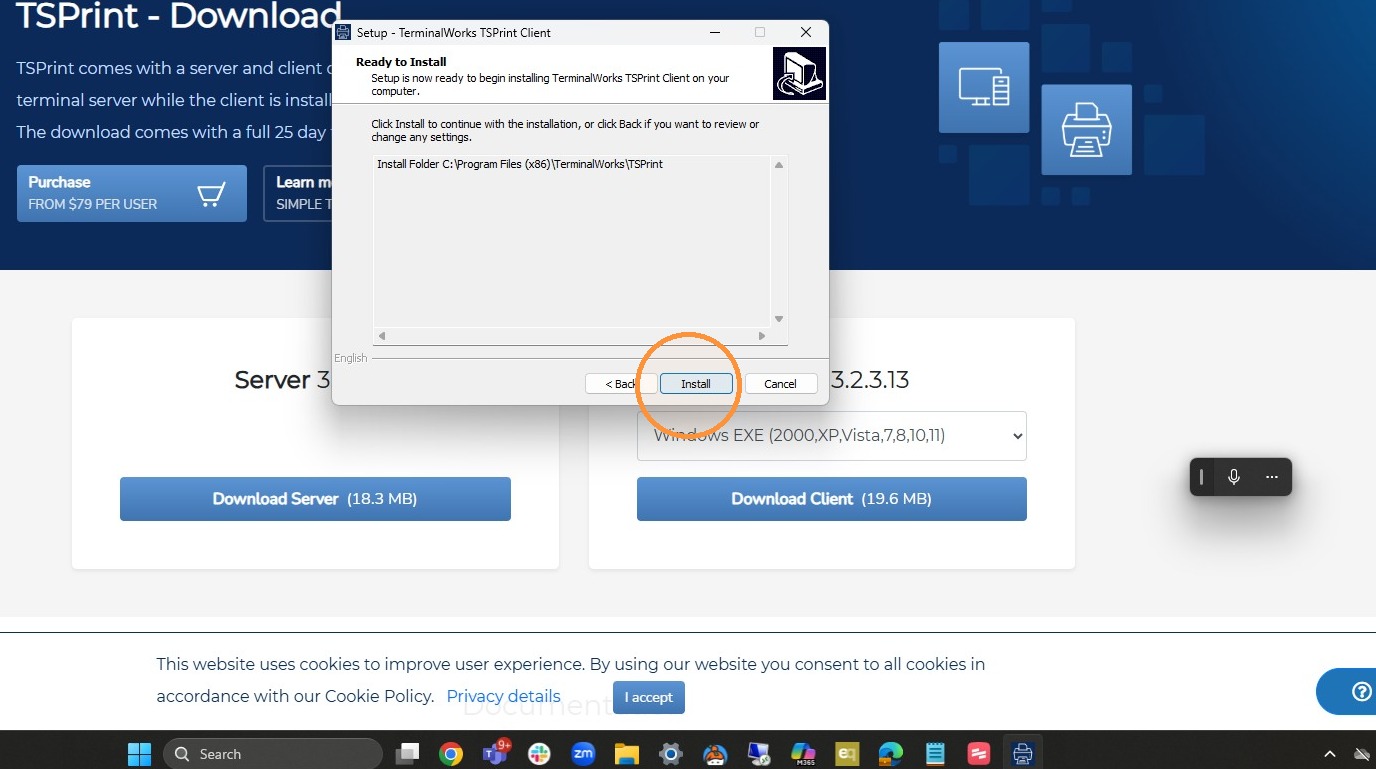
8. Click "Next >"
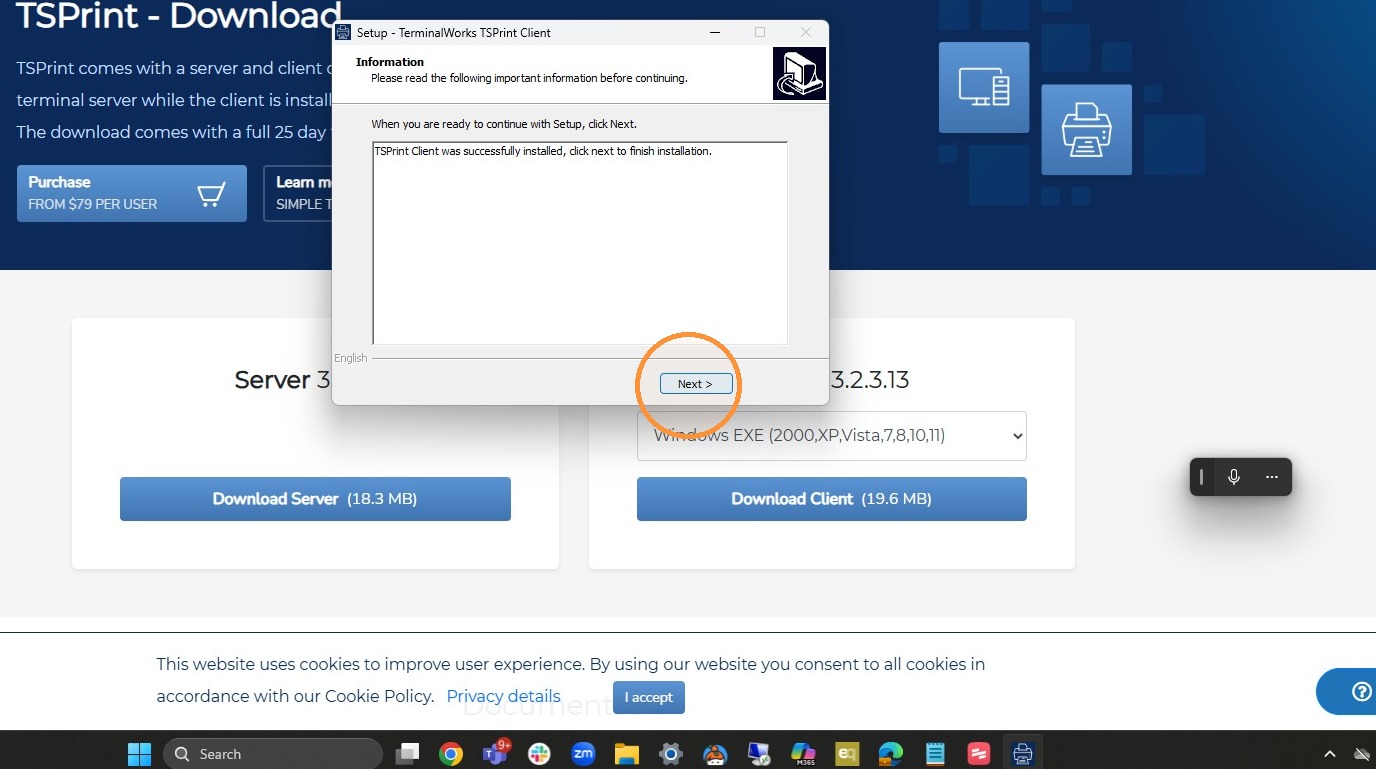
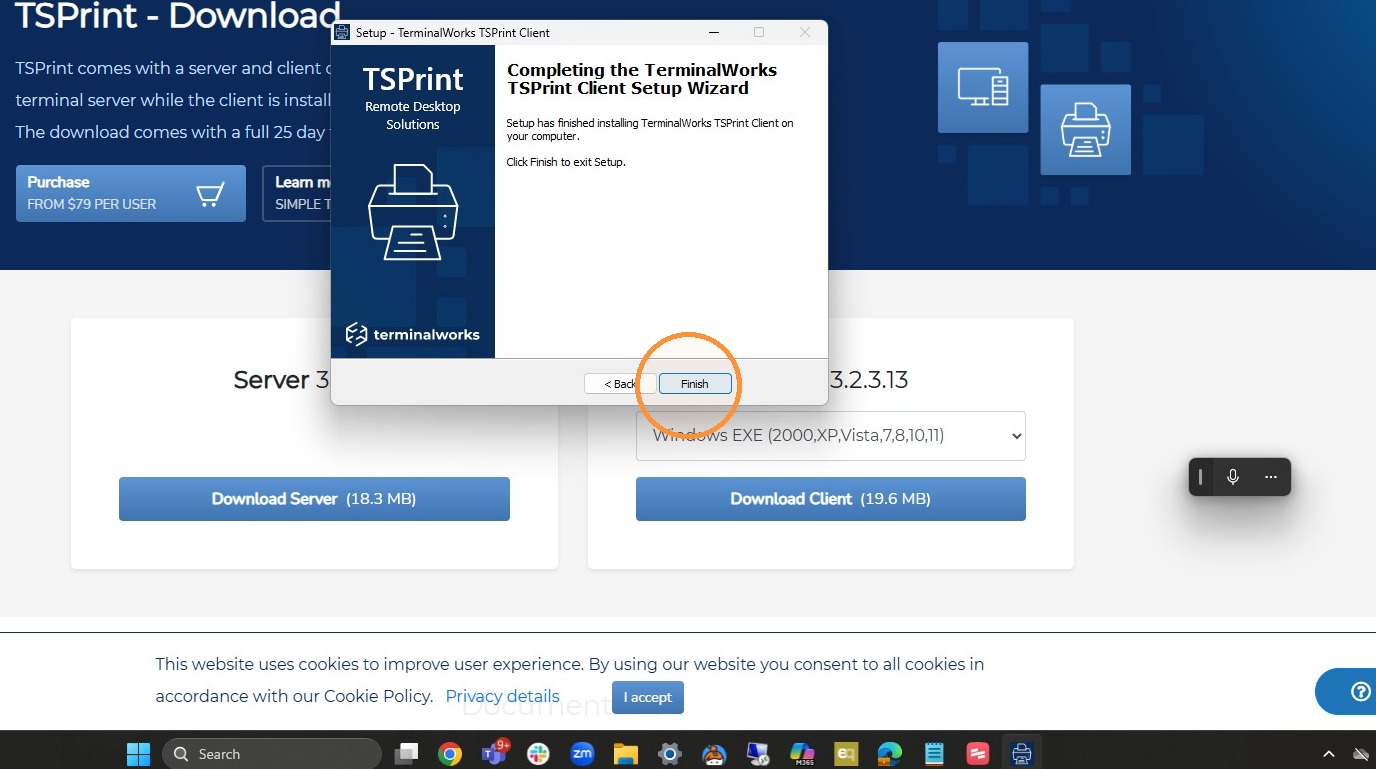
9. Click "Finish"
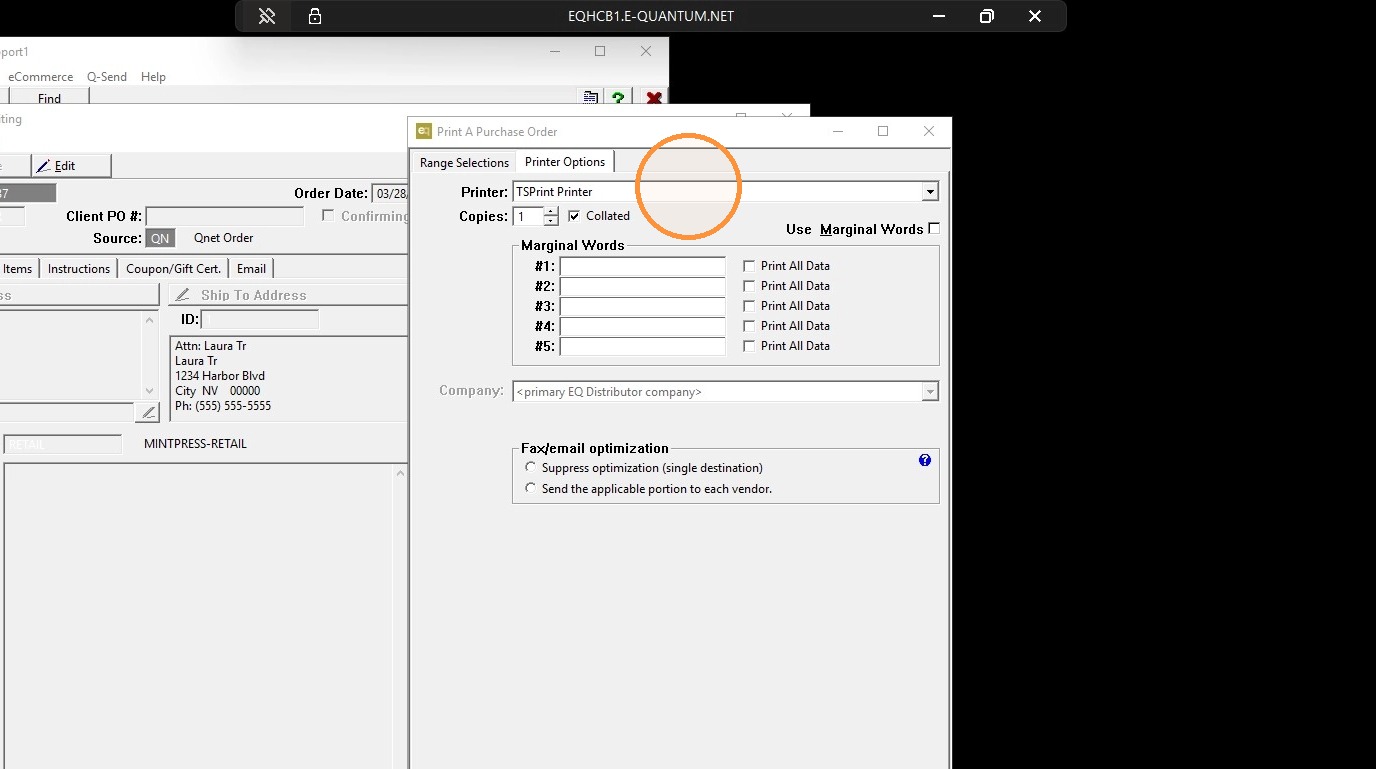
10. Once TS print is installed. It should default to TSPrint Printer in the "Printer Options" tab when printing in the EQ Distributor software. If it does not default to TSPrint Printer select it in the printer dropdown.
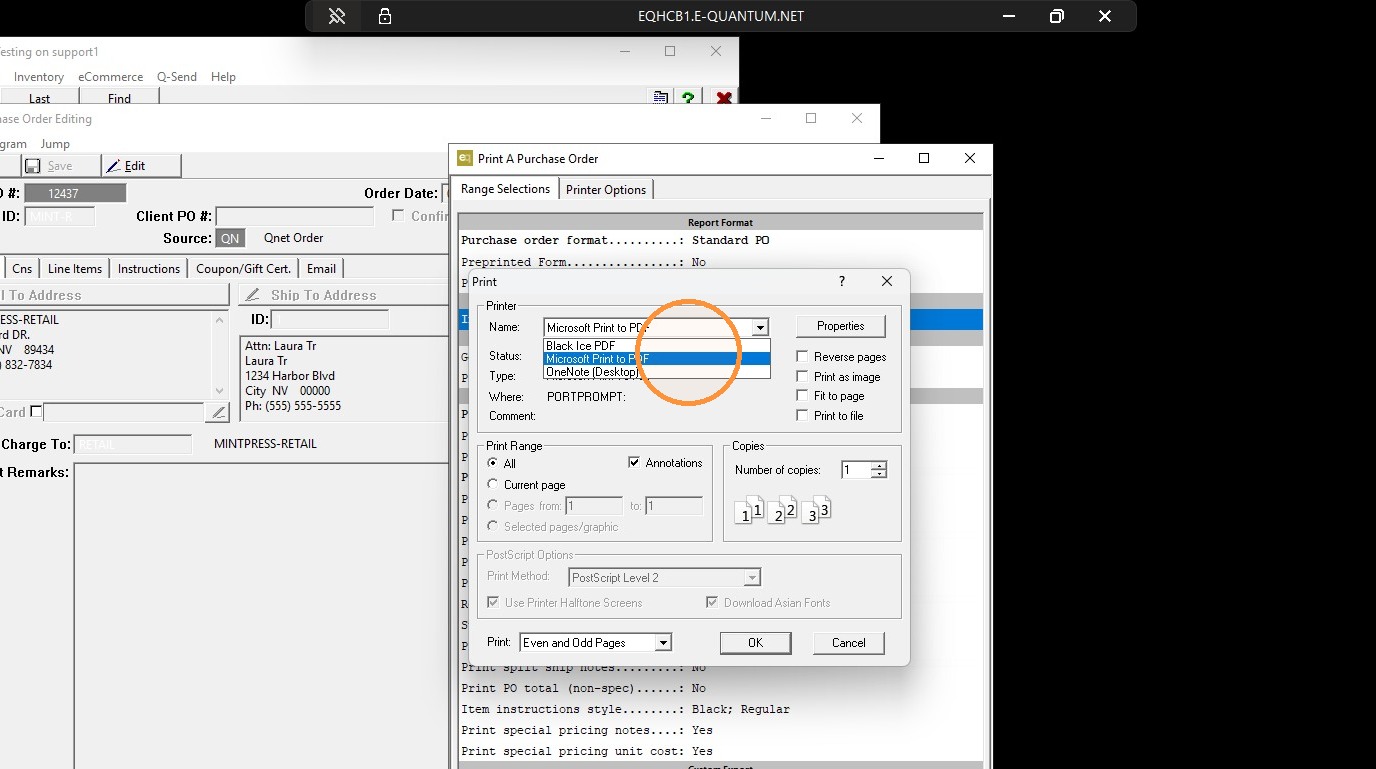
11. When you click "Print" you will get a print window where you can choose A different local printer if you would like. If you only have one printer available. It will use that as the default.
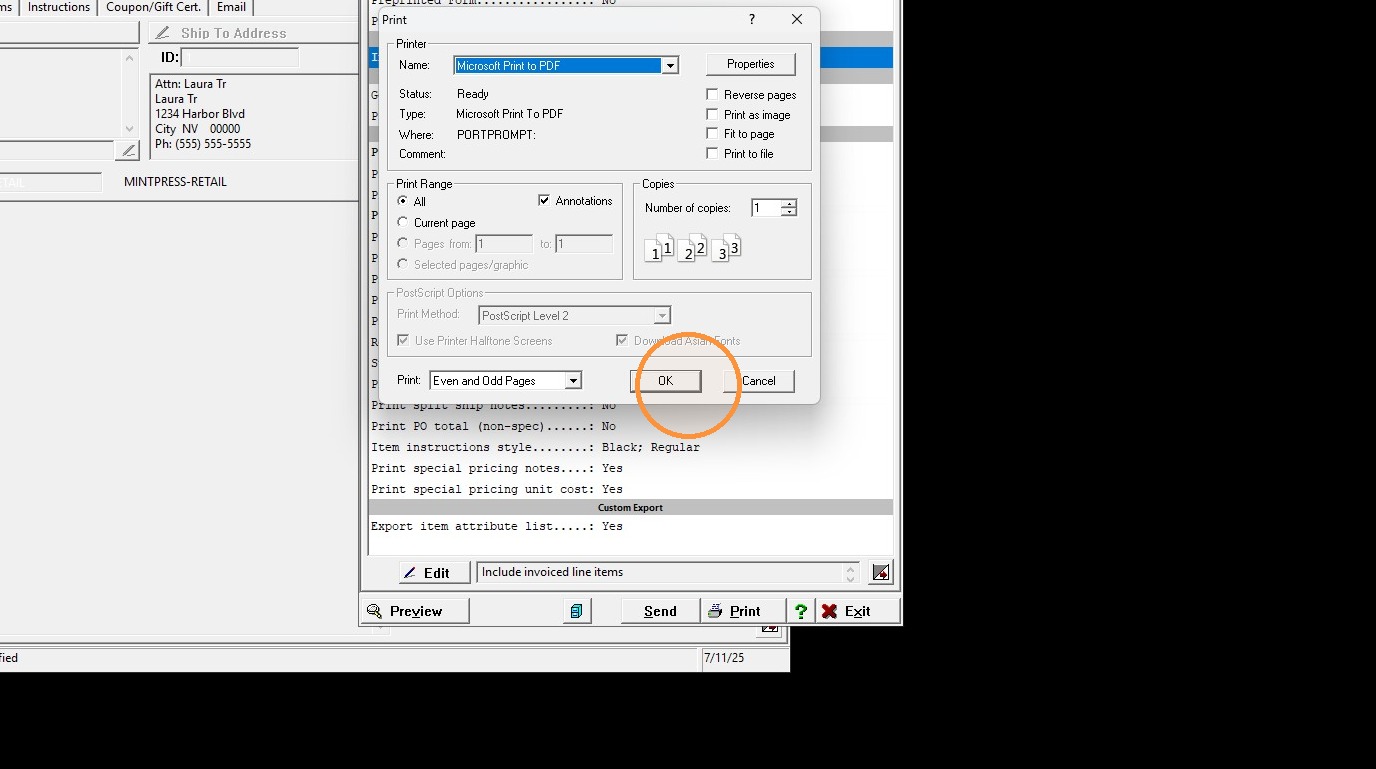
12. Once you have selected the desired printer click "OK" and your document should print out.
Tip: If you have any further questions please reach out to DemandBridge support
Tip: Tip: If you have too many printers showing up and want only certain ones to show, check out this help article on TSPrint, Printer Redirection