EQD: Use Print to PDF
This guide provides a step-by-step process for using the "Print to PDF" option in the Printer Options tab in EQD to create a PDF of a document.
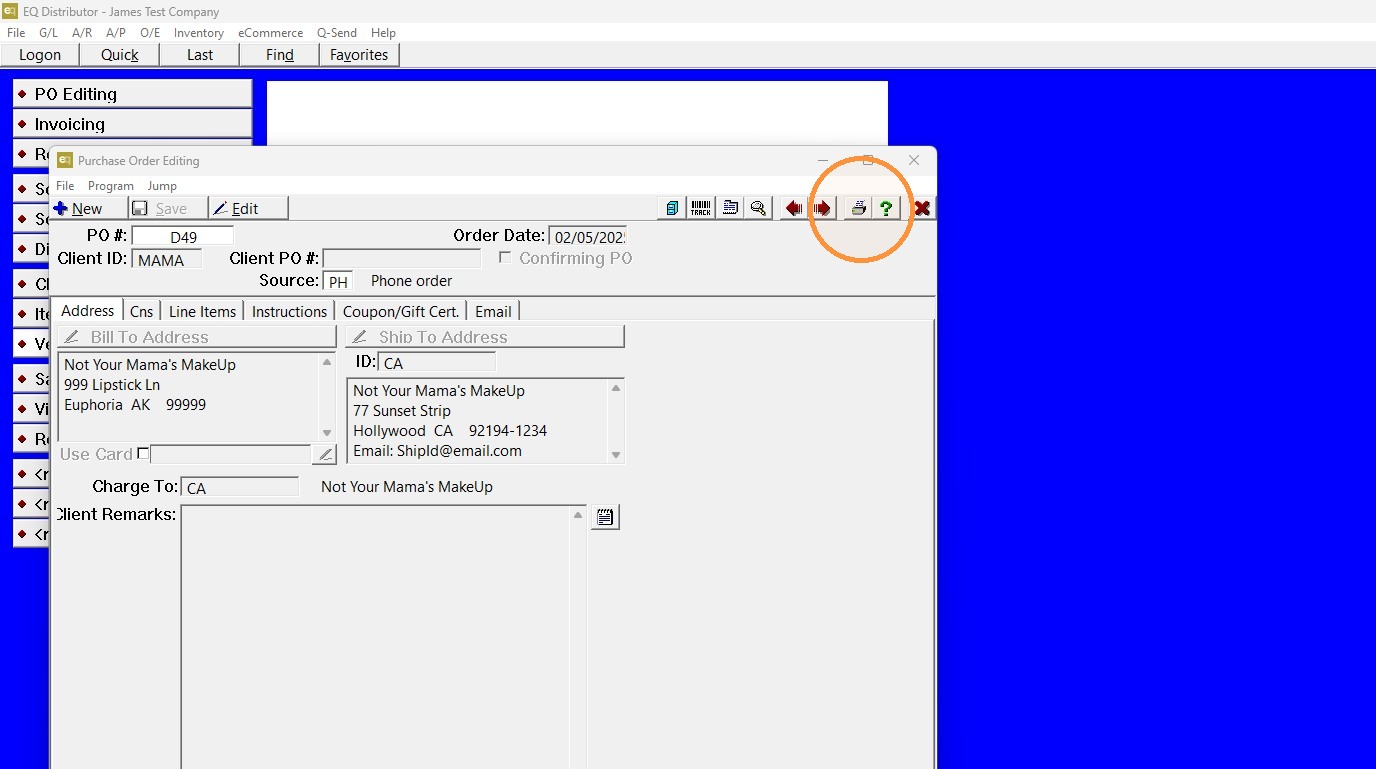
1. Open the PO you would like a PDF of in "Purchase Order Editing" then click the printer icon.
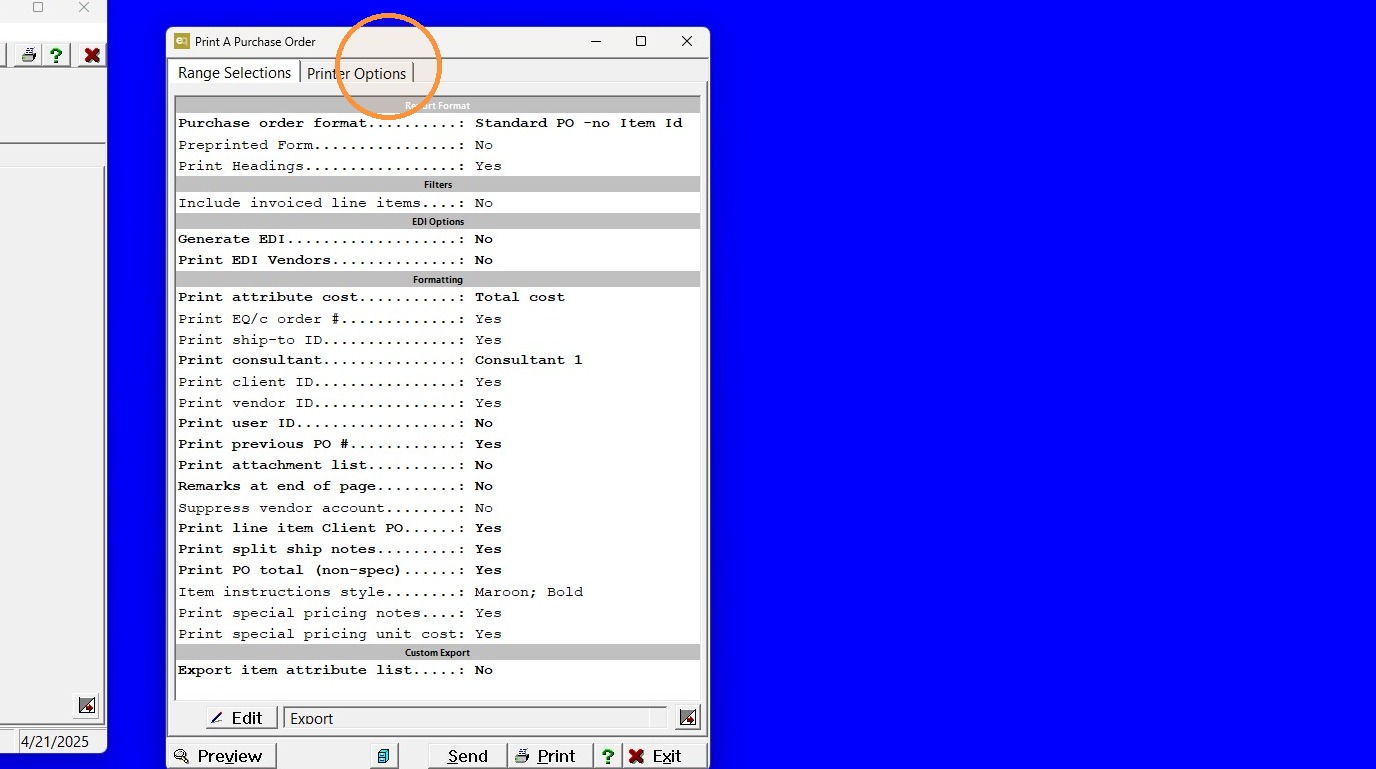
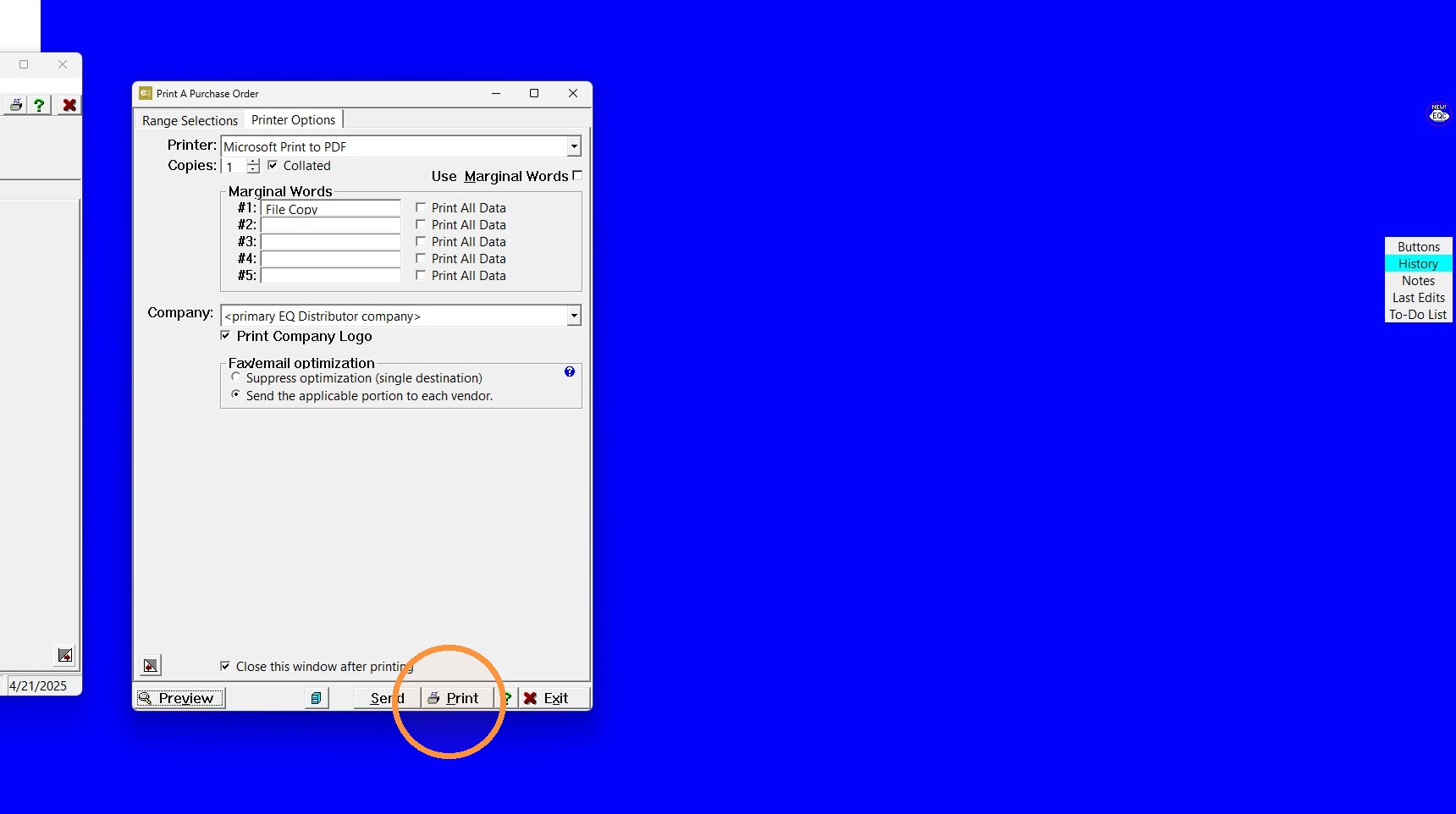
2. Go to the "Printer Options" tab.
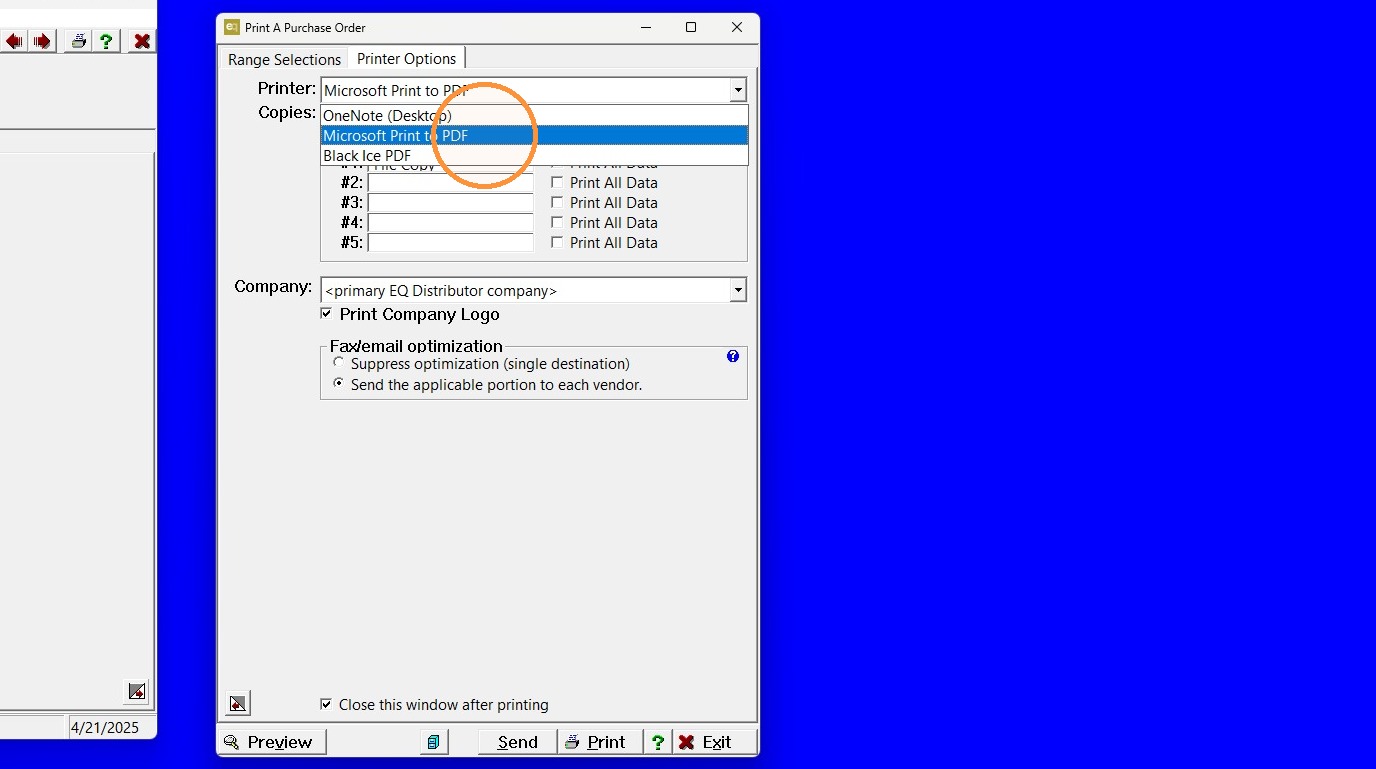
3. In the "Printer" dropdown choose the "Microsoft Print to PDF" option.
4. Click "Print"
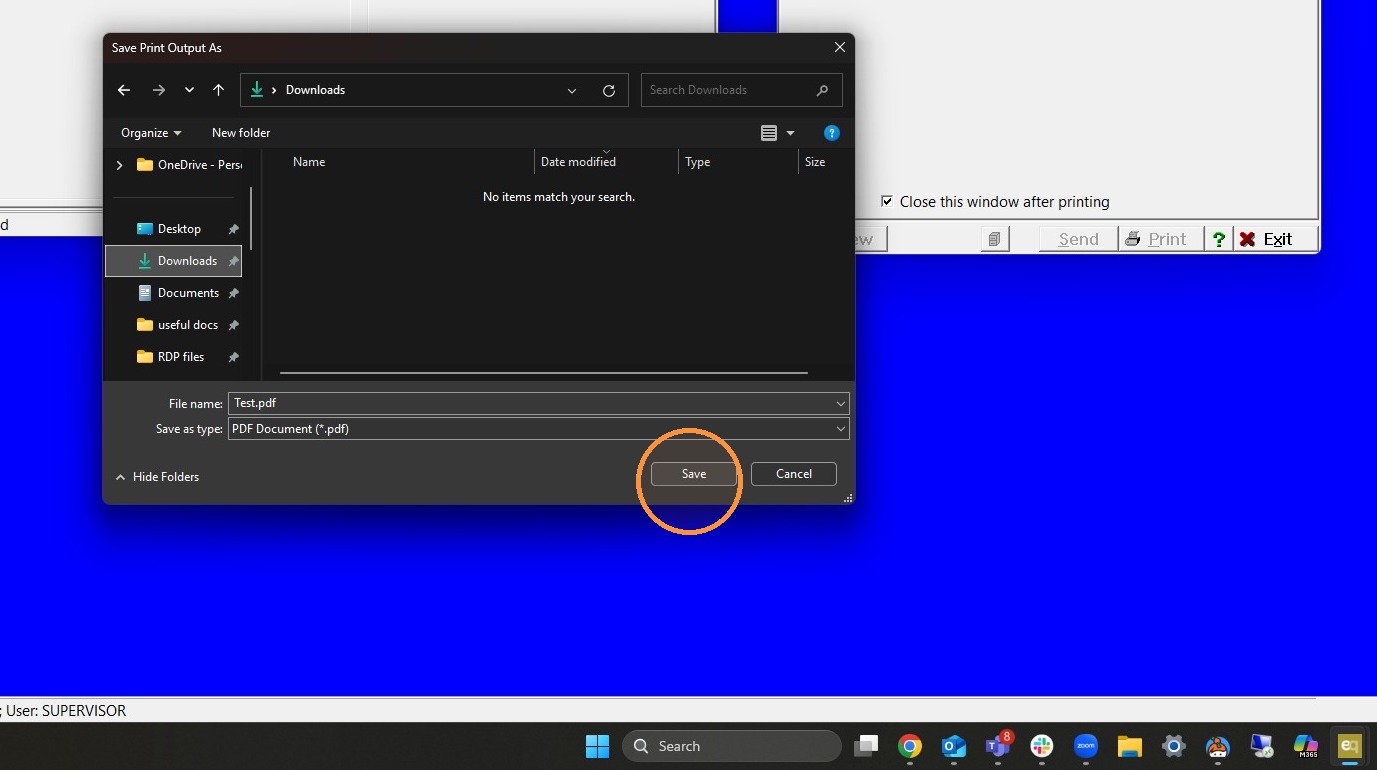
5. Choose a file location to save the PDF, name it, and then "Save".