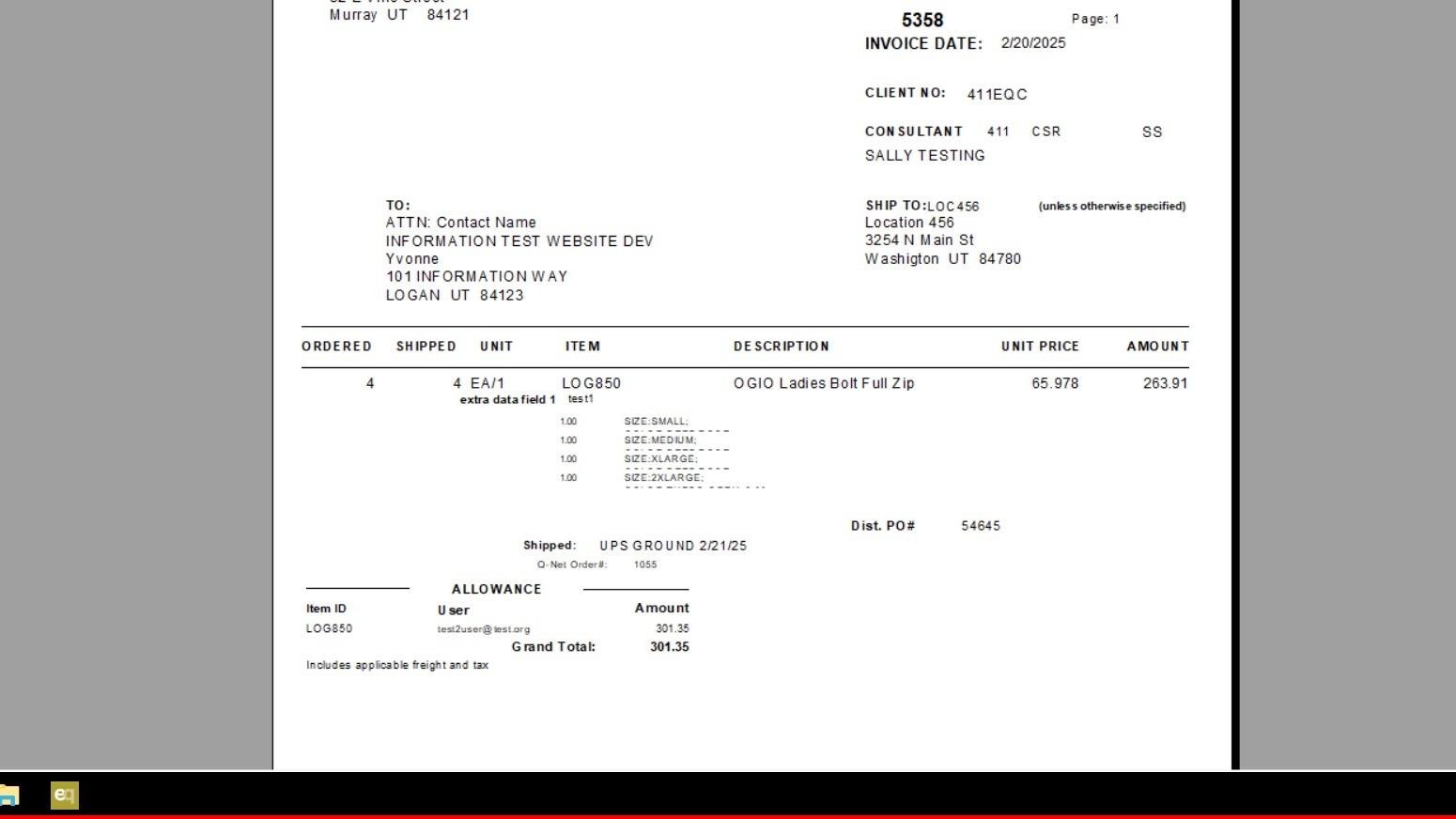
EQd - Invoice Add on Charge Display
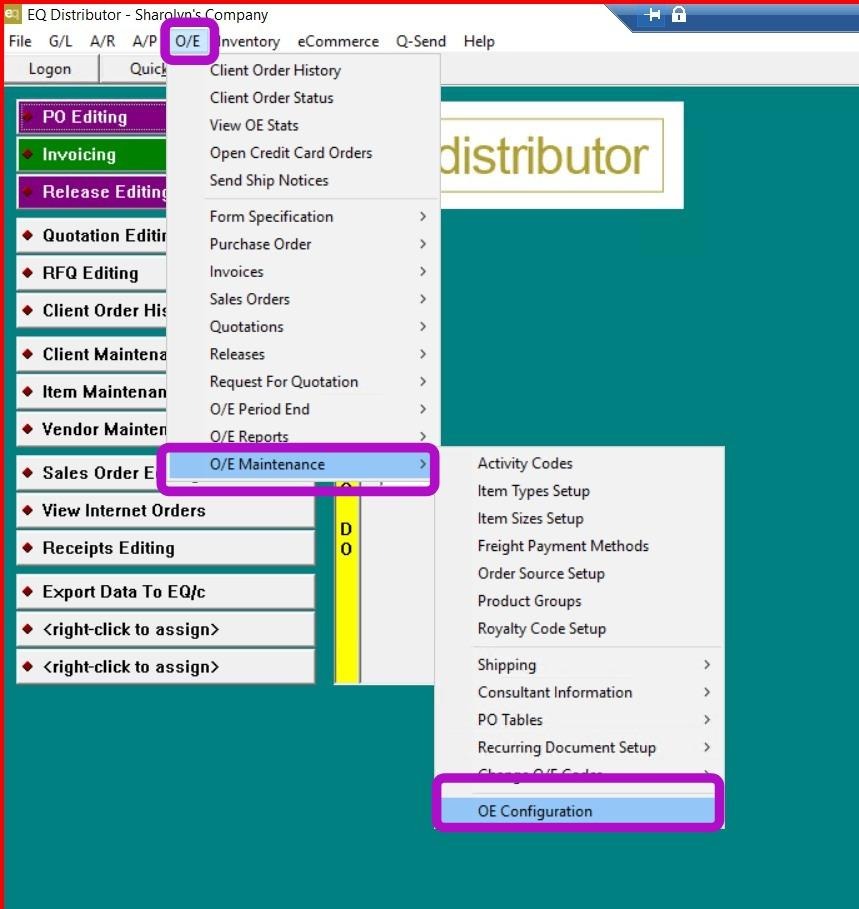
1. Go to O/E > O/E Maintenance > O/E Configuration
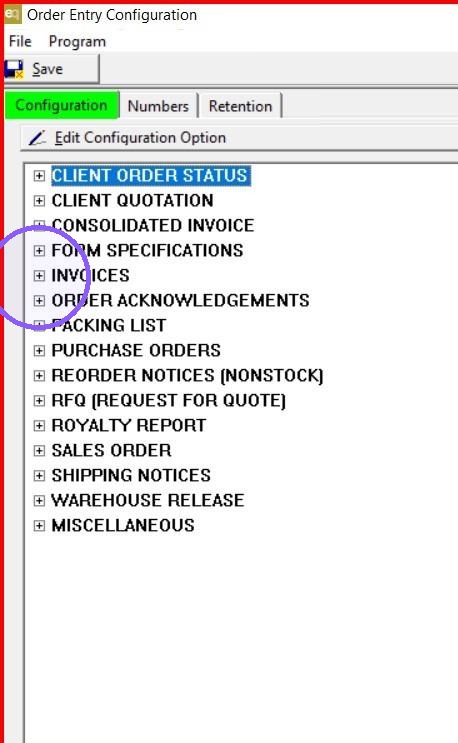
2. From Configuration tab, Open Invoices by clicking on the plus sign
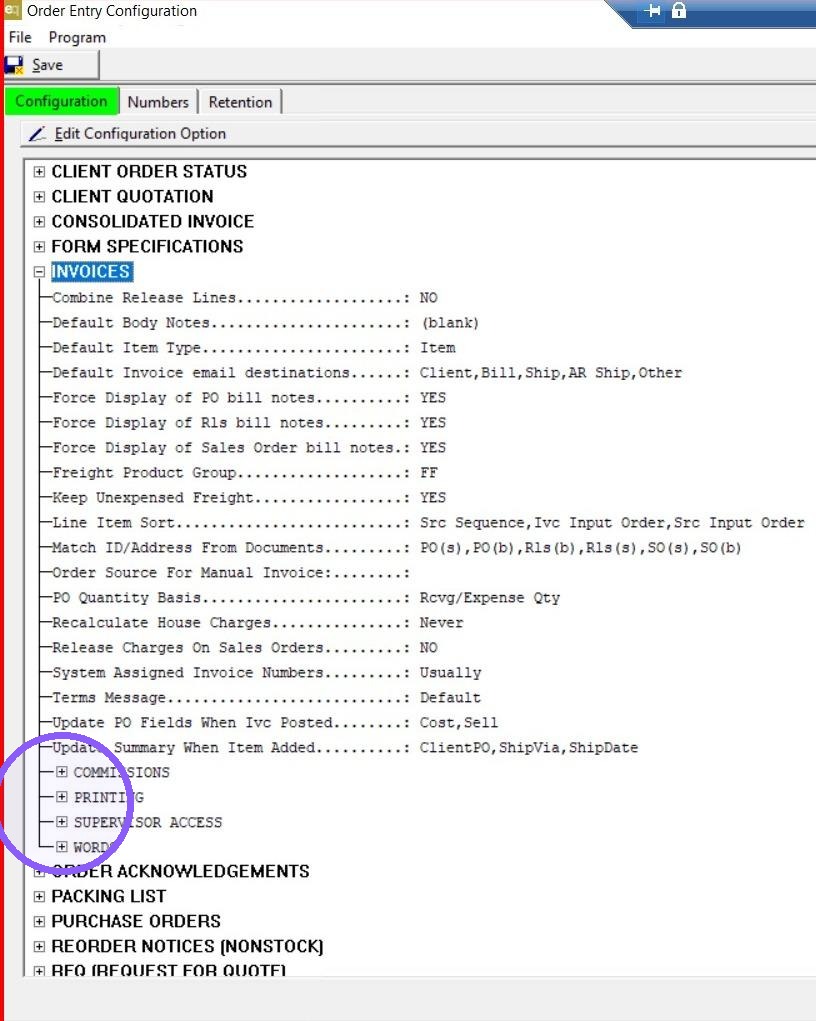
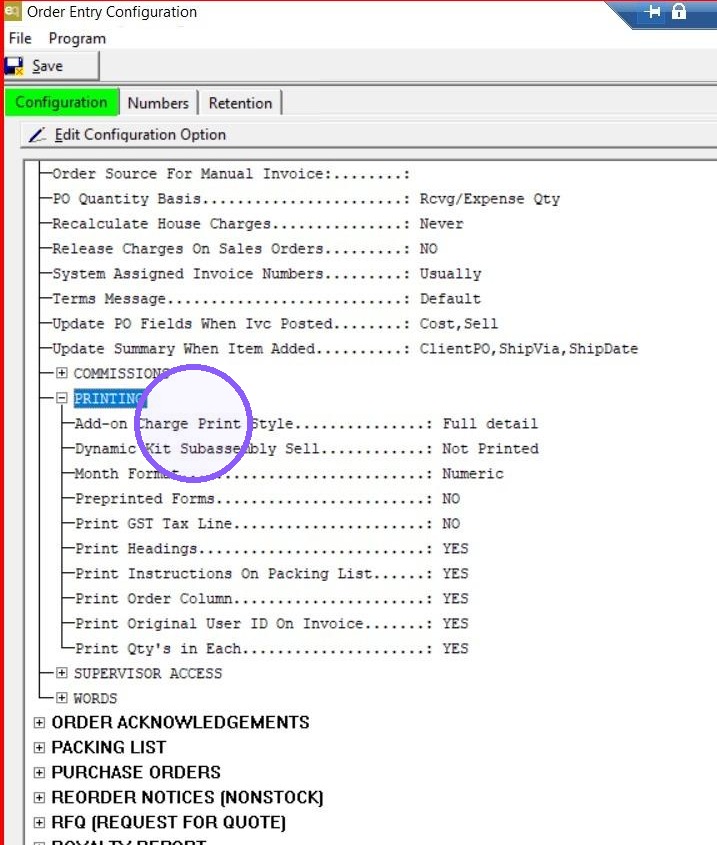
3. Open Printing by clicking the plus sign
4. Click Add-on Charge Print Style
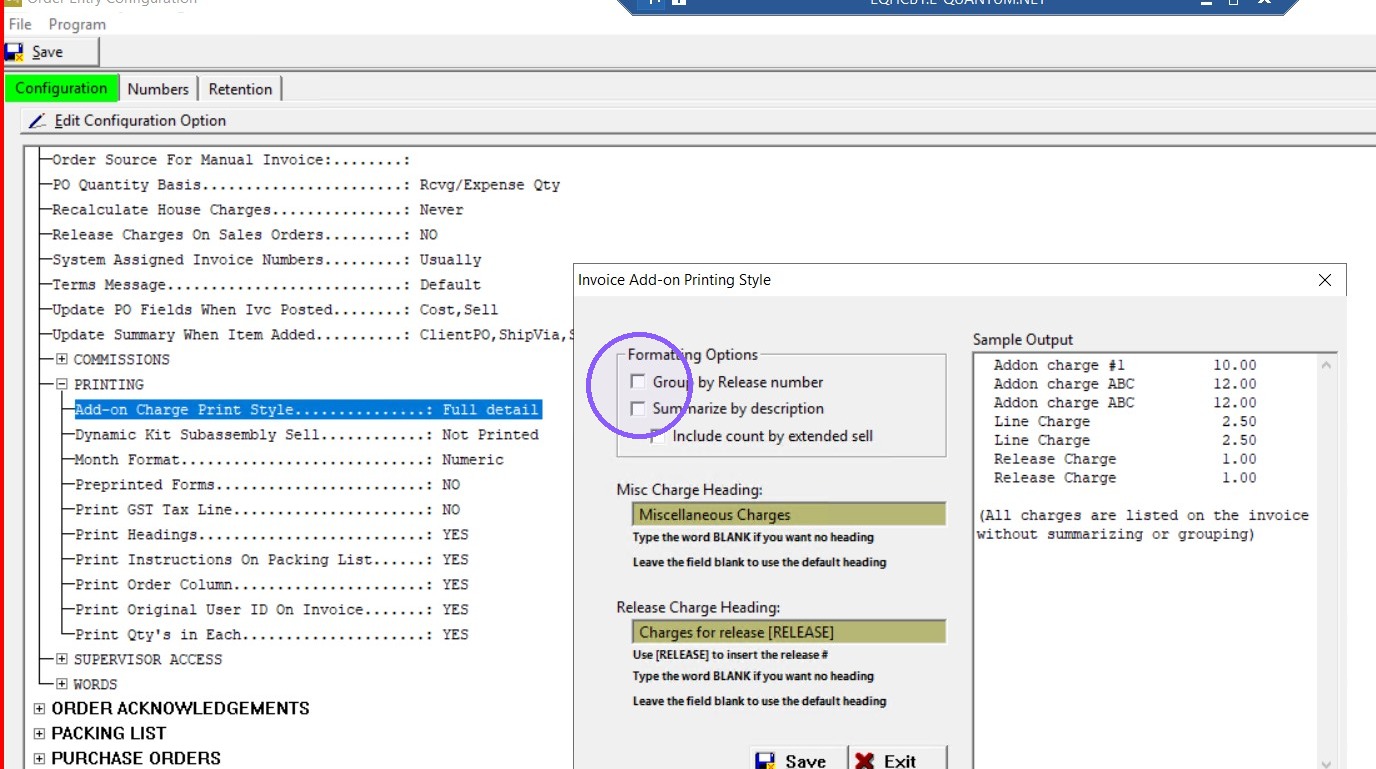
5. Note the box on the right hand side will produce a sample output file based pm the Formatting Option selected.
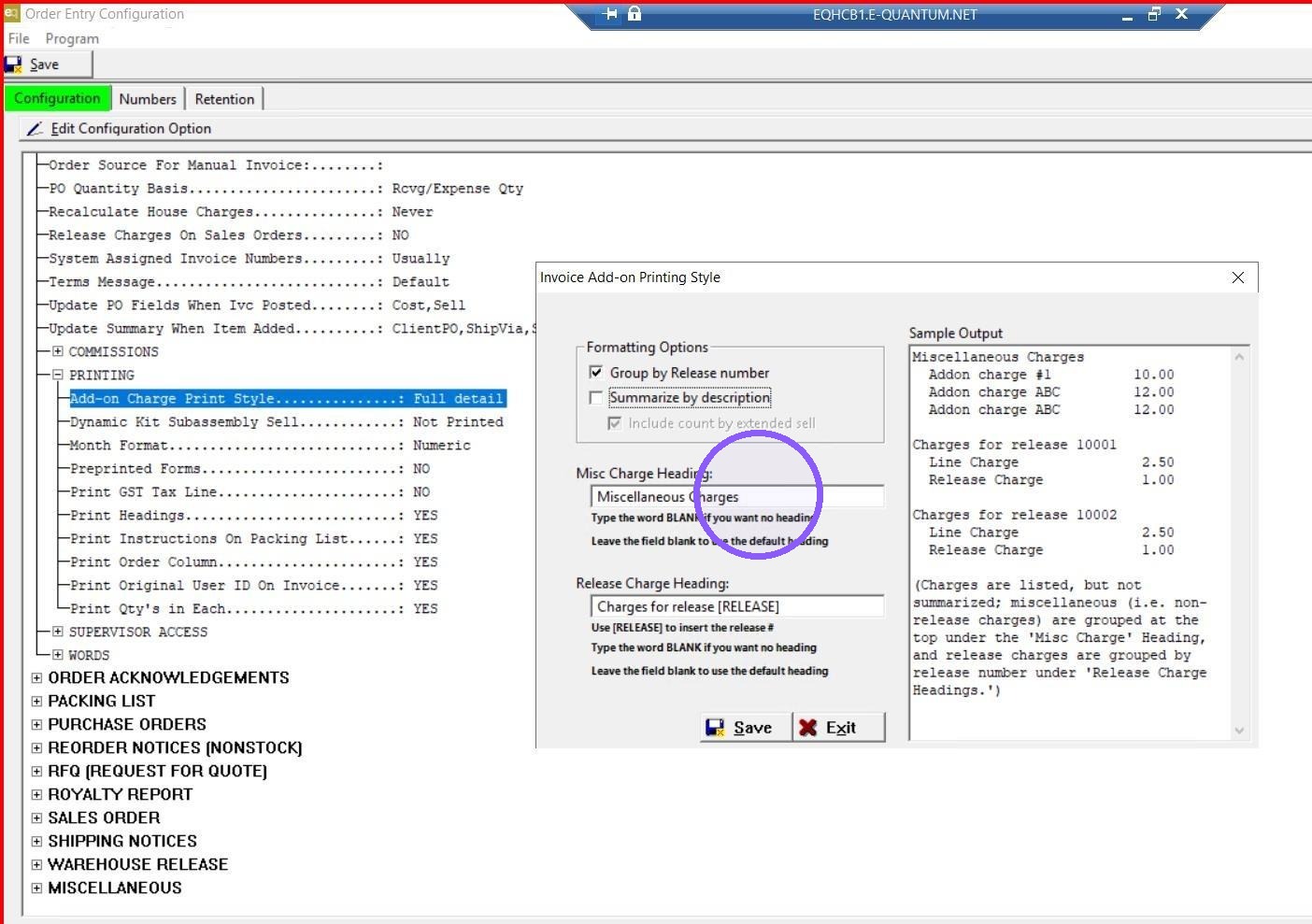
6. Select the desired Formatting Option
- Group by Release Number
- Summarize by description
- include count by extended sell
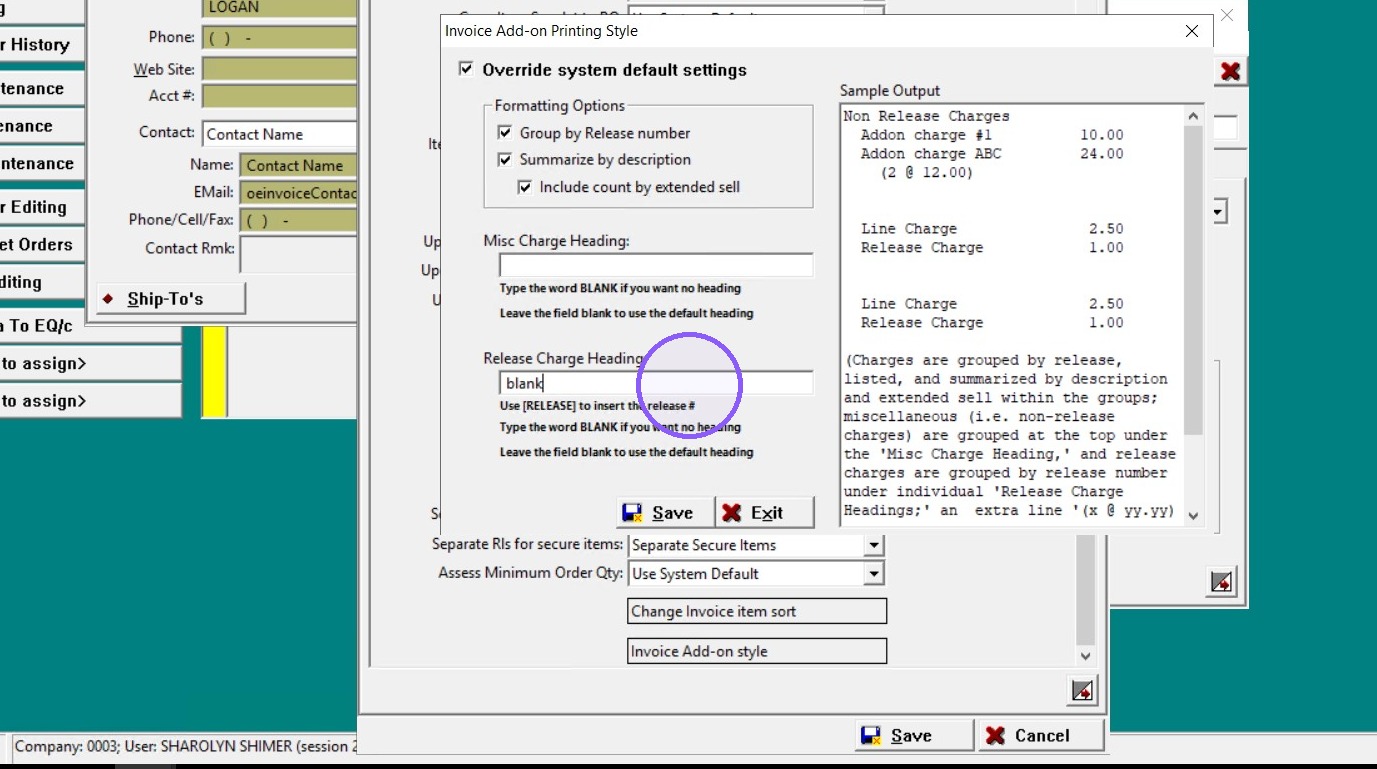
7. Edit the Misc Charge Heading or Type BLANK if you want no heading
8. Save
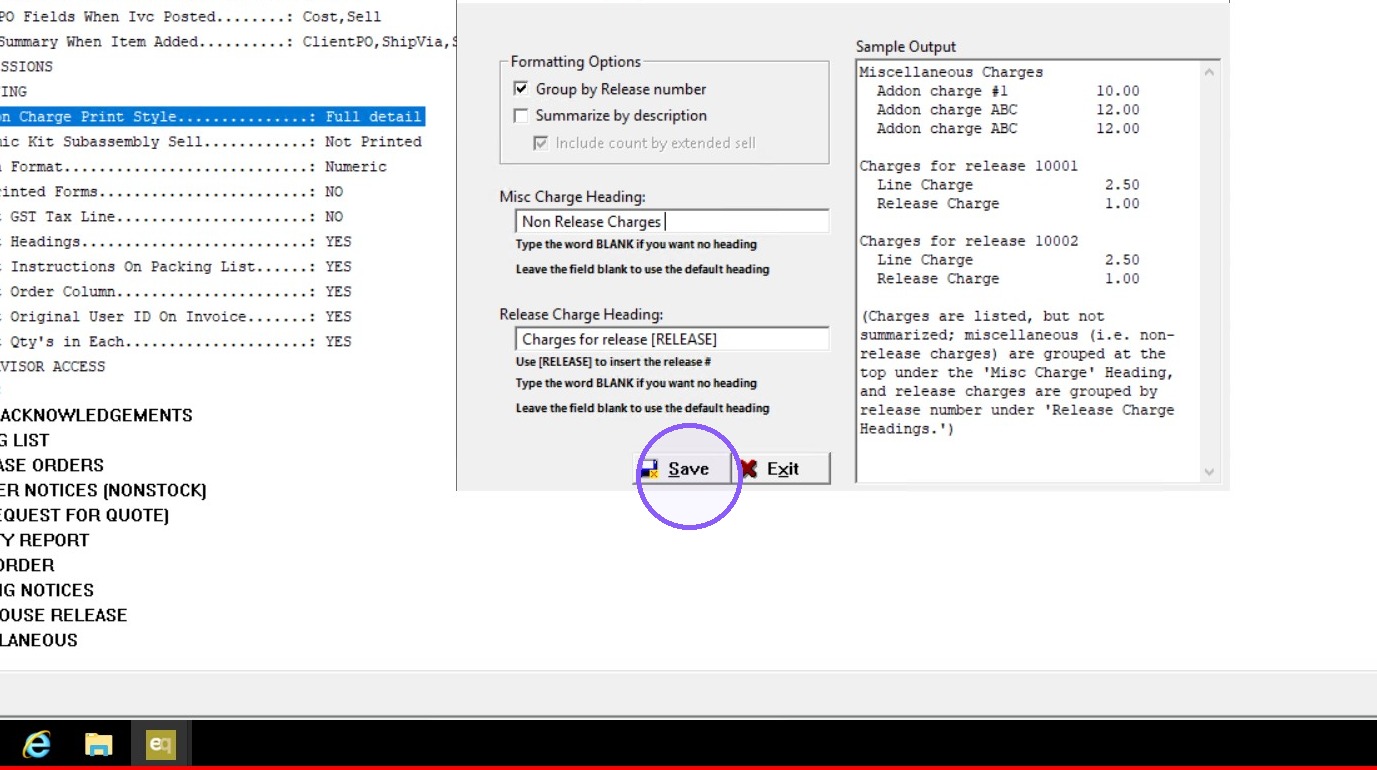
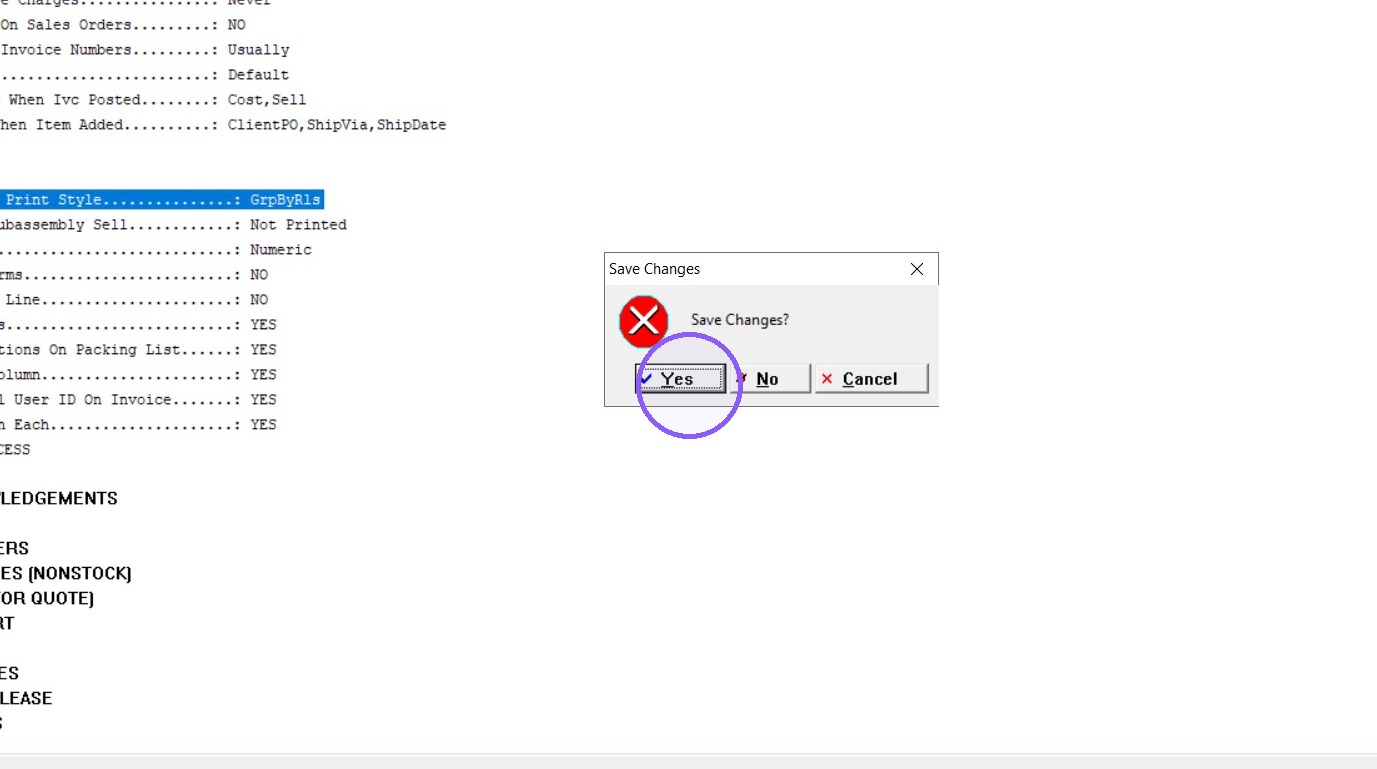
9. Save Change is confirmed - click YES
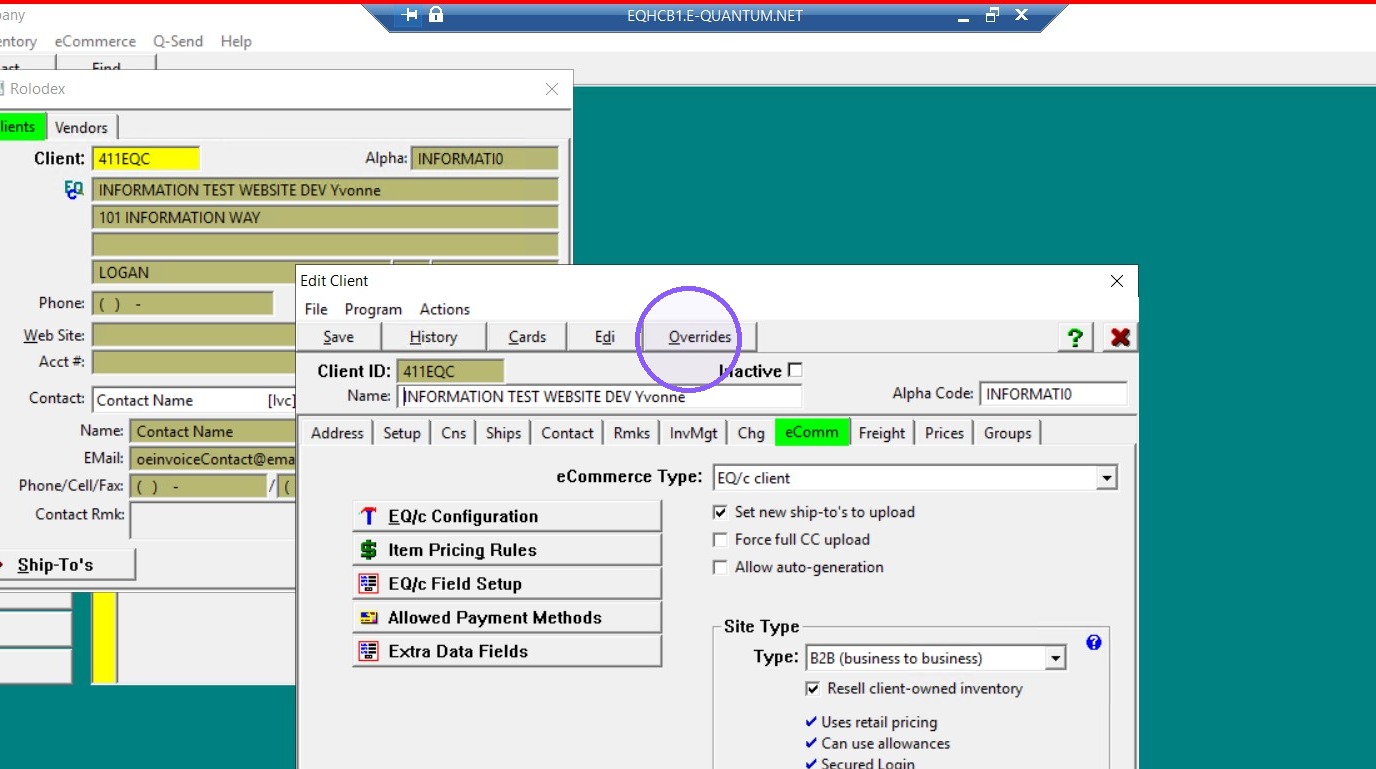
10. This can also be overridden at the Client Level, Edit the desired Client and click the Overrides button
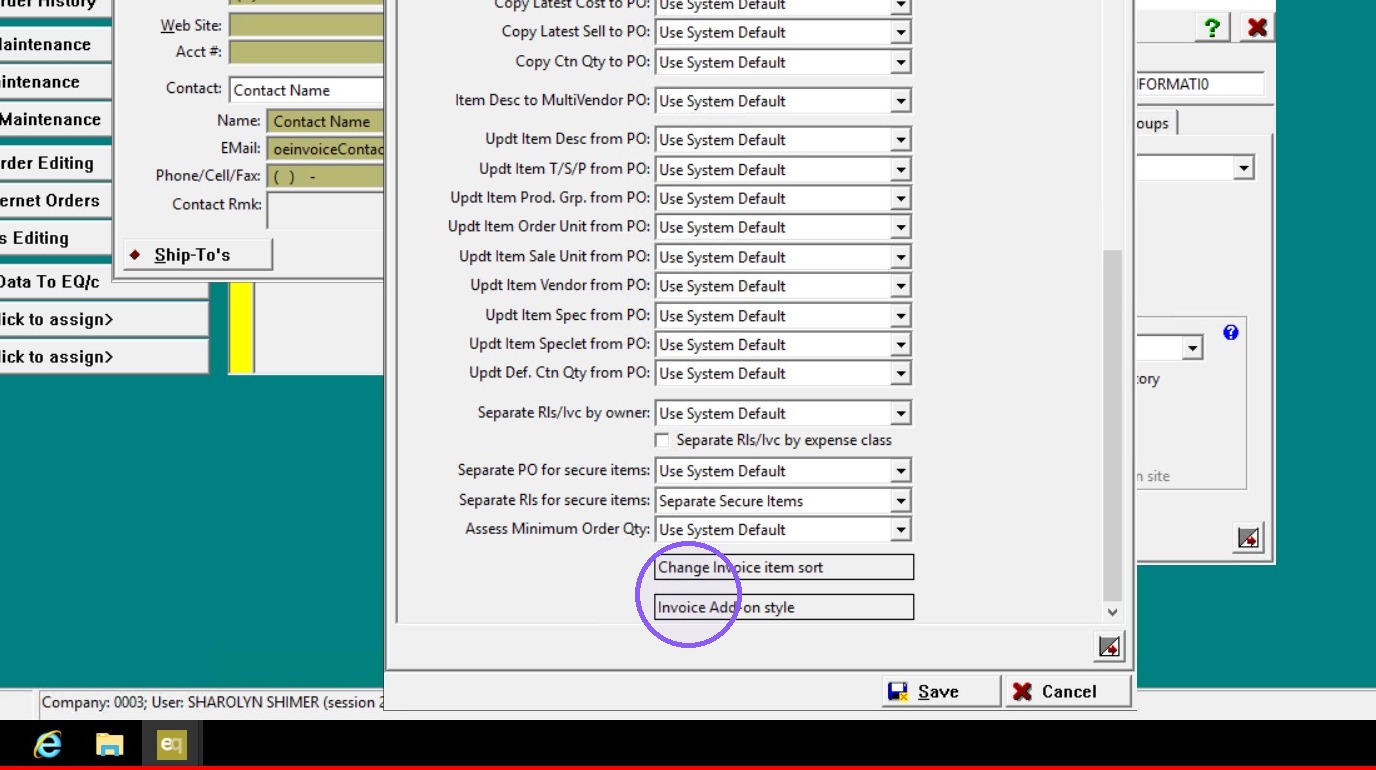
11. Select the Configuration tab and scroll to the bottom, find the Invoice Add on style button
12. Check mark the box Override system default settings
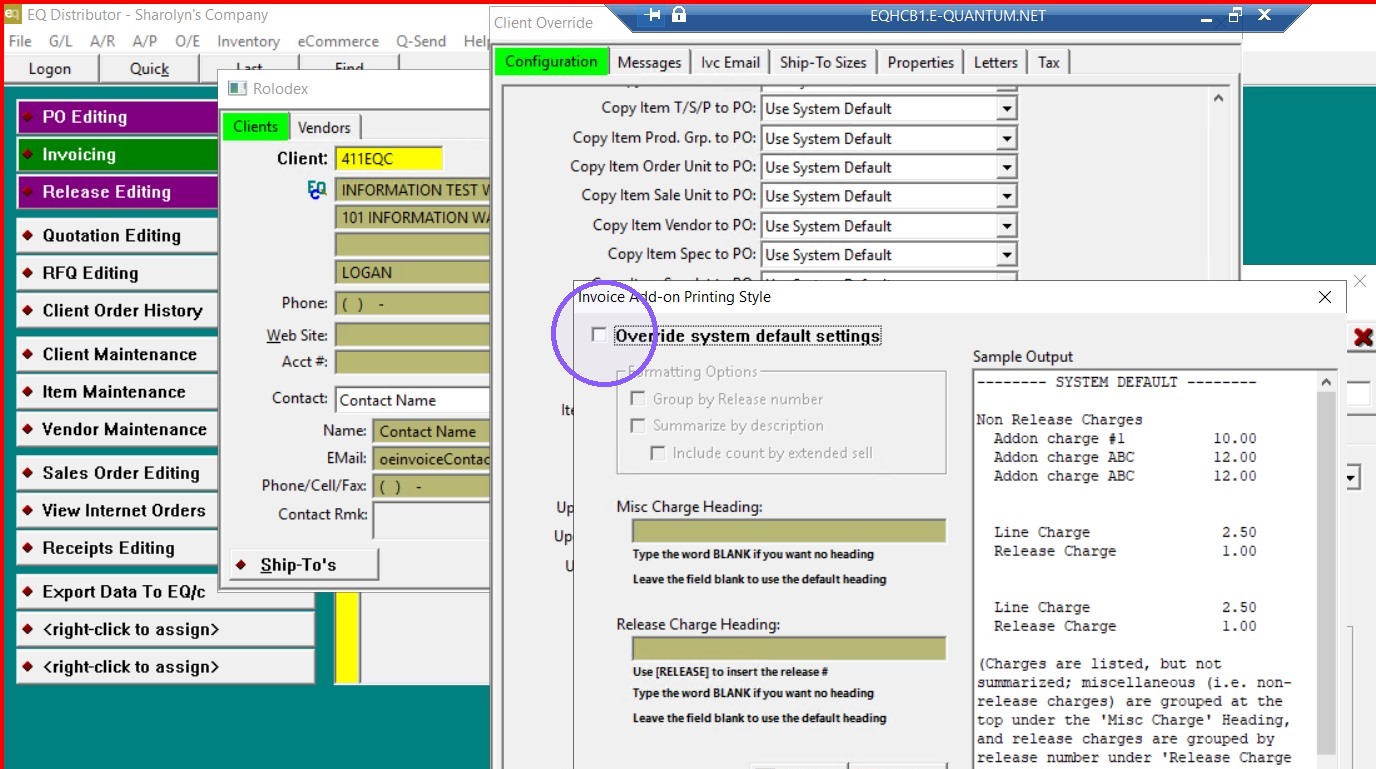
13. Select the desired Formatting Option
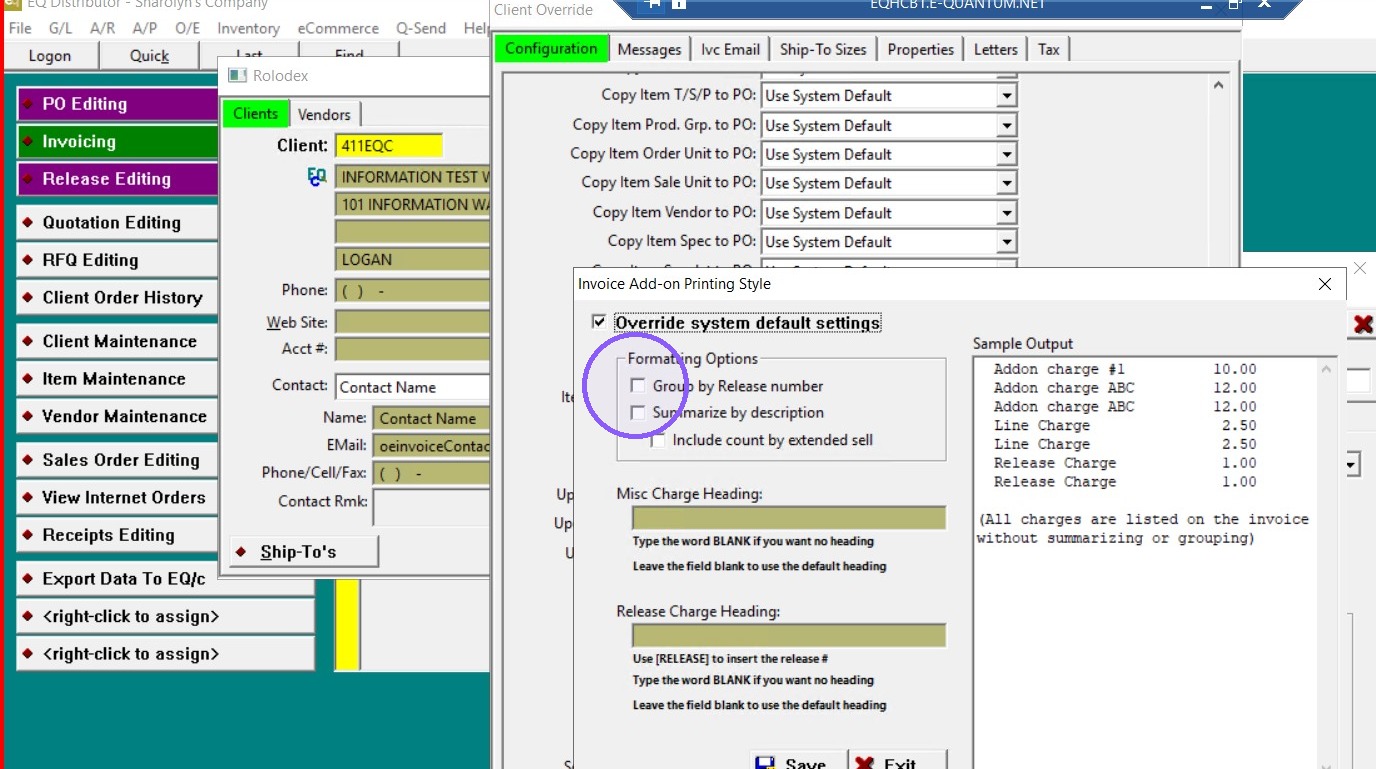
14. Update the Headings as desired
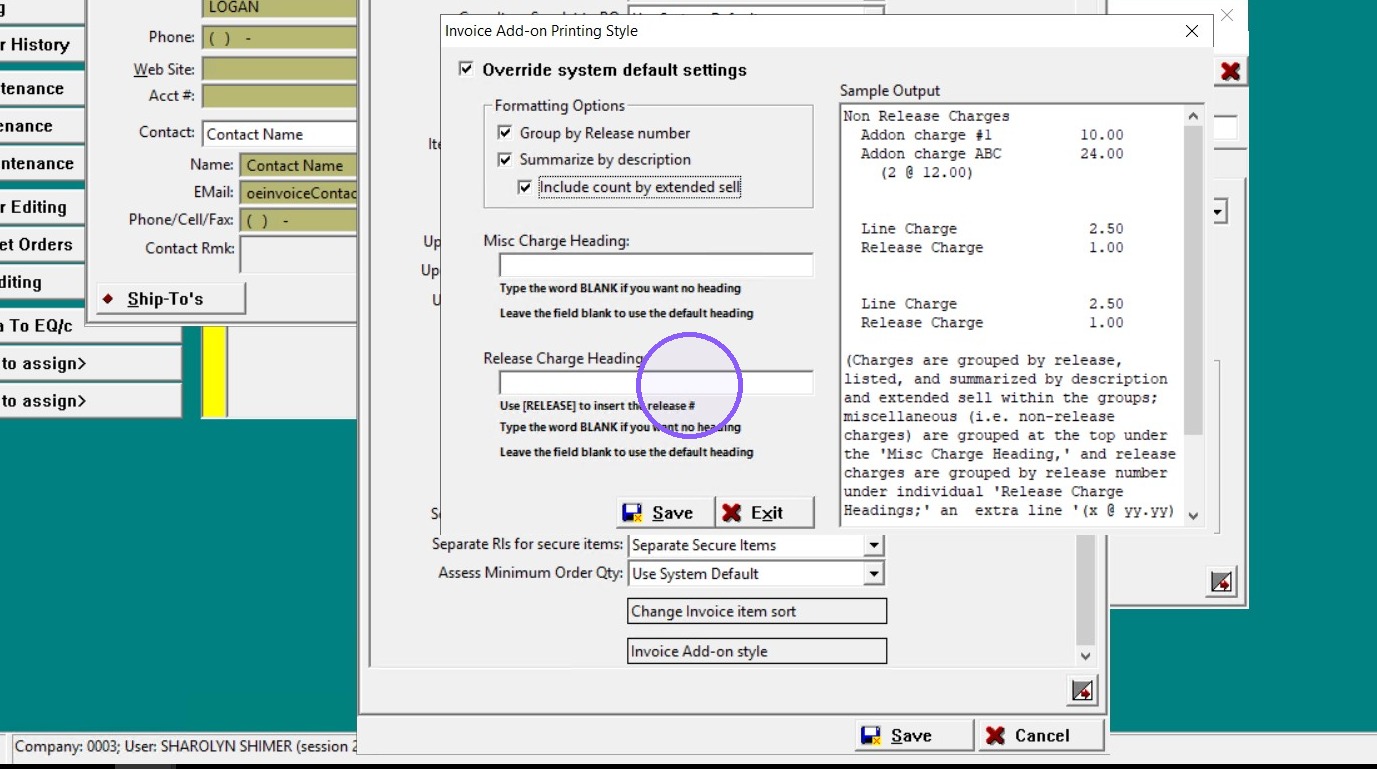
15. Type BLANK if you want no heading
16. Click Save
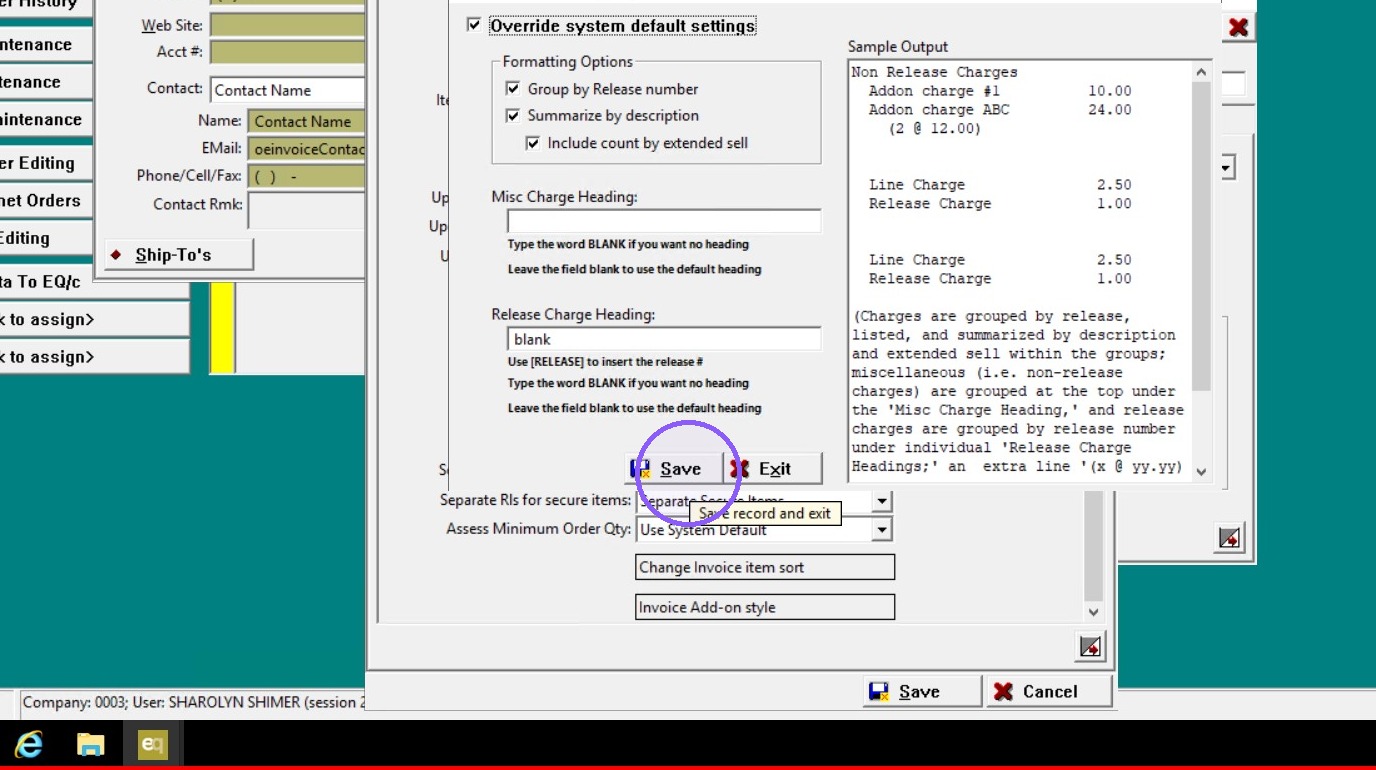
17. And Save again at the bottom of the page
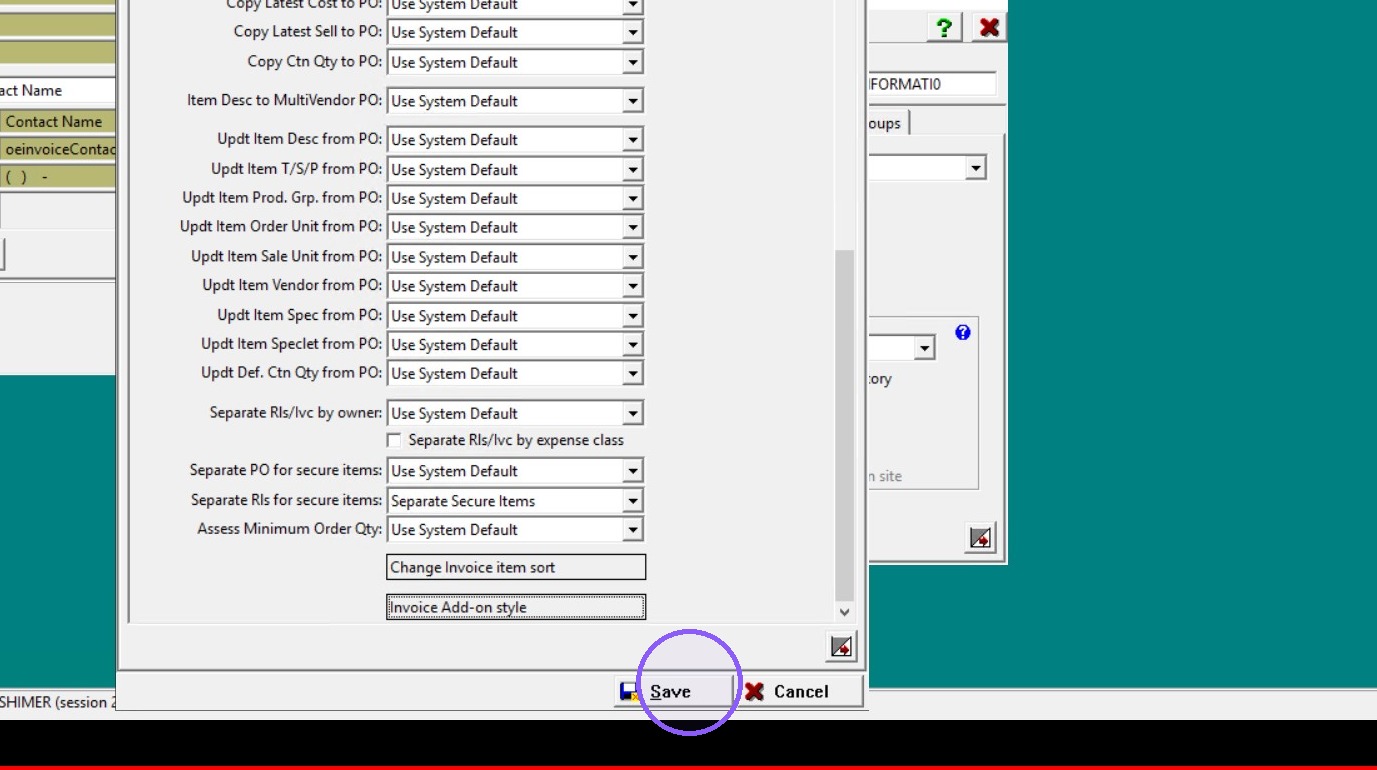
18. Click Save on the Client Maintenance Record
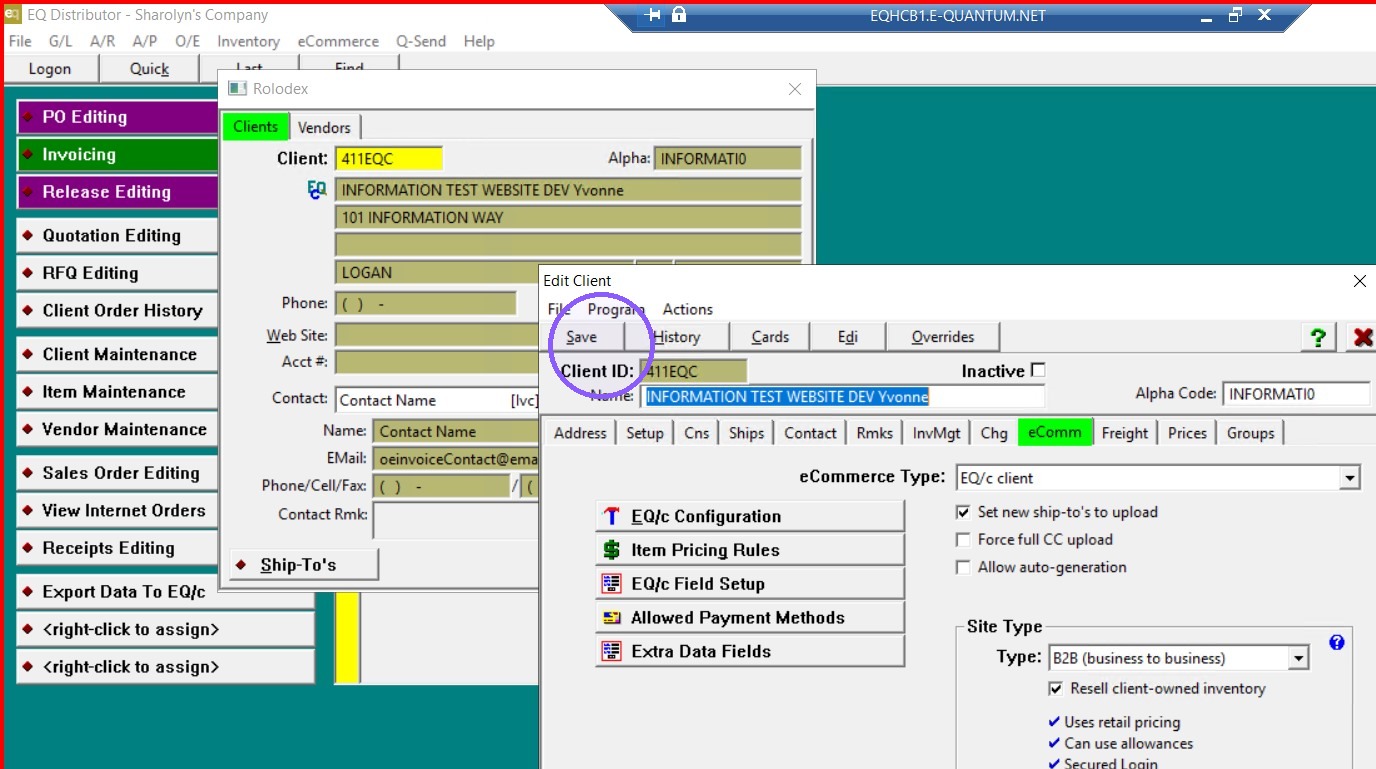
19. Test the invoice process to see the change.
20. Preview Invoice
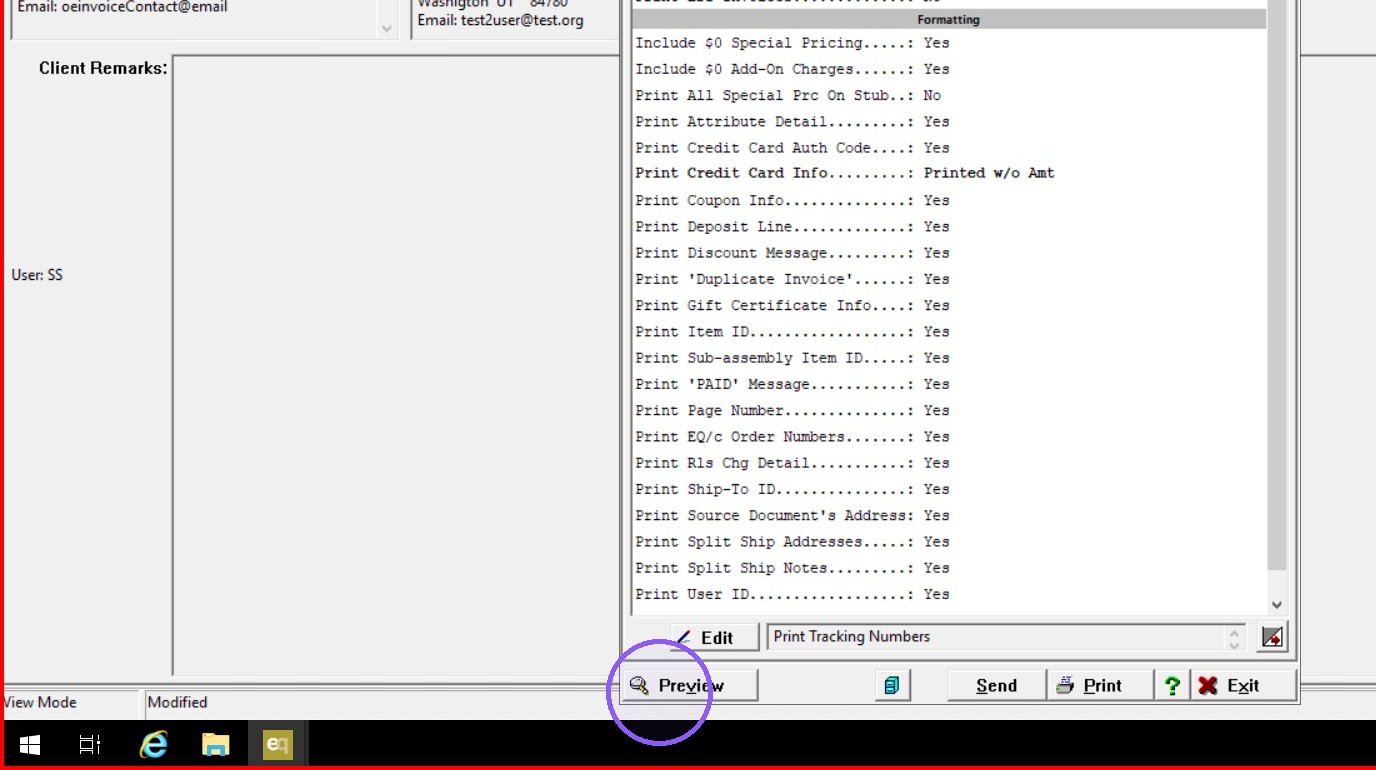
21. Click "Input Capture Window"