
EQD: Create a Local Backup From the EQD Remote Desktop
Here are step by step instructions on how to create a local backup of the company folder for the EQD software
1. Log into the EQD remote desktop and click on the yellow folder so you can browse files.

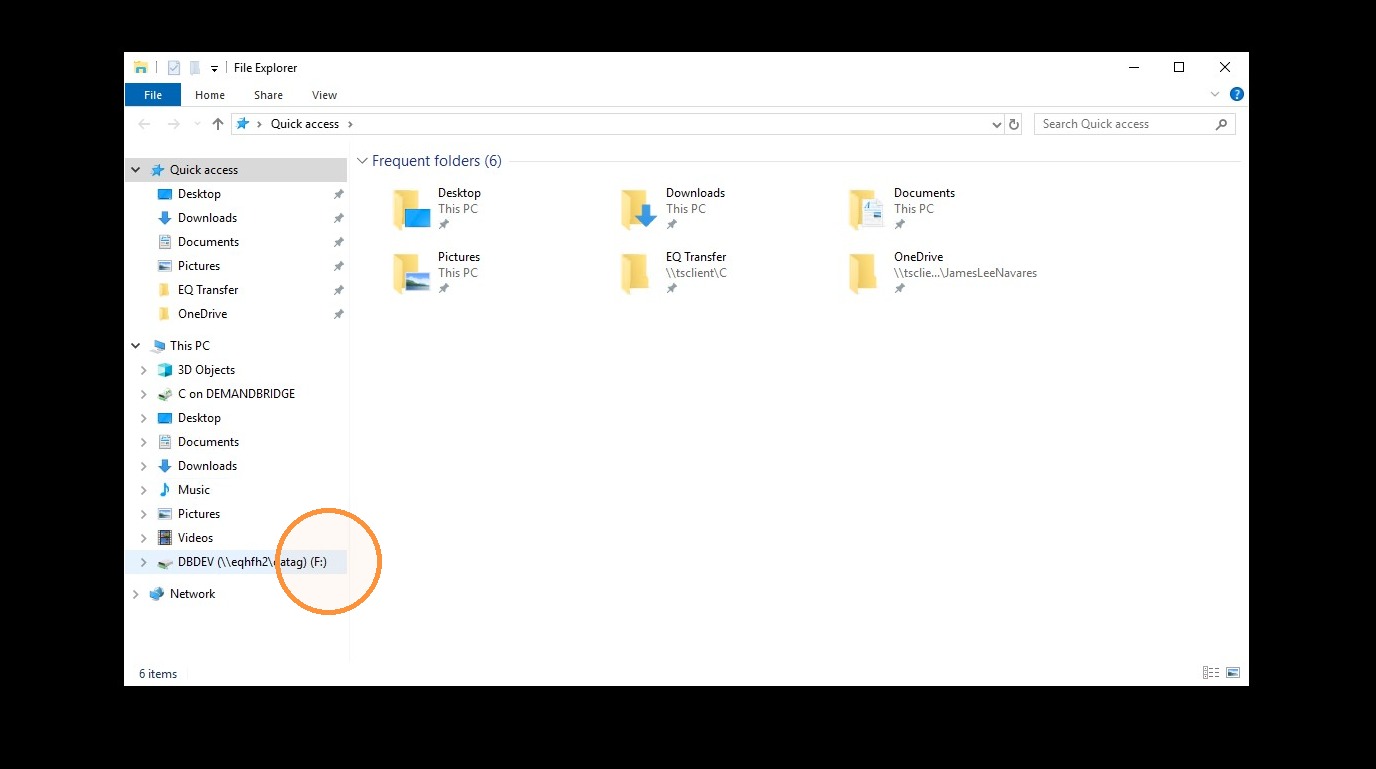
2. Open the F:
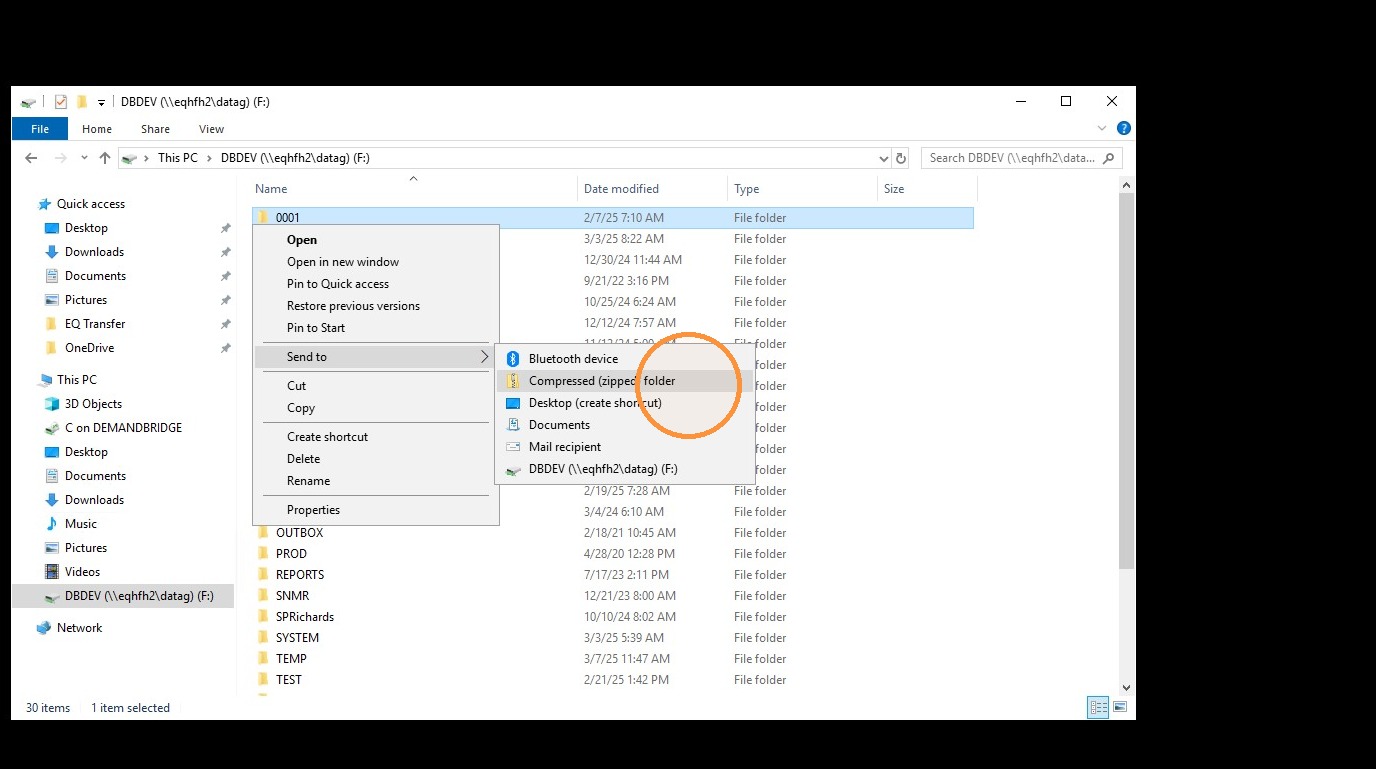
3. Right click on the 0001 folder (or whatever the company folder name is) and go to Send to> Compressed (zipped) folder.
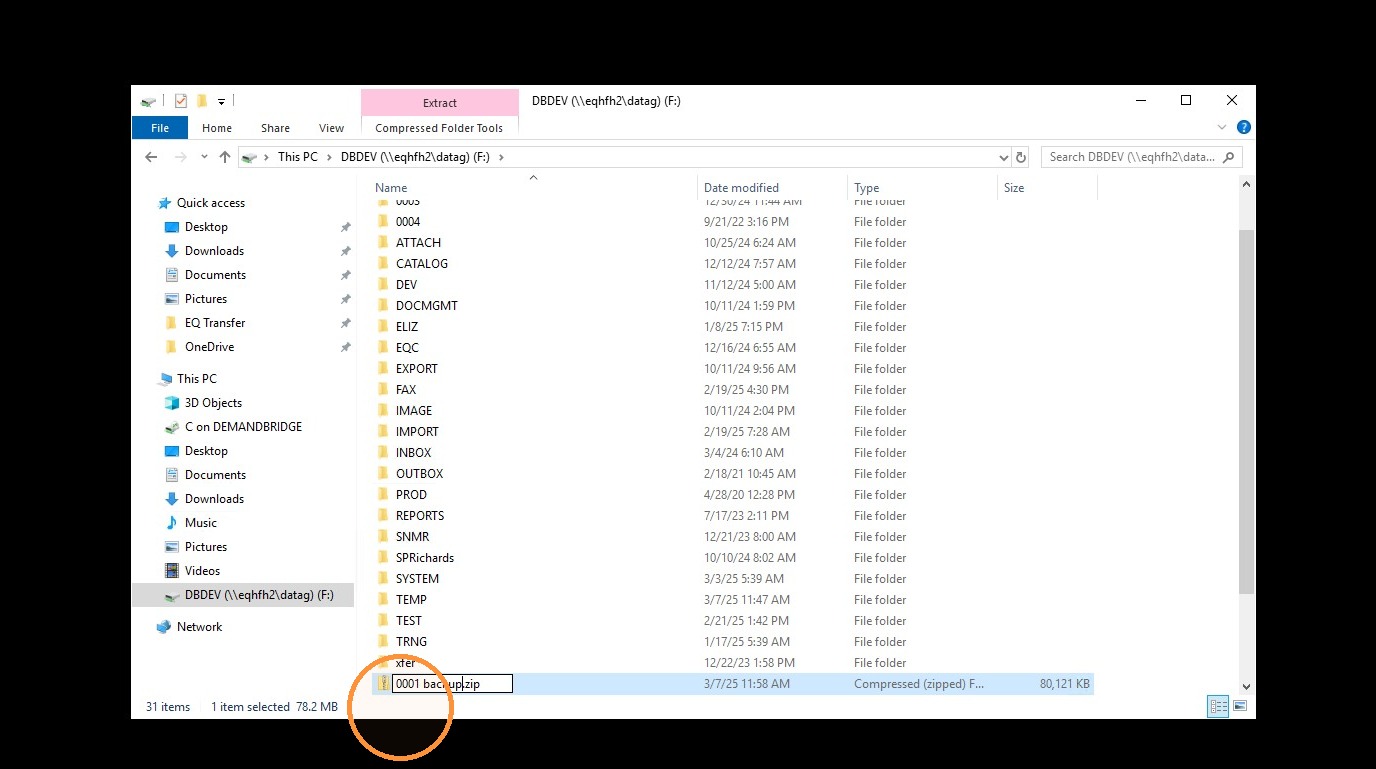
4. It is recommended that you rename copy
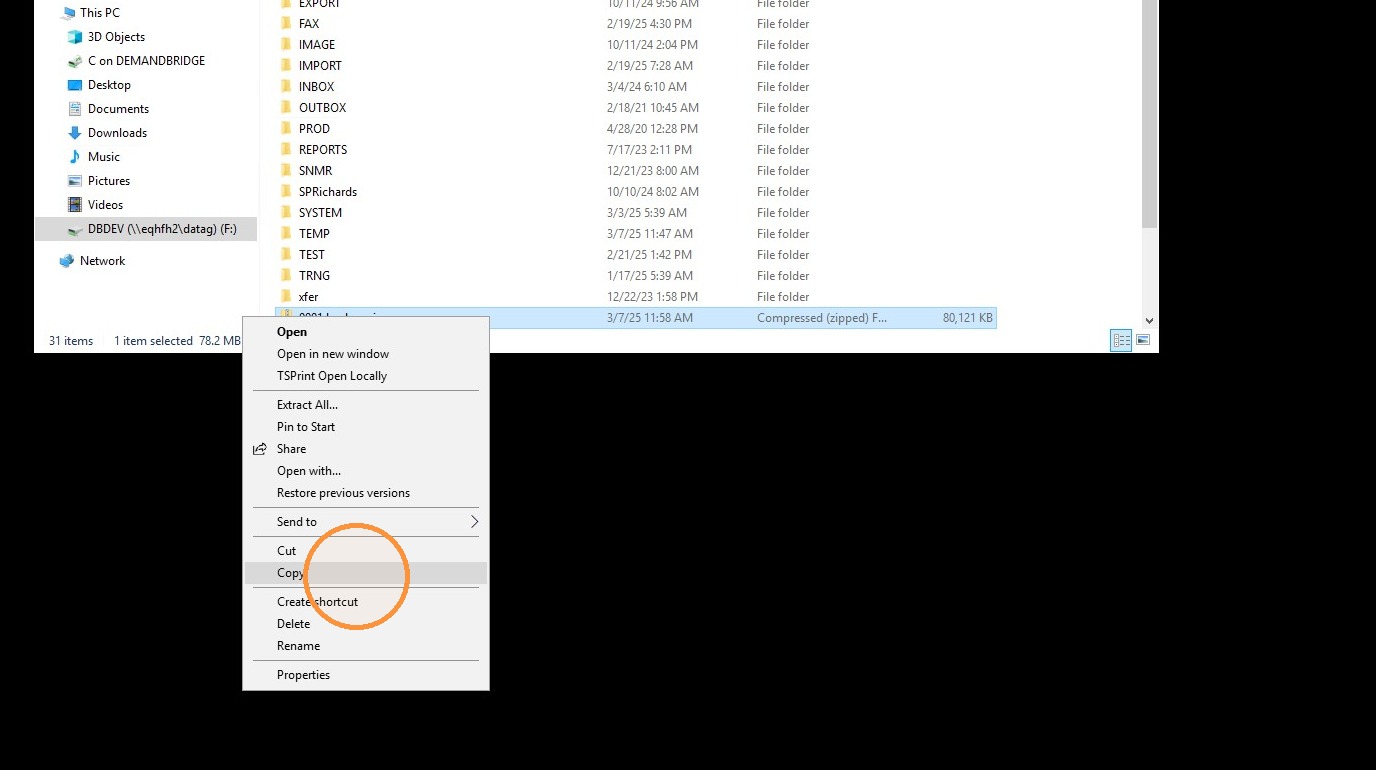
5. Right click and "copy" the zipped file.
6. While still in the remote desktop navigate to the connected C: of your local computer
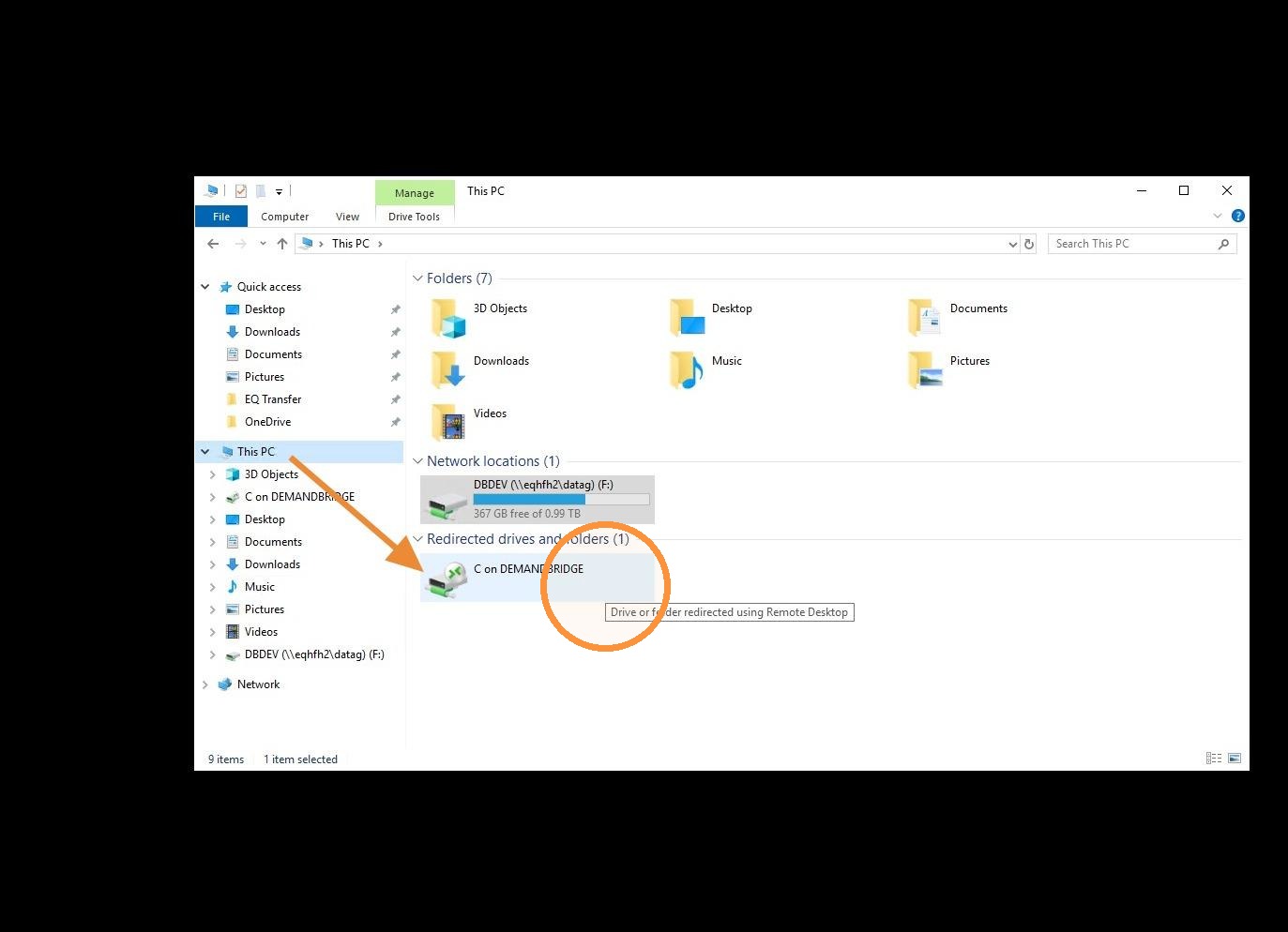
7. Choose a location where you would like to save the backup and "paste" to that location
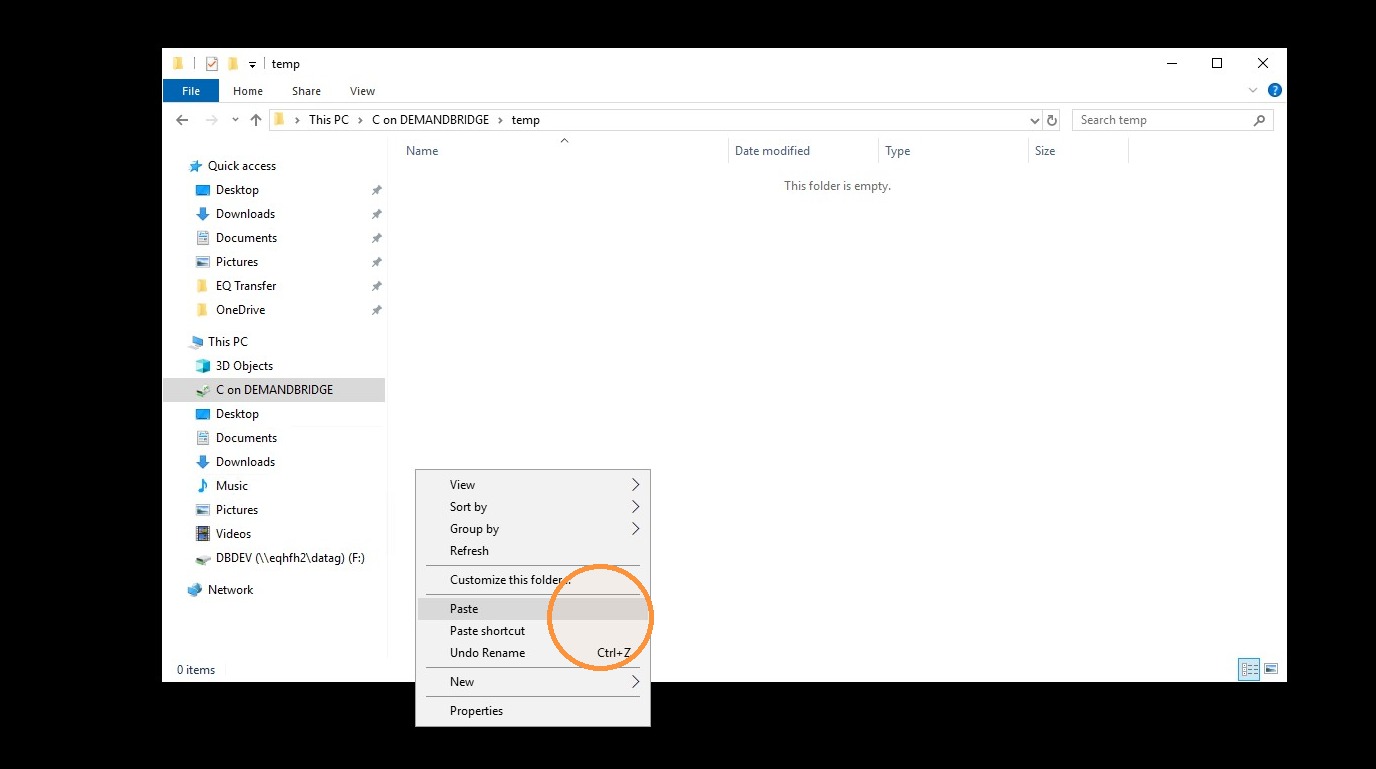
8. Be advised:
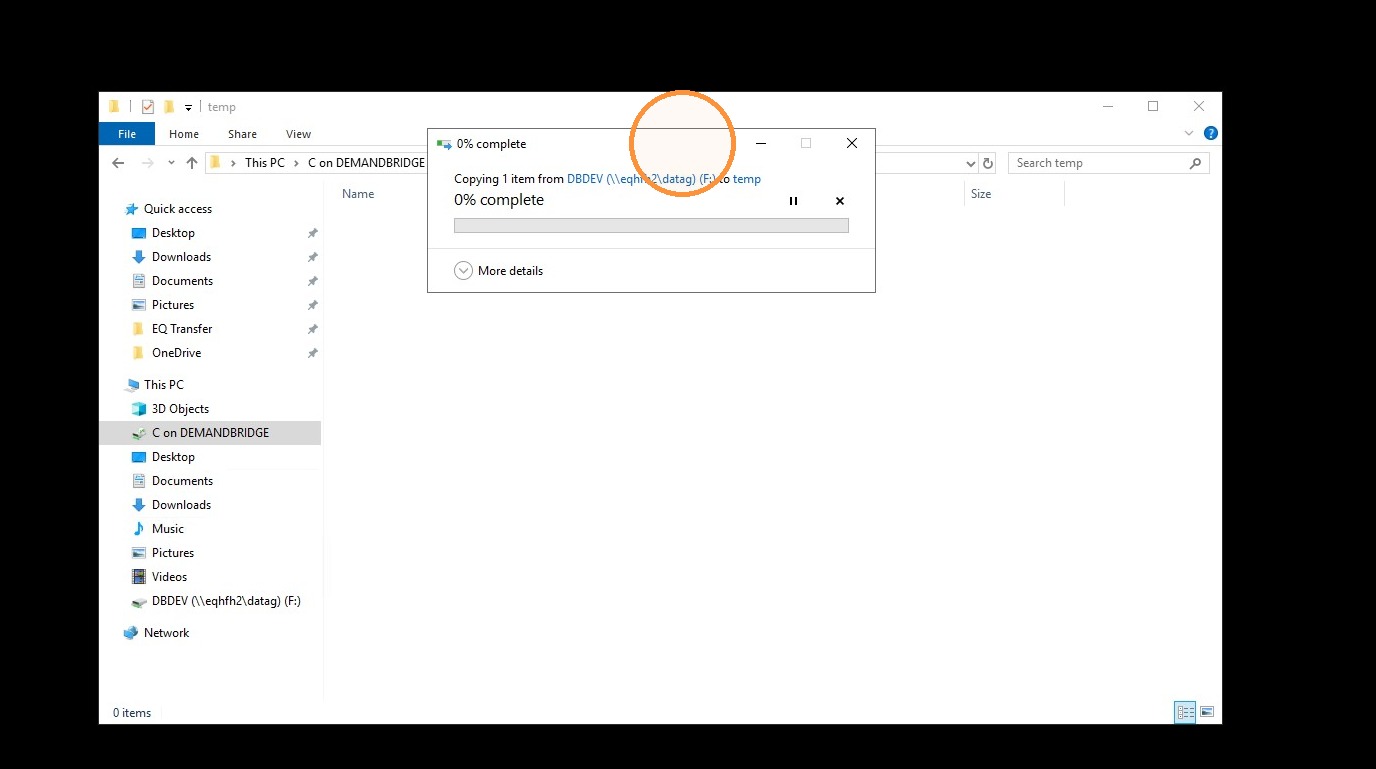
- Depending on the size of the company folder and the speed of your connection it can take some time to put the copy onto your local computer.
- It is also recommended that you check how much space the location you are copying to has to make sure there is enough room.
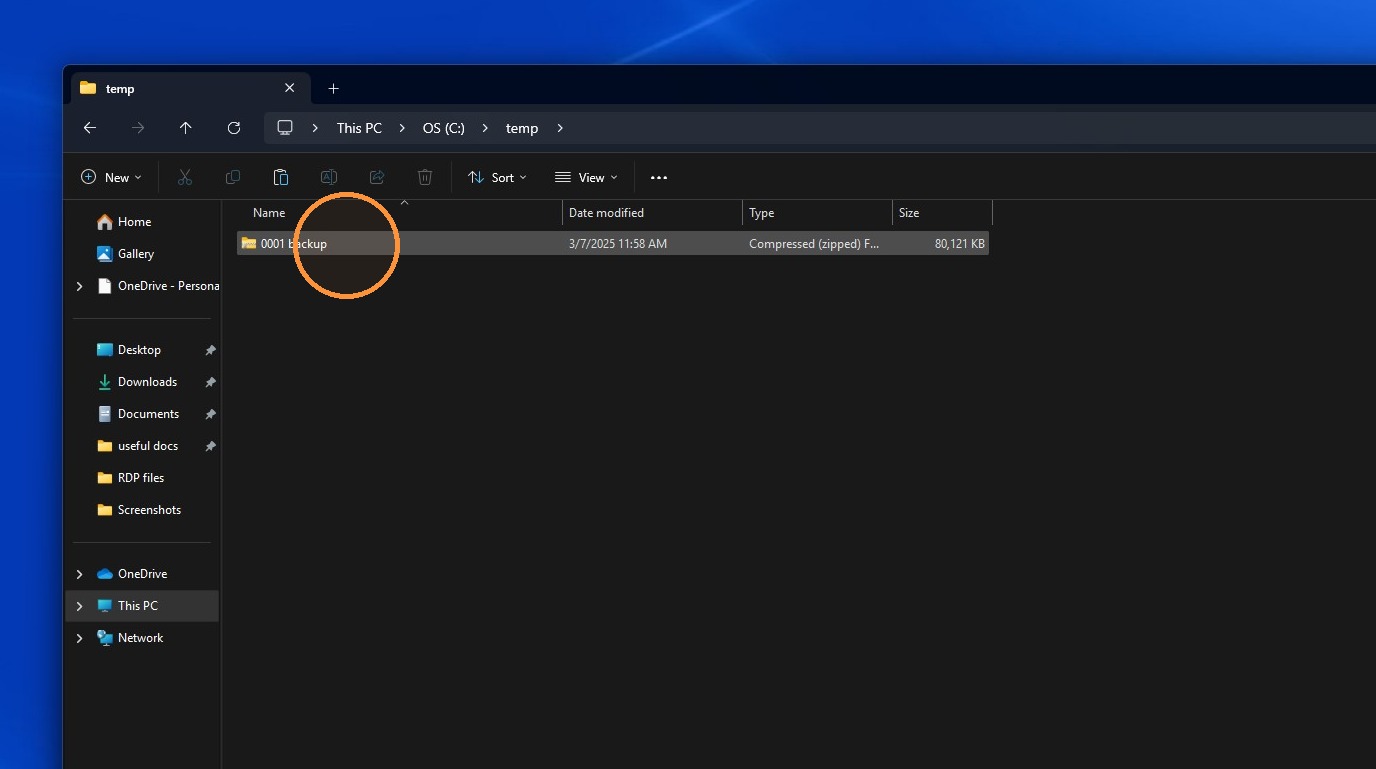
9. Once the copy is complete you should see it on the C: on your local computer, in the location where you copied it to.
Tip: If you have any further questions, feel free to contact DemandBridge support.