
EQC:How To Set Up A Manager Profile Based On Dollar Amount
Tip: These steps outline how to create a manager approval to send the order to a different manager based on the dollar amount spent by the customer.
The rules are entered by importance. If you are adding a rule for Min/Max, that rule must be listed in the first position.
The rules are reviewed in the order of Rank. If the item or order conditions are met, the item or order is sent to the manager(s) in the rule. The remaining rules are not assessed.
All conditions of the rule must be met to apply. If the rule is for over $100 and a specific catalog or category, all other items are ignored.
1. In Distributor Setup > Administration, log into the client as the Administrator. Go to Admin Settings.
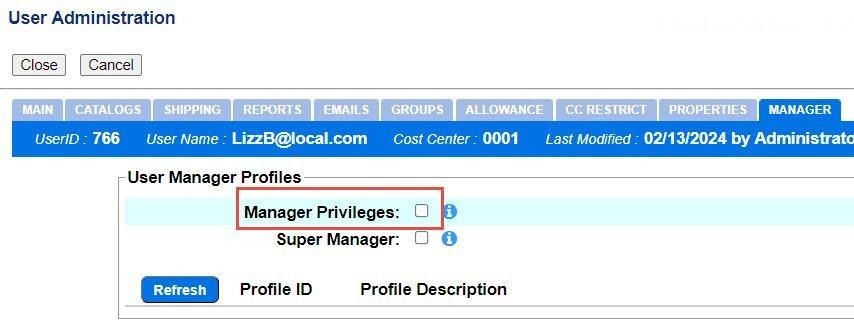
Before setting up the manager profiles, make sure the managers that will be used are marked as Manager. This setting is on the Manger tab of user setup.
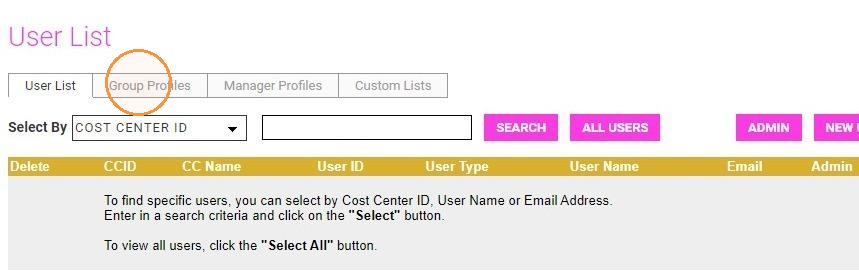
2. Click on Group Profiles.
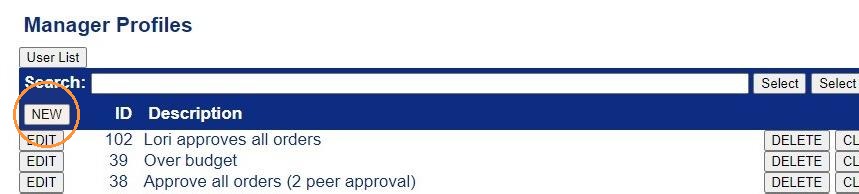
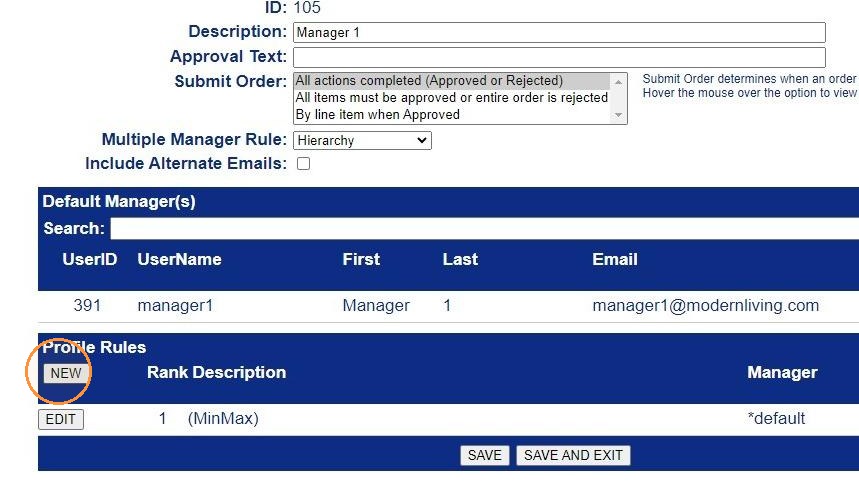
3. Click New or edit an existing profile.
4. Add a description for the profile.
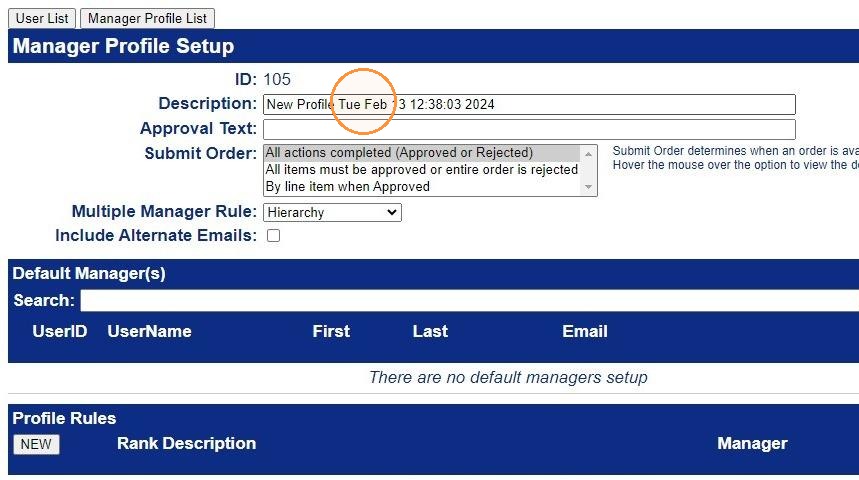
5. Change the Submit Order if needed. Hover over selection to view the description.
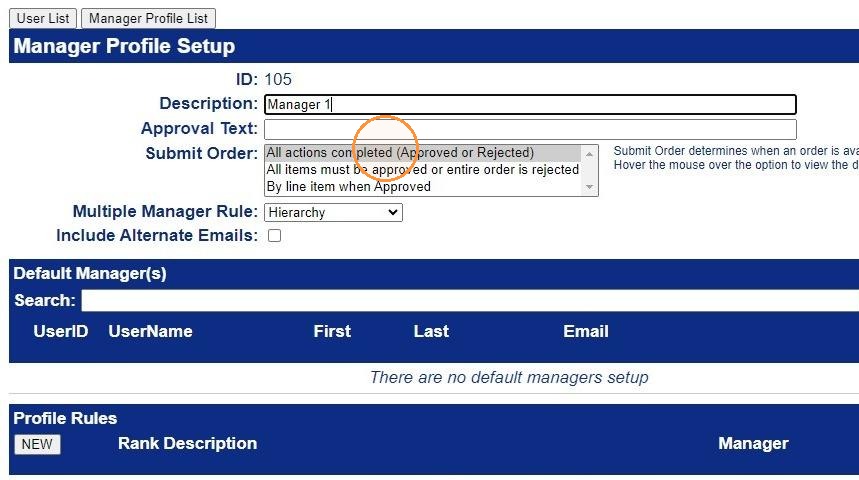
6. Change the rule for Multiple Managers if there are multiple managers assigned as the default. If only one default manager, the rule can be Hierarchy.
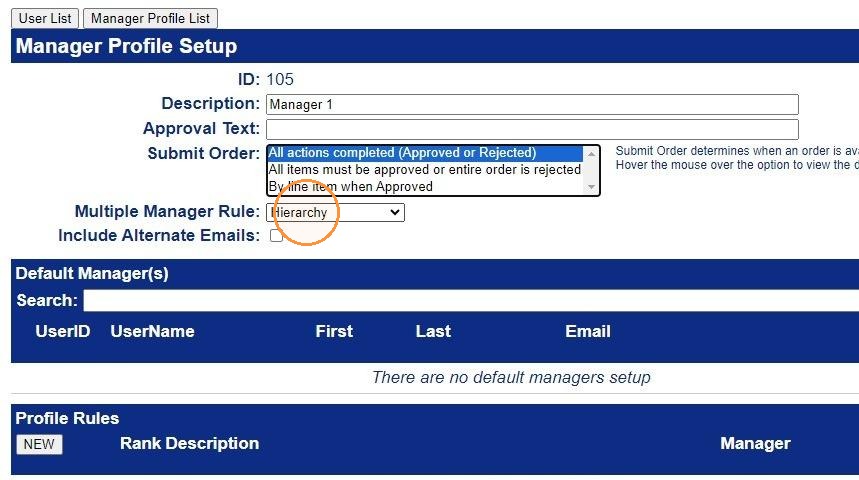
7. Enter the manager(s) for the profile. This can be the manager for the Override rule.
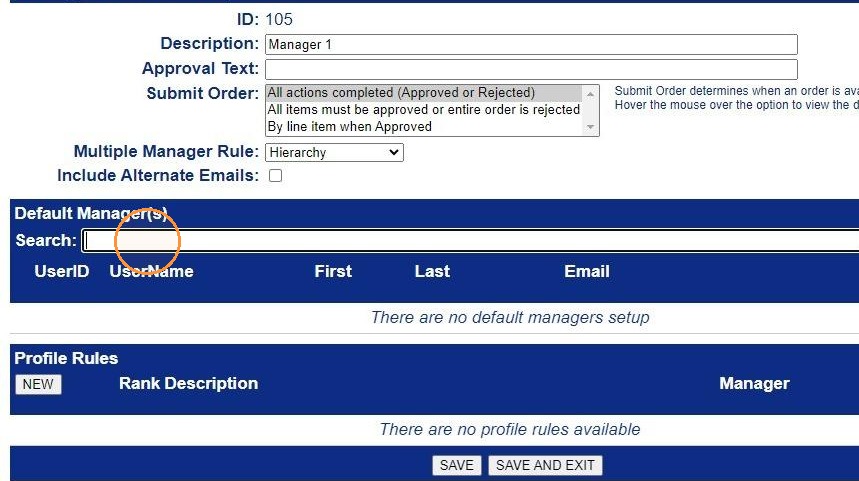
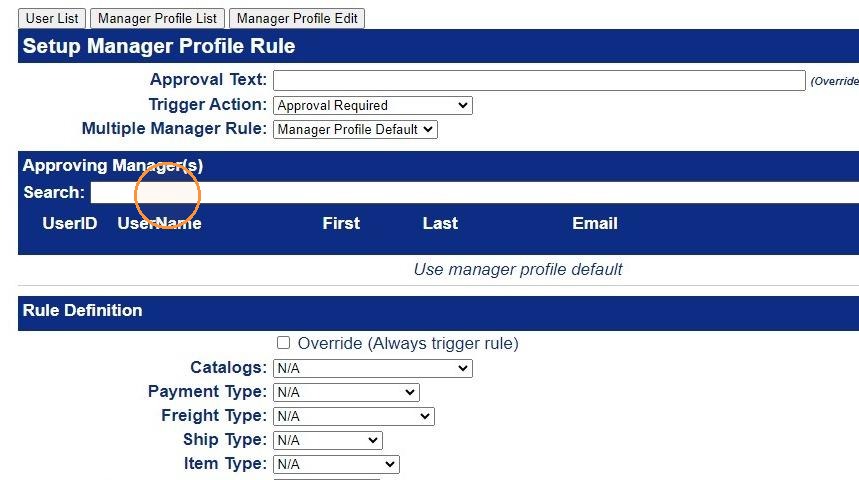
8. Type the manager's name or email to select the manager.
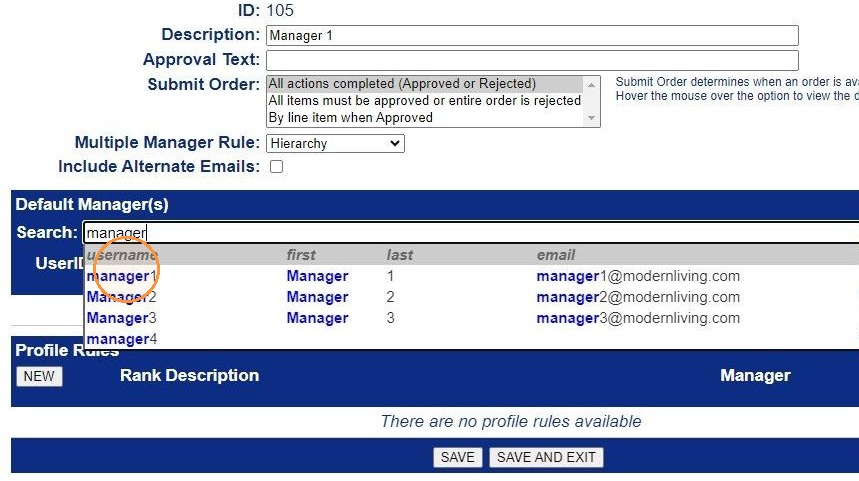
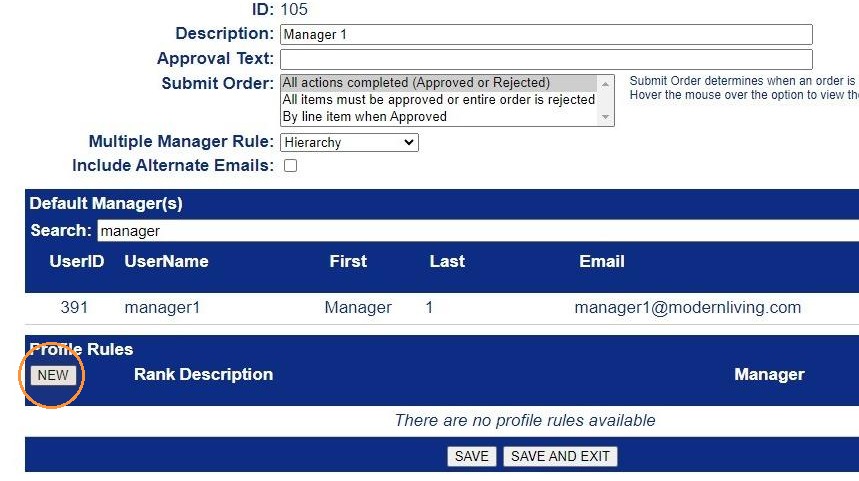
9. Click New to create the first rule.
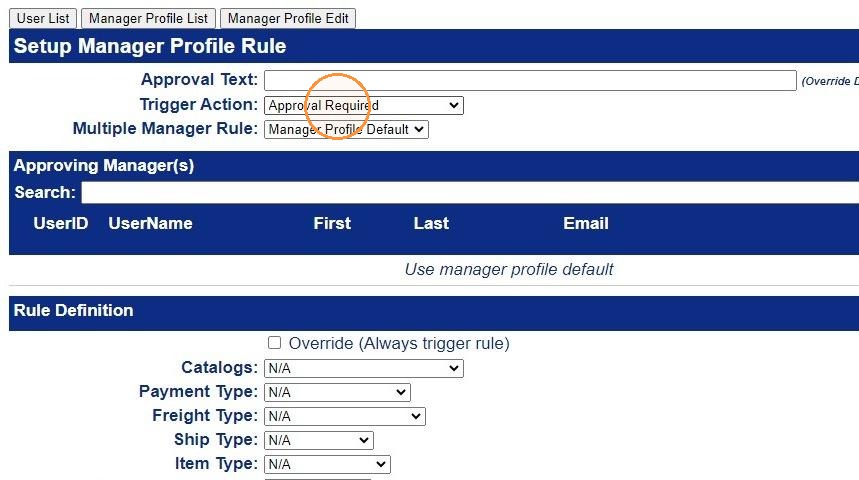
10. Choose a trigger action:
- Approval required - if the item or order rule is triggered, the order or item is sent to the manger for approval.
- Reject - if the item or order rule is triggered, the order is rejected.
- Warning - if the item or order rule is triggered, the user is warned.
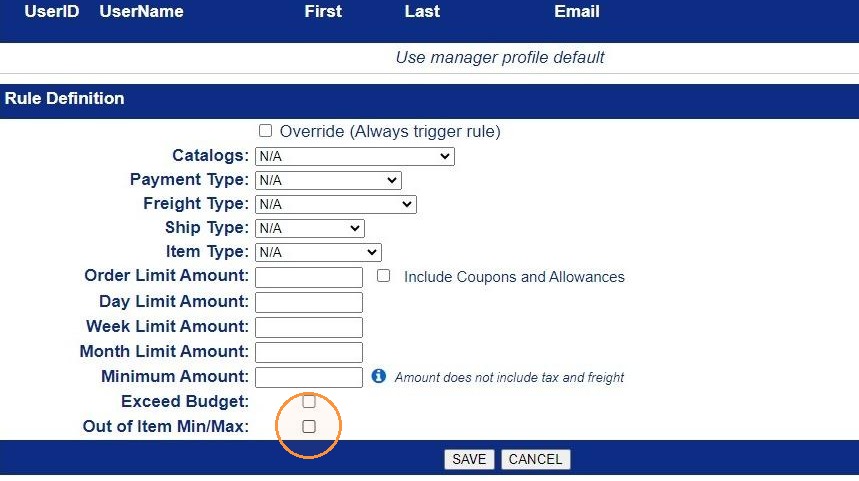
11. When using min/max restriction on the items, the first rule needs to be Out of Min/Max.
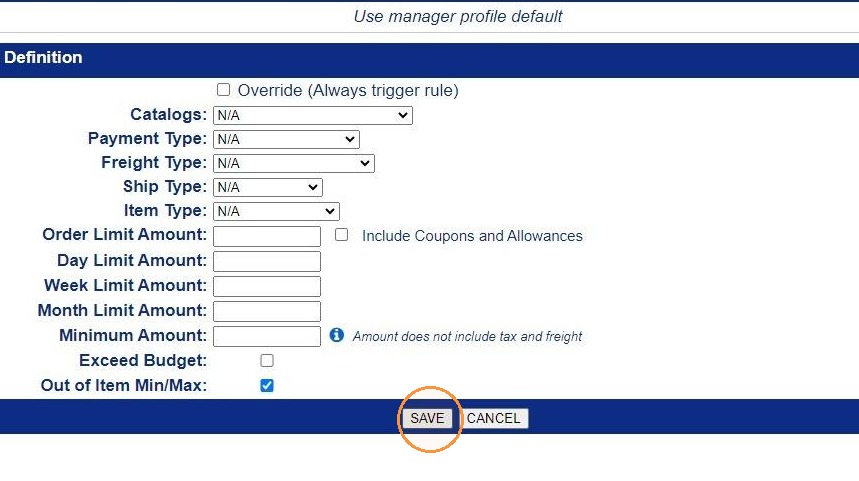
12. Click Save.
13. Add the rule for the dollar amount. The highest dollar amount should be entered first. When rules are being accessed they are read in order from Rank 1 to the last. If the lower amount is first, the order for the higher amount is never accessed.
14. Enter the manager(s) for highest dollar amount rule. Enter the manger name or email address.
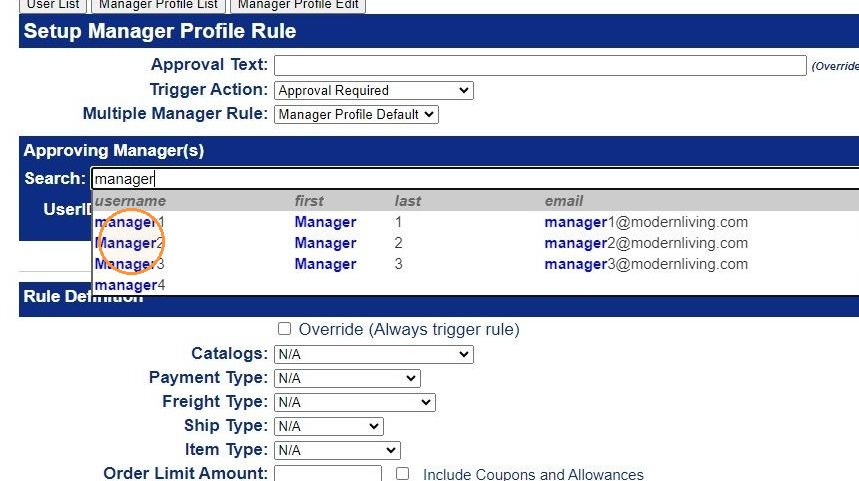
15. Enter an asterisk to view all manager. Select from the list.
16. Enter the dollar amount that the order goes to the entered manager.
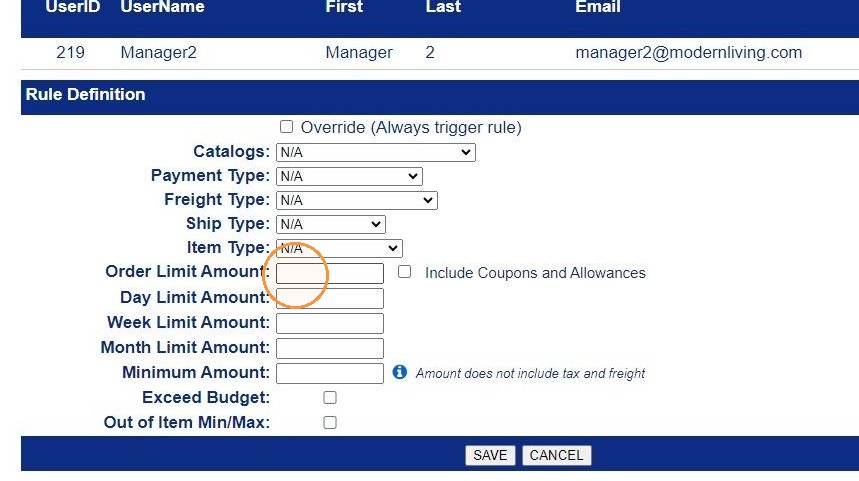
17. the Include Coupons and Allowances includes the coupons and allowances in the balance when determining the order is over the order limit.
Click Save.
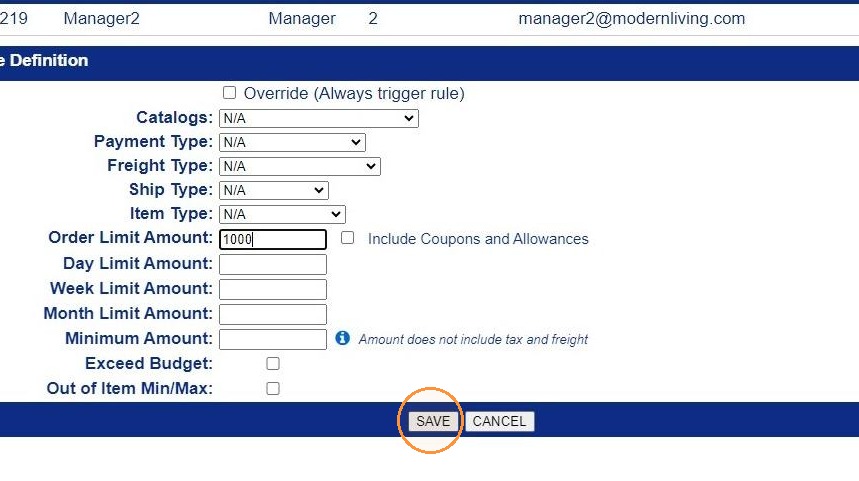
18. The rule is entered as Rank 2. In this example, if the items are within the min/max amount, the next rule is assessed. If the order is over $1,000, the order is sent to Manager 2. If the order is under $1,000, the order does not need approval.
To enter another dollar level for approval, click New.
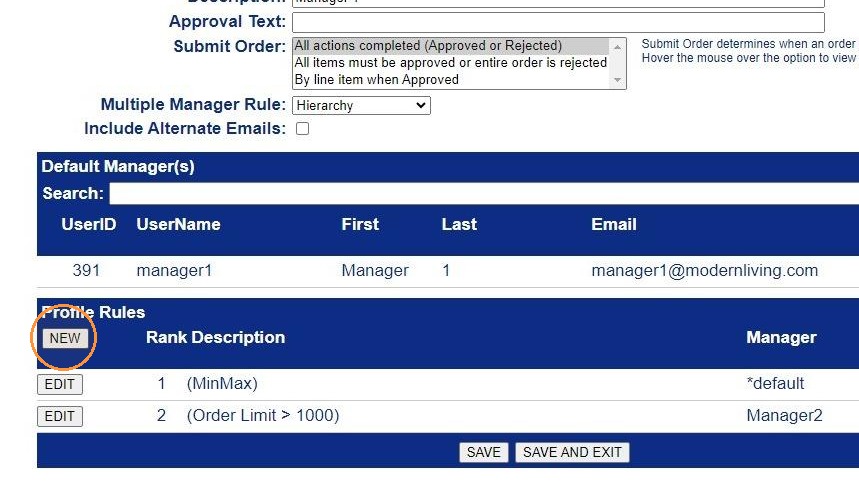
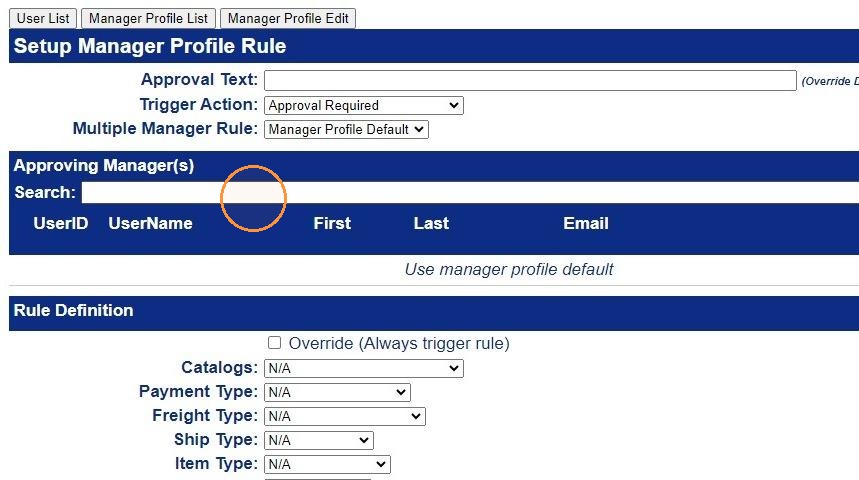
19. Enter the manager for the next dollar level.
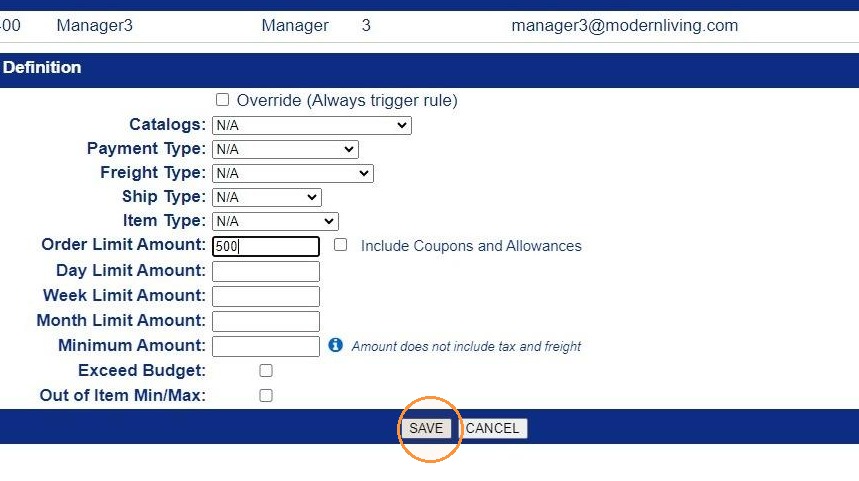
20. Enter the Order Limit Amount.
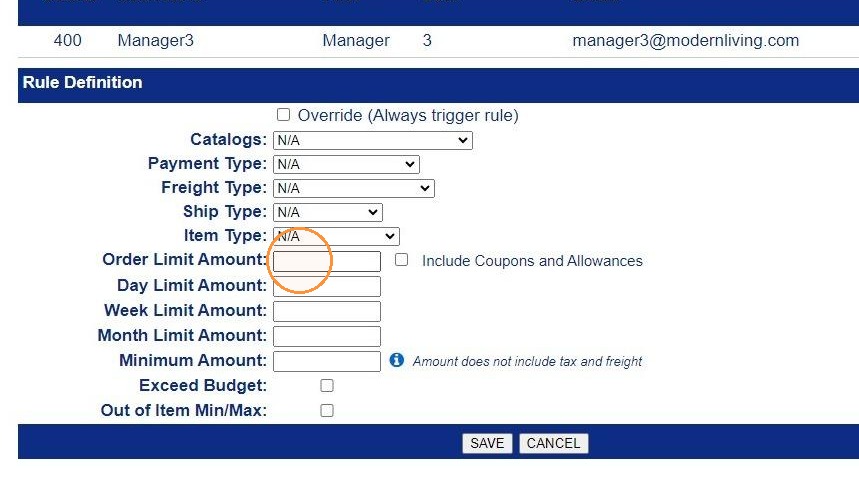
21. In this example, the next order limit is $500. Click Save.
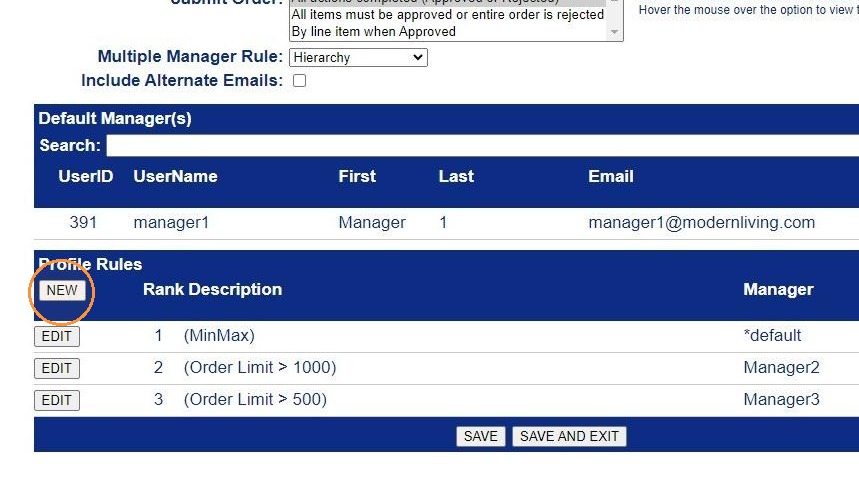
22. If the order is under the dollar limits, a new rule can be added the sends those orders to the default manager.
Click New.
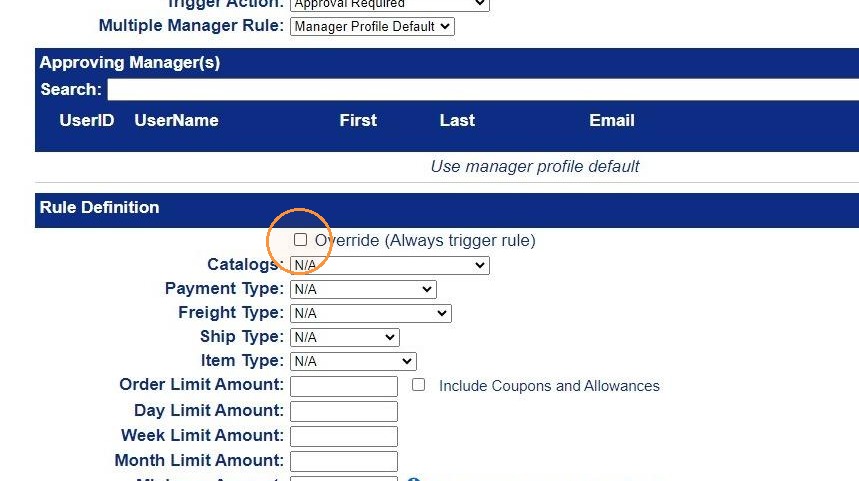
23. You do not need to enter the manger, the Default Manager for the profile is used., Mark the Override (Always trigger rule). This sends all orders (that did not get sent to another manager) to the default manager listed on the 1st page.
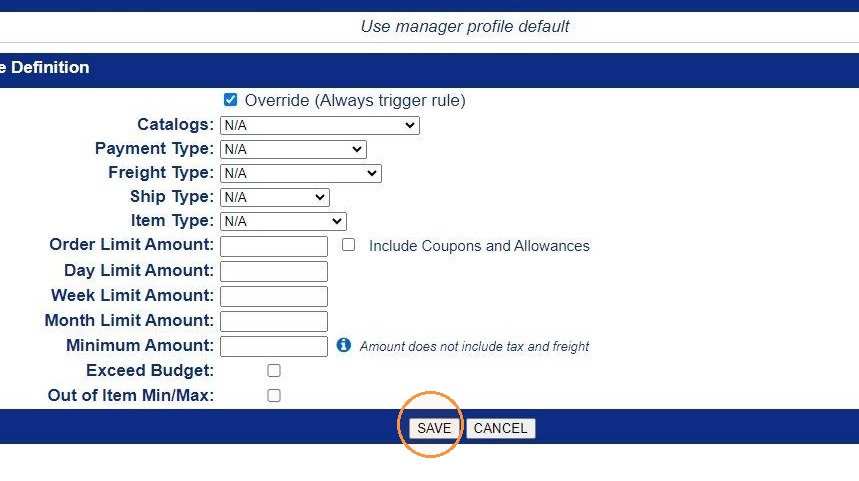
24. Click Save.
25. In this example, the min/max rule (Rank 1) stops the user from ordering items that are out of min/max. The rule is set to Reject. The user cannot submit the order until all items are within the min/max range. This rule is applied when the items are in the cart.
The Over Limit and Override are applied when the order is submitted.
Rule 2 looks for orders that are over $1,000. If the order is over $1,000, the order is sent to the manager in the rule, Manager 2.
Rule 3 is only assessed if the order is not stopped by rule 2. Rule 3 looks for orders that are over $500. If the order is over $500 the order is sent to the manager in the rule, manager 3.
If the order is not over $500, the rule is bypassed and the next rule is assessed.
The last rule in this profile is Override. The override sends the order to the manager listed (default manager from the field above).
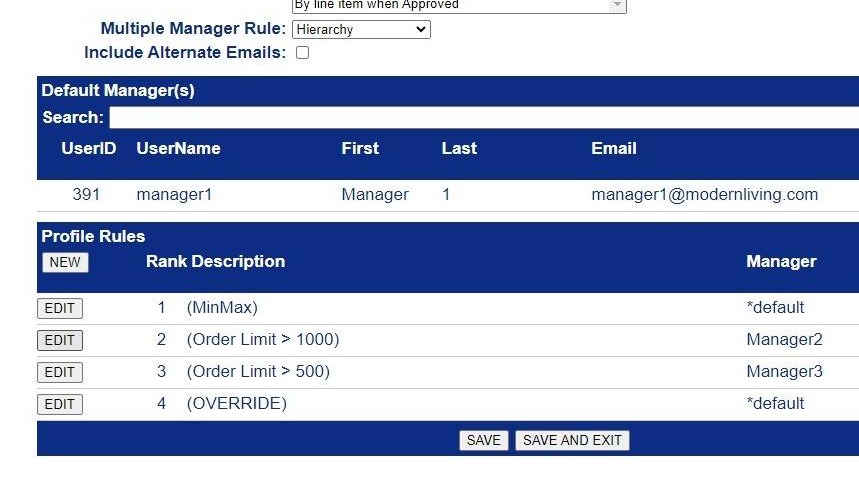
26. Always list the larger amount Order Limit rule first. If the lower amount is listed 1st, the higher amount rule is never assessed because the prior rule applied. The order would be sent to the manager in that rule.
The last step it to apply the manager profile to the user.